
One of 15+ Modules
Advanced Divi Cart Products Module
Advanced Divi Cart Products module replaces WooCommerce's cart table with a product list you design, in six templates from a classic row to a card grid. Shoppers change quantities and remove items in place, and each line can carry sale and low-stock badges, attributes, and product meta.
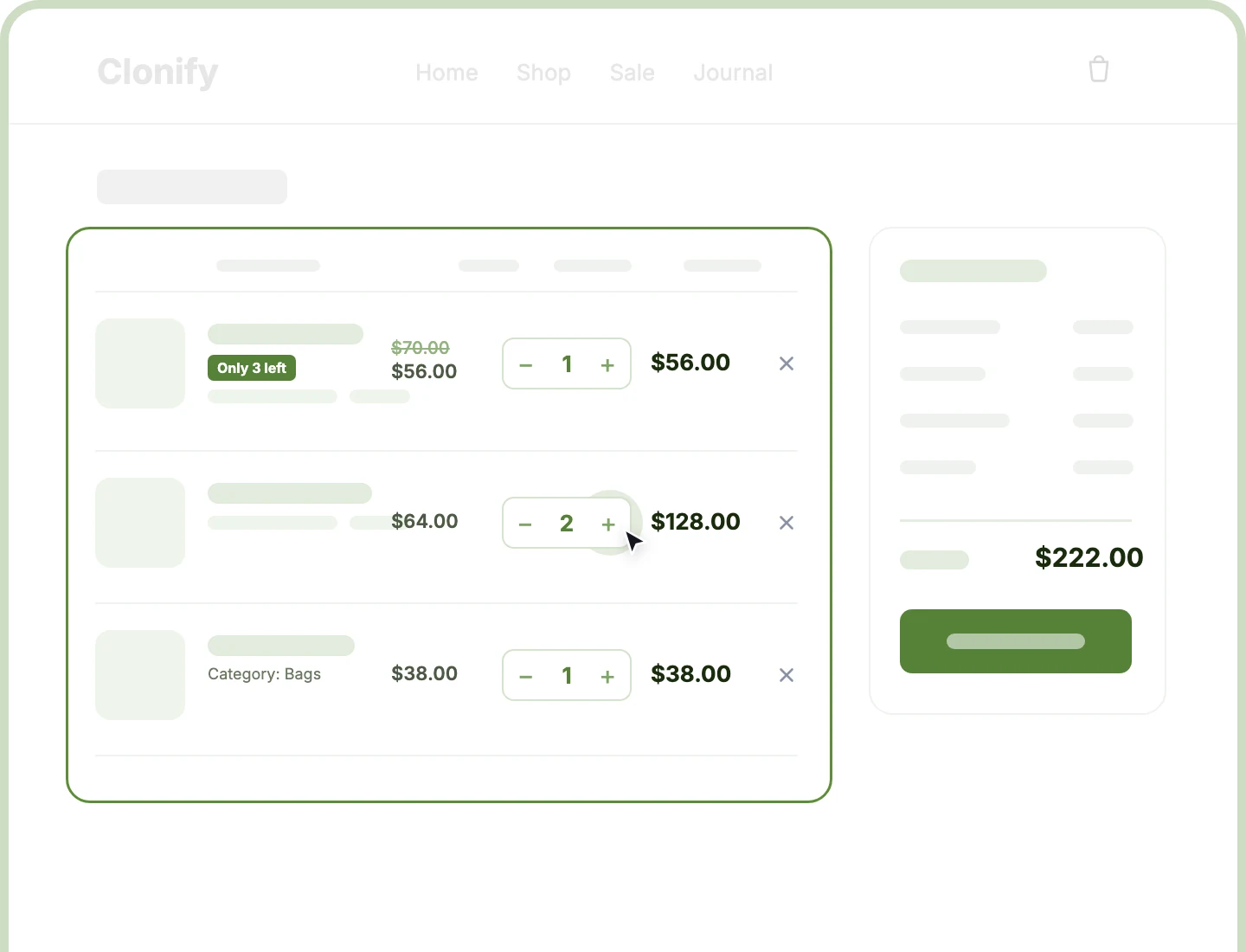
Six Cart Templates
Show cart products as a classic table, a compact list with quantity below, or one of four card layouts, from Grid Card to Media Card.
Instant Quantity Updates
Shoppers press + or − and each line's subtotal updates in place, so the cart stays current with every tap, right on the cart page.
Badges and Meta
Show Sale, Low Stock, or Out of Stock badges and product facts like SKU or shipping class on each line, so shoppers buy with confidence.
Design a Divi Cart Product List That Keeps Shoppers Buying
Pick a Template That Fits Your Store

Pick Summary Card for a compact single-column cart, with the price inside each product line.
-
Use Grid Card or Media Card for image-led stores, or Stock Card when availability drives sales.
-
Stack the title, badges, attributes, and meta in your own order with drag and drop.
-
Turn off any element, like price or image, and its column closes up with the header.
-
Let each template rearrange itself for tablets, phones, and narrow cart columns, so nothing overlaps.
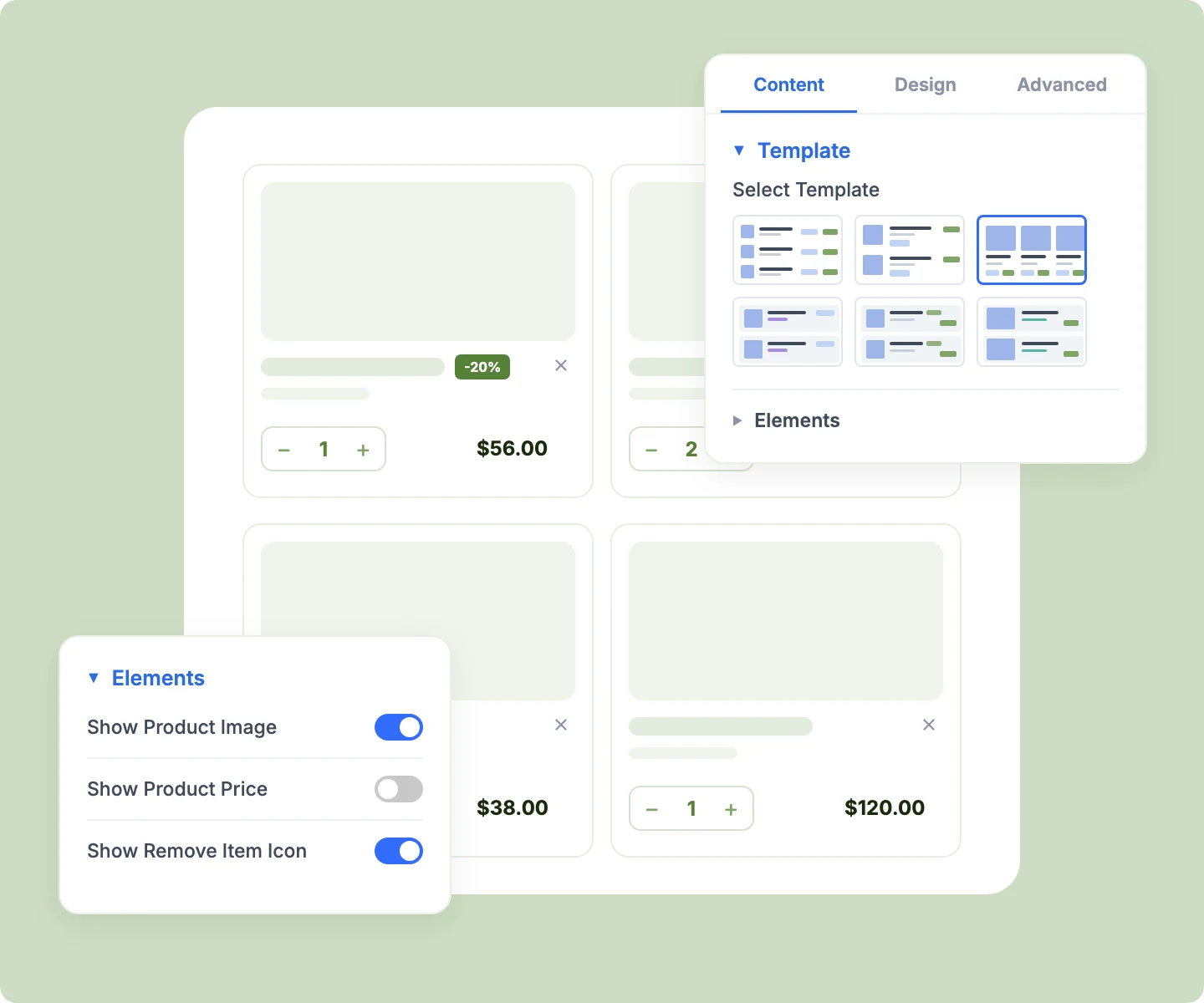
Let Shoppers Edit Their Cart Instantly
-
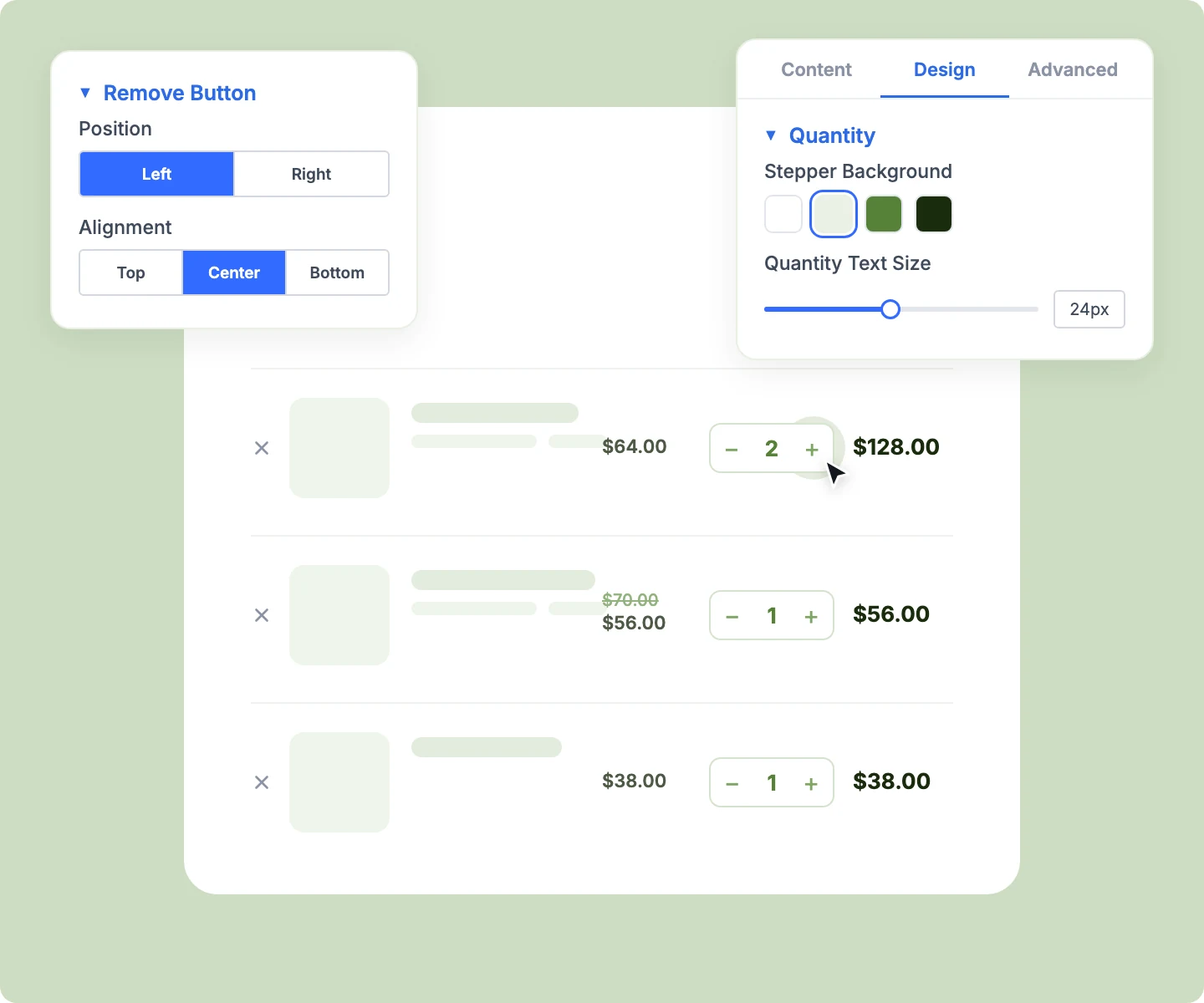
Update quantities with + and − buttons, and each line's subtotal refreshes in place as shoppers tap.
-
Remove a product with one click on the ×, placed on the left or right of the line.
-
Cap the stepper at the product's real stock, and keep sold-individually products at a fixed quantity.
-
Lock the stepper on a product that sells out while in the cart, leaving a clear remove option.
-
Keep Advanced Cart Totals in step with every change, so the order total matches the list.
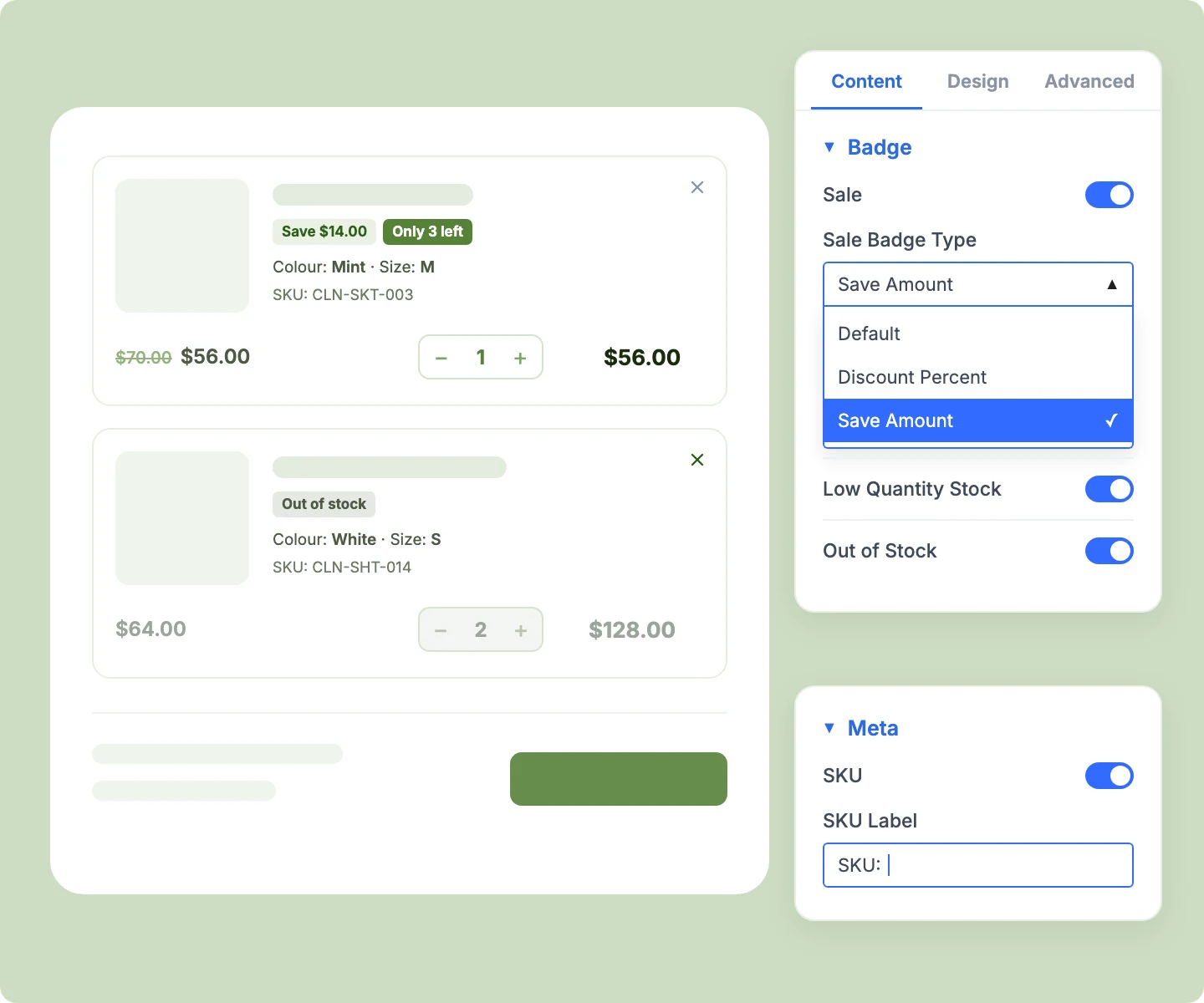
Give Every Cart Line More Selling Power
-
Show a Sale badge as "Sale," a discount like "-20%," or a saving like "Save $12.00."
-
Add Low Stock or "Only 3 left" badges, driven by your WooCommerce low-stock threshold.
-
Show the regular price struck through beside the sale price, so every saving stays visible.
-
Show variation attributes like color and size, with or without their labels, under each title.
-
Add product meta like SKU, brand, rating, or weight, each with your own label.
Design an Empty Cart Worth Seeing
-
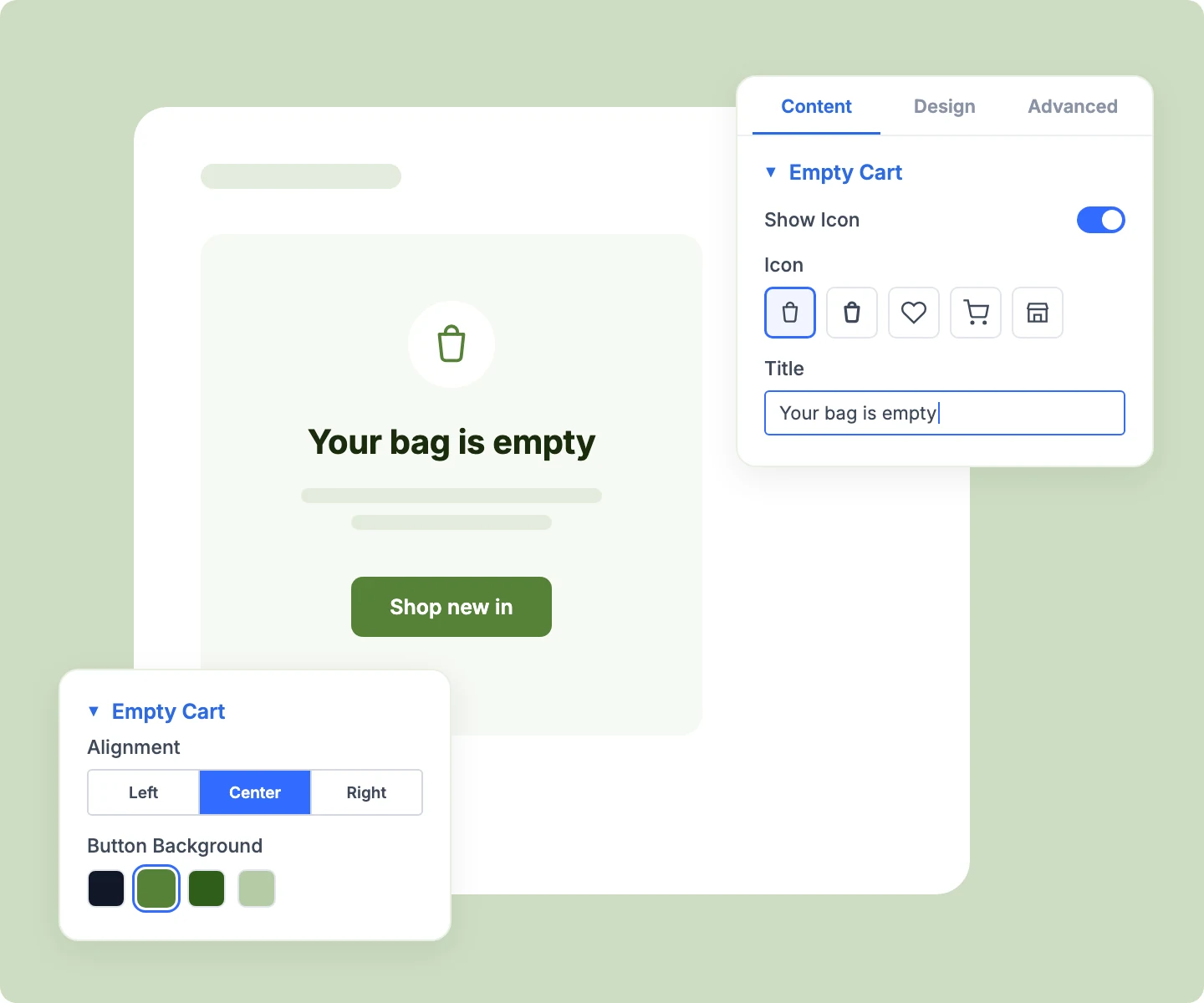
Add an icon, your own title, and a supporting line for the moment the cart is empty.
-
Link the Continue button to your shop, a sale page, or any URL that wins shoppers back.
-
Preview and style the empty state in the Visual Builder while your own cart stays full.
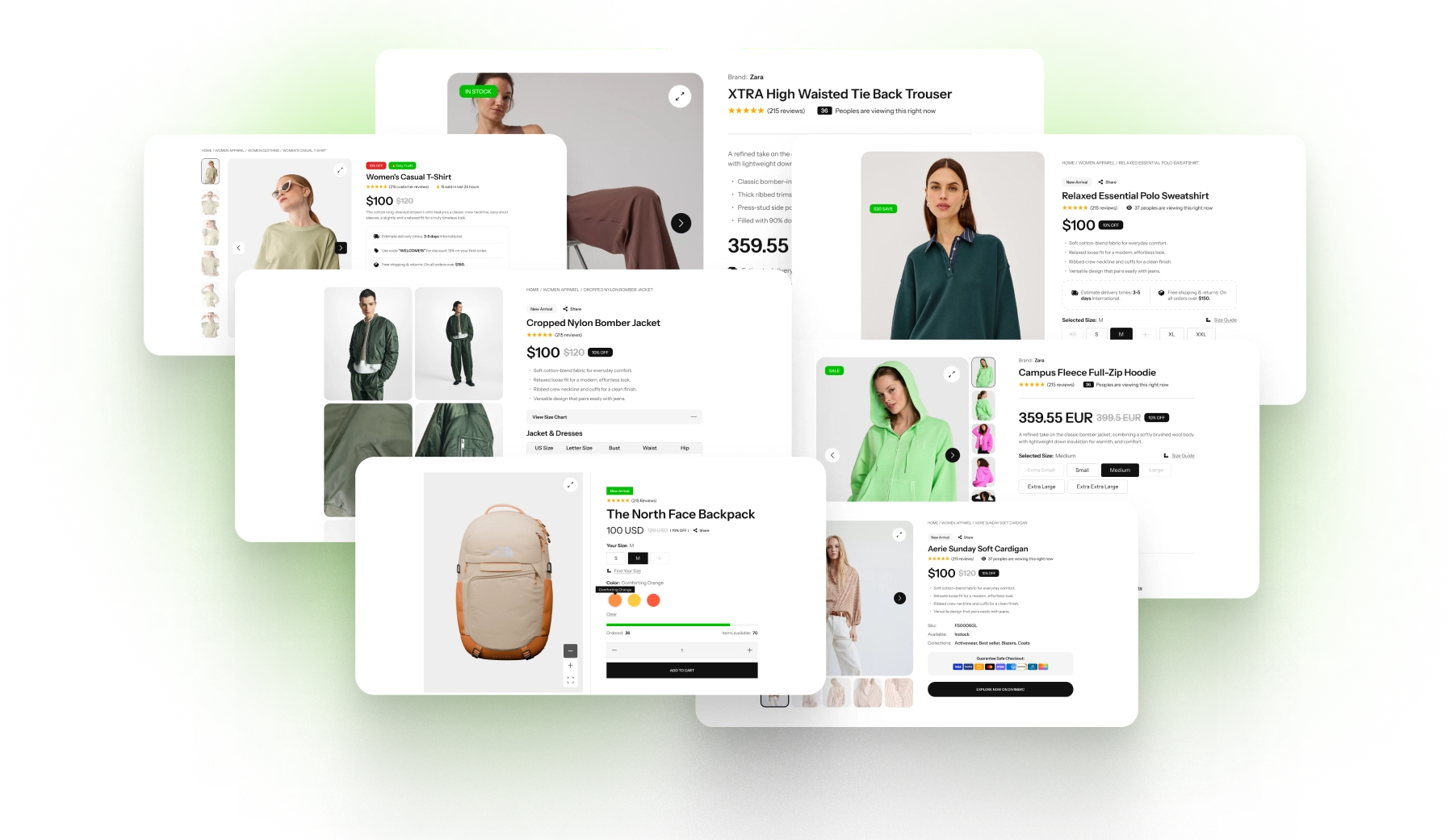
Free Ready-to-Use Cart Products Layouts to Get Started
Skip the setup with DiviMerc's pre-made cart layouts, from a classic table to a fashion card grid and an urgency cart. Each one is fully customizable and responsive, ready to drop into your Divi Theme Builder cart template. Pick a style, set your colors, and go live in minutes.
DiviMerc Advanced Cart Products vs Divi Woo Cart Products: Which Gives You More Control?
| Feature | DiviMerc Advanced Cart Products | Divi Woo Cart Products |
|---|---|---|
| Quantity changes | Update in place as shoppers press + or − |  Need the Update cart button Need the Update cart button |
| Cart layouts | Six templates, table or cards | WooCommerce's table only |
| Sale badge | "Sale," "-20%," or "Save $12.00" | Not available |
| Low-stock badges | Low Stock or "Only 3 left" | Not available |
| Original price on sale items | Struck through beside the sale price | Current price only |
| Product meta under each line | SKU, brand, weight, and five more | Not available |
| Attribute display | Inline or stacked, with or without labels | WooCommerce's default format |
| Empty cart | Icon, title, description, and button | WooCommerce's one-line message |
| WooCommerce cart rules and plugins | Same filters, same rules | Same filters, same rules |
Ready to Build a Cart Page That Keeps Shoppers Moving to Checkout?
FAQs on Cart Products for Divi
Everything you need to know about the Advanced Cart Products module before you get started.
What Is the Advanced Divi Cart Products Module?
How Is It Different From Divi's Woo Cart Products Module?
How Do I Add Advanced Cart Products to the Cart Page?
How Do Quantity Changes Update the Cart?
Where Do Totals, Coupons, and Checkout Go?
Which Badges Can I Show in the Cart?
Which Product Details Can Each Line Show?
Can I Hide Attribute Labels?
What Happens When a Product Sells Out in the Cart?
What Happens When Shoppers Remove a Line?
Can I Design the Empty Cart?
Will It Work With Subscription or Bundle Plugins?
Why Does the Visual Builder Show Demo Products?
Does Advanced Cart Products Work on Mobile?