One of 15+ Modules
Advanced Divi Add to Cart Module
Advanced Divi Add to Cart module replaces WooCommerce's plain add-to-cart area with one you design: a quantity stepper, six price-on-button layouts, and an in-cart state. The included Add to Cart Rules extension sets button labels, a login gate, and out-of-stock rules across your whole store.
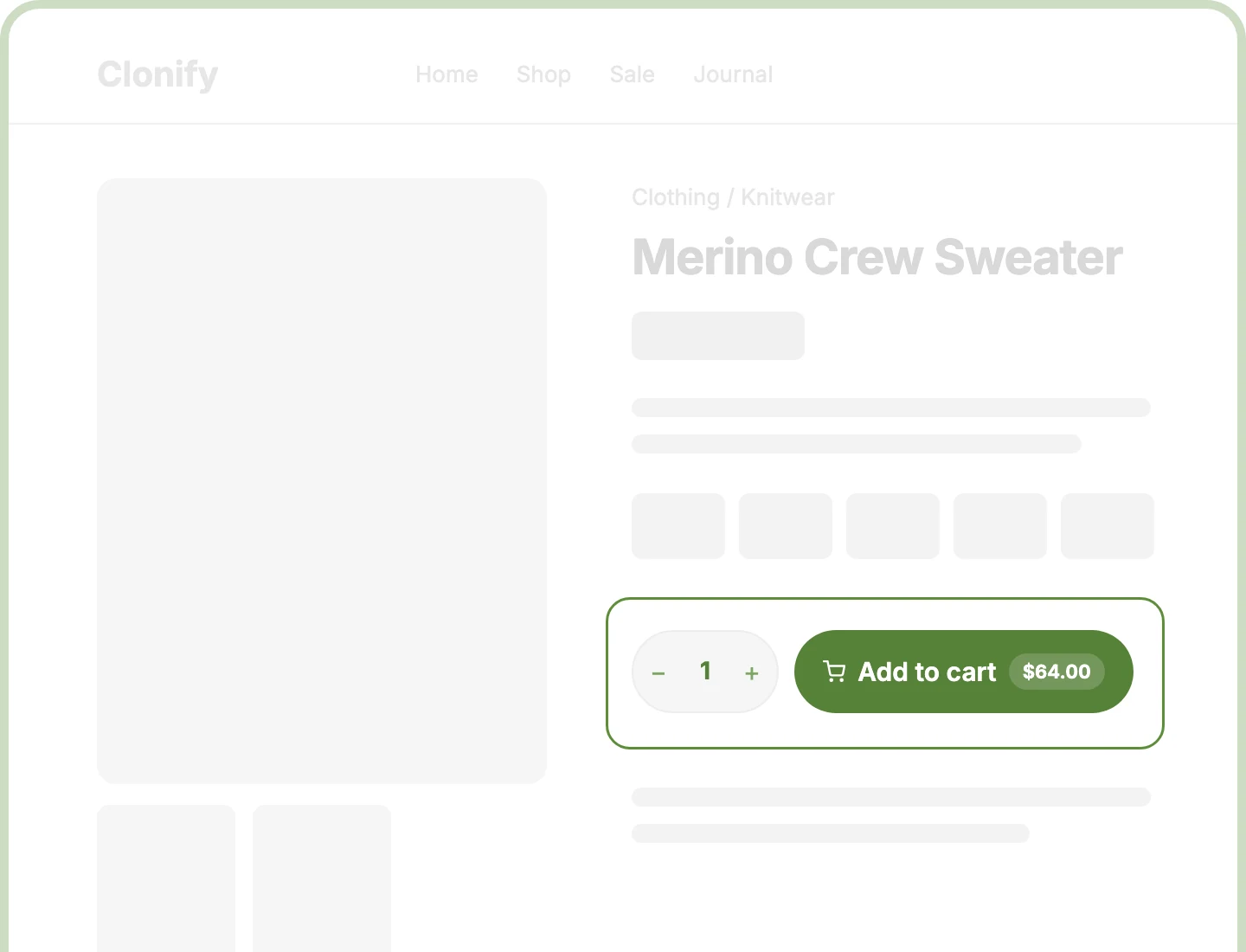
Price on Button
Show the price inside the add-to-cart button in six layouts, with sale prices struck through, so shoppers see the cost right where they click.
Every Product Type
Simple, variable, grouped, and affiliate products each get the right layout automatically, from variation dropdowns to designed rows for grouped products.
Store-Wide Button Rules
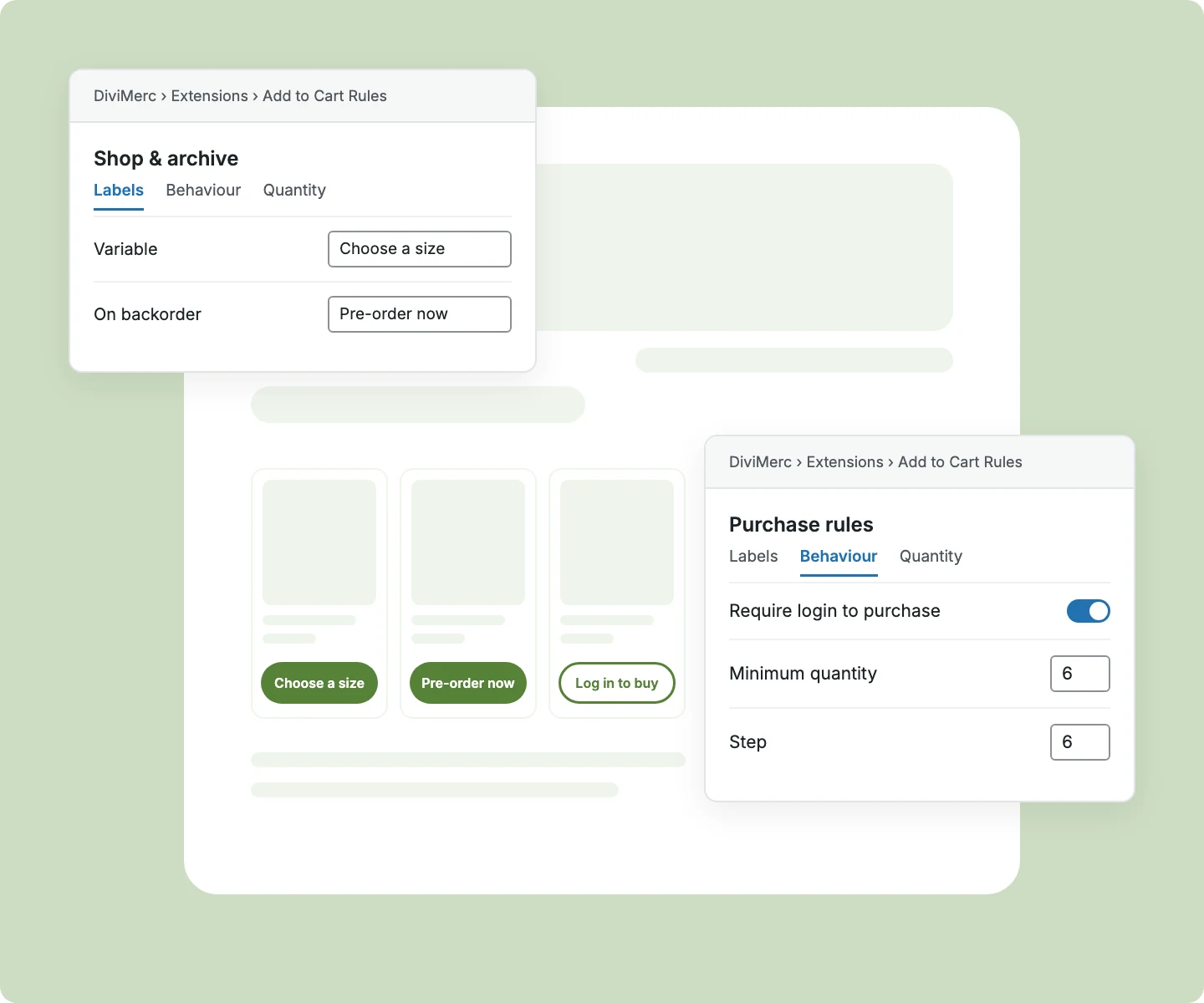
Rewrite button labels on product and shop pages, require login to buy, and decide what out-of-stock buttons do with Add to Cart Rules.
Build a Divi Add to Cart Button That Sells and Still Fits Your Design
Design the Button Shoppers Click to Buy

Pick a price chip, two lines, or a divider layout, so the price fits your button style.
-
Hide the button price until shoppers choose a variation, or show a "From" price right away.
-
Add a cart icon before or after the label, or slide it in on hover from four directions.
-
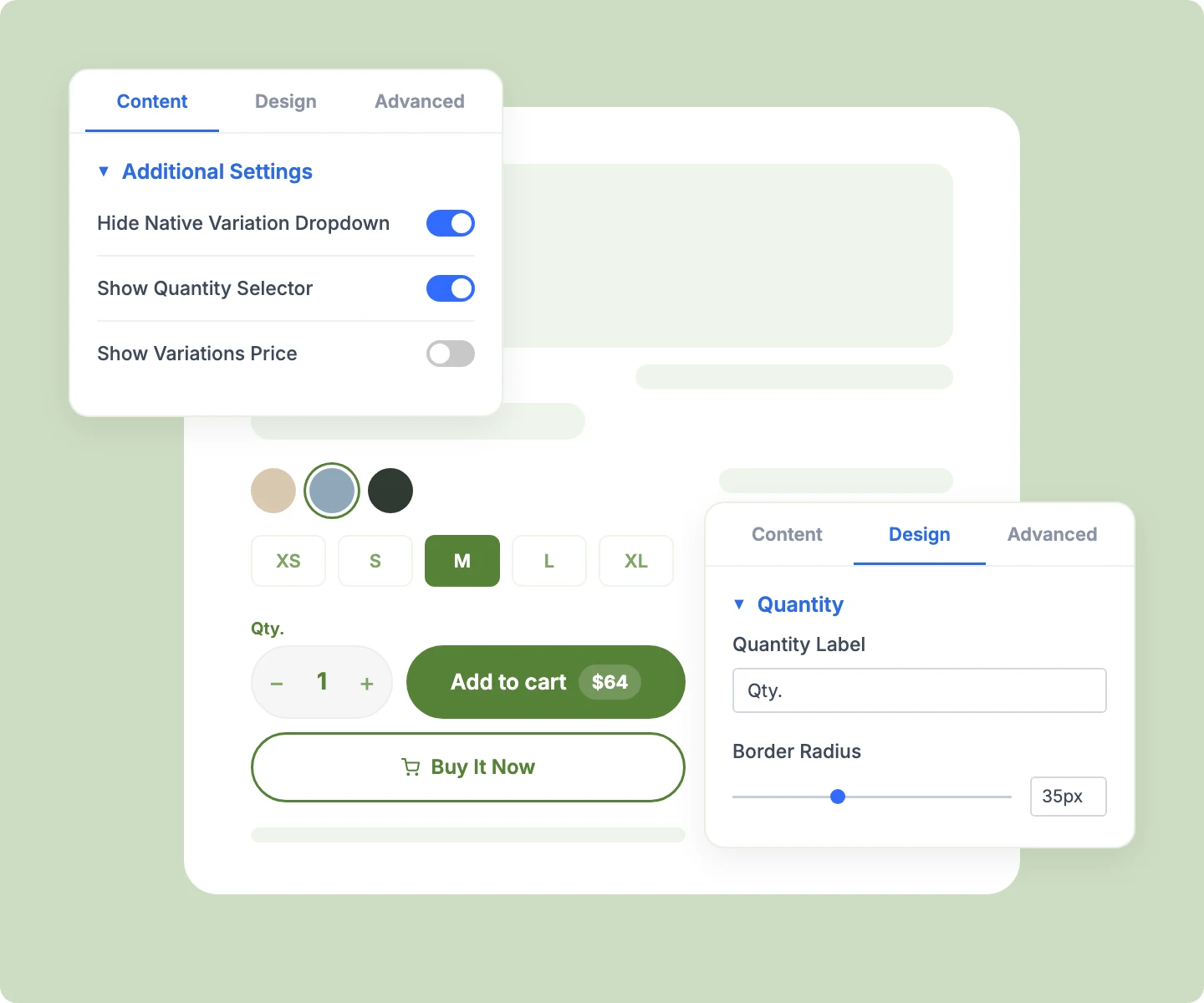
Style the quantity stepper, its − and + buttons, the button, and an optional label like "Qty."
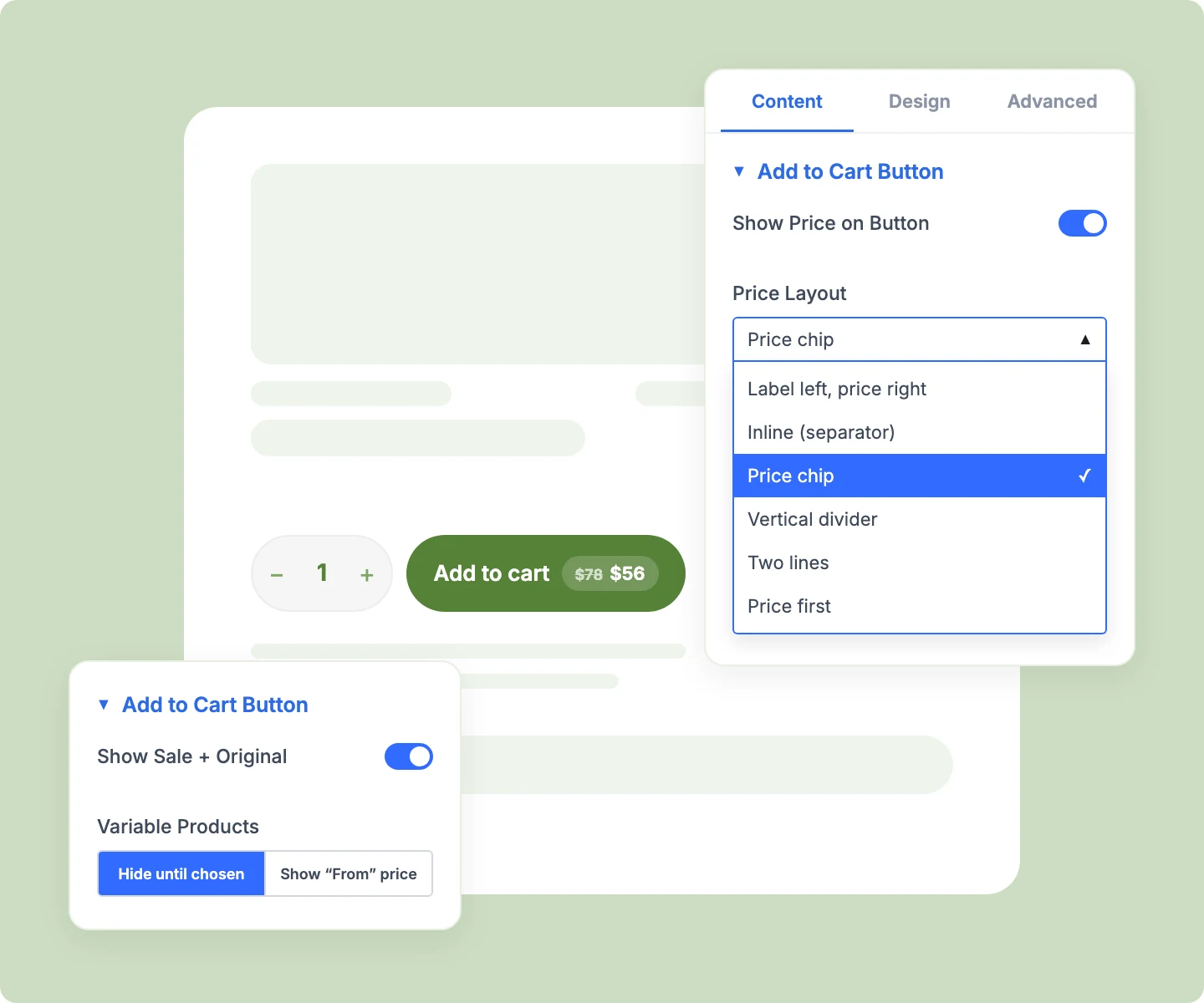
Give Shoppers Clear Feedback on Every Click
-
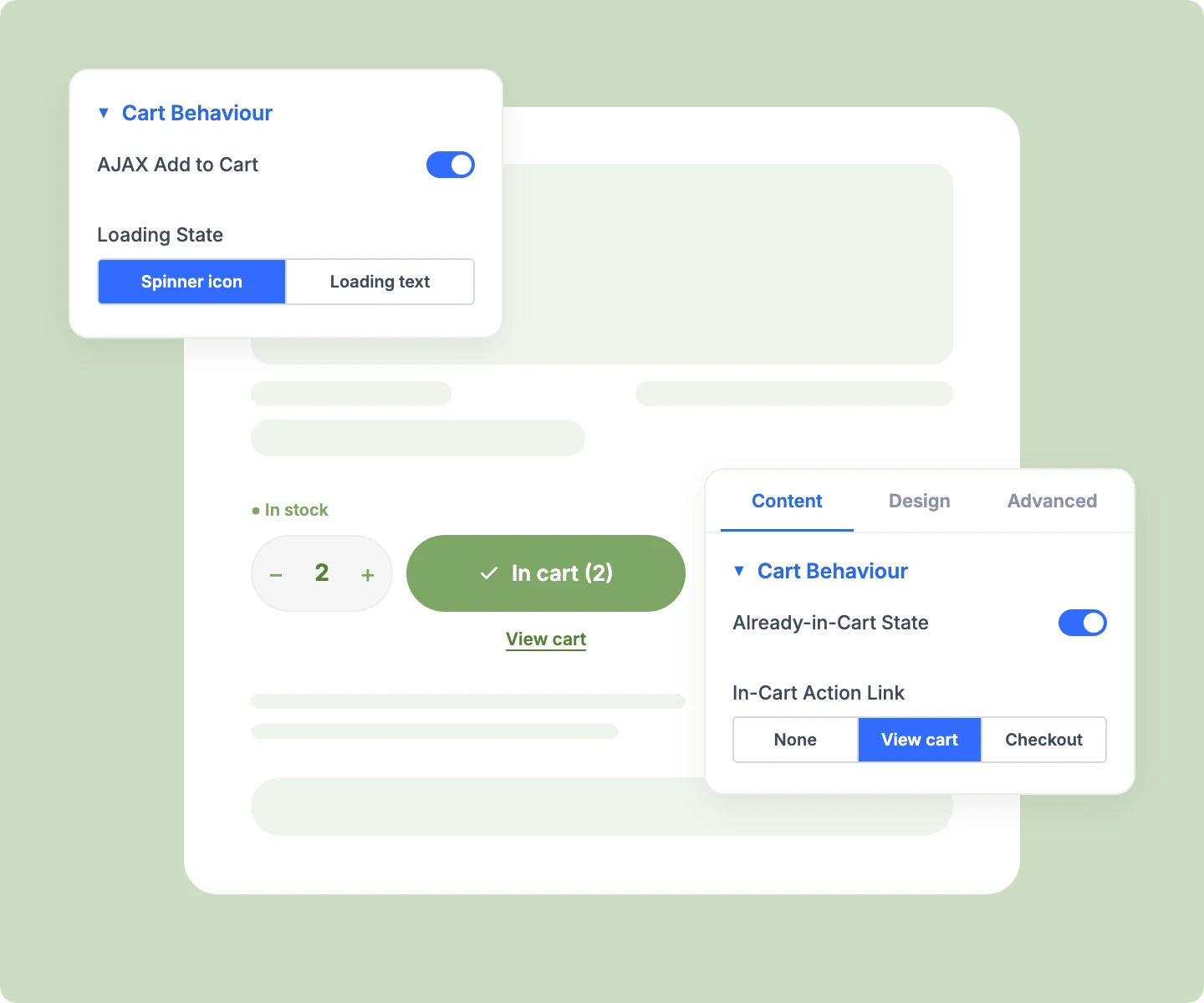
Show a spinner or your own loading text while the product is added, so clicks feel confirmed.
-
Switch the button to an in-cart state with a tick and the quantity, like "In cart (2)."
-
Keep shoppers on the page as simple products add without a reload and open the Mini Cart.
-
Style the in-stock and out-of-stock lines separately, so availability reads clearly before shoppers commit.
-
Keep a disabled out-of-stock button in place, so your layout holds when stock runs out.
Fit Every Product Type and Variation
-
Pair Advanced Add to Cart with Variation Swatches, hiding WooCommerce's dropdowns so shoppers pick by swatch.
-
Show grouped products as tidy rows of image, title, price, and quantity, all added with one button.
-
Preview the simple, variable, grouped, and affiliate layouts in the Visual Builder without switching products.
-
Add a Buy Now Button underneath that copies the quantity and variation shoppers choose here.
Control Button Wording With Add to Cart Rules
-
Set separate button text for product pages and shop loops, per product type, like "Choose a size."
-
Label special states like on backorder, free, or variation selected, so each button matches the moment.
-
Hide out-of-stock buttons, or send shoppers to a waitlist page with a notify-me link.
-
Require login to purchase, so guests still see prices but log in before they can buy.
-
Set store-wide quantity minimum, maximum, and step on WooCommerce quantity boxes, like packs of six.
Free Ready-to-Use Add to Cart Layouts to Get Started
Skip the setup with DiviMerc's pre-made Add to Cart layouts, from a clean price-on-button design to a full swatch and Buy Now setup. Each one is fully customizable and responsive, ready to drop into your Divi Theme Builder product template. Pick a style, set your colors, and go live in minutes.

DiviMerc Advanced Add to Cart vs Divi Default Add to Cart: Which Gives You More Control?
| Feature | DiviMerc Advanced Add to Cart | Divi Default Add to Cart |
|---|---|---|
| Price on the button | Six layouts, with sale and original price |  Not available Not available |
| Quantity stepper | Styled + and − buttons | Plain number box |
| In-cart button state | "In cart (2)" with a tick | Not available |
| Loading feedback | Spinner or your own text | Not available |
| Grouped product layout | Styled rows you design | WooCommerce's default table |
| Button wording per product type | Product page and shop loops, with Add to Cart Rules | WooCommerce's fixed wording |
| Out-of-stock button | Hide, link, or notify-me, with Add to Cart Rules | Out-of-stock notice only |
| Log in to buy | Store-wide, with Add to Cart Rules | Not available |
| Quantity minimum, maximum, and step | Store-wide, with Add to Cart Rules | Not available |
| WooCommerce cart and checkout | WooCommerce's own add-to-cart form | WooCommerce's own add-to-cart form |
Ready to Turn More Add to Cart Clicks Into Sales?
FAQs on Add to Cart for Divi
Everything you need to know about the Advanced Add to Cart module and Add to Cart Rules before you get started.
What Is the Advanced Divi Add to Cart Module?
How Is It Different From Divi's Default Add to Cart Module?
Do I Need Add to Cart Rules?
How Do I Add Advanced Add to Cart to a Product Page?
Does It Add to the Cart Without Reloading the Page?
Can I Show the Price on the Button?
How Do I Use It With Variation Swatches?
How Do I Change the Add to Cart Button Text?
Why Didn't My Button Label Change?
Can I Hide the Button When a Product Is Out of Stock?
Can I Require Customers to Log In Before Buying?
Can I Sell Only in Packs of 6?
How Do I Show "Pre-Order" on the Button?
Does Advanced Add to Cart Work on Mobile?