
One of 15+ Modules
Divi My Account Module
Divi My Account module rebuilds the WooCommerce My Account page in Divi, with eight screens you design one by one, from the Dashboard to Orders and Downloads. Customers get a greeting with their own order stats, a menu you place left, right, or on top, and custom tabs at your own URLs.
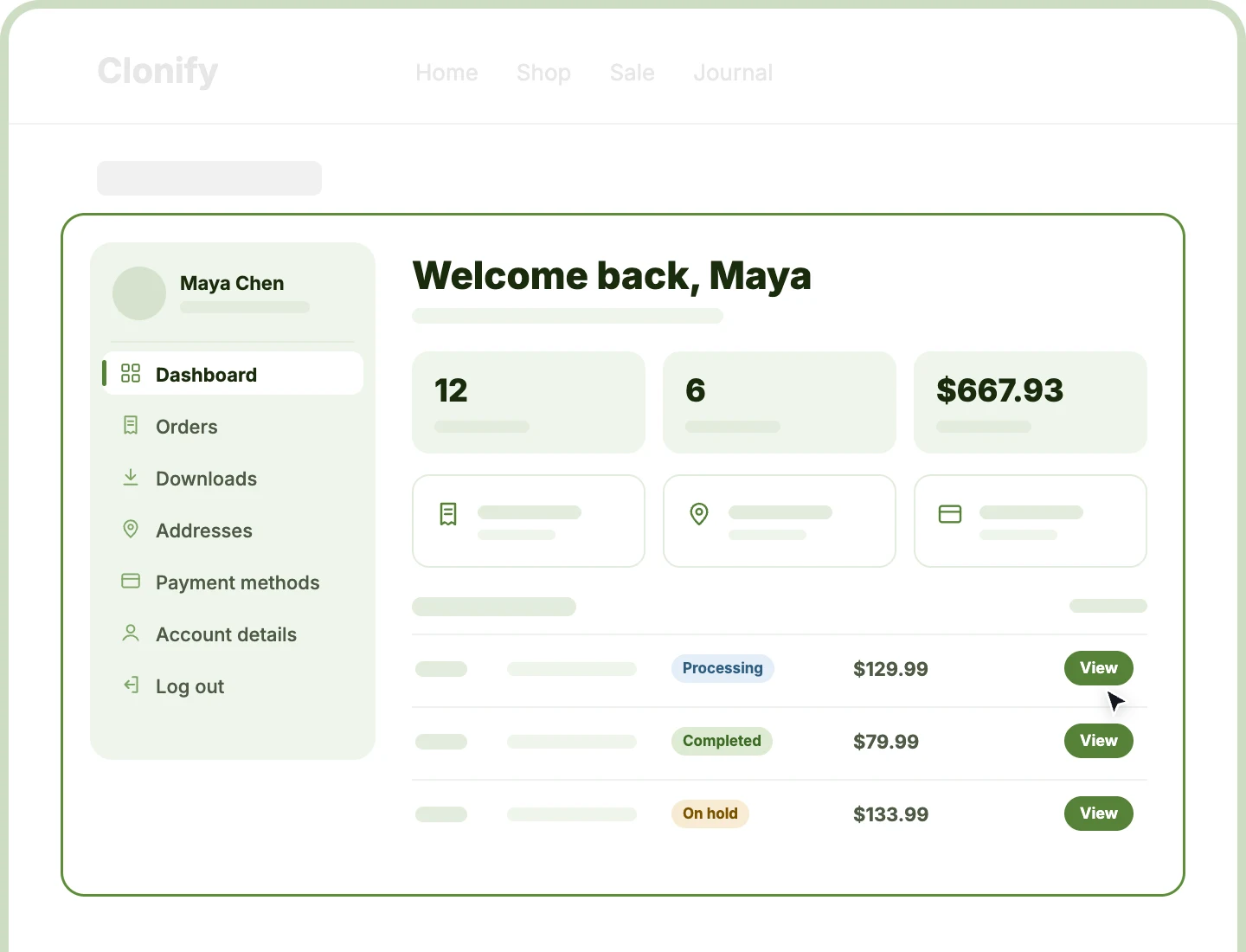
Eight Designable Screens
Design the Dashboard, Orders, Downloads, Addresses, Payment Methods, Account Details, View Order, and your own custom tabs, each one separately to match your store.
Personal Account Dashboard
Greet customers by name with their order count, total spent, quick links, and recent orders, so their account opens with something useful.
Flexible Account Navigation
Give customers a menu that fits your layout on every screen size, from a sticky side rail on desktop to a dropdown on phones.
Design a Divi My Account Page Customers Enjoy Coming Back To
Design Every Account Screen on Its Own

Rename, reorder, or hide any screen in the menu, and give each one its own icon.
-
Add custom tabs, like Rewards or Wholesale, at a URL you choose, such as /my-account/rewards/.
-
Show any screen to chosen customers only, like wholesale buyers, with Divi's display conditions.
-
Style the address and account details forms, down to field focus rings and placeholder text.
-
Write friendly empty states for customers with no orders, downloads, or saved cards yet.
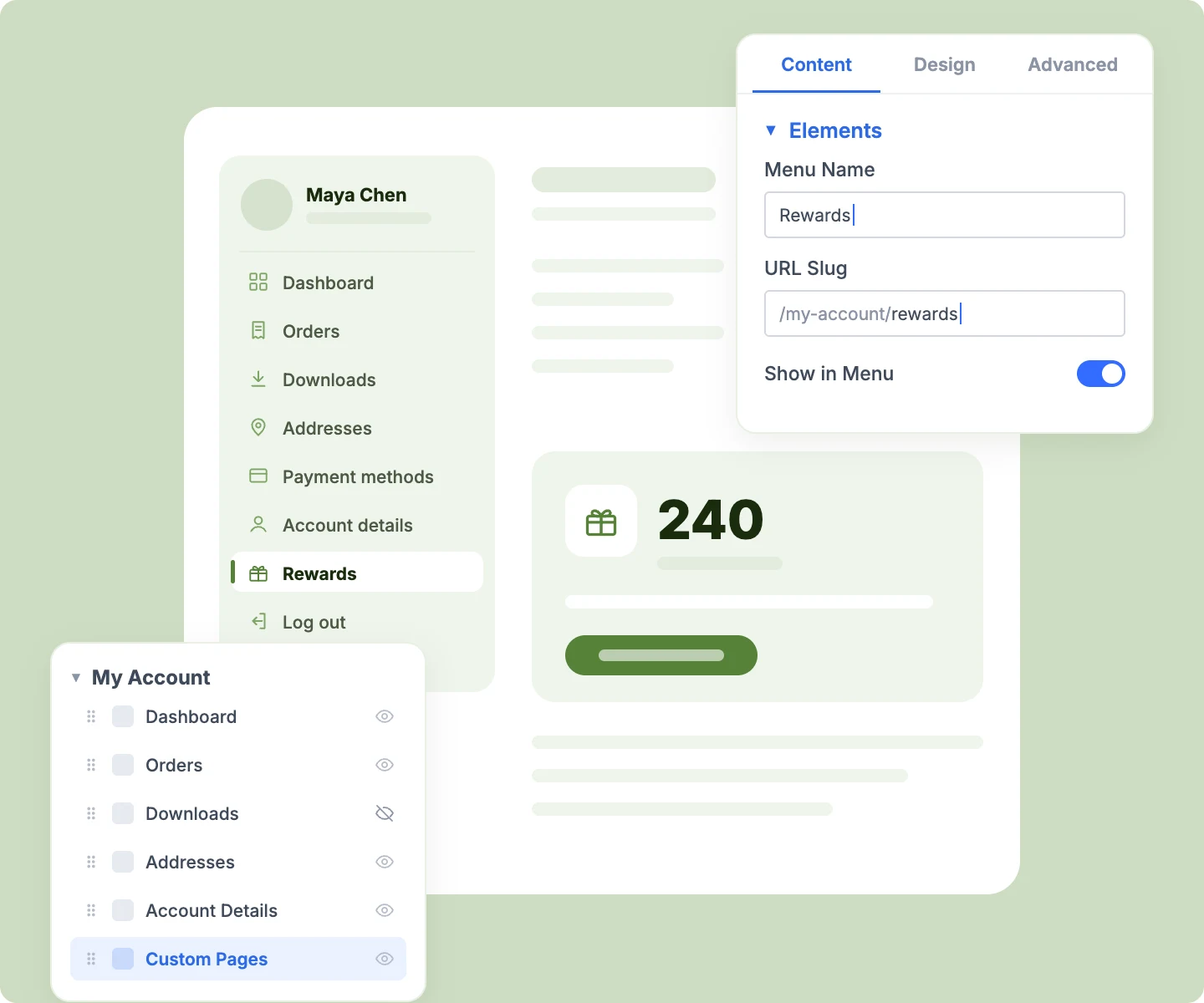
Turn the Dashboard Into a Customer Home
-
Greet each customer by name with your own welcome line and a short sub-heading.
-
Show up to six statistics, from total orders and total spent to products purchased and downloads available.
-
Add quick-link cards to any account screen or custom URL, in two, three, or four columns.
-
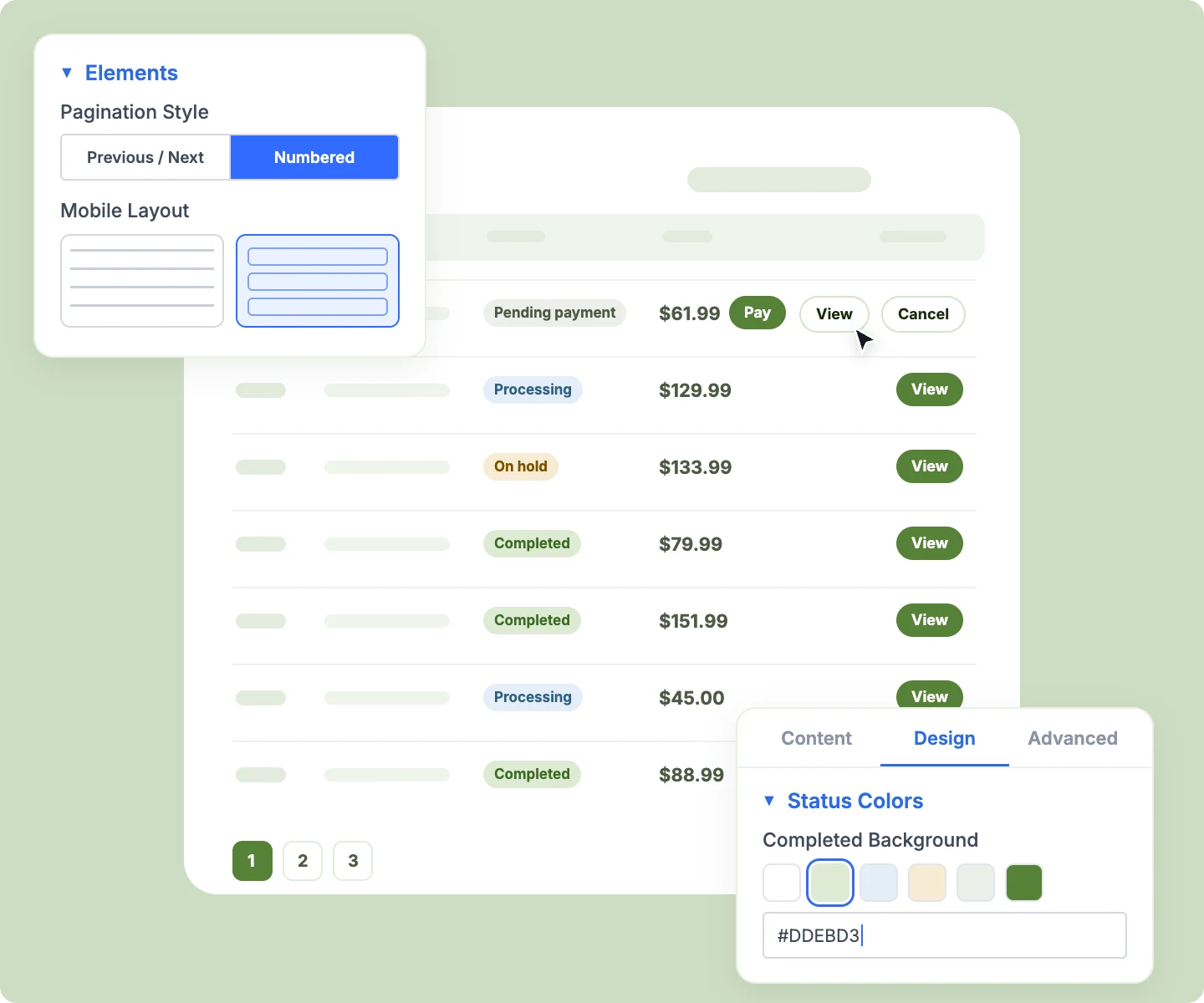
List recent orders with color-coded status badges and a View button on each one.
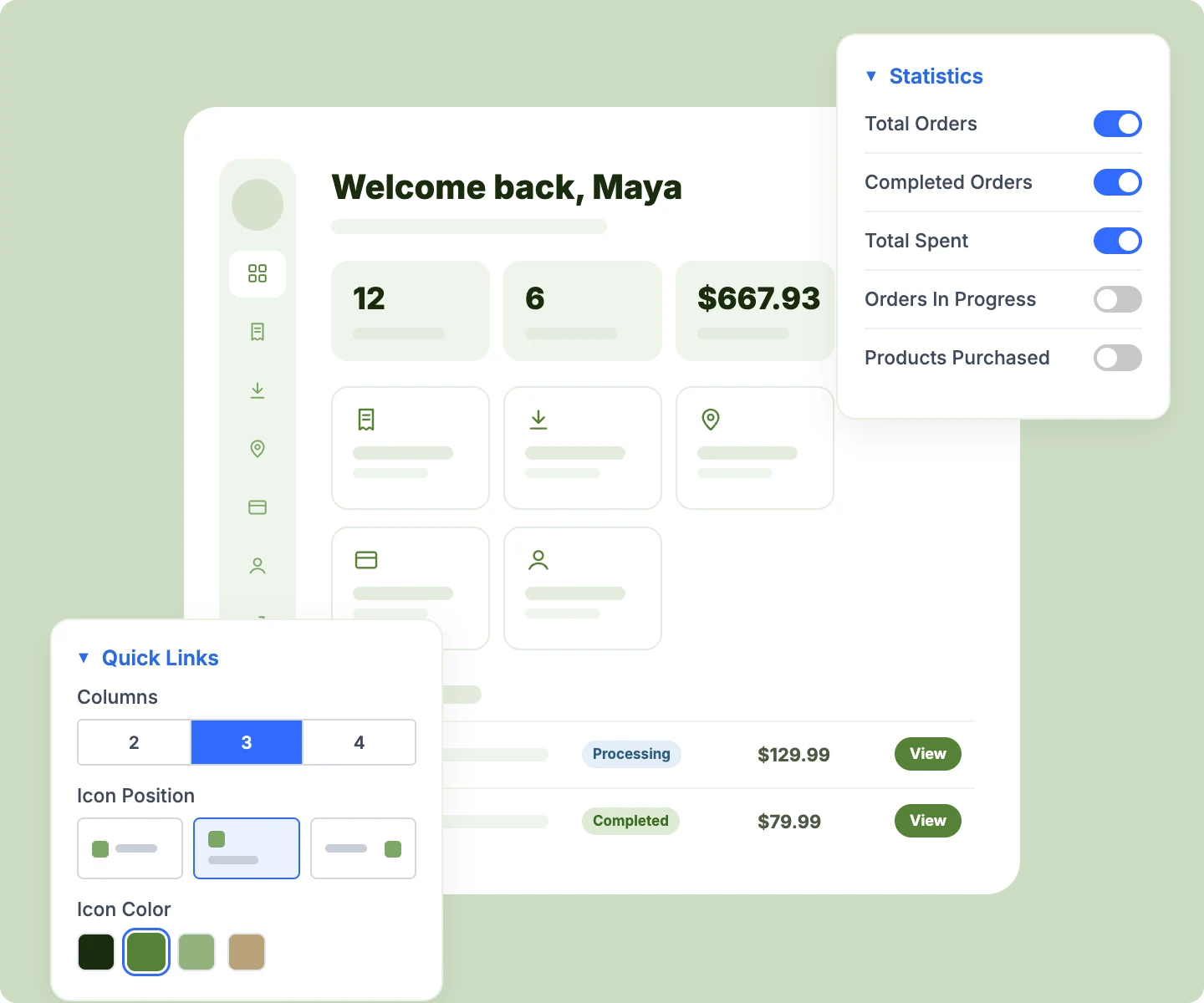
Build Navigation That Fits Your Store
-
Place the menu on the left, the right, or across the top of the account area.
-
Keep the side menu sticky while scrolling, or collapse it to icons to give each screen more room.
-
Switch phones, or phones and tablets, to a stacked menu, a dropdown, or a sideways-scrolling bar.
-
Show the customer's avatar, name, and email in a profile at the top of the menu.
-
Pin Log out to the bottom of the menu, with your own label and icon.
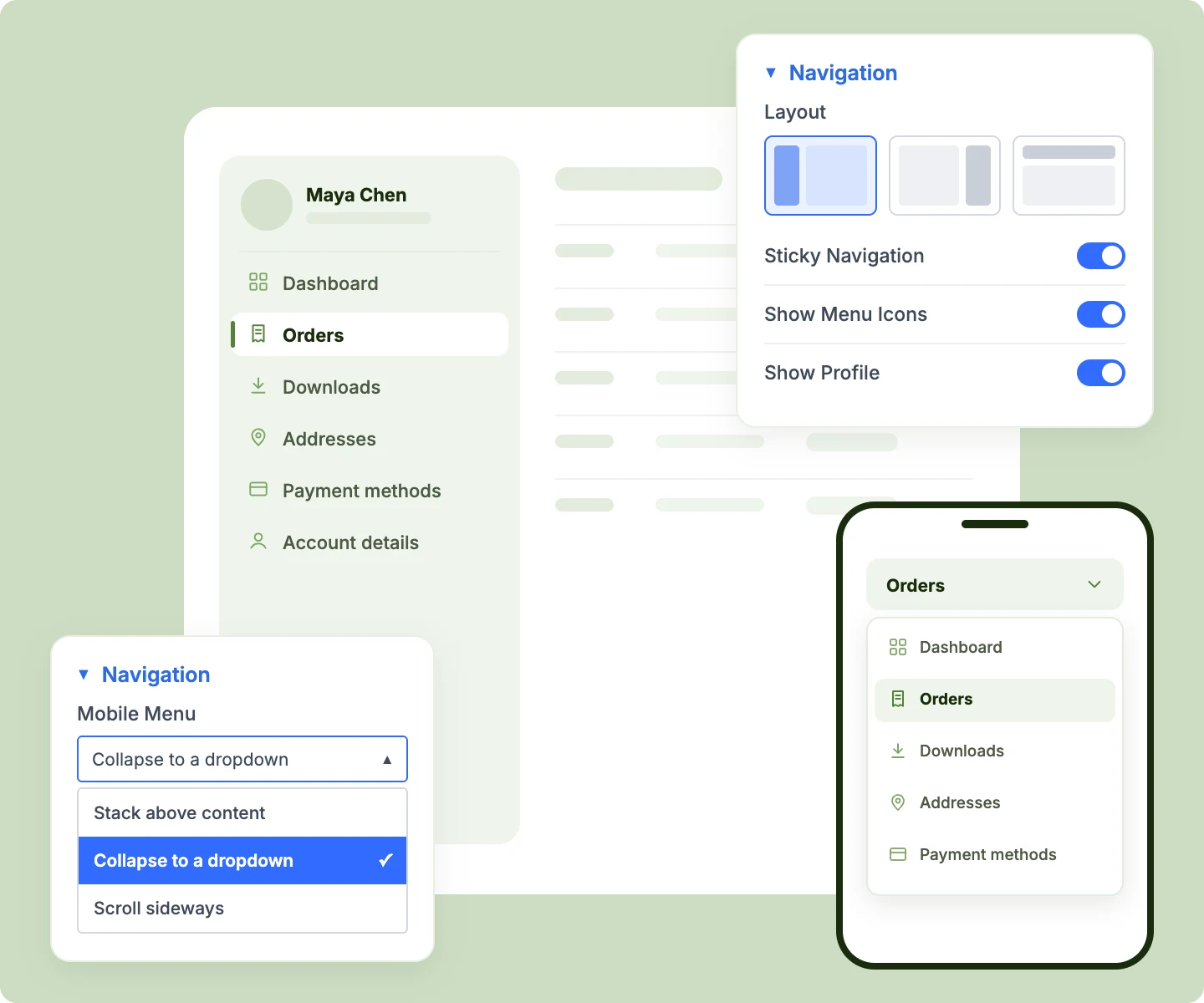
Make Orders Clear on Every Device
-
Color the status badges for Processing, Completed, On Hold, Cancelled, Failed, and Refunded orders.
-
Show Pay and Cancel buttons whenever WooCommerce allows them, styled to match your brand.
-
Turn the orders table into cards on phones, so order history reads cleanly on small screens.
-
Page through order history with numbered pages or Previous and Next buttons, up to 100 per page.
-
Open any order in View Order, with items, totals, and addresses each styled on its own.
Free Ready-to-Use My Account Layouts to Get Started
Skip the setup with DiviMerc's pre-made My Account layouts, from a classic sidebar account to a top-menu dashboard. Each one is fully customizable and responsive, ready to drop onto your WooCommerce My Account page. Pick a style, set your colors, and go live in minutes.
DiviMerc My Account vs Default WooCommerce My Account: Which Gives You More Control?
| Feature | DiviMerc My Account | Default WooCommerce My Account |
|---|---|---|
| Design each screen separately | Eight child modules |  One block for the whole area One block for the whole area |
| Navigation layout | Left, right, or top, sticky or collapsible | Your theme's default menu |
| Customer profile and menu icons | Avatar, name, email, and icons | Not available |
| Mobile menu | Stacked, dropdown, or sideways scroll | Your theme's default |
| Dashboard | Greeting, statistics, quick links, and recent orders | A short welcome paragraph with links |
| Order status | Color-coded badges for seven states | Plain text status |
| Orders on phones | Cards or table | Table only |
| Custom account screens | Add your own, at your own URL | Needs custom code |
| Rename and reorder menu items | Per screen, in the builder | Needs custom code |
| WooCommerce account functions | Orders, downloads, addresses, payments | Orders, downloads, addresses, payments |
Ready to Give Customers an Account Area They Enjoy Using?
FAQs on My Account for Divi
Everything you need to know about the My Account module before you get started.
What Is the Divi My Account Module?
How Is It Different From WooCommerce's Default My Account Page?
How Do I Customize the WooCommerce My Account Page in Divi?
How Do I Add a Custom Tab to WooCommerce My Account?
How Do I Remove Downloads From the My Account Menu?
Can I Reorder, Rename, or Add Icons to the My Account Menu?
Can I Customize the My Account Dashboard?
What Do Logged-Out Visitors See on the My Account Page?
Can I Show a Screen to Certain Customers Only?
Can I Change the Order Status Colors?
When Does the Pay Button Appear on Orders?
Where Does the View Order Screen Open From?
Does the My Account Module Work on Mobile?
Why Does the Visual Builder Show Sample Orders?