

You can create a mini cart in Divi using WooCommerce's built-in Mini-Cart block. It handles basic cart functions, but offers limited control over placement and customization within Divi.
For more flexibility, use DiviMerc. It comes with two options: Mini Cart module for customizing the cart inside Divi Builder, and Mini Cart Manager extension for adding a ready-made cart across your website.
In this guide, we will show you how to create mini cart in Divi using both DiviMerc methods, step by step.
Let’s get started.
Before You Start
Make sure you have:
- WooCommerce installed and configured
- Divi 5 installed and activated
- DiviMerc installed and activated (It only works with Divi 5)
- At least one WooCommerce product added to your store
If you want to test the mini cart while setting it up, add a product to the cart first so you can see the filled-cart state.
Method 1: Create a Mini Cart Using the DiviMerc Mini Cart Module
The Mini Cart module gives you control over the cart's placement, appearance, and functionality directly inside Divi Builder.
For example, you can add a dropdown cart to your header, create a slide-out cart, or use a floating cart button that stays visible while shoppers browse.
Here is how to set it up.
Step 1: Add the Mini Cart Module
- Open the page or Theme Builder template in Divi.
- Add a new module and select Mini Cart.
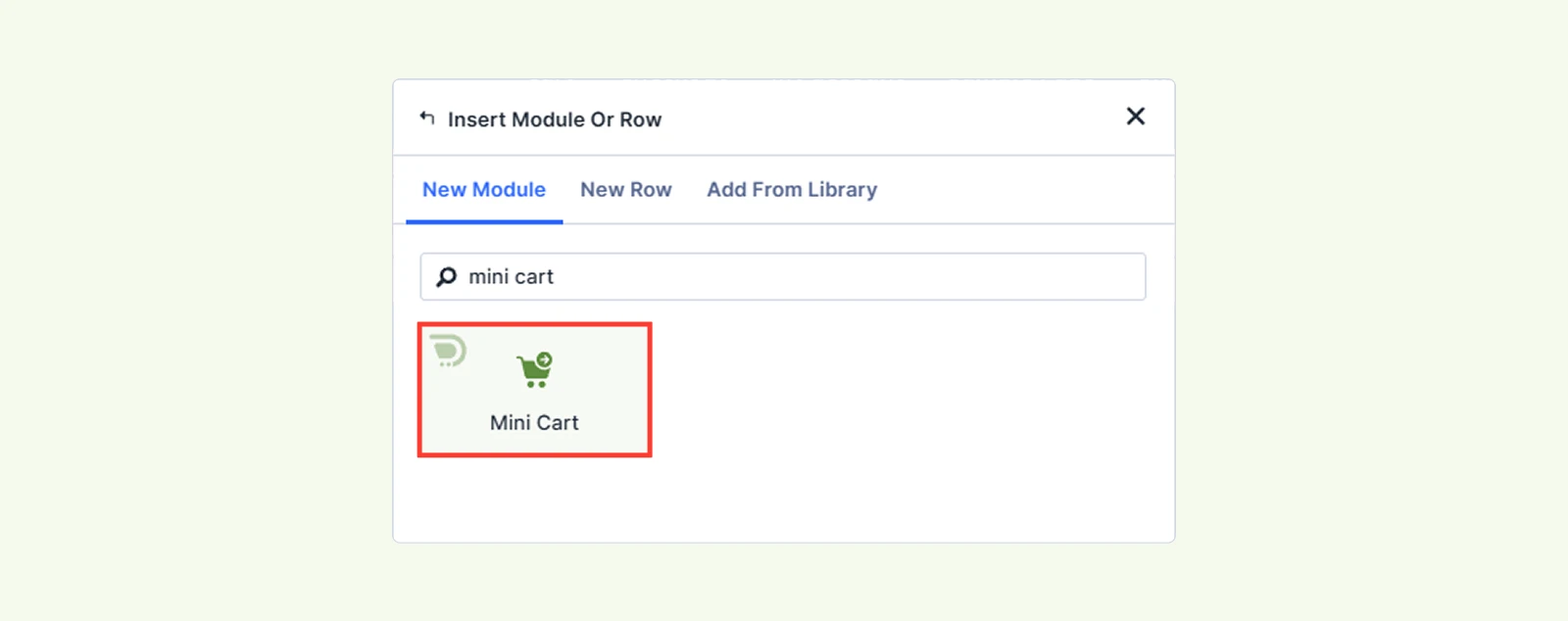
Note: If you want the mini cart available across your site, add it to your Theme Builder Global Header.
Step 2: Choose the Cart Type
Click on Cart Type & Behaviour in the content tab, then choose how the cart should appear:
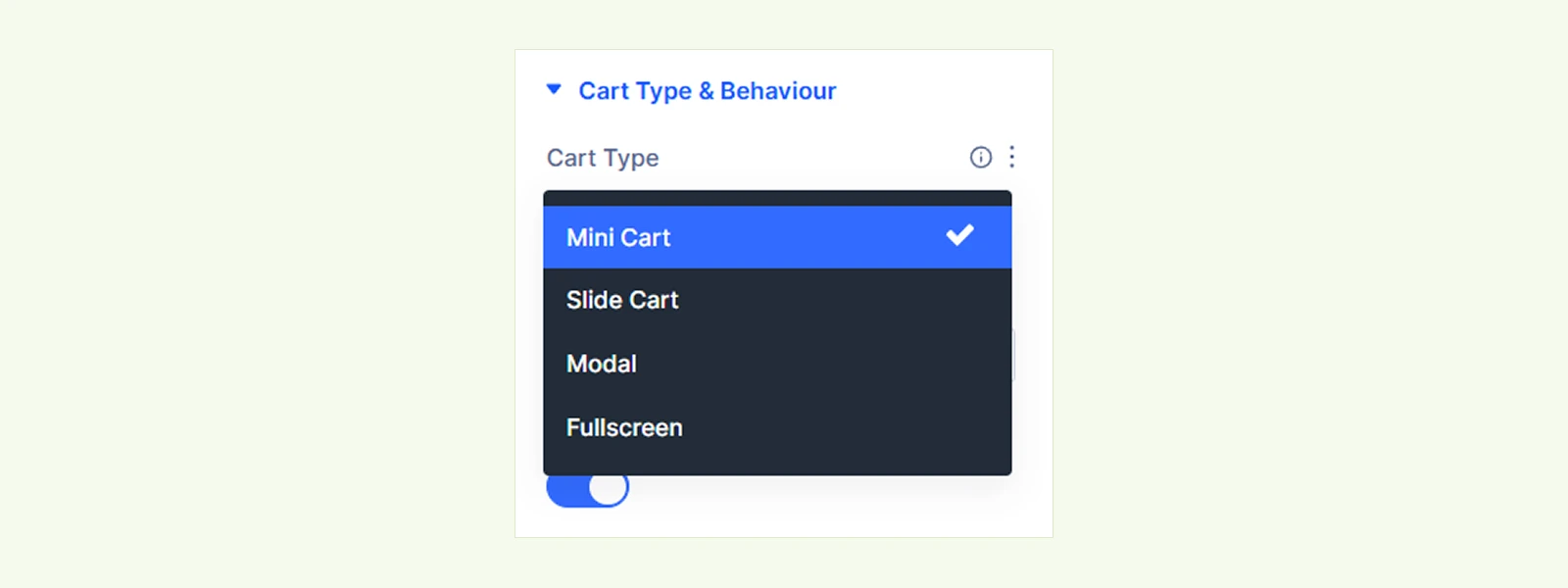
- Mini Cart: Opens as a dropdown near the trigger.
- Slide Cart: Opens from the left or right as a side drawer.
- Modal: Opens in the center of the screen.
- Fullscreen: Opens across the full screen.
Note: If you choose Slide Cart, you can also set it to overlay the page or push the page aside.
Step 3: Customize the Cart Trigger
The cart trigger is the button shoppers click to open the mini cart. To customize it, click on Cart Trigger and there you can:
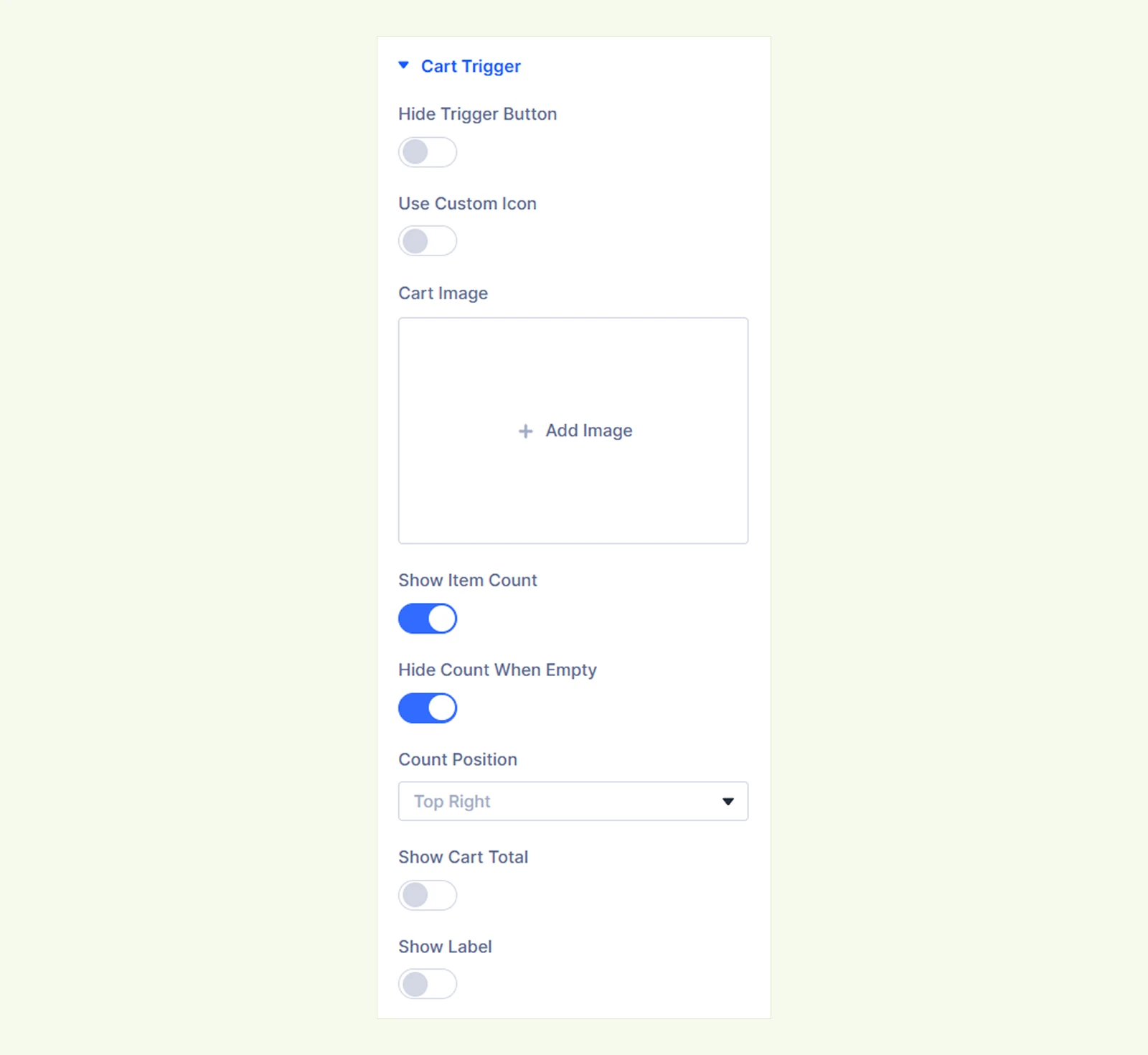
- Change the cart icon or use a custom image.
- Show the item count, cart total, or a text label.
- Adjust the item-count position.
Step 4: Configure the Cart Content
Now click on Panel Content and choose what shoppers can see and manage inside the cart. You can control:
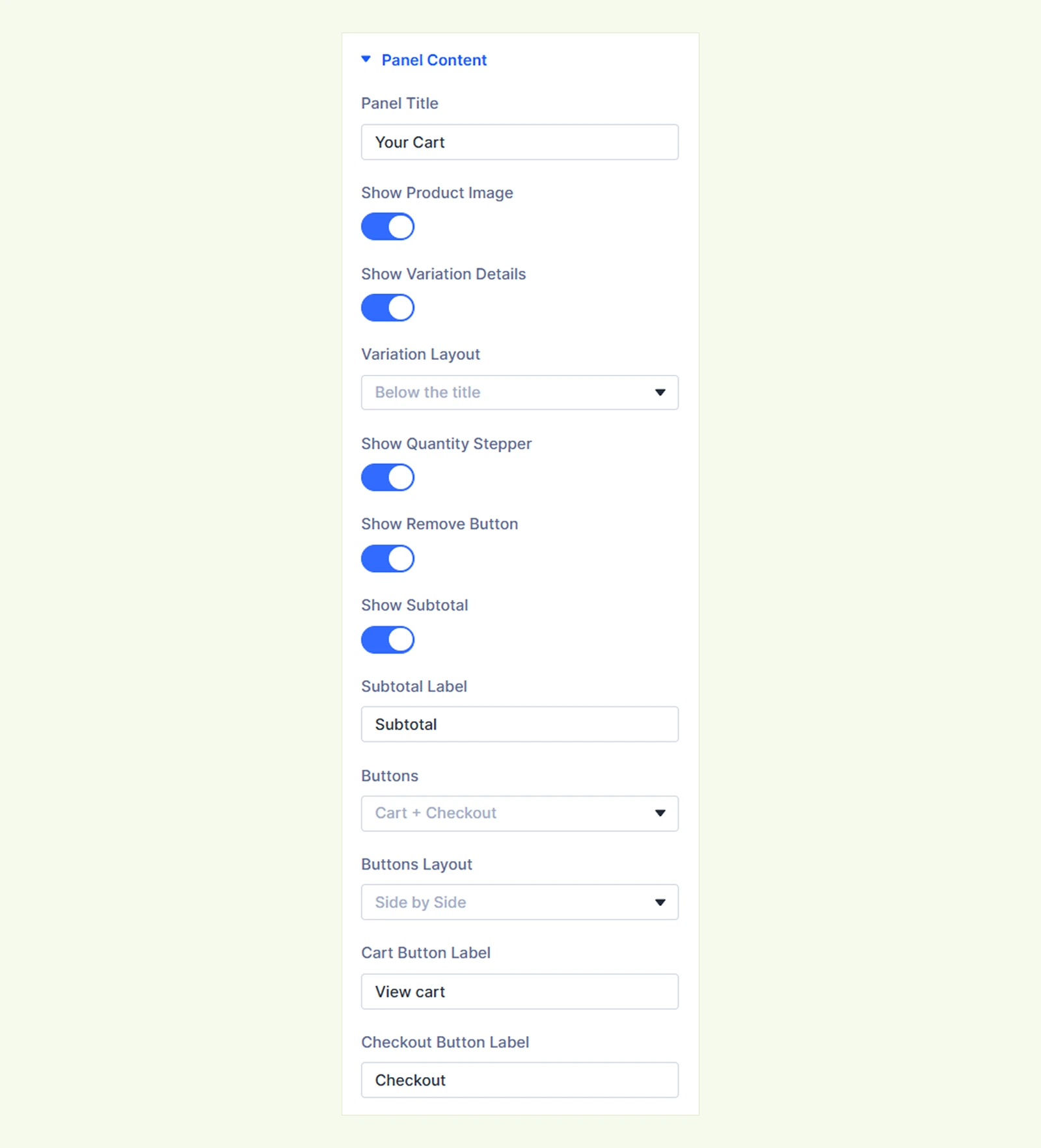
- Product images and variation details: Help shoppers identify the products they've selected, including options such as size or color.
- Quantity stepper: Let shoppers increase or decrease product quantities without visiting the Cart page.
- Remove button: Allow shoppers to remove unwanted products.
- Subtotal: Display the current cart subtotal.
- View Cart and Checkout buttons: Choose which actions appear at the bottom of the panel.
Tip: Enable Show Quantity Stepper if you want customers to adjust quantities directly from the mini cart.
Step 5: Add a Coupon Field
If your store offers discount codes, you can let shoppers apply them directly from the mini cart. To add a coupon code field, click on Cart Elements in the content tab and enable Coupon Field.
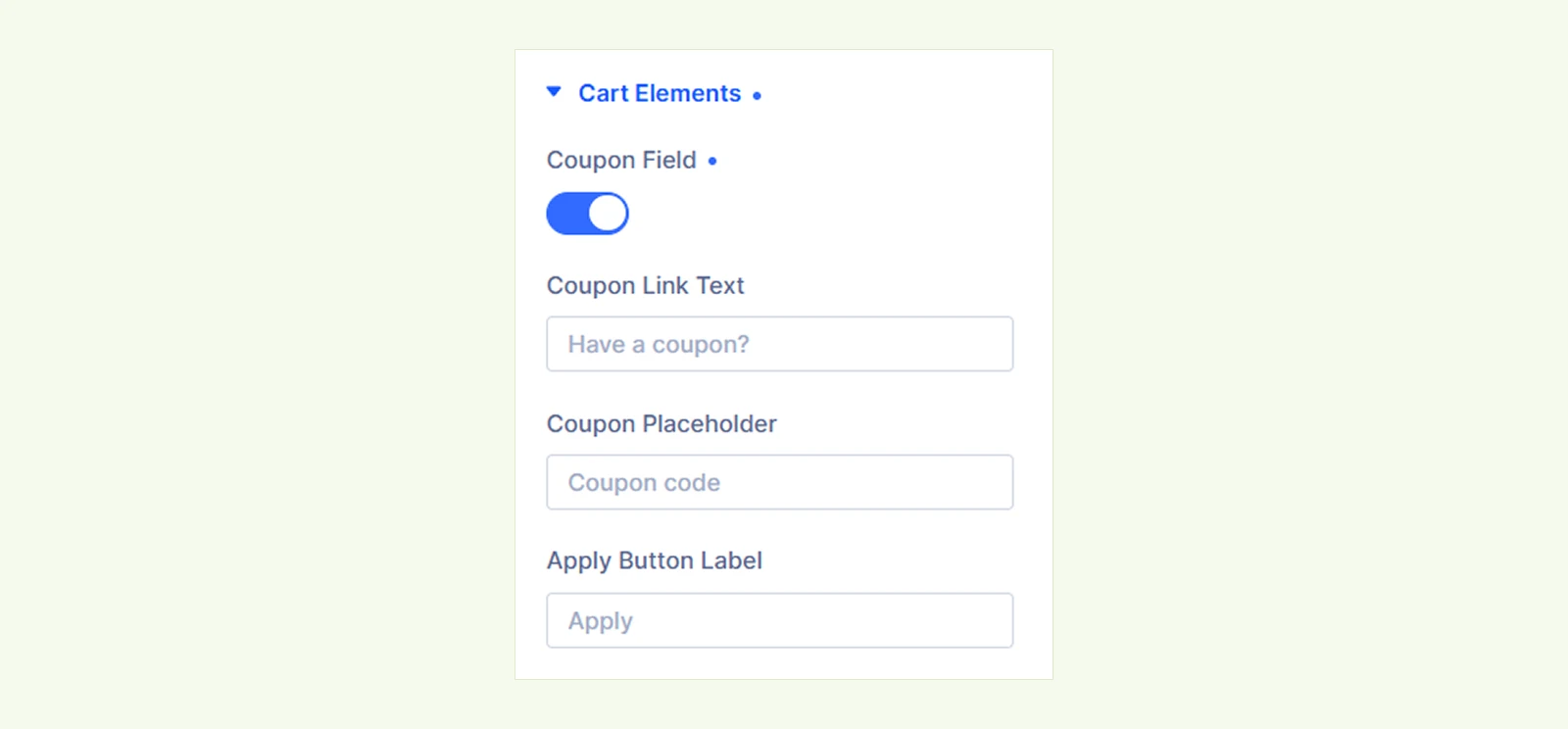
You can also customize the coupon link, placeholder, and Apply button text.
Step 6: Customize the Empty Cart
An empty cart doesn't have to be a dead end. You can use this space to guide shoppers back to your products. To do that, click on Empty Cart to control what shoppers see when the cart is empty. You can customize:
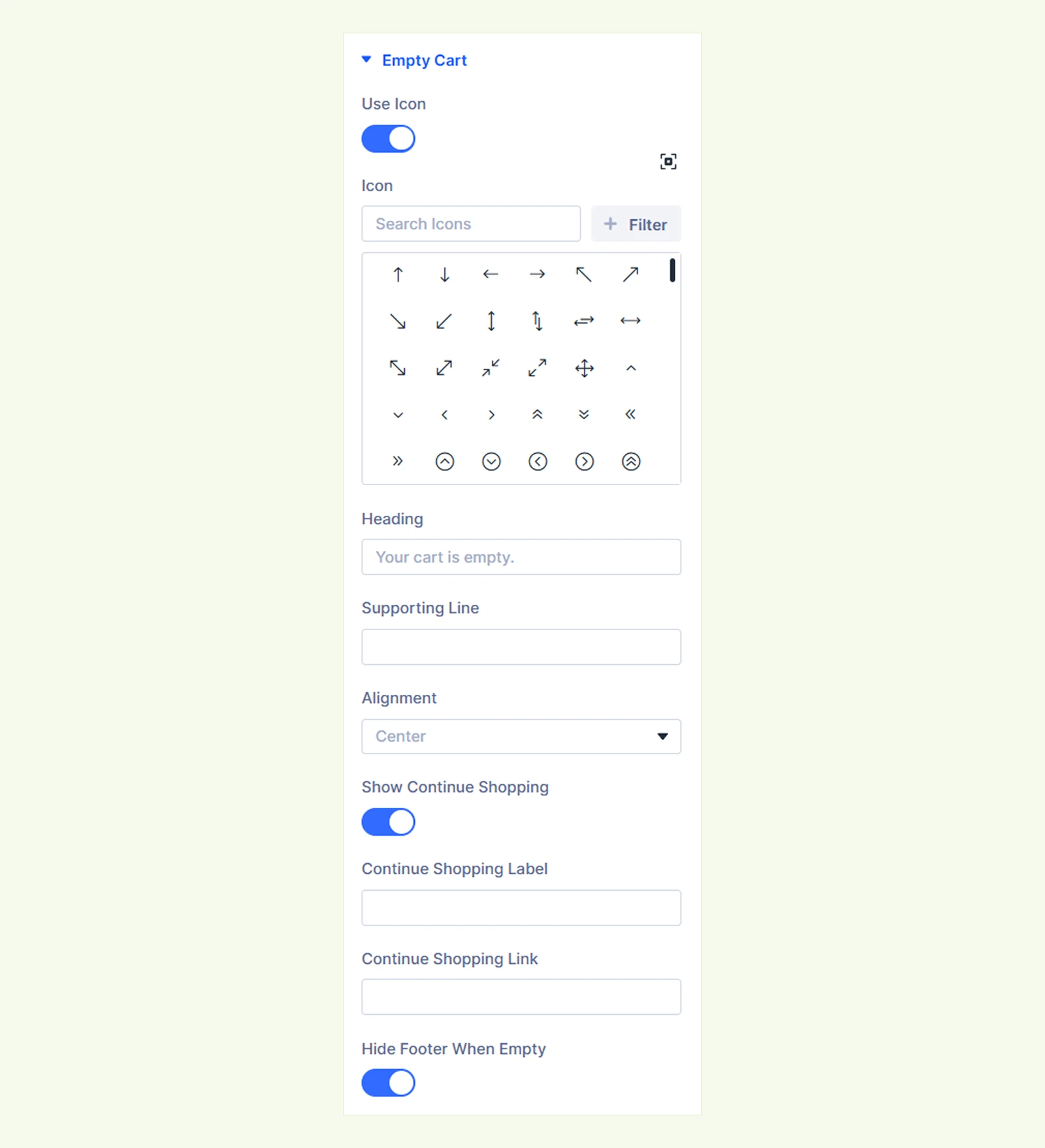
- Icon or image
- Heading and supporting text
- Continue Shopping button and link
- Footer visibility
Step 7: Enable a Floating Cart Button
A floating cart button keeps the cart accessible even when visitors scroll away from your website's header.
To enable it, go to Content > Floating Trigger and turn on Enable Floating Trigger. From here, you can:
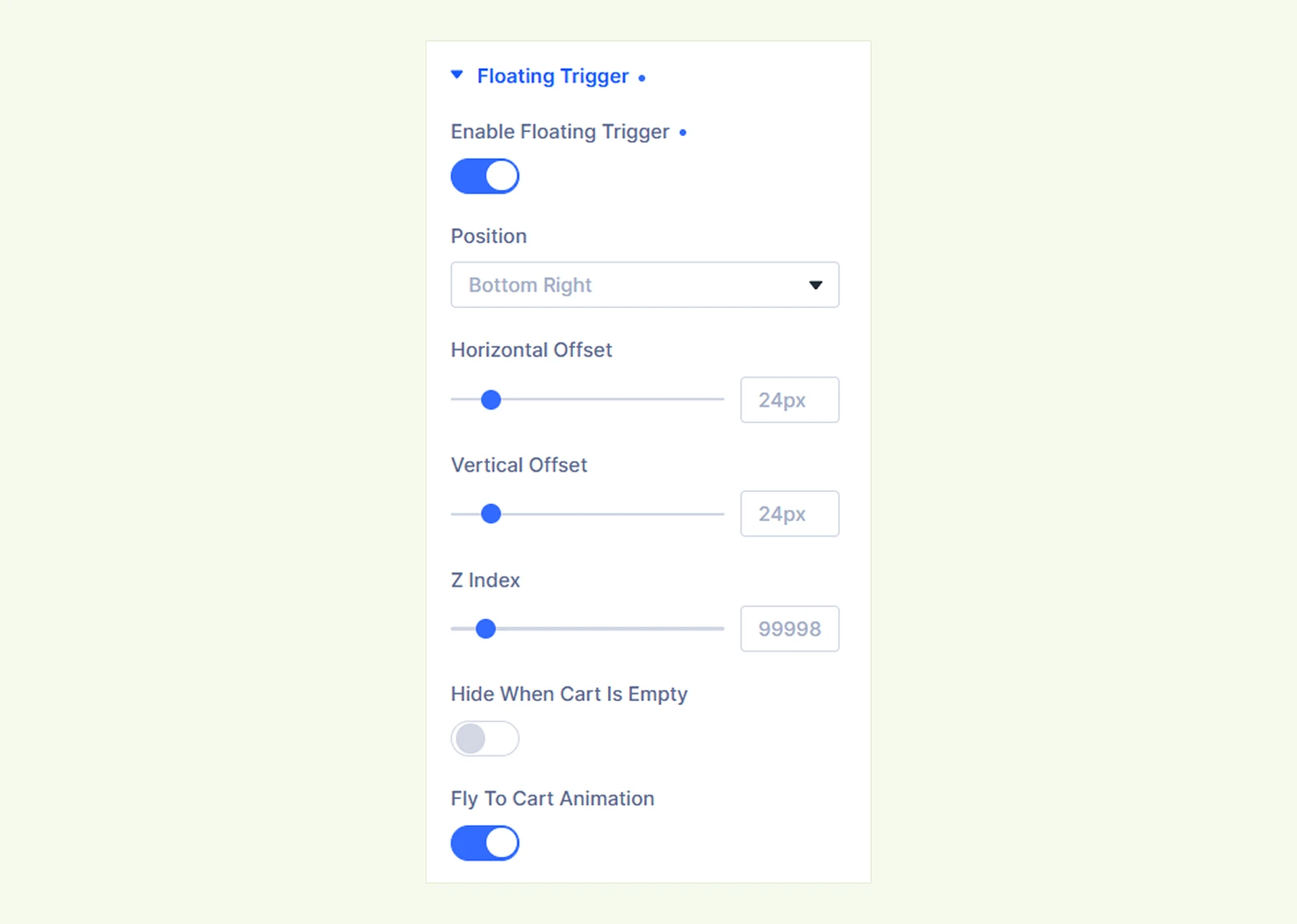
- Place the button in different positions around the screen.
- Adjust its distance from the screen edges.
- Hide the button until a product is added to the cart.
This can be useful on long product pages where the regular cart icon may no longer be visible.
Step 8: Open the Cart Automatically After Add to Cart
You can also make the mini cart open automatically when a shopper adds a product.
- Click on Cart Type & Behaviour in the content tab and enable Open When Item Added.
Note: To use this feature with DiviMerc, use the Advanced Add to Cart module and enable AJAX Add to Cart. This adds the product without reloading the page, so the mini cart can open automatically.
Step 9: Style the Mini Cart
Once the cart works as expected, open the Design tab to match its appearance with your store. You can customize:
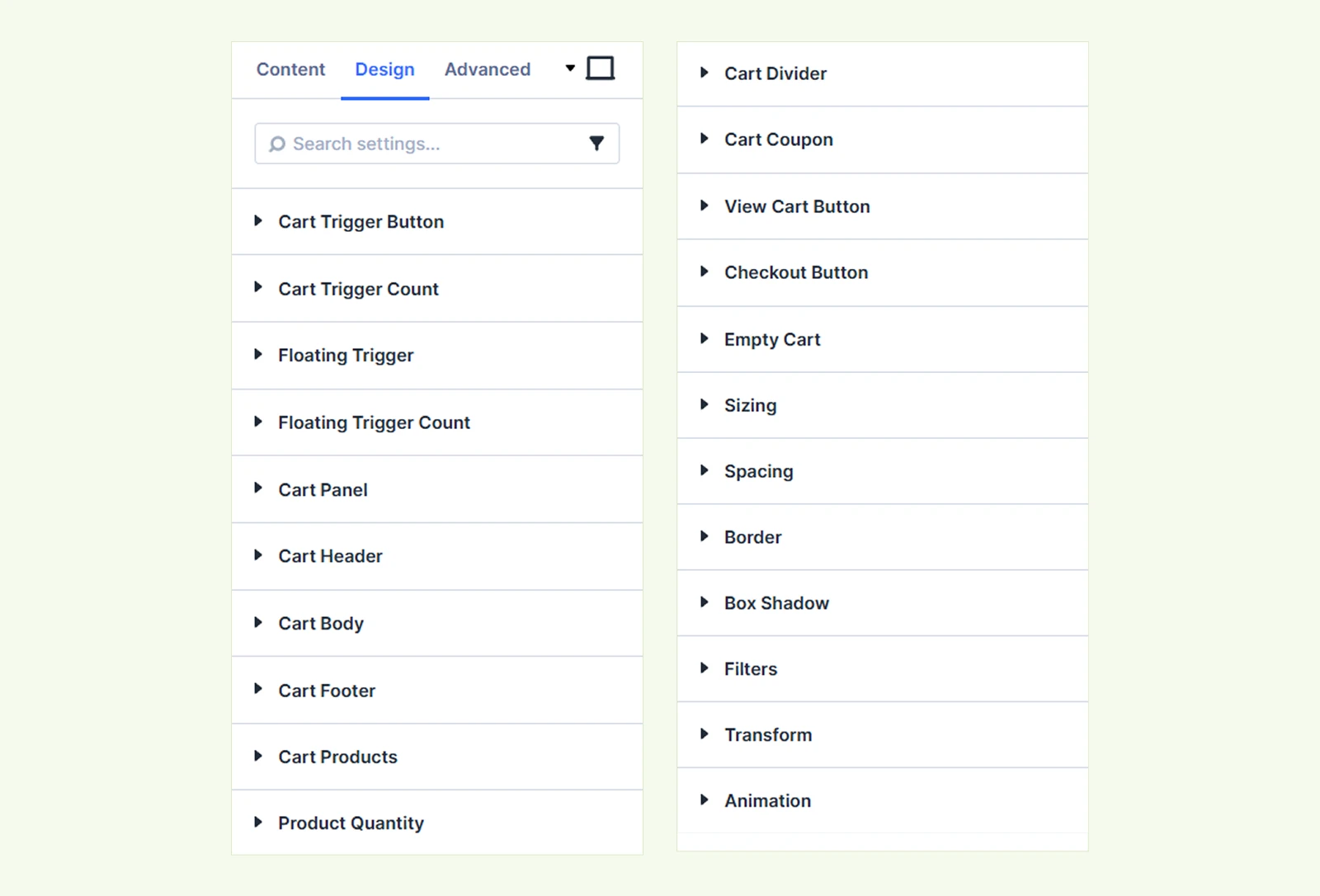
- Cart trigger, icon, and item count.
- Floating cart button.
- Cart panel, header, and footer.
- Product images, prices, and quantity controls.
- Coupon field.
- View Cart and Checkout buttons.
- Empty-cart design.
You can also adjust spacing, sizing, borders, shadows, and animation. Once done, save the page or template.
Try to keep the cart consistent with your existing product pages. For example, using the same button colors and typography makes the cart feel like a natural part of your store.
When you are happy with the result, save the page or template.
Method 2: Create a Site-Wide Mini Cart Using Mini Cart Manager
If you don't need detailed design control, the Mini Cart Manager offers a simpler way to add a cart across your website.
Instead of placing a Mini Cart module in Divi Builder, you can enable a ready-made cart panel from the DiviMerc settings.
This works well when you want a functional site-wide cart with minimal setup.
Step 1: Enable Mini Cart Manager
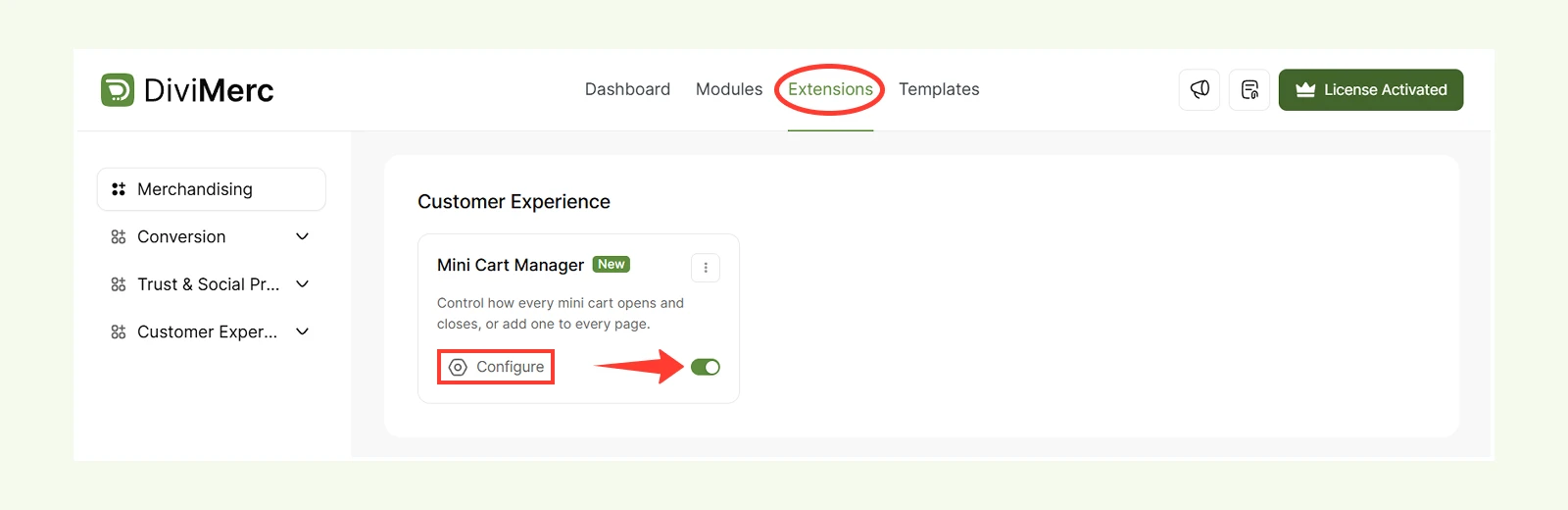
- From your WordPress dashboard, go to:
- DiviMerc > Extensions
- Find Mini Cart Manager and enable it.
- Then click Configure.
Note: The extension is disabled by default, so you'll need to enable it before using its features.
Step 2: Enable the Site-Wide Cart Panel
- Under Cart Panel tab, enable: Show cart without placing the module
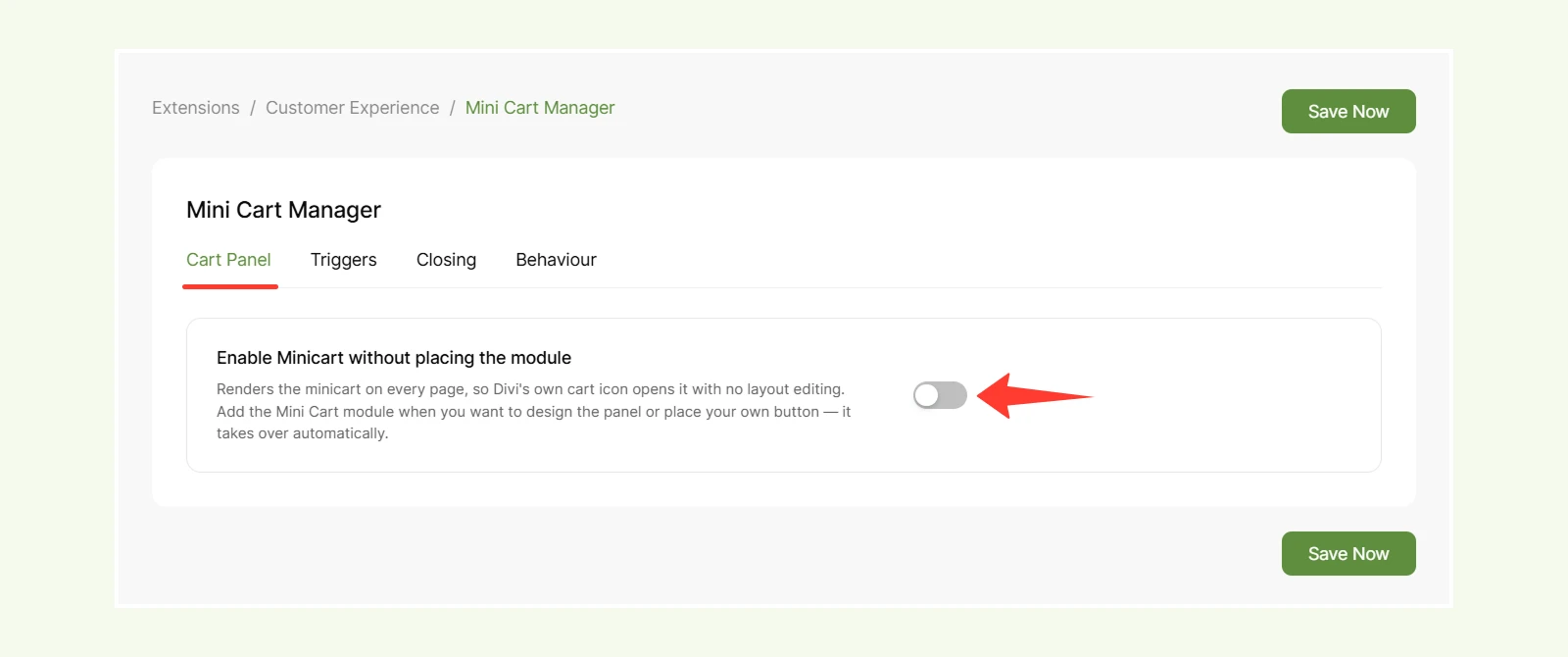
This adds DiviMerc's ready-made cart panel across your website, so you don't have to add the Mini Cart module to individual pages.
Step 3: Choose the Cart Type
Next, select a layout from the Cart Type setting. You have four options:
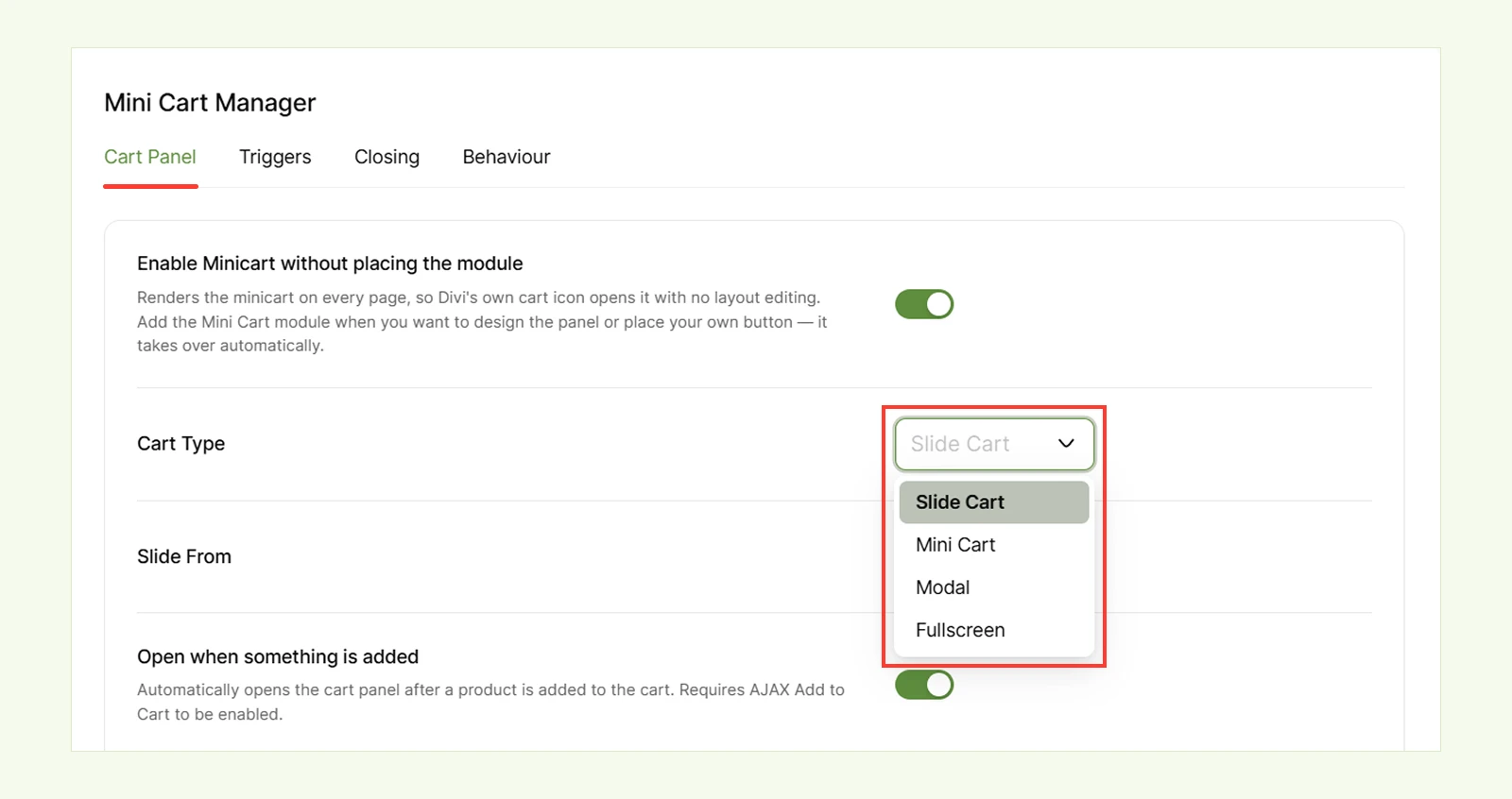
- Slide Cart
- Mini Cart
- Modal
- Fullscreen
If you choose Slide Cart, you can also select whether it opens from the left or right.
Step 4: Configure the Cart Panel
In the Cart Panel settings, you can adjust the information and actions shown inside the cart. These include:
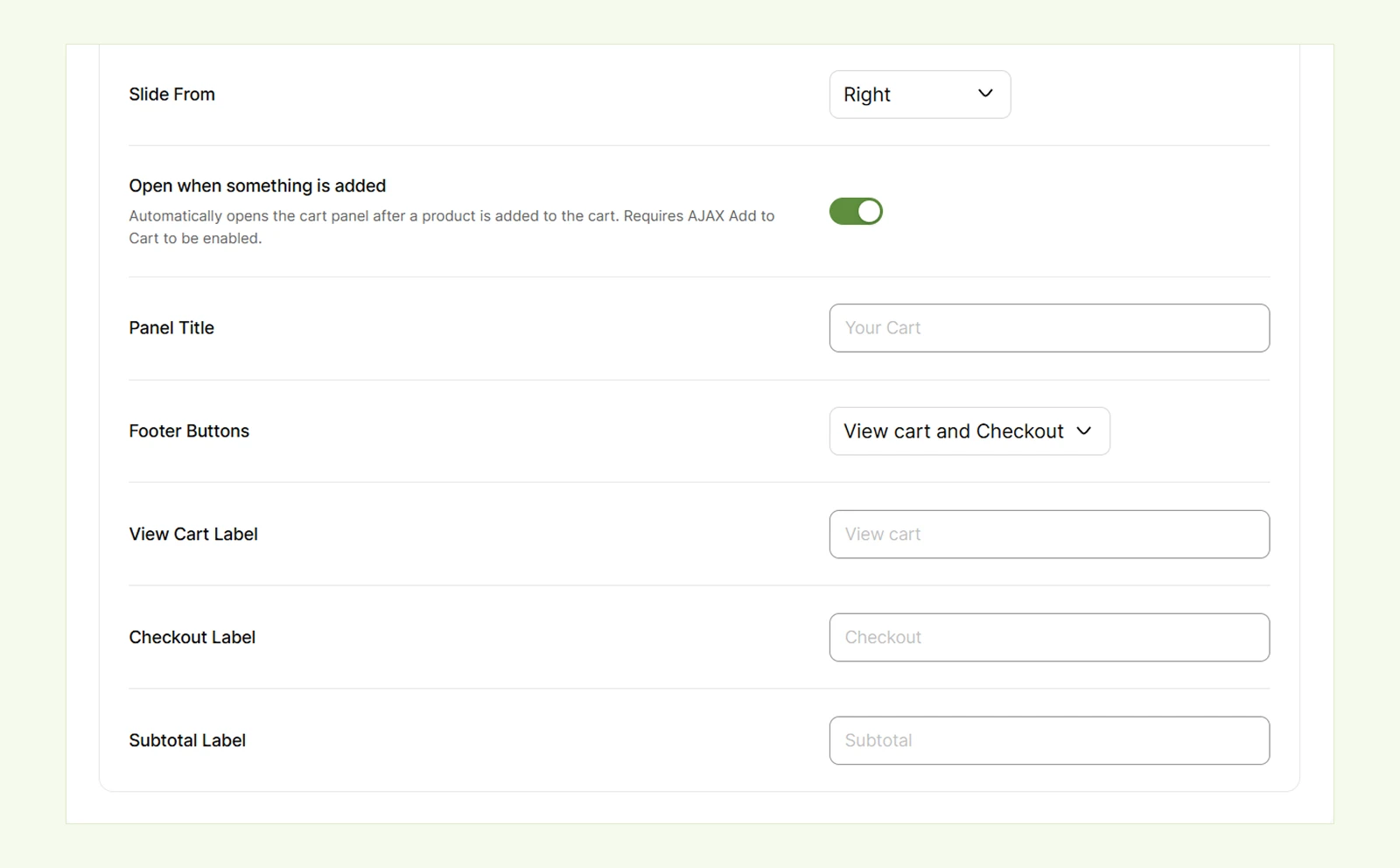
- Panel title.
- Subtotal label.
- View Cart button and label.
- Checkout button and label.
The site-wide panel uses DiviMerc’s default styling. If you need detailed design control, use the Mini Cart module instead.
Step 5: Set How Shoppers Open the Cart
Open the Triggers settings to control how visitors can access the mini cart. Besides the regular cart trigger, you can:
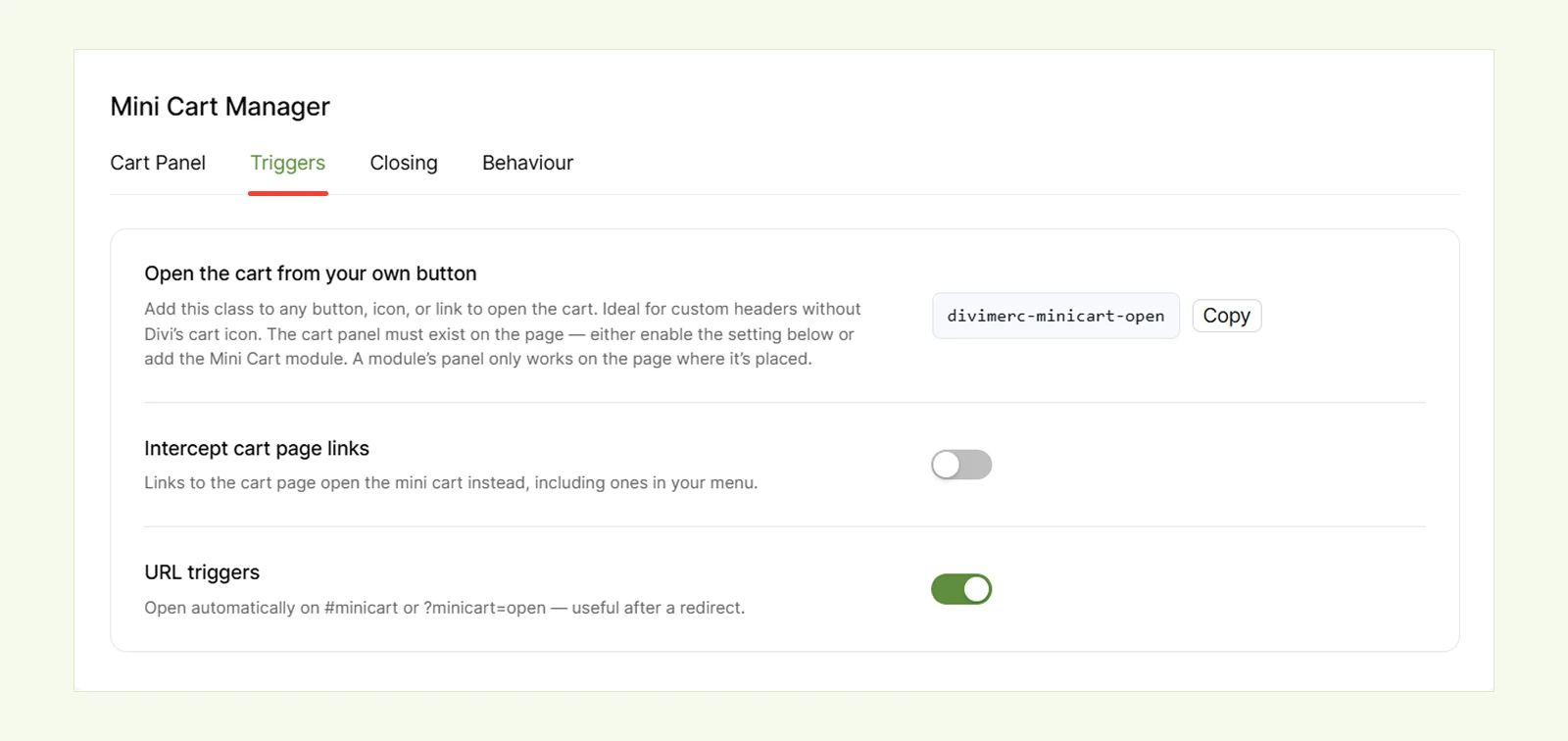
- Use your own button, icon, image, or link to open the cart.
- Open the mini cart when someone clicks a Cart page link.
- Trigger the cart through a specific URL.
For example, you might want a custom "View Cart" link in your header or another section of your website. To do this, add the divimerc-minicart-open CSS class to the element you want to use.
Step 6: Configure Closing Behaviour
Next, open the Closing settings to decide how shoppers dismiss the cart. You can configure it to:
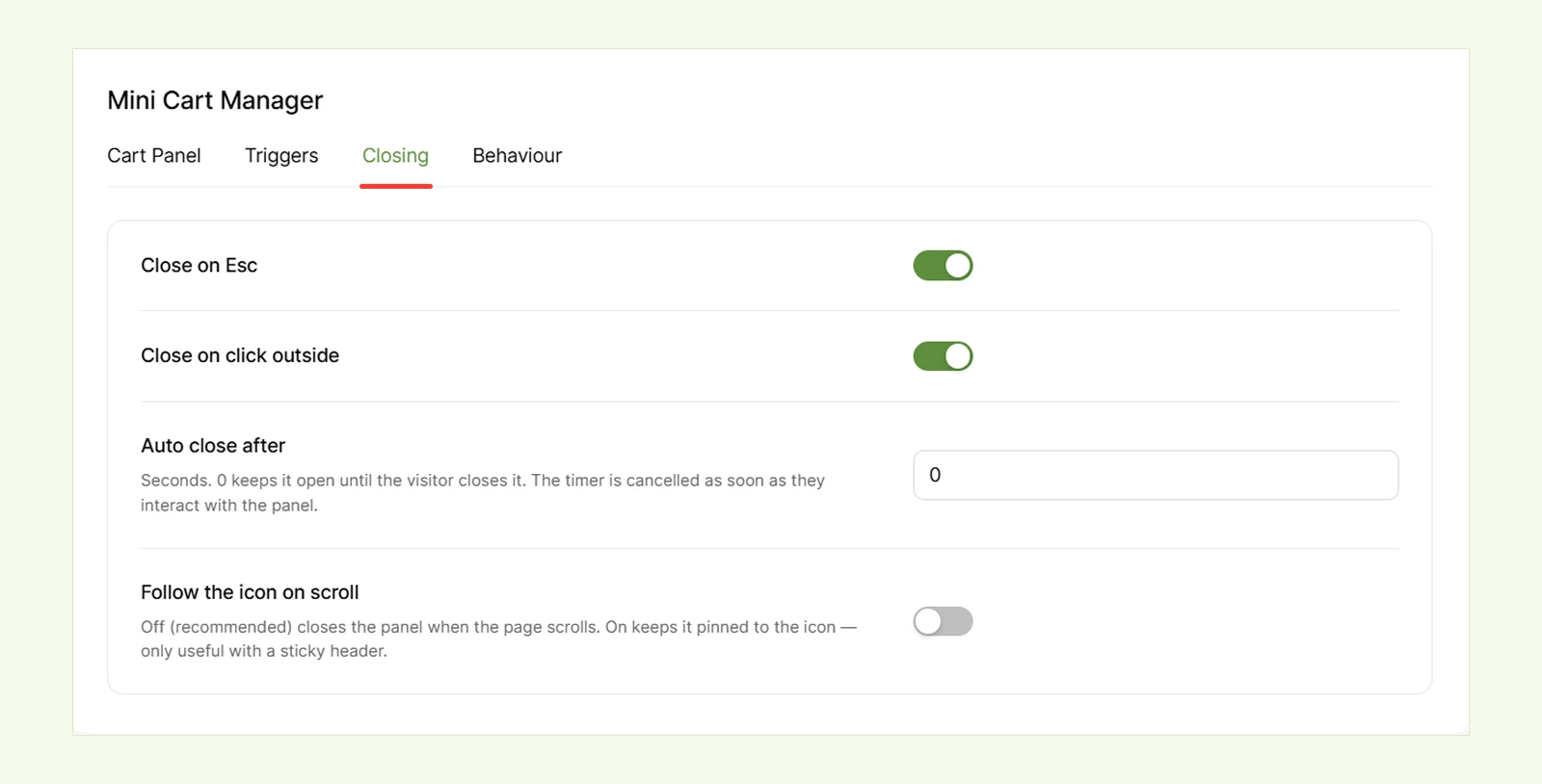
- Close when the Esc key is pressed.
- Close when someone clicks outside the cart.
- Close automatically after a set number of seconds.
- Keep the Mini Cart dropdown attached to its icon while scrolling.
Step 7: Configure Cart Behaviour
Finally, open the Behaviour settings. Here, you can:
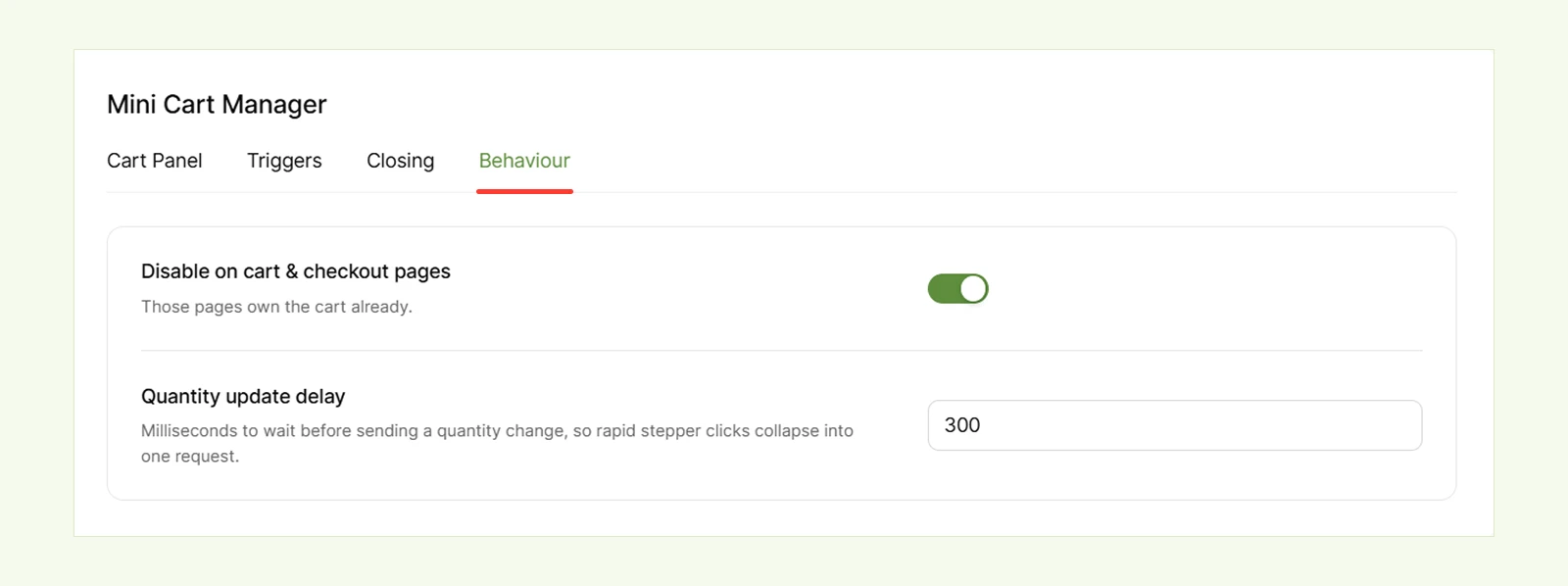
- Disable on cart & checkout pages: Hide the mini cart on pages that already have dedicated cart or checkout controls.
- Quantity update delay: Control how long the cart waits before processing quantity changes.
Note: When the first option is enabled, the entire Mini Cart module is hidden on those pages, including its trigger.
Final Thoughts: Which Method Should You Use?
Both methods let you add a mini cart to Divi, but they serve slightly different needs.
| Method | Best for |
| Mini Cart Module | Adding and fully customizing a mini cart inside a Divi layout |
| Mini Cart Manager Extension | Adding a ready-made mini cart site-wide without placing a module |
If you are designing a custom WooCommerce store, the Mini Cart module gives you more freedom to match the cart with your website's design.
If you simply need a functional cart across your store, Mini Cart Manager can save you setup time.
You can also use both together. The module handles the cart's content and design, while Mini Cart Manager can manage shared behaviors such as custom triggers, closing options, and quantity updates.
If you are considering other options, check out our guide to the best WooCommerce mini cart plugins to compare what works best for your store.




0 Comments