One of 25+ Modules
Advanced Divi Checkout Module
Advanced Divi Checkout module rebuilds the WooCommerce checkout form from eight components you add, reorder, and style, then shows them as one page, a stepper, or an accordion. Shoppers fill in fewer fields, review every detail before paying, and see the order total right on the Place Order button.
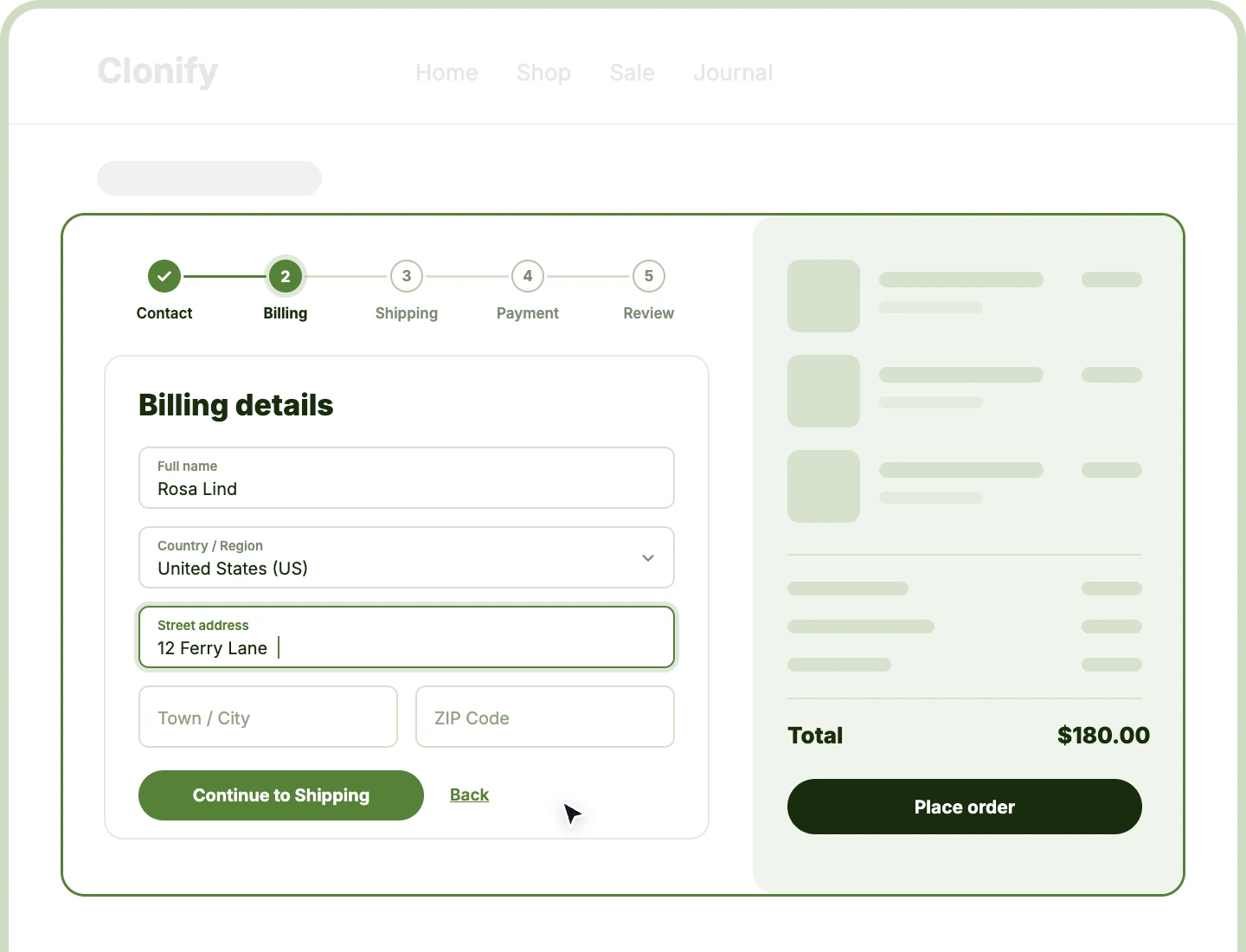
Three Checkout Layouts
Run checkout as one page, a stepper with a numbered bar or timeline, or an accordion, all from the same components and one setting.
Review Before Paying
Show a Review step that reads back every detail with Edit links, and put the live order total right on the Place Order button.
Gateways Keep Working
Take payments through Stripe, PayPal, WooPayments, and every other gateway exactly as before, since the form is still WooCommerce's own checkout.
Eight Checkout Components to Build From
Each part of the checkout is its own building block, filled live from WooCommerce. Add the ones your store needs, drag them into order, and leave out the rest.

Contact Information
Collect the email first, with a guest notice, a Create an account? checkbox, and a returning-customer login that's always open or tucked behind a link.

Billing Details
Gather the name, address, and phone in WooCommerce's own fields, with name fields side by side on desktop and stacked on phones.

Shipping Address
Let shoppers send the order somewhere else behind a "Ship to a different address?" checkbox, shown only when the order actually needs shipping.

Additional Information
Give customers room for order notes and delivery instructions, shown whenever WooCommerce order notes are switched on for your store.

Shipping Methods
Present rates as a radio list, selectable cards, or a compact list, with your own message while rates wait for the shopper's address.

Payment
Show gateways as radio cards, tiles, a classic list, or minimal rows, with gateway logos, a secure note, and an optional Place Order button.

Review & Place Order
Read back contact, address, shipping, and payment with Edit links, then place the order from a button that can show the live total.

Custom
Drop any Divi module, like a trust badge image, a text note, or a divider, between checkout steps, as many times as you need.
Design a WooCommerce Checkout in Divi That Shoppers Finish
Present Checkout the Way Shoppers Prefer

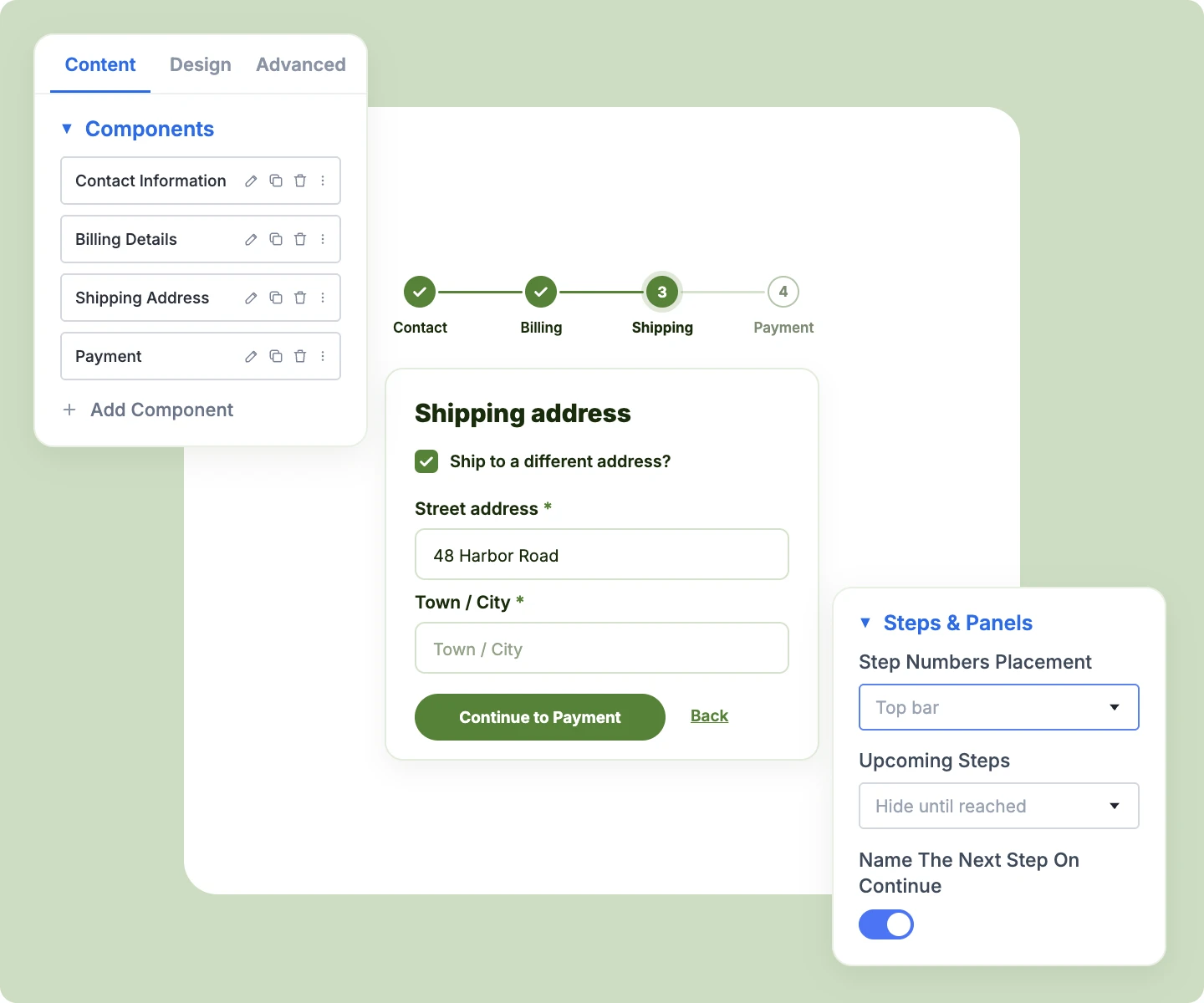
Walk shoppers through one step at a time with Stepper, using a numbered top bar or a left timeline.
-
Collapse each step to its title with Accordion, so only the current step stays open.
-
Name the next step on each Continue button, like "Continue to Shipping method," so shoppers know what's coming.
-
Check each step on Continue, marking empty required fields and focusing the first one to fix.
-
Open the right step automatically when WooCommerce rejects a field, like an invalid postcode.
Shorten the Checkout Form Without Any Code
-
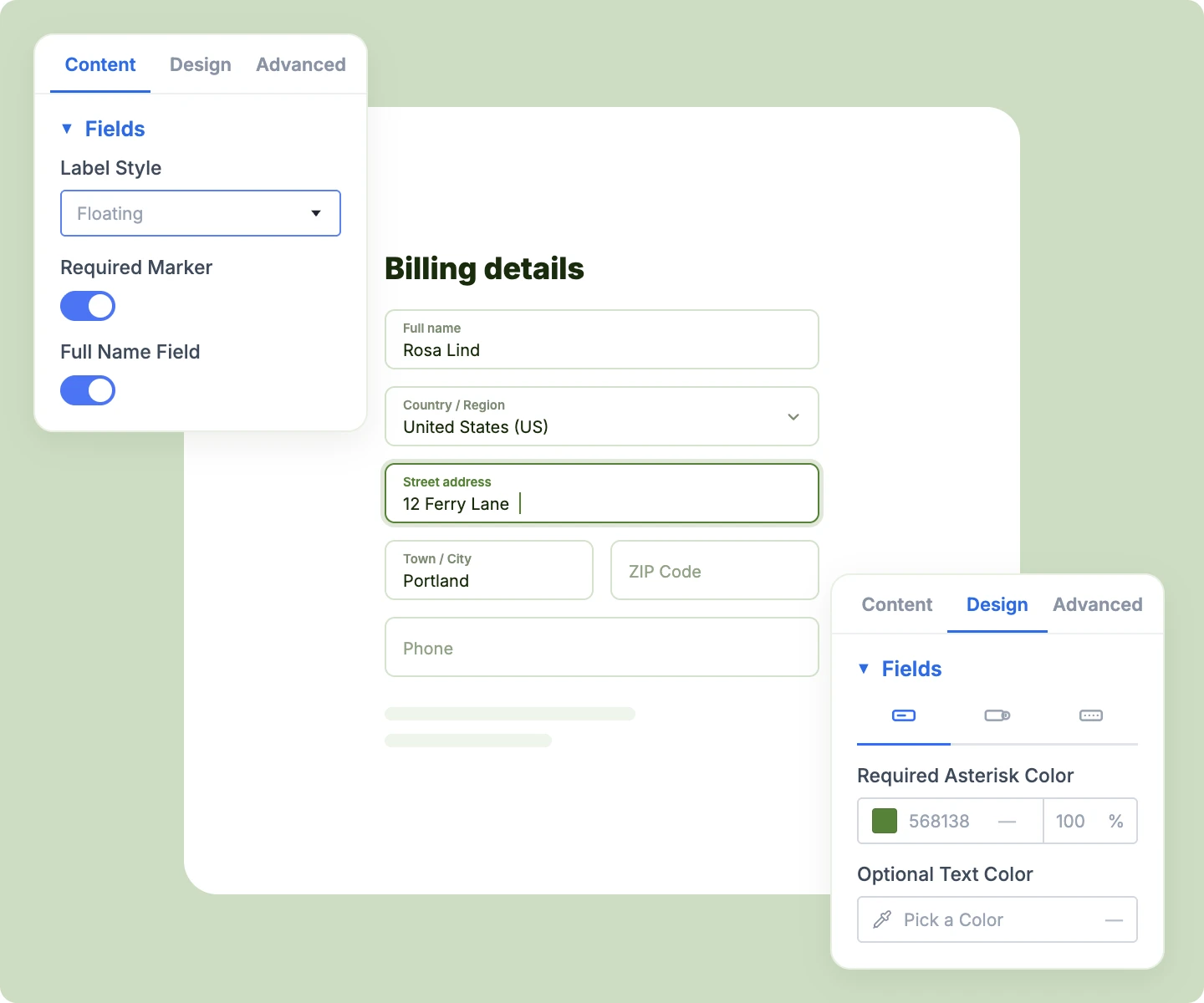
Set labels above each field, floating inside it, or as placeholders, across the whole form.
-
Combine first and last name into a single Full name field, while WooCommerce still receives both.
-
Hide or require Company, Address line 2, and Phone, or leave them to your WooCommerce settings.
-
Add a required-field note to each step, or hide the "(optional)" text for a cleaner form.
-
Keep fields from checkout-field plugins, which appear in their own group's component automatically.
Make Payment Feel Safe and Clear
-
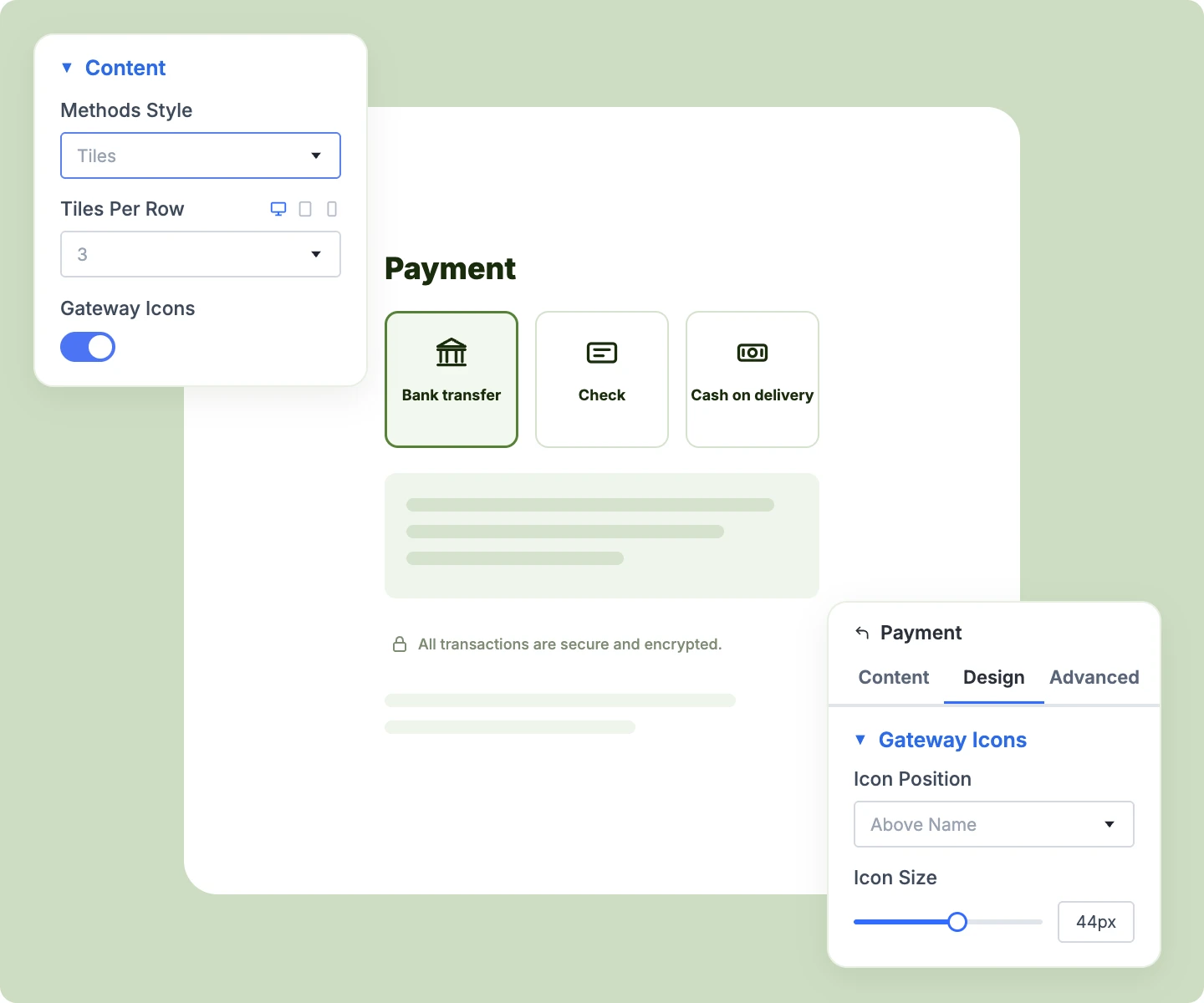
Set tiles per row for each device, so payment methods line up on desktop and phones alike.
-
Place gateway logos before, after, above, or below the method name, or at the far end.
-
Add a padlock secure note and your own text, like a refund policy, under the payment options.
-
Style the selected method, the payment details box, and every radio button and checkbox.
-
Show each gateway's own logo, or set one for any gateway with the Payment Gateway Icons extension.
Take Control of the Place Order Button
-
Put the live total on the button, like "Pay $120.00," by adding {total} to the button text.
-
Keep the button disabled until shoppers tick your terms, so every order arrives with terms accepted.
-
Choose which part carries the button: Review & Place Order, Payment, or the Advanced Checkout Details column.
-
Handle free orders automatically, with a no-payment message that clears if the coupon is removed.
-
Show a thin loading line under the header while totals refresh, so shoppers know checkout is working.
Free Ready-to-Use Checkout Layouts to Get Started
Skip the setup with DiviMerc's pre-made checkout layouts, from a one-page checkout to a three-step stepper and an accordion beside the order summary. Each one is fully customizable and responsive, ready to drop into your Divi Theme Builder checkout template. Pick a style, set your colors, and go live in minutes.

DiviMerc Advanced Checkout vs Divi Woo Checkout Modules: Which Gives You More Control?
| Feature | DiviMerc Advanced Checkout | Divi Woo Checkout Modules |
|---|---|---|
| How the checkout is built | One form with eight components that work together |  Four separate modules, placed one by one |
| Checkout layouts | One page, stepper, or accordion | One page only |
| Step navigation | Continue and Back, with each step checked | Not available |
| Email-first contact step | Email first, with returning-customer login | Email inside the billing form |
| Section order | Drag components into any order | Arranged by hand as separate modules |
| Field labels | Floating, above, or placeholder only | Above the field only |
| Full name field | One box, two names for WooCommerce | Separate first and last name |
| Review step with Edit links | Contact, address, shipping, and payment | Not available |
| Order total on the Place Order button | With {total} in the text | Not available |
| Terms checkbox | Button waits for the tick | Error after pressing Place Order |
| Payment method styles | Radio cards, tiles, classic, or minimal | WooCommerce's list, restyled |
| Payment gateways | Every WooCommerce gateway | Every WooCommerce gateway |
Ready to Turn Checkout Into the Easiest Step of the Sale?
FAQs on Checkout for Divi
Everything you need to know about the Advanced Checkout module before you get started.
What Is the Advanced Divi Checkout Module?
How Is It Different From Divi's Woo Checkout Modules?
How Do I Add Advanced Checkout in Divi?
Can I Turn My Checkout Into Steps?
Can I Hide the Company Field?
Do Payment Gateways Still Work With Advanced Checkout?
Can the Place Order Button Show the Order Total?
Why Is the Place Order Button Disabled?
Why Do Digital Products Skip the Shipping Step?
Which WooCommerce Checkout Does It Use?
Can I Add Custom Checkout Fields?
Can I Add My Own Content to the Checkout?
Where Do Order Items and Totals Go?
Does Advanced Checkout Work on Mobile?
Others Divi WooCommerce Modules in DiviMerc