
The Custom Product Tabs extension lets you create custom tabs for your product pages.
Create and manage your tabs to display additional product information in an organized way.
Important Notes #
- Enable Custom Product Tabs from DiviMerc → Extensions, as it is disabled by default.
- Enable the Advanced Product Tabs module from DiviMerc → Modules to display and style the tabs.
- Use Custom Product Tabs to create and manage tab content, and the Advanced Product Tabs module to show that content on product pages.
- Creating a custom tab does not show it automatically. Add a Tab Item in the Advanced Product Tabs module and select the custom tab you want to display.
Here is how to activate the extension: #
- Go to your WordPress Dashboard.
- Navigate to DiviMerc> Extensions.
- Toggle on Products Tab Manager.
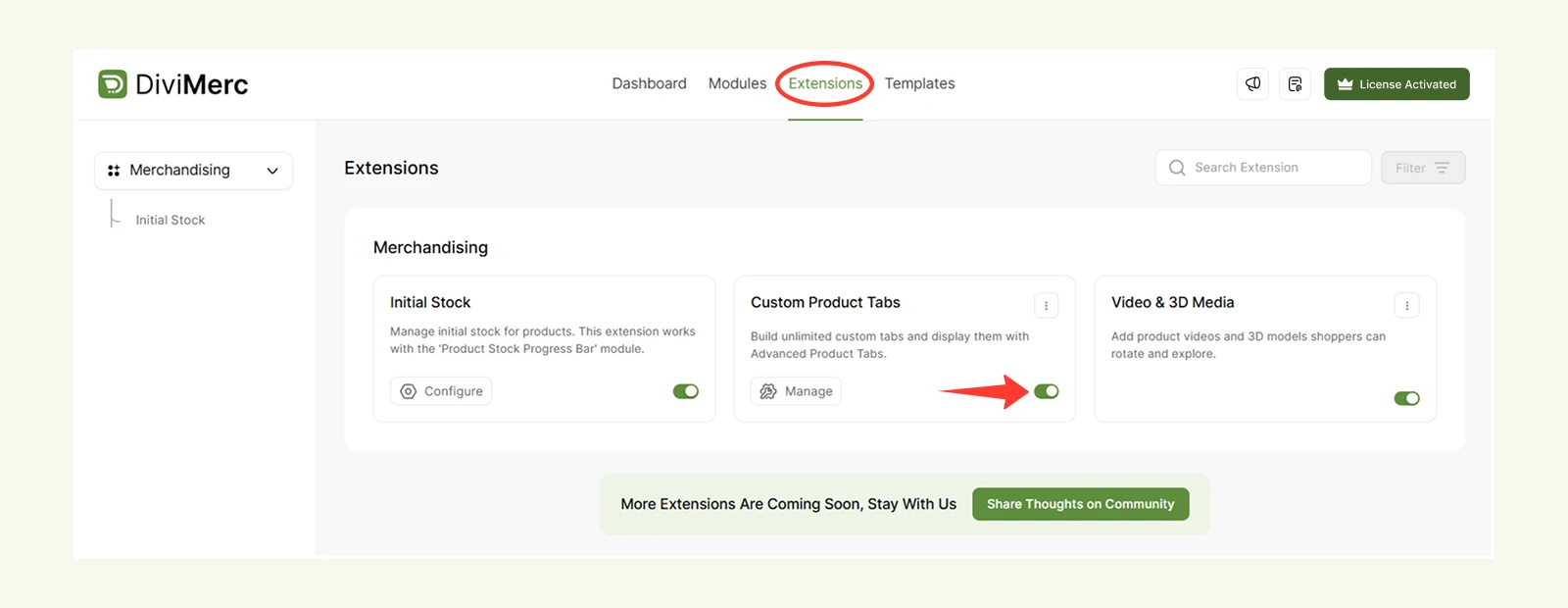
Note: These tabs won't appear on your product page automatically. To display one, add a Custom Tab Item to the Advanced Product Tabs module and select it from the Custom Tab Content field.
How to Create a Custom Product Tab #
- From your WordPress dashboard, go to Products → Product Tabs.
- Click Add New Product Tab.
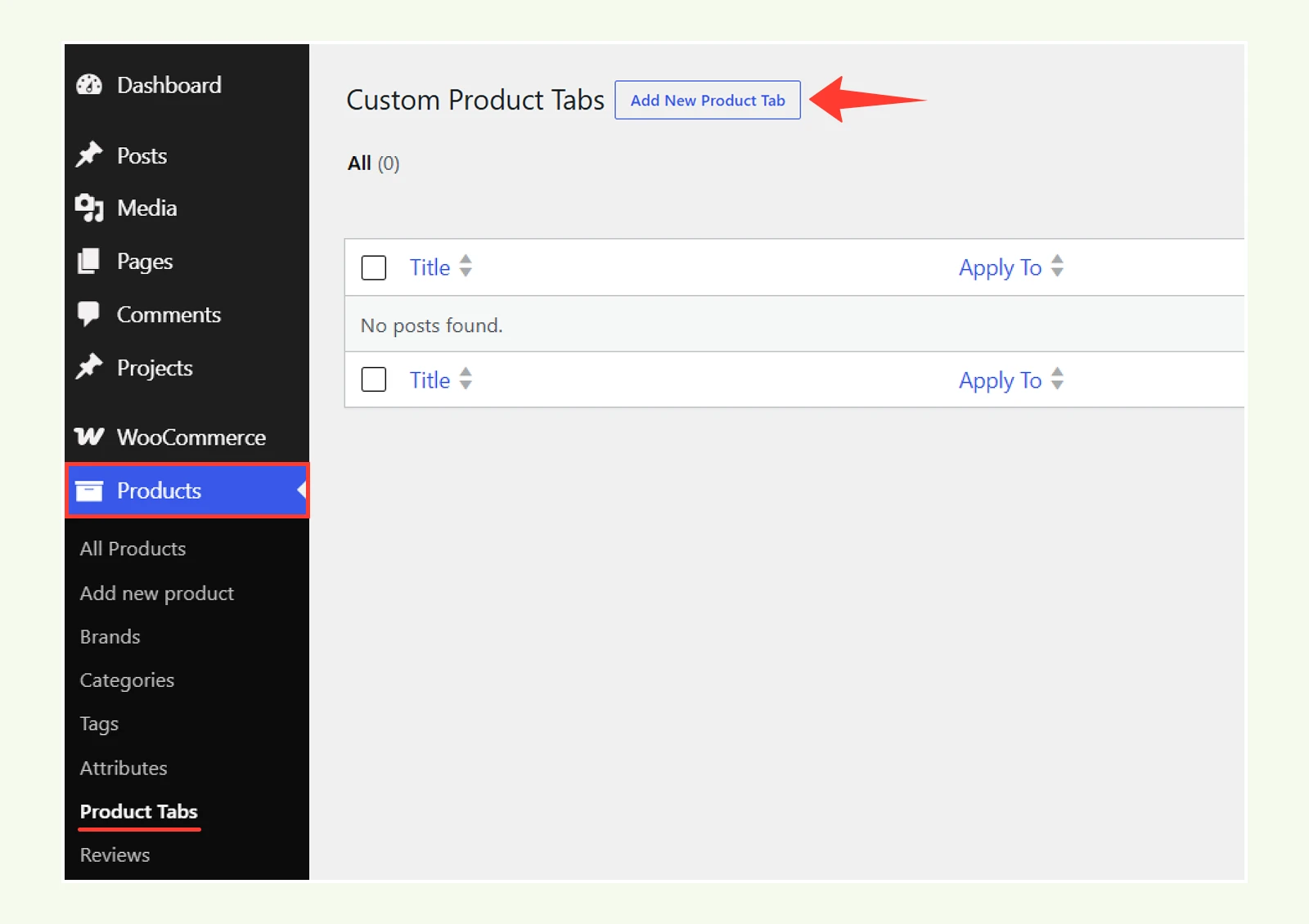
- Enter a clear title for the tab, such as “Shipping & Returns” or “Size Guide.”
- Add the content you want customers to see in the Tab Content editor.
- If needed, use the Divi Builder to build a more advanced layout for the tab content.
- Publish or save the tab.
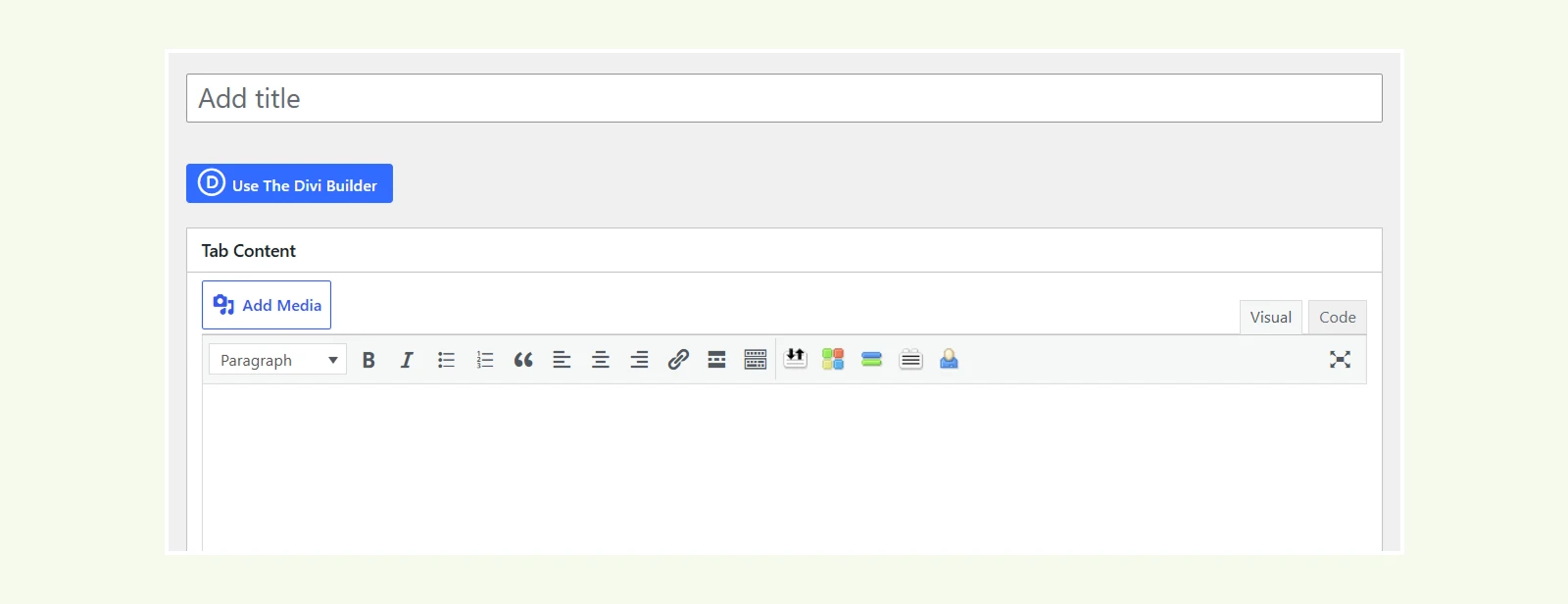
Creating a tab does not automatically add it to product pages. You must add it to an Advanced Product Tabs module, as explained below.
Managing Settings and Conditions #
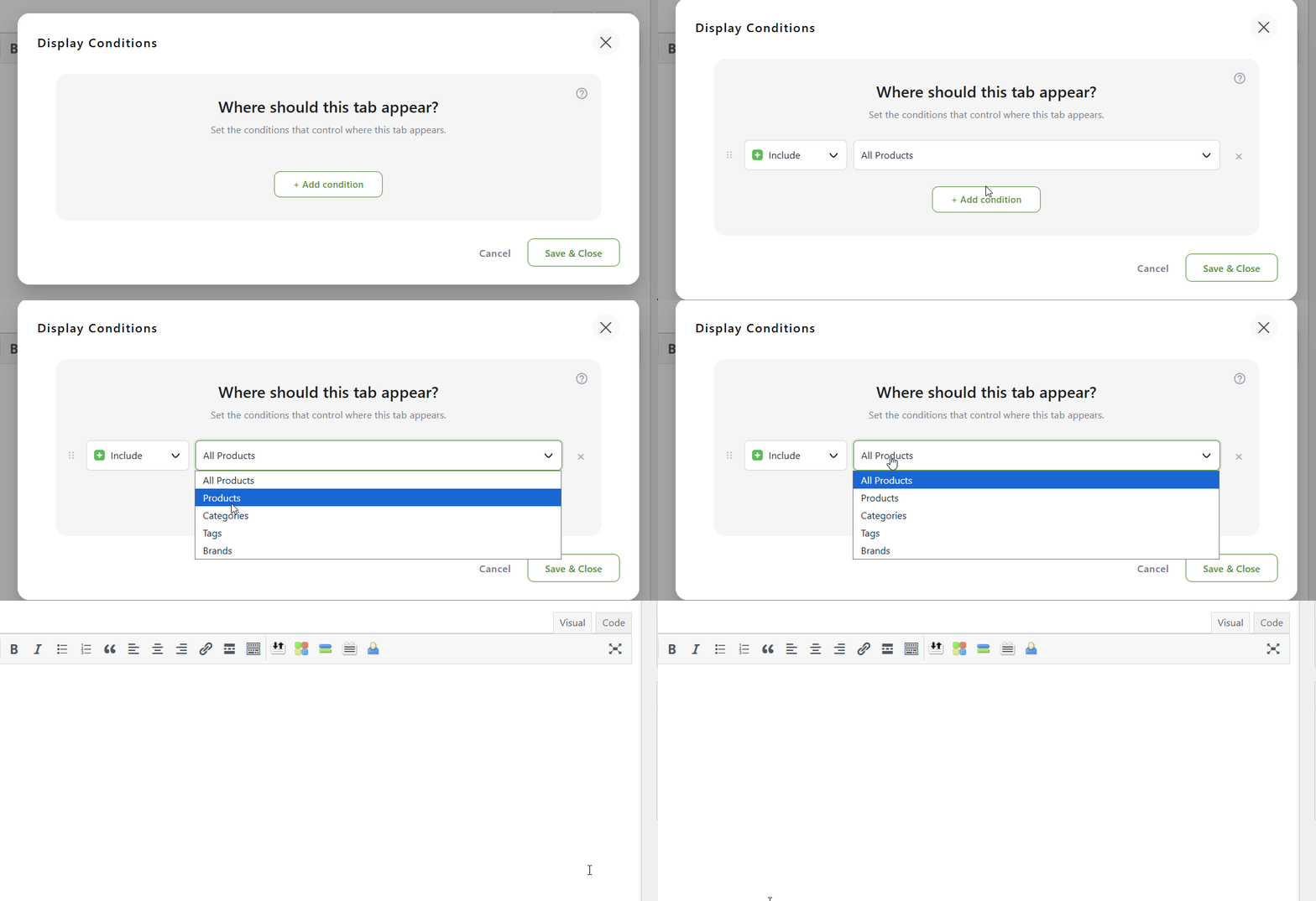
To control where your custom tabs appear, you must set display conditions from tab settings.
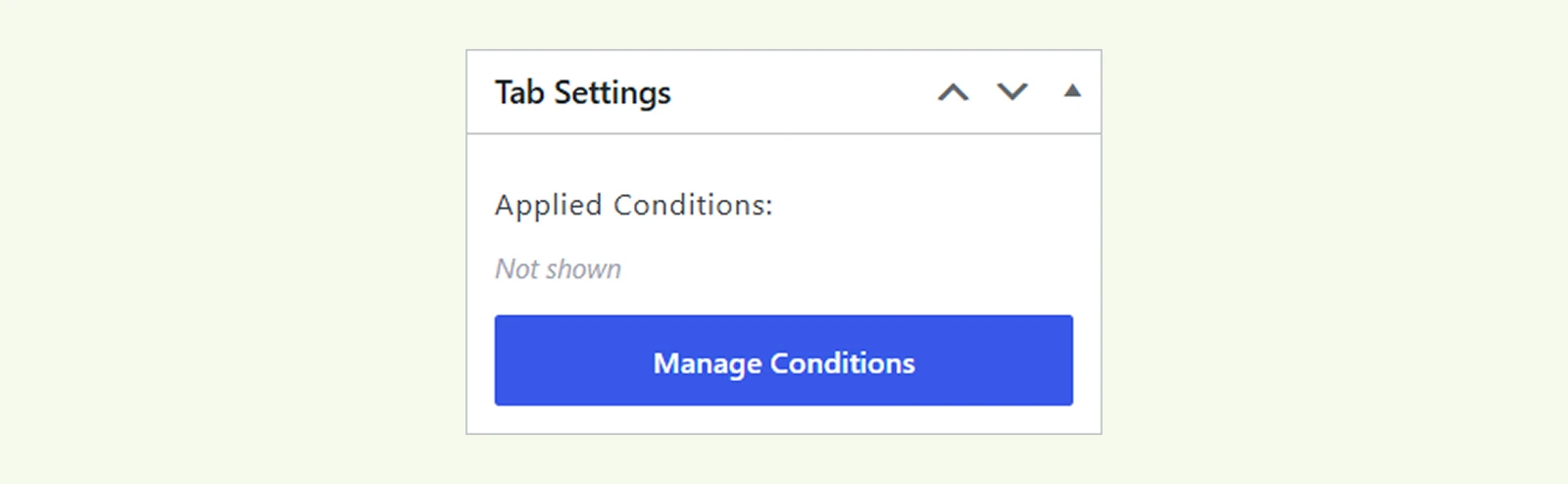
- In the tab settings > Manage Conditions.
- Select from visibility rules
- You can include or exclude specific products, categories, tags, or brands.
How to Display a Custom Tab #
After creating your custom tab, add it to the Advanced Product Tabs module on the relevant product-page template.
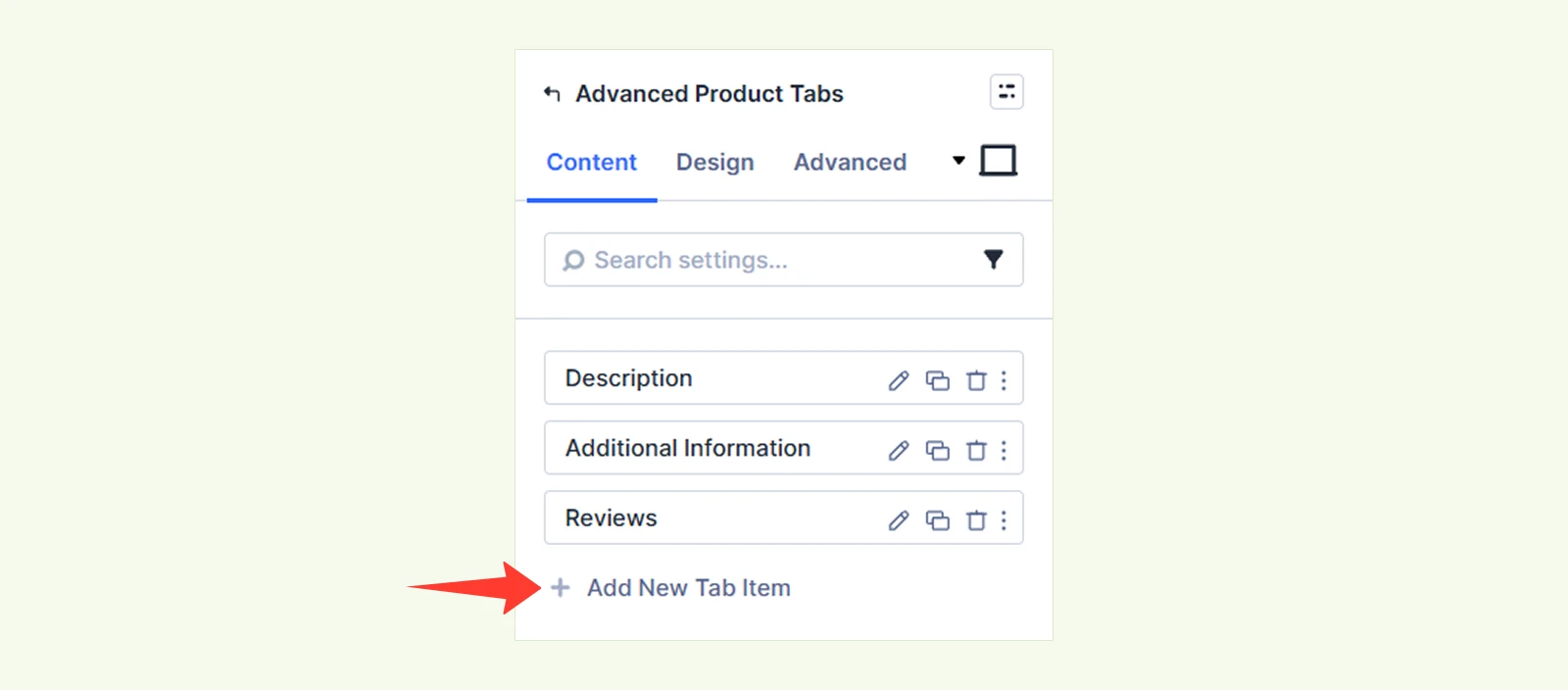
- Add the Advanced Product Tabs module, or open the module if it is already on the page.
- In the module’s Content settings, click Add New Tab Item.
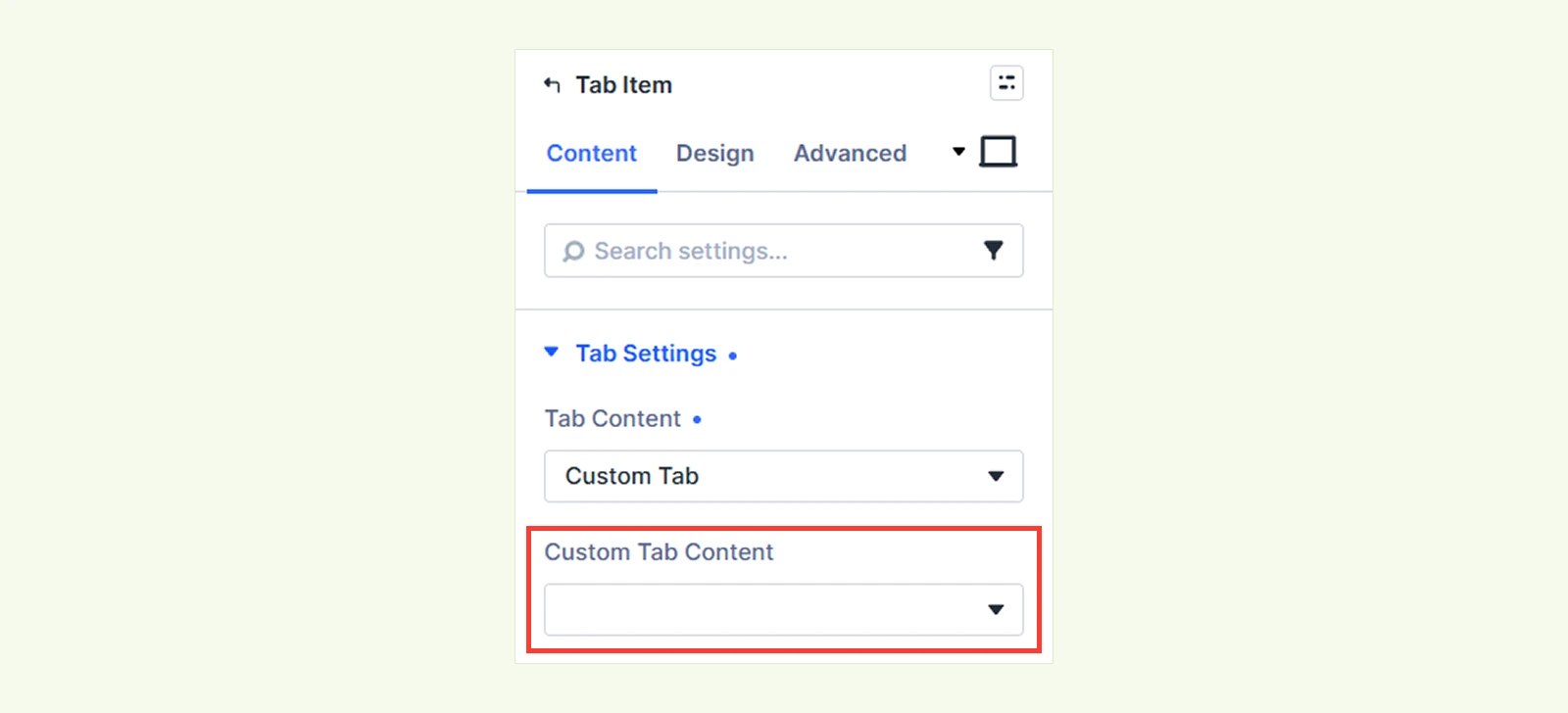
- Open the new tab item’s settings.
- Under Tab Content, select Custom Tab.
- In the Custom Tab Content field, select the custom tab you created.
- Save the tab item and then save or update the page/template.
The selected tab will now be available on applicable product pages, subject to the display conditions you configured.
Need Help? #
If you have any questions or need assistance, contact our support team: [email protected]


