
The Mini Cart Manager extension lets you control site-wide mini cart behavior, including how the cart opens, closes, and handles quantity updates. It can also add a ready-made cart panel to every page for stores that don't want to place the Mini Cart module.
Important Note:
- The Mini Cart Manager extension is disabled by default and must be enabled manually.
- Enabling the extension alone does not display a cart. Turn on Show cart without placing the module or place the Mini Cart module on the page.
Let’s see the settings in brief and how to make better use of them —
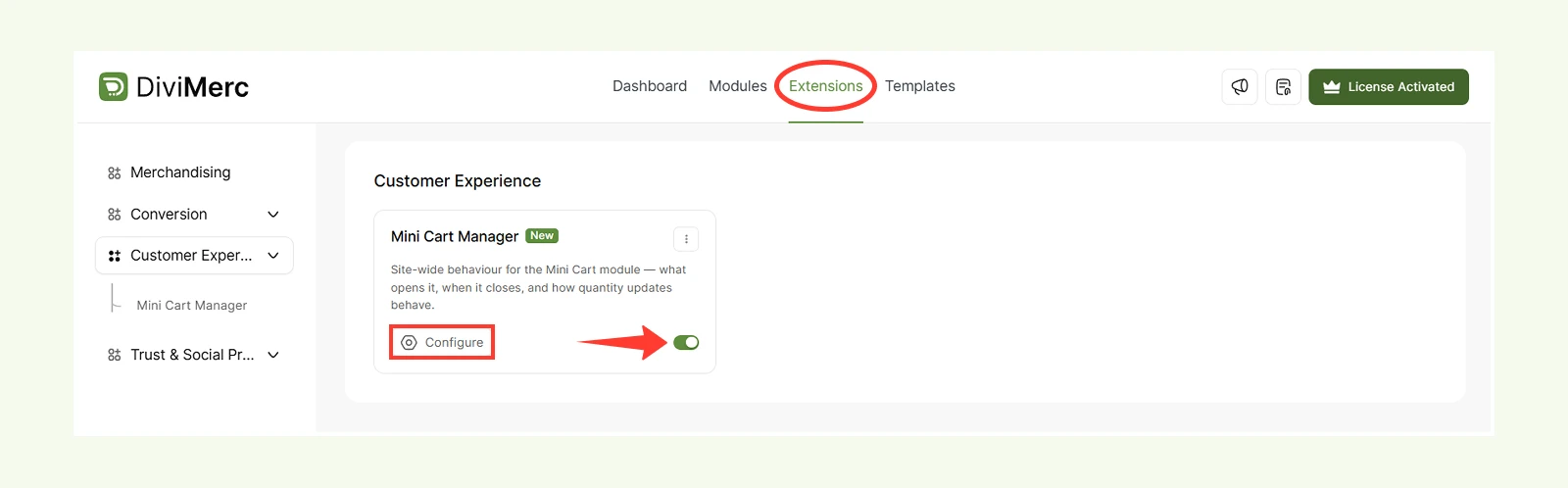
Enable the Mini Cart Manager #
- Go to your WordPress Dashboard.
- Navigate to DiviMerc > Extensions.
- Find Mini Cart Manager and enable it.
- Click Configure to access the Cart Panel, Triggers, Closing, and Behaviour settings.
Cart Panel #
These settings let you display and configure a site-wide cart panel without placing the Mini Cart module in a Divi layout.
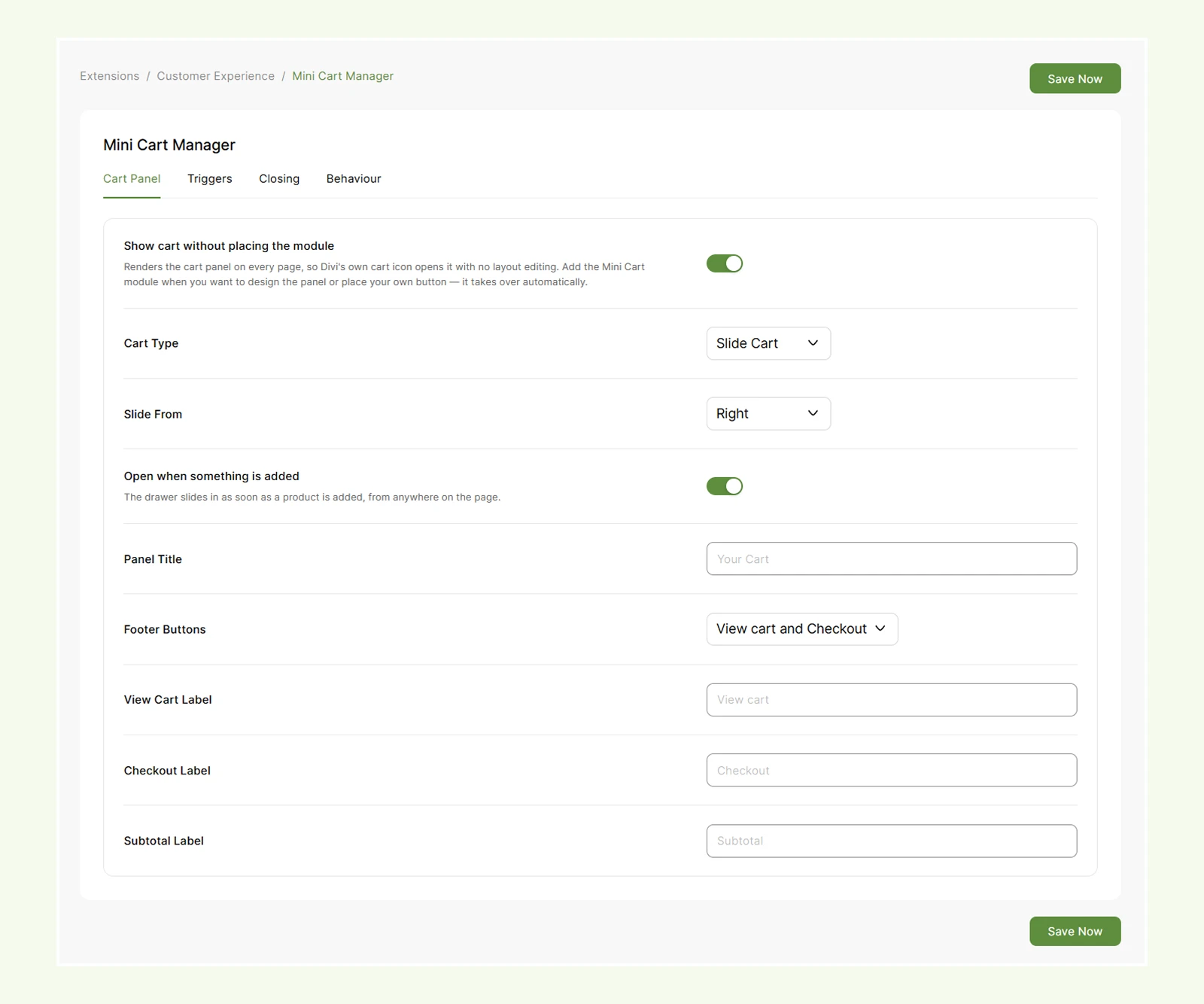
- Show cart without placing the module: Display a ready-made cart panel across your site without adding the Mini Cart module.
- Cart Type: Choose how the cart appears:
- Slide Cart: Opens a full-height cart panel from the side of the screen.
- Mini Cart: Opens a dropdown below the cart icon.
- Modal: Opens the cart in the center of the screen.
- Fullscreen: Opens the cart across the full screen.
- Slide From: Choose whether the Slide Cart opens from the right or left side. (Available when Cart Type is set to Slide Cart.)
- Open when something is added: Automatically open the cart when a product is added without reloading the page. (Available when Cart Type is not set to Mini Cart.)
- Panel Title: Change the title displayed at the top of the cart panel.
- Footer Buttons: Choose which buttons appear below the cart subtotal. Available options are:
- View cart and Checkout
- Checkout only
- View cart only
- None
- View Cart Label: Customize the View Cart button text. (Available when Footer Buttons includes the View Cart button.)
- Checkout Label: Customize the Checkout button text. (Available when Footer Buttons includes the Checkout button.)
- Subtotal Label: Customize the subtotal text.
Note: The site-wide cart panel uses DiviMerc’s default styling. If you need full control over its colors, typography, spacing, and other design options, use the Mini Cart module instead.
Triggers #
These settings control additional ways visitors can open the cart.
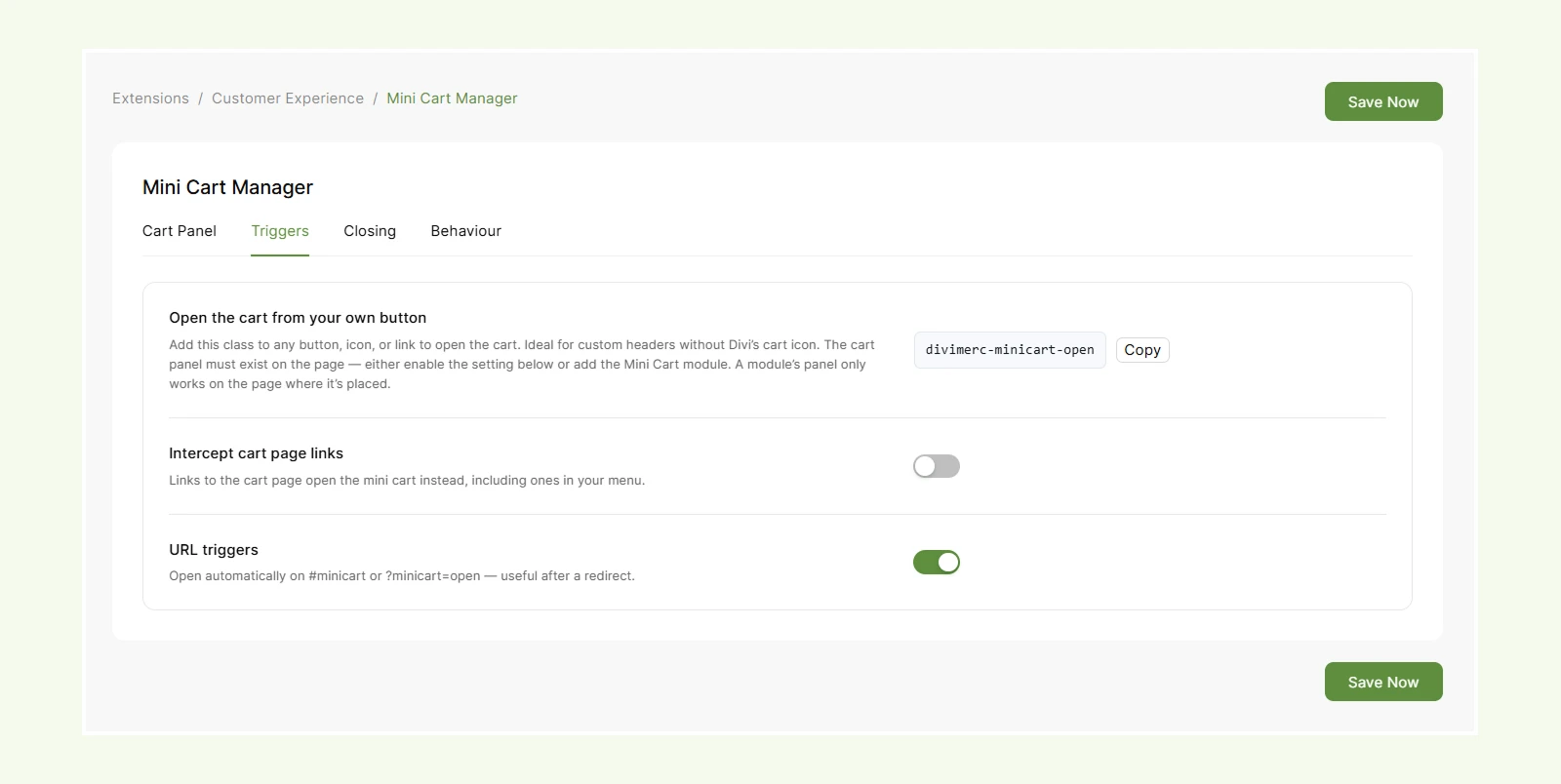
- Open the cart from your own button: Copy the divimerc-minicart-open CSS class and add it to a button, icon, image, or link that you want to use for opening the cart. (To use the custom trigger class in Divi, open the element and go to Advanced > CSS ID & Classes > CSS Class, then add: divimerc-minicart-open.)
- Intercept cart page links: Open the Mini Cart instead of taking visitors to the Cart page when they click a Cart link.
- URL Triggers: Automatically open the Mini Cart when a visitor opens a URL containing #Mini Cart or ?Mini Cart=open.
Note: These triggers only work when a cart panel is available on the page, either through the Mini Cart module or Show cart without placing the module.
Closing #
These settings control how visitors can close the Mini Cart.
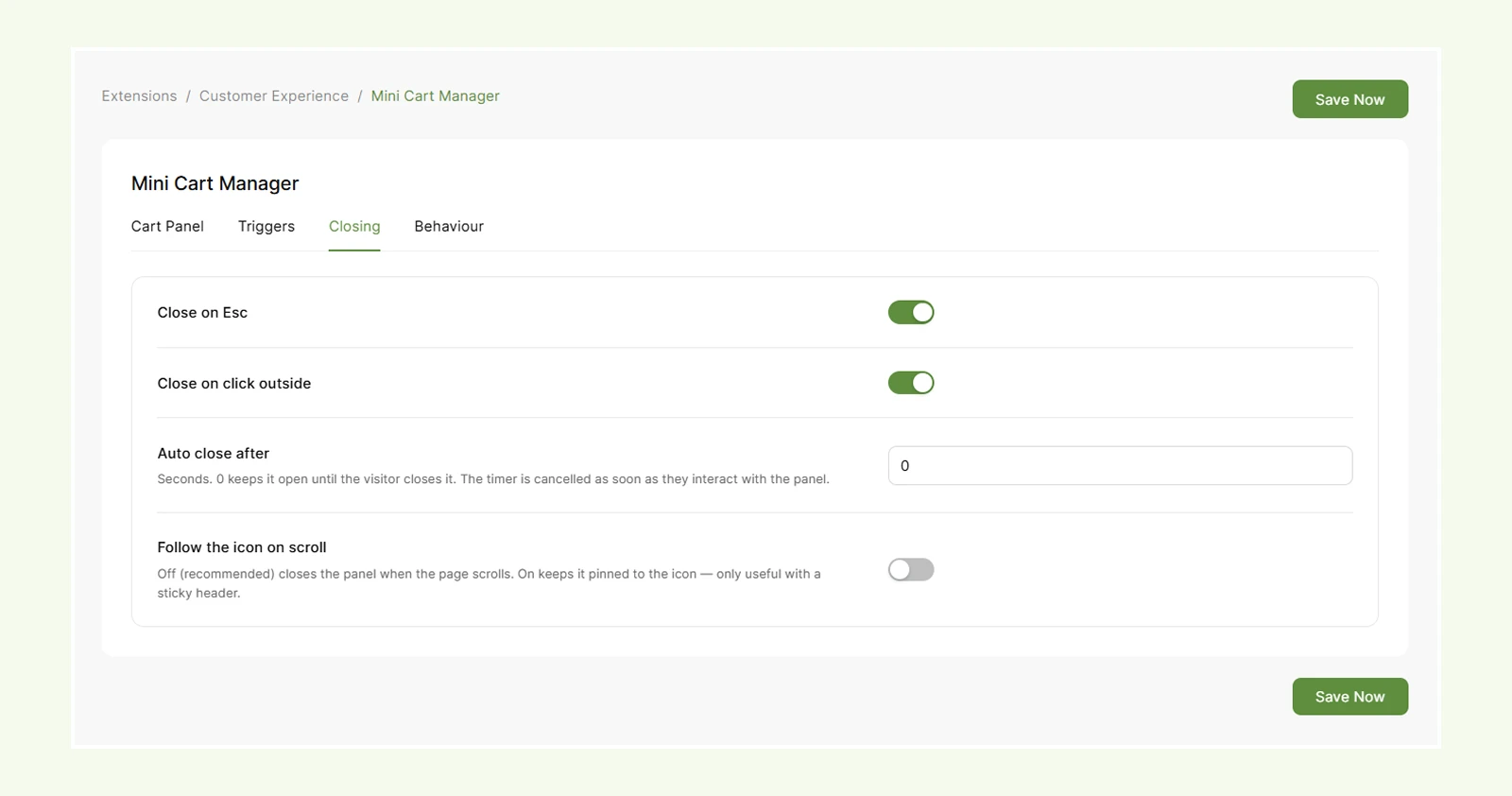
- Close on Esc: Let shoppers close the cart by pressing the Esc key.
- Close on click outside: Close the cart when shoppers click outside the panel.
- Auto close after: Set how many seconds the cart stays open before closing automatically.
- Follow the icon on scroll: When enabled, the Mini Cart dropdown stays attached to the cart icon while scrolling. When disabled, it closes on scroll. It’s best for sticky headers.
Behaviour #
These settings control where the Mini Cart appears and how quantity changes are processed.
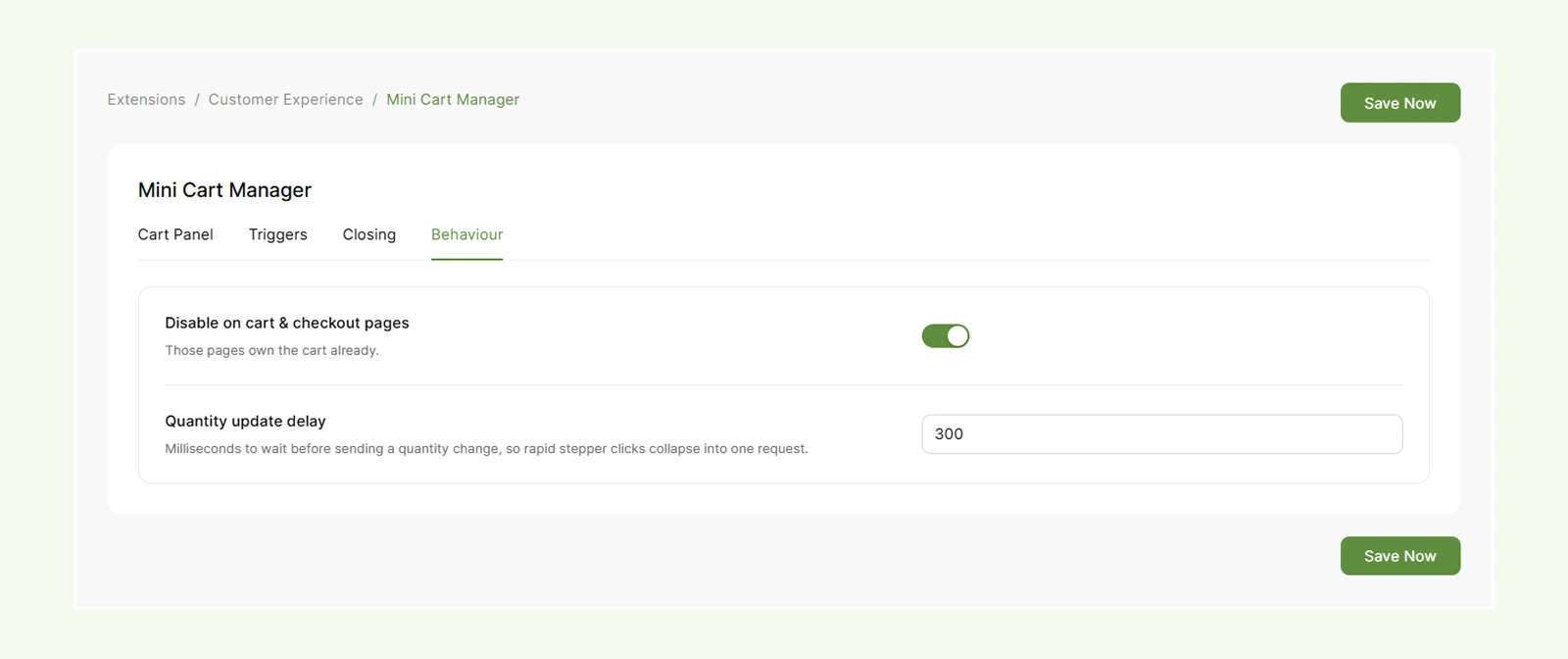
- Disable on cart & checkout pages: Hide the mini cart on WooCommerce Cart and Checkout pages.
- Quantity update delay: Set how long the cart waits before updating after a shopper changes the product quantity.
Note: When Disable on cart & checkout pages is enabled, the entire Mini Cart module is hidden on those pages, including its cart trigger.
Use Mini Cart Manager with the Mini Cart Module #
The Mini Cart Manager controls site-wide behavior, while the Mini Cart module controls the cart's content, layout, and design.
If you place the Mini Cart module on a page, its cart panel is used instead of the ready-made site-wide panel. The Mini Cart Manager's Triggers, Closing, and Behaviour settings can still control how that mini cart behaves.
To learn more about customizing the cart itself, check the Mini Cart module documentation.
Need Help? #
If you have any questions or need assistance, contact our support team: [email protected]


