
The Product Share module lets you add social sharing options to your product pages to share your products through popular social platforms.
Let’s see the settings in brief and how to make better use of it.
Content Tab #
Allows you to configure your social sharing options, including adding new share items and customizing how they are presented.
Add New Share Item #
Click Add New Share Item to create a new sharing option. You can add multiple share items and configure each one individually. (Facebook and Whatsapp are available by default)
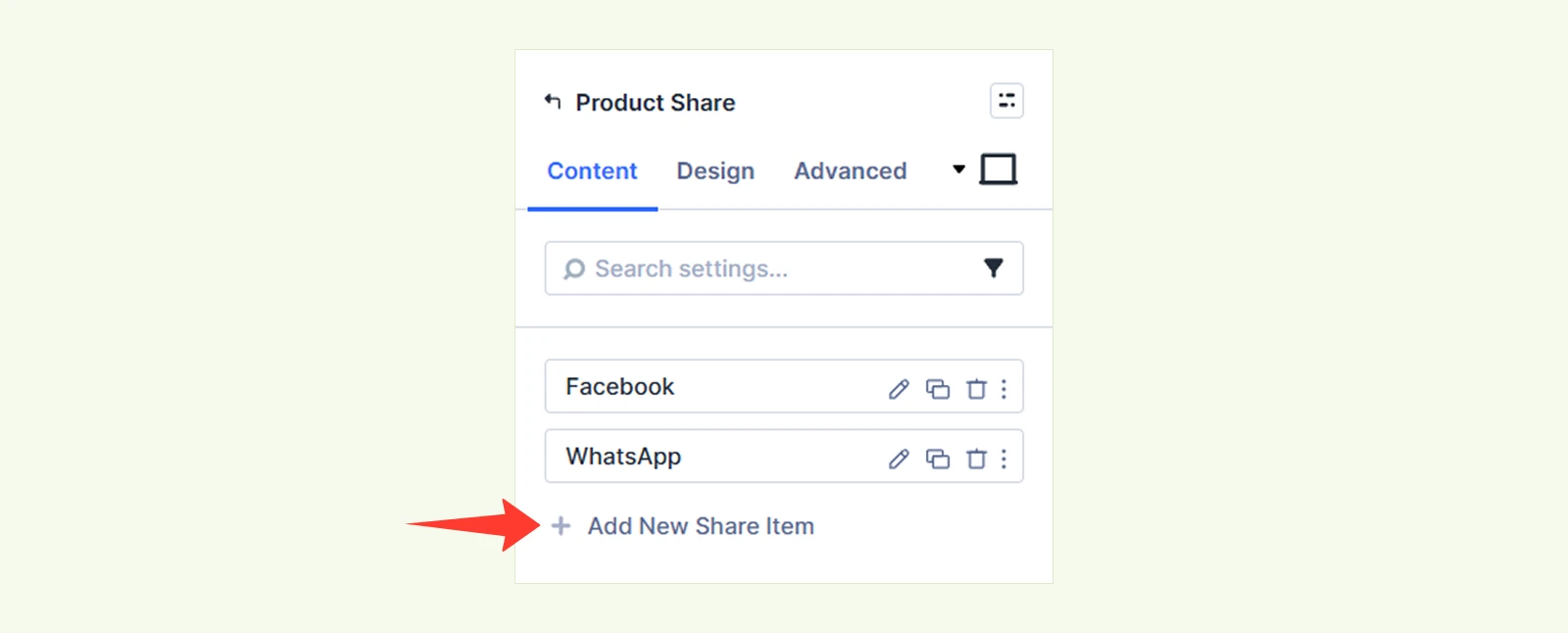
When you click on any of the default items or “Add New Share Item”, you’ll get ‘Platform and Content’ settings available.
Platform & Content #
Choose the platform or sharing method for the individual share item.

Platform: Available platforms include:
- Twitter / X
- Copy Link
- Custom
Custom Label: Enter a custom name for this platform here, or leave it blank to display the default platform name.
Background: Customize the module background using color, gradient, image, video, pattern, etc
Element Label: Add an internal label to organize and identify this module within the Divi Builder
Design Tab #
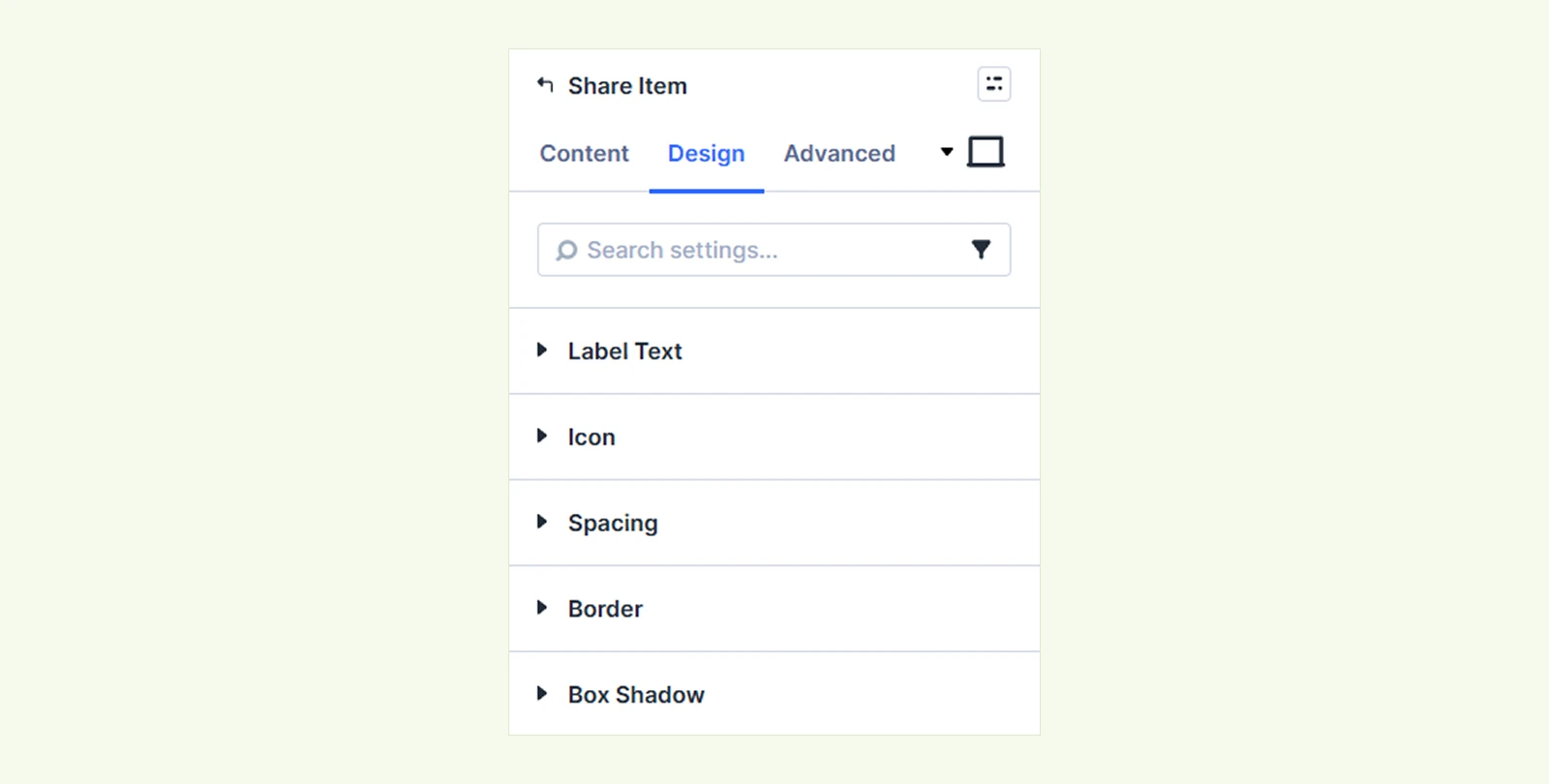
To customize the newly added share item, use the following design options to design its appearance with
- Label Text: Customize the font, size, color, and alignment of the platform name or custom label text.
- Icon: Adjust the appearance of the sharing platform icon, including its color, size, and style.
- Spacing: Control the margin and padding around your share items to create the perfect layout.
- Border: Define the border style, width, color, and corner radius for your share items.
- Box Shadow: Add depth and visual emphasis to your share items by applying customizable shadow effects.
Note: For all the other platforms you can customize the same way from the design tab as previously explained.
Advanced Tab #
Use the Advanced tab to apply additional settings to the individual share item, including custom CSS, conditions, visibility, and other Divi advanced options.
Once you've finished configuring your individual share items, return to the main module settings to refine the overall behavior and appearance. Let's explore the available options:
Share Options #
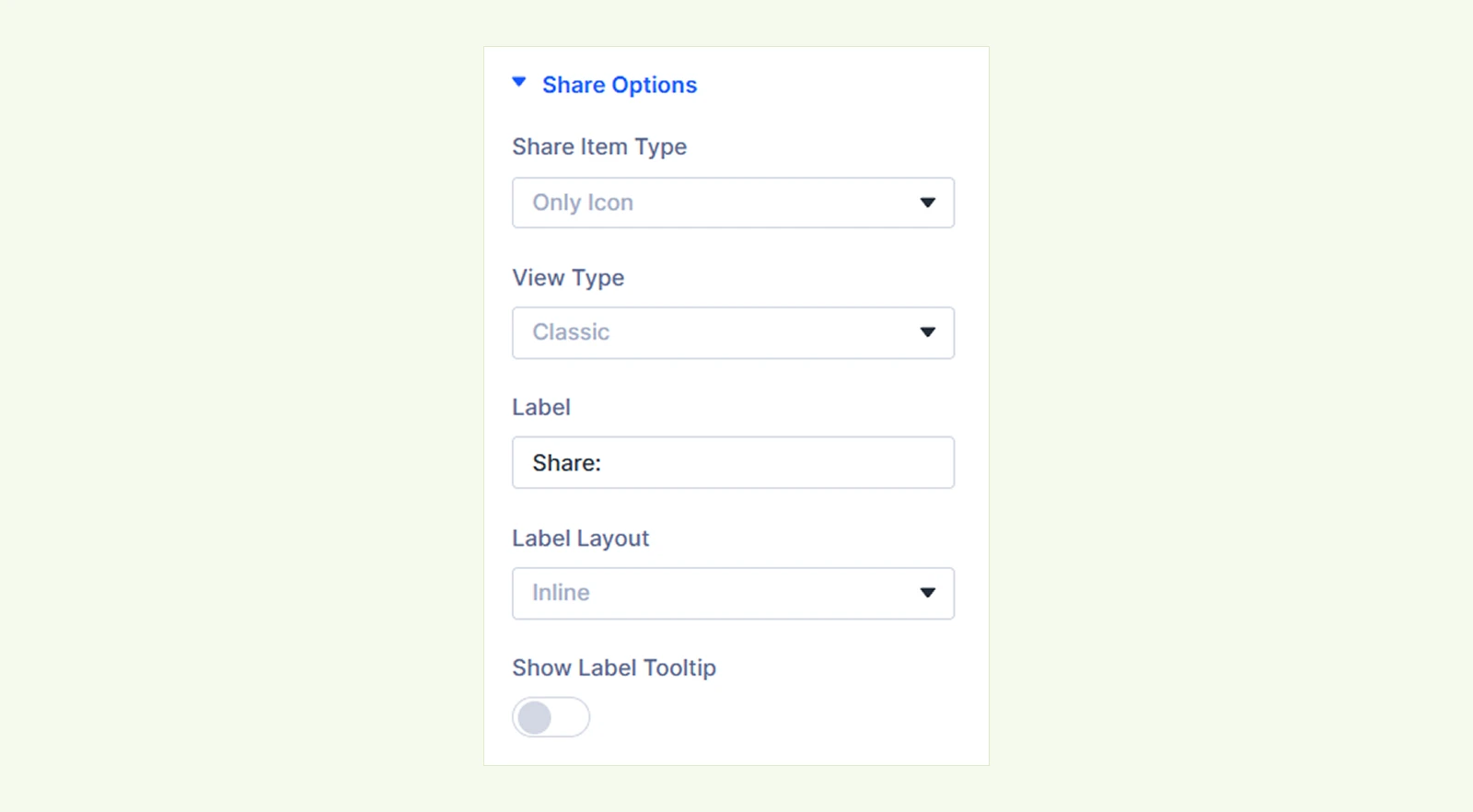
- Share Item Type: Select whether to display Only Icon, Only Text, or Icon & Text for the shared items.
- View Type: Select the view type for the shared items from classic and modal.
- Label: Add an optional label to display before the shared items.
- Label Layout: Select how to position the label next to your shared items, either horizontally in line with them or as a separate block above or below them.
- Show Label Tooltip: Display the item label as a tooltip when visitors hover over icon-only share items. (it’s only available with ‘icon only’ item type)
Trigger Button #
Select the label text for the button that users click to open the sharing options. (This setting is only available when the share option "View Type" is set to "Modal").

Modal Content #
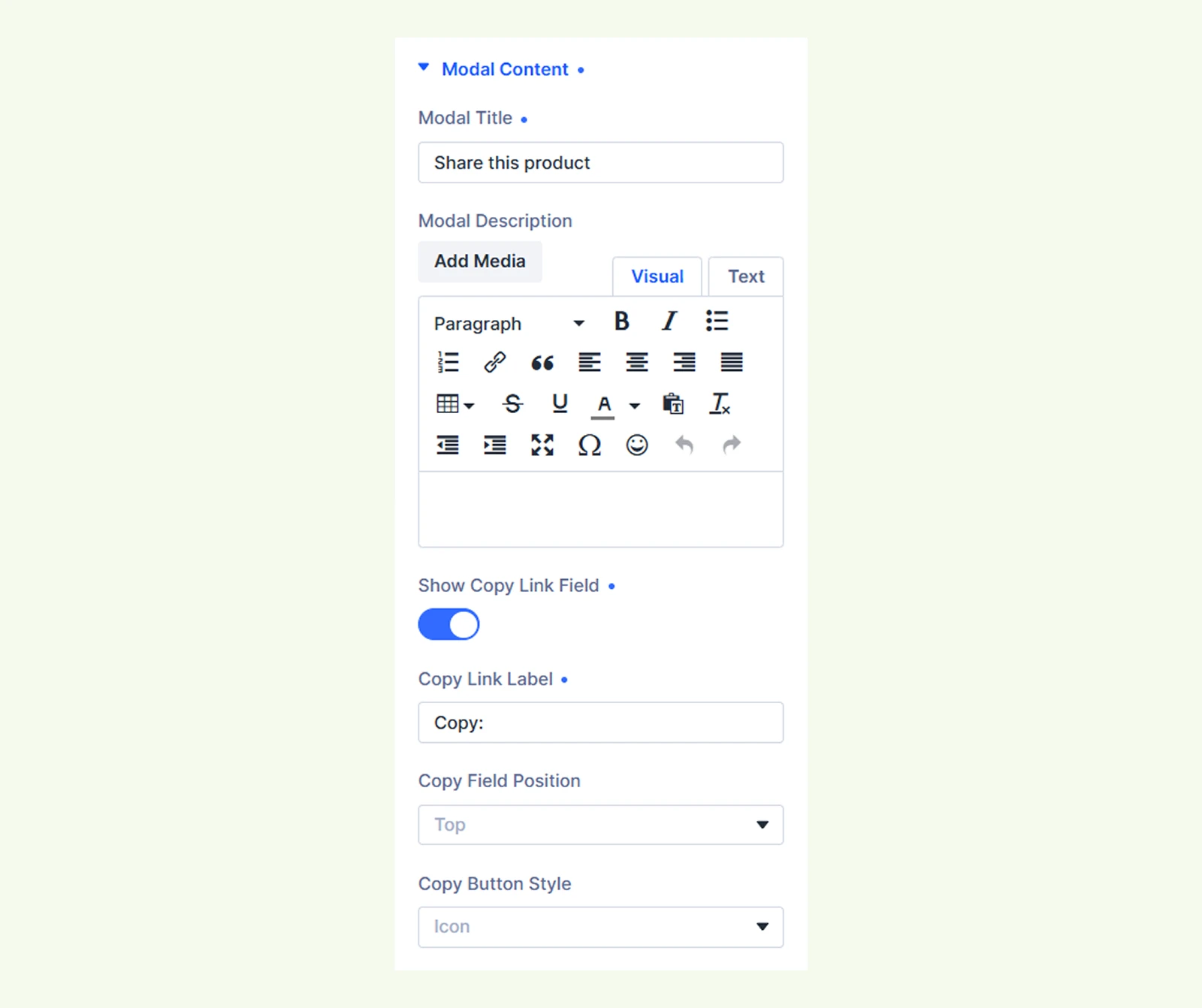
- Modal Title: Enter the title you want to display at the top of the modal.
- Modal Description: Add and format the content you want to display inside the modal.
- Show Copy Link Field: Toggle the button to configure: copy link label, copy field position, and copy button style.
Background: Customize the module background using color, gradient, image, video, pattern, etc
Element Label: Add an internal label to organize and identify this module within the Divi Builder
Design Tab #
The Design tab provides extensive styling options to customize everything from layout and spacing to specific element styles.
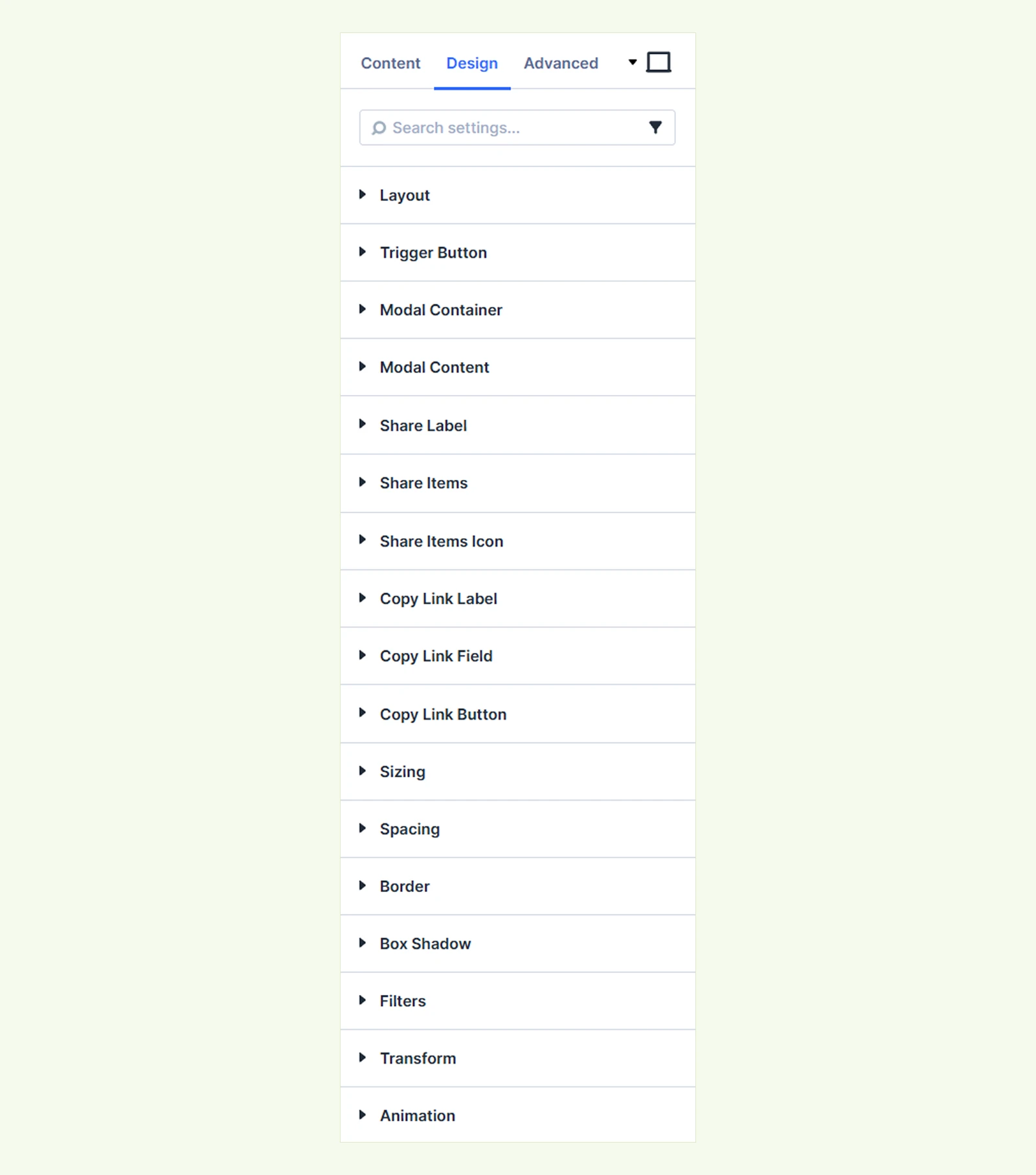
Layout: Control the overall layout and arrangement of the Product Share module.
Trigger Button: Use the Trigger Button settings to customize the background, border, text, icon, size, box shadow, and spacing of the button used to open the modal.
Modal Container #
Use the Modal Container settings to customize the appearance, size, and opening and closing animation of the modal. You will find options to style the
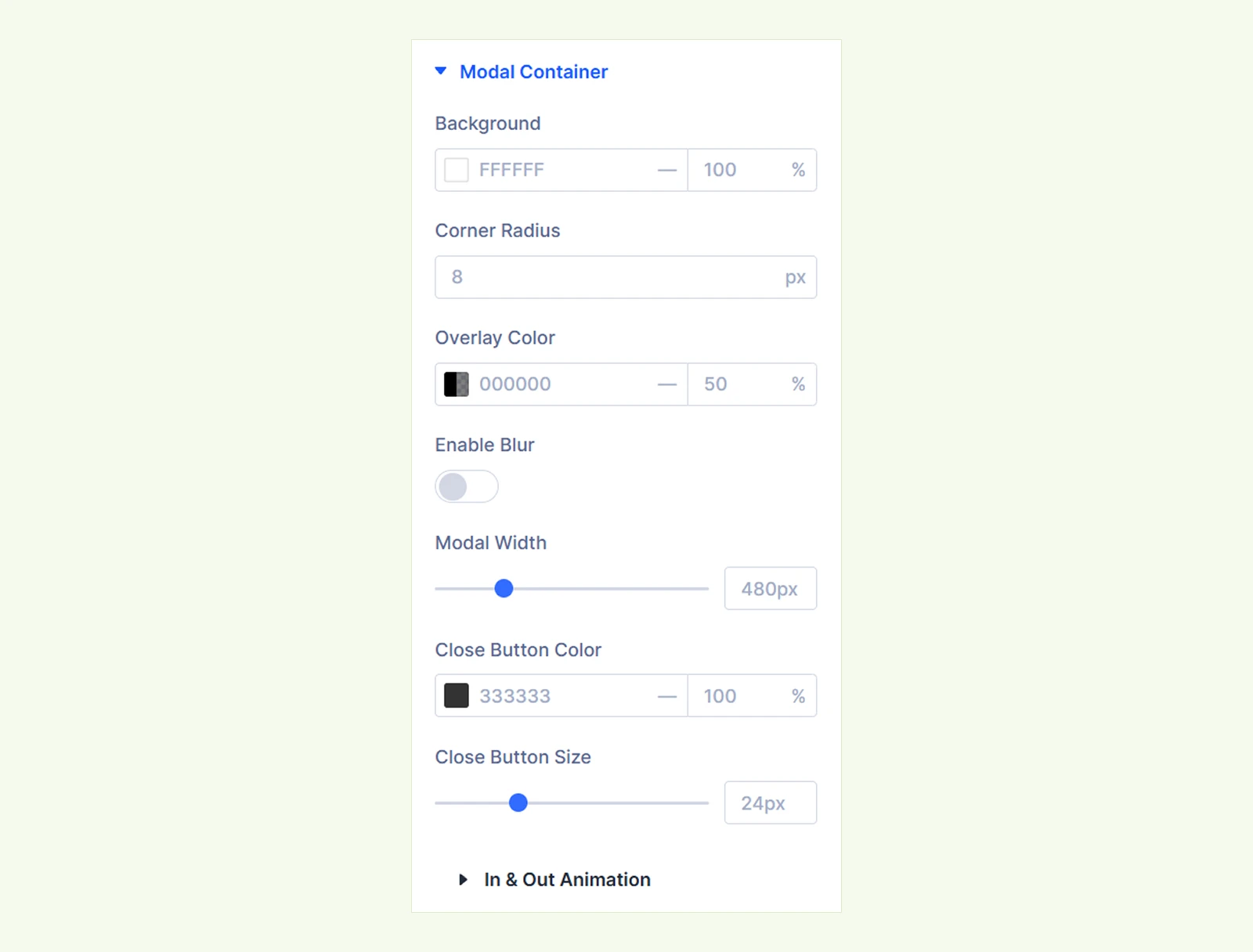
- Background: Set the background color of the modal.
- Corner Radius: Adjust how rounded the corners of the modal appear.
- Overlay Color: Set the color and transparency of the overlay behind the modal.
- Enable Blur: Enable this option to add a blur effect to the area behind the modal.
- Modal Width: Adjust the width of the modal.
- Close Button Color: Set the color of the modal’s close button.
- Close Button Size: Adjust the size of the close button.
You will also find In & Out Animation to choose an animation effect for when the modal opens and closes.
Modal Content: Modal Content: Customize the share pop-up’s title, description, and spacing. (This section appears only when View Type is set to Modal.)
Share Label: Customize the text style and appearance of the label displayed above the share options.
Share Items: Customize the styling and layout of individual social share buttons.
Share Items Icon: Customize the color, size, and styling of the share icons.
Copy Link Label: Use these settings to customize the Label Text, and Label Spacing of the copy link label. (These design options are available when View Type is set to Modal from the Share Options in the Content tab)
Copy Link Field: Use these settings to customize the text, background, border, and field spacing of the copyable product URL field (These design options are available when View Type is set to Modal from the Share Options in the Content tab).
Copy Link Button: Use these settings to customize the text, background, border, and spacing of the copy button. (These design options are available when View Type is set to Modal from the Share Options in the Content tab)
Sizing: Adjust the width, height, and alignment of the module.
Spacing: Adjust the margins and padding of the module container.
Border: Customize the border using radius, style, width, and color settings.
Box Shadow: Add shadow effects to the module container.
Filters: Apply color filter effects to the module.
Transform: Adjust the scale, position, rotation, and size of the module.
Animation: Add reveal animation effects and control the animation style, delay, duration, and more.
Advanced Tab #
For advanced users seeking deeper control over the module, this tab offers extra configurations including custom code, conditions, and additional settings.
Need Help? #
If you have any questions or need assistance, contact our support team at [email protected]


