
The DiviMerc Product Badges module lets you highlight WooCommerce products with dynamic badges including Add Sale, New, Best Seller, In Stock and more.
Important Note:
- Make sure Advanced Product Meta is enabled under DiviMerc → Modules.
- Make sure the related WooCommerce product data is available for dynamic badge, such as sale price or stock status.
Let’s see the settings in brief and how to make better use of it.
Content Tab #
The Content tab lets you add badge types, configure their specific settings, arrange the badge structure and choose which product supplies the data.
Badges #
The ‘Sale Badge’ comes by default. You can add more by clicking on the “Add Sale Badge” to combine multiple badges in the same module and arrange them as required.
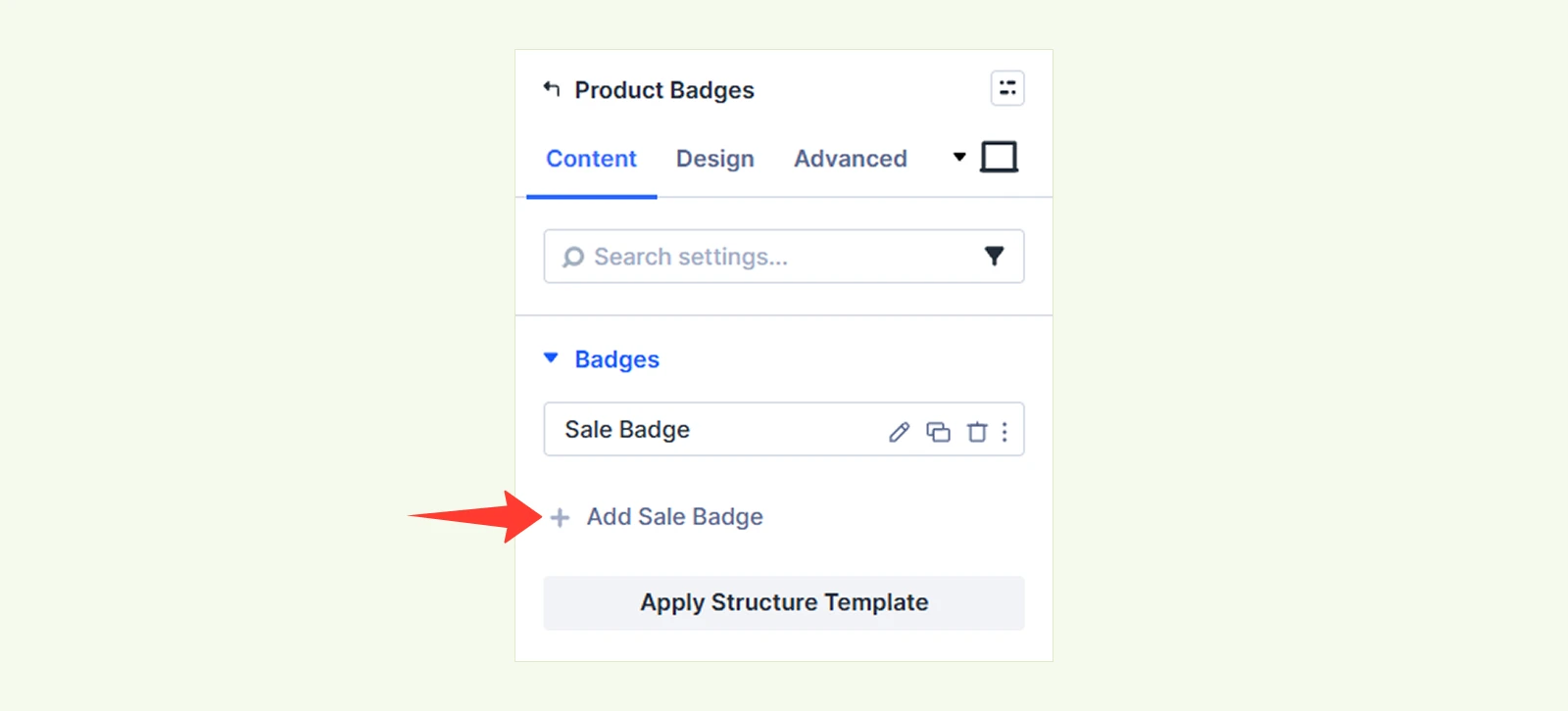
Available Badges types include:
- Best Seller Badge
- Custom Badge
- In Stock Badge
- Low Stock Badge
- New Badge
- Out Of Stock Badge
- Sale Badge
Note: To learn more about all about each badge item, click here.
Apply Structure Template: Rearrange the currently added badges using a preset structure.
Content #
The Product option lets you choose which product’s badge information will be displayed in the product page.

- This Product dynamically displays the product badge of the current product.
- Latest Product: Automatically displays the product badge of the most recently added product.
- Specific Product: Lets you select a specific product and display its product badge wherever the module is used.
Background: Configure the module background using Divi’s standard background controls.
Element Label: Rename the module for easier identification inside the Divi Builder. This label is visible only in the Builder.
Design Tab #
The Design tab lets you control how the badges are arranged and style the overall module.
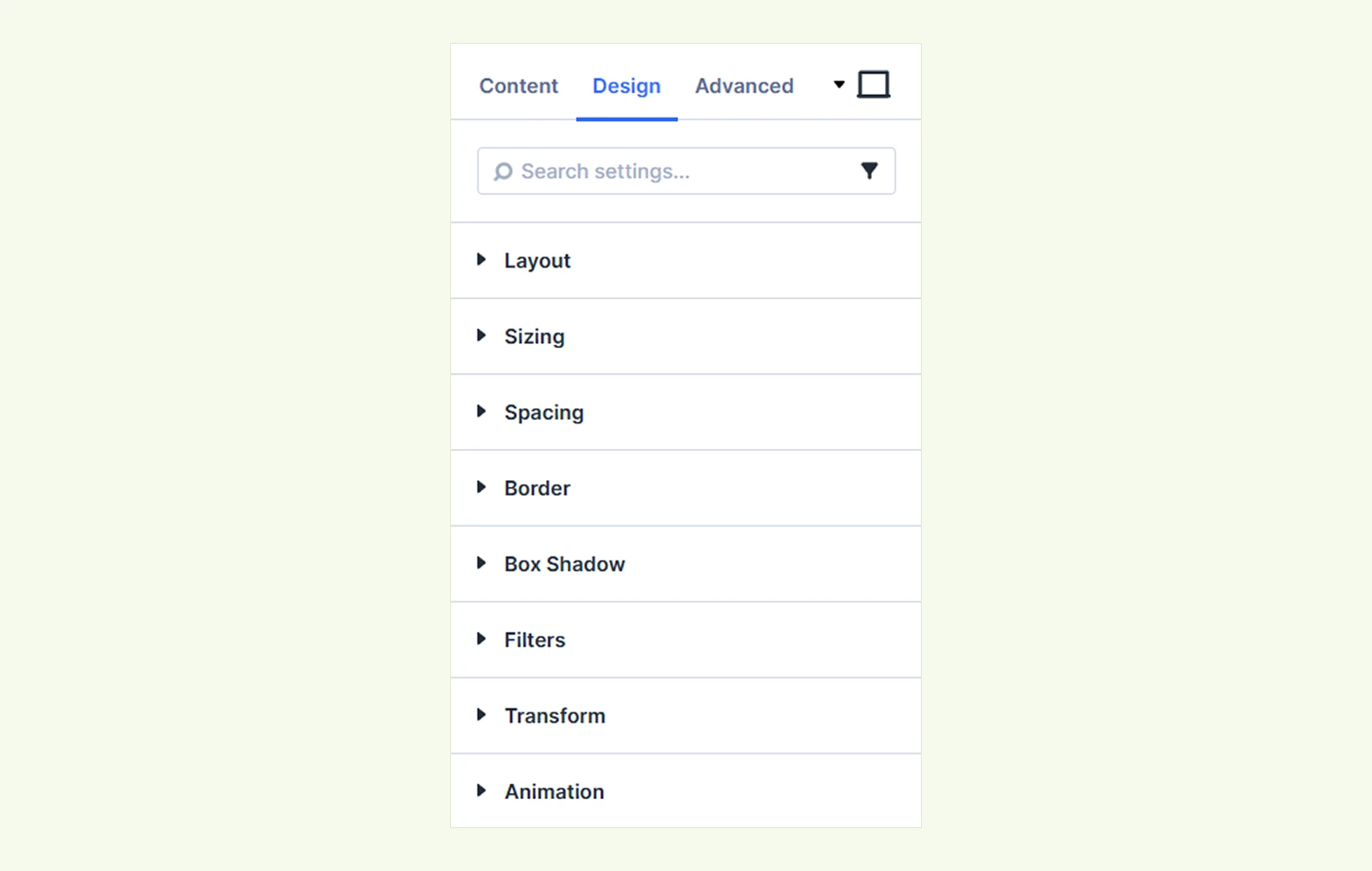
Layout: The layout configurations are only available with Best Seller Badge and when no badge is selected.
Sizing: Control the module’s width, height and dimension behavior.
Spacing: Set margins and padding around the module.
Border: Configure border width, style, color and corner radius.
Box Shadow: Add and customize a shadow around the module.
Filters: Apply visual effects such as blur, brightness, contrast and saturation.
Transform: Reposition, scale, rotate or skew the module.
Animation: Add an animation to the module for a more dynamic presentation.
Advanced Tab #
The Advanced tab provides the standard Divi settings for custom CSS, visibility conditions, transitions, attributes, positioning and other advanced controls.
Badge Items Configurations #
For each seven badge types, you will get individual settings. Such as:
When you select Sale Badge #
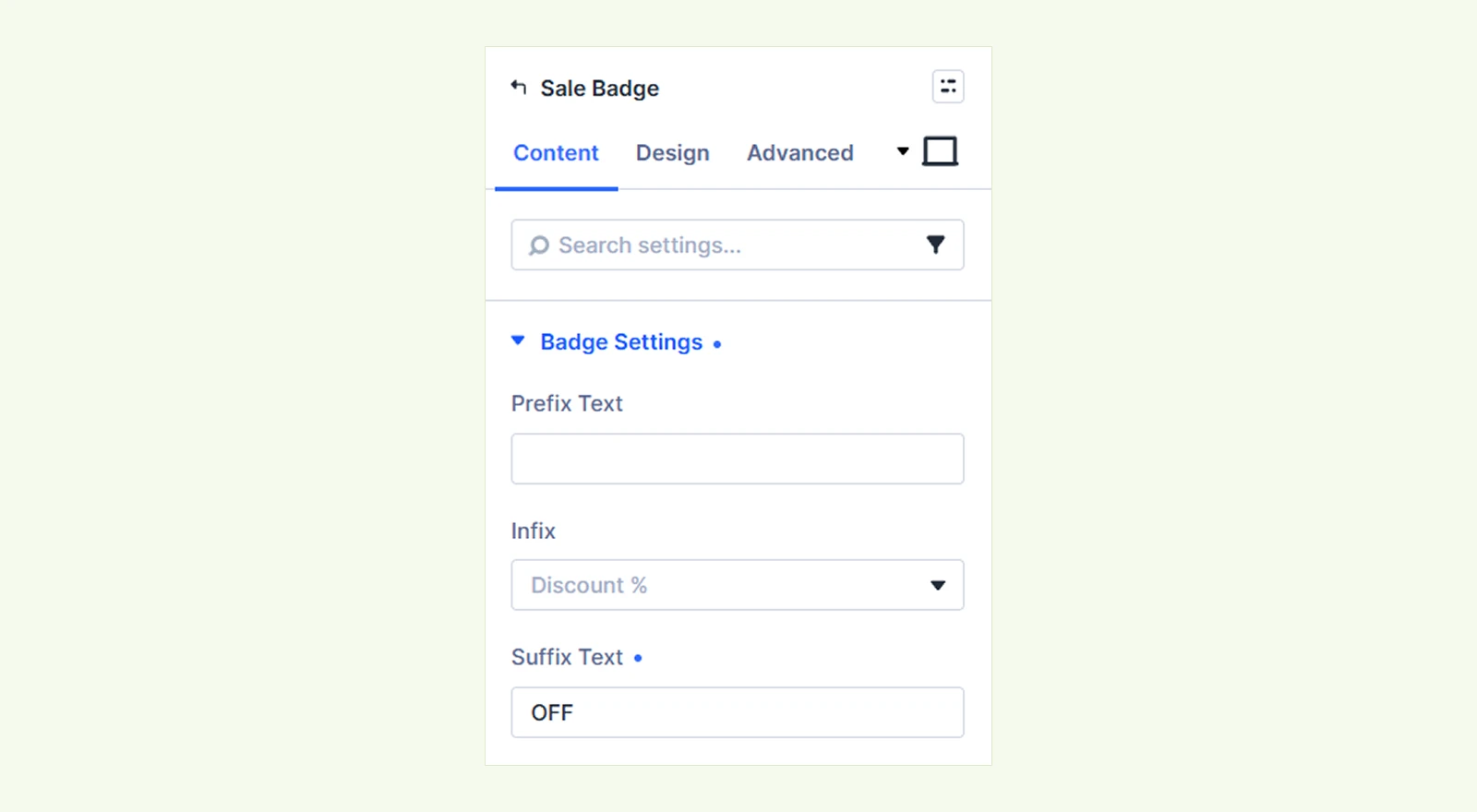
- Prefix Text: Add text before the dynamic sale value.
- Infix: Choose what the badge displays:
- Discount %
- Amount Saved
- Static Label
- Label text
- Total Sales
- Sale Days Remaining
- Suffix Text: Add text after the selected sale value.
When you select Best Seller Badge #
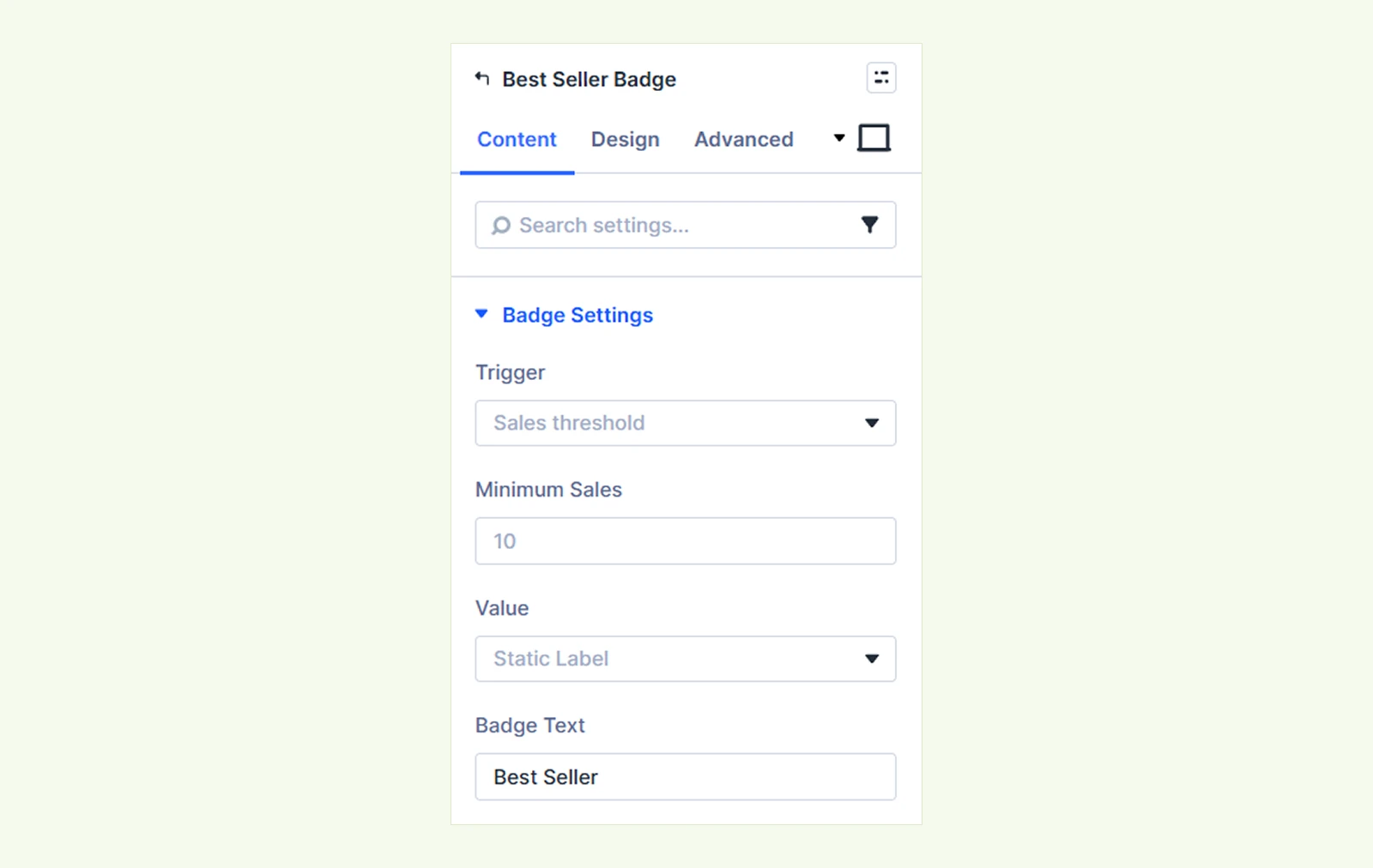
- Trigger: Choose how a product qualifies as a best seller, such as reaching a sales threshold or ranking among the top products by sales.
- Number of Products: Set the minimum number of products to display the badge. This only appears if ‘Top N by Sales’ is selected in Trigger.
- Minimum Sales: Set the sales requirement used by the selected trigger.
- Value: Choose what information the badge displays, either static label or units sold.
- For static labels, insert the badge text.
- For units sold, there are options to add prefix, suffix and cap the number (place the number in the newly appeared field if enabled).
- For sales rank, there are options to add prefix and suffix text.
- Badge Text: Enter the text used when the badge displays a static label.
When you select Custom Badge #
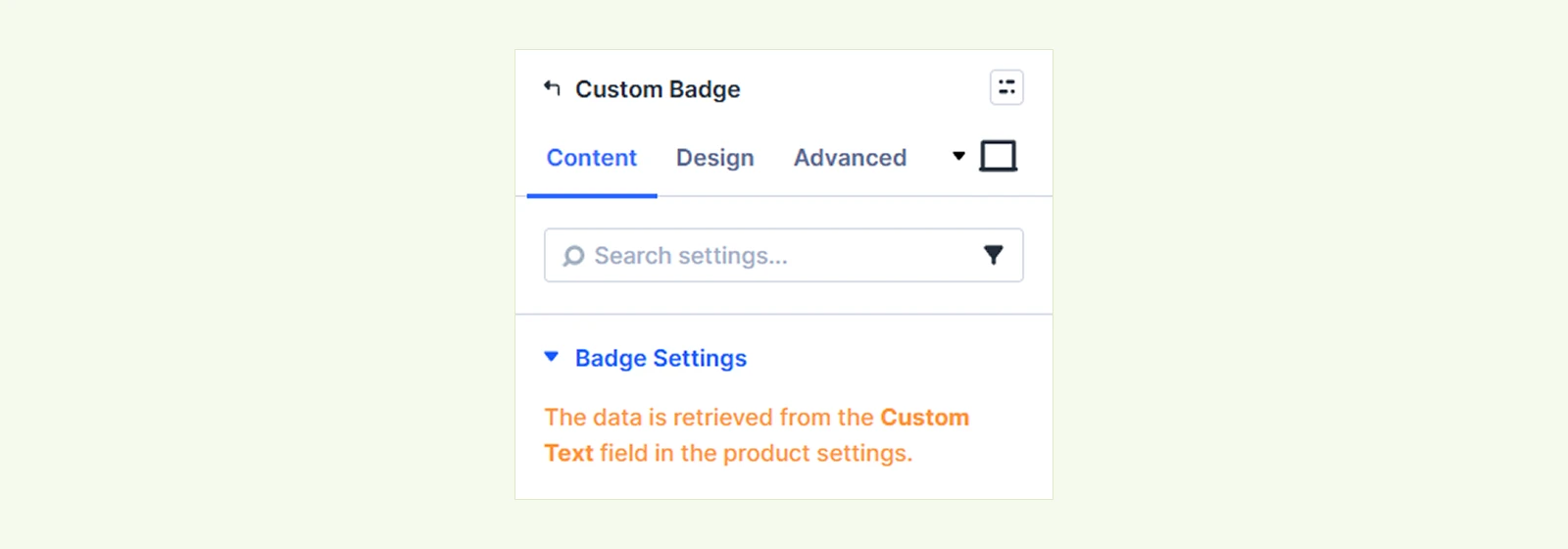
The Custom Badge gets its text from the individual WooCommerce product rather than from a text field inside the badge module. To add the text, edit the product as ‘Product Data → Simple Product’ and add your custom badge text under: General → Custom Badge Text.
Variable products can also have custom badge text assigned to individual variations. The badge appears only when custom badge text has been added to that product.
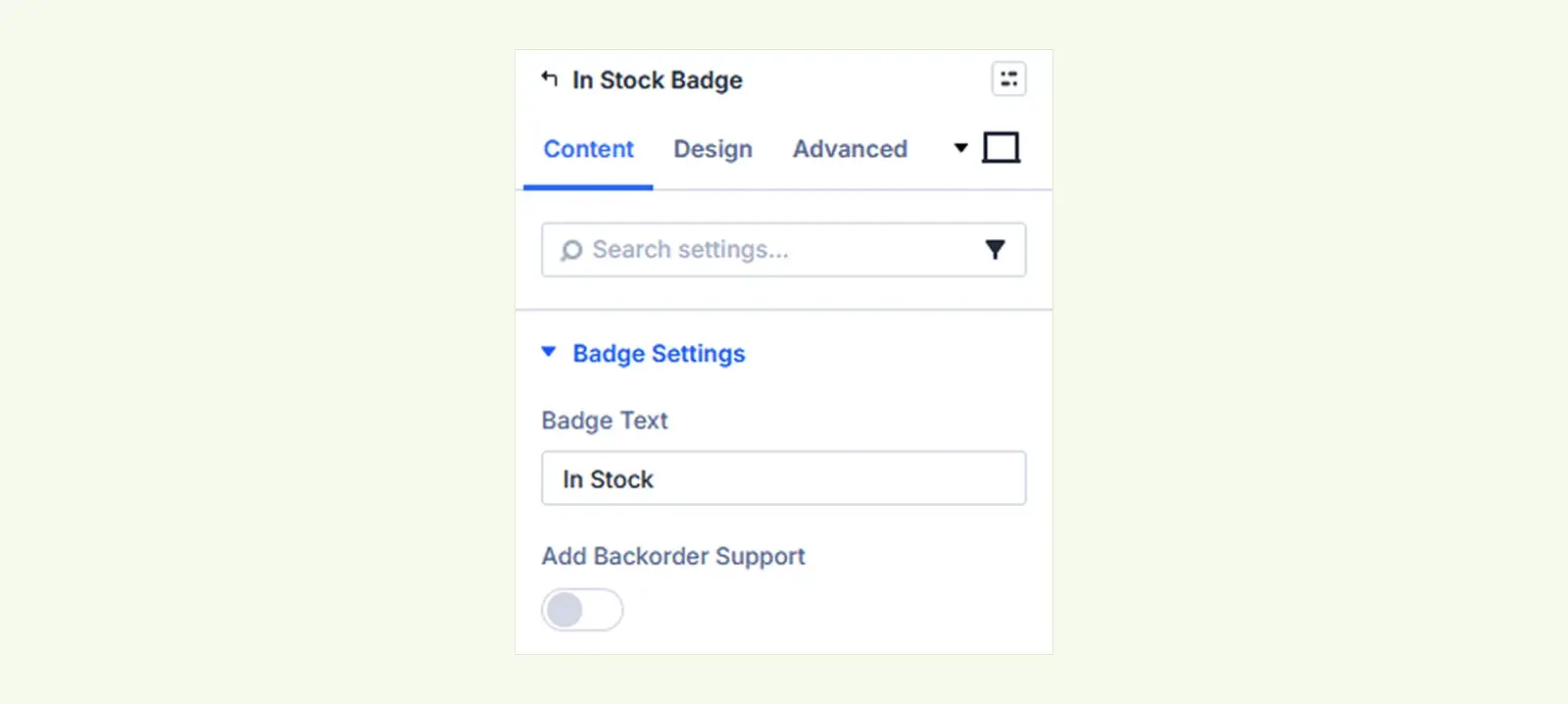
When you select In Stock Badge #
- Badge Text: Enter the text shown when the product is in stock.
- Add Backorder Support: Include supported backorder products in the in-stock badge behavior.
- Backorder Text: Add your preferred pre-order text.
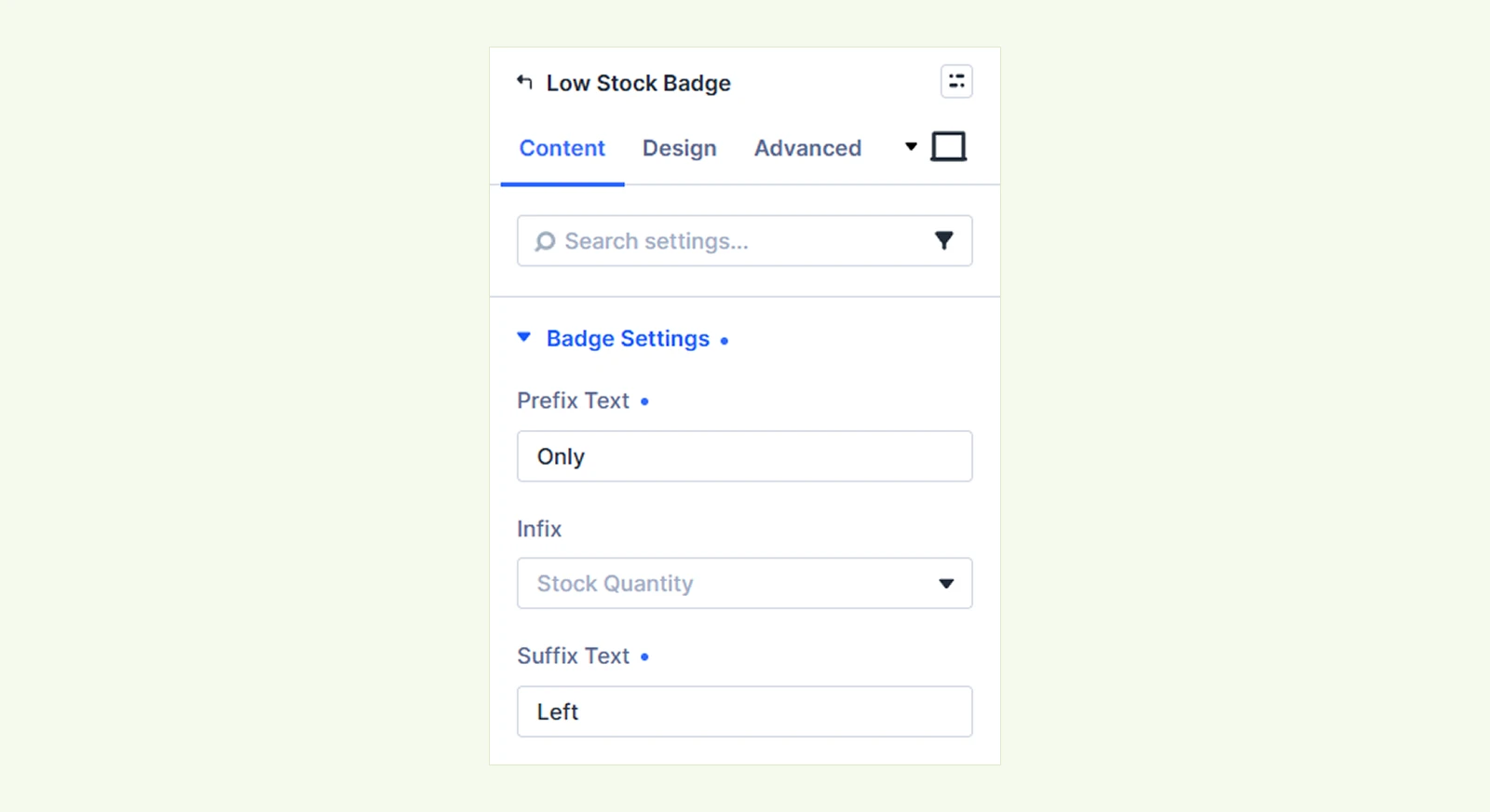
When you select Low Stock Badge #
- Prefix Text: Add text before the stock value.
- Infix: Display the product’s current stock quantity. Available options:
- Stock Quantity
- None
- Suffix Text: Add text after the stock value.
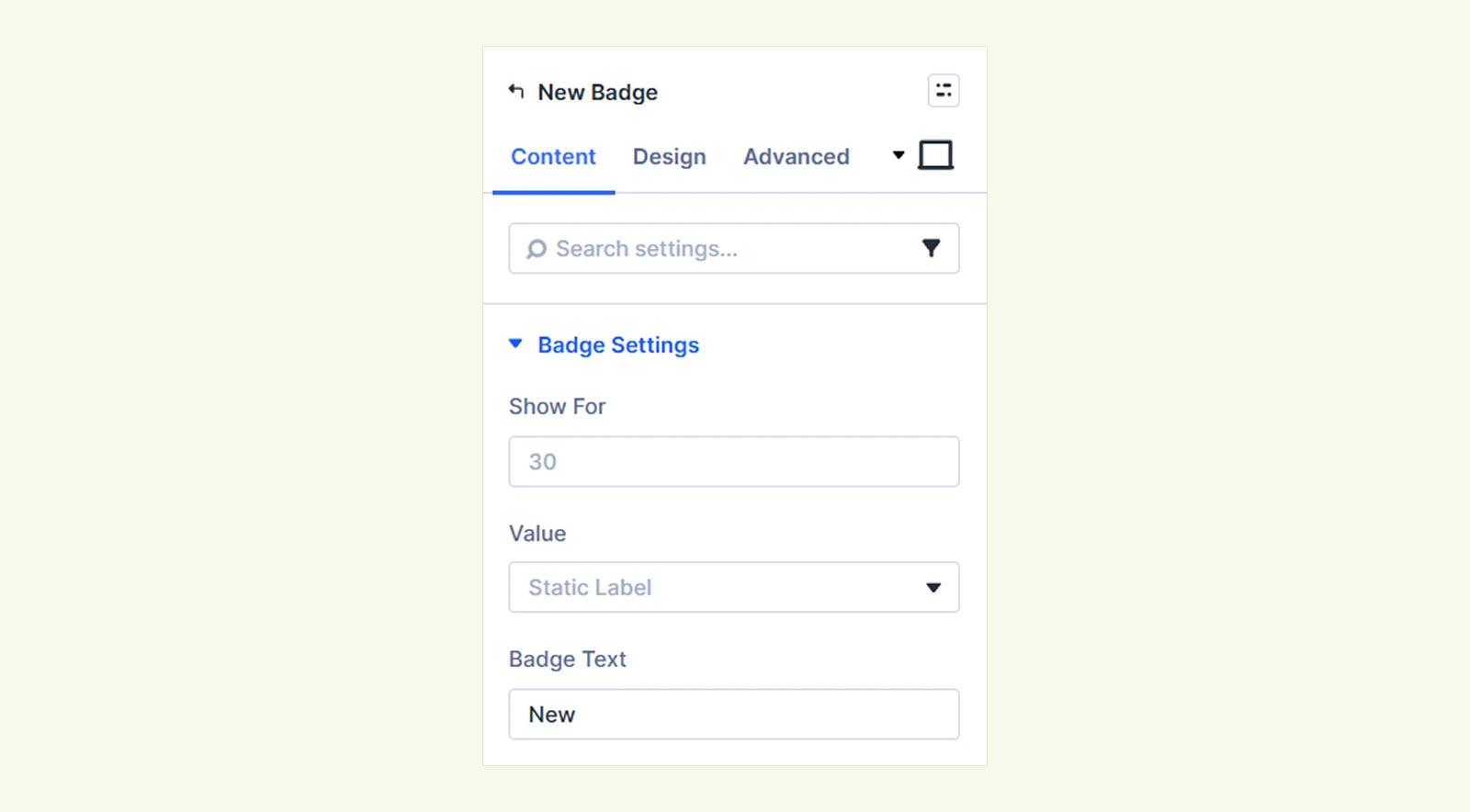
When you select New Badge #
- Show For: Set how many days a product should be treated as new.
- Value: Choose what information the badge displays.
- Badge Text: Enter the text used when the badge displays a static label.
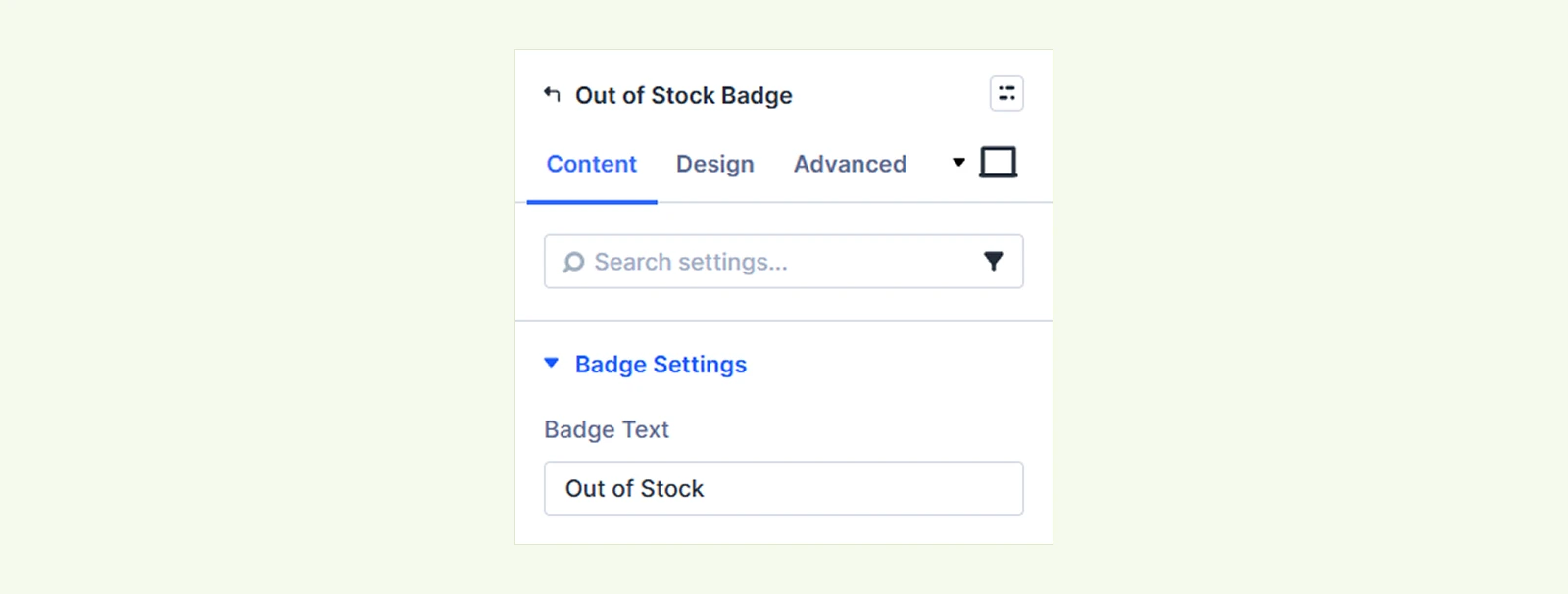
When you select Out of Stock Badge #
- Badge Text: Enter the text shown when the product is out of stock.
Design Tab #
For each badge type, you will get the same design settings like text, infix, sizing, spacing and more.
Advanced Tab #
The Advanced tab provides the standard Divi settings for custom CSS, visibility conditions, transitions, attributes, positioning and other advanced controls.
Need Help? #
If you have any questions or experience issues while using the Product Badges module, please contact our support team at: [email protected]


