
The Stock Progress Bar module displays a product’s available stock as a visual progress bar.
Important Note
- Enable the Initial Stock Manager extension from DiviMerc > Extensions.
- Enable the Product Stock Progress Bar module from DiviMerc > Modules.
- Enable stock management for the product.
- Make sure the product is in stock with a quantity above 0.
- Set the Initial Number in Stock higher than or equal the current stock quantity.
- Set initial stock from the variation, product, or Global Default in Initial Stock Manager.
Note: The module does not display on Grouped or External/Affiliate products.
Let’s see the settings in brief and how to make better use of it.
Content Tab #
The Content tab contains the essential settings for selecting the product, configuring its stock information, and controlling how it is displayed.
Content #
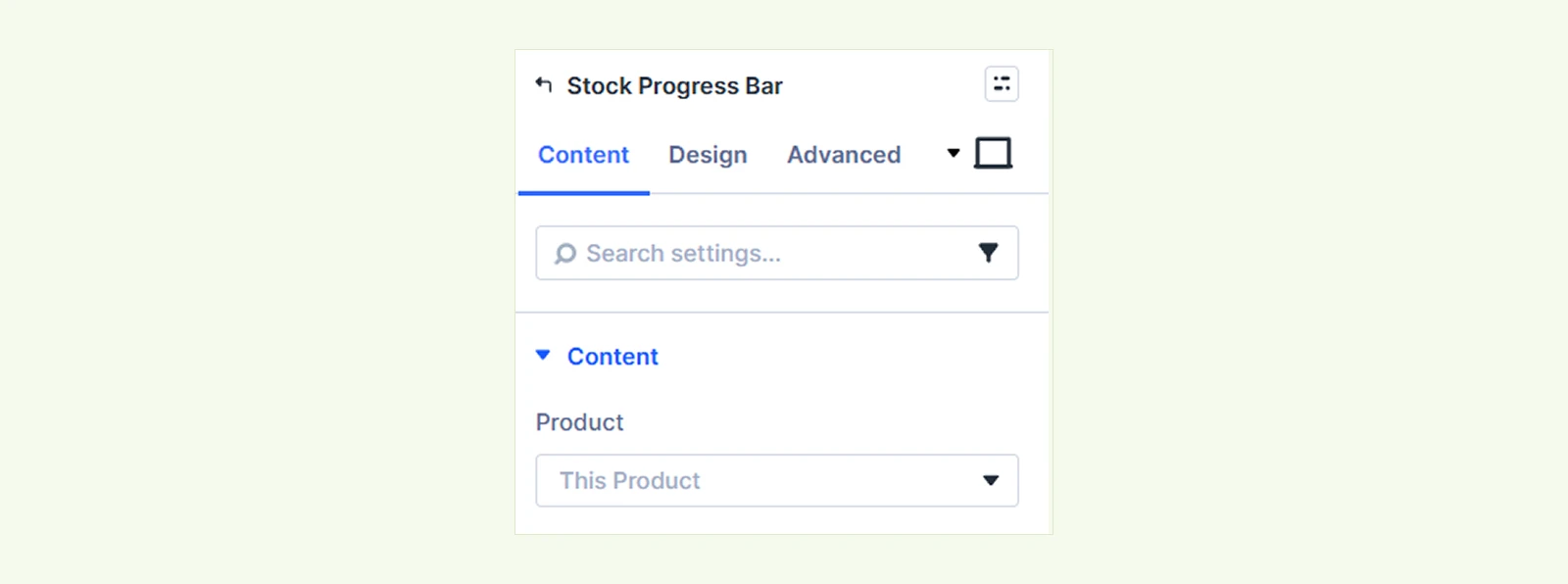
The Product setting determines which item’s inventory data shows in the stock progress bar. You can set this dynamically or target a specific item depending on your needs:
- This Product: it will dynamically show stock of the current product.
- Latest Product: Automatically tracks and displays real-time stock levels for the most recently added item in your catalog. This ensures new arrivals immediately showcase live inventory status without requiring manual updates.
- Specific Product: Locks the progress bar to a single selected product. Once assigned, this product’s exact stock metrics will render consistently across every page where this module is placed.
Note: Enable the stock management from your inventory and update the quantity amount to show the Product Stock Progress Bar.
Text #
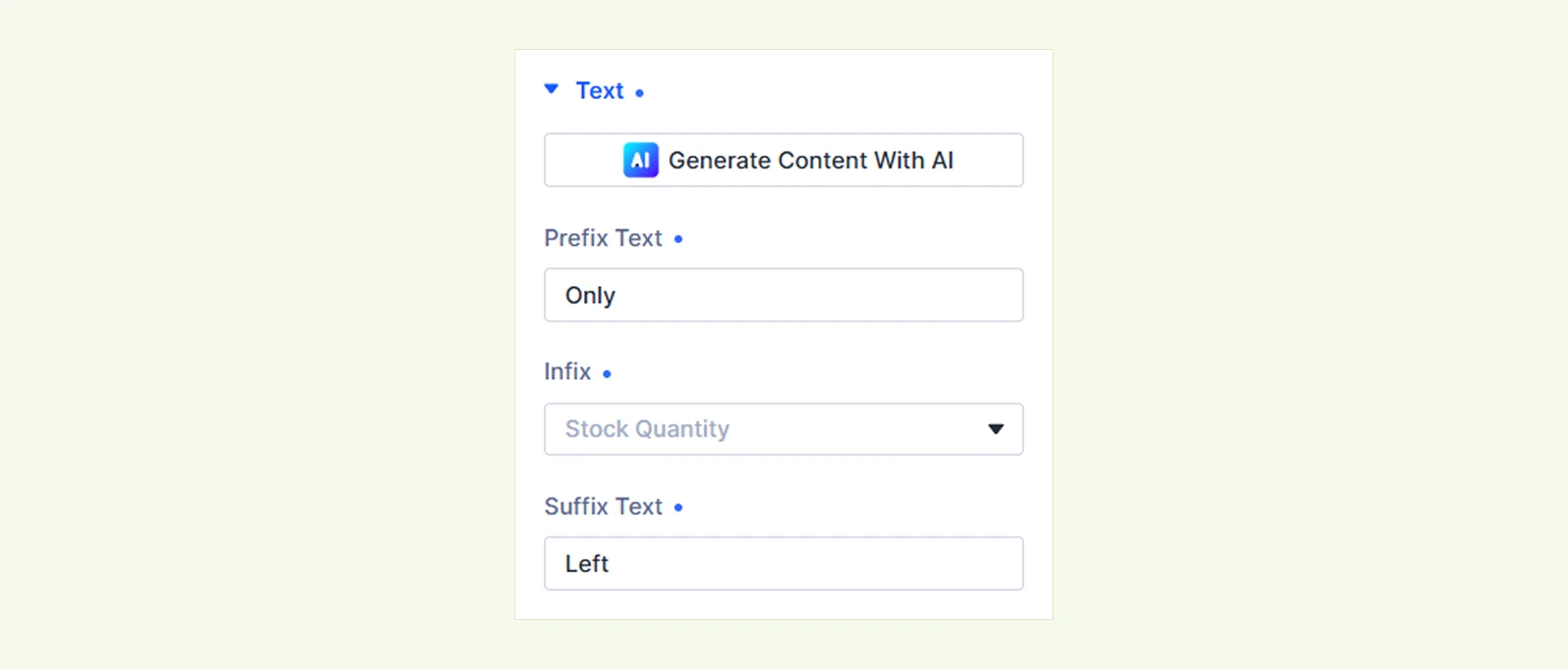
- Prefix Text: Enter text to display before the stock value, such as Only.
- Infix: Choose the value displayed in the middle of the text label.
- Stock Quantity: Displays the available stock quantity.
- Stock Quantity Percentage: Displays the available stock as a percentage.
- Suffix Text: Enter text to display after the stock value, such as Left.
Settings #
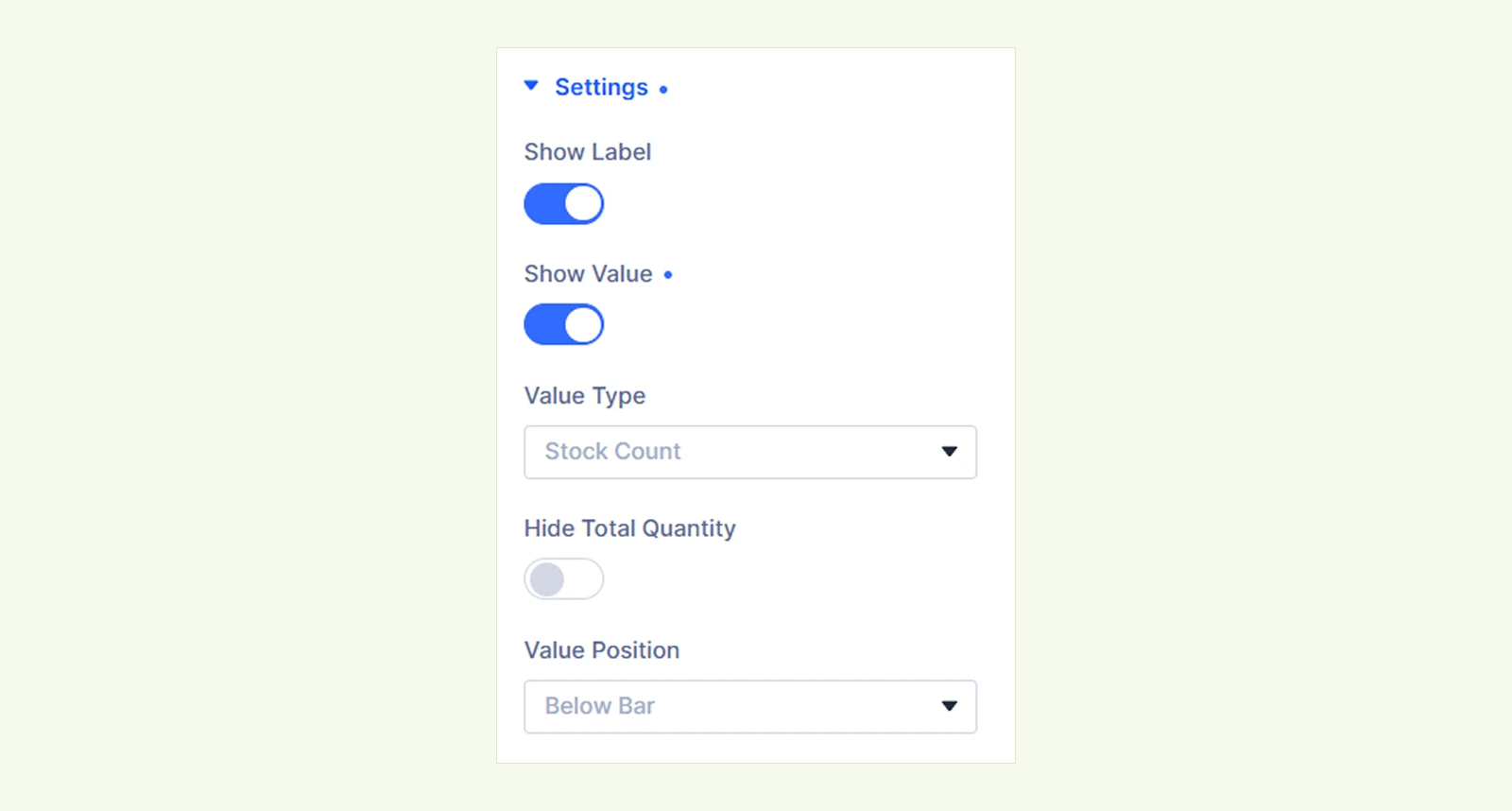
- Show Label: Enable this option to display the stock text label. The progress bar remains visible whether this option is enabled or disabled.
- Show Value: Enable this option to display the stock count or percentage near the progress bar.
- Value Type: Whether the displayed value uses Stock Count or Percentage.
- Hide Total Quantity: Enable this option to display only the stock value instead of the combined current and total quantity format.
- Value Position: Where the value appears: Above Bar, Below Bar, Before Bar, After Bar, Inside Bar, Follow Fill, or Show on Tooltip.
Image & Icon #
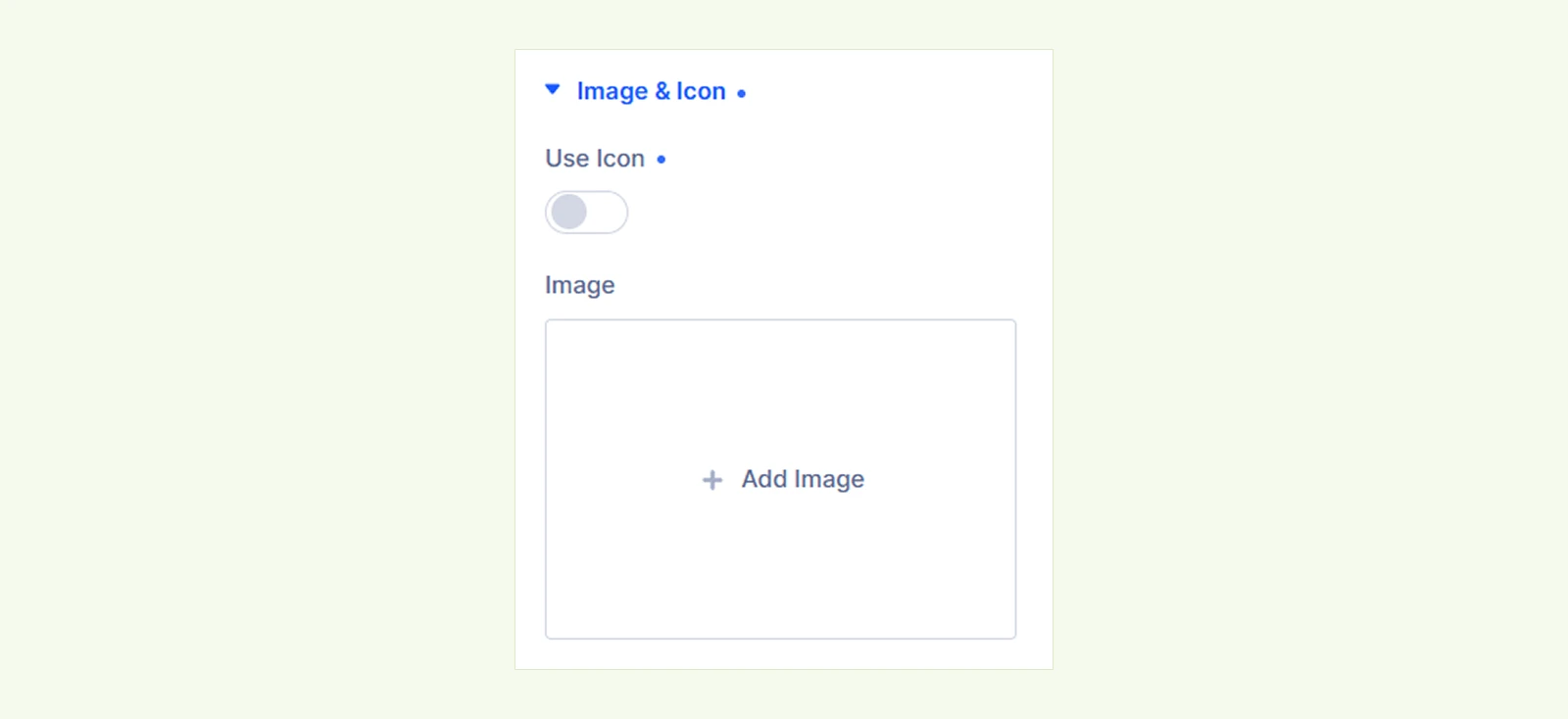
- Use Icon: Enable this option to use an icon instead of an image.
- Image: Upload an image to display with the stock progress bar when the icon option is disabled.
Background: Customize the module background using color, gradient, image, video, pattern, etc
Element Label: Add an internal label to organize and identify this module within the Divi Builder.
Design Tab #
Use the Design tab to customize the appearance of the Product Stock Progress Bar module.
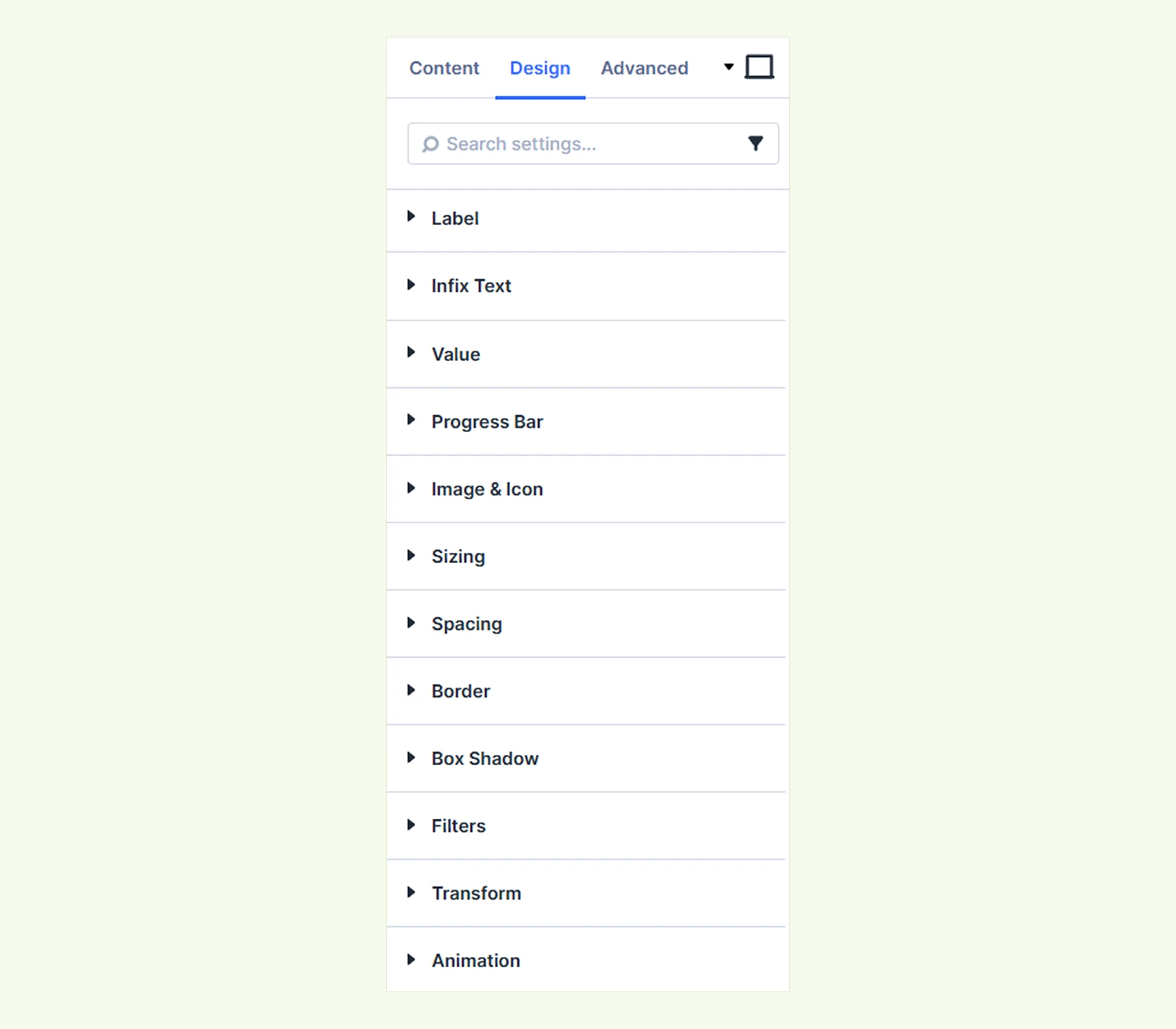
Label: Customize the typography and styling of the stock label.
Infix Text: Customize the appearance of the stock value text within the label.
Value: Style the displayed stock quantity or percentage.
Progress Bar #
- Height: Adjust the height of the stock progress bar.
- Border Radius: Adjust the corner radius of the progress bar to control how rounded its edges appear.
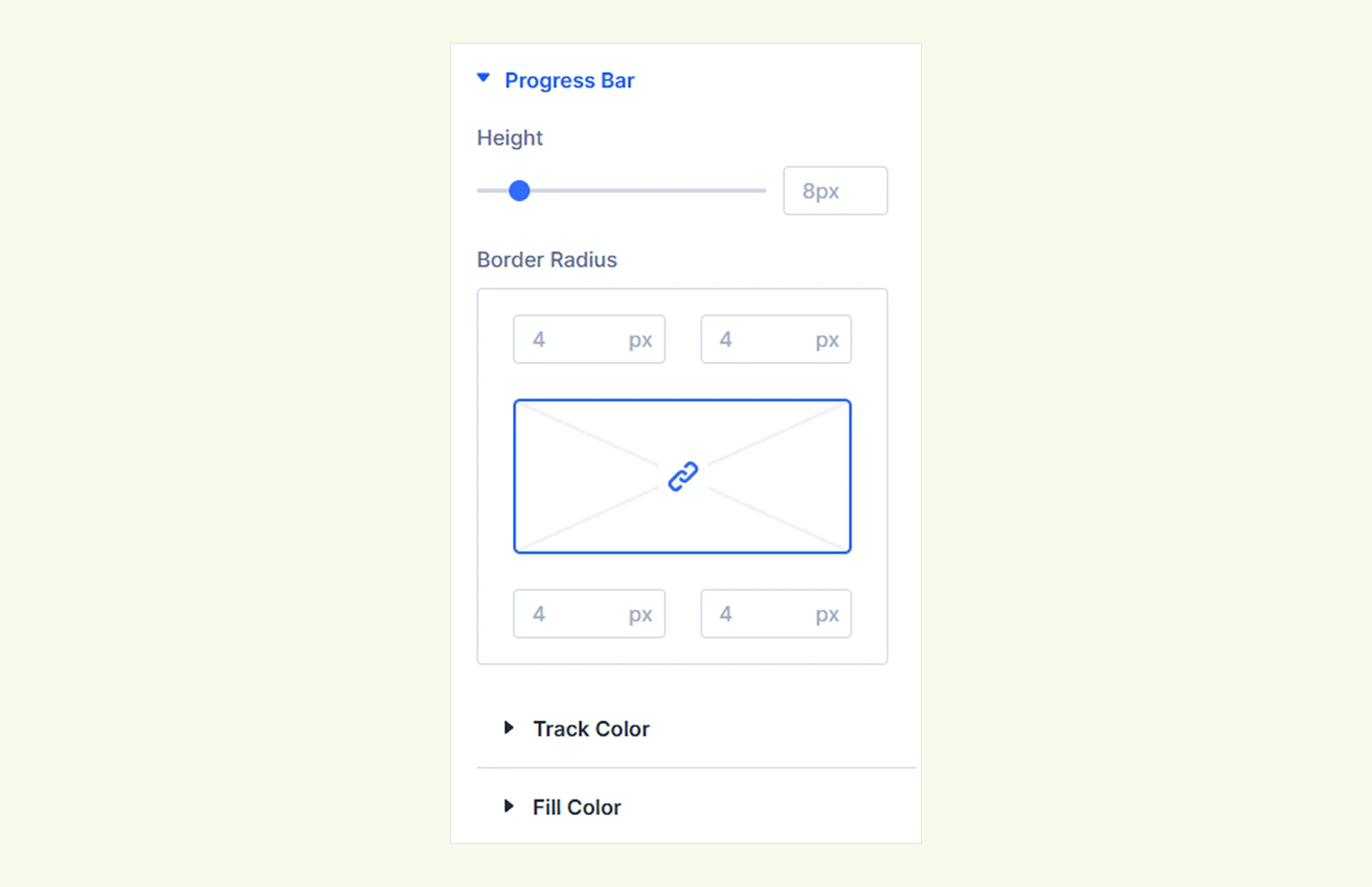
There you will also find Track Color and Fill Color options to customize further.
Tooltip: Customize the appearance of the tooltip with text, background, and more customization options. (Only available when Show on Tooltip is selected as the Value Position.)
Image & Icon #
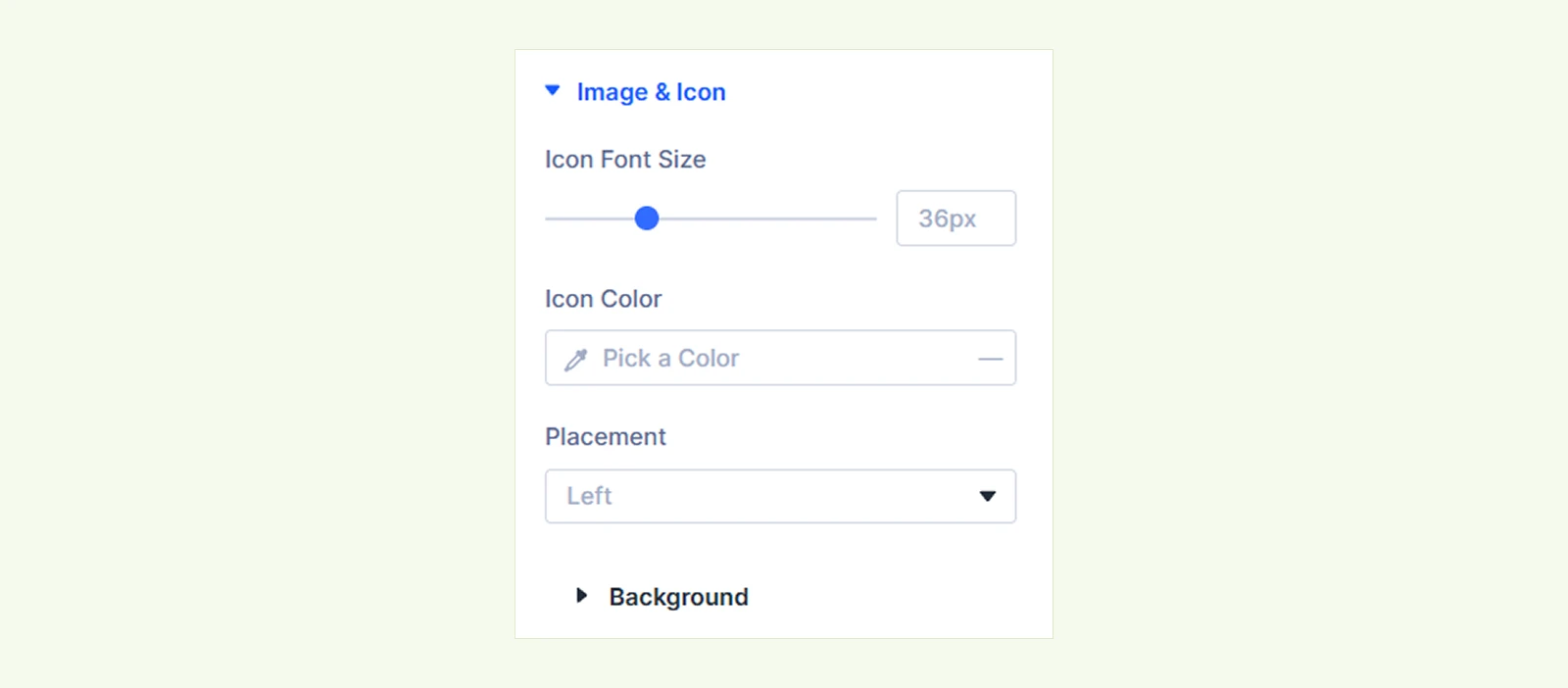
- Icon Font Size: Adjust the size of the selected icon. (Only available when you select Use Icon.)
- Icon Color: Customize the icon color. (Only available when you select Use Icon.)
- Image Width: Adjust the width of the image. (Only available when Use Icon is disabled and an image is selected.)
- Placement: Choose whether the image or icon appears on the Left or Right side.
- Background
You will also get the Background option to style the image or icon element.
Sizing: Control the module’s width, height, and alignment.
Spacing: Adjust the margin and padding around the module.
Border: Customize the border width, style, color, and radius.
Box Shadow: Add and customize a shadow around the module.
Filters: Apply visual effects such as blur, brightness, contrast, and saturation.
Transform: Reposition, scale, rotate, or skew the module.
Animation: Add and customize animation effects for the module.
Advanced Tab #
For advanced users seeking deeper control over the module, this tab offers extra configurations including custom code, conditions, and additional settings.
Need Help? #
If you have any questions or need assistance, contact our support team at [email protected]


