
The DiviMerc Advanced Product Gallery module lets you create a more interactive WooCommerce product gallery with customized images, thumbnails, navigation, zoom, lightbox, video and 3D media, etc.
Important Notes:
- Enable the Advanced Product Gallery module from DiviMerc → Modules.
- Enable Video & 3D Media from DiviMerc → Extensions to add videos or 3D models.
- Add the video or 3D model from the product editing screen.
- The extension automatically enables .glb and .gltf uploads, so no separate Media Support extension is needed.
- The module can be placed inside a Divi Loop, so a shop, category or custom archive layout can show each product’s own gallery on its card.
Let’s see the settings in brief and how to make better use of it.
Content Tab #
The Content tab lets you choose the product, arrange the gallery, control navigation, configure zoom and lightbox behavior and enable supported video or 3D media.
Content #
The Product option lets you choose which product’s gallery will be displayed in the product page.
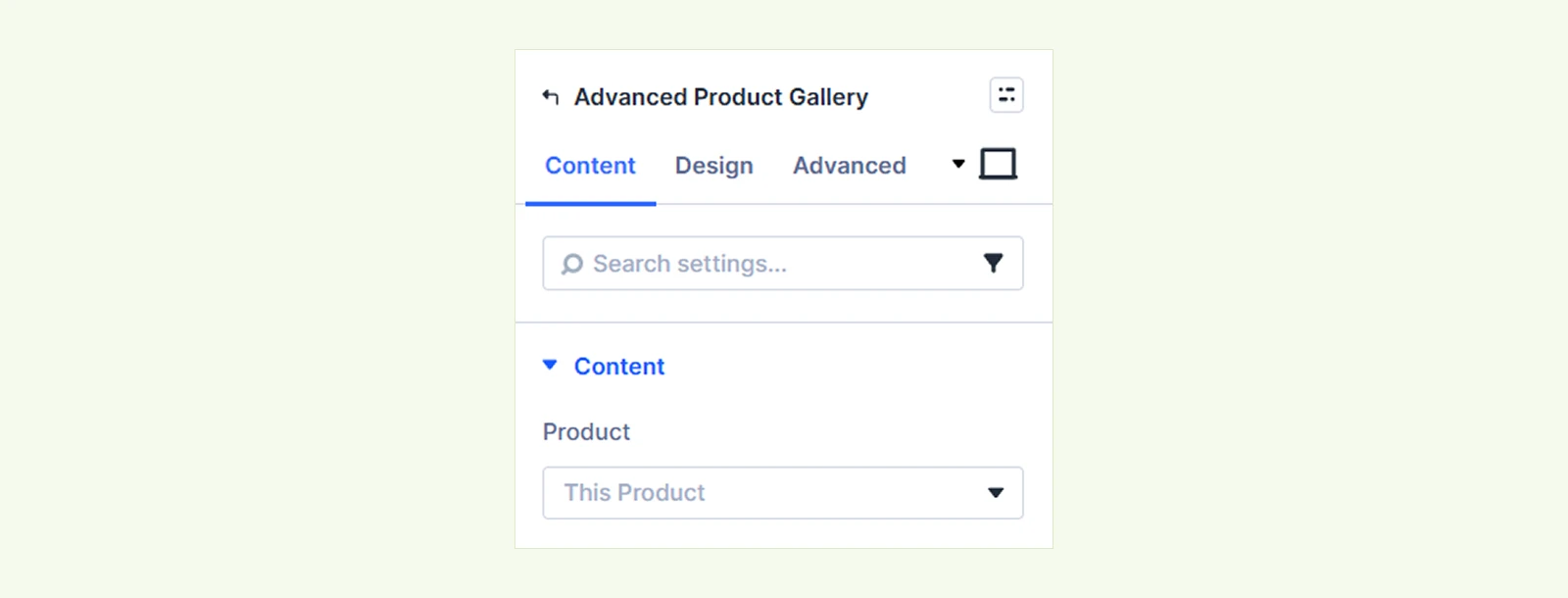
- This Product: Dynamically displays the product media of the current product.
- Latest Product: Automatically displays the media of the most recently added product.
- Specific Product: Lets you select a specific product and display its media wherever the module is used.
Layout #
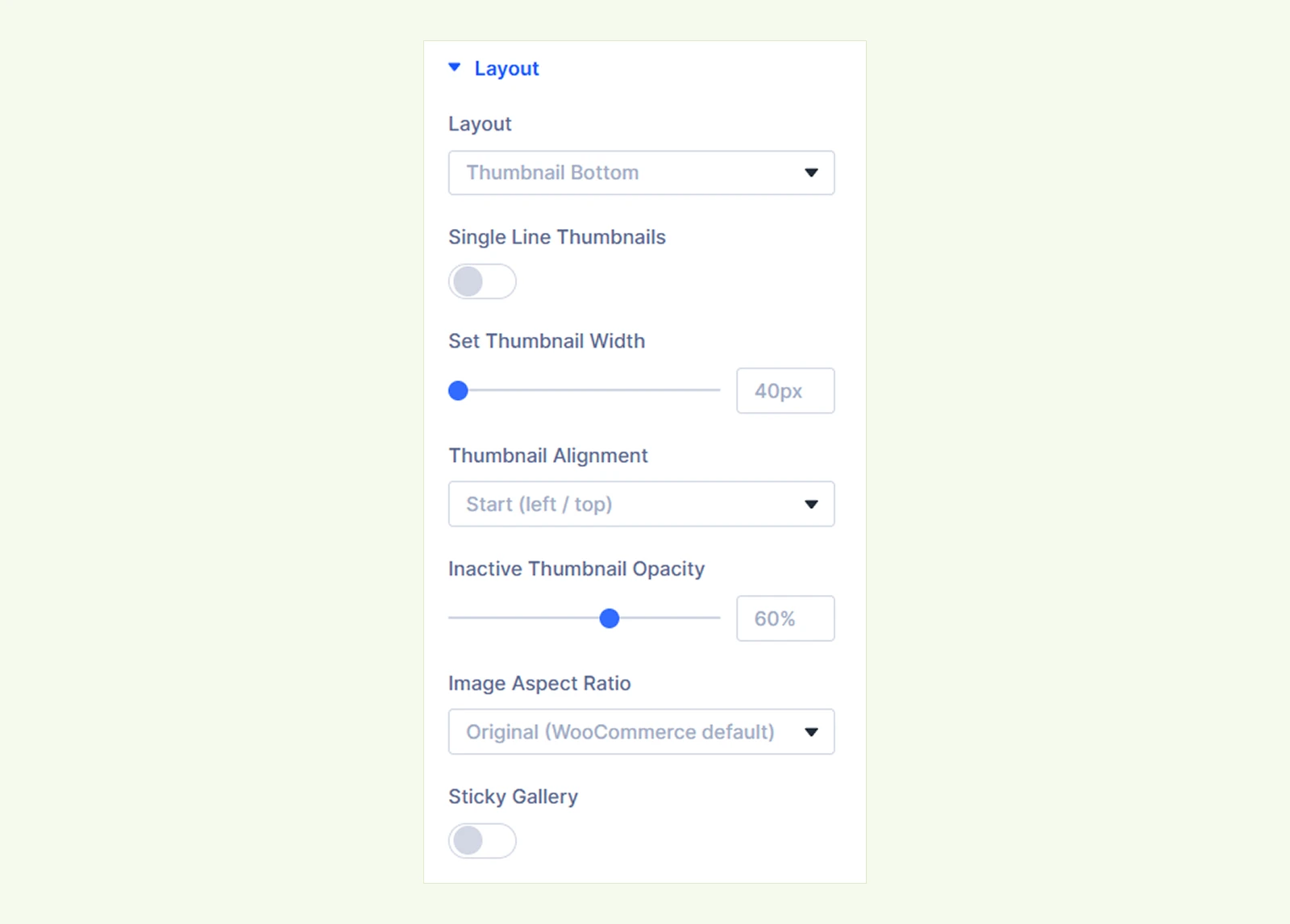
- Layout: Choose how the product images and thumbnails are arranged:
- Thumbnail Bottom
- Thumbnail Left
- Thumbnail Right
- Overlaid Thumbnails
- Grid
- Stacked
- Hidden Thumbnails
- Thumbnails Bottom on Mobile: Arrange in a horizontal row or filmstrip at the lower edge on mobile devices. This is not available with the Thumbnail Bottom and Hidden Thumbnails layouts.
- Single Line Thumbnails: Fit all thumbnails onto a single line. It’s only visible in the front end.
- Grid Columns: Set number of columns to display in this format. (This option only appears when you select the Grid layout.)
- Set Thumbnail Width: Adjust the width of the gallery thumbnails. (This option appears only for layouts that display thumbnails.)
- Thumbnail Alignment: Choose how the thumbnails align within the gallery. (Does not appear when single line thumbnails are enabled. Plus, the available alignment options may vary depending on the selected layout.)
- Inactive Thumbnail Opacity: Set the opacity of thumbnails that are not currently active.
- Image Aspect Ratio: Choose the width-to-height ratio of the product images:
- Original (WooCommerce default)
- Square (1:1)
- Portrait (3:4)
- Landscape (4:3)
- Widescreen (16:9)
- Custom
- Custom Ratio: Set a custom aspect ratio based on your needs.
- Image Fit: Choose how the image fits inside the selected aspect ratio. This setting does not appear when you choose default or custom ratio.
- Cover
- Contain
- Sticky Gallery: Enable this option to keep the gallery visible while shoppers scroll through the product content.
Behavior & Navigation #
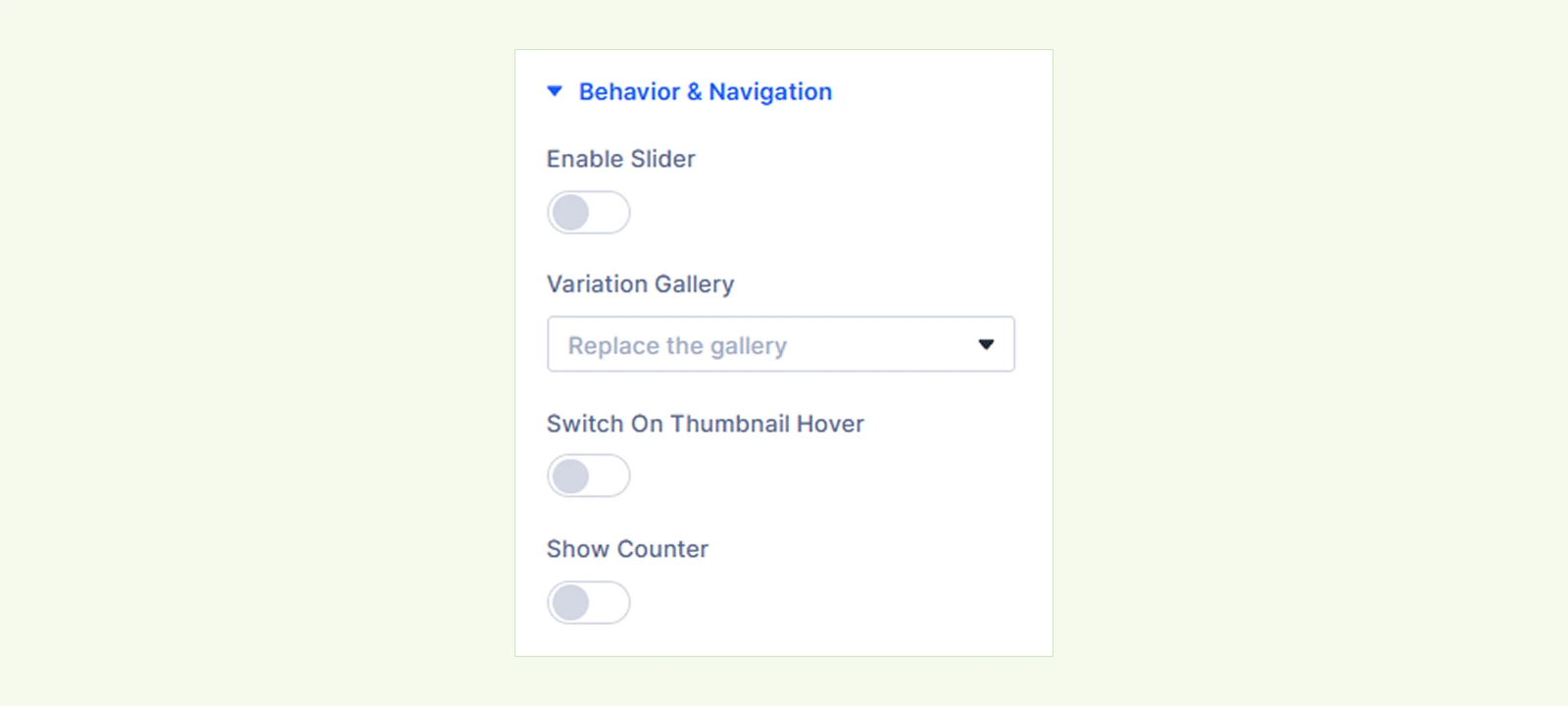
- Enable Slider: Turn the product gallery into a slider. When enabled, the Show Arrows On Hover option appears.
- Show Arrows On Hover: Show the slider navigation arrows only when shoppers hover over the gallery.
- Variation Gallery: Decide what happens to the thumbnail strip when a shopper picks a variation. Available options:
- Replace the gallery: Replace the strip with that variation’s own gallery images.
- Highlight in place: Let the full product gallery stay and the variation’s picture is selected within it.
- Switch On Thumbnail Hover: Switch the main gallery item when shoppers hover over a thumbnail instead of clicking it.
- Show Counter: Display the current gallery item number and total number of gallery items. When enabled, the Counter Style option appears. Available style options:
- Number (2 / 6)
- Text (1 out of 6)
- Segments (story style)
Zoom & Lightbox #
- Zoom Type: Choose how image zoom works. Available options include: None, Inner Magnifier, Side Panel, Image Scale.
- Zoom Scale Amount: Set the amount of zoom applied. This only appears when ‘Image Scale’ is selected from Zoom Type.
- Zoom Cursor Icon: Choose the icon shown for the zoom cursor.
- Open Lightbox On Click: Open the current gallery media in a larger lightbox view when shoppers click it.
- Lightbox Icon: Choose the icon used for the lightbox control.
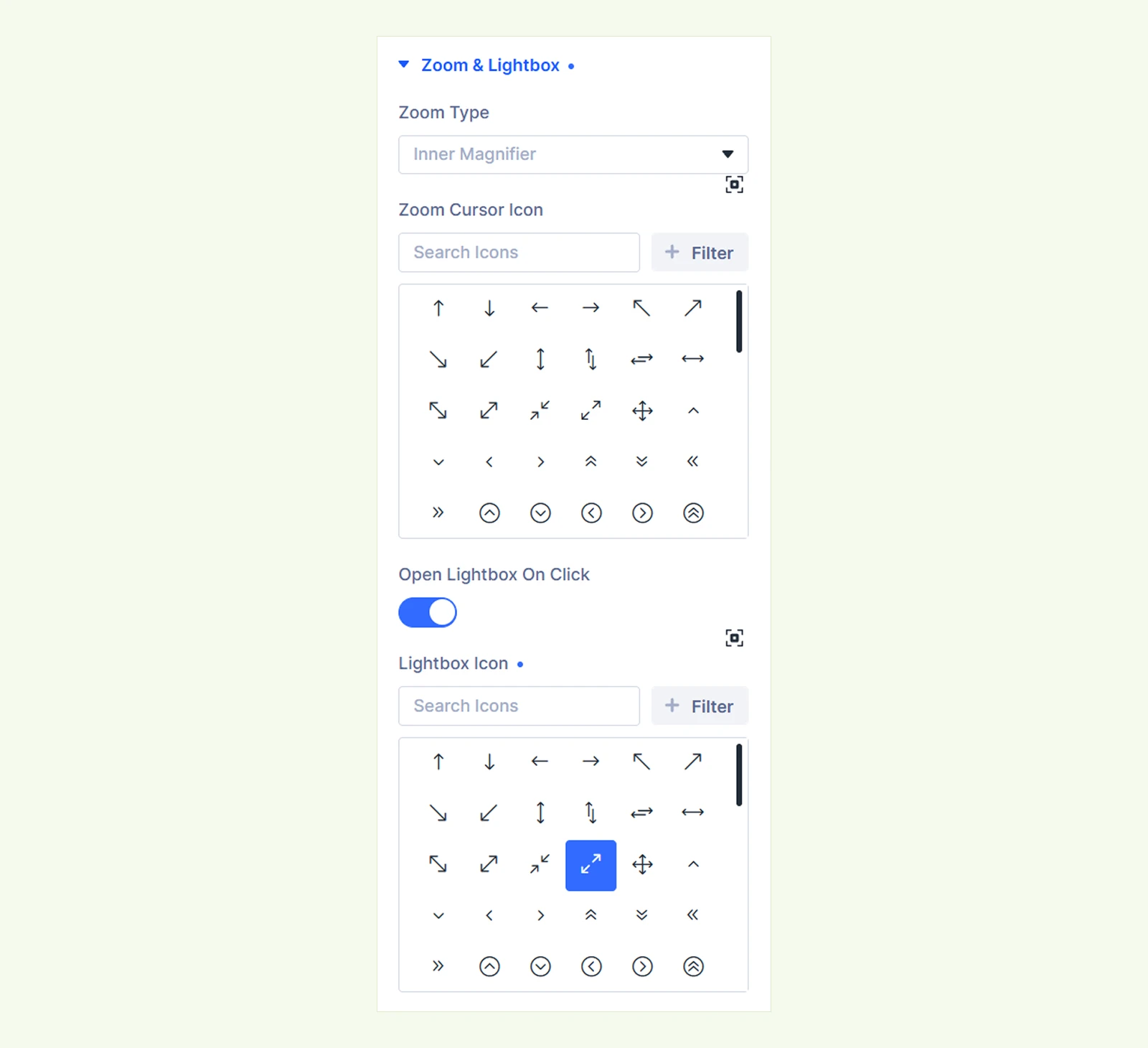
Note: Zoom effects work only on the live frontend and do not appear inside the Divi Builder preview.
Video & 3D Media #
This option requires the Video & 3D Media extension enabled and configured to display and further customize the appearance.
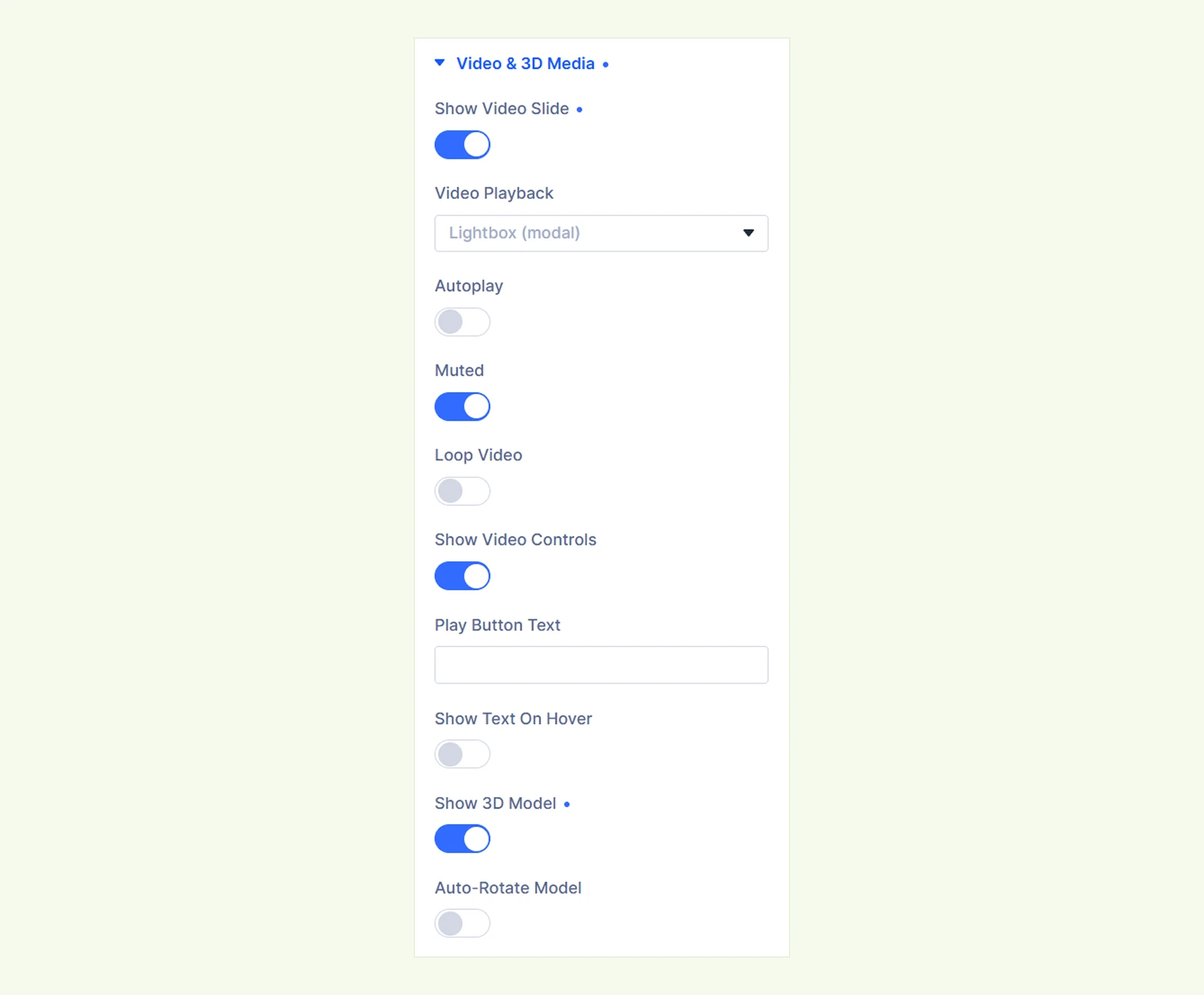
- Show Video Slide: Enable this option to display video media in the product gallery. When enabled, additional video settings appear:
- Video Playback: Choose how the video opens and plays:
- Lightbox (modal)
- Inline (in viewport)
- Autoplay: Automatically start playing the video when it becomes active.
- Muted: Play the video without sound.
- Loop Video: Restart the video automatically after it finishes.
- Show Video Controls: Display the standard video playback controls.
- Play Button Text: Enter the text shown with the video play button.
- Show Text On Hover: Show the play button text when shoppers hover over the video.
- Video Playback: Choose how the video opens and plays:
- Show 3D Model: Enable this option to display 3D model media in the product gallery. When enabled, additional 3D settings appear:
- Auto-Rotate Model: Automatically rotate the 3D model when it is displayed.
Note: Keep Muted enabled when using Autoplay, as most browsers block autoplay with sound.
Elements: Add any Divi element inside the Advanced Product Gallery as needed.
Background: Configure the module background using Divi’s standard background controls.
Display Order: Choose in which order an image or gallery will appear.
Element Label: Rename the module for easier identification inside the Divi Builder. (Visible only to you.)
Design Tab #
The Design tab lets you customize the main product image, thumbnail gallery, arrows, zoom cursor, lightbox control and overall module appearance.
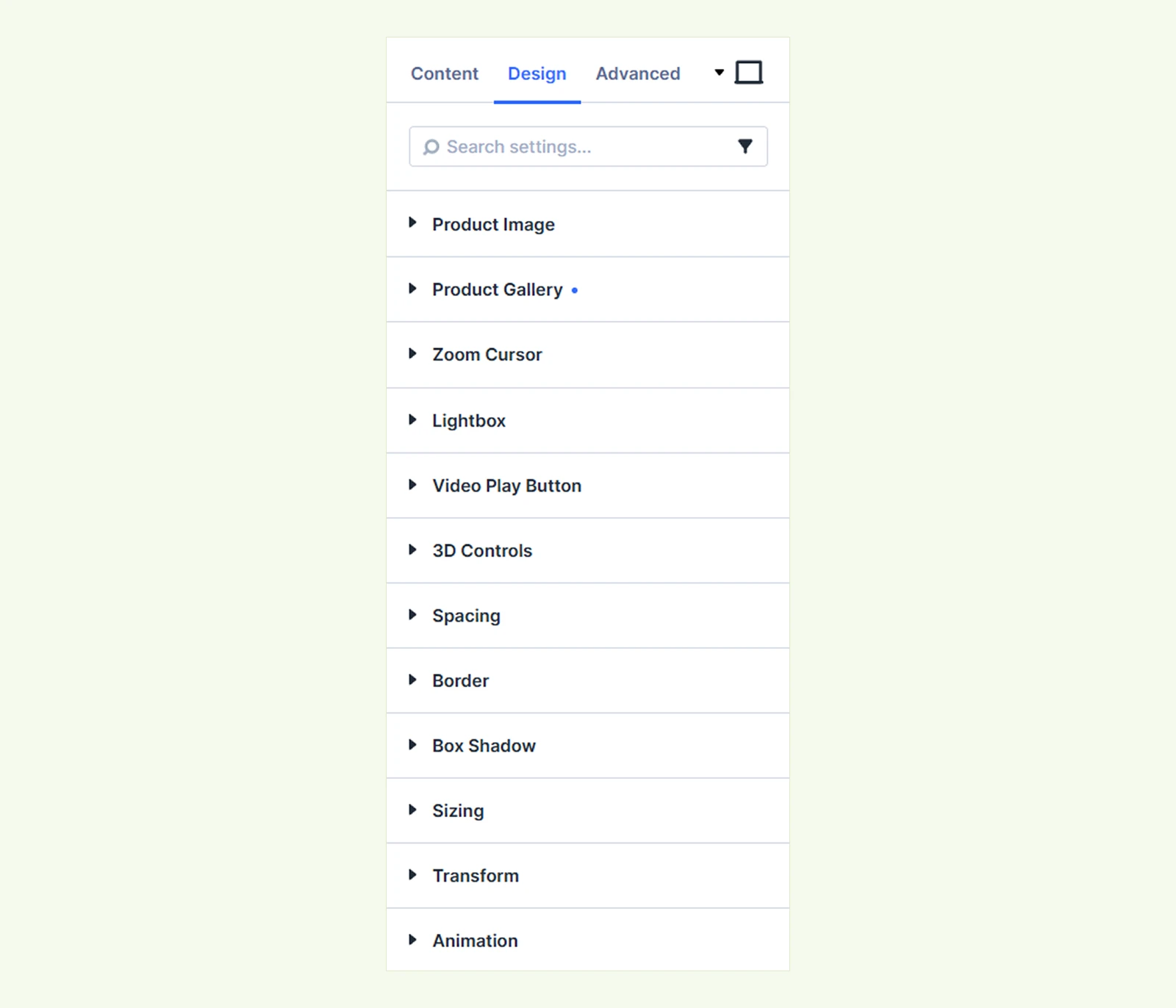
Product Image: Customize the product image border width, color, style and corner radius.
Product Gallery #
- Gap: Adjust the spacing between individual gallery thumbnails.
- Active Item Border Color: Set the border color used to highlight the currently active thumbnail.
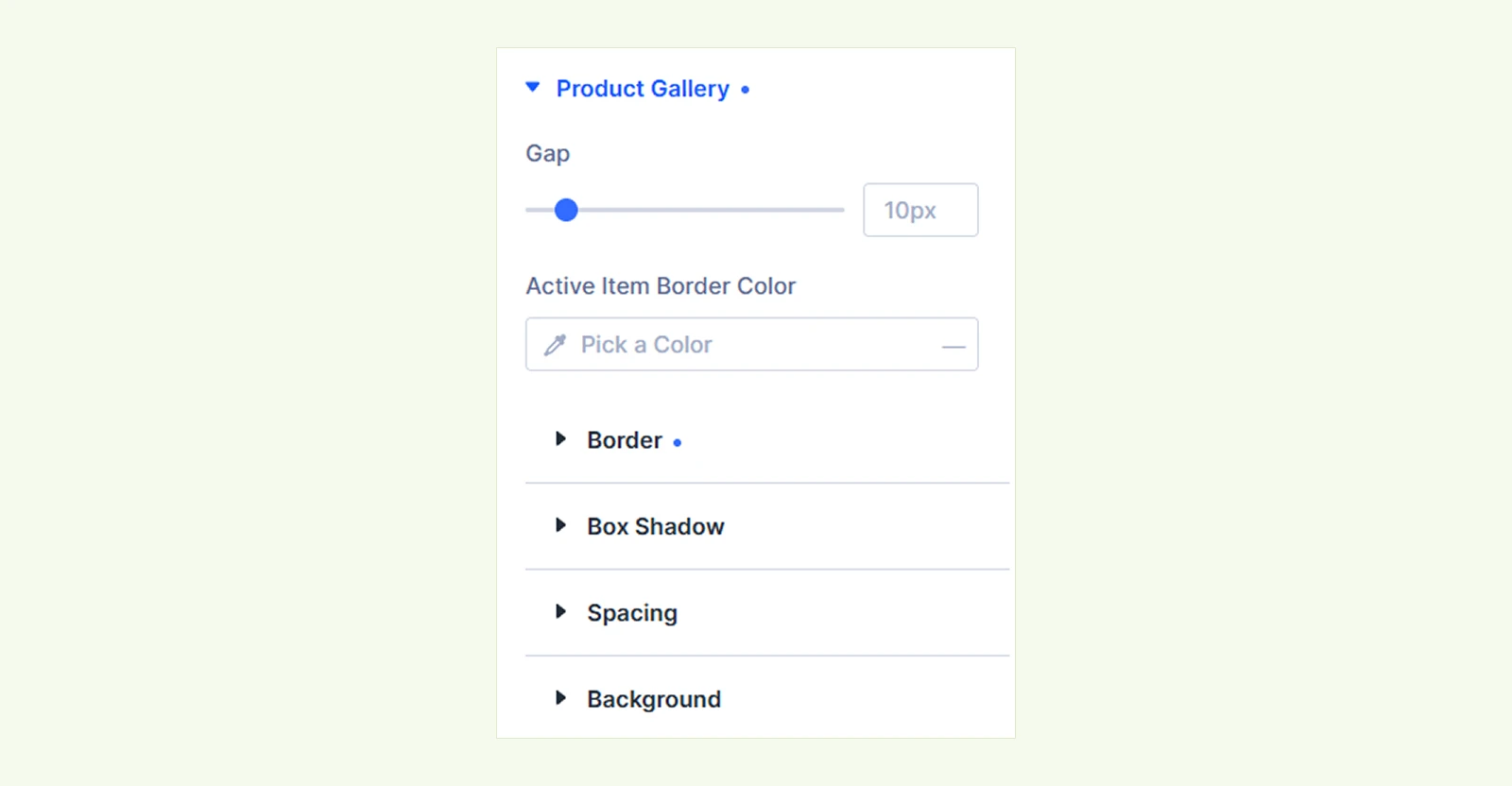
Also adjust border, box shadow, spacing and background as needed with the Divi’s core controls.
Arrows #
The Arrows settings become available when Enable Slider is enabled under Content → Behavior & Navigation.
- Arrow Icon Color: Set the color of the previous and next arrow icons.
- Arrow Background Color: Set the background color behind the arrow icons.
- Arrow Icon Size: Adjust the size of the navigation arrow icons.
- Disabled Arrow Opacity: Control the opacity of an arrow when there is no previous or next gallery item available.
- Custom Previous Icon: Enable this option to replace the default previous arrow with a custom icon.
- Previous Icon: Choose the icon you want to use for the previous navigation control.
- Custom Next Icon: Enable this option to replace the default next arrow with a custom icon.
- Next Icon: Choose the icon you want to use for the next navigation control.
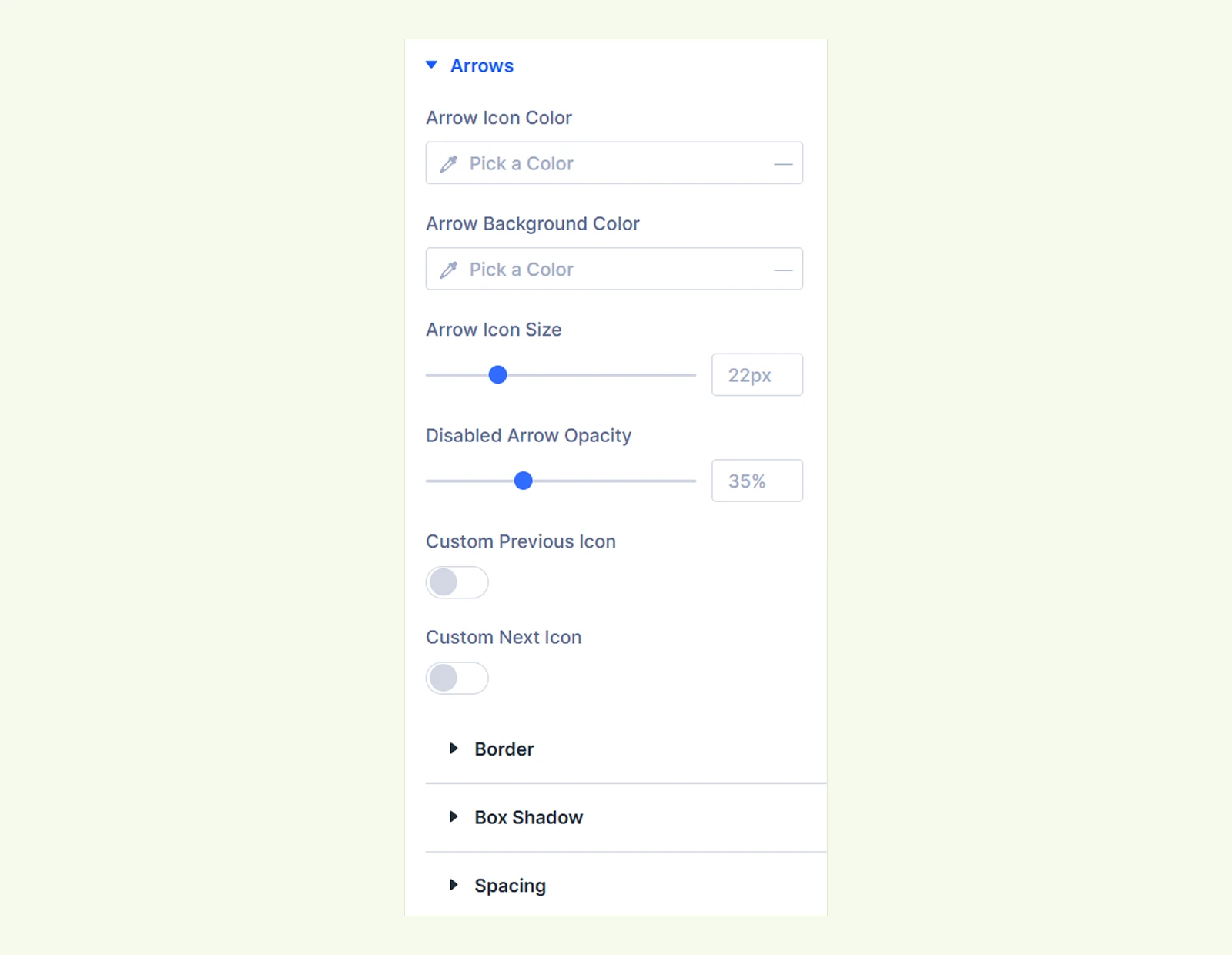
Use Divi’s standard Border, Box Shadow and Spacing controls to further style the arrows.
Counter: You can customize the counter with settings like text, background, border and spacing. (The Counter settings become available when Show Counter is enabled under Content → Behavior & Navigation.)
Zoom Cursor #
- Zoom Cursor Color: Set the color of the cursor used for the zoom interaction.
- Zoom Cursor Size: Control the size of the zoom cursor.

Lightbox #
- Lightbox Icon Color: Set the color of the lightbox icon.
- Lightbox Icon Background: Define the background color behind the lightbox icon.
- Lightbox Icon Size: Control the size of the lightbox icon.
- Border: Set the styling and typography for further customization.
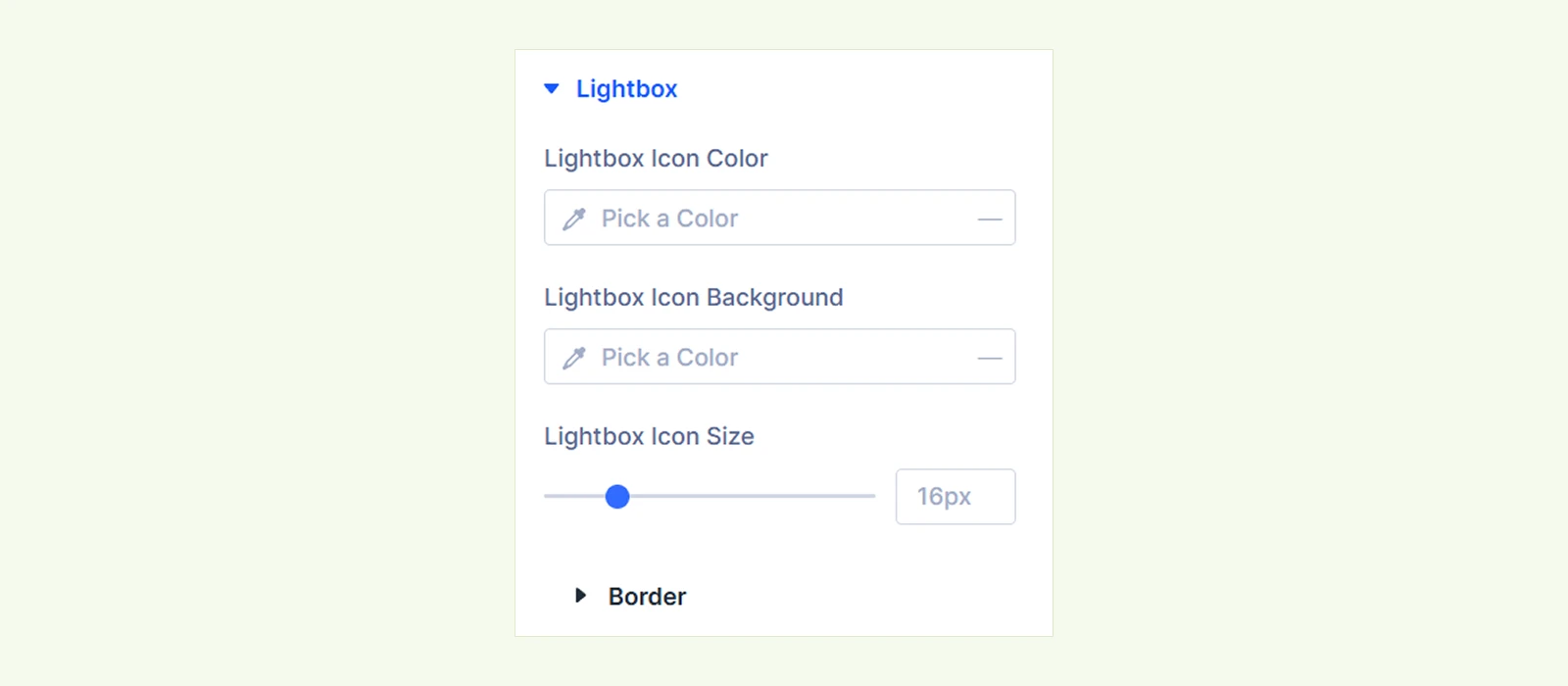
Note: These settings customize the lightbox trigger icon only. The WooCommerce PhotoSwipe lightbox overlay itself is not customizable from this module.
Video Play Button #
These options appear only when ‘Show Video Slide’ is enabled from Content → Video & 3D Media.
- Vertical Position: Choose where the video play button appears vertically:
- Top
- Center
- Bottom
- Horizontal Position: Choose where the video play button appears horizontally:
- Left
- Center
- Right
- Icon Color: Set the color of the video play icon.
- Icon Size: Adjust the size of the video play icon.
- Module Text: Customize the typography and appearance of the play button text.
Customize the background, border and spacing with the Divi’s controls as needed. behind the video play button.
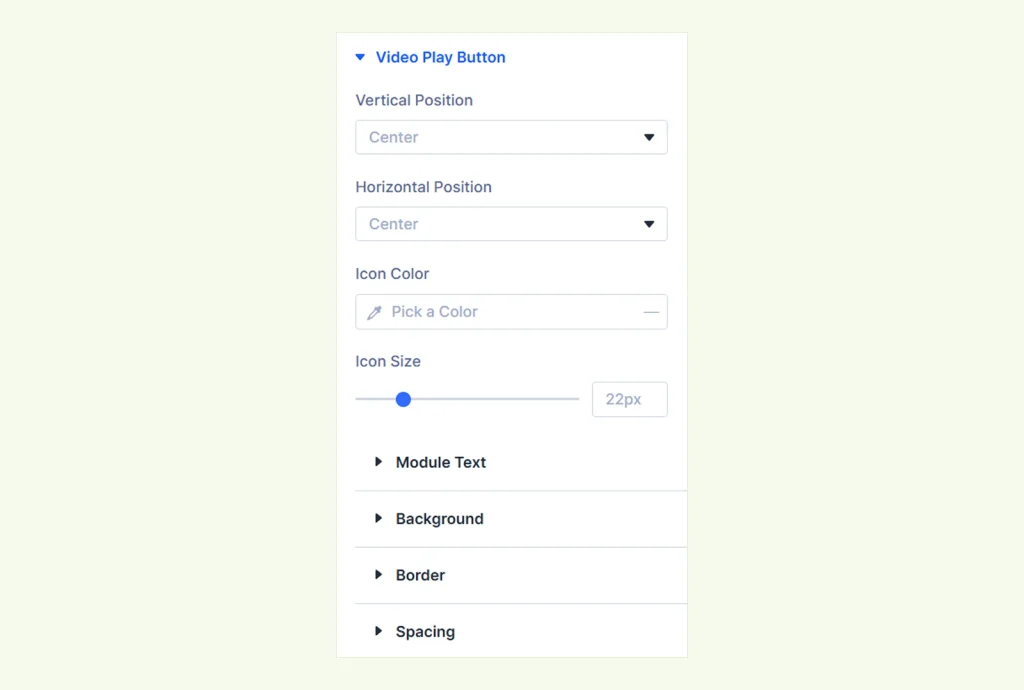
Note: Video Play Button controls only appear when the show video slide button is enabled from the content tab.
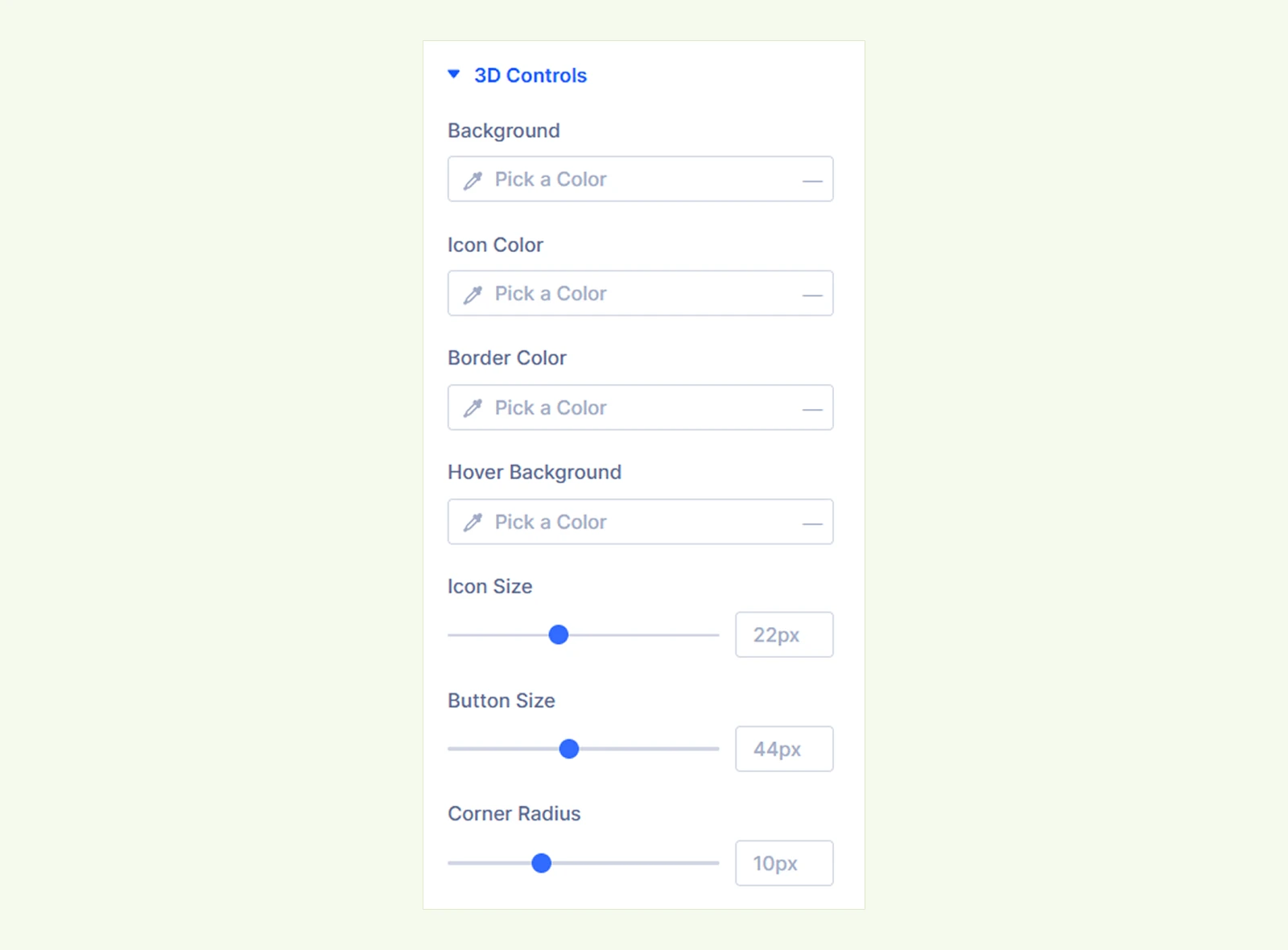
3D Controls #
These options appear only when ‘Show 3D Model’ is enabled from Content → Video & 3D Media.
- Background: Set the background color of the 3D control buttons.
- Icon Color: Choose the color of the icons inside the 3D control buttons.
- Border Color: Set the border color of the 3D control buttons.
- Hover Background: Choose the background color shown when users hover over a 3D control button.
- Icon Size: Adjust the size of the icons inside the buttons.
- Button Size: Control the overall size of the 3D control buttons.
- Corner Radius: Adjust the roundness of the button corners.
Border: Customize the lightbox control border width, color, style and corner radius.
Sizing: Adjust the module width, height, alignment and aspect ratio using Divi’s standard sizing controls.
Spacing: Adjust margin and padding to control the space around the module.
Border: Customize the module border width, color, style and corner radius.
Box Shadow: Add and customize a shadow around the module to create depth.
Transform: Adjust the module’s scale, position, rotation or skew using Divi’s transform controls.
Animation: Apply Divi’s built-in entrance animations to the module.
Advanced Tab #
The Advanced tab provides the standard Divi settings for custom CSS, visibility conditions, transitions, attributes, positioning and other advanced controls.
Need Help? #
If you have any questions or experience issues while using the Advanced Product Gallery module, please contact our support team at: [email protected]


