
The Size Chart module lets you display product size information in a format that is easy for customers to access while browsing a product page.
Important Note:
Enable the Size Chart module before creating a chart. Once enabled, the module adds the Products → Size Chart → Manage Charts.
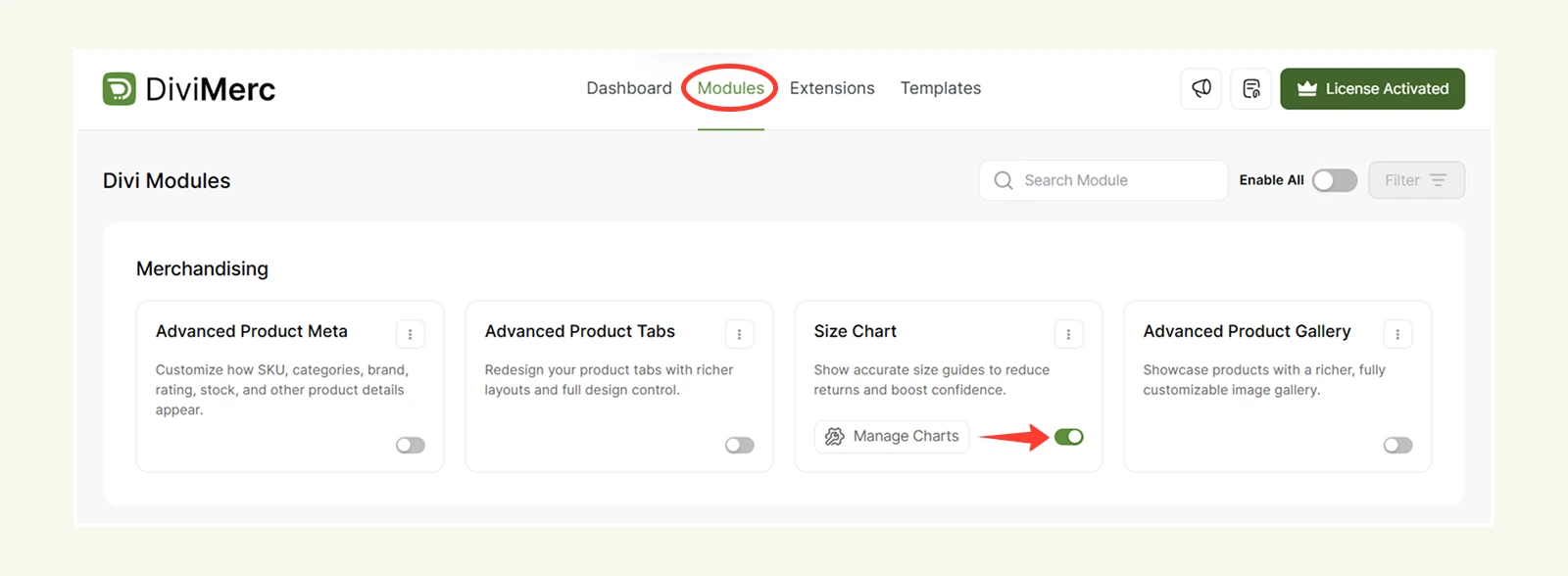
How to Create a Size Chart #
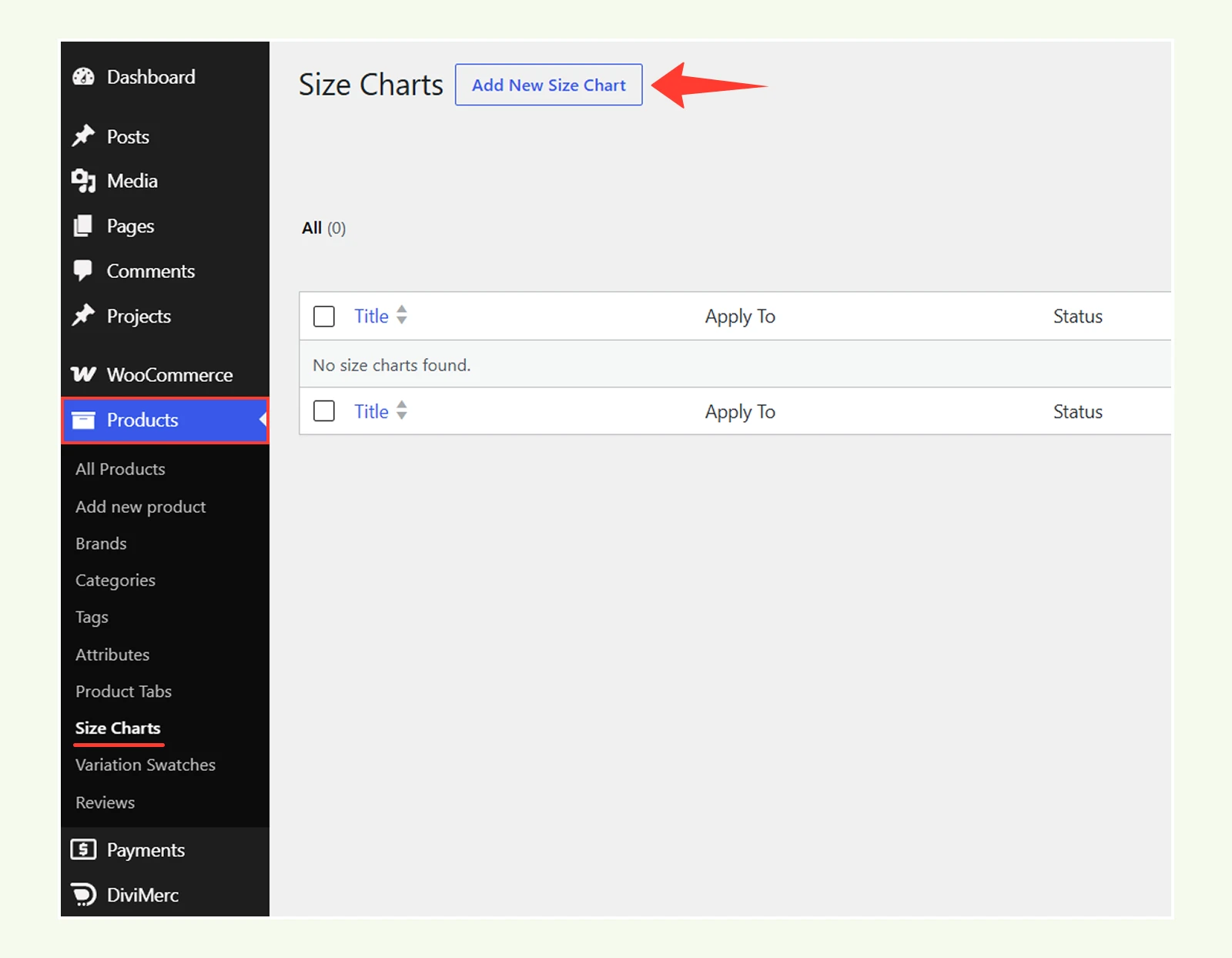
From the WordPress dashboard, go to Products → Size Charts.
Select Add New Size Chart.
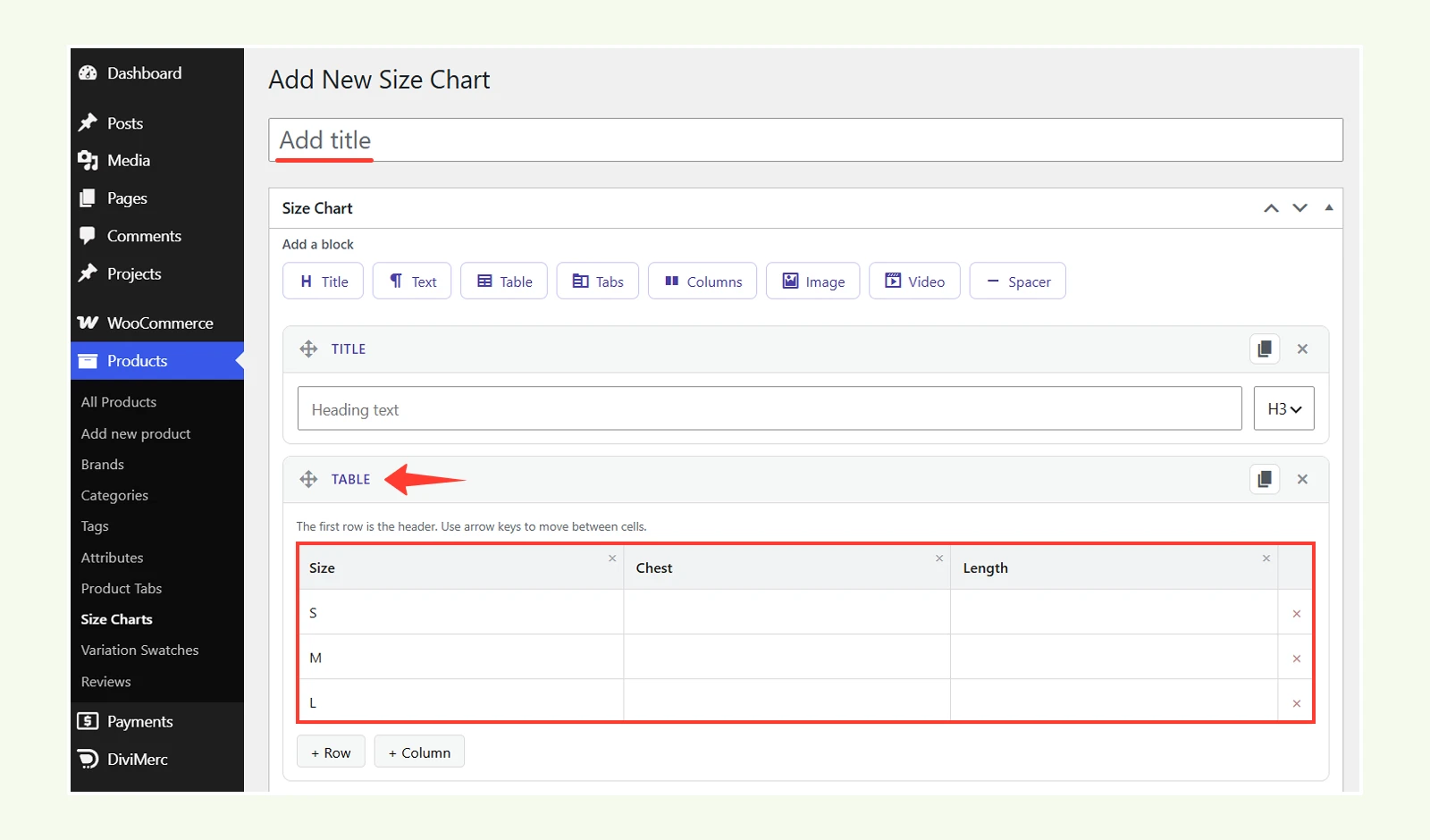
Enter a title for the size chart. Then add the content you want customers to see. You can add:
- Title blocks for headings
- Text blocks for measurement notes or instructions
- Table blocks for size measurements
- Tabs to organize multiple size guides
- Columns, images, videos, and spacers as needed
When adding a table, use the first row for column headings: for example, Size, Chest, and Length, then enter the measurements for each size.
Save or publish the size chart.
Managing Settings and Conditions #
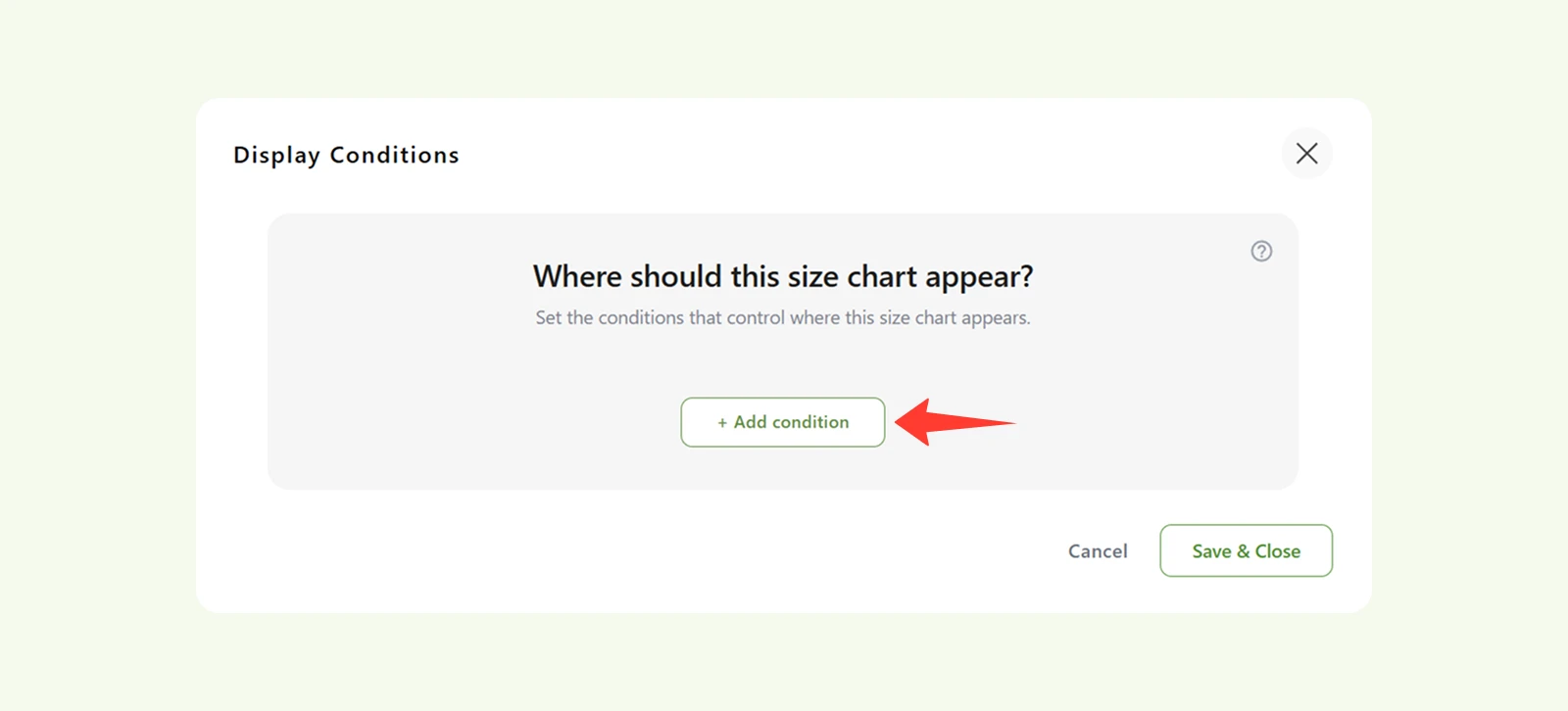
To control where your size charts appear, you must set display conditions from Size Chart settings.
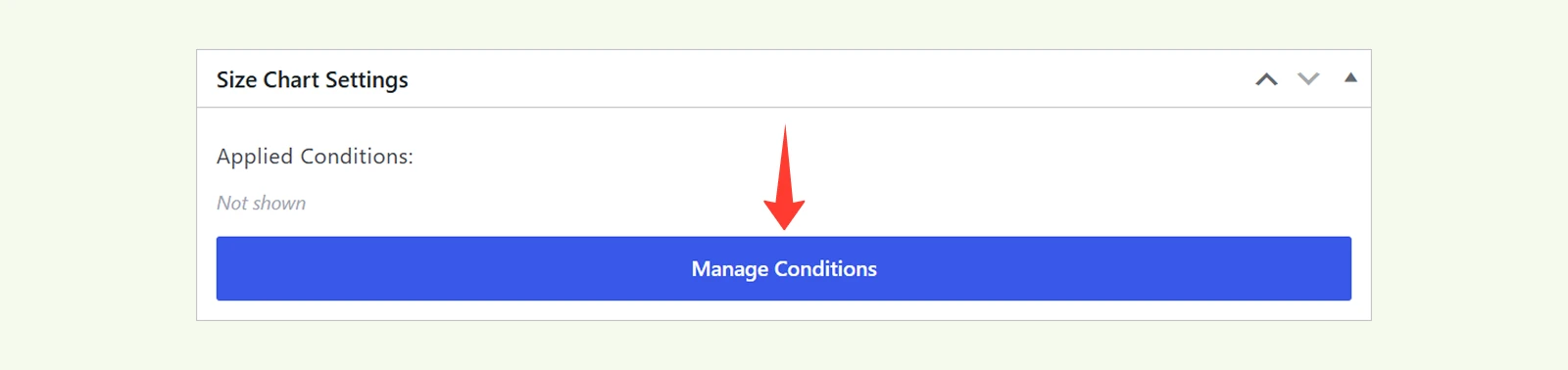
- In the Size Chart settings > Manage Conditions.
- Select from visibility rules
- You can include or exclude specific products, categories, tags, or brands.
Displaying the Size Chart #
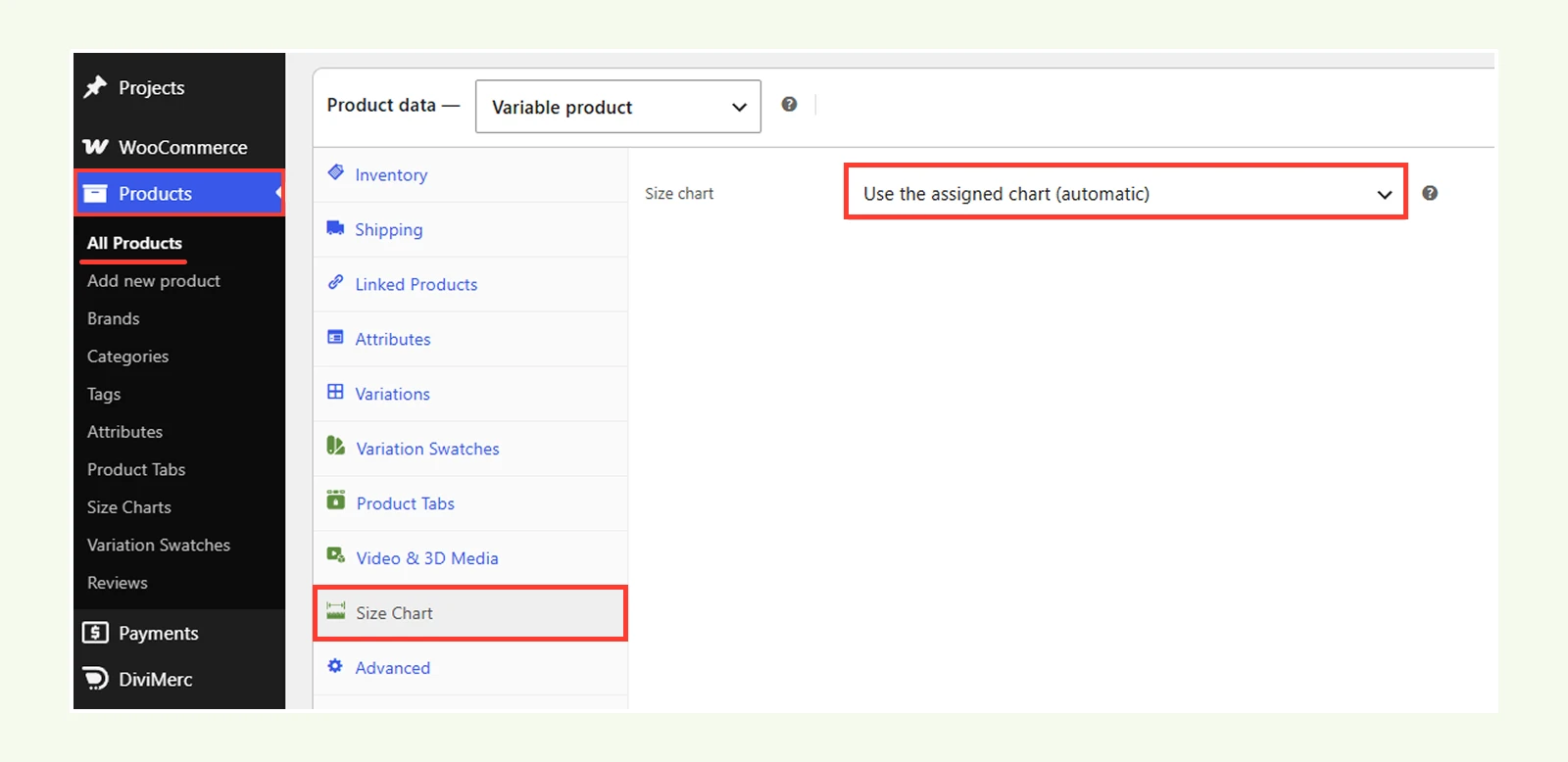
To show up the chart, go to your product list, and select the product you need to show the size chart for, and select the size chart option from the product data. There are three option available:
- Use the assigned chat (automatic)
- Choose a specific chart
- Disable for this product
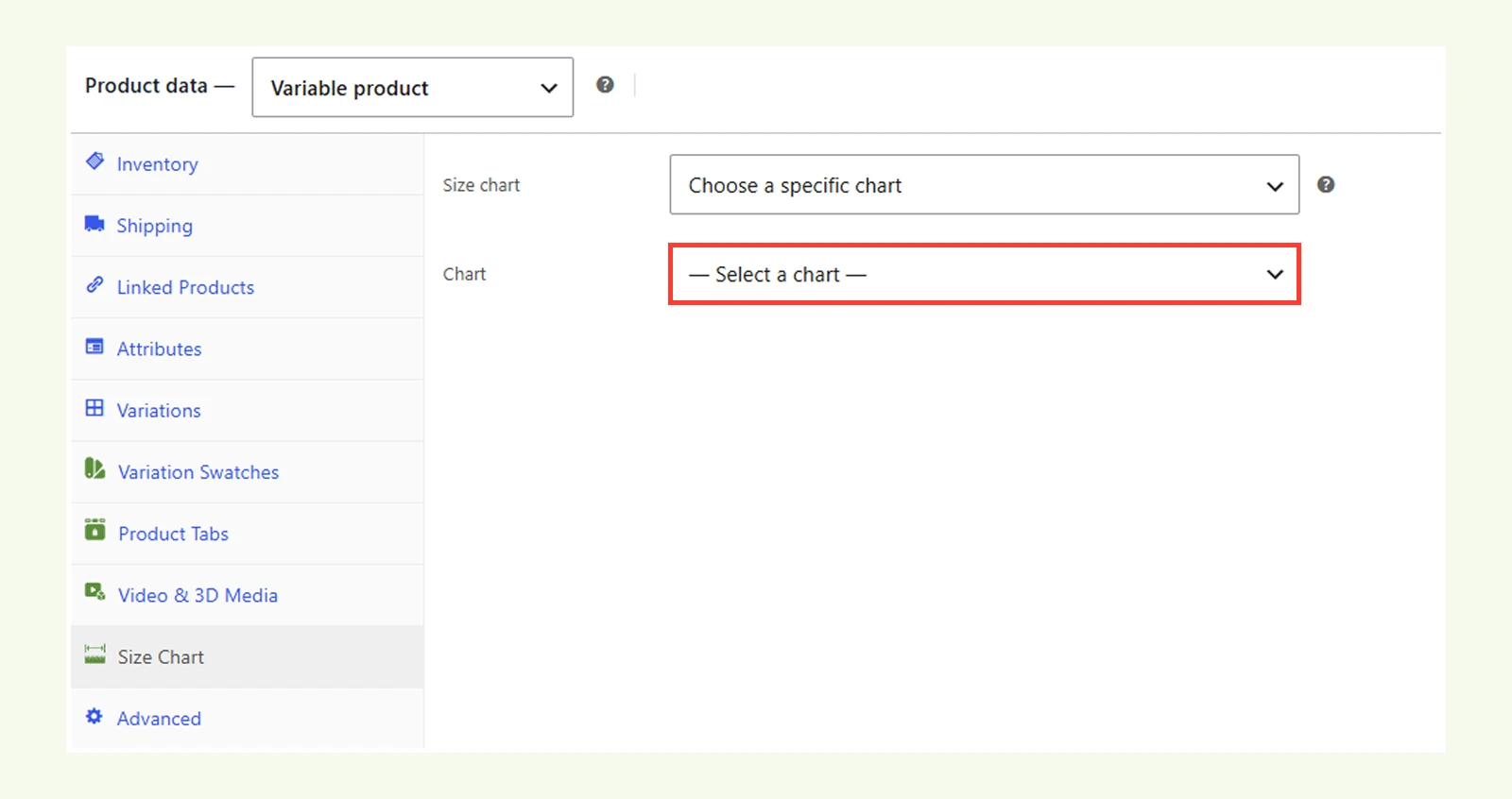
Select “Choose a specific chart,” and select the chart you created for this product from the next menu.
Now, go to your Divi builder, then insert the size chart module where you want to show the size chart on the product page, and save it.
Content Tab #
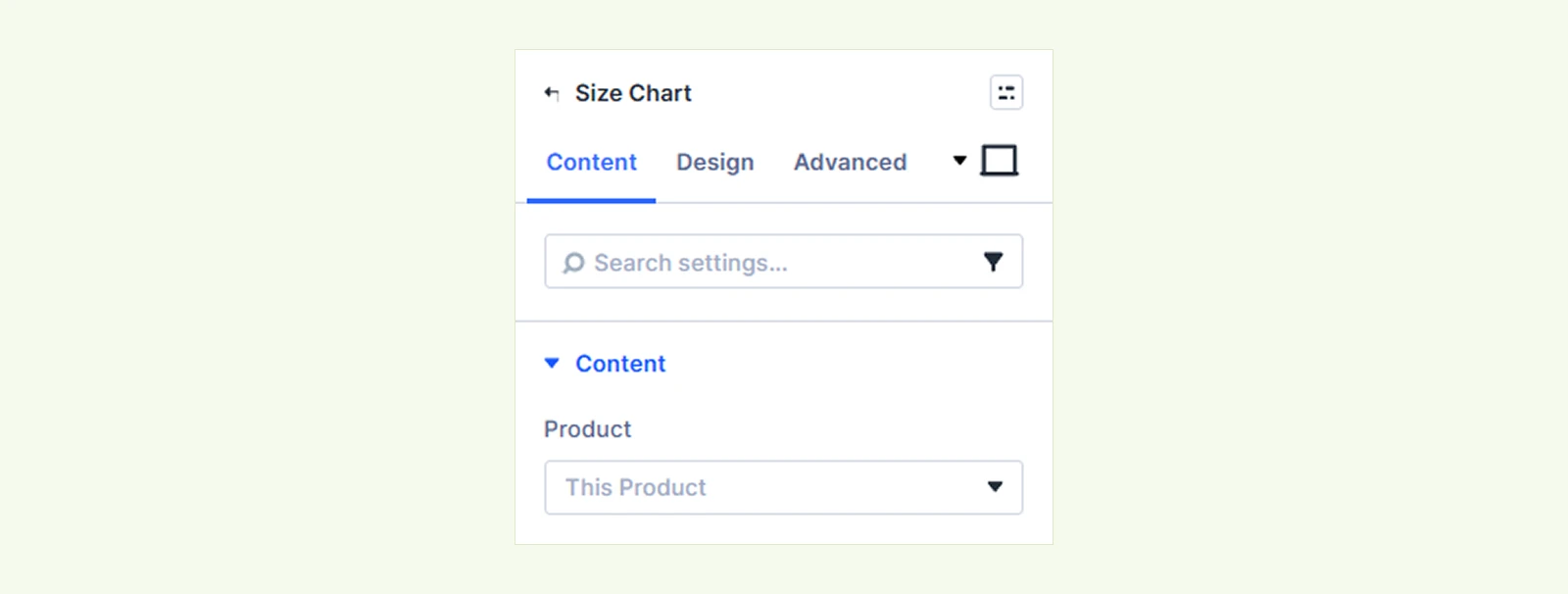
Use this tab to choose the product and control how its size chart appears on the page.
Content #
Product: Select the product whose size chart you want to show.
- Choose a specific product to display that product’s assigned size chart.
- Choose Latest Product to automatically use the most recently available product.
Display Settings #
Display Mode: Choose how the size chart is displayed. You can select:

- Modal / Popup
- Drawer (slide-in)
- Inline (in page)
- or Accordion.
If you choose Modal / popup, it opens the size chart in an overlay.
- Enable Open On Page Load option to automatically open the size chart when the page loads.

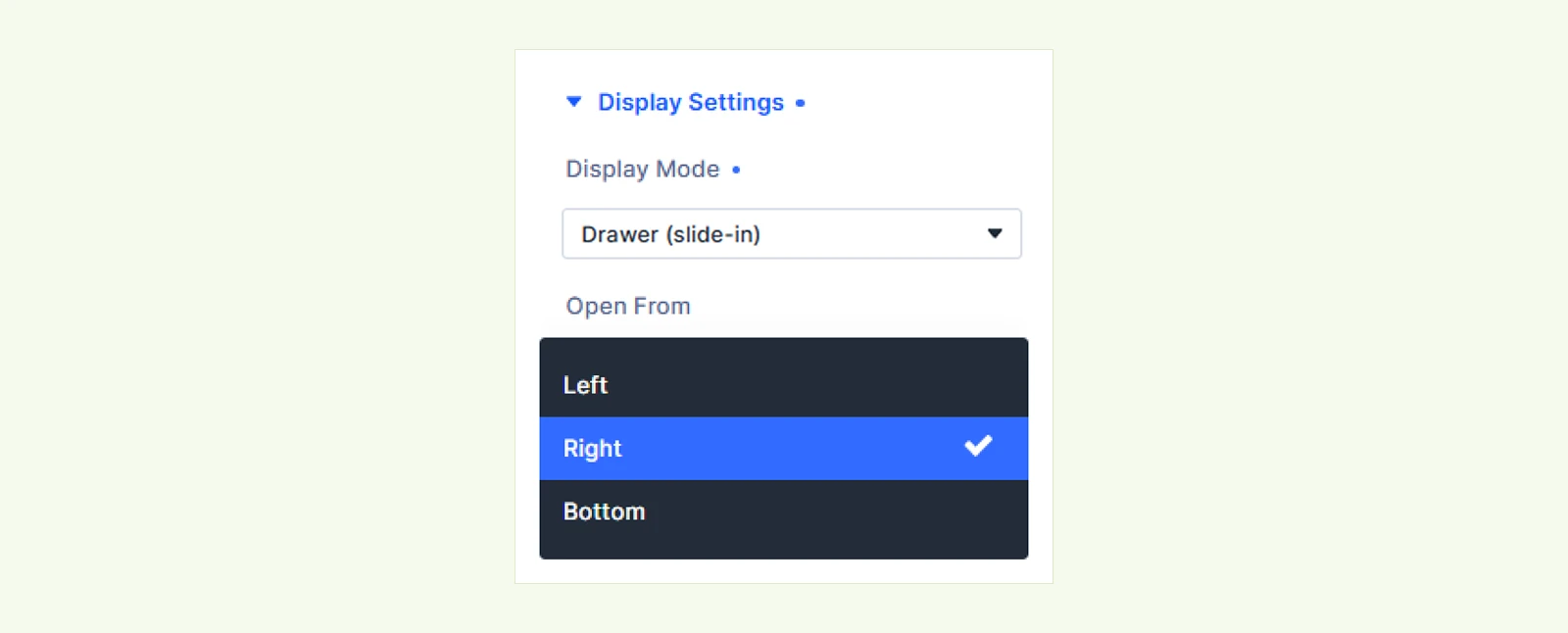
If you choose Drawer (slide-in), it displays the size chart in a sliding panel.
- Use Open From to choose whether the drawer slides in from the Left, Right, or Bottom
If you choose Inline (in page) it displays the size chart directly within the page content.

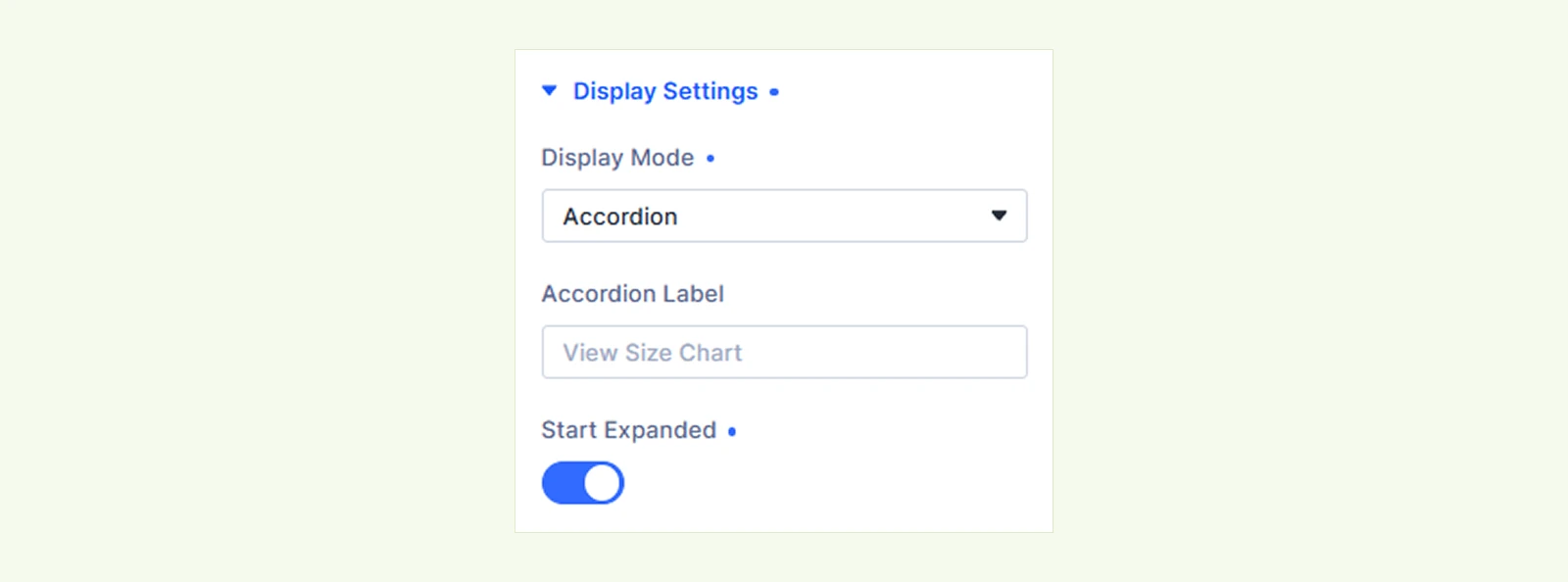
If you choose Accordion, it displays the size chart in an expandable section.
- Use Accordion Label to add the text visitors will click to open the size chart.
- Enable Start Expanded to show the size chart expanded by default.
Trigger Button #
You will see this after selecting the “Modal/popup and Drawer (slide-in)” as a display mode.

Use the Trigger Button settings to customize the text displayed on the size chart trigger button.
- Button Text: Enter the text you want to display on the trigger button.
Background: Customize the module background using color, gradient, image, video, pattern, etc
Element Label: Add an internal label to organize and identify this module within the Divi Builder.
Design Tab #
Use the Design tab to customize the appearance of the Size Chart module.
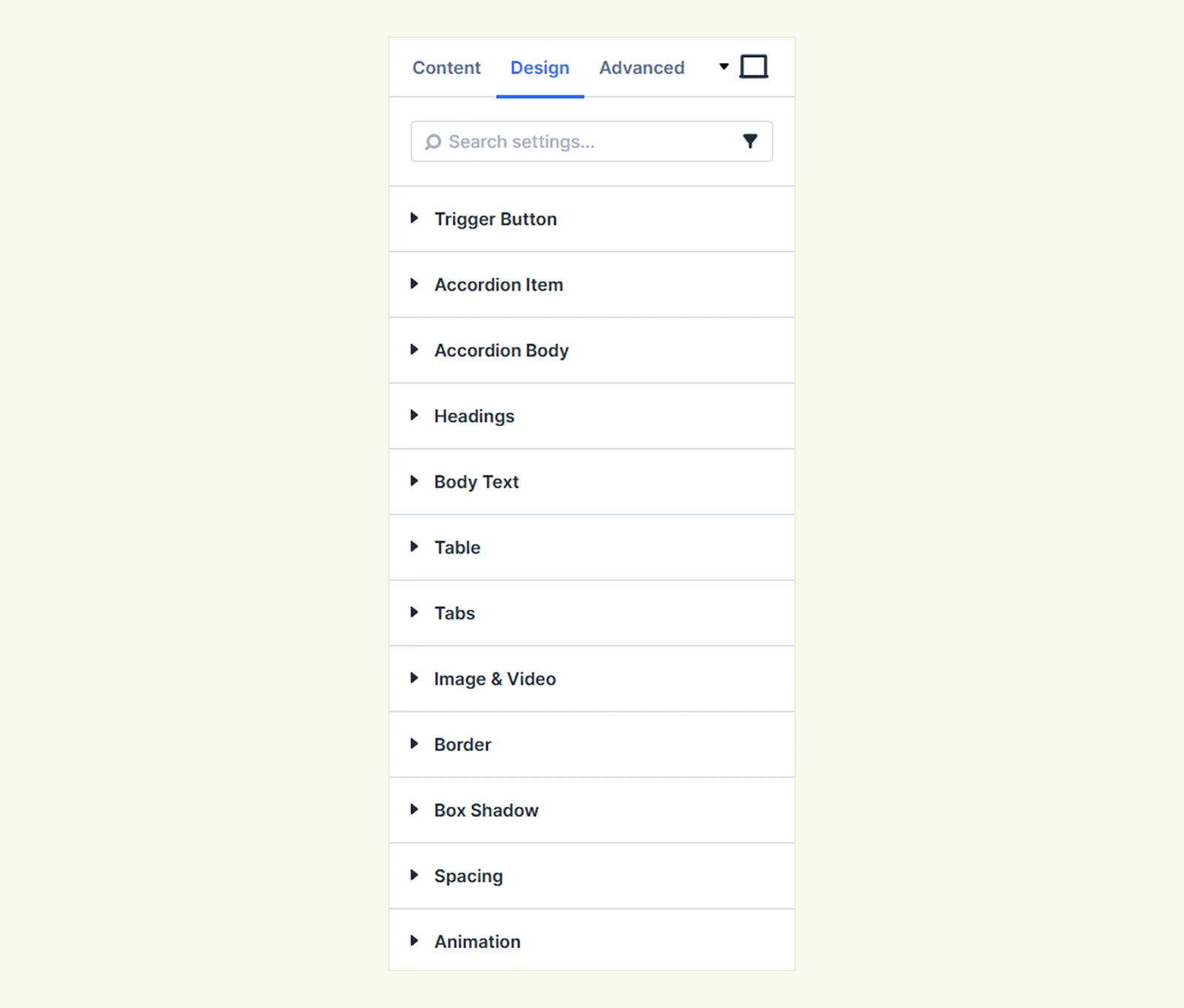
Trigger Button: Customize the appearance of the button used to open the size chart.
Accordion Item #
This setting is only available when you select accordion" from display settings
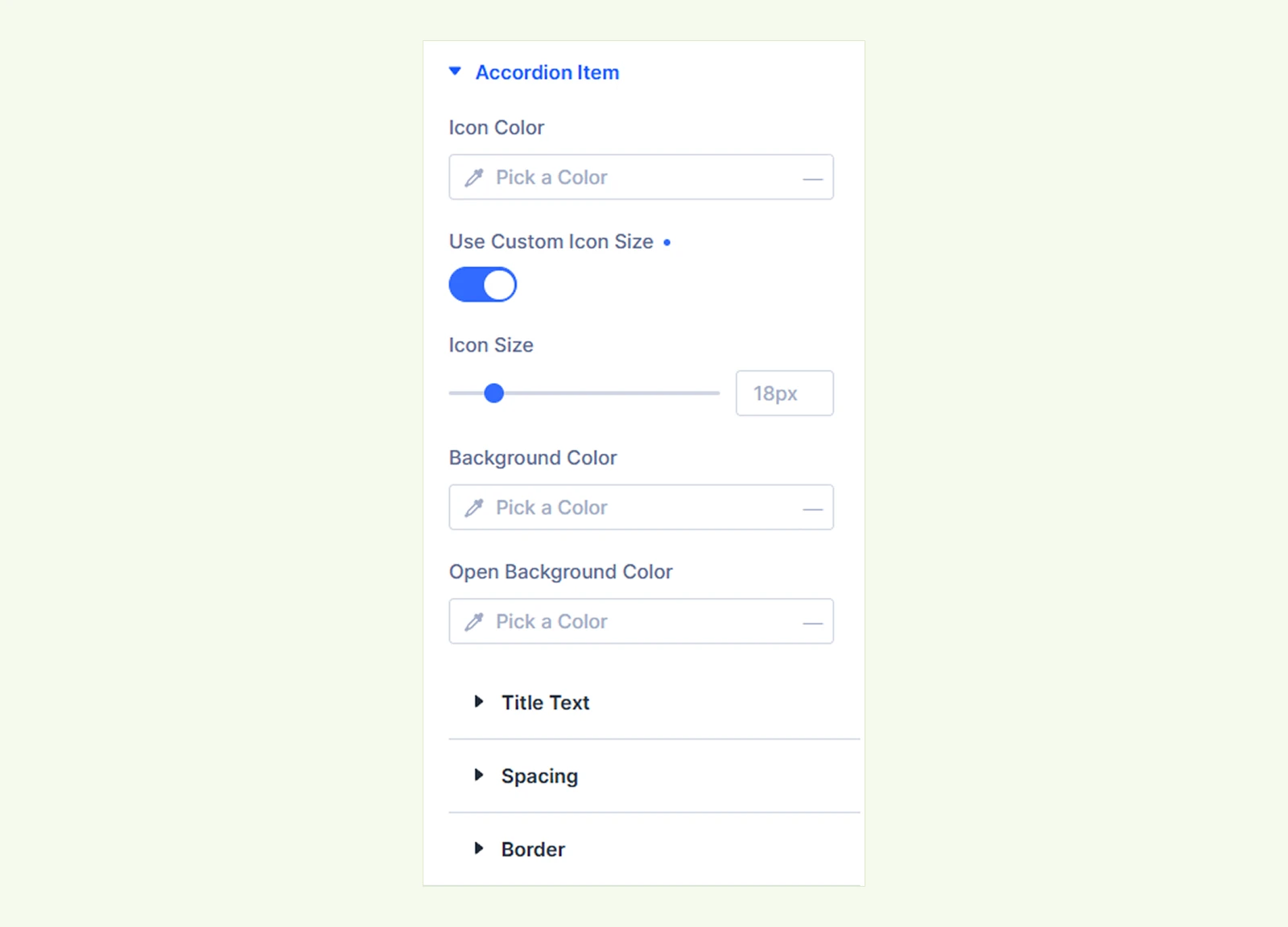
- Icon Color: Set the color of the accordion icon.
- Use Custom Icon Size: Enable this option to set a custom size for the accordion icon.
- Icon Size: Adjust the icon size.
- Background Color: Set the background color of the accordion item.
- Open Background Color: Set the background color displayed when the accordion item is expanded.
You will also find title text, spacing, and border settings options for further customization.
Accordion Body: You will find background, spacing and border to customize the according body. (This setting is only available when you select accordion" from display settings)
Popup / Container
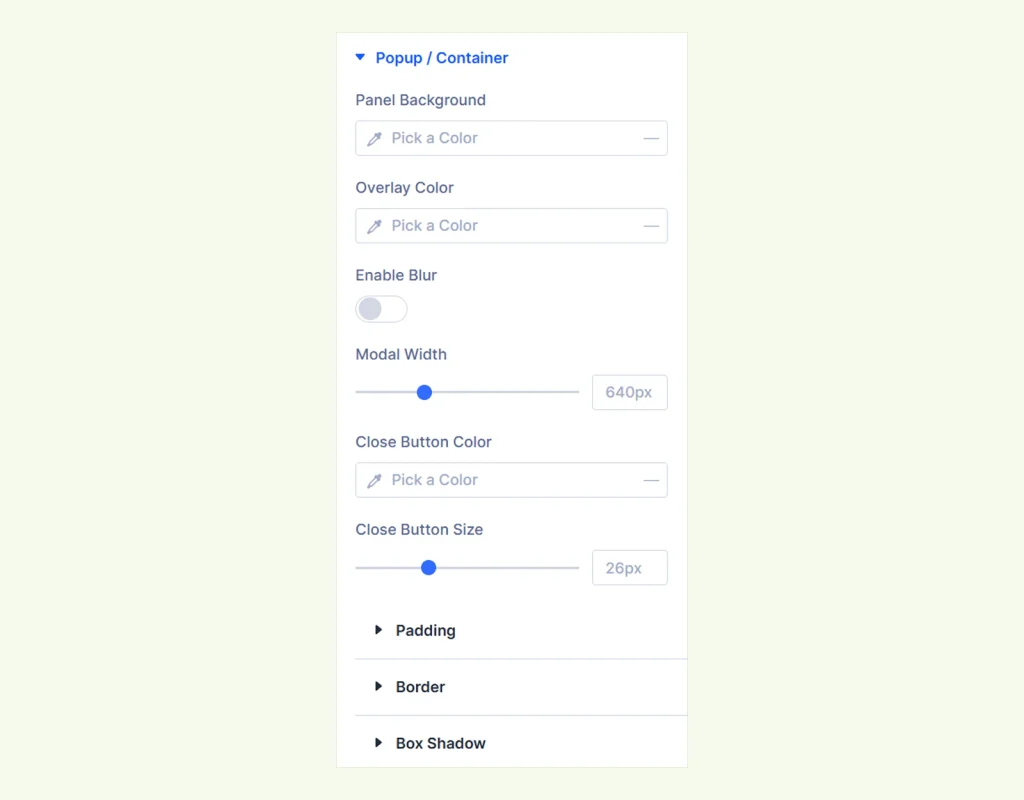
- Panel Background: Set the background color of the drawer panel (only available when Modal/Popup is selected)
- Overlay Color: Set the color of the overlay displayed behind the drawer.
- Enable Blur: Enable this option to add a blur effect to the area behind the drawer.
- Blur Size: Adjust the blur size to preferred level
- Modal Width: Set the size chart modal width.
- Close Button Color: Set the color of the drawer’s close button.
- Close Button Size: Adjust the size of the close button.
There you will also find settings like padding, border and box shadow.
Headings: Adjust the typography and styling of the size chart headings.
Body Text: Customize the font, size, color, and other styling of the body text.
Table: Customize the appearance and styling of the size chart table.
Tabs: Adjust the appearance, spacing, and styling of the size chart tabs.
Image & Video: Customize the appearance, size, and placement of images and videos.
Border: Customize the border width, style, color, and radius.
Box Shadow: Add and customize a shadow around the size chart.
Spacing: Adjust the margin and padding around the size chart elements.
Animation: Add and customize animation effects for the size chart..
Advanced Tab #
For advanced users seeking deeper control over the module, this tab offers extra configurations including custom code, conditions, and additional settings.
Need Help? #
If you have any questions or need assistance, contact our support team at [email protected]


