
The DiviMerc Login & Register module lets you create and customize WooCommerce login and registration forms in Divi. It helps customers sign in, create accounts, and recover passwords while giving you control over the forms' layout, content, and design.
Important Notes:
- WooCommerce must be active, and the Login & Register module must be enabled under DiviMerc > Modules.
- To display the registration form, customer registration must be enabled under WooCommerce > Settings > Accounts & Privacy.
- The My Account module is for logged-in customers, while Login & Register provides login and registration forms for logged-out visitors.
Let's explore the module's settings and how to use them.
Content Tab #
The Content tab lets you choose which forms appear, how they are arranged, and the text visitors see.
Form #
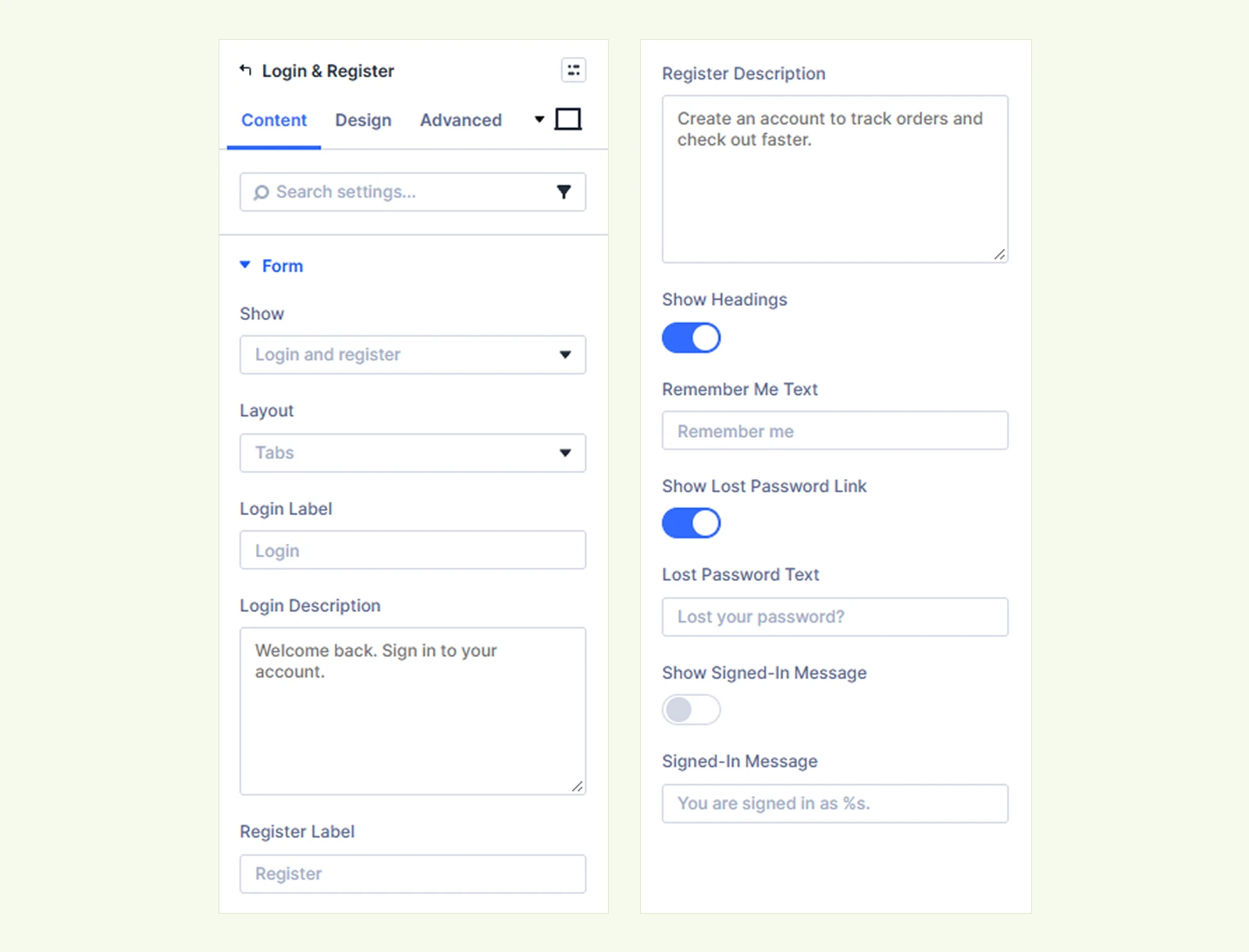
- Show: Choose which forms to display:
- Login and register: Display both forms.
- Login only: Display only the login form.
- Register only: Display only the registration form.
- Layout: Choose how the forms are arranged:
- Side by side: Display both forms in two columns. The columns stack automatically when either form would be narrower than 320px.
- Login above register: Display both forms stacked vertically.
- Tabs: Display one form at a time with tabs to switch between them.
- Login first, register on request: Display the login form with a link to open the registration form.
- Login Label: Customize the login form heading or tab label.
- Login Description: Add supporting text below the login heading.
- Register Label: Customize the registration form heading or tab label.
- Register Description: Add supporting text below the registration heading.
- Show Headings: Show or hide the form headings and their descriptions.
- Remember Me Text: Customize the Remember me checkbox label.
- Show Lost Password Link: Show or hide the Lost your password? link.
- Lost Password Text: Customize the lost-password link text.
- Show Signed-In Message: Show or hide a message for logged-in customers.
- Signed-In Message: Customize the message displayed to logged-in customers. Use %s to show the customer's name automatically. Leave it empty to hide the message.
Switch Link #
The Switch Link section lets you customize the text and links visitors use to switch between login and registration forms. (Available with the Login first, register on request layout.)
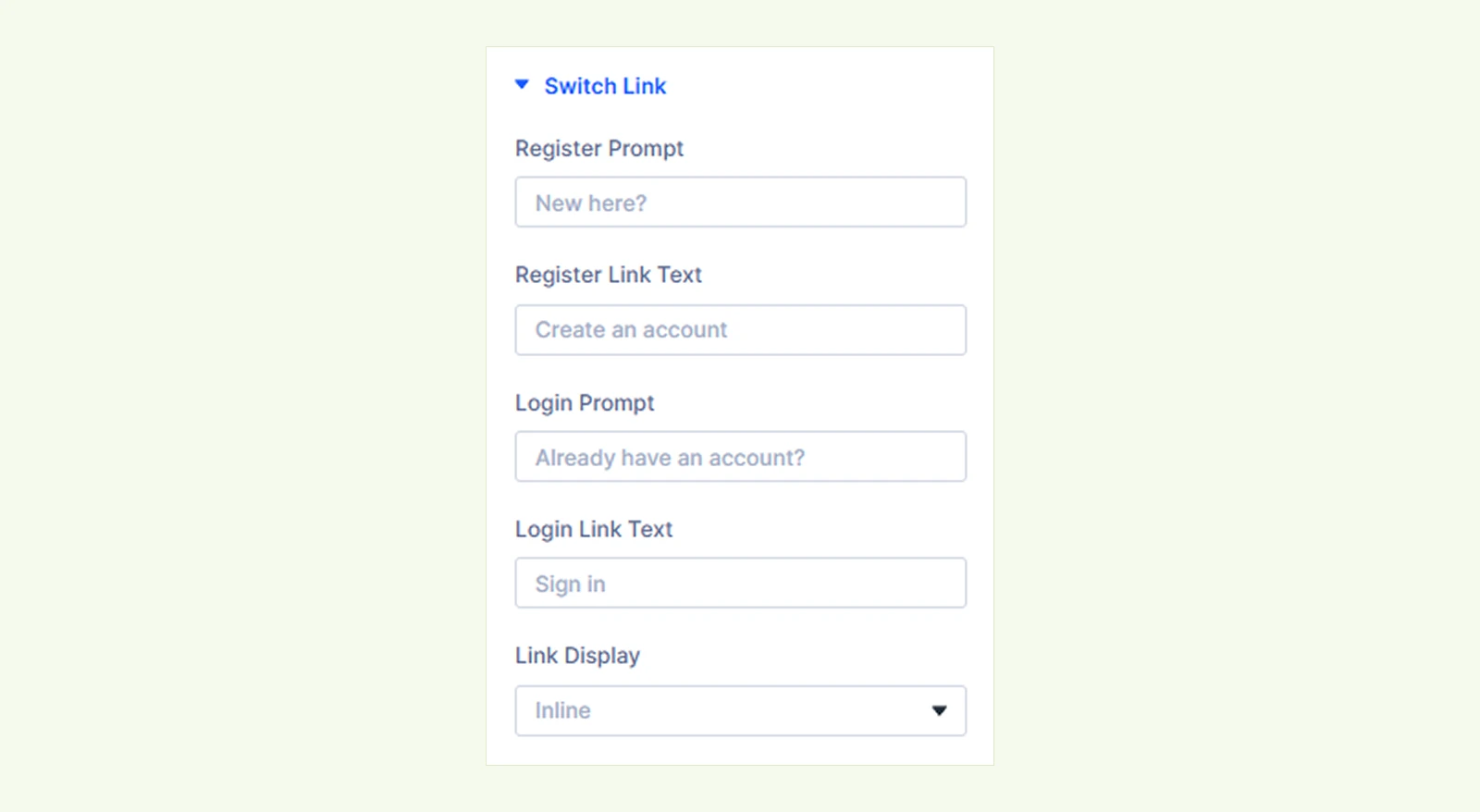
- Register Prompt: Customize the text displayed before the registration link.
- Register Link Text: Customize the clickable text that opens the registration form.
- Login Prompt: Customize the text displayed before the login link.
- Login Link Text: Customize the clickable text that returns visitors to the login form.
- Link Display: Choose how the prompt and link appear:
- Inline: Display the prompt and link on the same line.
- Block: Display them on separate lines.
Placeholders #
The Placeholders section lets you customize the hint text displayed inside the form fields.
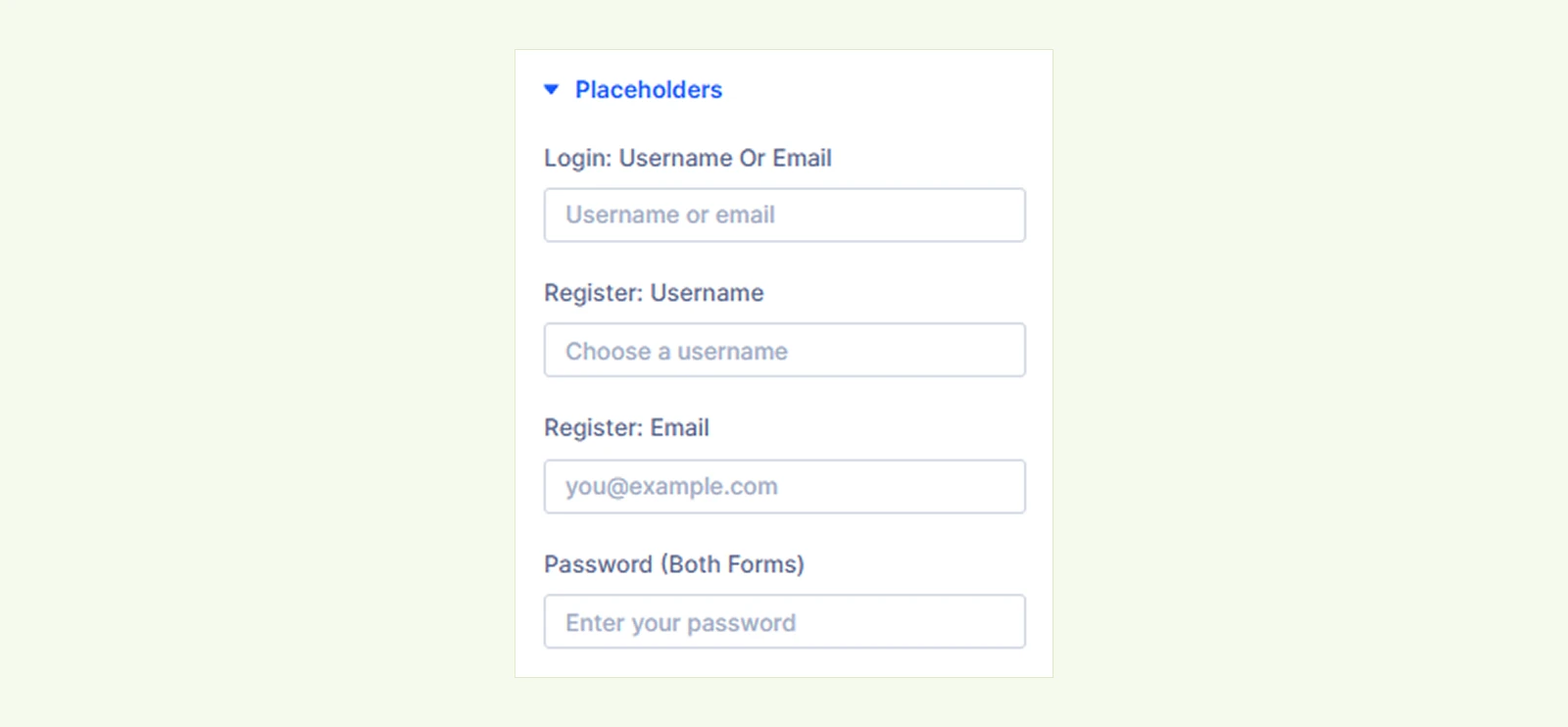
- Login: Username or Email: Customize the username or email placeholder in the login form.
- Register: Username: Customize the username placeholder in the registration form.
- Register: Email: Customize the email placeholder in the registration form.
- Password (Both Forms): Customize the password placeholder in both login and registration forms.
Note: WooCommerce controls which registration fields appear. When Generate account login or Send password setup link is enabled under WooCommerce > Settings > Accounts & Privacy, the corresponding Username or Password field is hidden from the registration form.
Builder Preview #
The Builder Preview section lets you choose which form screen to display while designing the module.

- Show Screen: Select the screen you want to preview, including Forgot Password, to customize its appearance in the Divi Builder.
The preview selection only affects the Divi Builder and does not change what visitors see on the live page.
Background: Add a background color, gradient, or image to the module.
Element Label: Rename the module for easier identification in the Divi Builder. This label is only visible to you.
Design Tab #
The Design tab lets you customize the appearance of the login, registration, and password recovery forms, including their layout, fields, buttons, messages, and other elements.
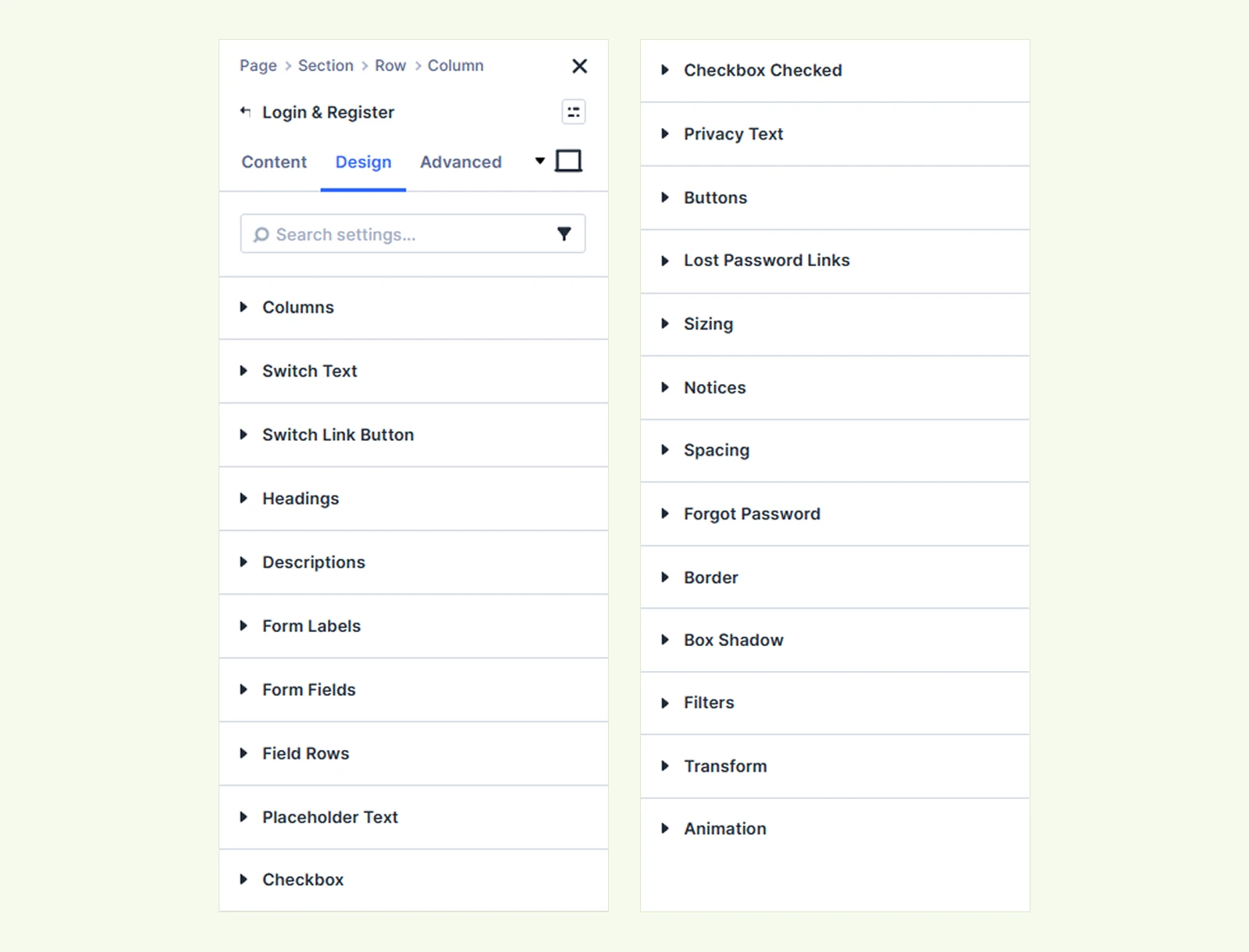
Columns: Customize the layout and appearance of the form containers.
Tabs Wrapper: Style the container holding the login and registration tabs.
Tab Buttons: Customize the tab buttons' appearance.
Active Tab: Style the currently selected tab.
Switch Text #

- Alignment: Choose the alignment of the switch text (left, center, or right).
You can also customize the text typography and spacing. (Available with the Login first, register on request layout.)
Switch Link Button: Style the clickable link used to switch between forms. (Available with the Login first, register on request layout.)
Headings: Customize the login and registration headings.
Descriptions: Customize the form descriptions.
Form Labels: Customize the form field labels.
Form Fields: Customize the form fields' appearance.
Field Rows: Adjust the spacing between form rows, including username, password, checkbox, and button rows.
Placeholder Text: Customize the placeholder typography and color.
Checkbox #

- Size: Adjust the size of the Remember me checkbox.
You can also customize the checkbox's background and border.
Checkbox Checked #

- Tick Color: Customize the color of the checkmark when the Remember me checkbox is selected.
You can also customize the checkbox's selected background and border.
Privacy Text #
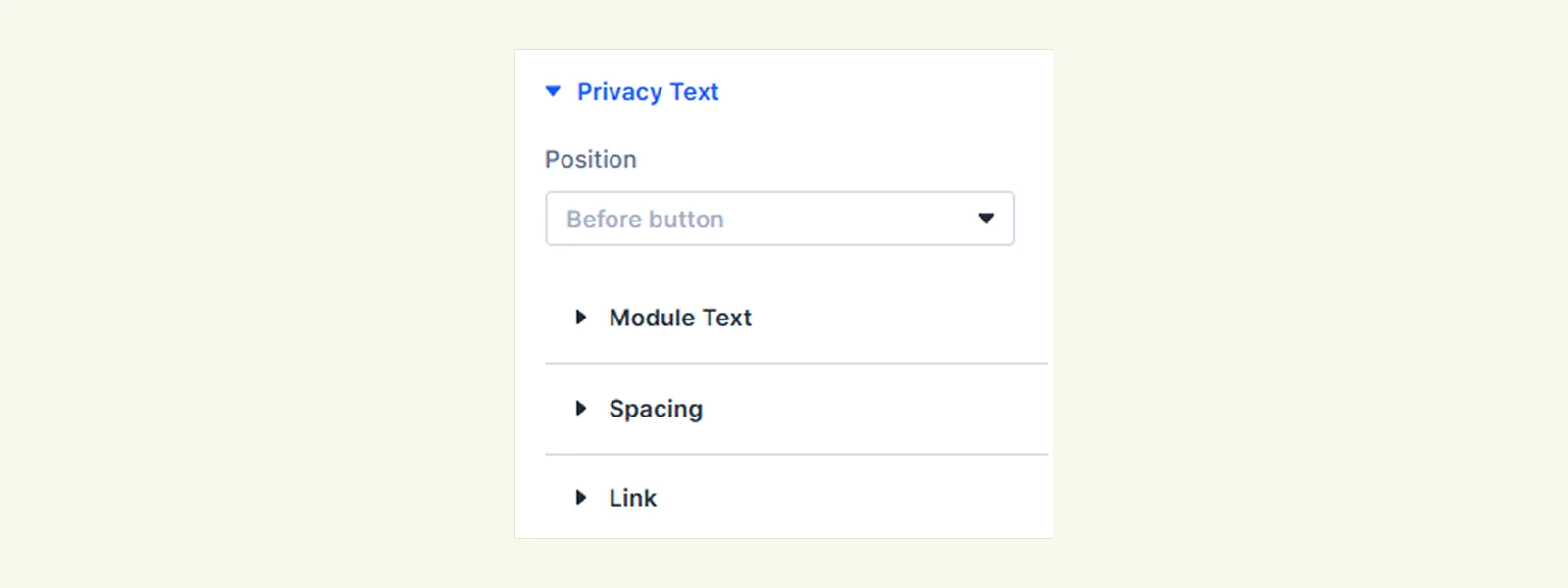
- Position: Choose where the privacy text appears in the registration form:
- Before button: Display the text above the Register button.
- After button: Display the text below the Register button.
You can also customize the privacy text typography, links, and spacing.
Buttons: Customize the Login, Register, and Reset password buttons.
Lost Password Links #

- Position: Choose where the Lost your password? link appears:
- Below button: Display the link below the Login button.
- Beside Remember me: Display the link beside the Remember me checkbox.
- Above Password field: Display the link above the password field.
You can also customize the link's typography and appearance.
Notices #
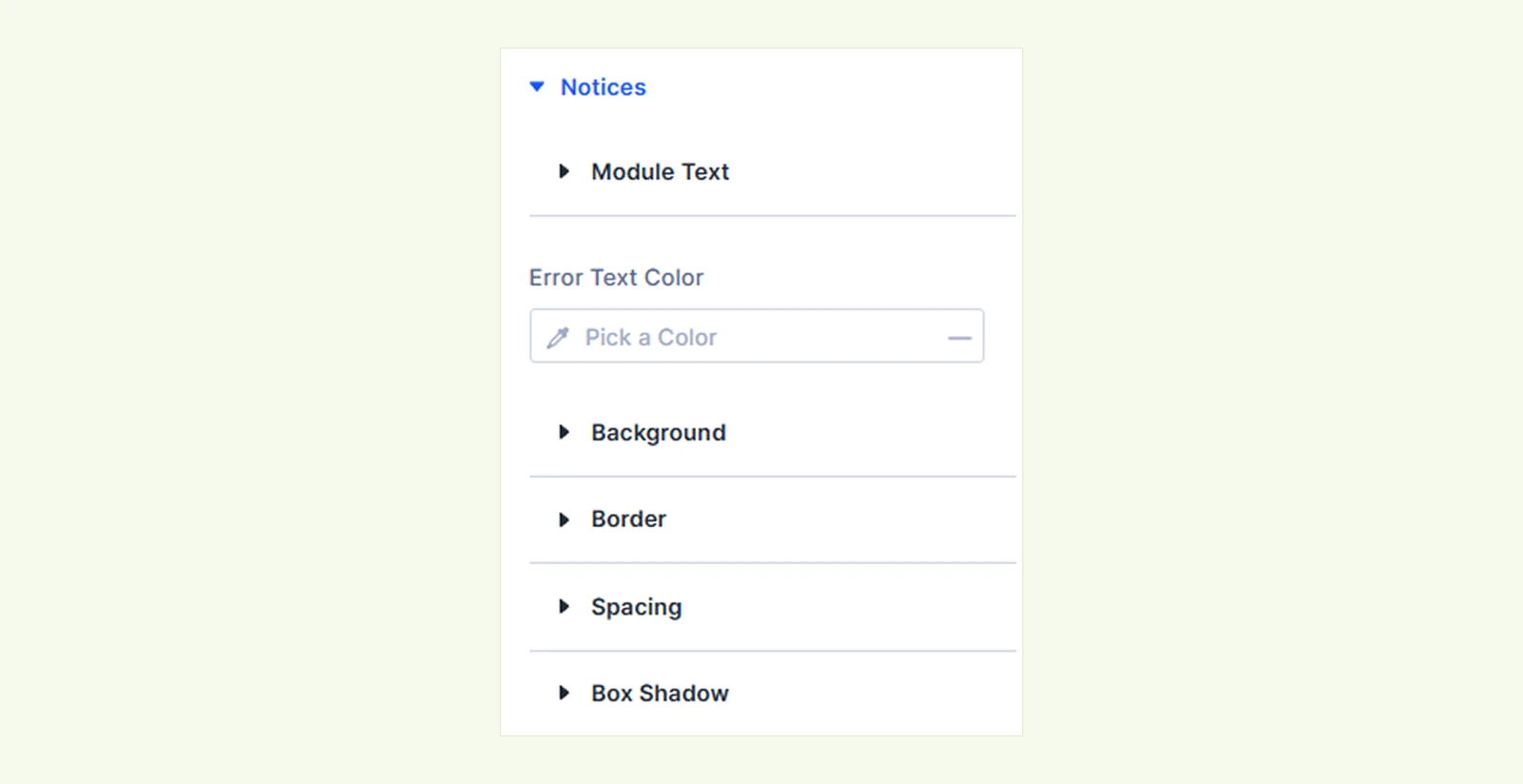
- Error Text Color: Customize the text color of error messages.
You can also style WooCommerce success, information, and error notices, along with the Signed-In Message when enabled.
Forgot Password #
The Forgot Password section lets you customize the appearance of the password recovery form.
- Intro Text: Customize the introductory text above the password field.
- Form Background: Customize the background of the password recovery form.
- Form Border: Customize the form's border and rounded corners.
- Form Spacing: Adjust the spacing around the form.
- Form Box Shadow: Add and customize shadow effects around the form.
The password recovery form also uses the standard Form Labels, Form Fields, Placeholder Text, and Buttons design settings.
Note: To preview this screen while designing, select Forgot Password under Content > Builder Preview > Show Screen.
Sizing: Adjust the width, height, and alignment of the module.
Spacing: Adjust the margin and padding around the module.
Border: Customize the border radius, style, width, and color.
Box Shadow: Add and customize shadow effects.
Filters: Apply visual filter effects to the module.
Transform: Adjust the module's scale, position, rotation, and more.
Animation: Add animations and customize their style, duration, delay, and other effects.
Advanced Tab #
Use this tab for Divi's standard advanced settings, including custom CSS, conditions, visibility, and other advanced controls.
Need Help? #
If you have any questions or need assistance, contact our support team at [email protected].


