
The Advanced Product Price module (introduced in v1.1.0) lets you display and style WooCommerce product prices with more control over variable prices, sale layouts, currency symbols, and decimals.
Important Note:
- Live variation price updates are not visible in the Visual Builder. Check them on the frontend.
Let’s see the settings in brief and how to make better use of them —
Content Tab #
This tab includes the essential settings for selecting the product, controlling how prices appear, and customizing currency and decimals.
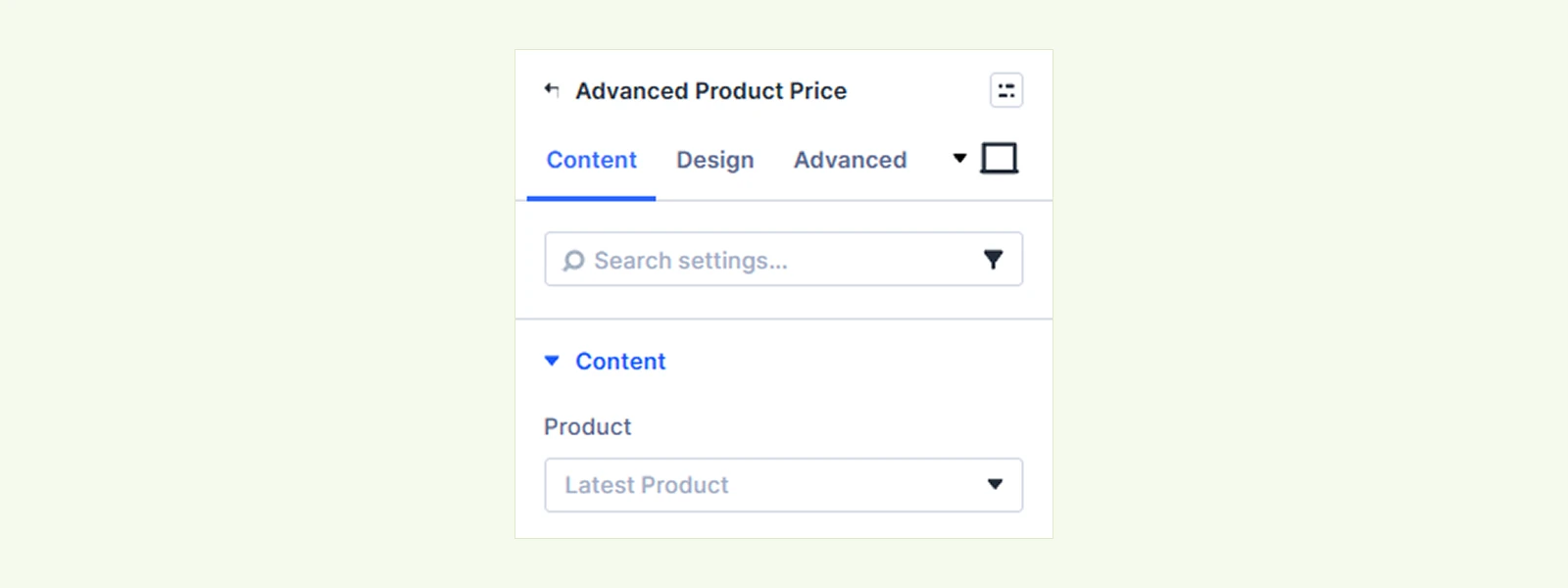
Content #
- Product: Choose which product price to display. You can use the current product, latest published product, or select a specific product.
Display Settings #
Use these settings to control how variable and sale prices appear.
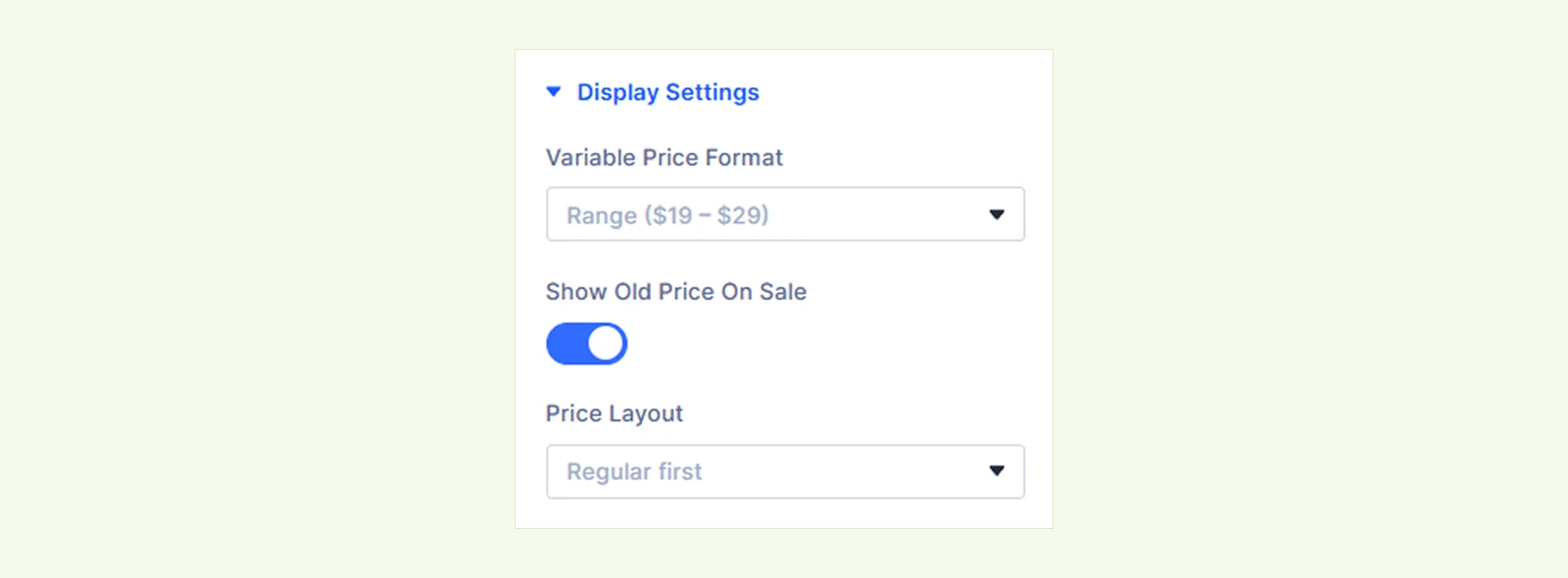
- Variable Price Format: Choose how a variable product price appears before a variation is selected. This setting applies only when variations have different prices.
- Range: Displays the minimum and maximum prices, such as $19 - $29.
- Lowest Price: Displays only the lowest available price, such as From: $19.
- Lowest Price Label: Customize the text displayed before the lowest price. (Available only when Variable Price Format is set to Lowest Price.)
- Show Old Price on Sale: Show or hide the original price when a product is on sale.
- Price Layout: Choose how the old and new prices are arranged. (Available only when Show Old Price on Sale is enabled.)
- Regular First: Shows the old price before the new price.
- Offer First: Shows the new price before the old price.
- Stacked: Shows the old price above the new price.
Note: A variable product’s price range does not show an old and new sale price. The sale layout appears after a sale variation is selected.
Currency & Decimals #
Use these settings to customize the currency and decimal display.
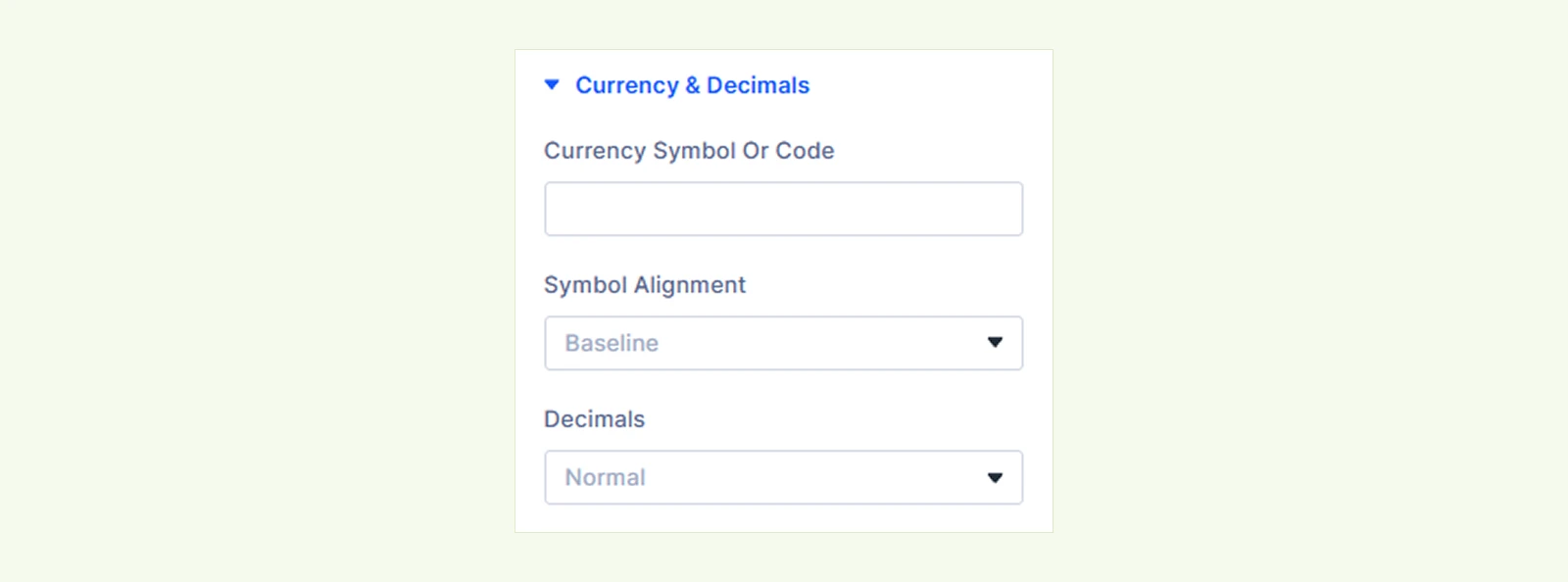
- Currency Symbol or Code: Replace the store’s default currency symbol with custom text such as USD, US$, or €.
Note: This only changes the currency text inside this module. It does not convert the price or change the currency elsewhere in your store.
Symbol Alignment: Control the vertical position of the currency symbol. Available options are:
- Baseline
- Middle
- Raised
- Top
- Decimals: Choose how decimal digits appear in the price. Available options are:
- Normal: Displays decimals normally, such as $29.50.
- Superscript: Displays smaller decimals above the price line.
- Subscript: Displays smaller decimals below the price line.
- Smaller: Displays the decimal portion at a smaller size.
- Hide when .00: Removes .00 from whole-number prices. For example, $29.00 becomes $29.
Note: Decimal formatting follows your WooCommerce decimal separator and decimal count settings.
Background: Customize the module background using Divi’s standard background options.
Element Label: Rename the module to identify it more easily inside the Divi Builder.
Design Tab #
This tab lets you customize the appearance of the price, currency symbols, decimals, lowest price label, and the module itself.
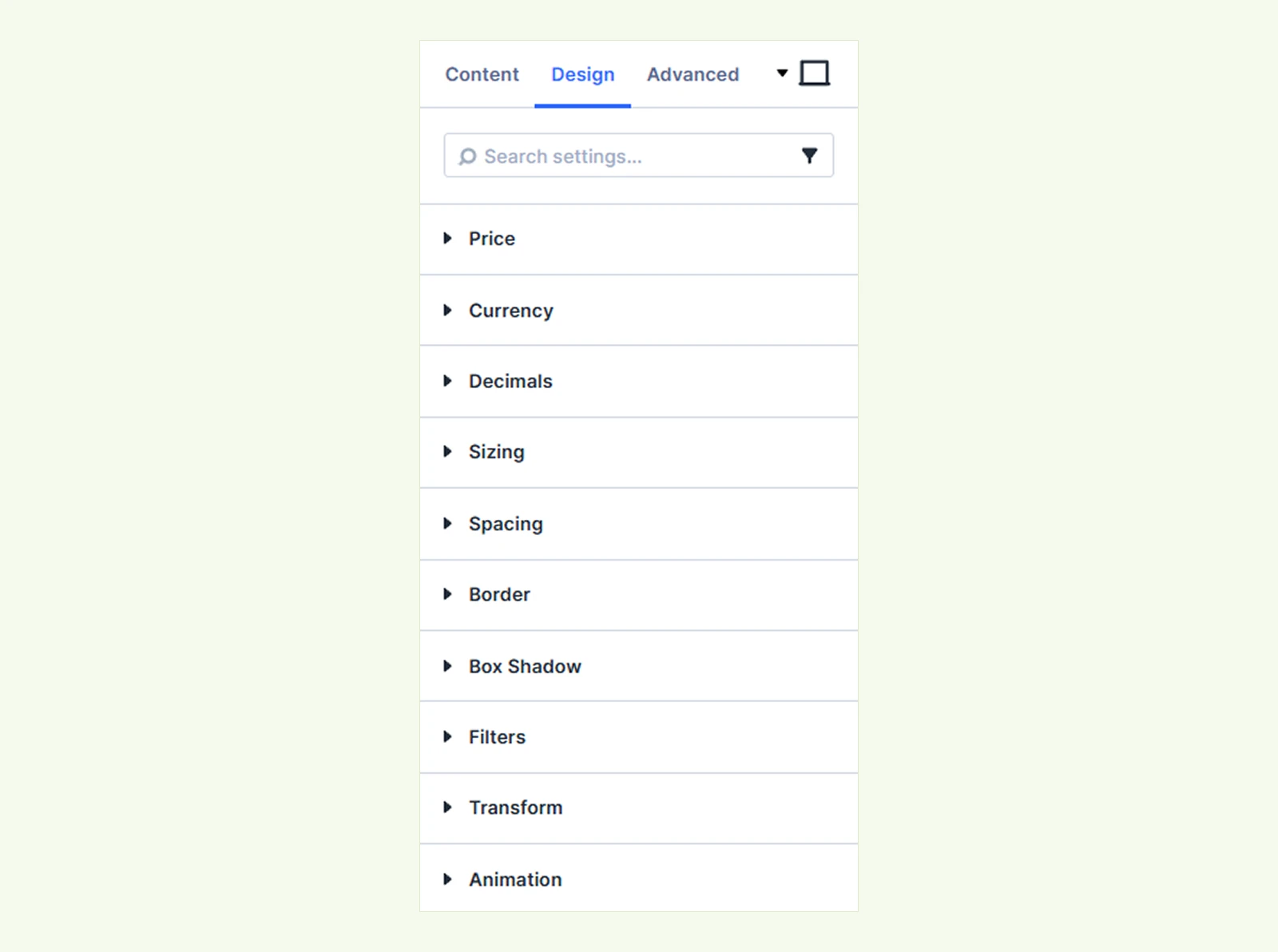
Price: Customize the typography of regular, old, and new product prices.
Currency: Customize the typography of regular, old, and new price currency symbols.
Decimals: Customize the typography of regular, old, and new price decimals.
Lowest Price Label: Customize the typ
ography of the label shown before the lowest variable price. (Available only when Variable Price Format is set to Lowest Price.)
Note: Old and new price settings apply only to products or selected variations on sale. Old prices appear with reduced opacity.
Sizing: Adjust the width, height, and alignment of the module.
Spacing: Add custom margin and padding to the module.
Border: Customize the border style, width, color, and individual sides.
Box Shadow: Add shadow effects to the module.
Filters: Apply color filters to change the module’s appearance.
Transform: Scale, rotate, move, or skew the module.
Animation: Apply reveal animations and customize the animation type, duration, delay, and more.
Advanced Tab #
This tab provides additional settings for advanced users who want greater control over the module with custom CSS, conditions, visibility settings, and more.
Need Help? #
If you have any questions or need assistance, contact our support team: [email protected]


