
The Product Live Visitor Count module displays a randomly updating visitor number to create activity around a product or offer.
Important Note: The Product Live Visitor Count displays a simulated visitor count based on your configuration, whether using random or fixed session numbers. It does not track actual visitors, collect visitor data, or utilize real-time analytics.
Let’s see the settings in brief and how to make better use of it.
Content Tab #
Use the Content tab to configure the settings for the Product Live Visitor Count module, including text customization, visitor count behavior, and other elements.
Text #
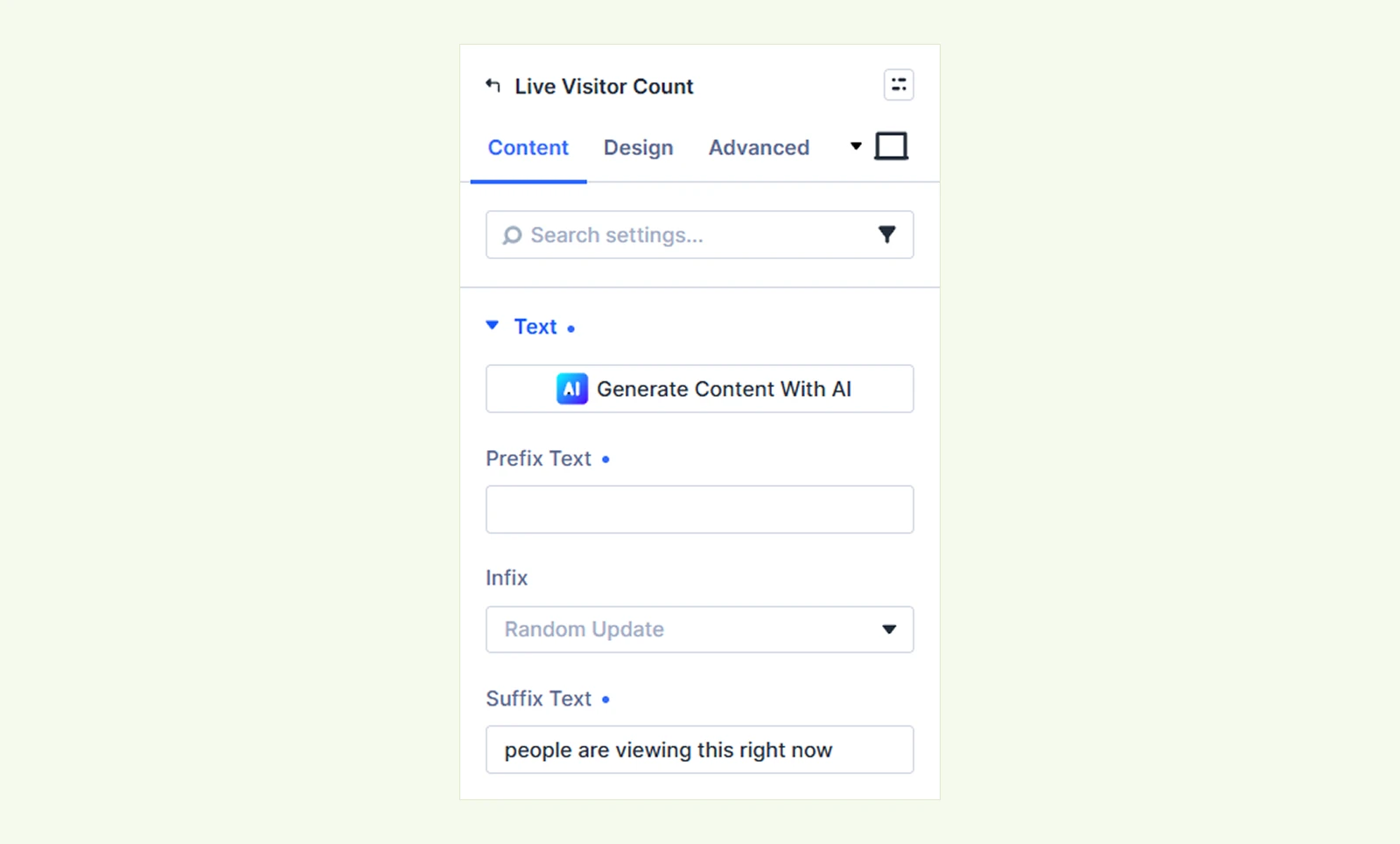
- Prefix Text: Enter text to display before the count.
- Infix: Select how the visitor count is displayed. Choose from two options:
- Random Update to generate a changing count automatically
- Fixed Per Session to keep the count stable based on the chosen count.
- Suffix Text: Enter text to display after the count.
Note: Prefix, infix, and suffix text are joined exactly as entered, so add spaces where needed.
Infix Settings #
Configure how the random visitor count behaves.
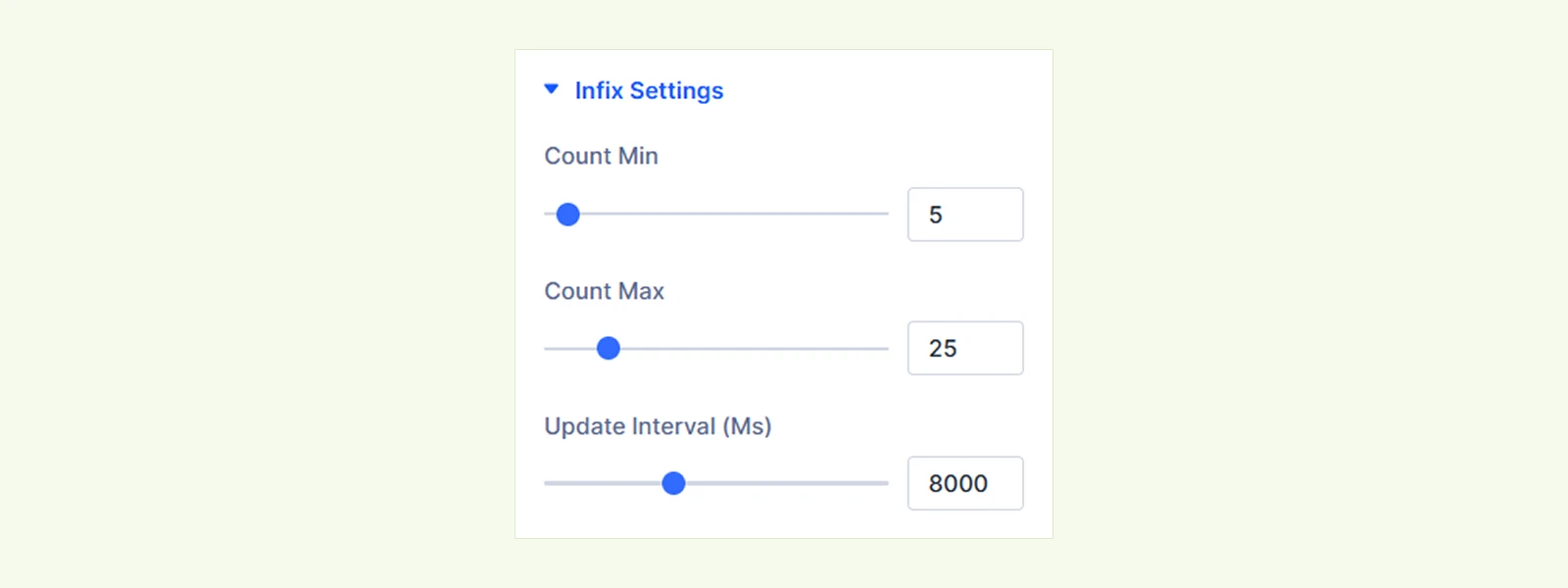
- Count Min: Set the lowest number that can appear in the live count.
- Count Max: Set the highest number that can appear in the live count.
- Update Interval (Ms): Set how often the displayed count updates, in milliseconds. (Only available when you select “Random Update” from the Infix setting.)
Image & Icon #
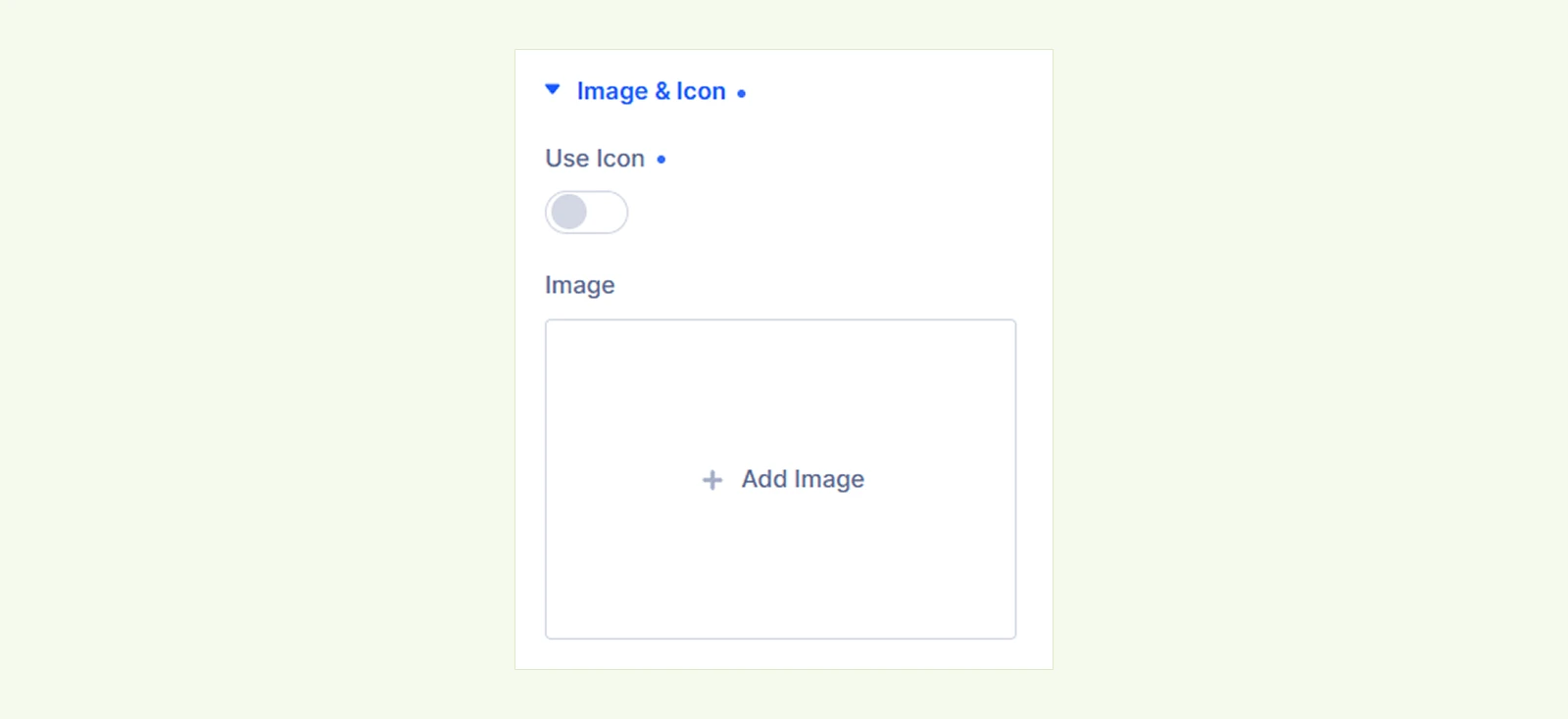
- Use Icon: Enable this option to use an icon instead of an image.
- Image: Upload an image to display with the visitor count instead of using an icon.
Background: Customize the module background using color, gradient, image, video, pattern, etc
Element Label: Add an internal label to organize and identify this module within the Divi Builder.
Design Tab #
Use the Design tab to customize the appearance of the Product Live Visitor Count
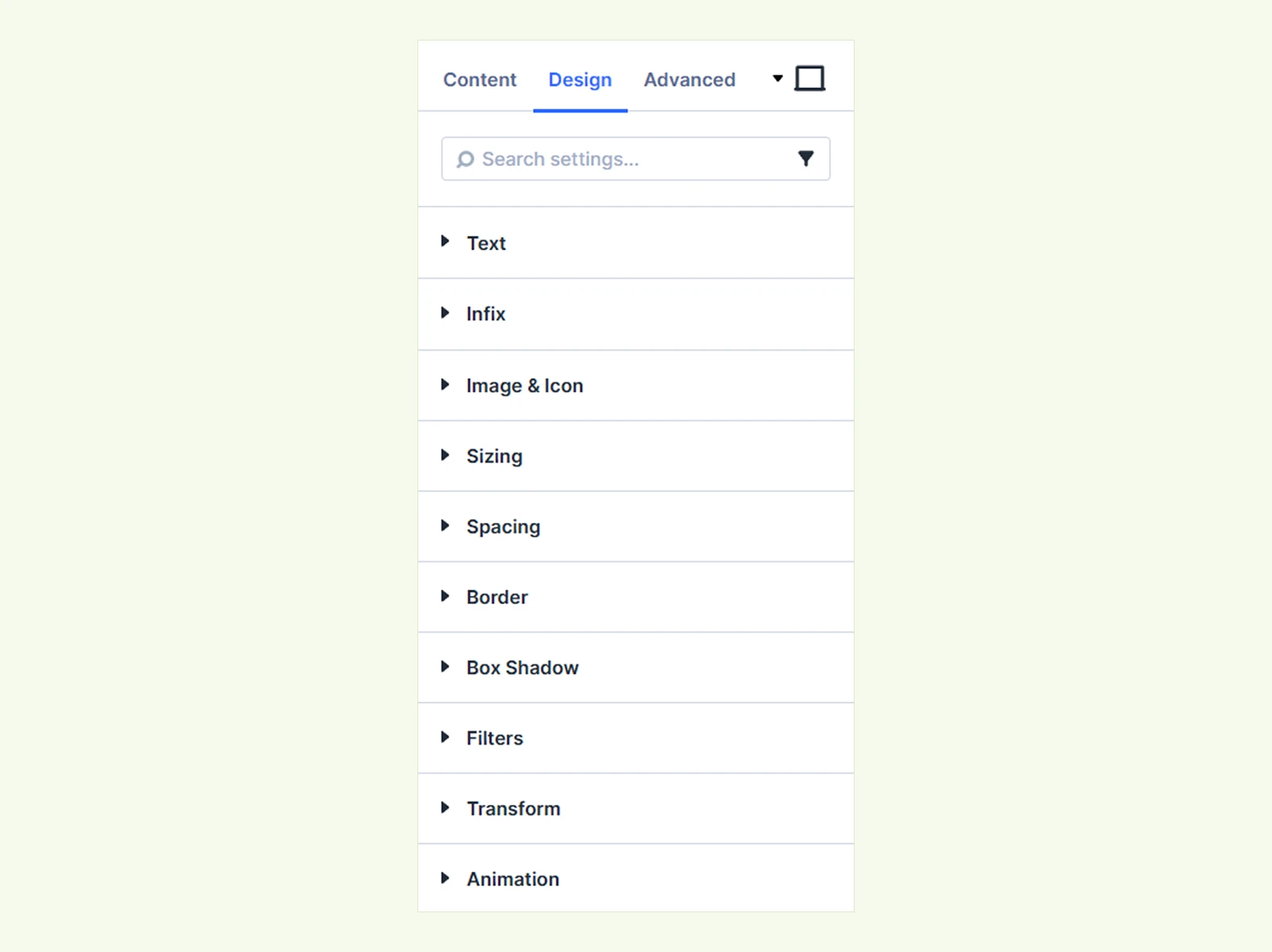
Text: Customize the text fields and spacing adjustments of the live visitor count text.
Infix: Customize the dynamic visitor-count value, including its font, weight, variable font settings, size, color, and much more.
Image & Icon #
Adjust the size, height, ratio, etc of the selected content of the module.

- Icon Font Size: Adjust the size of the selected icon. (Only available when Use Icon is enabled.)
- Icon Color: Customize the selected icon color. (Only available when Use Icon is enabled.)
- Image Width: Adjust the width of the selected image. (Only available when Use Icon is disabled and an image is selected.)
- Placement: Choose whether the image or icon appears on the Left or Right side.
You will also find the background to customize the background of the image or icon using available options.
Sizing: Control the module’s width, height, and dimension behavior.
Spacing: Set margins and padding around the module.
Border: Configure border width, style, color, and corner radius.
Box Shadow: Add and customize a shadow around the module.
Filters: Apply visual effects such as blur, brightness, contrast, and saturation.
Transform: Reposition, scale, rotate, or skew the module.
Animation: Add an animation to the module to style it more creatively.
Advanced Tab #
For advanced users seeking deeper control over the module, this tab offers extra configurations including custom code, conditions, and additional settings.
Need Help? #
If you have any questions or need assistance, contact our support team at [email protected]


