One of 25+ Modules
Advanced Divi Checkout Details Module
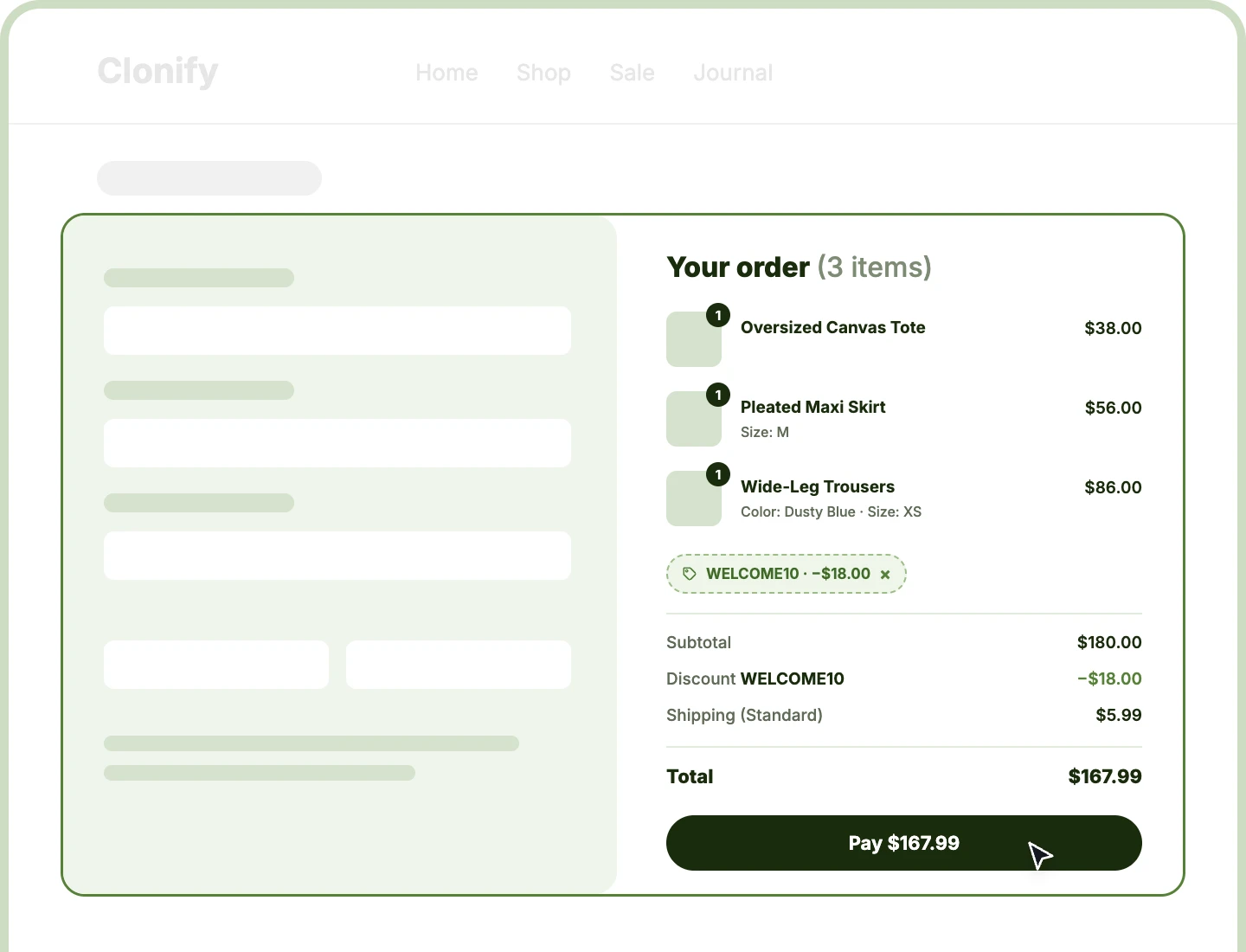
Advanced Divi Checkout Details module turns the WooCommerce checkout order summary into a box you design, with eleven sections across two templates. Items, coupons, shipping, and the total update as shoppers type, and the whole summary folds into a tap-to-open bar on phones.
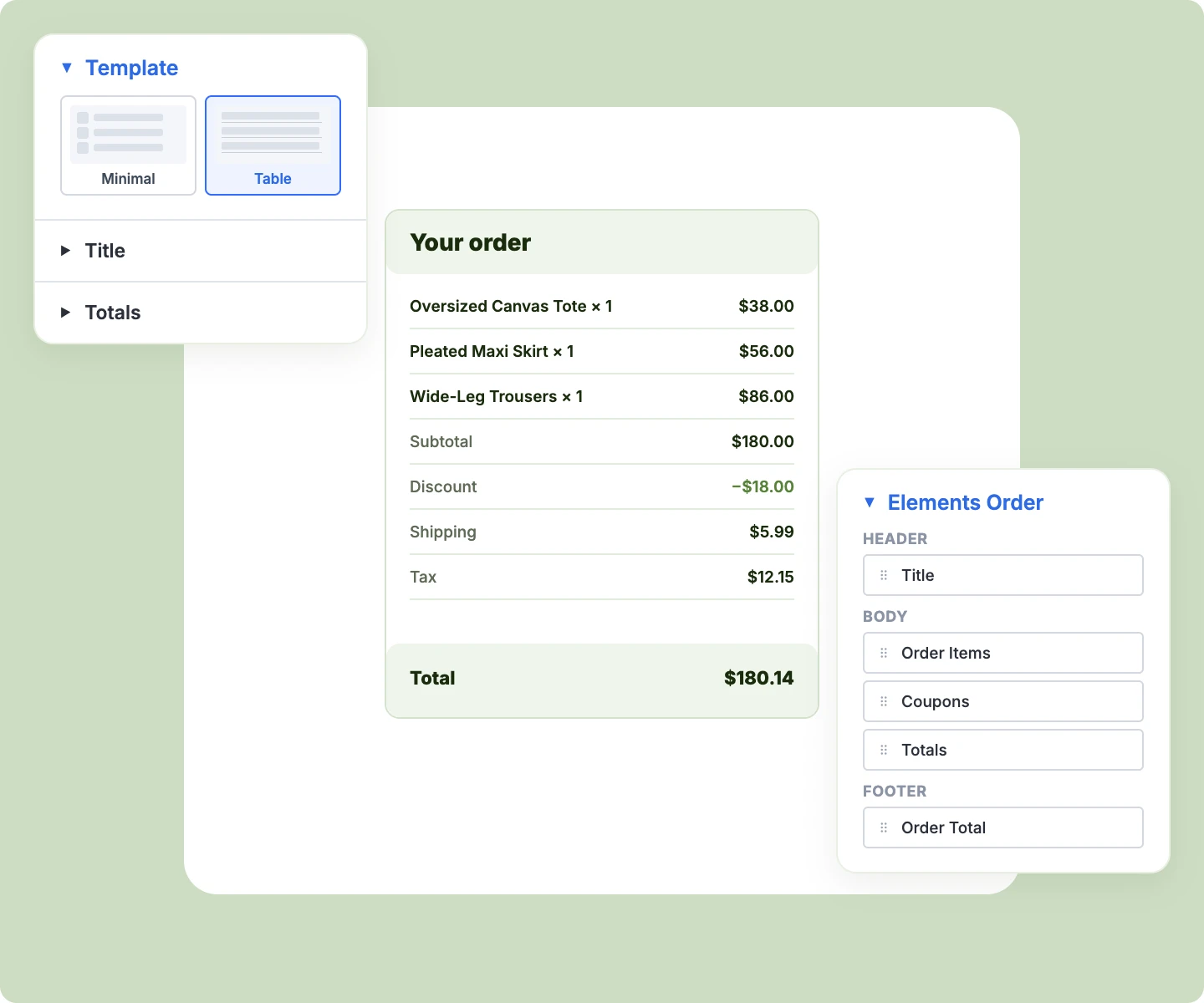
Minimal or Table
Start from a clean Minimal summary or a ruled Table recap, then drag every section across the header, body, and footer to fit your checkout.
Collapsible Mobile Summary
Fold the summary into a bar showing the live total on phones, so shoppers reach the form first and open details when they want.
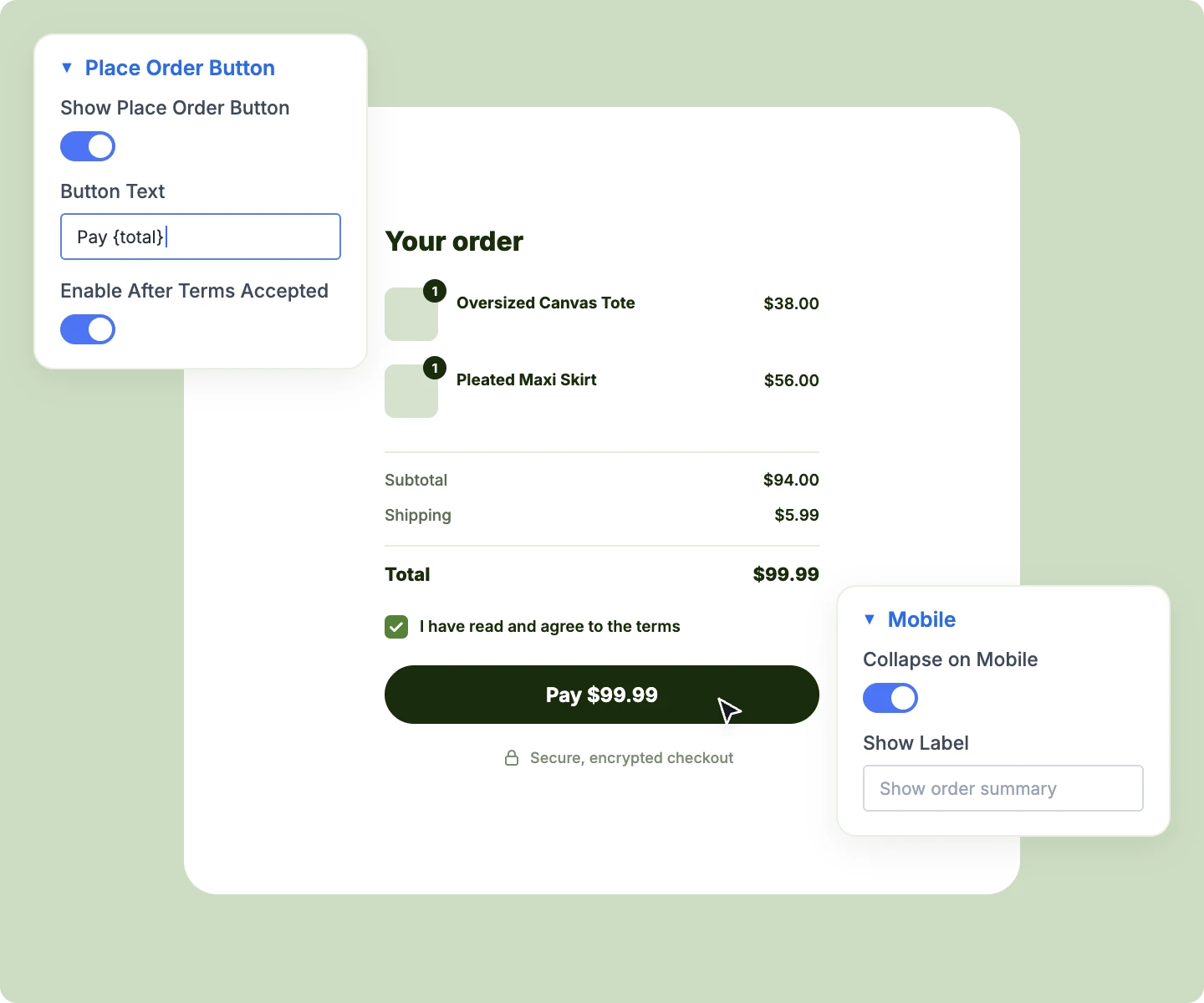
Place Order Button
Add a Place Order button under the summary, with the live total on it, for a checkout that finishes right beside the order details.
Design a Divi Checkout Order Summary That Keeps Shoppers Moving
Shape Every Area of the Order Summary

Rename the "Your order" title to fit your store, or turn it off for a cleaner box.
-
Style the header, body, and footer areas separately, each with its own background, border, and spacing.
-
Style all totals rows at once, then give a single row like Total its own look.
-
Switch a section off without losing its spot, so it returns to the same place later.
-
Let empty rows hide themselves, like Discount before a coupon applies, so the box stays tidy.
Show Exactly What Shoppers Are Buying
-
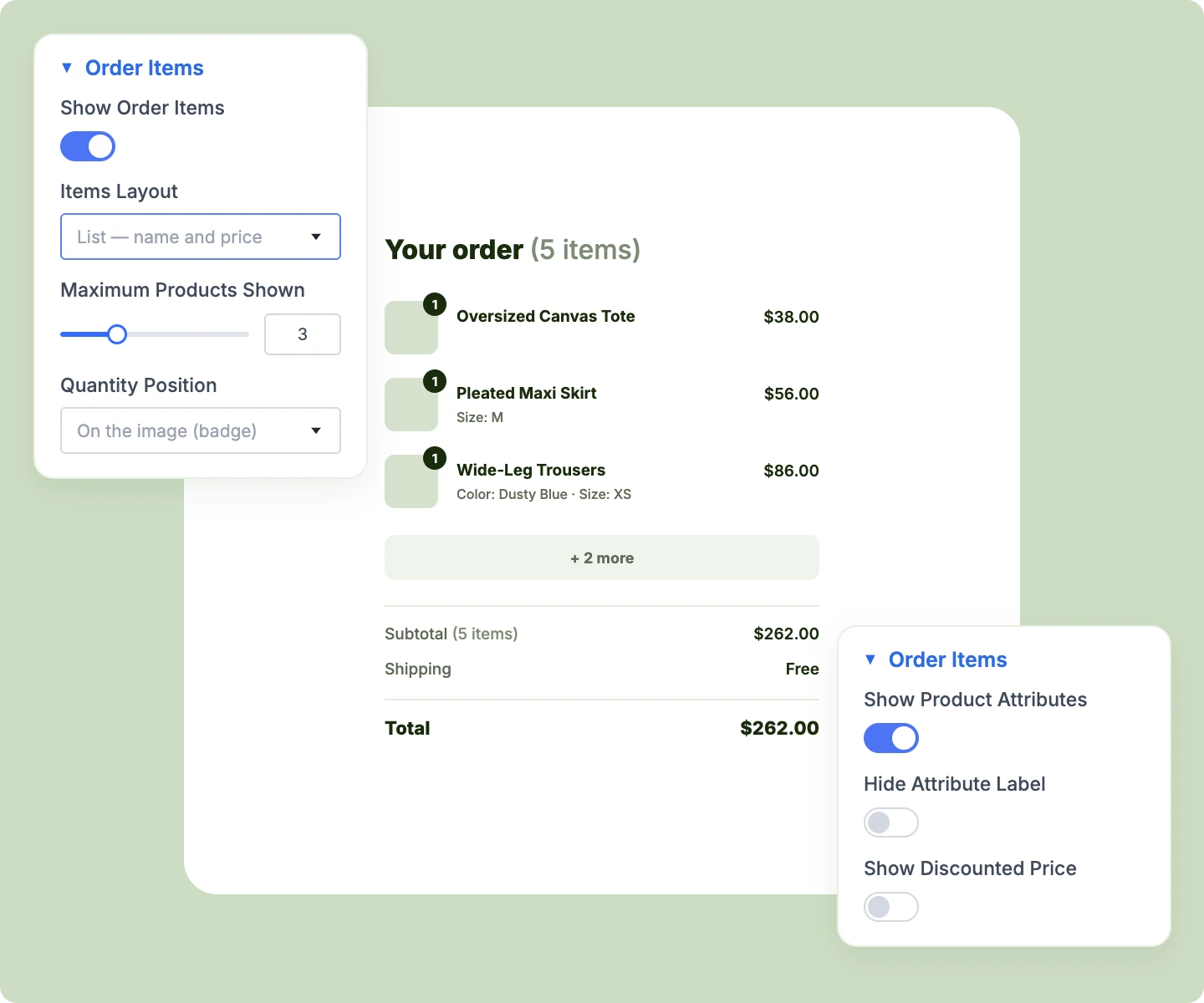
Show items as a list, thumbnails, or both, with a quantity badge on each image.
-
Show attributes like color and size under each name, with or without their labels.
-
Show each product's price after coupons, or keep full prices with the saving in one Discount row.
-
Cap the recap at a set number of products, grouping the rest under "+ n more."
-
Add the item count beside the title, coupon codes beside Discount, and the chosen method beside Shipping.
Show Coupons, Shipping, and Tax Clearly
-
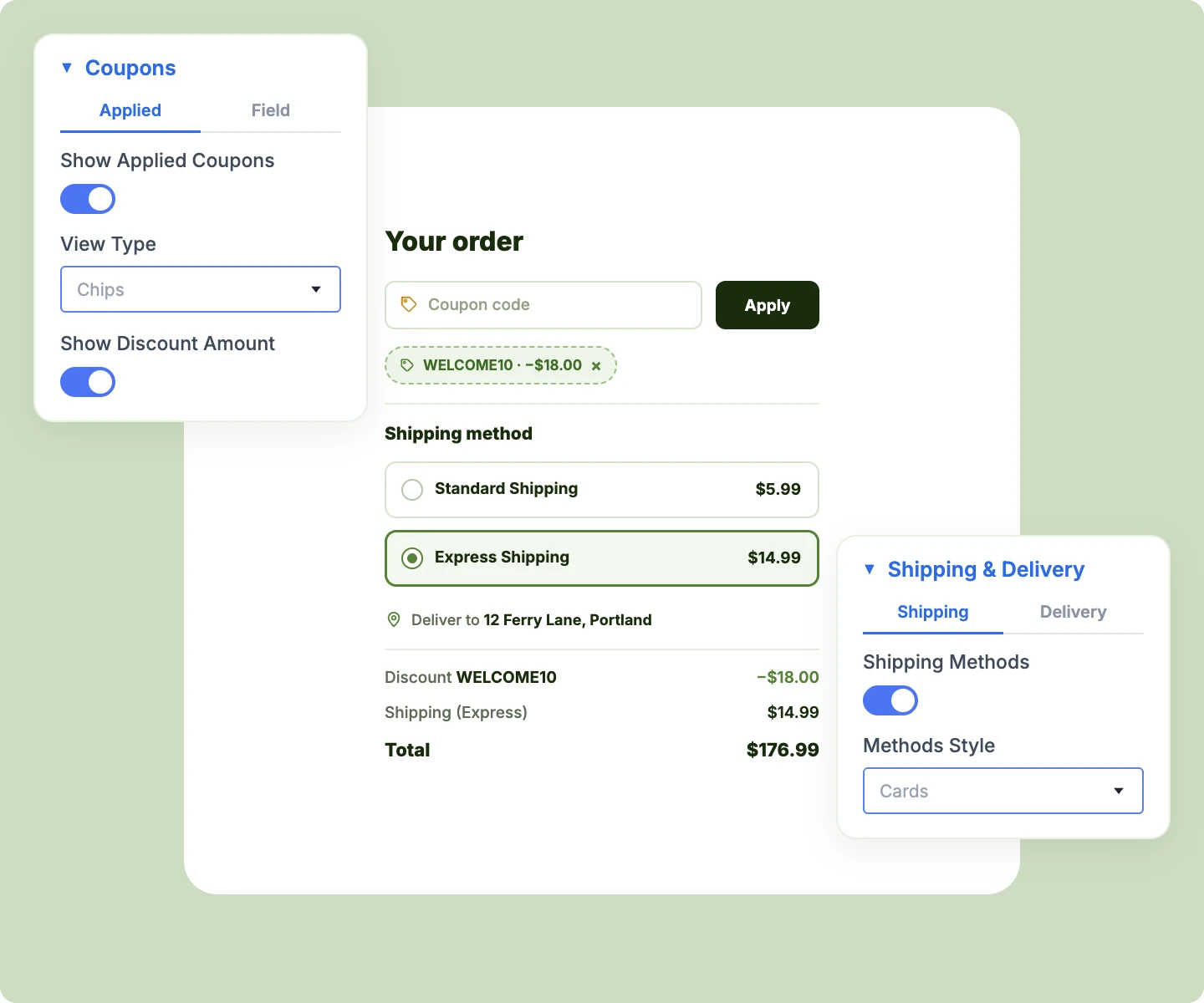
Add a coupon field inline, stacked, or collapsed, replacing WooCommerce's "Have a coupon?" bar above checkout.
-
Show applied coupons as chips or rows, each with its saving and a one-click remove.
-
Offer shipping rates as a radio list, cards, or a compact list, right inside the summary.
-
Confirm the delivery address and chosen method in one line, or one line per detail with icons.
-
Split taxes into one row each, like VAT and a city tax, or combine them in one row.
Finish Checkout From the Summary Column
-
Add a Place Order button under the total, and Advanced Checkout hands it over automatically.
-
Write button text like "Pay {total}" to show the live amount, updated as shipping or coupons change.
-
Keep the button disabled until shoppers tick your terms, using WooCommerce's own terms checkbox.
-
Keep the button visible on phones while the summary folds into its tap-to-open bar.
-
Guide shoppers to the first unfinished step when they press the button early on a stepped checkout.
Free Ready-to-Use Checkout Details Layouts to Get Started
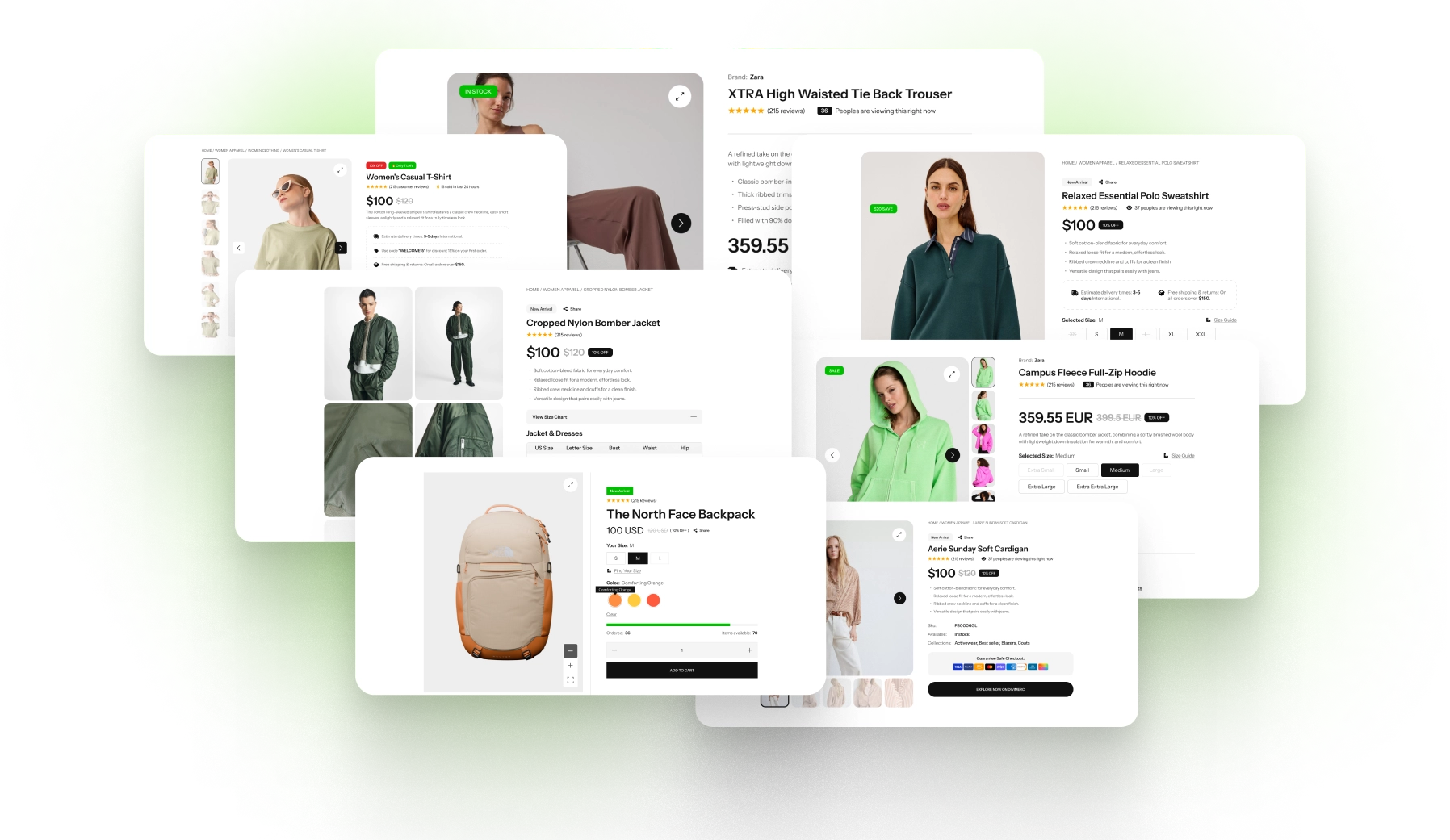
Skip the setup with DiviMerc's pre-made checkout summary layouts, from a clean sidebar to a ruled review table and a summary that places the order. Each one is fully customizable and responsive, ready to drop beside Advanced Checkout in your Divi Theme Builder checkout template. Pick a style, set your colors, and go live in minutes.
DiviMerc Advanced Checkout Details vs Divi Woo Checkout Details: Which Gives You More Control?
| Feature | DiviMerc Advanced Checkout Details | Divi Woo Checkout Details |
|---|---|---|
| Summary templates | Minimal or Table |  WooCommerce's review table only |
| Rearrange sections | Drag across header, body, and footer | Fixed order |
| Product thumbnails and quantity badges | List, thumbnails, or both | Names and quantities only |
| Coupon field | Inside the summary | A "Have a coupon?" bar above the form |
| Applied coupons | Chips or rows with the saving | A row with a Remove link |
| Shipping method style | Radio list, cards, or compact | Radio list only |
| Delivery address and method | One line or one per detail | Not available |
| Collapsible summary on phones | Bar with the live total | Not available |
| Place Order button in the summary | Optional, with the total on it | Payment section only |
| Live updates during checkout | WooCommerce's own checkout refresh | WooCommerce's own checkout refresh |
Ready to Give Shoppers a Summary That Answers Every Question?
FAQs on My Account for Divi
Everything you need to know about the Advanced Checkout Details module before you get started.
What Is the Advanced Divi Checkout Details Module?
How Is It Different From Divi's Woo Checkout Details Module?
How Does It Work With the Advanced Checkout Module?
How Do I Add Advanced Checkout Details in Divi?
Does the Order Summary Update as Shoppers Change Their Details?
Can Shoppers Apply Coupons in the Order Summary?
Can the Place Order Button Sit in the Summary?
Can I Collapse the Order Summary on Phones?
Can Shoppers Change Quantities at Checkout?
Why Is the Total Higher Than the Rows Above It?
Can I Show Taxes in One Row?
Can It Match My Cart Page Design?
Why Does the Visual Builder Show Sample Products?
Which WooCommerce Checkout Does It Use?
Others Divi WooCommerce Modules in DiviMerc