One of 25+ Modules
Divi Order Confirmation Module
Divi Order Confirmation module replaces WooCommerce's plain "Thank you. Your order has been received." screen with a thank-you page you design in Divi. Pick from four templates, greet customers by name, show a status timeline, and keep every tracking pixel and payment instruction working.
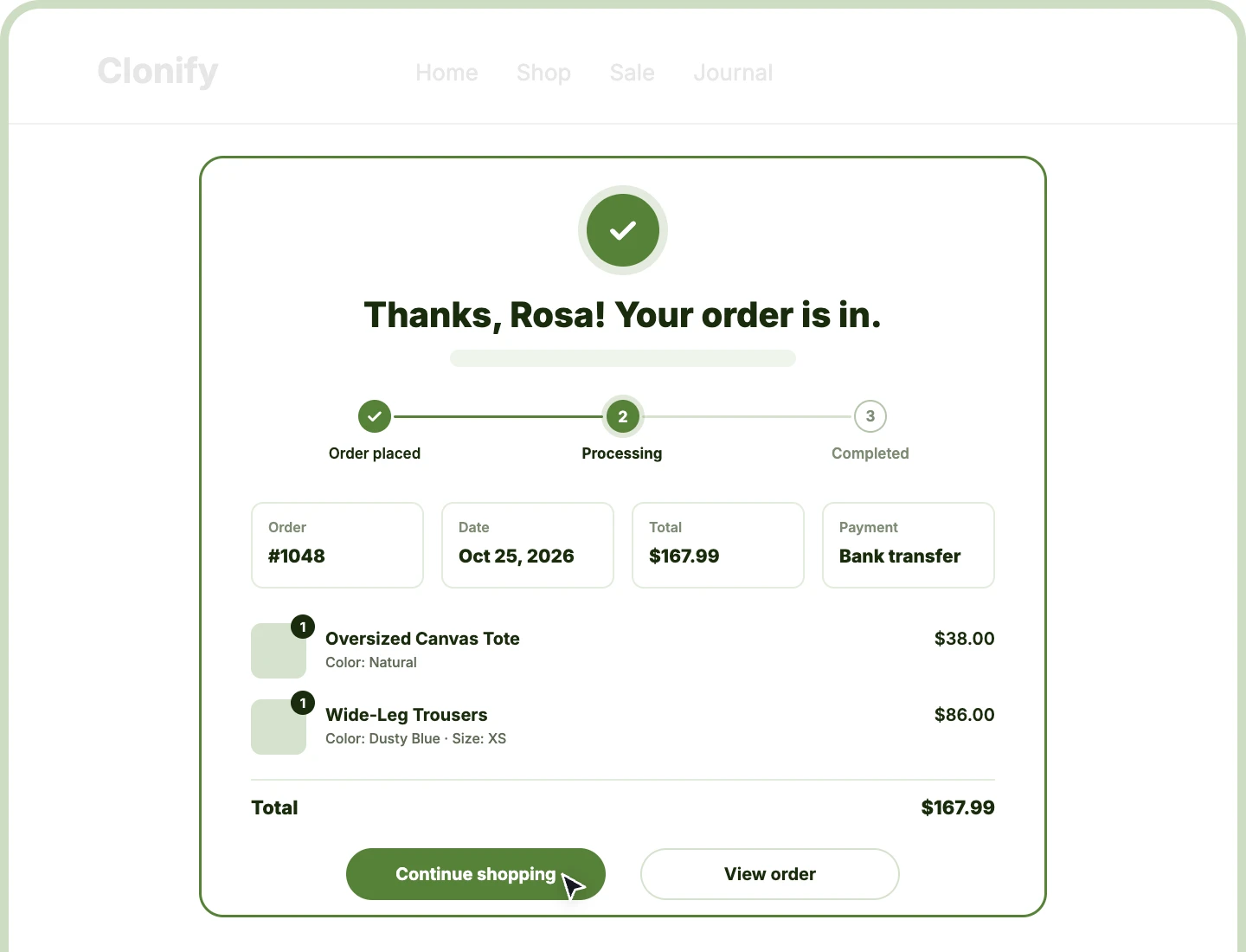
Four Ready Templates
Start from Confirmation Card, Timeline, Receipt, or Minimal, then drag nine sections into whatever order fits your store and your customers.
Personal Order Greeting
Greet customers by first name with {name} in the heading or message, under a success icon you can swap for any Divi icon.
Tracking Keeps Firing
Keep analytics, Facebook pixels, and upsell plugins firing as before, since the module runs WooCommerce's own thank-you hook on every order.
Nine Thank-You Page Sections to Build From
Each section is its own building block, filled from the customer's real order. Switch on the ones your store needs, drag them into order, and leave out the rest.

Header
Open with a success icon, a heading, and a message that greets the customer by first name, so the order feels confirmed at a glance.

Status Timeline
Show a three-step track, like Order placed, Processing, and Completed, with the order's current step marked and your own label on each step.

Order Overview
Line up the order number, date, total, and payment method as tiles, with the email shown only to the logged-in customer who placed the order.

Payment Instructions
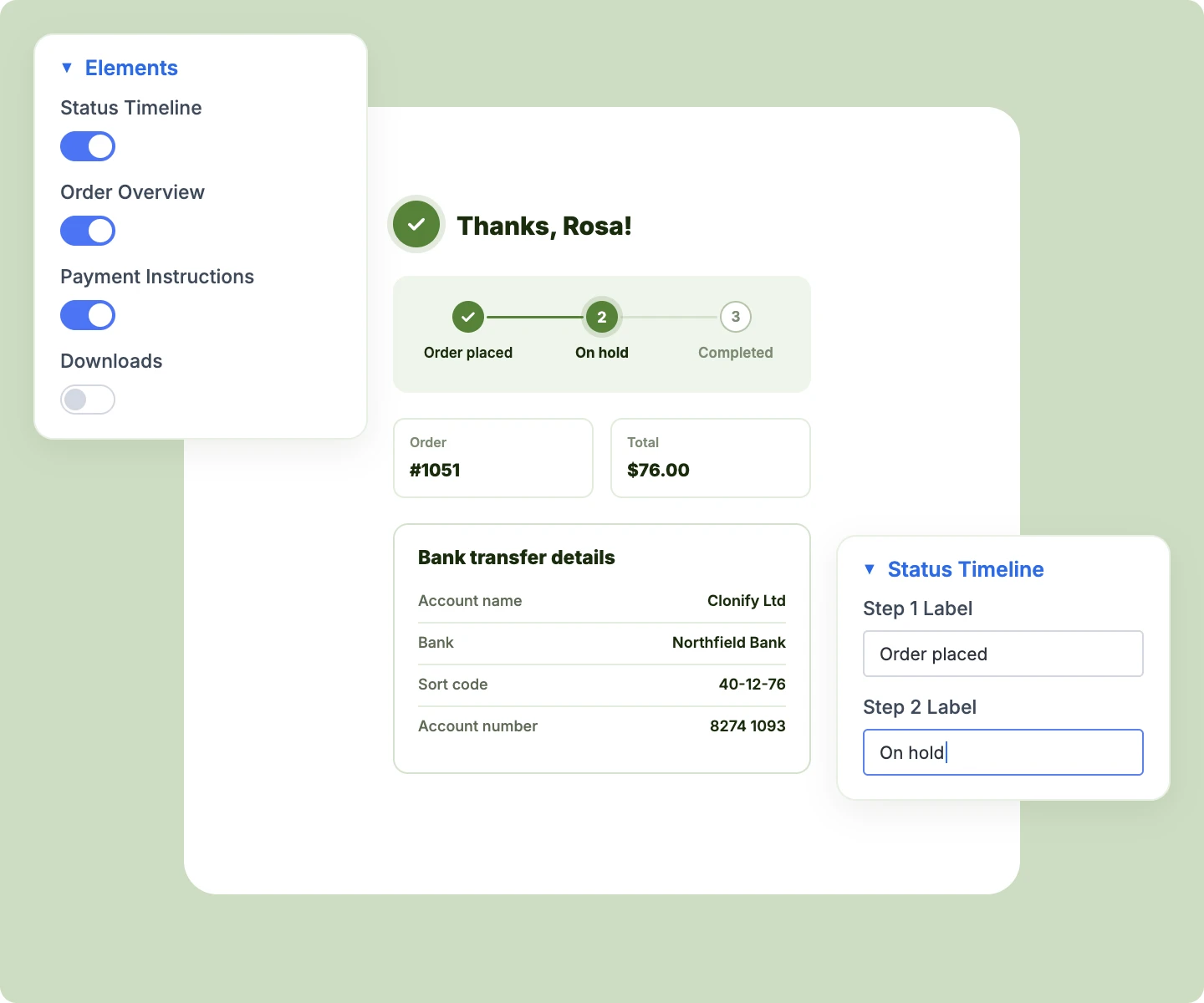
Show the bank transfer details or cash on delivery note your payment gateway provides, right where customers look after they pay.

Items & Totals
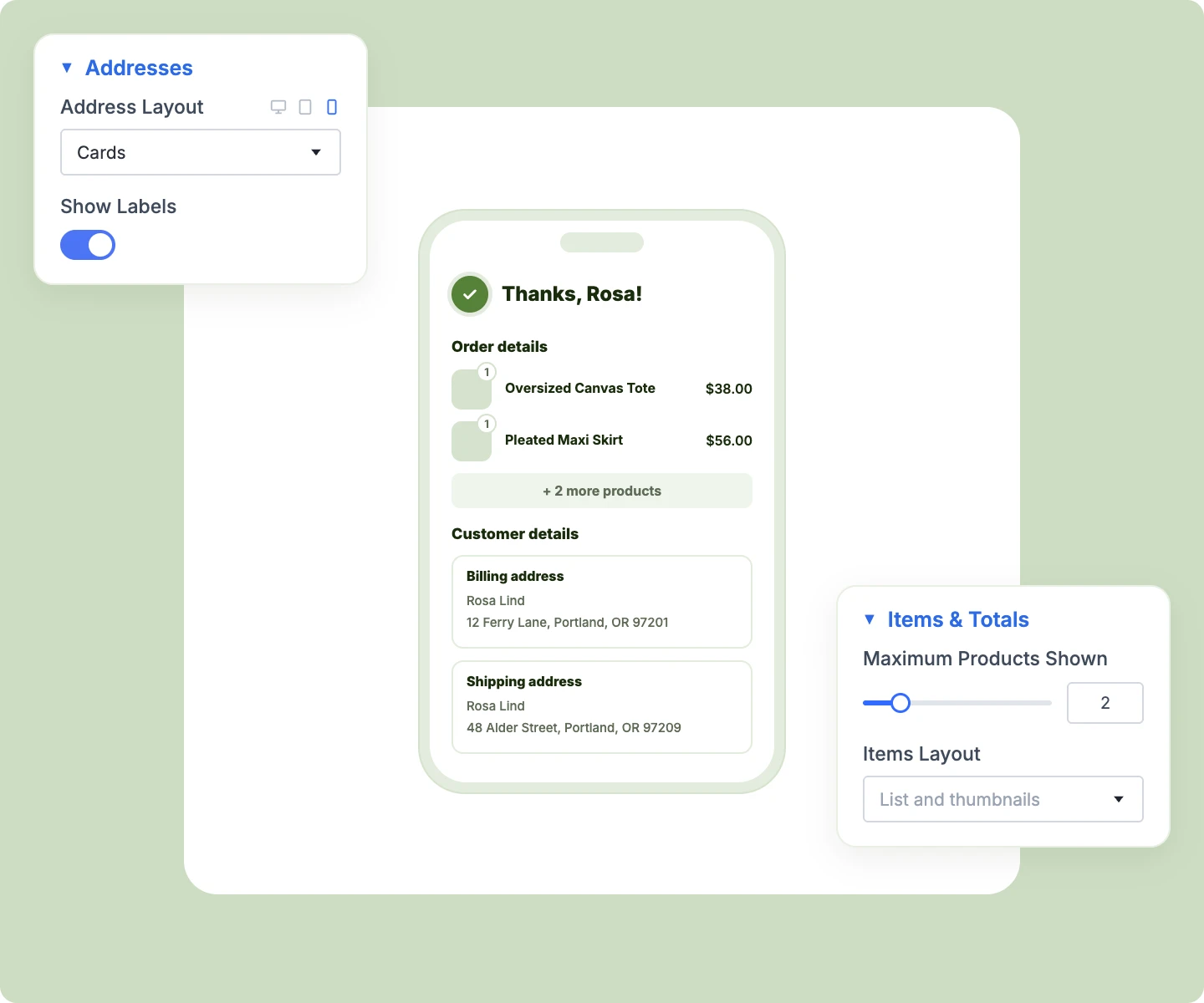
Recap what was bought as a list, thumbnails, or both, with attributes, quantity badges, a product limit, and your choice of totals rows.

Addresses
Show billing and shipping addresses as cards, stacked rows, inline text, or a responsive table that adapts to narrow screens.

Downloads
Give customers their files with a Download button beside each one, as soon as WooCommerce allows access to the download.

Custom Text
Add your own next steps, a thank-you discount code, or helpful links, placed anywhere in the section order you choose.

Buttons
Send customers back to your shop with Continue shopping, or logged-in customers straight to their order with a View order button.
Design a WooCommerce Thank You Page in Divi That Brings Customers Back
Design the Page Around Your Brand

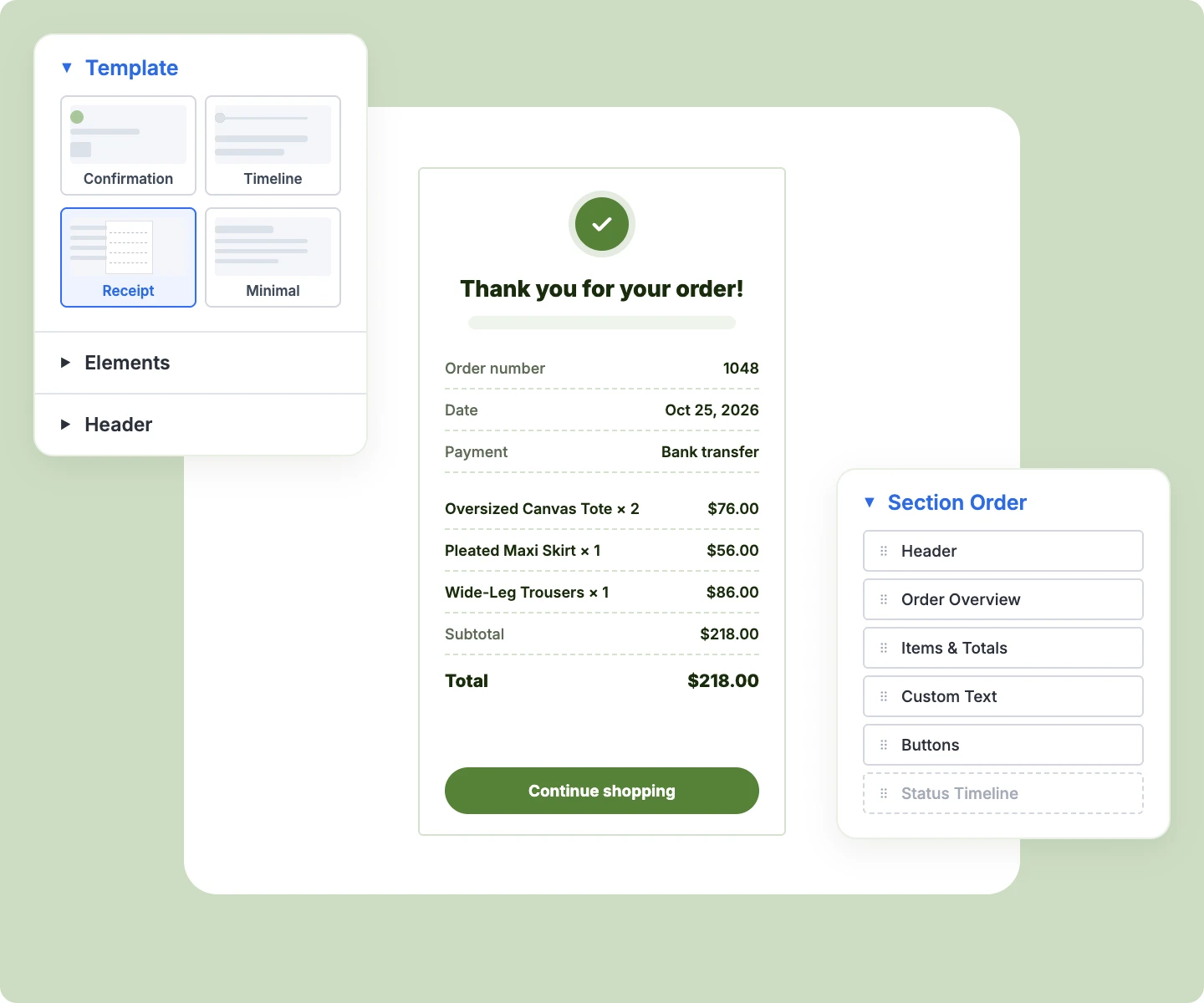
Choose a Receipt template for a printable slip, or Minimal for a clean one-column summary.
-
Restyle the card with Divi's own background, border, and shadow, like a dark card in your brand color.
-
Color the success icon and its circle separately, so the badge matches your brand.
-
Switch any section off without losing its spot, so it returns to the same place later.
-
Turn section titles on or off, and rename Order details, Customer details, and Downloads.
Keep Everything WooCommerce Does After Checkout
-
Show order details only to people WooCommerce allows, so someone else's order always stays private.
-
Give failed payments WooCommerce's own retry screen with a Pay button, in place of a thank-you.
-
Place the module in your checkout layout, or give the thank-you page its own with Custom Thank You Page.
-
Show output from upsell and tracking plugins after the last section, right where WooCommerce prints it.
-
Show the customer's order note under the totals whenever they left one at checkout.
Fit Every Screen and Every Order Size
-
Fold long orders behind a "+ 2 more products" line that expands with a click.
-
Let sections with nothing to show hide themselves, like Downloads on an order with no files.
-
Stack address cards into one column on phones, so details stay readable on small screens.
-
Let the address table adapt to its own width, so it fits even a narrow desktop column.
-
Keep the Receipt template as a narrow 560px slip, centered and readable on any screen.
Free Ready-to-Use Order Confirmation Layouts to Get Started
Skip the setup with DiviMerc's pre-made thank-you page layouts, from a branded confirmation card to an order tracker and a printable receipt. Each one is fully customizable and responsive, ready to drop into your checkout layout or the Custom Thank You Page. Pick a style, set your colors, and go live in minutes.
DiviMerc Order Confirmation vs Default WooCommerce Thank-You Page: Which Gives You More Control?
| Feature | DiviMerc Order Confirmation | Default WooCommerce Thank-You Page |
|---|---|---|
| Page templates | Card, Timeline, Receipt, or Minimal |  One fixed layout |
| Section order | Drag nine sections into any order | Fixed order |
| Personal greeting | First name with {name} | "Thank you. Your order has been received." |
| Success icon | Any Divi icon | Not available |
| Order status timeline | Three steps, current one marked | Not available |
| Product thumbnails | List, thumbnails, or both | Names and quantities only |
| Address layouts | Cards, stacked, inline, or table | Default columns only |
| Custom text and offers | Anywhere in the page | Needs custom code |
| Continue Shopping and View order buttons | Styled to match | Not available |
| Tracking pixels and payment instructions | Still run | Run as usual |
Ready to Turn Every Order Into a Moment Worth Remembering?
FAQs on Checkout for Divi
Everything you need to know about the Order Confirmation module before you get started.
What Is the Divi Order Confirmation Module?
How Do I Customize the WooCommerce Thank You Page in Divi?
Can I Use It Without Building My Checkout With DiviMerc?
Will My Tracking Pixels Still Fire?
Who Can See the Order Details?
How Do I Greet Customers by Name?
Does the Status Timeline Update When I Ship the Order?
Where Do Bank Transfer Details Come From?
Who Sees the View Order Button?
Where Does the Continue Shopping Button Lead?
What Happens When a Payment Fails?
Can I Add a Discount for the Next Order?
Why Does the Visual Builder Show a Different Order?
Does Order Confirmation Work on Mobile?
Others Divi WooCommerce Modules in DiviMerc