One of 25+ Modules
Divi Category Grid Module
Divi Category Grid module shows your WooCommerce categories, tags, or brands as a grid of linked cards, each with its picture, name, and product count. Style one card and every card follows, close the grid with a View All card, and load more without a reload.
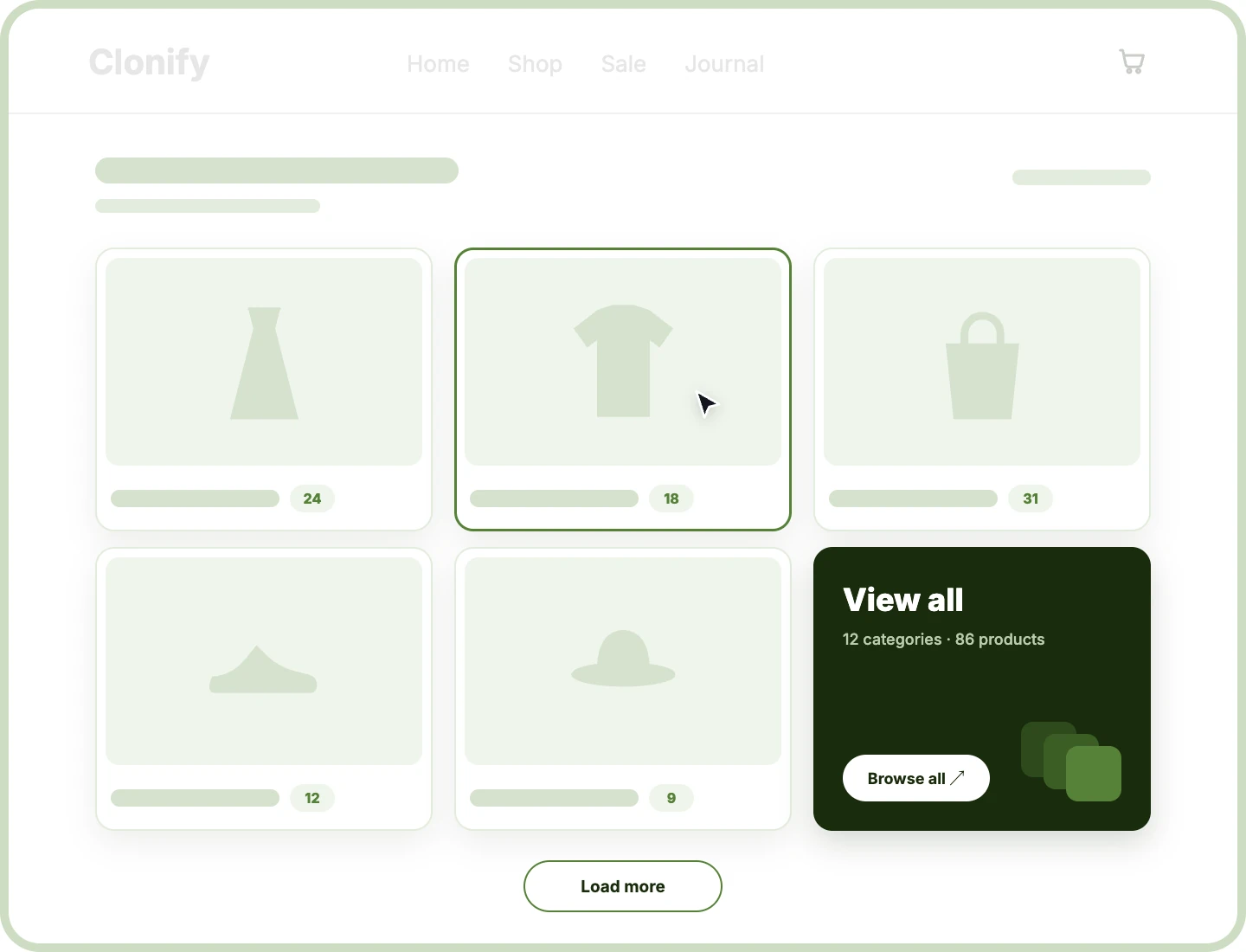
Categories, Tags, Brands
Turn product categories, tags, brands, or any product taxonomy into linked image cards, one per term, each showing its own product count.
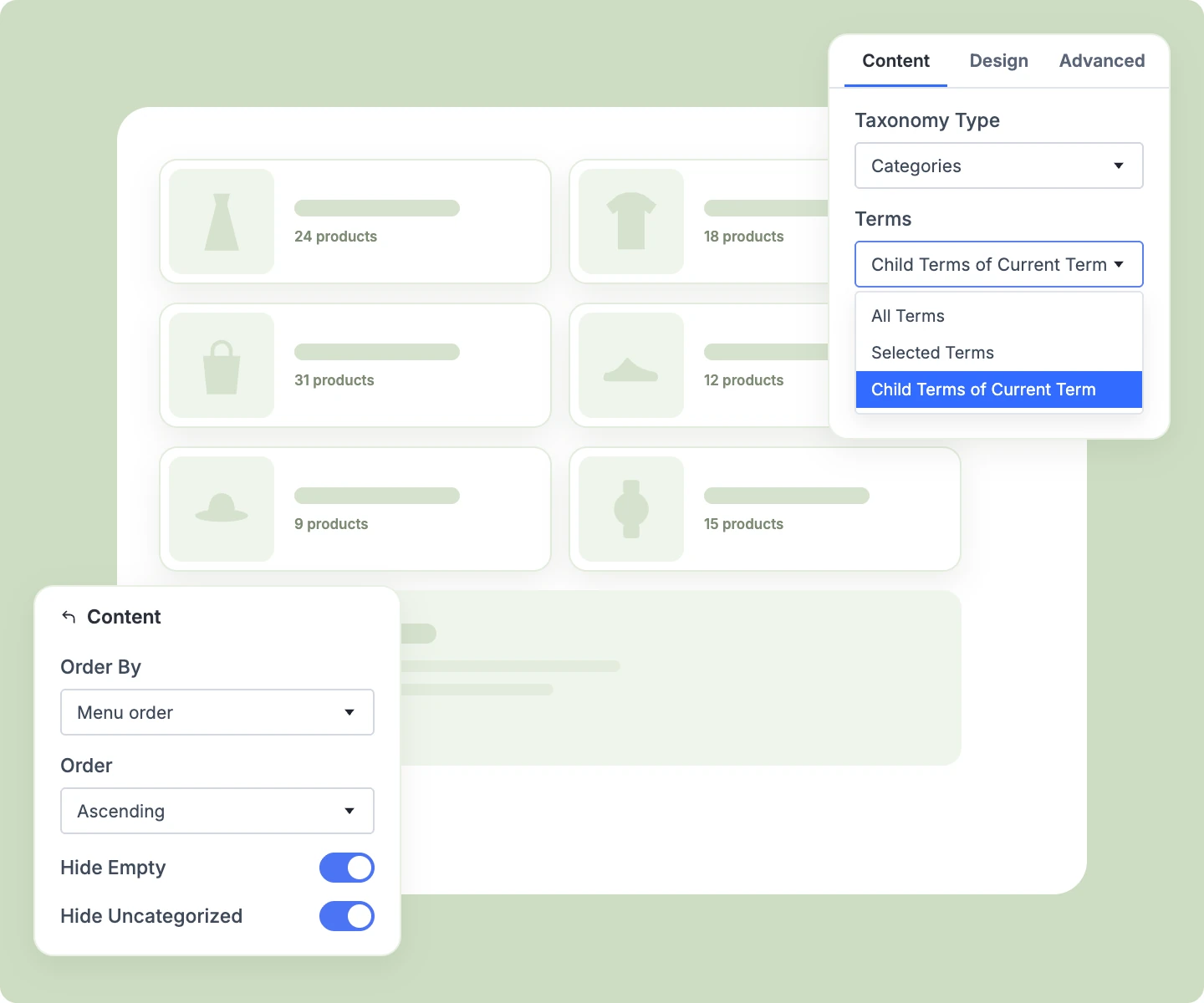
Sub-Categories Built In
Build one category template, and every category page shows its own sub-categories as cards, with nothing to set up page by page.
Pictures and Logos
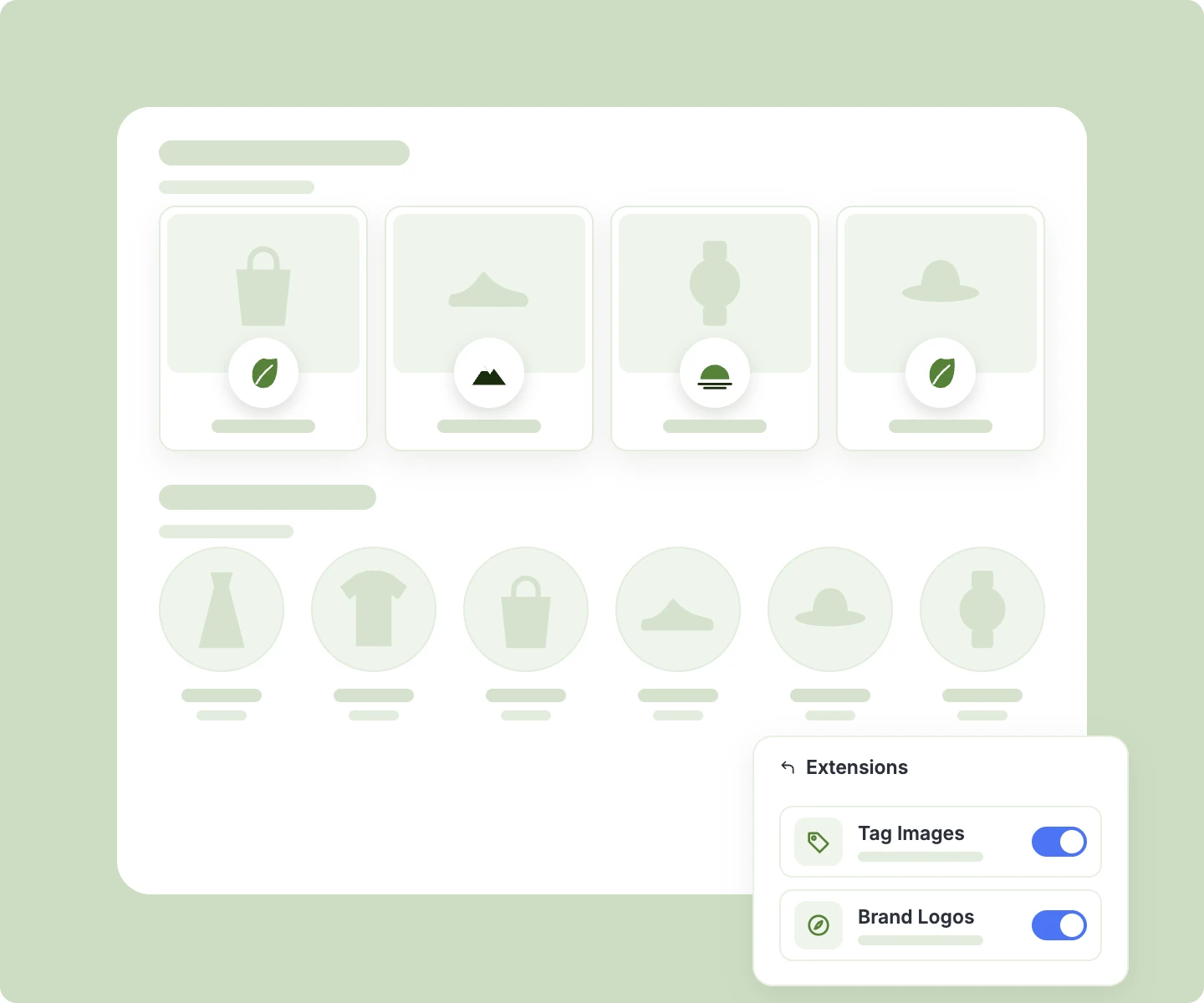
Give tags a picture with Tag Images, and draw each brand's logo over its photo with Brand Logos, two optional DiviMerc extensions.
Build a Divi WooCommerce Category Grid Shoppers Browse First
Show Exactly the Terms You Want

Show your own message when nothing matches, so a category without sub-categories never shows a blank.
-
Hand-pick categories, tags, or brands with checkboxes, or type term IDs for any other taxonomy.
-
Hide empty terms, Uncategorized, or terms under a minimum product count, so no card leads nowhere.
-
Order terms by name, product count, or your own drag order from Products → Categories.
-
Skip terms another grid already shows with an offset, and exclude any term by ID.
Shape Each Card Around Your Store
-
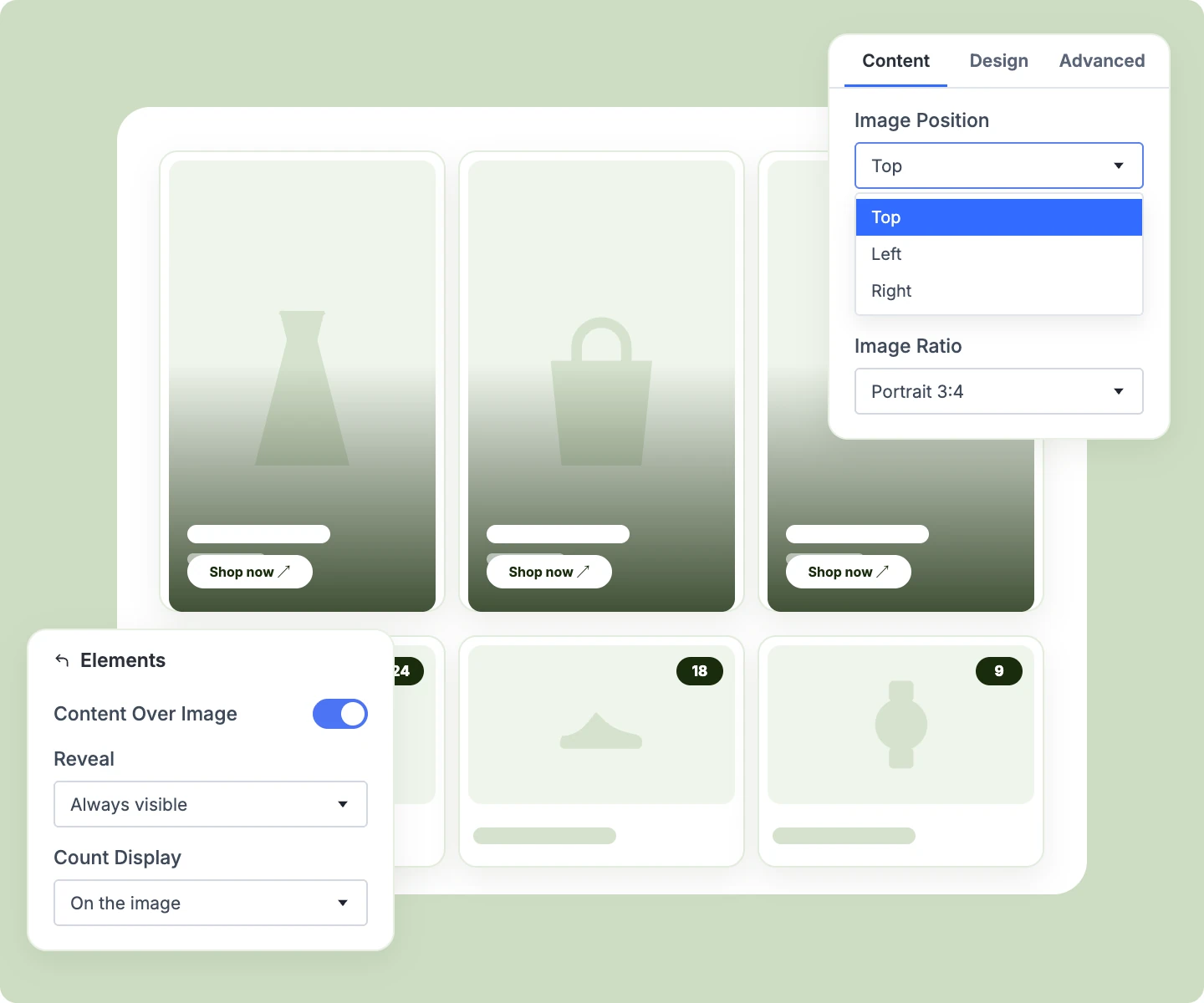
Place the picture on top, left, or right per device, cropped to 4:3, square, 16:9, or portrait.
-
Lay the name, count, and button over the picture on a dark gradient, always or on hover.
-
Show the count below the name, beside it, or on the image, with the number styled separately.
-
Add a Shop now button inline or below, with your own label and icon.
-
Draw each term's first letter instead of a picture, for tags or brands without images.
Keep Shoppers Moving Through Your Catalog
-
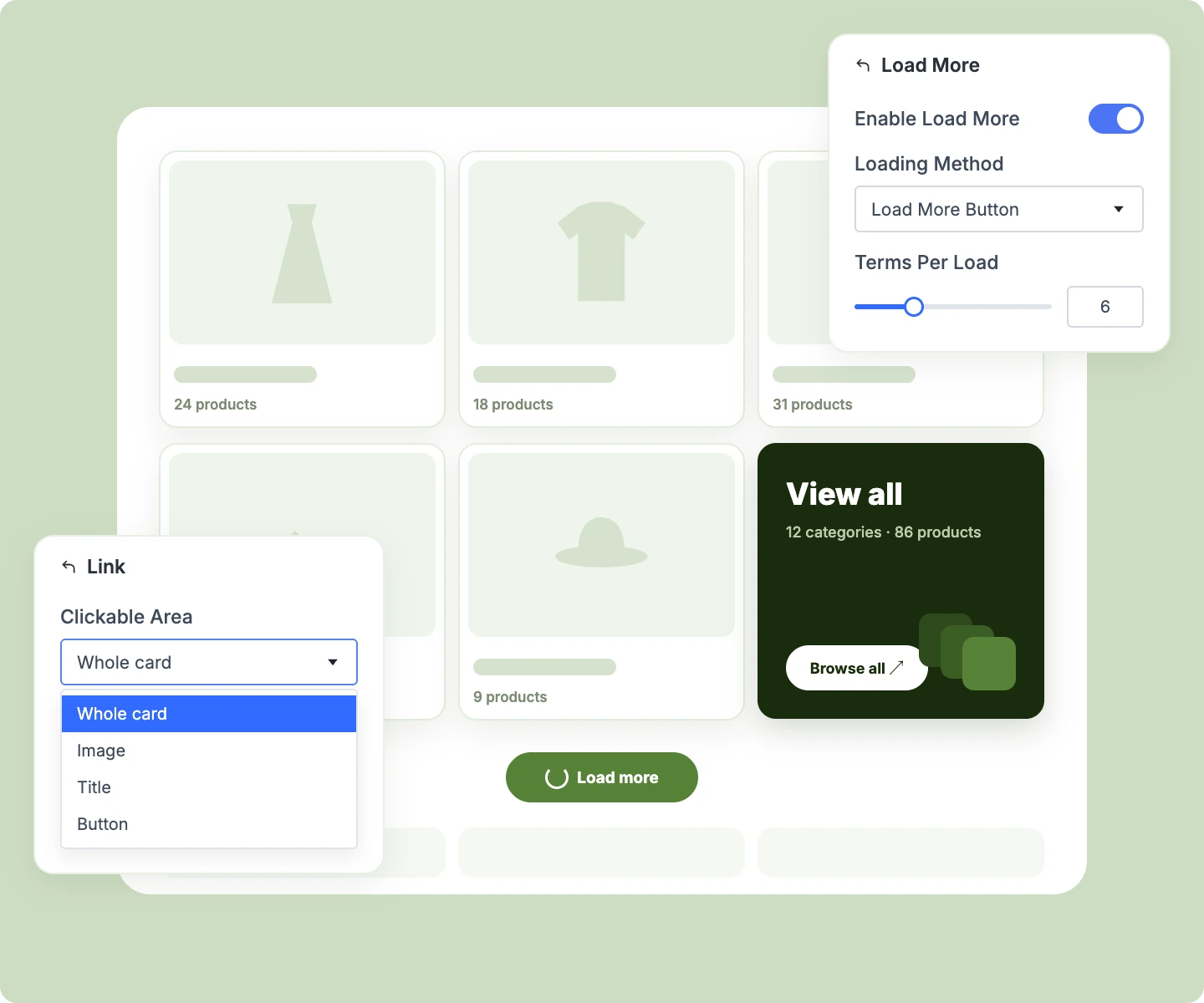
Close the grid with a View All card linked to your shop, like "12 categories · 86 products."
-
Set how many terms each load adds, separate from the first batch shown on the page.
-
Make the whole card, the image, the title, or only the button the clickable link.
-
Set columns and gaps per device, four, two, and one by default, so the grid fits every screen.
-
Zoom pictures gently on hover, with zoom and fade-ins skipped for shoppers who prefer reduced motion.
Add Tag Pictures and Brand Logos
-
Give product tags and other taxonomies an image with the Tag Images extension, set on the tag screen.
-
Spot tags still missing a picture at a glance in the new Image column.
-
Add a logo to each brand with the Brand Logos extension, separate from the brand's photo.
-
Draw the logo in a white circle over the brand picture, sized and styled your way.
-
Keep every picture and logo you set, even if you switch either extension off later.
Free Ready-to-Use Category Grid Layouts to Get Started
Skip the setup with DiviMerc's pre-made category grid layouts, from a "Shop by category" home section to a brand wall, image-led tiles, and a compact list with a View All card. Each one is fully customizable and responsive, ready to drop onto any page or Theme Builder template. Pick a style, set your colors, and go live in minutes.

DiviMerc Category Grid vs Default WooCommerce Category Display: Which Gives You More Control?
| Feature | DiviMerc Category Grid | Default WooCommerce Category Display |
|---|---|---|
| What it can show | Categories, tags, brands, or any product taxonomy |  Categories only |
| Pictures on tags | With the Tag Images extension | Not available |
| Brand logos over the picture | With the Brand Logos extension | Not available |
| Card elements | Picture, logo, name, description, count, and button | Picture, name, and count |
| Card design | Divi's Design tab for every element | Your theme's styles |
| Picture position | Top, left, or right, per device | Top only |
| Details over the picture | Always visible or on hover | Not available |
| Terms without a picture | Placeholder or the term's first letter | Placeholder only |
| More terms | Load More button or automatic loading | A fixed number |
| View All card | With term and product counts | Not available |
| Sub-categories on category pages | Child Terms of Current Term | WooCommerce's category display setting |
Ready to Turn Your Catalog Into Cards Shoppers Want to Click?
FAQs on Category Grid for Divi
Everything you need to know about the Category Grid module before you get started.
What Is the Divi Category Grid Module?
Does Divi Have a Built-In Category Grid?
Why Use It Instead of Building Category Cards by Hand?
How Do I Add a Shop by Category Section?
Can the Grid Show Sub-Categories on Each Category Page?
Can I Show Categories and Brands in One Grid?
Where Do the Card Pictures Come From?
Do I Need the Tag Images Extension?
Does Tag Images Change My Shop Page?
How Do I Show Brand Logos on the Cards?
How Many Terms Can the Grid Show?
Can I Change the "Shop now" Button Text?
How Is It Different From the Category Carousel?
Does the Category Grid Work on Mobile?
Others Divi WooCommerce Modules in DiviMerc