

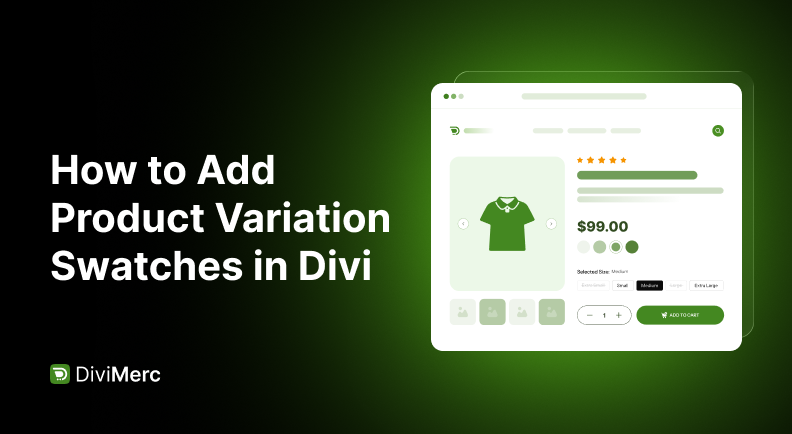
To display product variations in Divi, add the Woo Product Add To Cart module to your product page. If you have already set up variations for that product, they will appear as dropdown menus.
But if you want to replace these dropdowns with visual swatches, such as colors or images, use a plugin like DiviMerc.
It has a Variation Swatches module with eight swatch styles like color, dual color, image, button, radio button, product card, and more. Plus you can customize swatch appearance and how out-of-stock options appear.
In this guide, we will show you how to add product variation swatches in Divi using DiviMerc.
Let’s walk through the setup step by step.
Step 1: Install DiviMerc and Enable Variation Swatches
- Get DiviMerc, then install and activate it under Plugins > Add New Plugin > Upload Plugin.
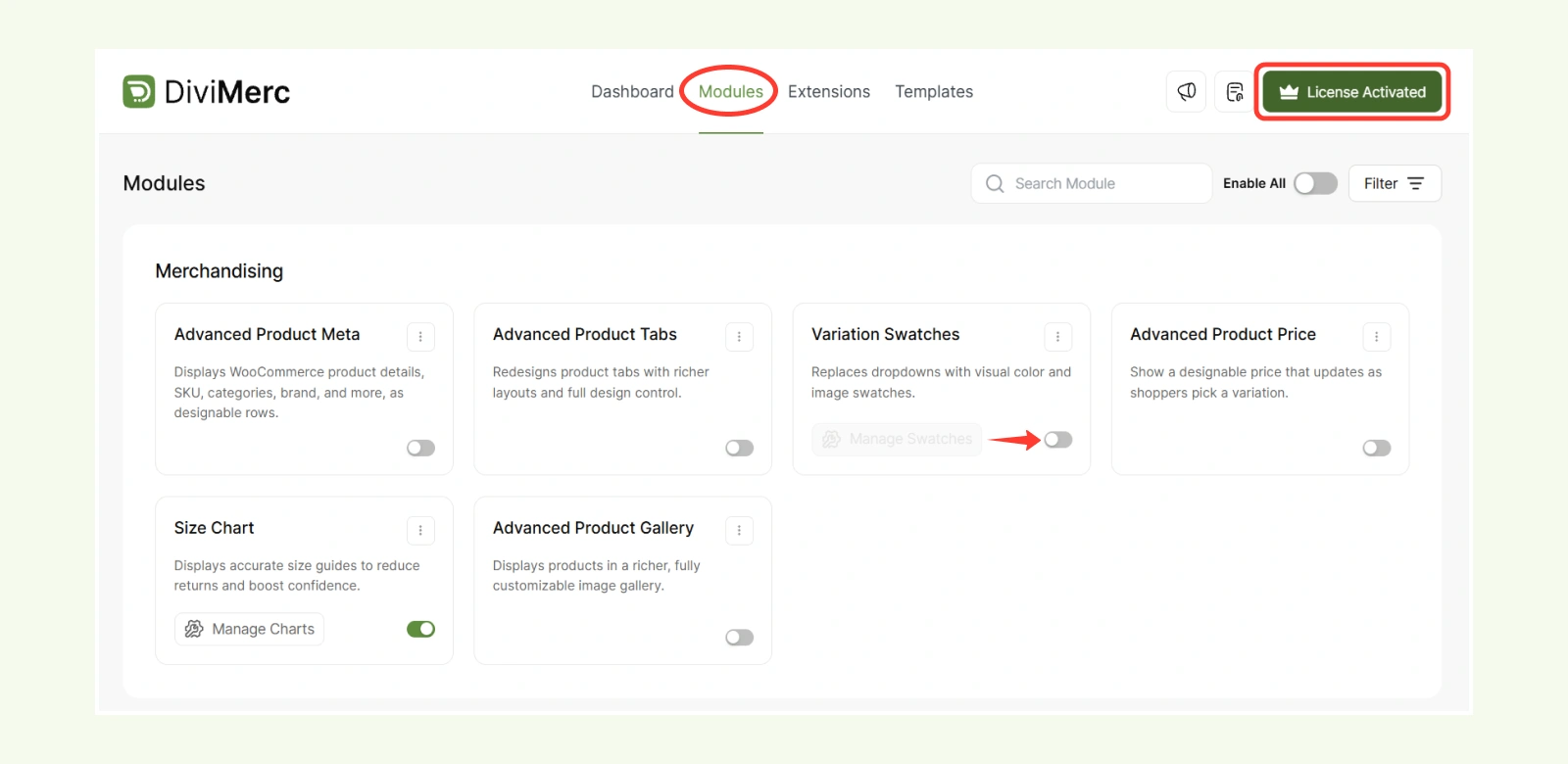
- Activate your license under DiviMerc > License.
- Go to DiviMerc > Modules and enable Variation Swatches.
Step 2: Set Up Product Attributes and Variations
Product variation swatches use the attributes and variations assigned to your products. If your product already has them, you can skip this step 3.
If your product doesn’t have them yet, follow these steps to set them up:
Create product attributes:
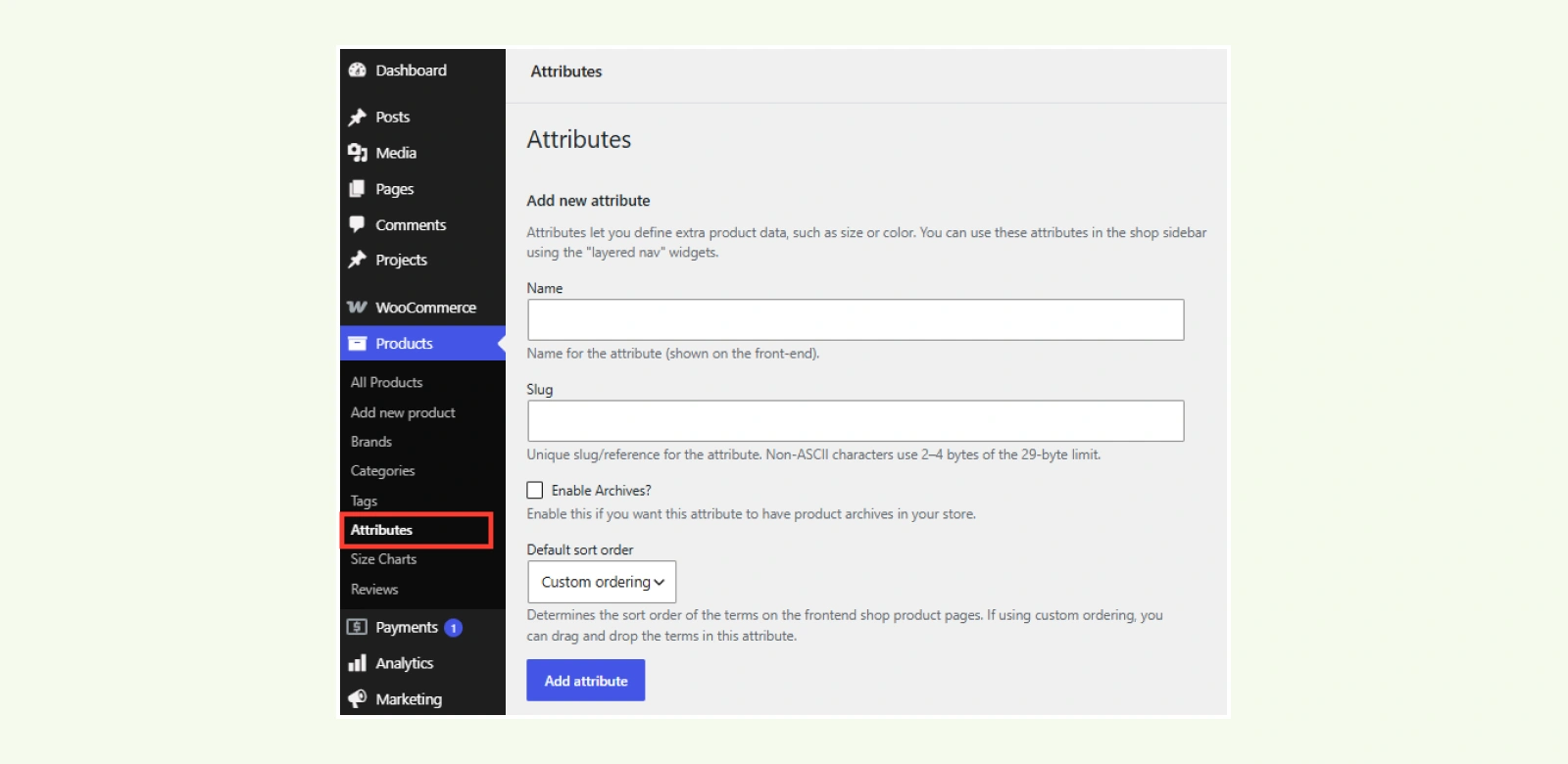
- Go to Products > Attributes in your WordPress dashboard.
- Enter an attribute name, such as Color or Size, and click Add Attribute.
- Click Configure terms and add values like Black and White for Color or S, M, and L for Size.
Add Attributes and Variations to a Product
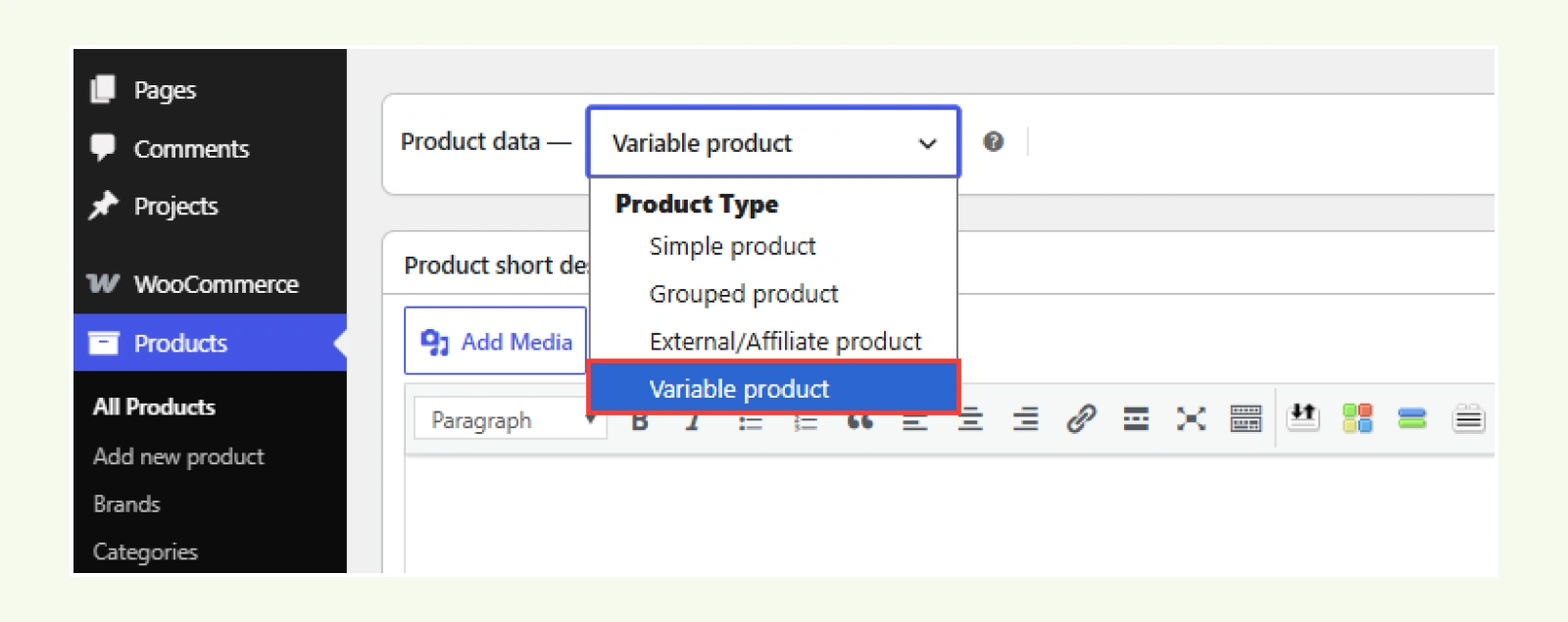
- Go to Products > All Products, edit your product, and select Variable product under Product data.
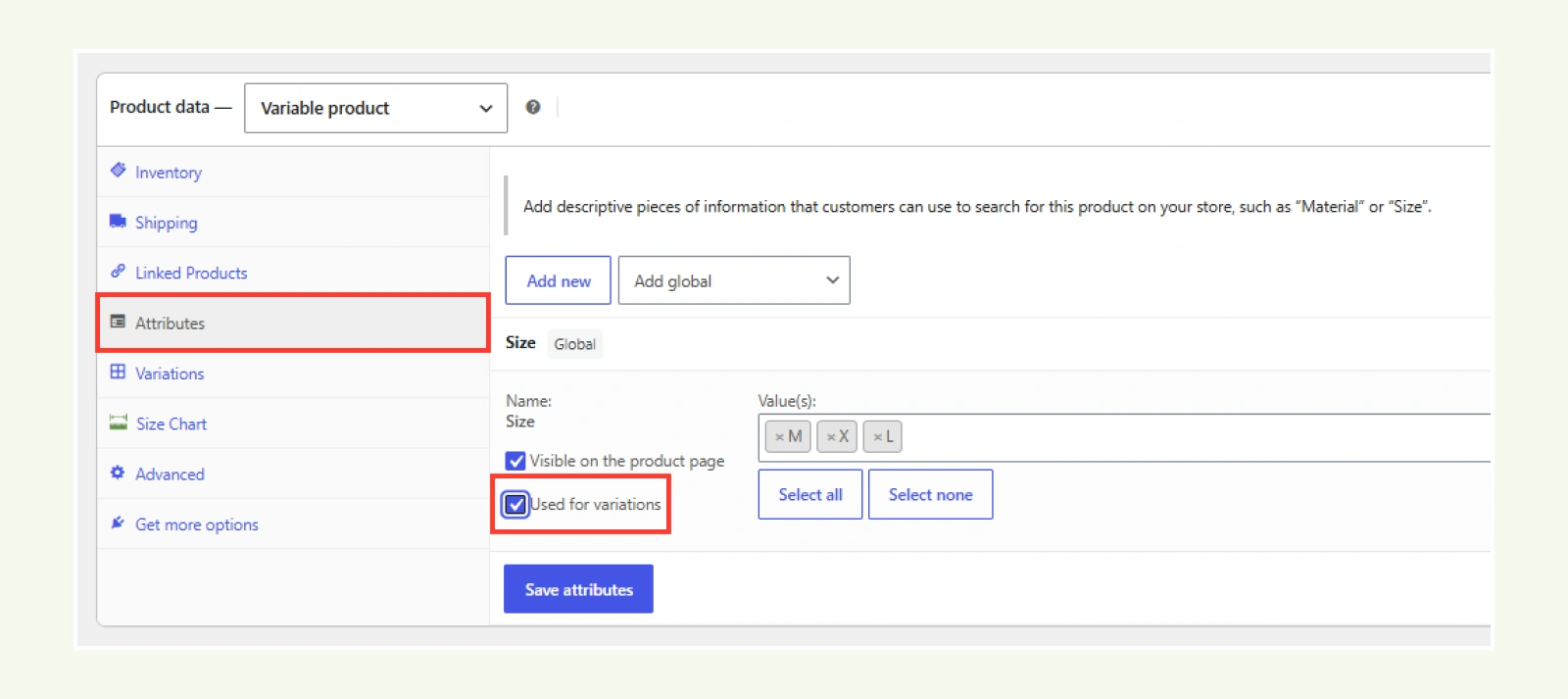
- Open Attributes, add your attributes and values, enable Used for variations, and click Save attributes.
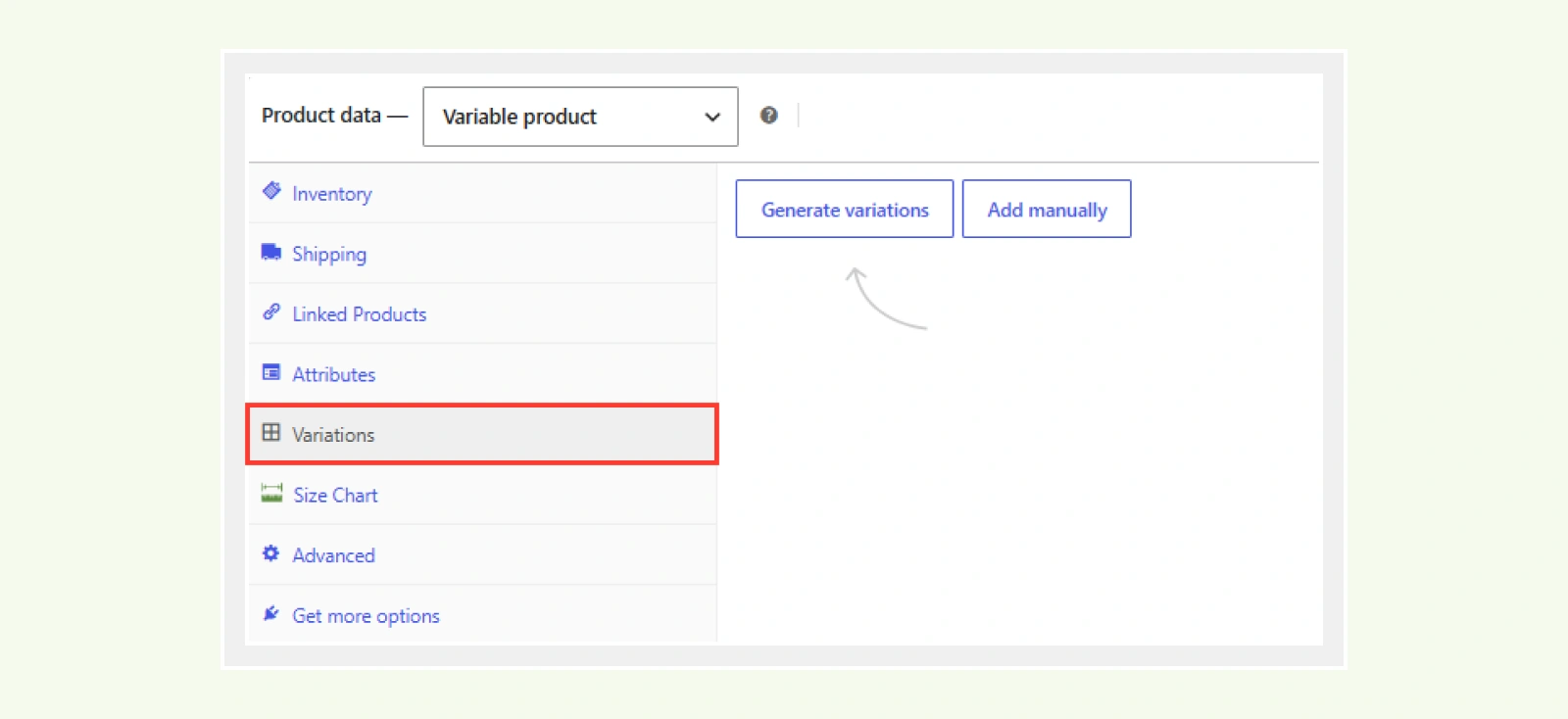
- Under Variations, generate combinations or add them manually.
- Set a price for each variation, click Save changes, and Update the product.
Note: For more detail, see WooCommerce's guide to variable products.
Step 3: Choose and Configure Swatch Styles
DiviMerc lets you choose a swatch style for each WooCommerce attribute. For example, you can display Color as color swatches and Size as buttons.
Follow these steps:
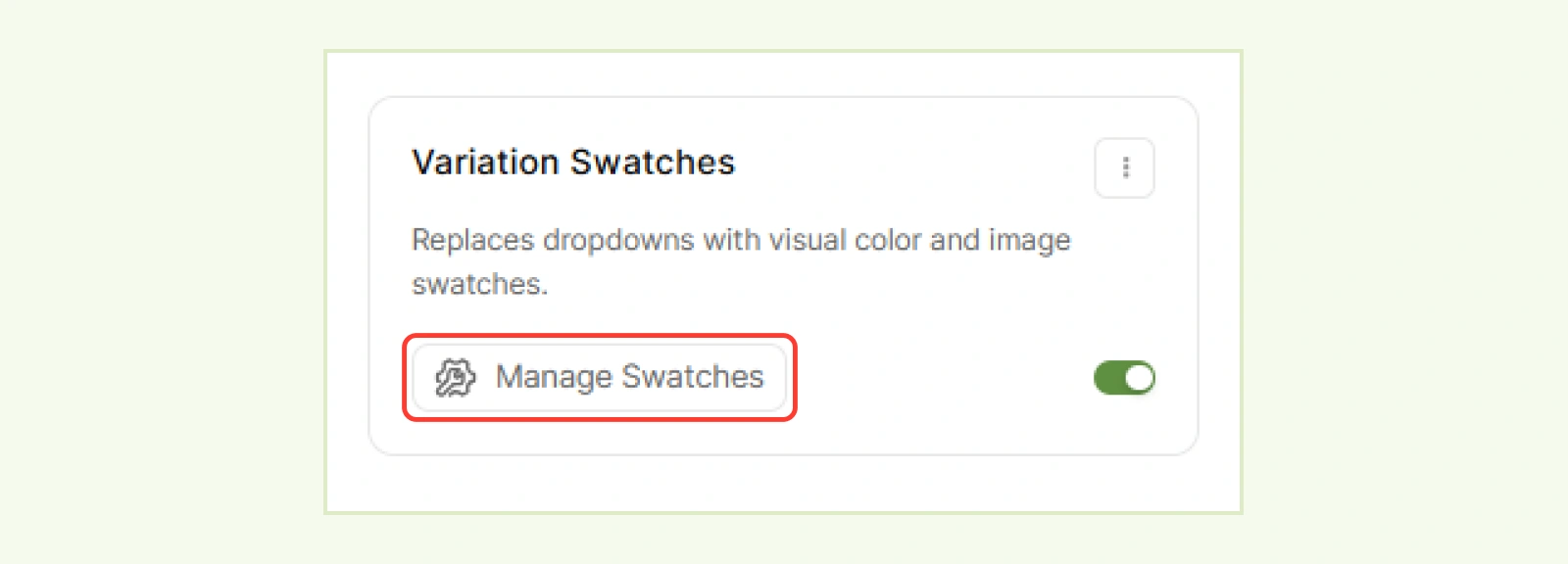
- Go to DiviMerc > Modules and click Manage Swatches beside Variation Swatches.
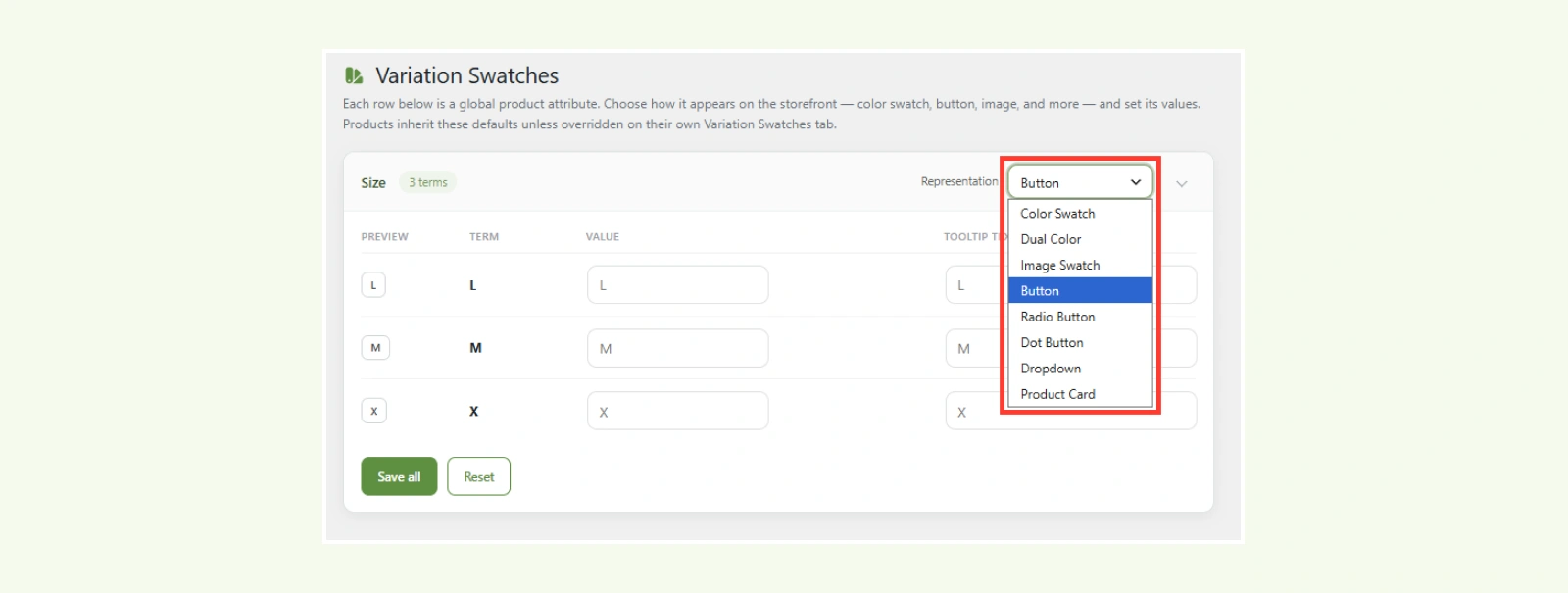
- Find the attribute you want to configure.
- Under Representation, select one of the eight available styles: Color, Dual Color, Image, Button, Radio Button, Dot Button, Product Card, or Dropdown.
- Open the attribute's settings to configure its swatch values.
The available settings depend on your selected style:
| Swatch Style | Available Settings |
| Color / Dual Color | Color values and tooltip text |
| Image | Image upload and tooltip text |
| Button / Radio Button / Dot Button | Values and tooltip text |
| Product Card | Values, image upload, and tooltip text |
| Dropdown | Preview of existing attribute values |
After configuring the values, save your changes. Repeat these steps for your other attributes.
Note: Only global WooCommerce attributes appear in the Swatches Manager. Product-specific attributes must be configured from their individual product pages.
Step 4: Customize Swatches for Individual Products (Optional)
By default, products use the global swatch settings. However, you can override these settings for individual products.
- Go to Products > All Products and edit your product.
- Under Product data, open the Variation Swatches tab.
- Find the attribute you want to customize and select a swatch style from Representation.
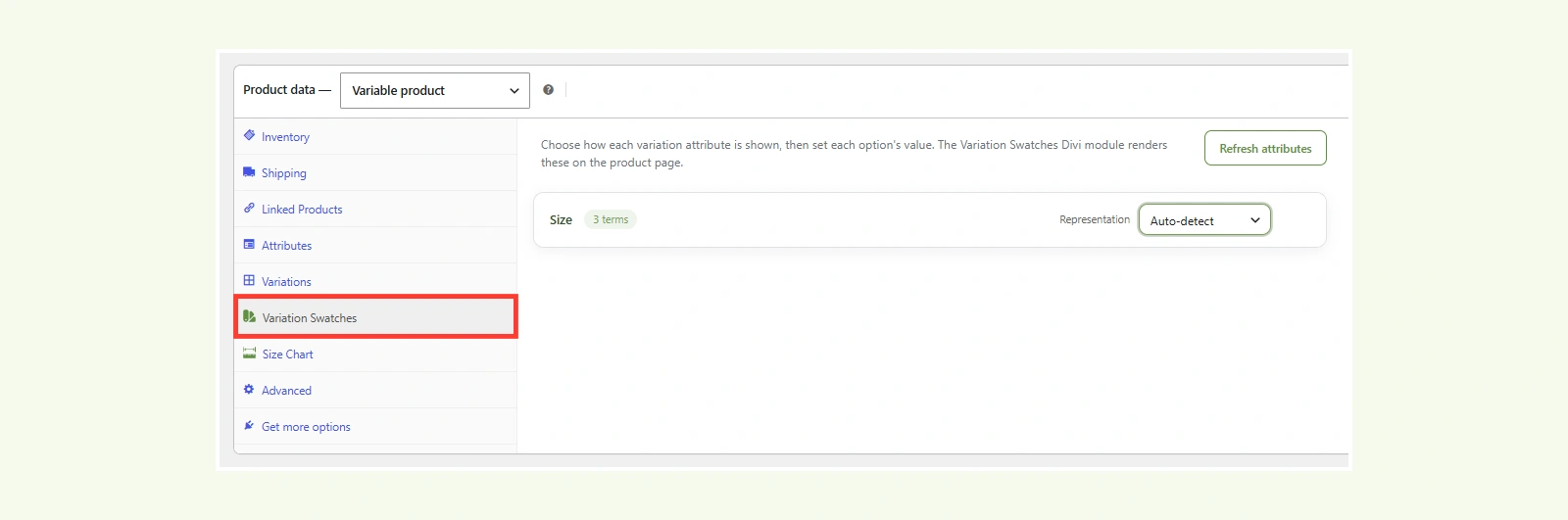
- Configure the swatch values as needed and click Update.
Leave Representation set to Inherit to use the global settings for that attribute.
Step 5: Display Product Variation Swatches in Divi
Once you have configured the swatches, follow these steps to display them on your Divi product page.
- Open your product page or Single Product template in the Divi Visual Builder.
- Add the Variation Swatches module to your preferred location.
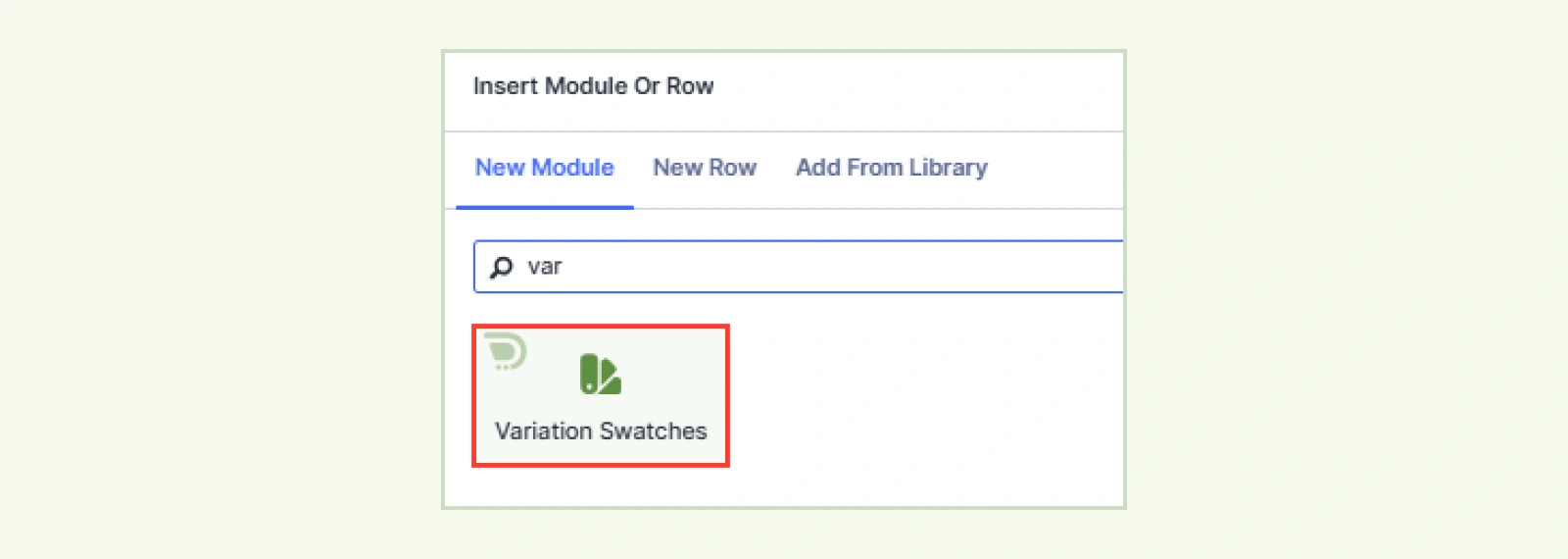
- Under Content > Product, select Current for a product template or choose a specific product.
- Add the DiviMerc Advanced Add To Cart module to the page.
- Save your changes and check the product page.
Important Note: Use DiviMerc's Advanced Add To Cart module alongside Variation Swatches to display and use product variation swatches.
Step 6: Configure Swatch Display and Out-of-Stock Settings (Optional)
You can control how variation swatches are displayed and how unavailable options appear.
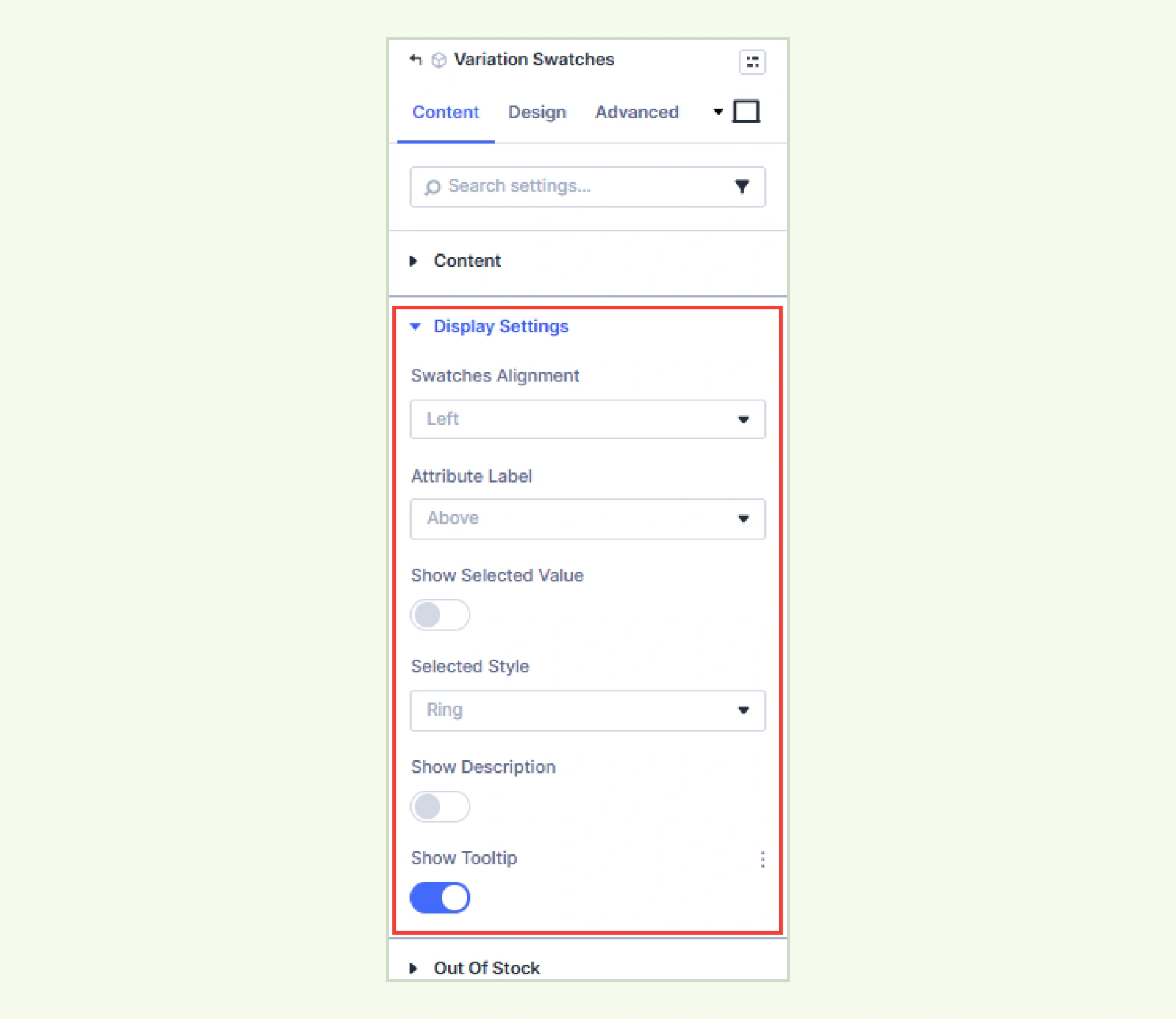
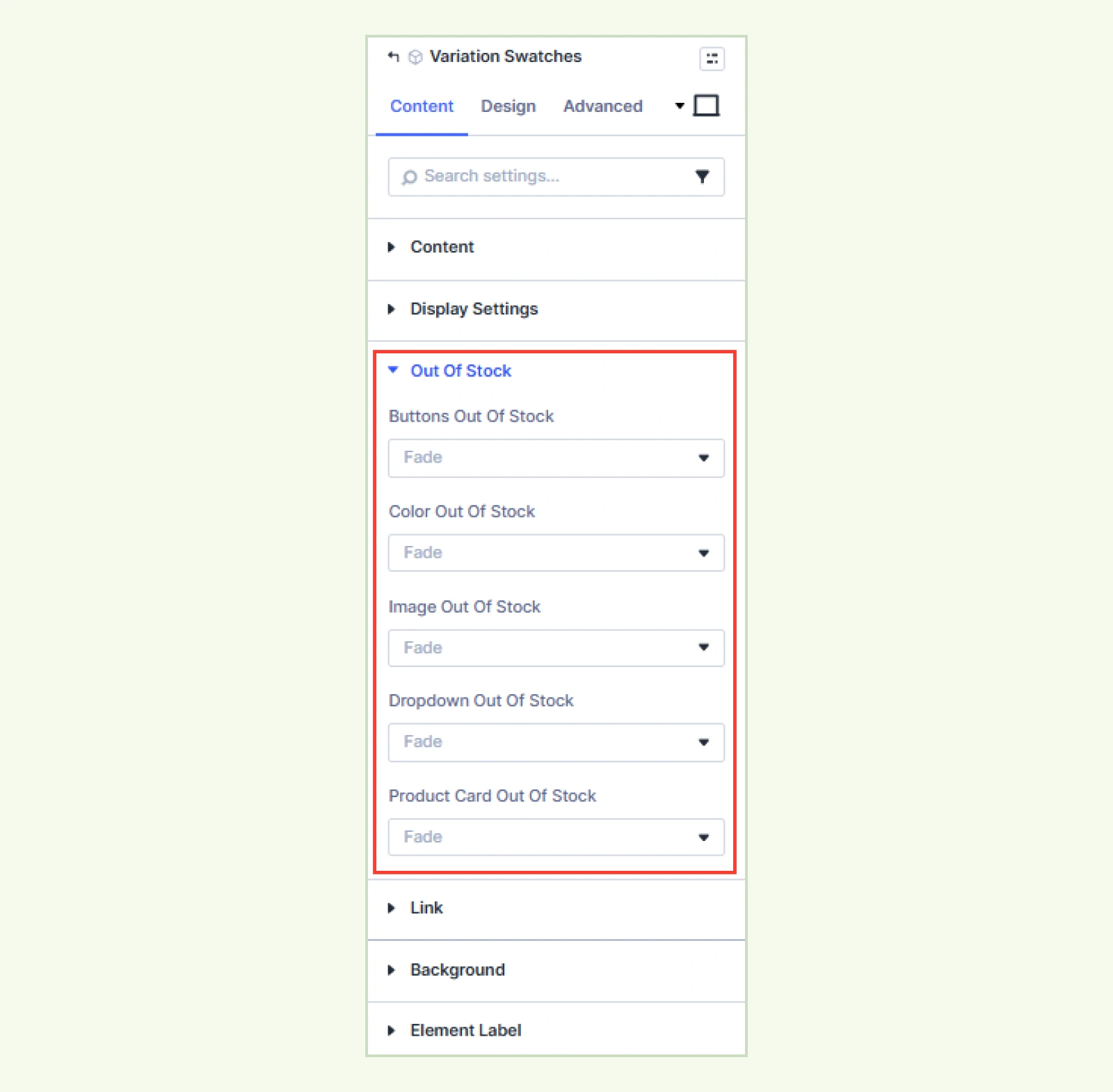
Open the Variation Swatches module and adjust these settings under the Content tab:
- Display Settings: Adjust swatch alignment, attribute labels, selected styles, and tooltips.
- Out of Stock: Choose how unavailable options appear, such as crossed out, faded, or hidden. Available styles depend on the swatch type.
Step 7: Customize the Design of Variation Swatches (Optional)
Open the Design tab of the Variation Swatches module to customize its appearance.
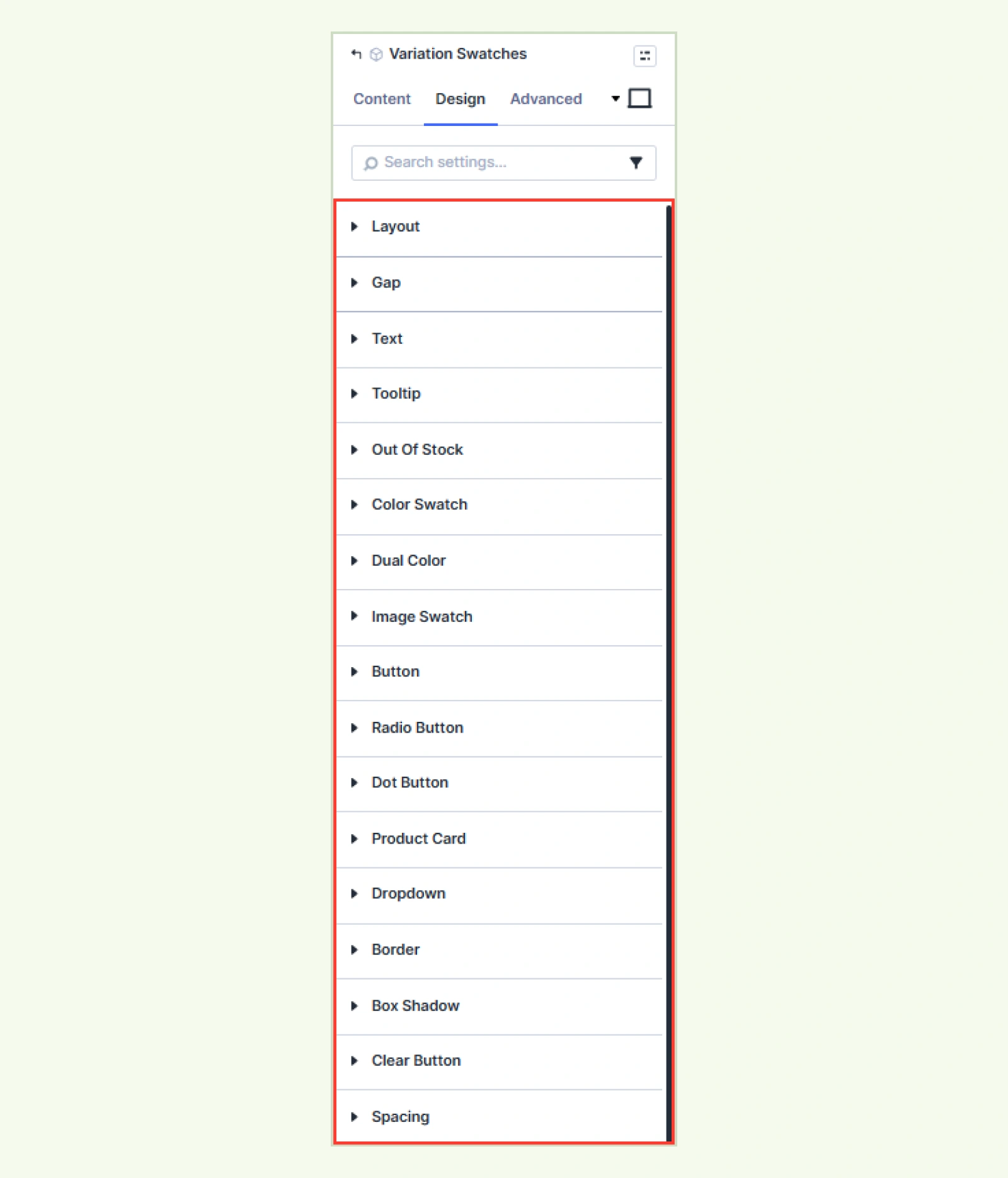
- Layout and Gap: Adjust the swatch layout, alignment, and spacing.
- Swatch Styles: Customize size, colors, borders, corner radius, and selected states for each swatch type.
- Text and Tooltip: Style attribute labels, selected values, and tooltips.
- Out of Stock: Adjust fade opacity and the colors of out-of-stock indicators.
Save your changes and preview the swatches on desktop and mobile.
Want to see the designs first? Explore the DiviMerc Variation Swatches demos for examples of different selector styles.
Why Choose DiviMerc Swatches Over Default Dropdowns?
WooCommerce's default dropdowns let customers select product variations. DiviMerc offers more visual options and greater control over their appearance.
Here is how they compare:
| Feature | Default | DiviMerc Variation Swatches |
| Variation selection | Standard dropdowns | 8 swatch styles |
| Color & image swatches | Not available by default | Built-in support |
| Design customization | Basic dropdown styling | Advanced swatch styling |
| Out-of-stock options | Default WooCommerce handling | Cross, fade, or hide options |
| Tooltips | No built-in swatch tooltips | Custom tooltips |
| Product customization | No visual swatch manager | Global settings & product-level overrides |
Tips for Using Product Variation Swatches
- Choose suitable swatch styles: Use color swatches for colors, image swatches for patterns, and buttons for sizes.
- Use clear labels: Add descriptive labels or tooltips so shoppers can identify each option.
- Match images to variations: Make sure swatch images accurately represent the available product options.
- Check availability and mobile display: Make unavailable options easy to identify and ensure swatches are easy to select on smaller screens.
Frequently Asked Questions
Does WooCommerce include variation swatches by default?
WooCommerce 10.9 introduced experimental color and image swatches for supported block themes. Standard Divi product pages still display variations as dropdown menus by default.
Can product variation swatches be added in Divi without a plugin?
Yes, through custom development. Otherwise, a compatible plugin like DiviMerc is needed to display visual swatches instead of standard dropdowns.
Can different swatch styles be used for each product attribute?
Yes. DiviMerc allows different styles for each attribute, such as color swatches for Color and buttons for Size.
Why are product variation swatches not showing in Divi?
Make sure the product is set to Variable product, its attributes and priced variations are configured, and the required DiviMerc modules are enabled and added to the product page.
Final Thoughts
Product variation swatches make it easier for customers to view and select colors, sizes, and other product options without navigating dropdown menus.
With DiviMerc, you can add eight different swatch styles to your Divi product pages, customize their appearance, and control how out-of-stock options are displayed.
To get started, Get DiviMerc and follow this guide. For more customization options, explore the Variation Swatches documentation.


0 Comments