

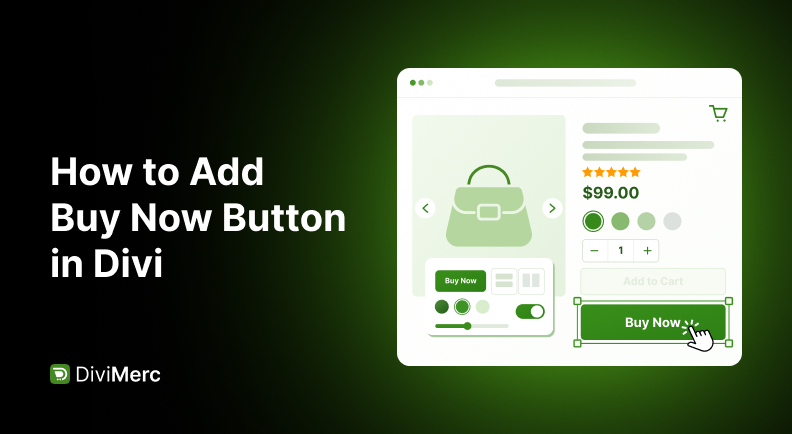
A Buy Now button lets shoppers skip the cart page and go straight to checkout, making the purchase process quicker and easier.
However, Divi doesn't include a built-in Buy Now button, so you will need a plugin to add one.
DiviMerc offers a dedicated Buy Now Button module that supports simple and variable products. It also lets you customize the button's design, redirect destination, and cart behavior.
In this guide, we will walk you through how to add Buy Now button in Divi, step by step.
Step 1: Add the Buy Now Button Module
Before adding the button, make sure you have Divi 5, and DiviMerc installed and activated. You will also need a purchasable product and a configured Checkout page.
Next, follow these steps:
- Open your product page with Divi Builder.
- Add the Buy Now Button module to your layout.

- Position it where you want, such as beside or below the regular Add to Cart button.
Important:
- The module supports simple and variable products that can be purchased.
- For variable products, include an Add to Cart module so shoppers can select a variation before clicking Buy Now.
Step 2: Choose the Product
Open the Buy Now Button module and go to Content tab > Content. Under Product, choose which product the button should purchase:
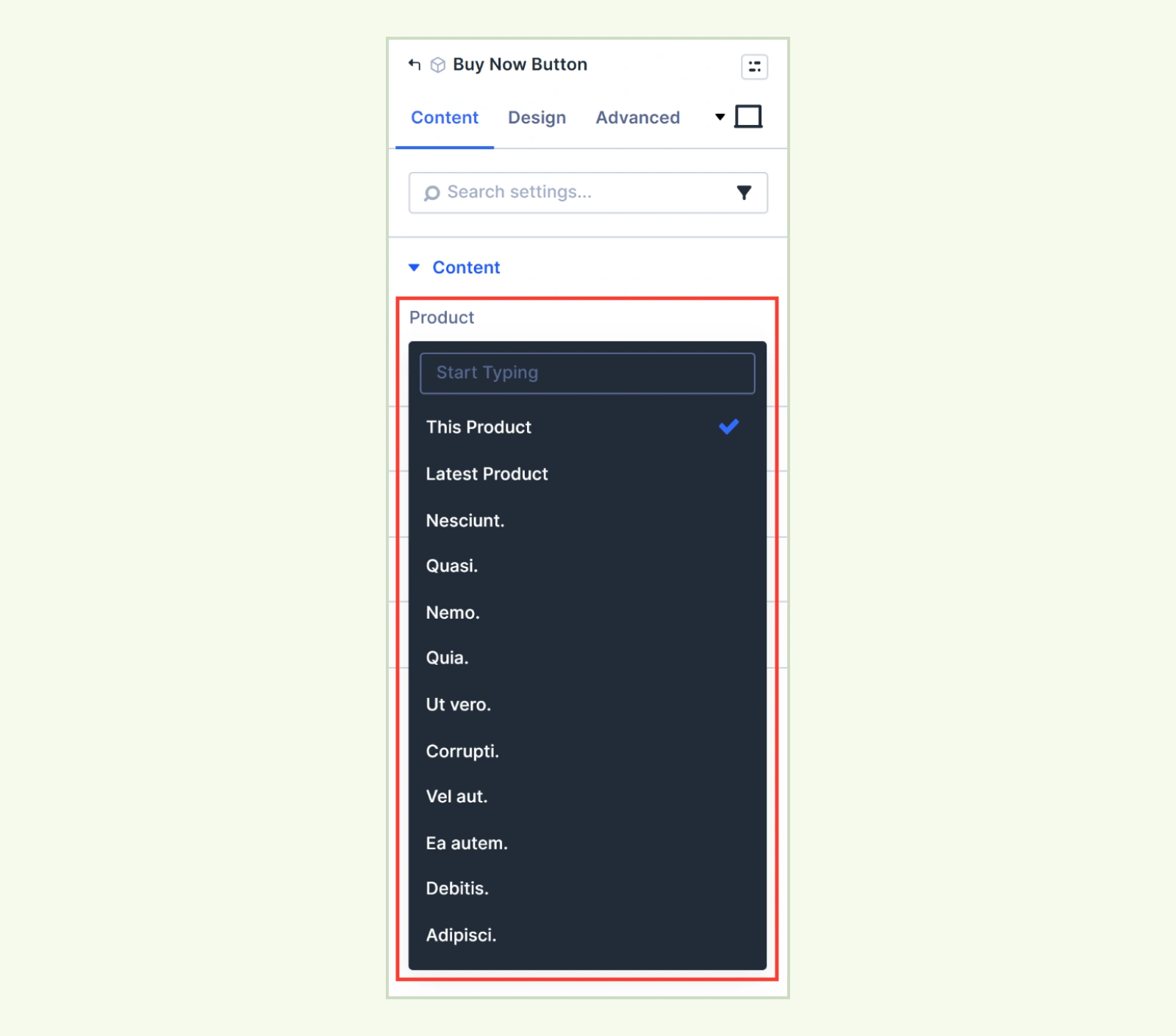
- Current Product
- Latest Published Product
- Specific Product
Step 3: Customize the Button Content
Next, open Content > Button to customize the button's text, icon, and loading behavior. Here is what you can do:
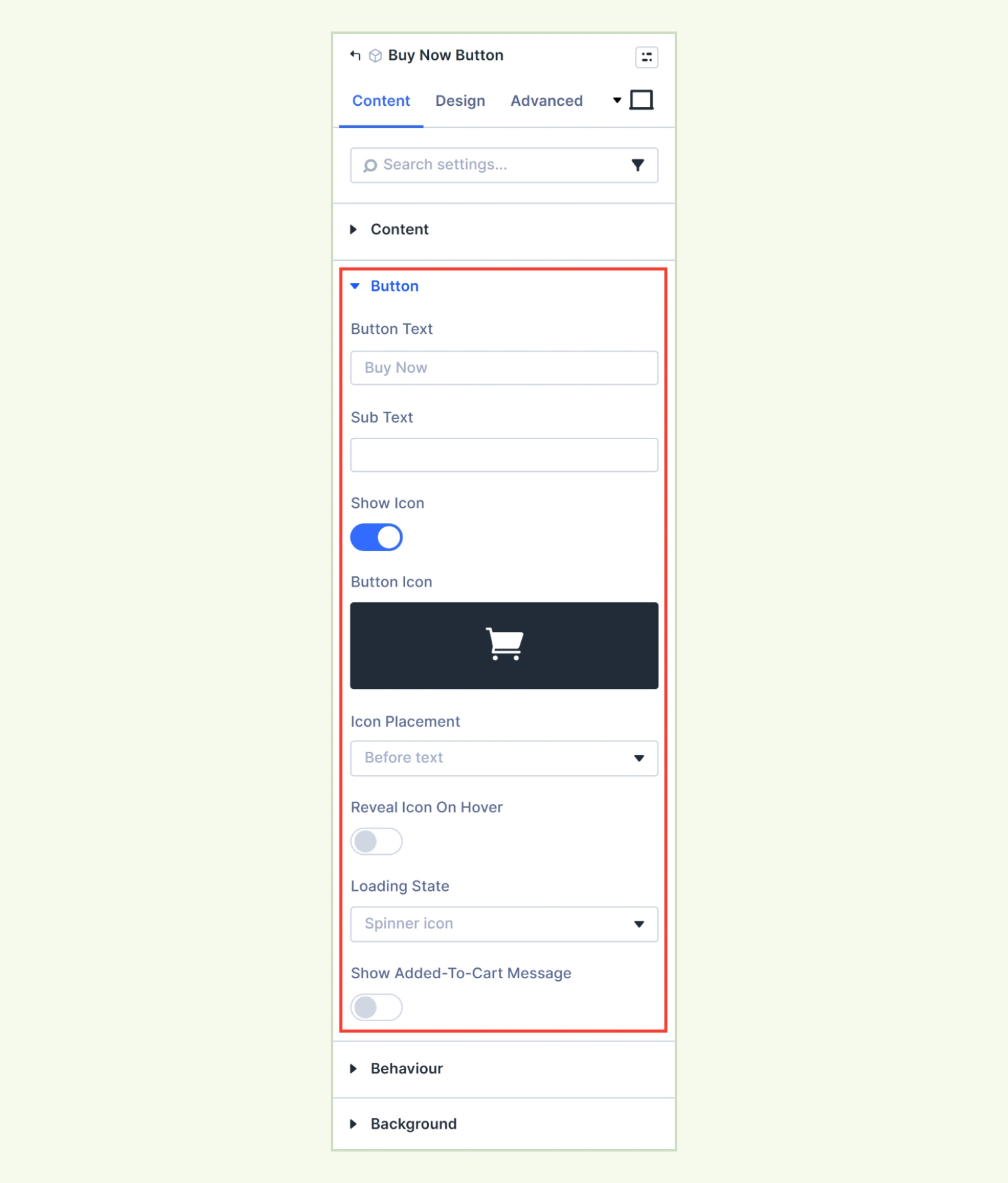
- Button Text: Enter the button label, such as "Buy Now."
- Sub Text: Add optional supporting text below the label, such as "Free shipping."
- Show Icon: Show or hide an icon on the button.
- Button Icon: Choose which icon to display.
- Icon Placement: Position the icon before, after, or above the button text.
- Reveal Icon on Hover: Display the icon with a hover effect and choose whether it slides in from the bottom, top, left, or right.
- Loading State: Choose None, Spinner Icon, or Loading Text.
- Show Added-to-Cart Message: Show or hide WooCommerce's added-to-cart message.
If you select Loading Text, enter the message shoppers will see while being redirected, such as "Redirecting to checkout..."
Step 4: Configure Redirect and Cart Behavior
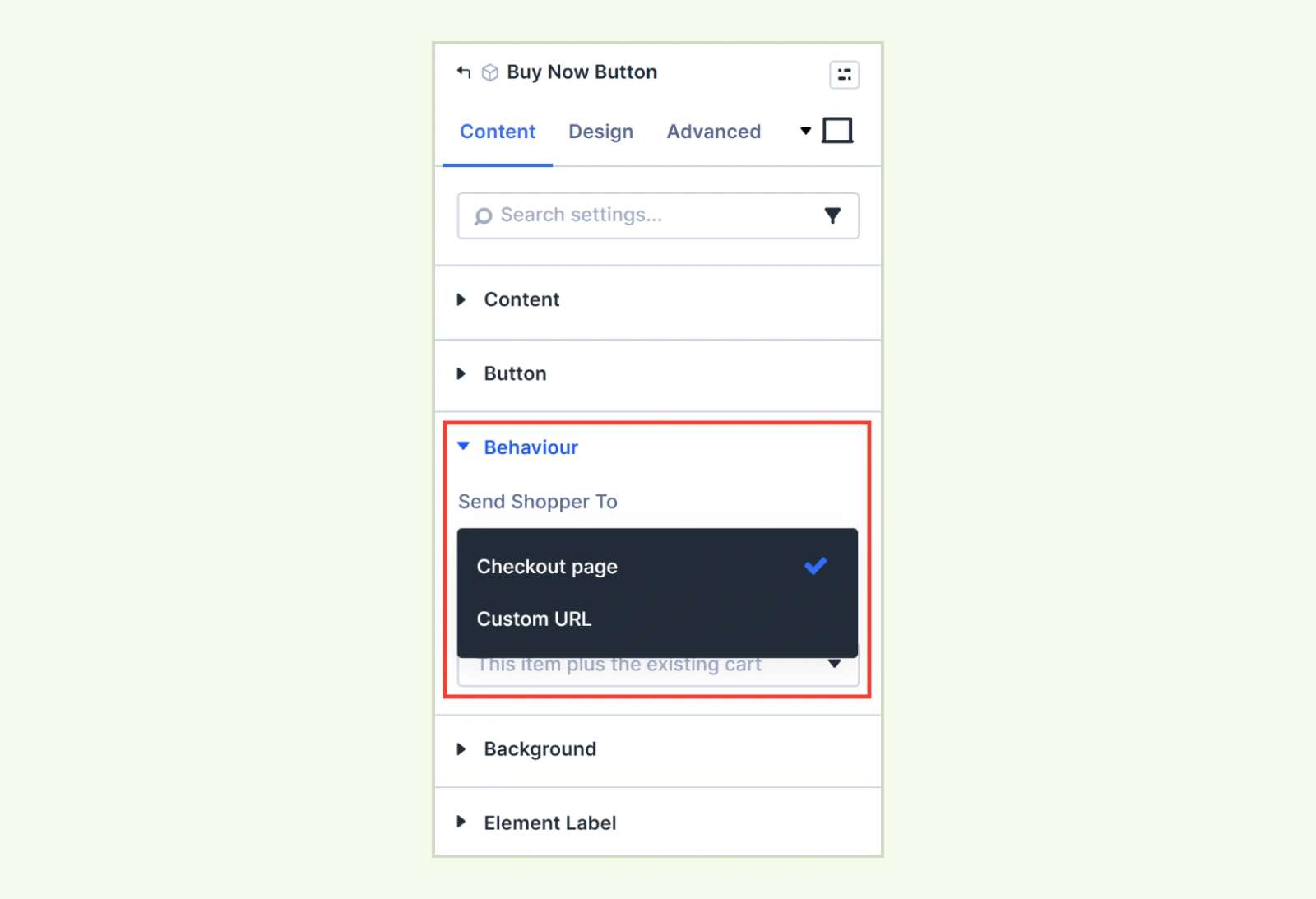
Go to Content > Behaviour to control where shoppers go and which products are included when they click Buy Now.
- Send Shopper To: Choose where shoppers are redirected:
- Checkout Page: Sends shoppers directly to the WooCommerce checkout page.
- Custom URL: Sends shoppers to a specified page on your website.
- What Goes To Checkout: Choose how existing cart items are handled:
- This Item Plus the Existing Cart: Keeps existing cart items and adds the Buy Now product.
- Only This Item: Temporarily sets other cart items aside so only the selected product goes to checkout.
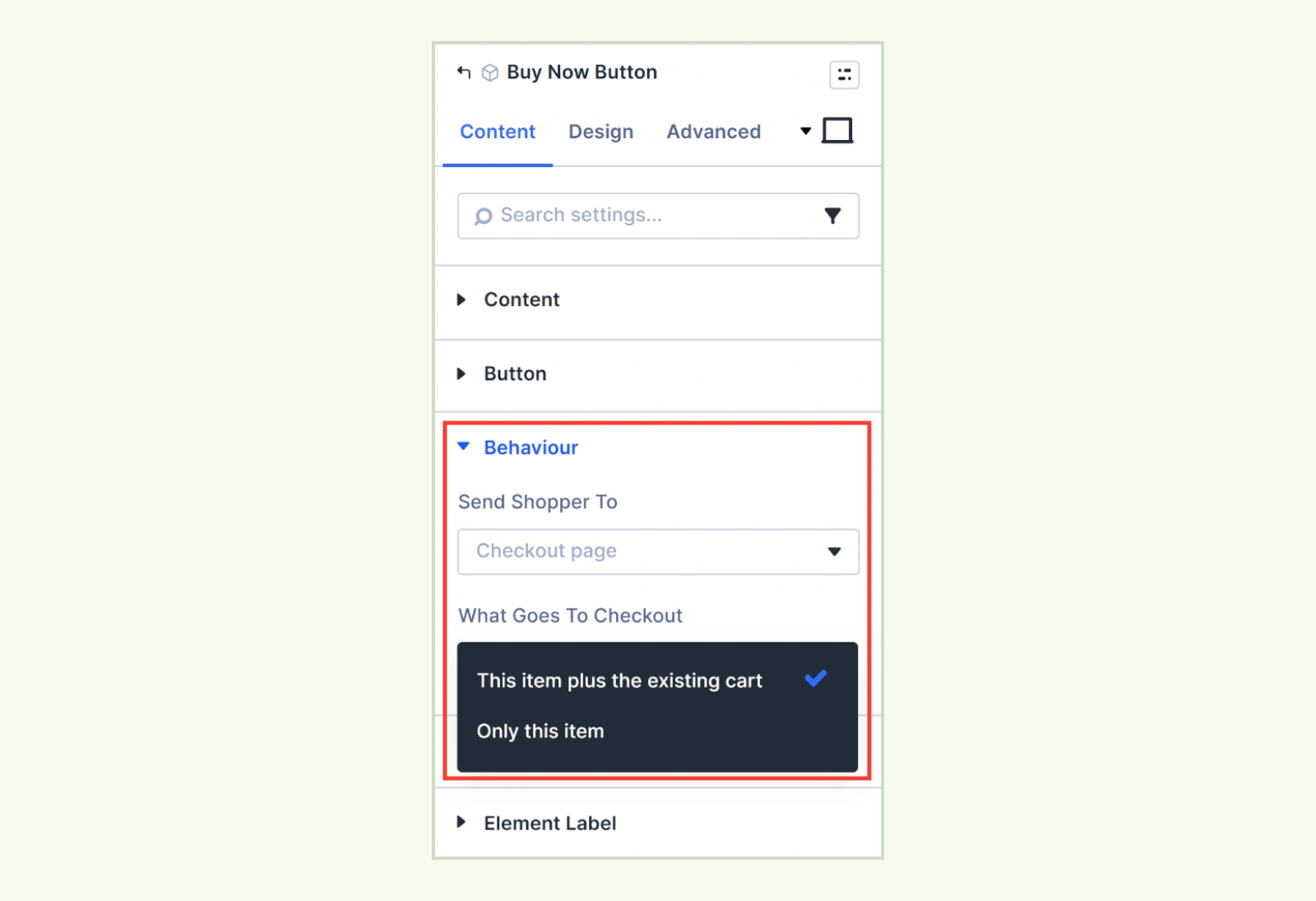
For example, if you want customers to purchase a specific product without including other cart items, select Only This Item.
Note: Custom URLs must be on the same website. External URLs will redirect shoppers to the default checkout page. If you select Only This Item, make sure the custom URL leads to a compatible checkout page so other cart items stay excluded.
Step 5: Style the Buy Now Button
Open the Design tab to customize the button's appearance. The main settings include:
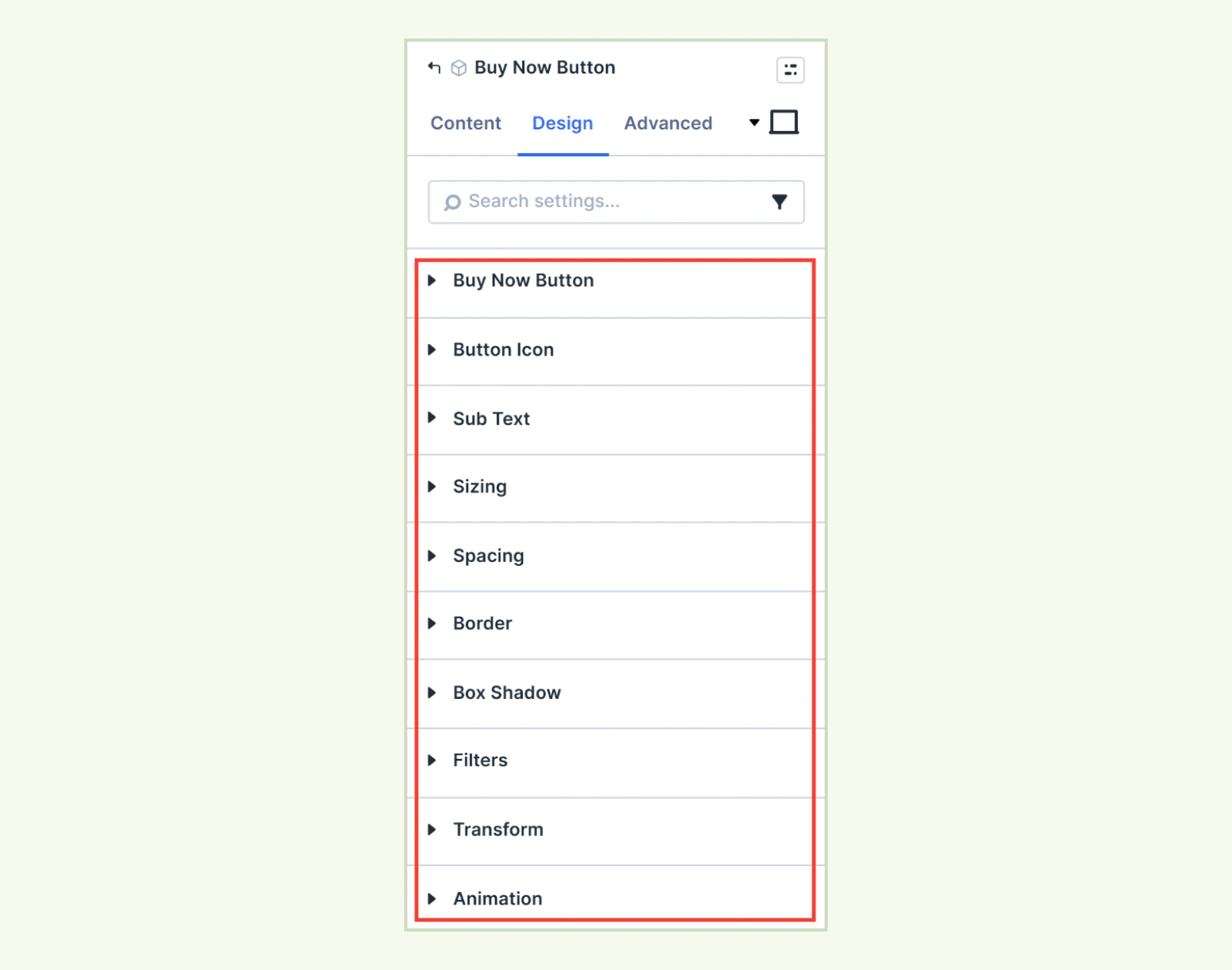
- Buy Now Button: Customize the text, background, border, sizing, spacing, and box shadow.
- Button Icon: Adjust the icon size, color, and spacing.
- Sub Text: Customize the typography and spacing of the supporting text.
- Sizing & Spacing: Adjust the module's dimensions, alignment, margins, and padding.
- Animation: Apply animations and adjust their type, duration, and delay.
You can also use the Advanced tab to add custom CSS or configure visibility and display conditions.
Once you're satisfied with the design, save the page or template.
Test Your Buy Now Button
Before publishing, open the page on the front end and test the button. Check that:
- Clicking Buy Now adds the correct product to the cart.
- Shoppers reach the checkout page or your selected custom URL.
- Selected variations and quantities carry over correctly.
- The loading state and added-to-cart message work as expected.
- Only This Item excludes existing cart products from checkout.
- The button looks and works correctly on desktop and mobile.
Test with both an empty cart and a cart containing other products to confirm the selected cart behavior.
Frequently Asked Questions
Does Divi or WooCommerce have a built-in Buy Now button?
No. Divi doesn't include a dedicated Buy Now module, and WooCommerce's closest setting only redirects shoppers to the cart page, not checkout. You can use a Button module with a WooCommerce add-to-cart URL or DiviMerc's Buy Now Button module.
How to add a Buy Now button in Divi without a plugin?
For simple products, add a Button module and link it to a URL such as https://yourstore.com/checkout/?add-to-cart=123, replacing 123 with the product ID. This method needs a separate link for each product, doesn't support variation selection, and adds the product to any items already in the cart.
Can the Buy Now button appear alongside the Add to Cart button?
Yes. Place DiviMerc's Buy Now Button module beside or below an Add to Cart module so shoppers can choose between continuing to shop and going directly to checkout.
Does the Buy Now button support variable products?
Yes. DiviMerc supports variable products when an Add to Cart module is on the page for selecting the variation.
Can the Buy Now button exclude existing cart items?
Yes. In DiviMerc’s Buy Now Button module, go to Content > Behaviour > What Goes To Checkout and select Only This Item. Other cart items are temporarily set aside so only the selected product goes to checkout.
Can the Buy Now button redirect to a custom checkout page?
Yes. In DiviMerc’s Buy Now Button module, go to Content > Behaviour, set Send Shopper To to Custom URL, and enter the page. It must be on the same website, since external URLs send shoppers to the normal checkout page instead.
Does clicking Buy Now automatically complete the purchase?
No. The button adds the product to the cart and redirects shoppers to checkout, where they still need to complete their order.
Does Divi or WooCommerce have a built-in Buy Now button?
No. Divi doesn't include a dedicated Buy Now module, and WooCommerce's closest setting only redirects shoppers to the cart page, not checkout. You can use a Button module with a WooCommerce add-to-cart URL or DiviMerc's Buy Now Button module.
How to add a Buy Now button in Divi without a plugin?
For simple products, add a Button module and link it to a URL such as https://yourstore.com/checkout/?add-to-cart=123, replacing 123 with the product ID. This method needs a separate link for each product, doesn't support variation selection, and adds the product to any items already in the cart.
Can the Buy Now button appear alongside the Add to Cart button?
Yes. Place DiviMerc's Buy Now Button module beside or below an Add to Cart module so shoppers can choose between continuing to shop and going directly to checkout.
Does the Buy Now button support variable products?
Yes. DiviMerc supports variable products when an Add to Cart module is on the page for selecting the variation.
Can the Buy Now button exclude existing cart items?
Yes. Under Content > Behaviour > What Goes To Checkout, select Only This Item. Other cart items are temporarily set aside so only the selected product goes to checkout.
Can the Buy Now button redirect to a custom checkout page?
Yes. Under Content > Behaviour, set Send Shopper To to Custom URL and enter the page. It must be on the same website, since external URLs send shoppers to the normal checkout page instead.
Does clicking Buy Now automatically complete the purchase?
No. The button adds the product to the cart and redirects shoppers to checkout, where they still need to complete their order.
Final Thoughts
Now you know how to add and customize a Buy Now button in Divi using DiviMerc. From selecting a product to configuring the button's design and checkout behavior, you can set everything up in just five steps.
You can also place the button alongside the regular Add to Cart button, giving shoppers the choice to continue shopping or go directly to checkout. Just make sure to test it with different products and cart conditions before publishing.
Ready to make checkout easier for your customers? Try DiviMerc's Buy Now Button module and give shoppers a quicker way to purchase.


0 Comments