

WooCommerce product pages include description, additional information, and reviews tabs. These are enough for basic product details, but you may need more, like size guides or shipping policies.
To add custom product tabs, you will need a plugin like DiviMerc, as neither Divi nor WooCommerce comes with this option built in.
DiviMerc has a Custom Product Tabs extension and Advanced Product Tabs module. Together, they let you create tabs, choose which products show them, and style them to match your store.
Let’s walk through how to add custom product tabs in Divi using DiviMerc.
Step 1: Enable the Extension and Module
Before getting started, make sure WooCommerce, Divi 5, and DiviMerc are installed and activated. Then:
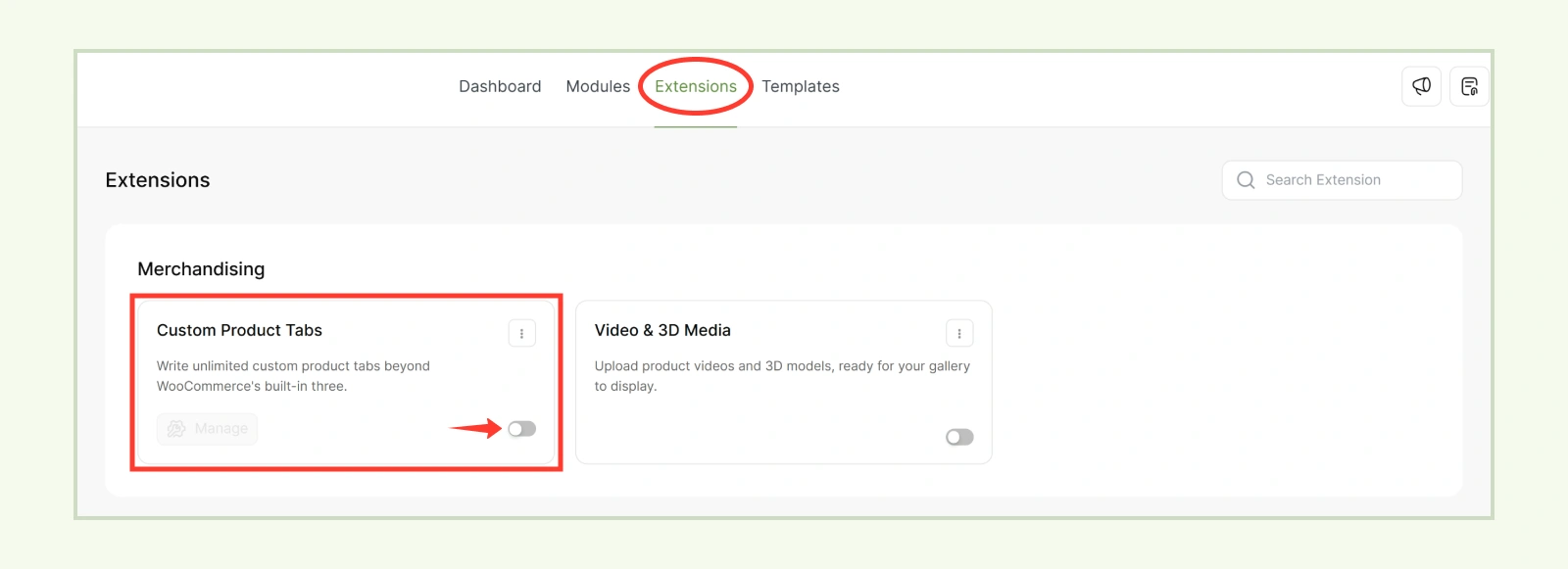
- Navigate to DiviMerc > Extensions in your WordPress dashboard.
- Find Custom Product Tabs under Merchandising and turn it on.
- A Companion required popup will ask you to enable the Advanced Product Tabs module.
- Click Proceed to enable both.
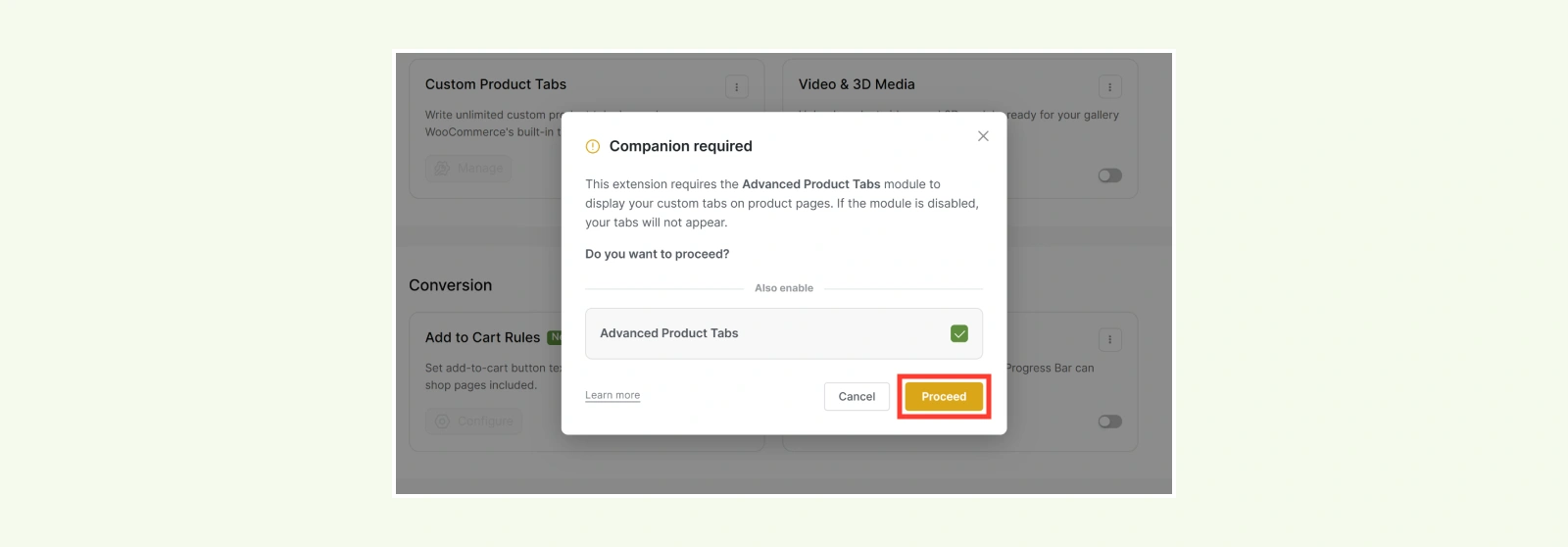
The extension lets you create and manage tab content, while the module displays it on product pages.
Step 2: Create a Custom Product Tab
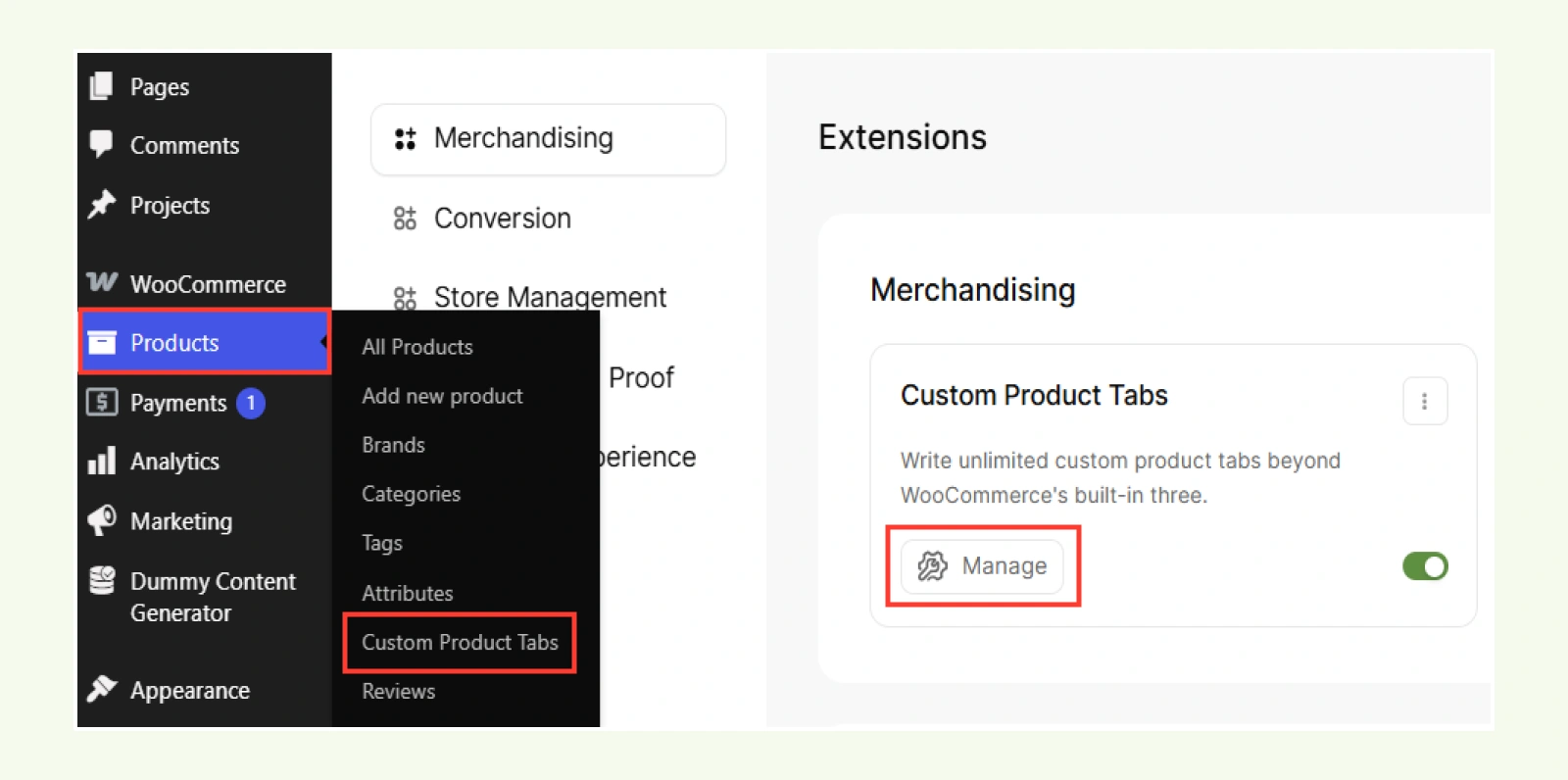
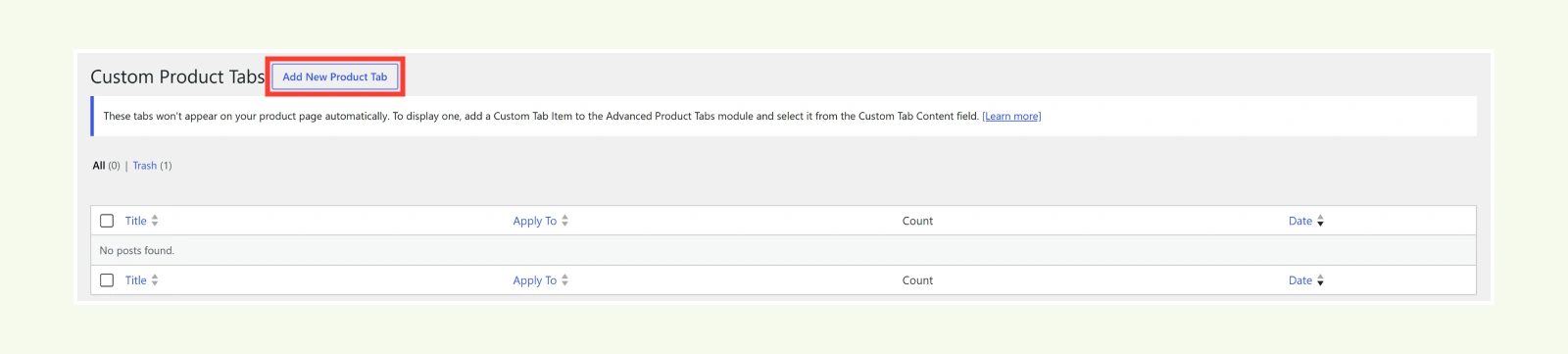
Now that the extension is enabled, you can create your first custom tab. Click Manage under Custom Product Tabs, or go to Products > Custom Product Tabs, and follow these steps:
- Click Add New Product Tab.
- Enter a title, such as "Shipping & Returns" or "Size Guide."
- Add your information in the Tab Content editor, or click Use The Divi Builder to create a custom layout.
- Click Publish to save the tab.
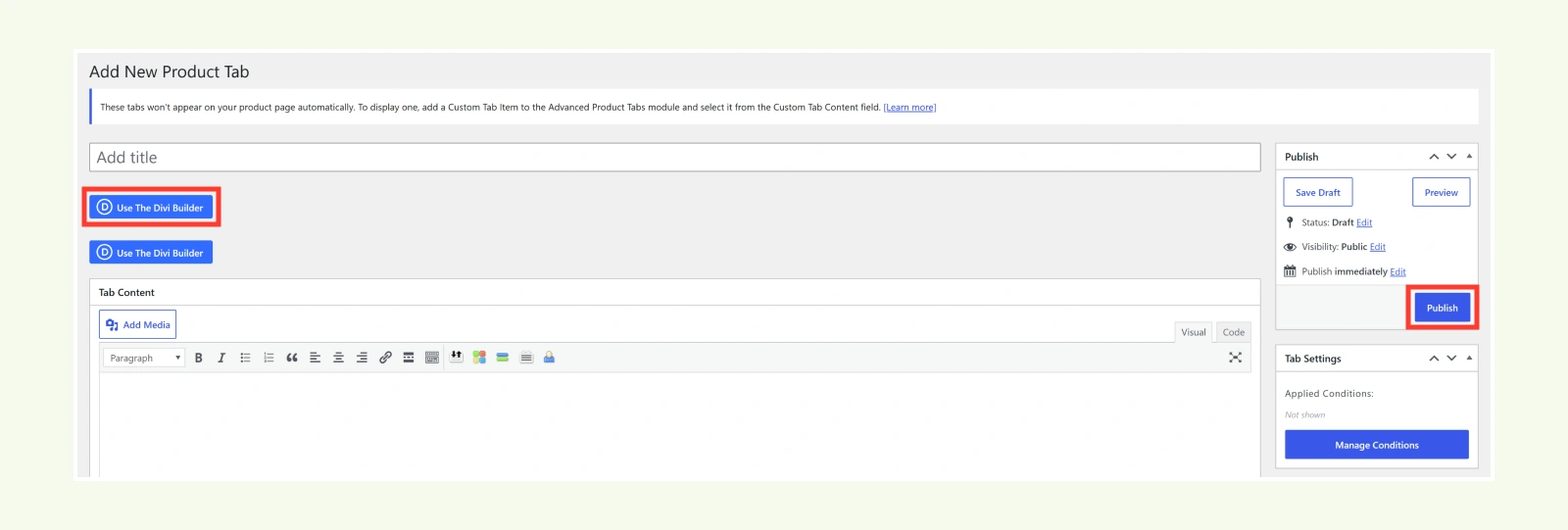
Note: Publishing a tab doesn't automatically display it on product pages. You'll need to select it in the Advanced Product Tabs module in Step 5.
Step 3: Set Display Conditions
After creating your custom tab, you can choose which products display it. For example, you can show a Size Guide only on clothing products. To set the conditions:
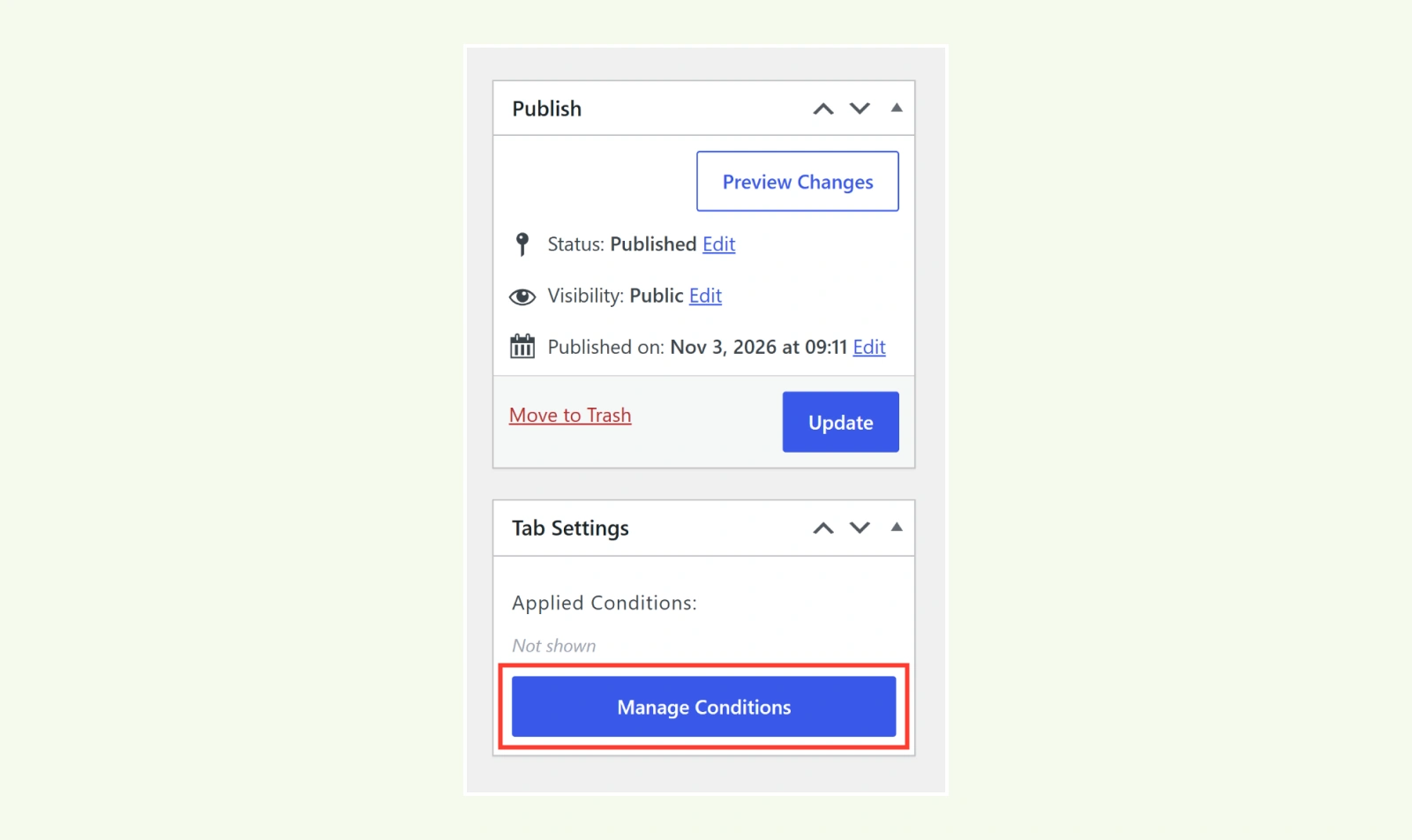
- Open the custom tab and click Manage Conditions under Tab Settings.
- Click + Add condition and choose Include or Exclude.
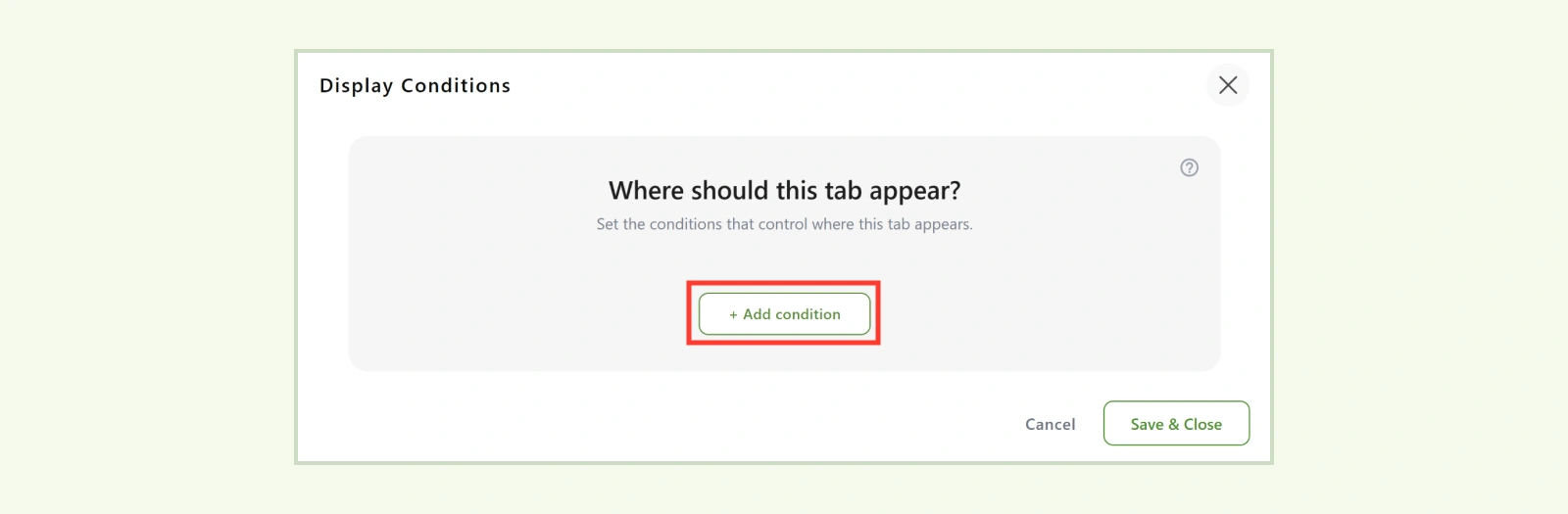
- Select All Products, Products, Categories, Tags, or Brands and specify where the tab should appear.
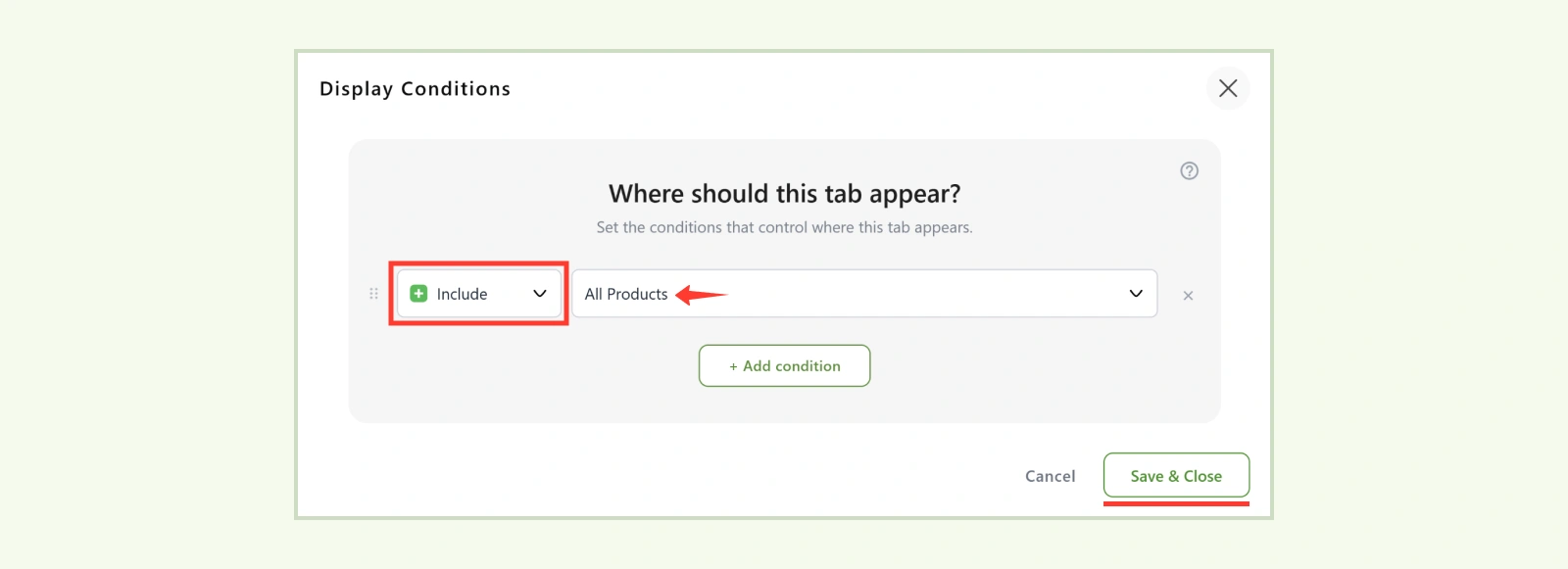
- Add more conditions if needed, then click Save & Close.
- Click Update to save your changes.
For example, you can include the Clothing category to display a Size Guide only on clothing products.
Step 4: Assign a Tab to a Specific Product (Optional)
You can also assign or disable custom tabs for individual products.
- Navigate to Products > All Products and edit a product.
- Open Product Data > Custom Product Tabs.
- Under Product Tab, choose an option:
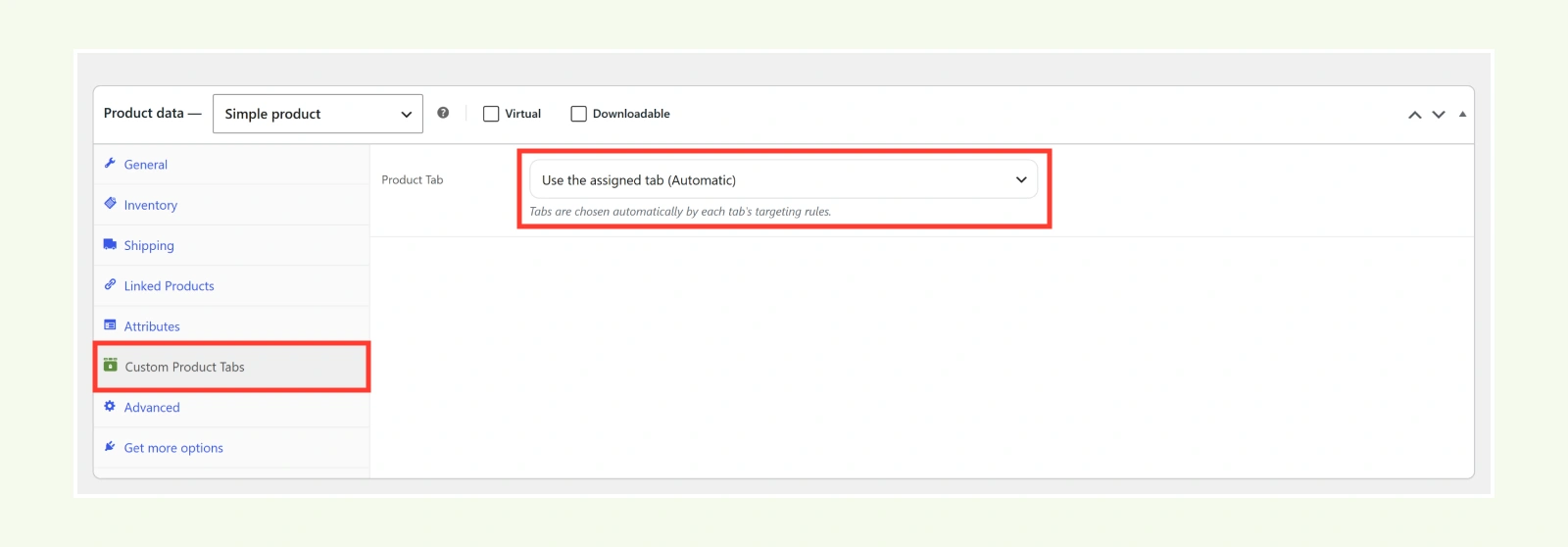
- Use the assigned tab (Automatic): Shows the tab based on its display conditions.
- Choose a Specific tab
- Disable for this product
- Click Update to save your changes.
Note: The Advanced Product Tabs module is still required to display custom tabs on your product page or template.
Step 5: Display the Custom Tab on Your Product Page
Now, use the Advanced Product Tabs module to display the tab on your product page. Follow these steps:
- Open your product page with Divi Builder.
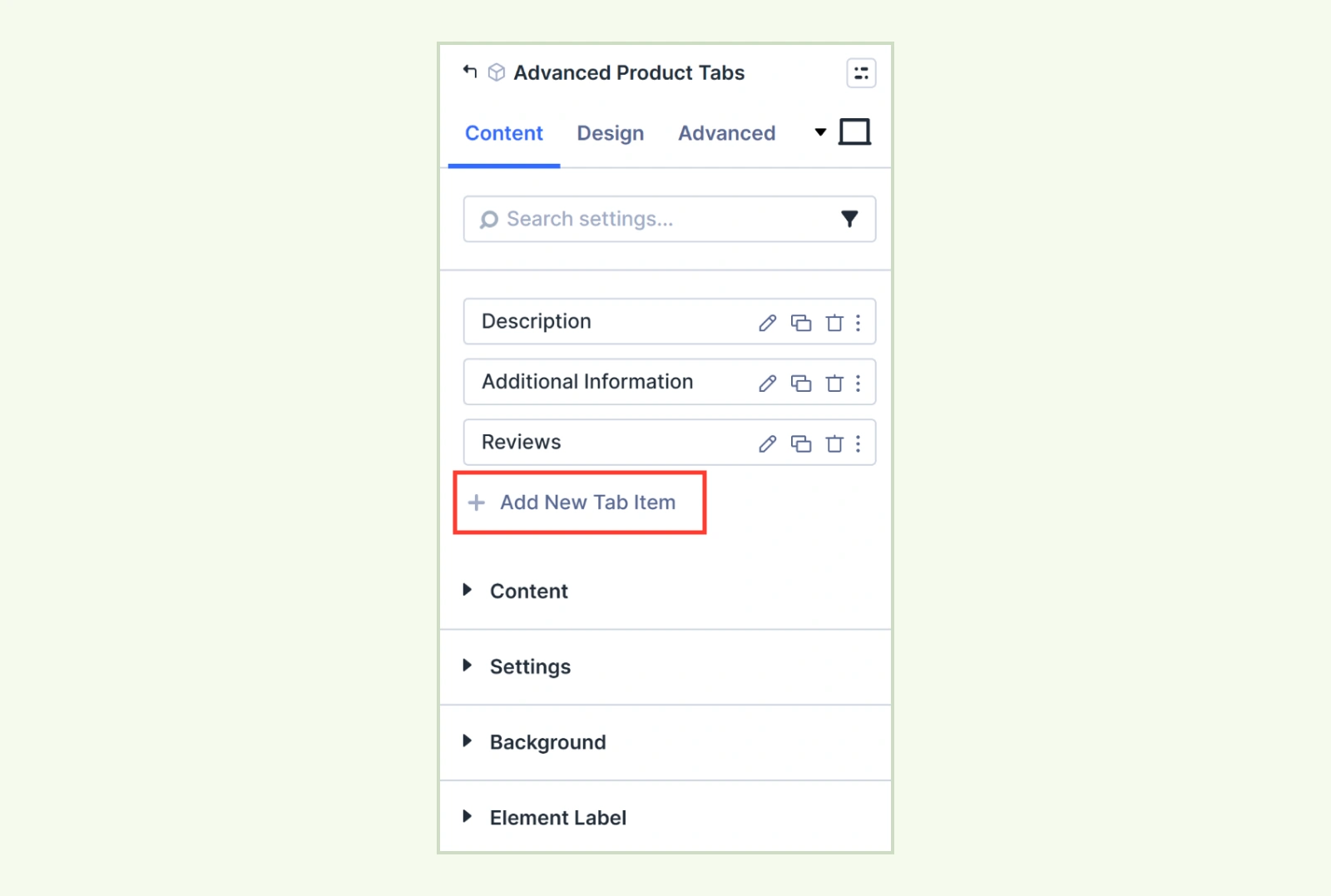
- Add the Advanced Product Tabs module, or open an existing one.

- Click Add New Tab Item.
- In the new item's Tab Settings > Tab Content, select Custom Tab.
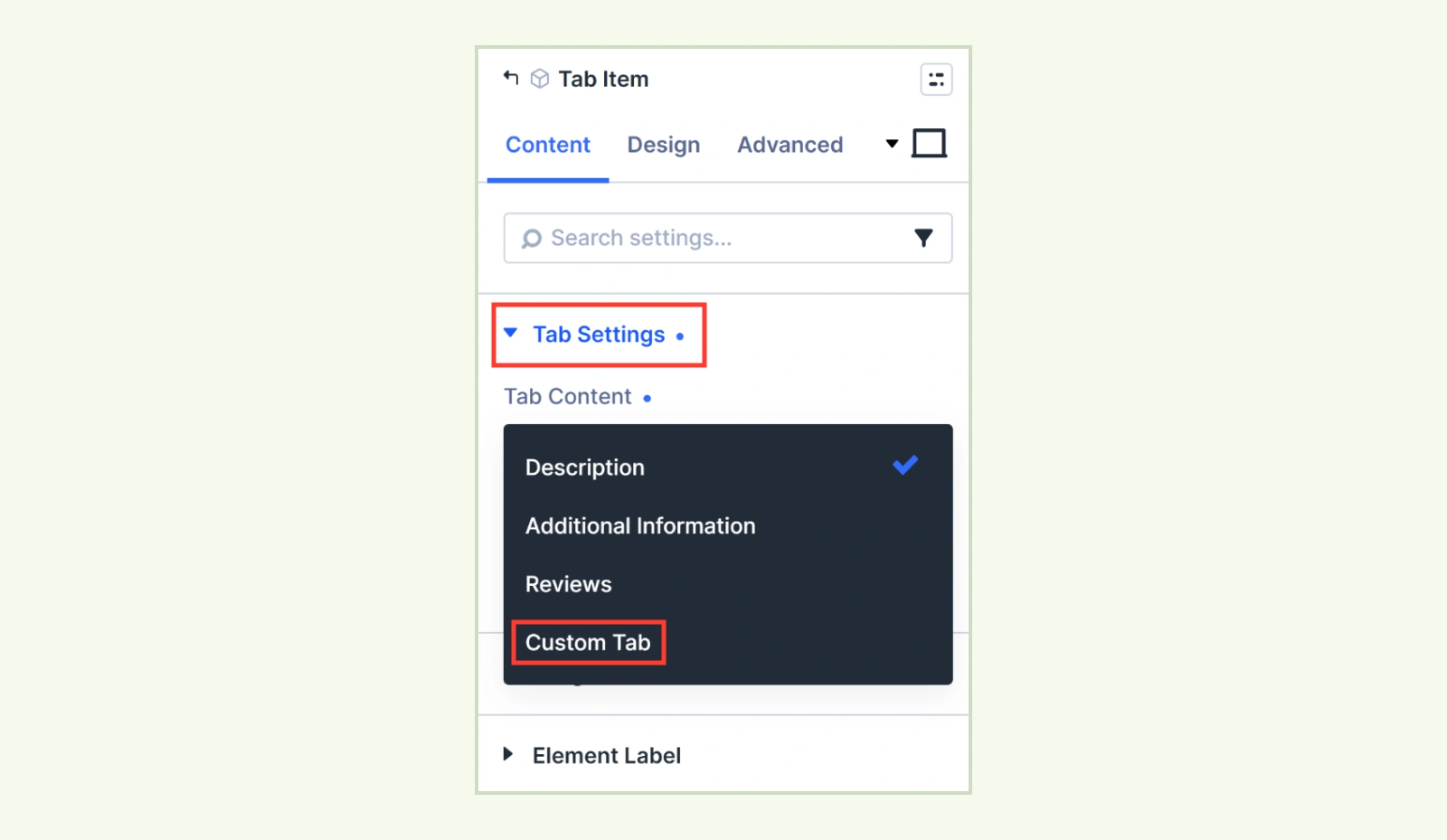
- Under Custom Tab Content, select the tab you created.
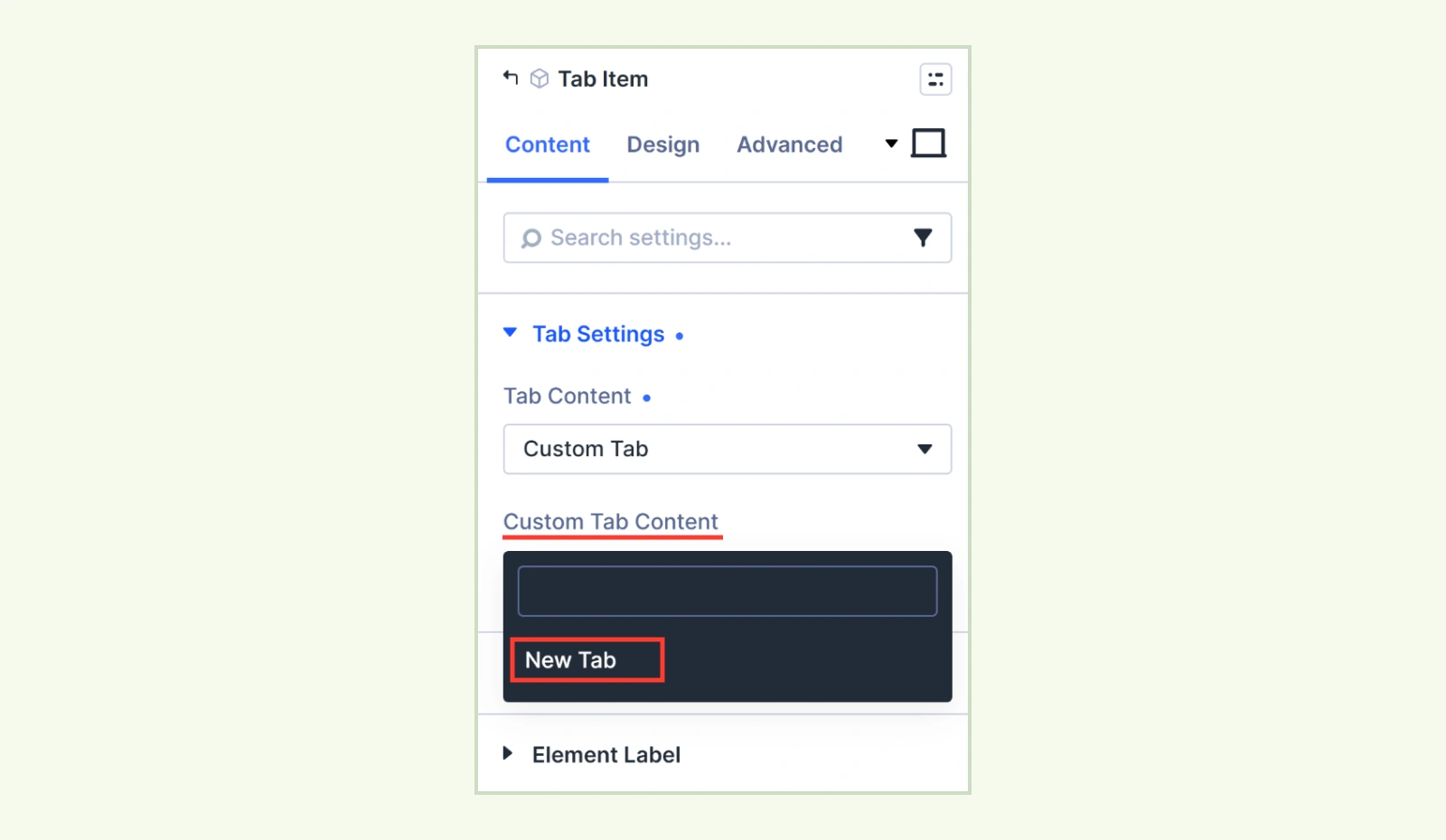
- Save the tab item and the page or template.
The tab will appear on products that match its display conditions.
Note: The module also includes WooCommerce's default Description, Additional Information, and Reviews tabs. You can rename these using Override Title, hide content headings for Additional Information and Reviews, and add an image or icon to any tab.
Step 6: Choose the Tab Layout
Open the Advanced Product Tabs module and go to Content > Settings. Under Display Mode, choose a layout:
Tabs display product information in a traditional tab layout. You can:
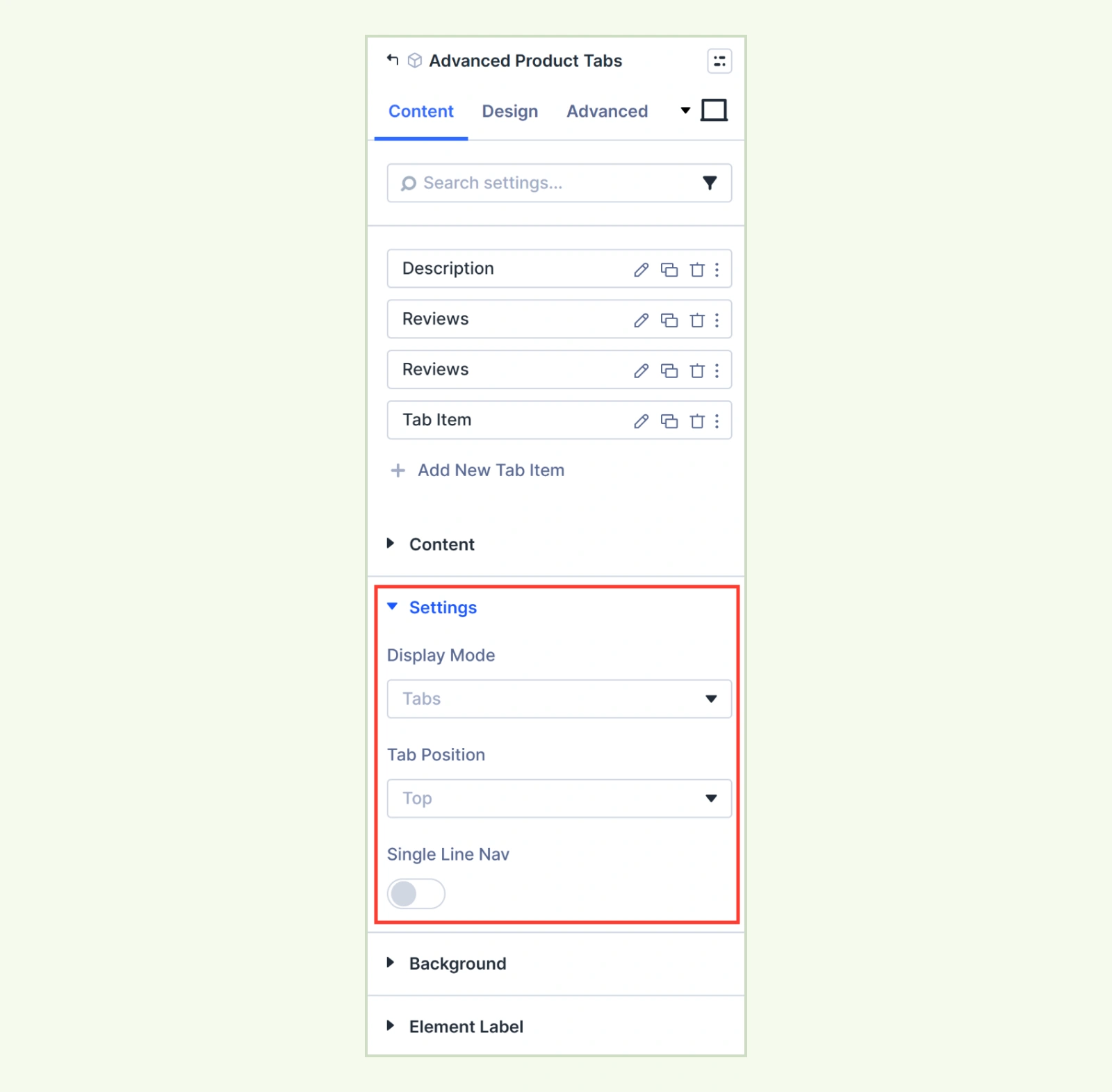
- Set Tab Position to Top, Left, or Right.
- Enable Single Line Nav to keep top-positioned tabs on one line.
Accordion displays product information in expandable sections. You can:
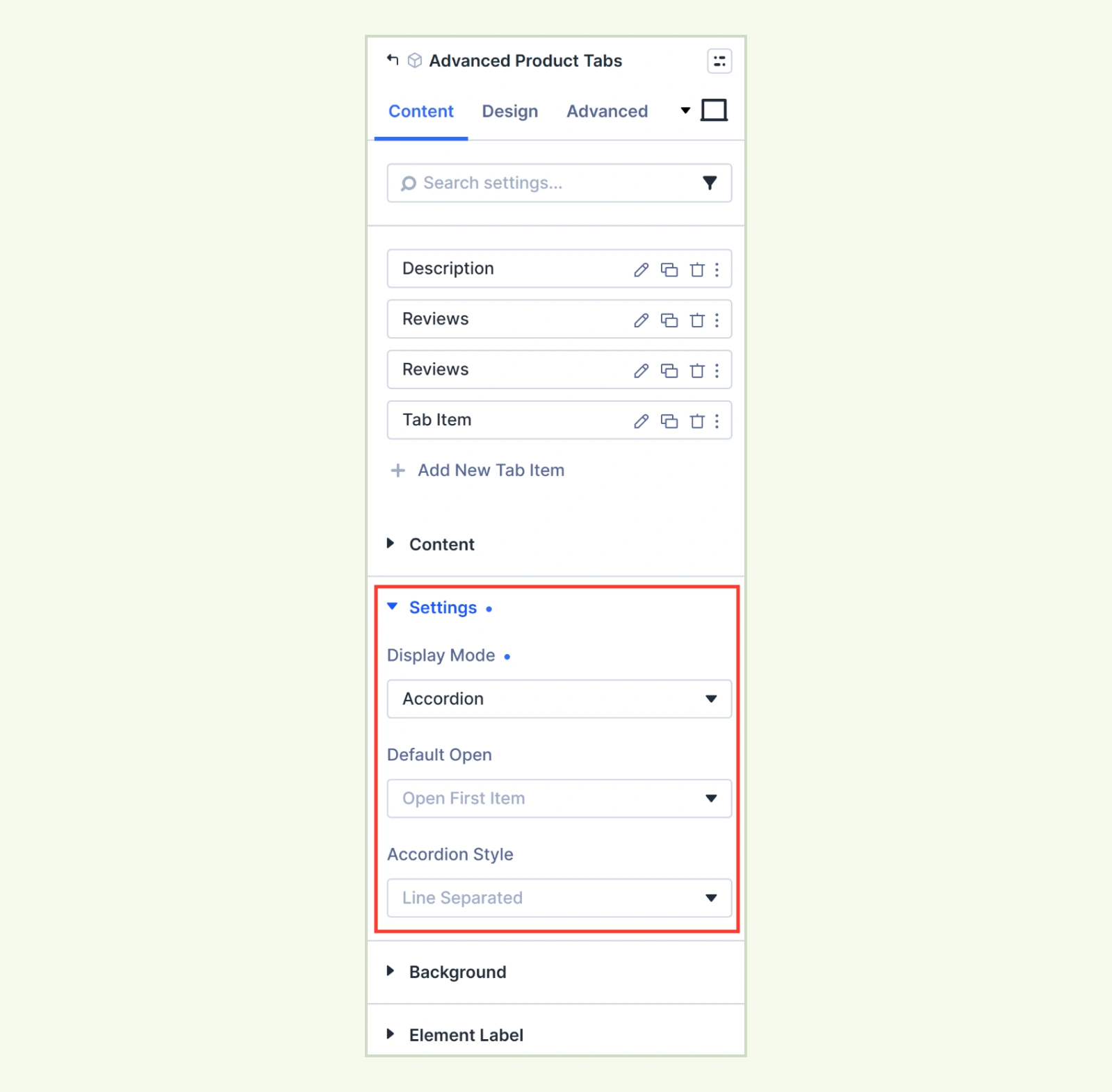
- Set Default Open to Open First Item or All Closed.
- Choose an Accordion Style: Line Separated, Bordered, Boxed, or Flush.
Step 7: Customize the Product Tabs Design
Once you have chosen the layout, open the Design tab to customize its appearance. The main settings include:
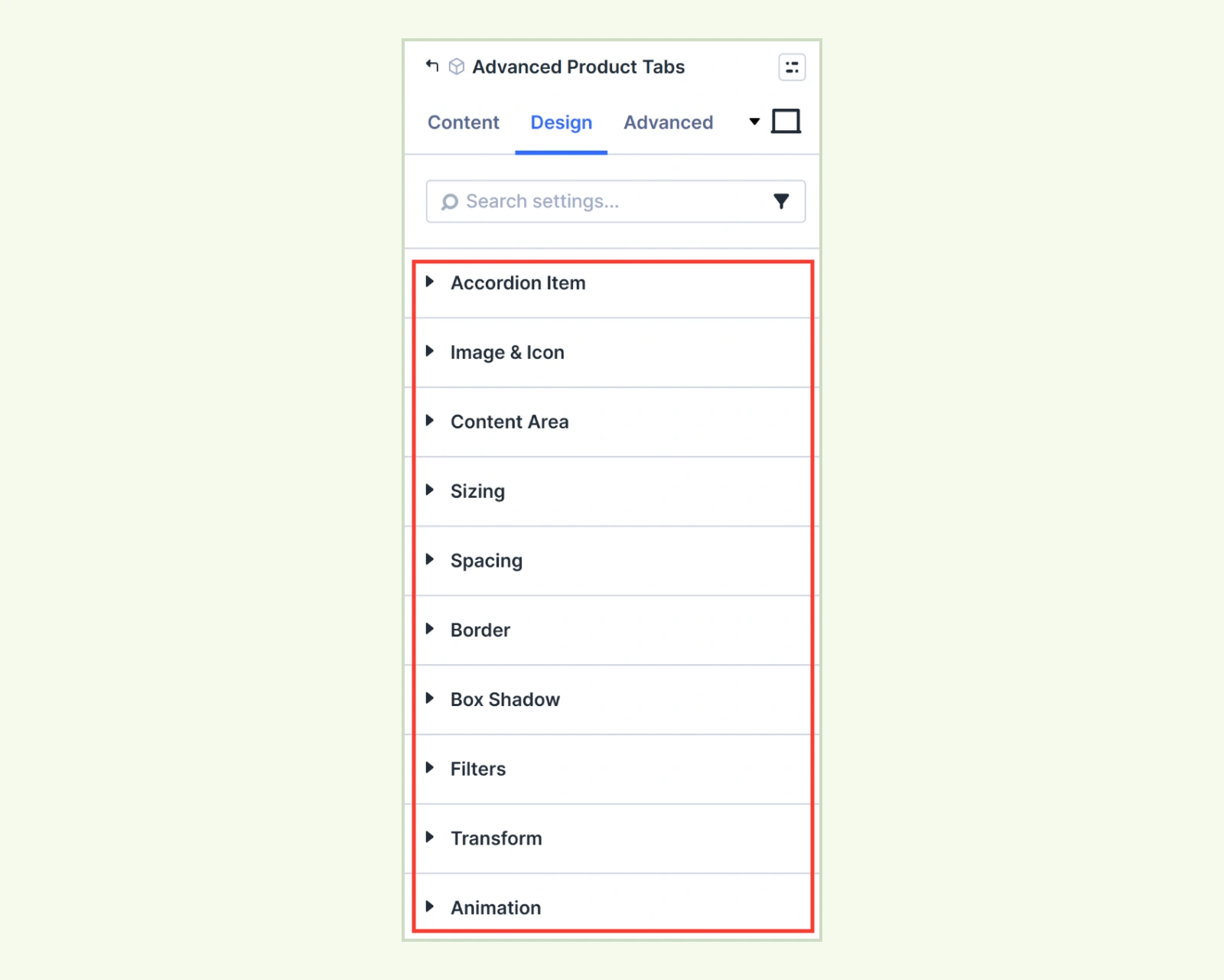
- Tabs: Customize the typography, text color, background, and spacing of inactive tabs.
- Active Tab: Style the selected tab with different colors, backgrounds, and borders.
- Accordion Item: Customize borders, icons, and backgrounds for open and closed items (Accordion mode only).
- Tab Container: Adjust the gap between items, background, borders, and spacing.
- Image & Icon: Control the size, color, placement, and alignment of icons and images.
- Content Area: Customize the background, text styling, and spacing inside each tab.
Once you're satisfied with the design, save your page or product template.
Test Your Custom Product Tabs
Before publishing, open your product pages on the front end to make sure everything works correctly. Check that:
- Custom tabs appear on the intended products and remain hidden on excluded ones.
- Product-level tab assignments and disable options work correctly.
- Each tab displays the correct content, including Divi Builder layouts.
- Default WooCommerce tabs show their customized titles.
- Icons and images display correctly.
- Tabs and accordion sections work properly on desktop and mobile.
If you are using a product template, test products from different categories to verify that the display conditions work as expected.
Final Thoughts
Now you know how to add custom product tabs in Divi using DiviMerc. You can create tabs, choose which products show them, and customize their design without coding.
Follow the steps above to add size guides, shipping details, or other useful information to your product pages. And make sure to test everything before publishing.
Ready to add custom tabs to your store? Try DiviMerc's Custom Product Tabs extension and Advanced Product Tabs module to get started.


0 Comments