

WooCommerce shows a basic "Sale!" badge on discounted products. That's useful, but it doesn't tell shoppers how much they save, which products are new, or which ones are selling fast.
To add more badges, you will need a plugin like DiviMerc, as neither Divi nor WooCommerce offers this option built in.
DiviMerc's Product Badges module lets you add dynamic badges such as Sale, New, Best Seller, In Stock, and Low Stock. Each badge updates automatically based on your product data.
Let's walk through how to add custom product badges in Divi using DiviMerc.
Step 1: Enable the Product Badges Module
Before getting started, make sure WooCommerce, Divi 5, and DiviMerc are installed and activated. Then:
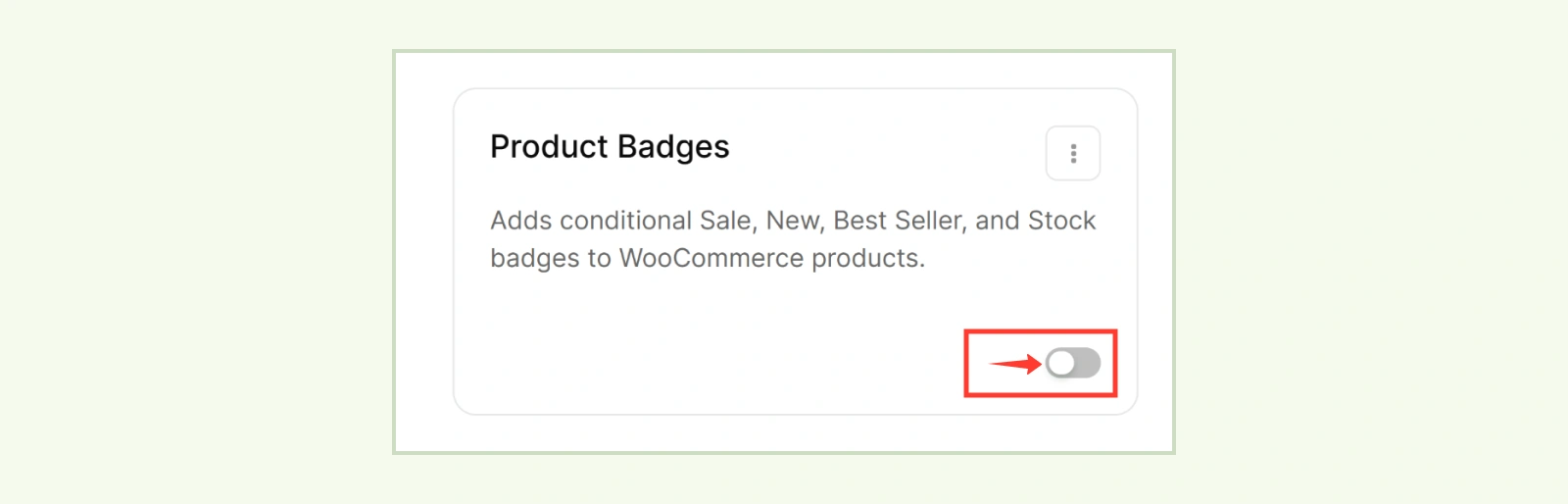
- Navigate to DiviMerc > Modules in your WordPress dashboard.
- Find the Product Badges module and turn it on.
Note: Dynamic badges rely on WooCommerce product data. For example, the Sale badge needs a sale price, and stock badges need stock status.
Step 2: Add the Module to Your Product Page
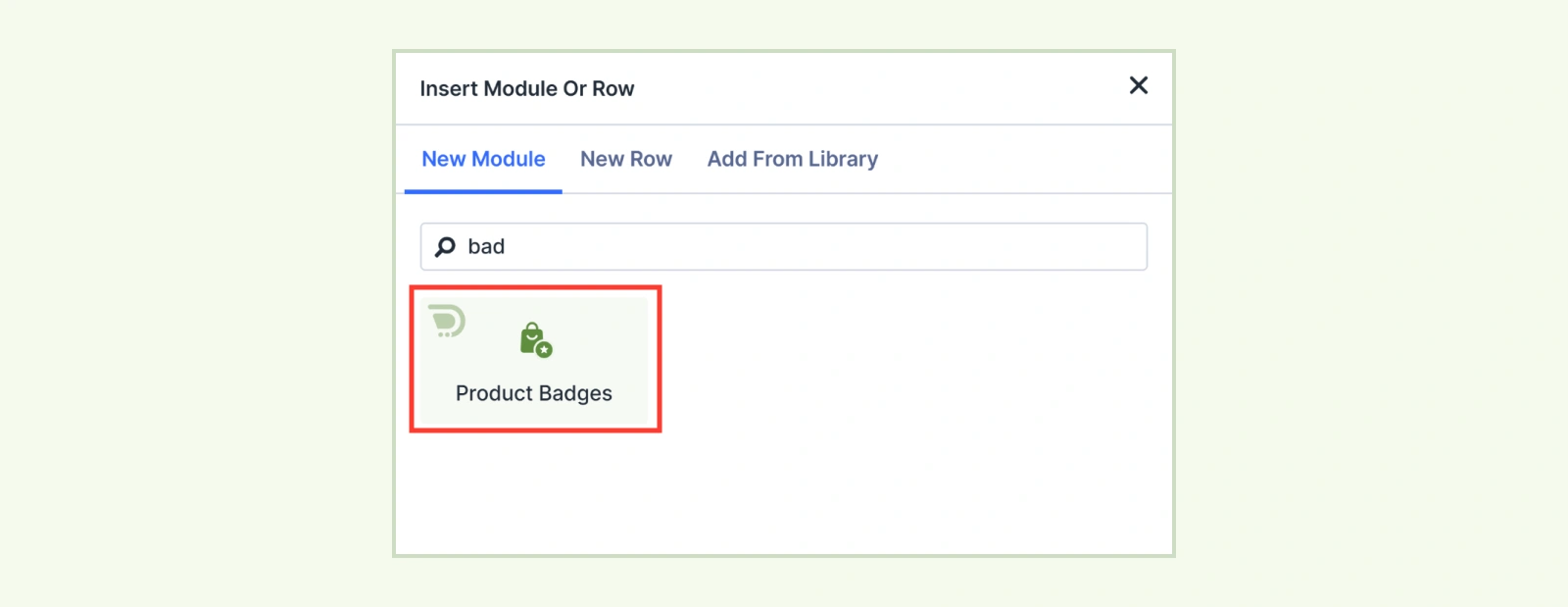
- Open your product page with Divi Builder.
- Add the Product Badges module where you want the badges to appear, such as above the product title or near the price.
- Under Content tab > Content, keep Product set to This Product so the badges match each product page.
Step 3: Add Badges to the Module
The module includes a Sale Badge by default. To add more, click Add New Badge and choose a badge type:
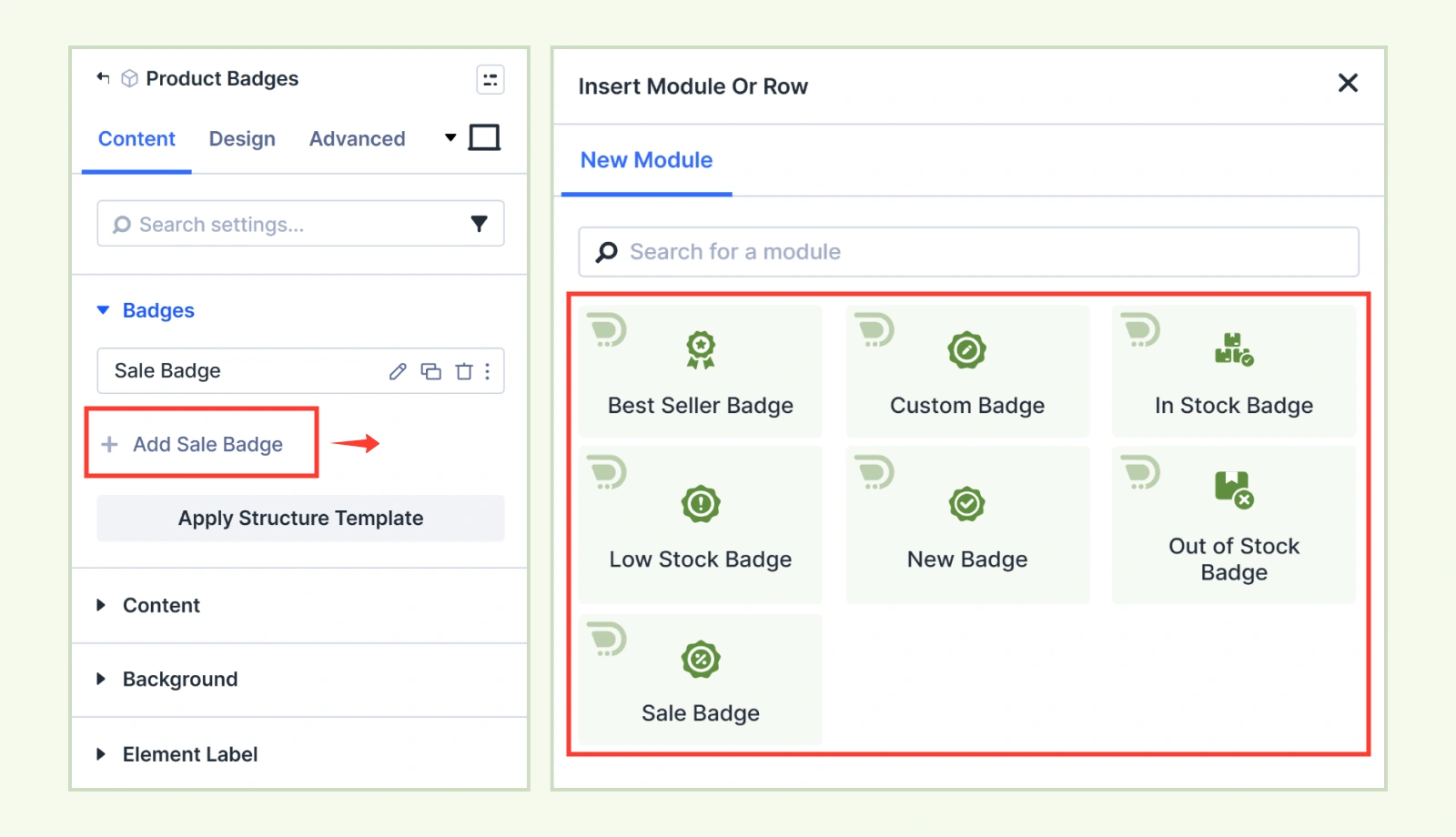
- Sale Badge: Highlights discounted products.
- New Badge: Marks recently added products.
- Best Seller Badge: Highlights your top-selling products.
- In Stock Badge: Shows that a product is available.
- Low Stock Badge: Creates urgency when stock is running low.
- Out of Stock Badge: Lets shoppers know a product is unavailable.
- Custom Badge: Displays custom text you add to individual products.
You can combine multiple badges in the same module. Each badge only appears when its condition is met, so a product won't show In Stock and Out of Stock at the same time.
Step 4: Configure Each Badge
Click a badge item to open its settings. Each badge type has its own options.
Sale Badge
The Sale badge shows what shoppers save on discounted products.
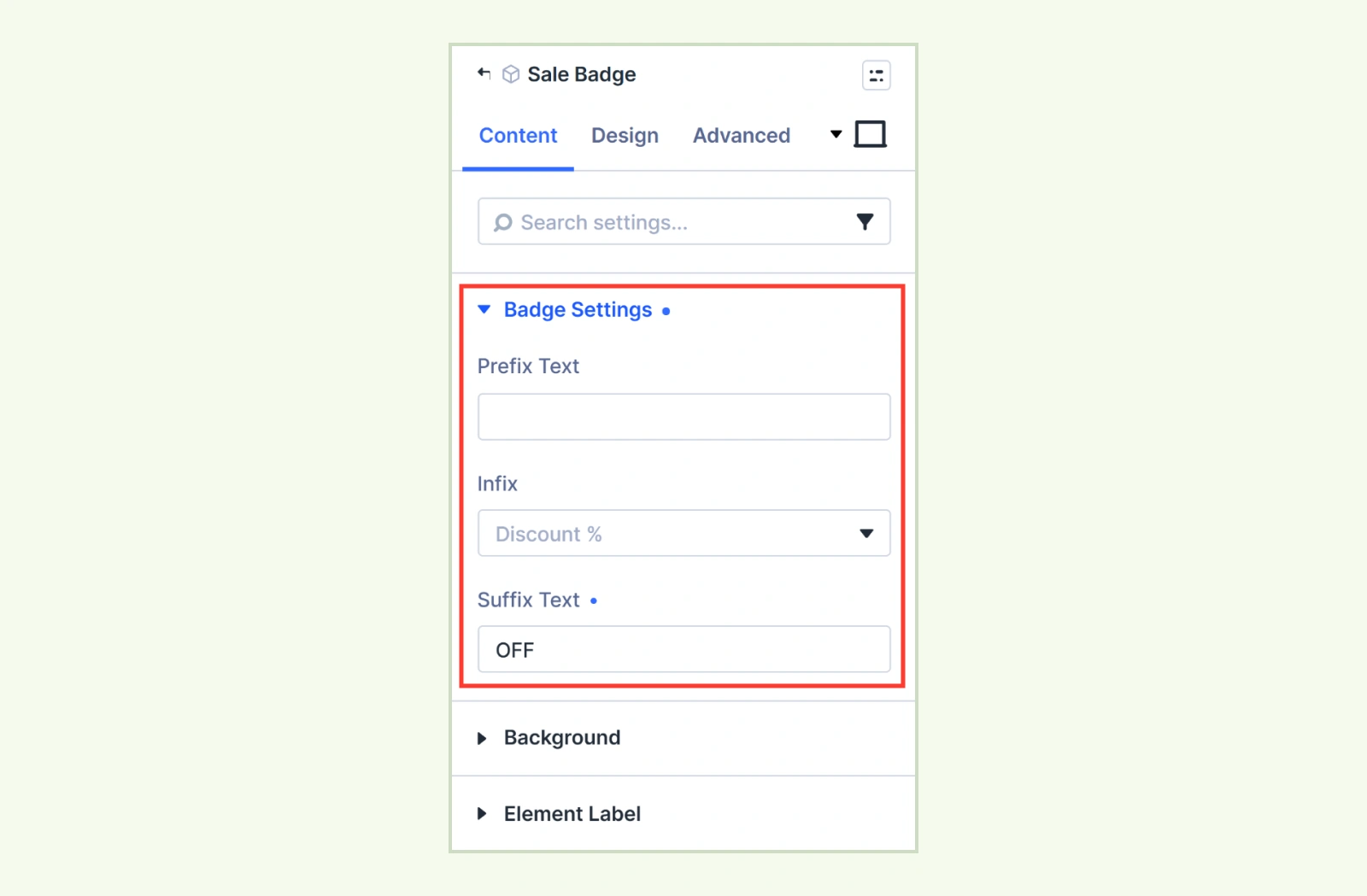
- Prefix Text: Add text before the sale value, such as "Save."
- Infix: Choose what the badge displays: Discount %, Amount Saved, Static Label, Total Sales, or Sale Days Remaining.
- Suffix Text: Add text after the sale value, such as "Today."
For example, use Discount % with the prefix "Save" to display "Save 20%."
New Badge
The New badge highlights recently added products.
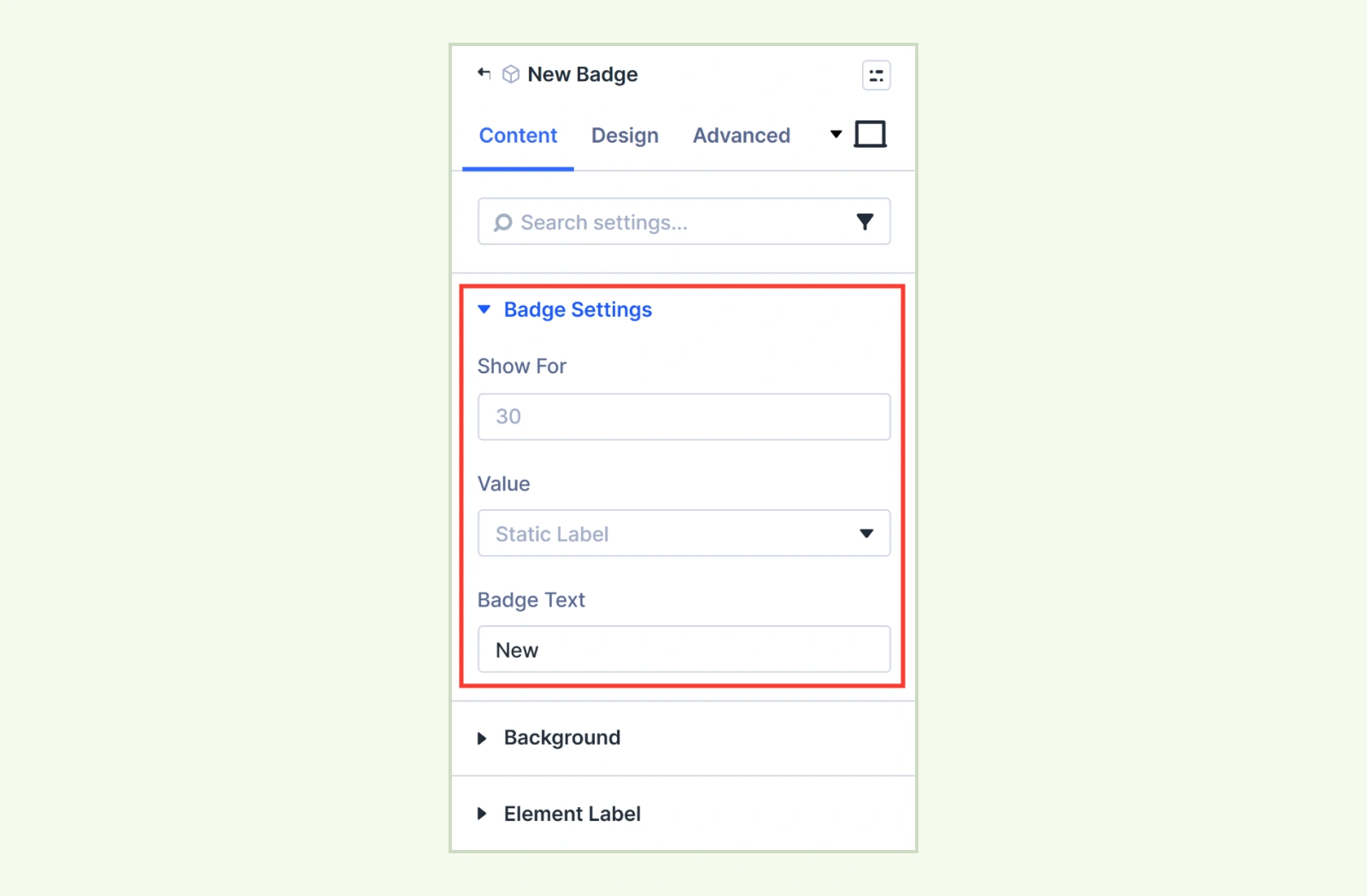
- Show For: Set how many days a product is treated as new.
- Value: Choose what the badge displays.
- Badge Text: Enter the label, such as "New" or "Just Arrived."
Best Seller Badge
The Best Seller badge highlights products that sell well.
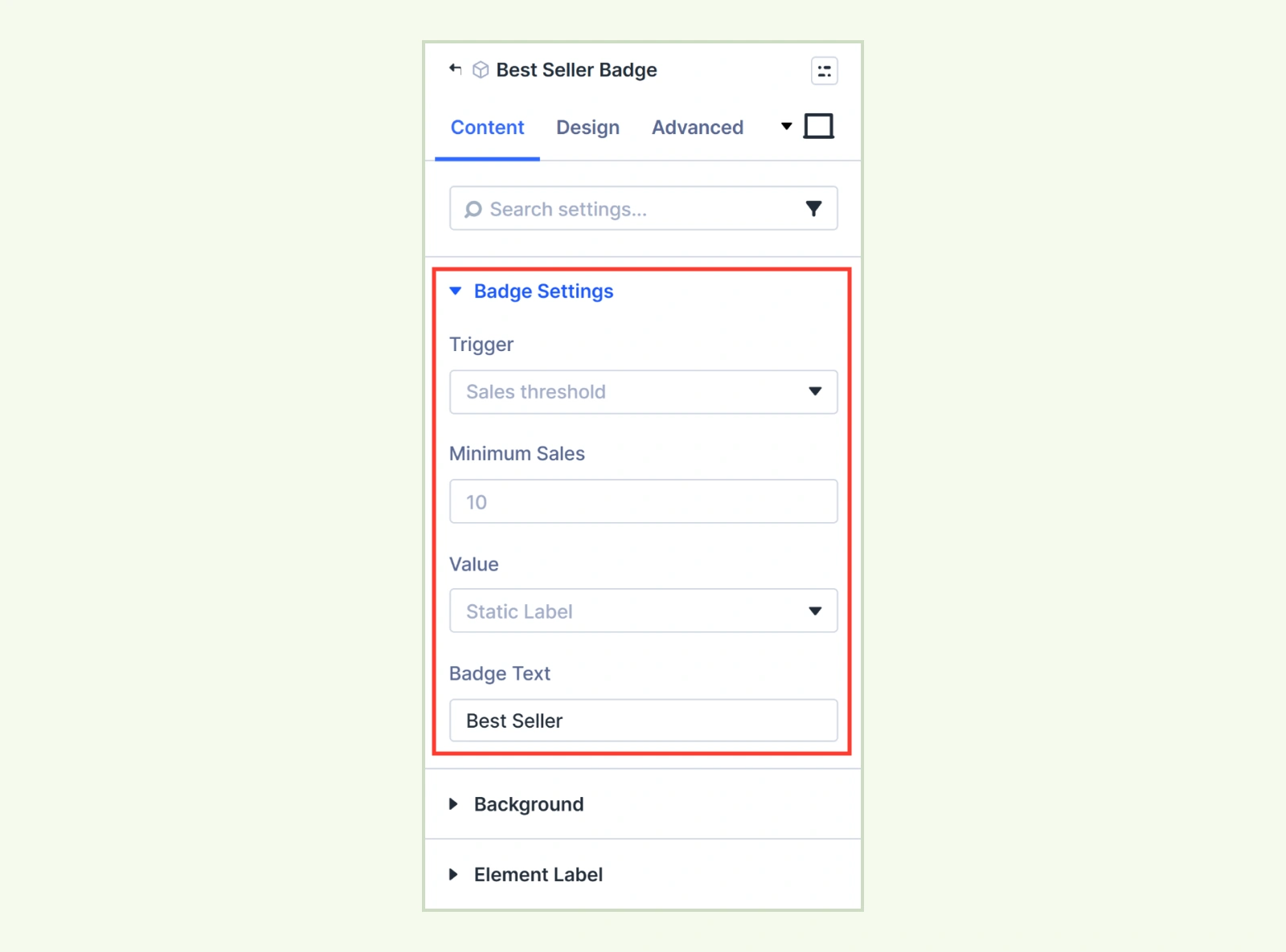
- Trigger: Choose how a product qualifies, either by reaching a sales threshold or by ranking among your top products by sales.
- Number of Products: Set how many top-selling products get the badge (when using Top N by Sales).
- Minimum Sales: Set the sales a product needs to qualify.
- Value: Display a static label, units sold, or sales rank. You can add prefix and suffix text, and cap the units-sold number.
- Badge Text: Enter the label used for the static label, such as "Best Seller."
In Stock Badge
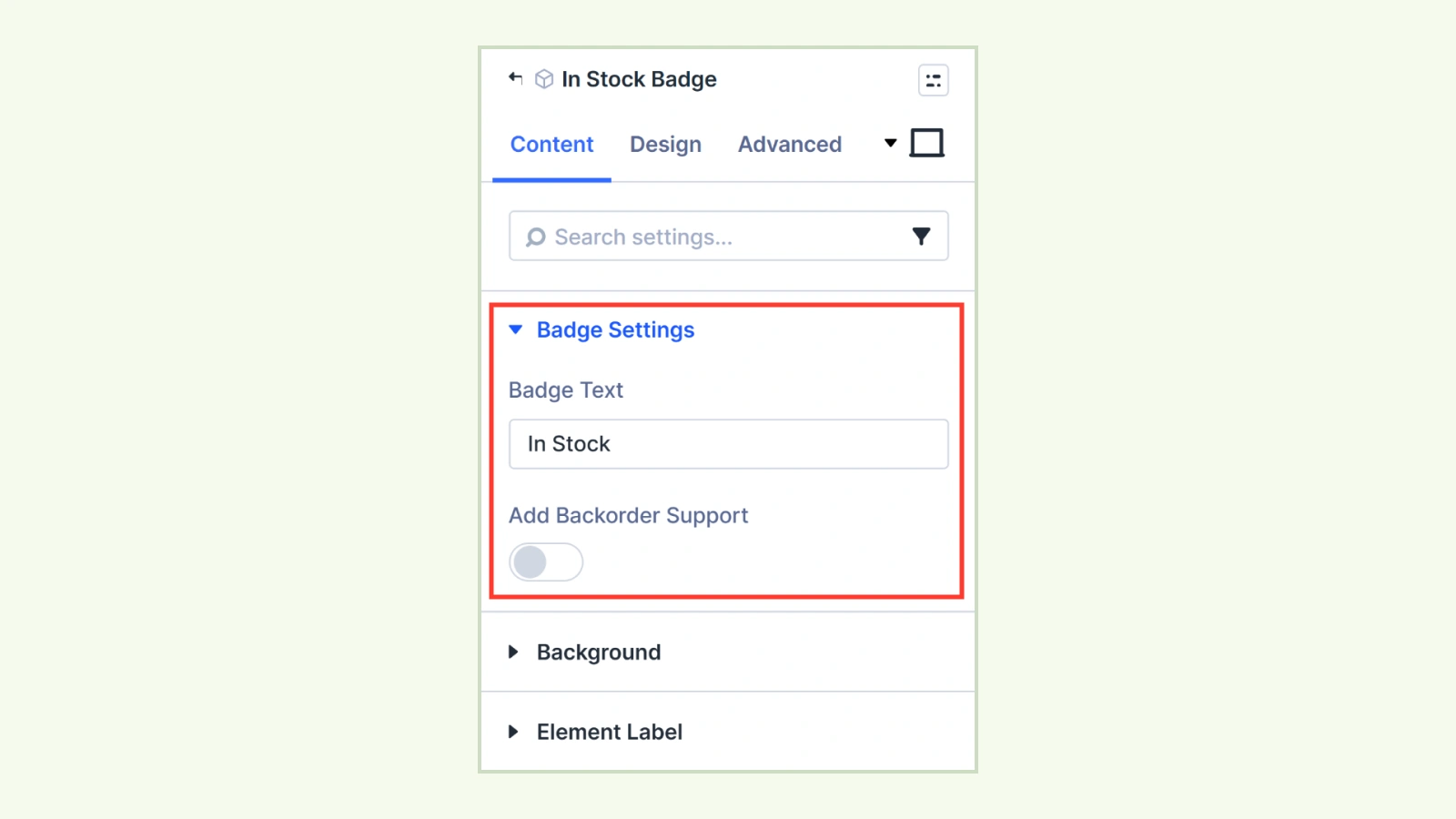
- Badge Text: Enter the text shown when the product is in stock.
- Add Backorder Support: Show the badge on products available on backorder.
- Backorder Text: Enter separate text for backorder products, such as "Pre-order."
Low Stock Badge
The Low Stock badge creates urgency when stock runs low.
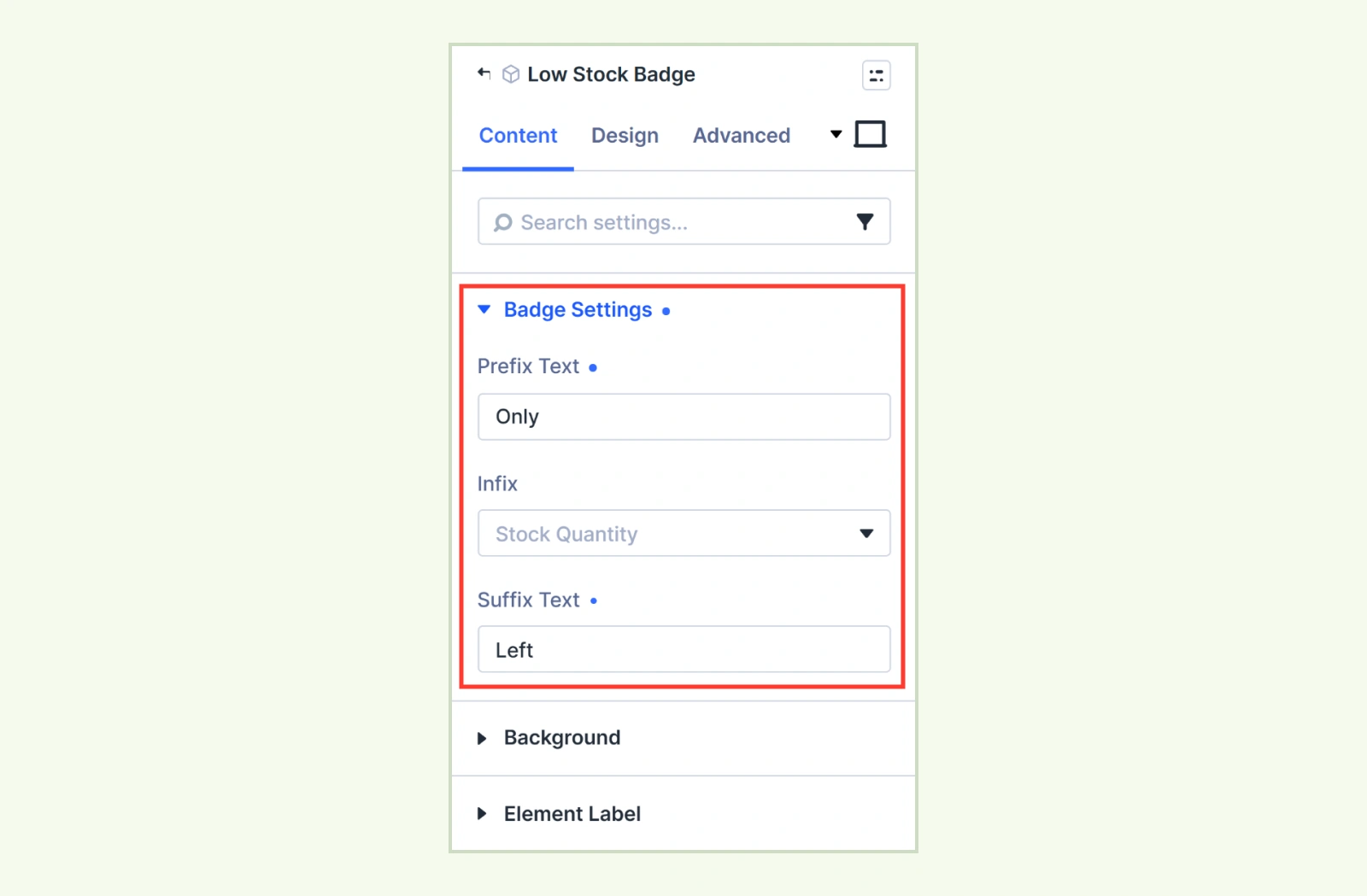
- Prefix Text: Add text before the stock value, such as "Only."
- Infix: Show the product's Stock Quantity, or choose None.
- Suffix Text: Add text after the stock value, such as "left."
For example, this can display "Only 3 left."
Out of Stock Badge
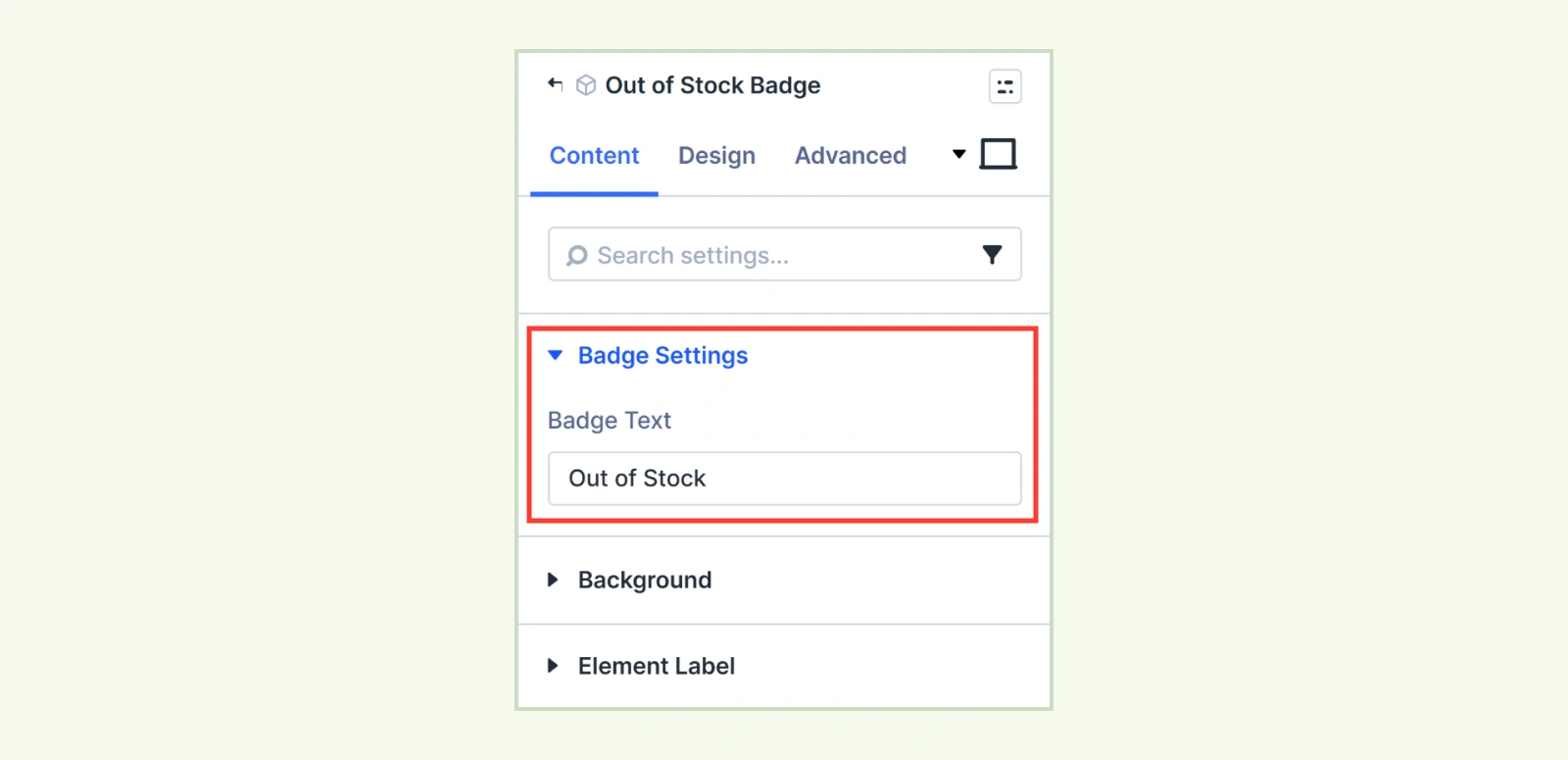
- Badge Text: Enter the text shown when the product is out of stock, such as "Sold Out."
Custom Badge
The Custom badge displays text you add to each product, rather than text set in the module. It's useful for labels like "Eco-Friendly" or "Limited Edition."
To add the text:
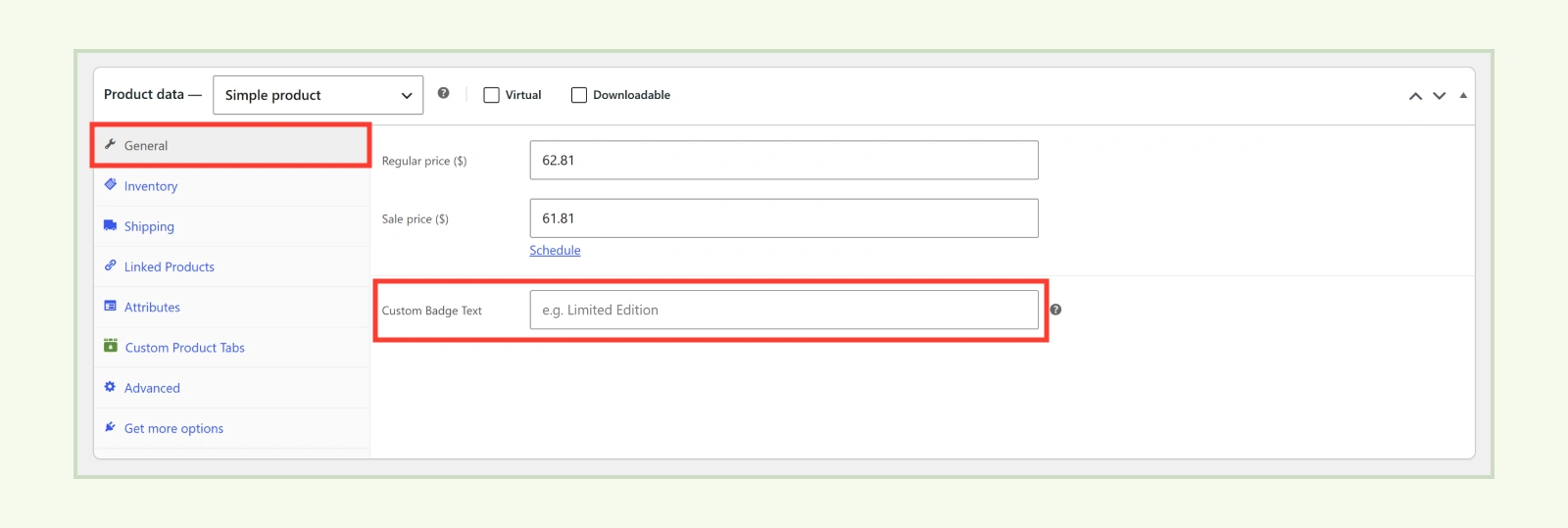
- Go to Products > All Products and edit the product.
- Under Product Data > General, enter your text in Custom Badge Text.
- Click Update.
For variable products, you can also add custom badge text to individual variations. The badge only appears on products with custom badge text.
Step 5: Arrange the Badges
When you use multiple badges, you can control their order and layout:
- Reorder badges: Drag badge items in the Content tab to change their order.
- Apply Structure Template: Rearrange the added badges using a preset structure.
Step 6: Style the Badges
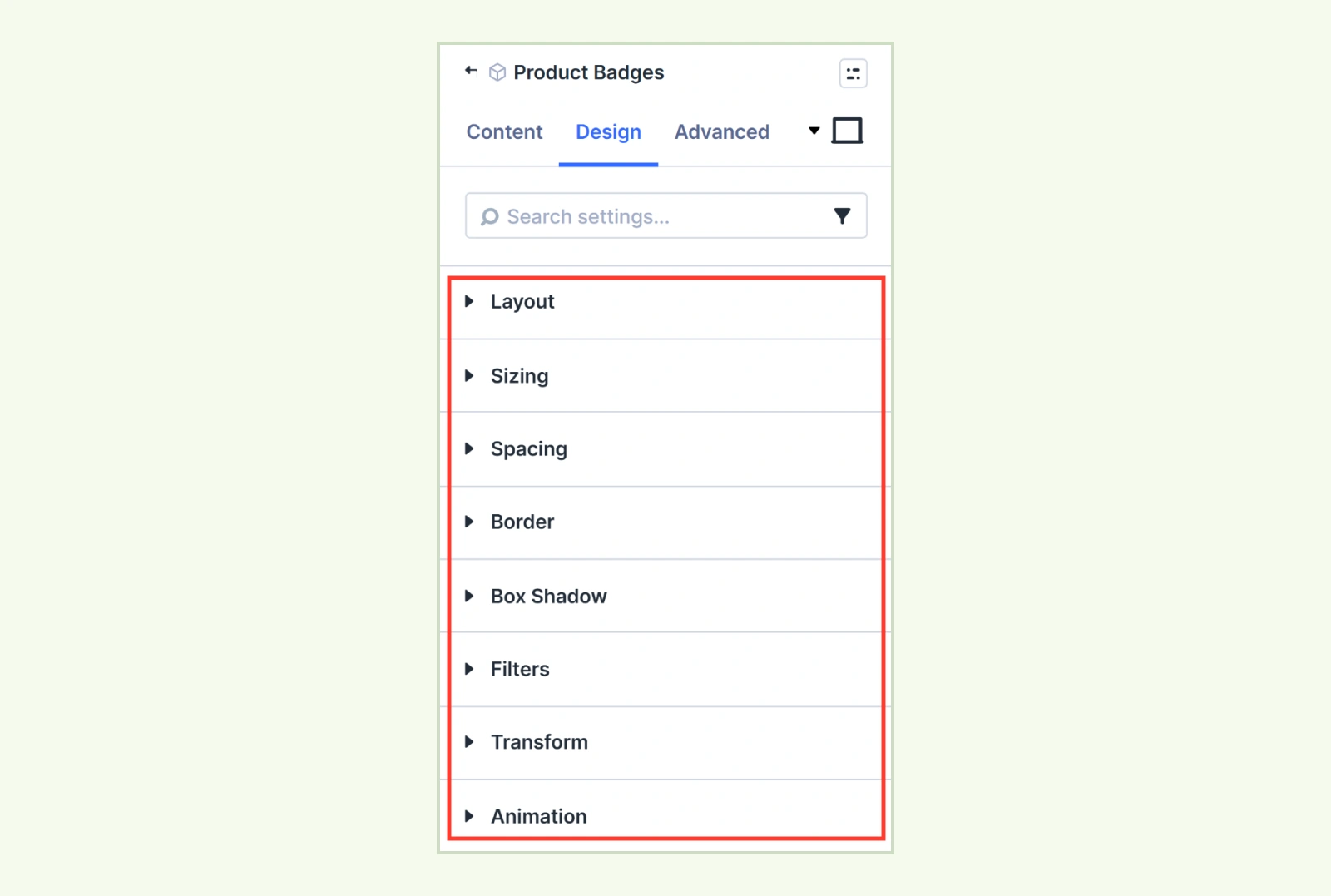
You can style each badge individually. Open a badge item and go to its Design tab to customize its text, infix, sizing, spacing, and more. For example, give Sale badges a red background and New badges a green one.
To style the overall module, open the parent module's Design tab and adjust its sizing, spacing, border, box shadow, filters, transform, and animation.
For custom CSS, visibility, or positioning, use the Advanced tab.
Save the page or product template when you're done.
Test Your Product Badges
Before publishing, open a few product pages on the front end and check that:
- Sale badges appear only on discounted products and show the correct value.
- New badges disappear after the number of days you set.
- Best Seller badges appear on products that meet your trigger.
- In Stock, Low Stock, and Out of Stock badges match each product's stock status.
- Custom badges show the text added to each product or variation.
- Badges look and work correctly on desktop and mobile.
Test with products that have different prices, stock levels, and sales to confirm each badge appears when it should.
Frequently Asked Questions
Does Divi support custom product badges?
Not by default. WooCommerce shows a basic Sale badge, and Divi lets you style it, but adding badges like New, Best Seller, or Low Stock requires code or a plugin like DiviMerc.
Can a product show multiple badges?
Yes. Add multiple badge items to the Product Badges module. Each one appears when its condition is met, such as a sale price or low stock.
Can badge text be different for each product?
Yes. Use the Custom Badge and add text to each product under Product Data > General > Custom Badge Text.
Can the Sale badge show the discount percentage?
Yes. In the Sale badge settings, set Infix to Discount %. You can also show the amount saved or the days left in the sale.
Can product badges be styled separately?
Yes. Each badge item has its own Design settings, so you can give each badge type a different look.
Final Thoughts
Now you know how to add custom product badges in Divi using DiviMerc.
With the right badges, shoppers can spot deals, new arrivals, and popular products at a glance. Low stock badges add urgency, and custom badges let you highlight what makes each product special. Since badges update automatically from your product data, there’s nothing to manage manually once they’re set up.
Start with one or two badges, like Sale and Low Stock, and test them on a few products before adding more.
Ready to make your products stand out? Try DiviMerc’s Product Badges module and give your shoppers more reasons to buy.


0 Comments