

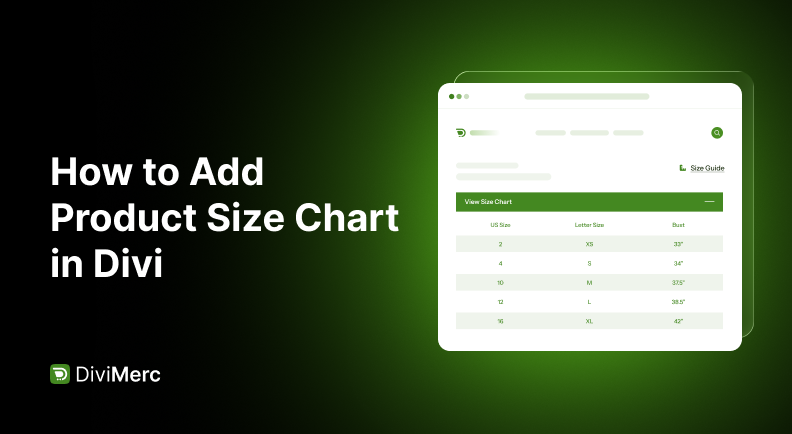
Divi doesn't include a built-in size chart and to add one in Divi, you will need a plugin like DiviMerc. It’s an all-in-one Divi WooCommerce plugin that includes a Size Chart module.
With this module, you can build charts using text, images, videos, tabs and more. Then display them as popups, slide-in drawers, accordions, or inline guides on your product pages.
Also, to make the chart match your website’s design, you can customize its colors, typography, tables, buttons, and more directly in the Divi Visual Builder.
Let’s see how to add a product size chart in Divi, step by step.
Why Add a Size Chart to Your Divi WooCommerce Store?
A size chart, also called a size guide, shows measurements for different product sizes. It helps online shoppers compare measurements and choose the right size without trying the product on.
Here are the main benefits:
- Helps customers choose the right size: Shoppers can compare product measurements with their own to find the right fit.
- Reduces sizing mistakes: Accurate measurements can help prevent wrong-size orders, returns, and exchanges.
- Answers common sizing questions: Customers can check measurements without contacting support.
- Builds buyer confidence: Shoppers who are unsure about fit are more likely to complete the purchase when the measurements are one click away
- Works for different products: Size charts are useful for clothing, shoes, rings, bags, furniture, and other products where dimensions matter.
How to Add a Product Size Chart in Divi Using DiviMerc
Before adding a product size chart in Divi, make sure you have:
- Divi 5 and WooCommerce installed on your WordPress website.
- WooCommerce products already created.
- Product measurements in centimeters, inches, or both.
Next, we will install DiviMerc, create and assign a size chart, and display it using the Divi Visual Builder.
Step 1: Install DiviMerc and Enable Size Chart
- Get DiviMerc, then install and activate it through Plugins > Add New Plugin > Upload Plugin.
- Activate your license under DiviMerc > License
- Go to DiviMerc > Modules and enable Size Chart.
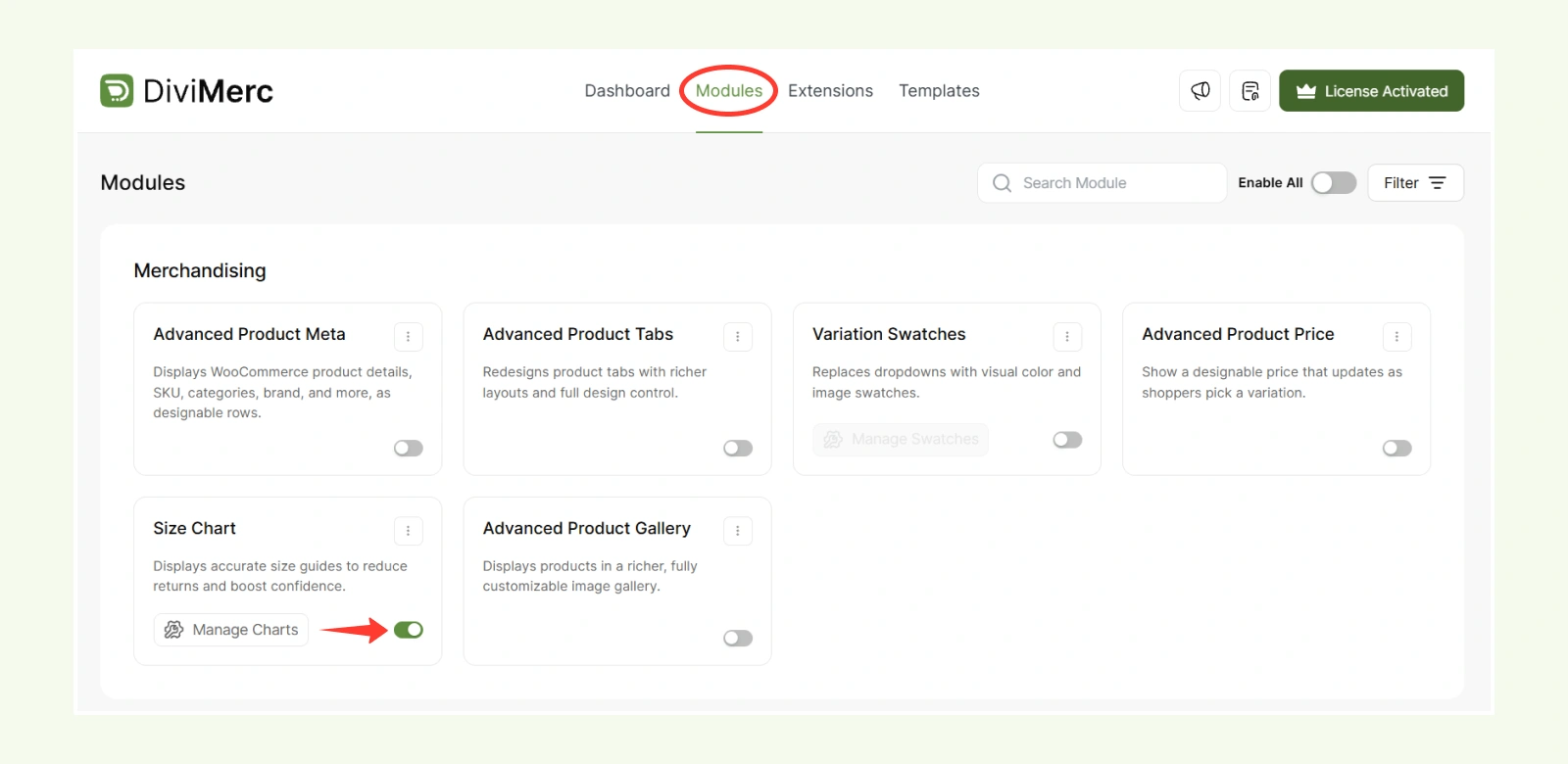
Note: If DiviMerc is already installed, simply enable the Size Chart module.
Step 2: Create a New Size Chart
- Click Manage Charts under the Size Chart module, or go to Products > Size Charts. Then click Add New Size Chart.
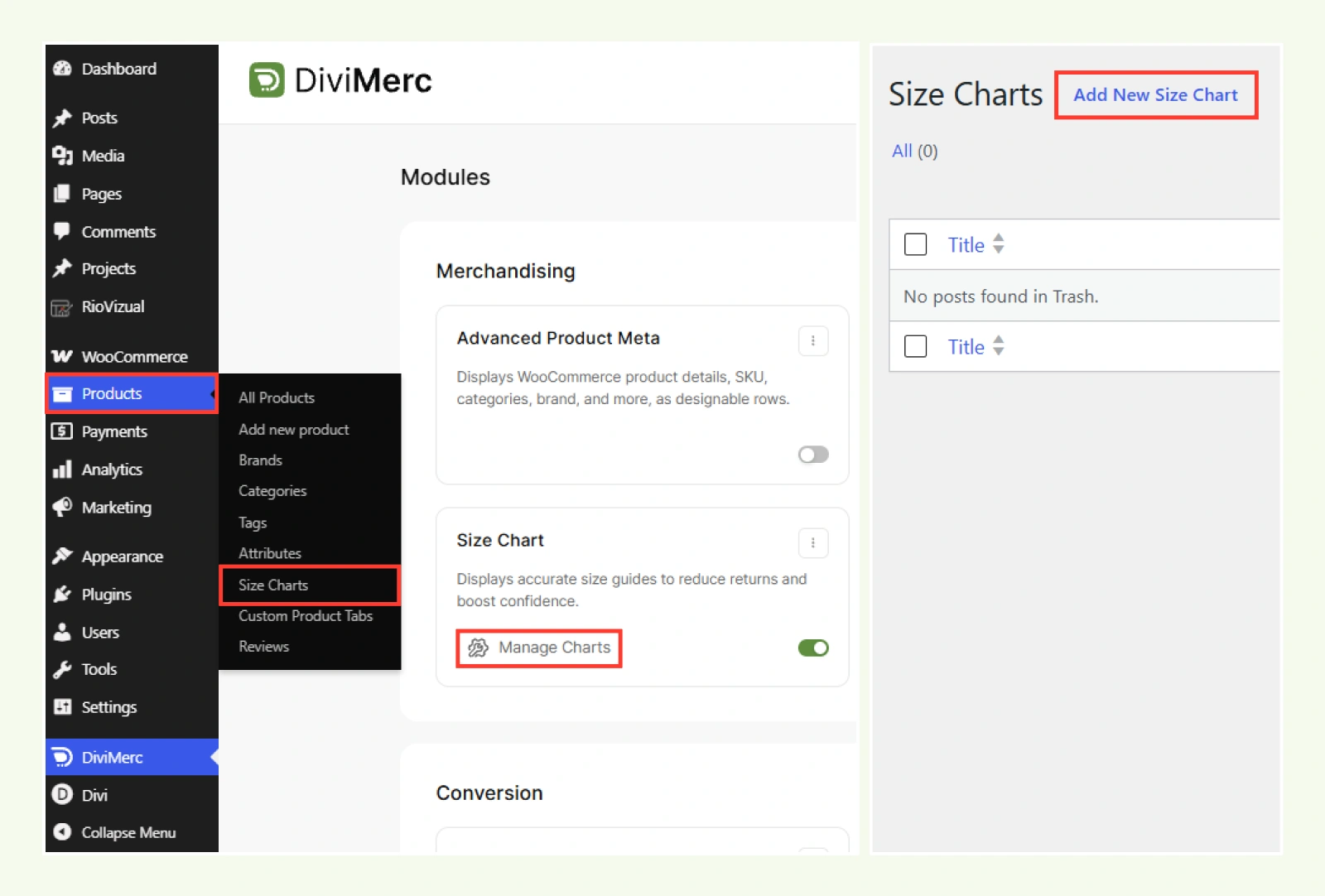
- Enter a title, such as Men's T-Shirt Size Guide.
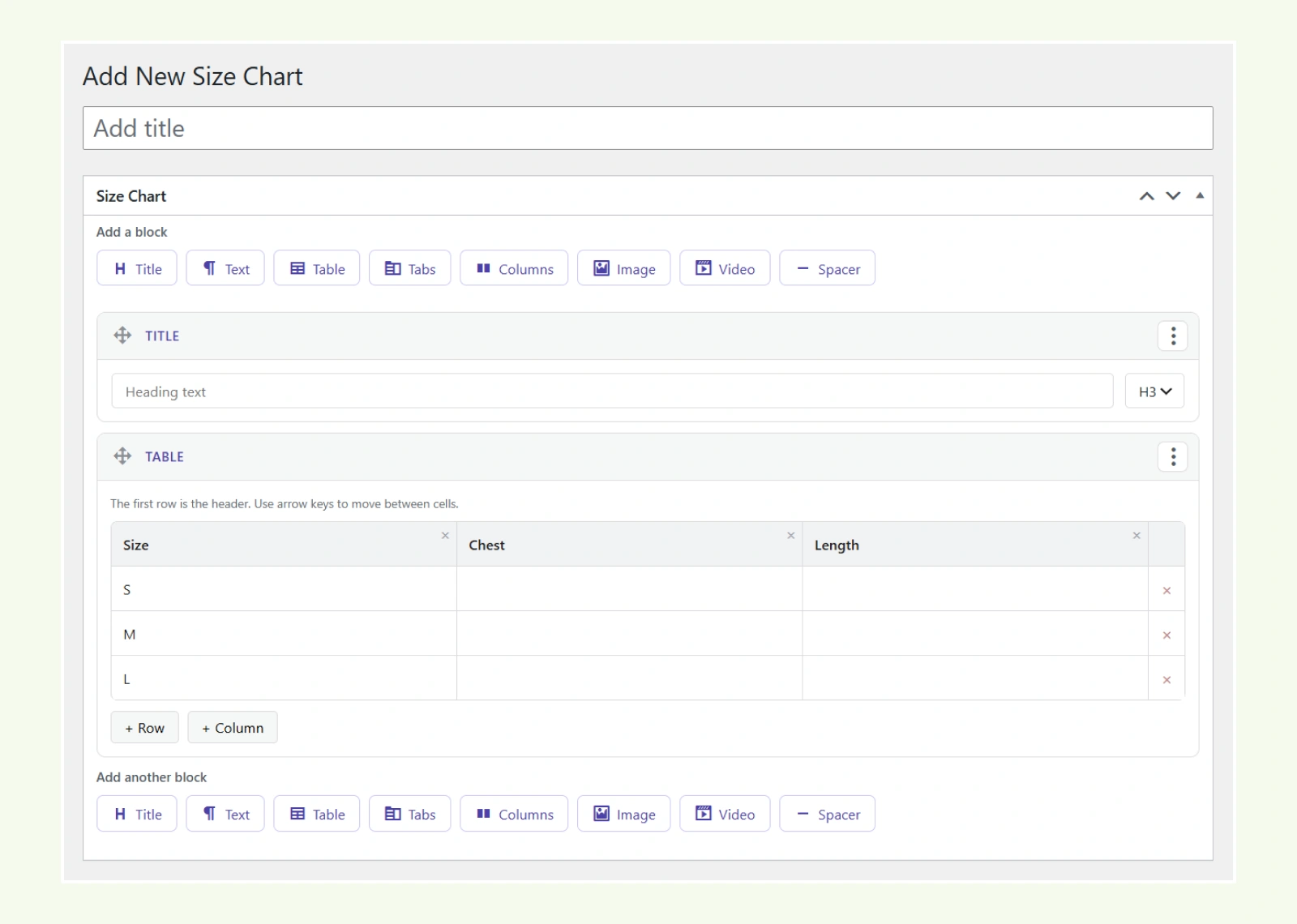
- Edit the sample table with your product measurements. Use the first row for headings like Size, Chest, and Length. Add or remove rows and columns as needed.
- Use Text, Tabs, Columns, Image, or Video blocks to add more information if needed, such as a "how to measure" diagram next to the table.
- Click Publish to save the size chart.
You can repeat these steps to create as many size charts as you need for different products or product categories.
Tip: To see all your created size charts, their product assignments, and display status, go to Products > Size Charts.
Step 3: Set Size Chart Display Conditions (Optional but Recommended)
Display conditions let you show a size chart on all products or only on specific products, categories, tags, or brands without assigning it to each product manually.
Here is how:
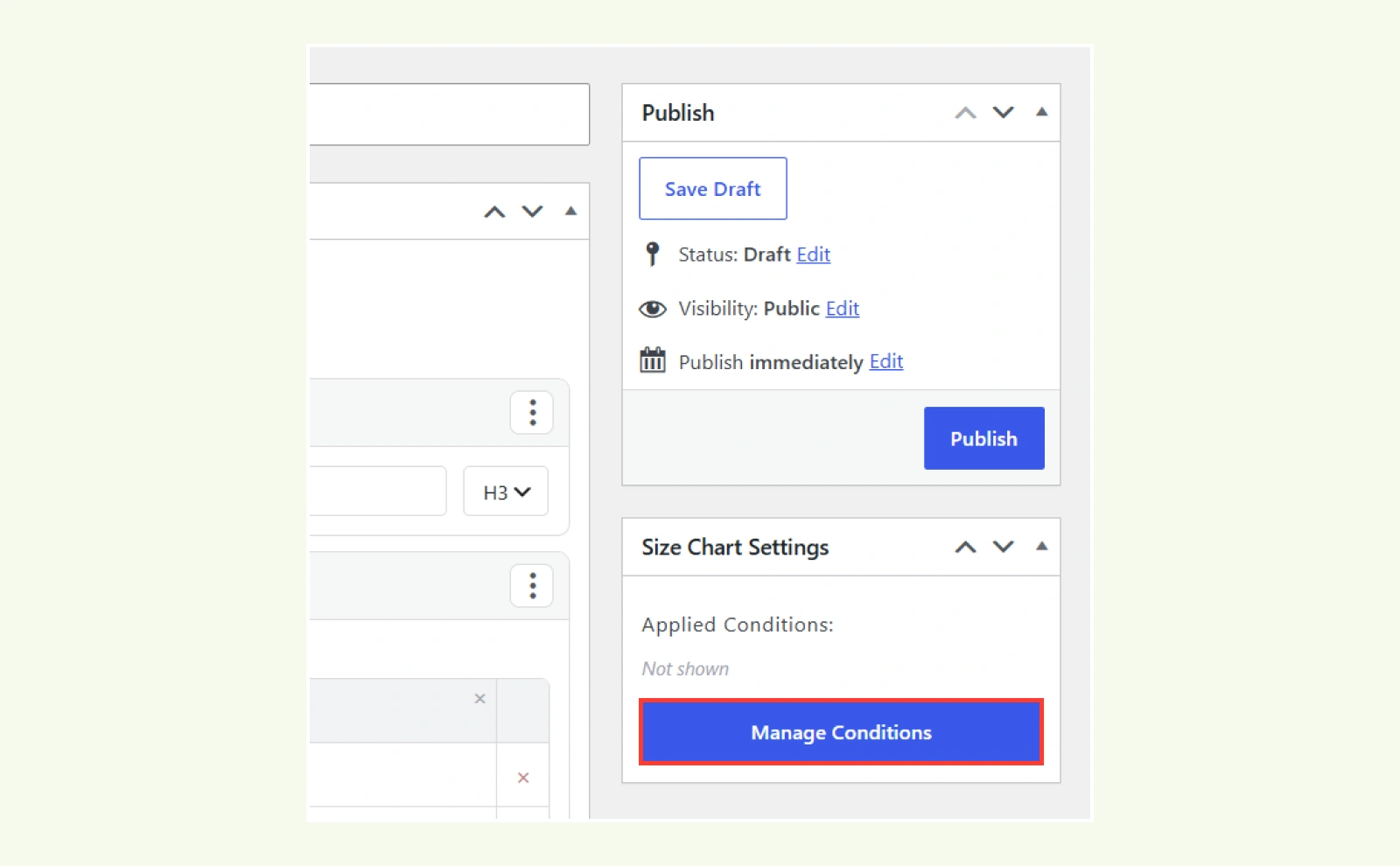
- In the Size Chart editor, find Size Chart Settings in the right sidebar and click Manage Conditions.
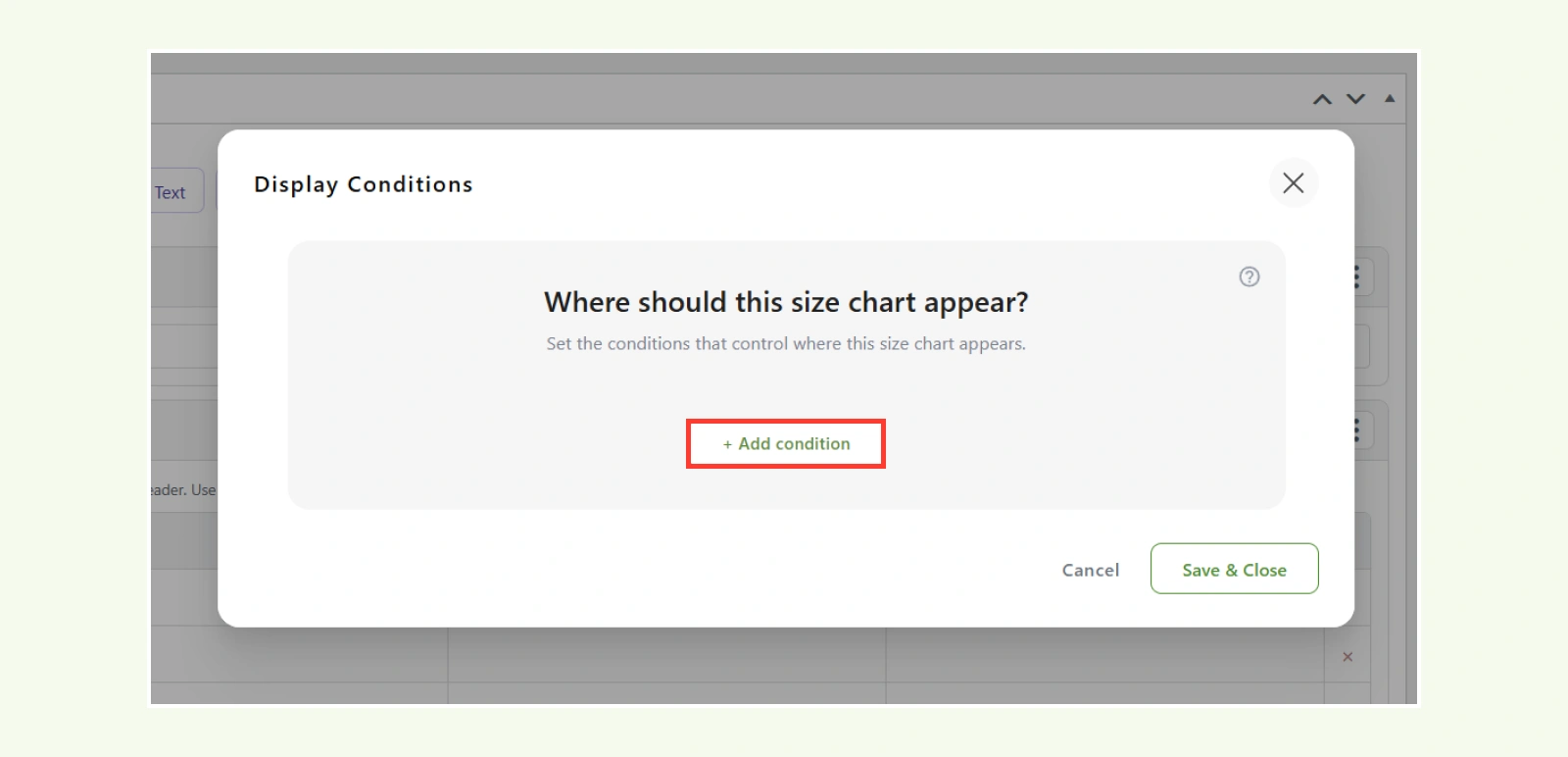
- Click Add Condition and choose Include (where to show the chart) or Exclude (where to hide it).
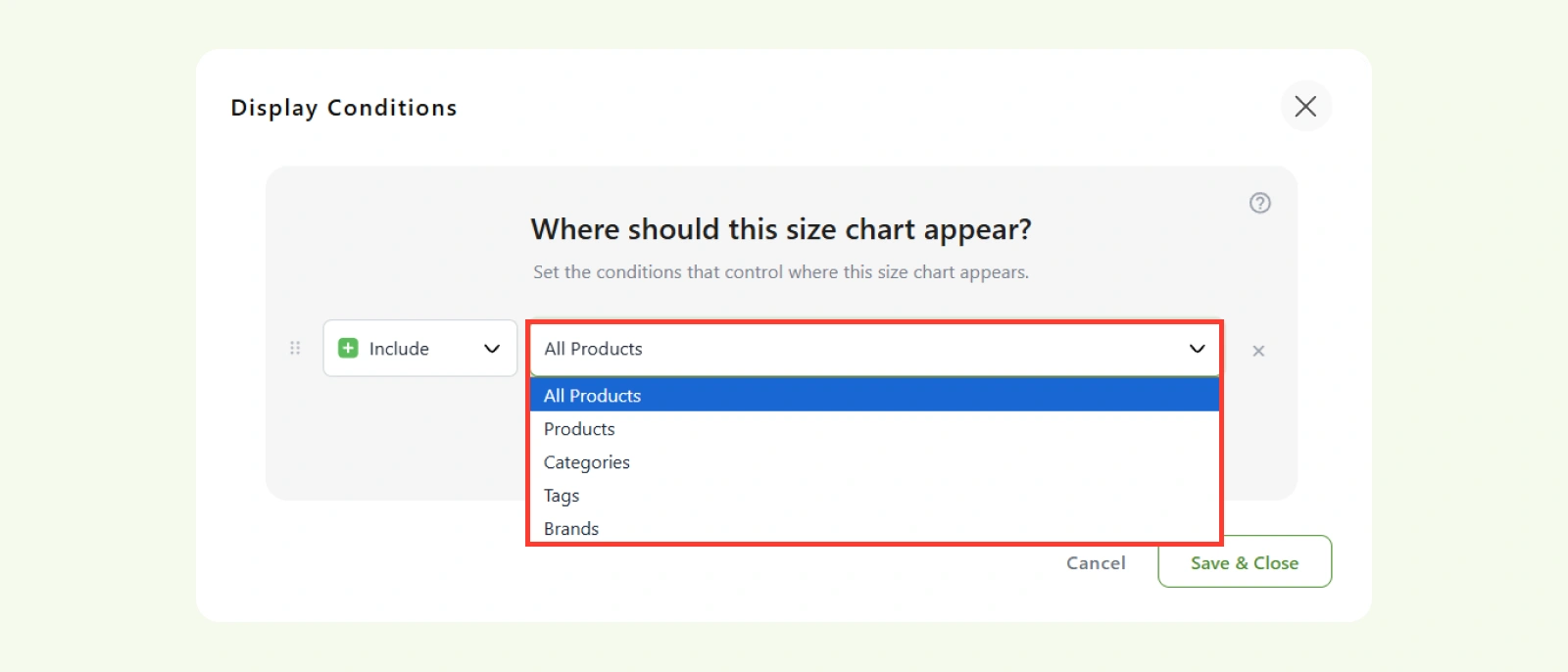
- Select All Products, Products, Categories, Tags, or Brands, then choose the relevant items.
- Add more conditions if needed, then click Save & Close.
To set multiple conditions, click Add Condition again and repeat the process. Once done, click Save & Close.
Step 4: Manage Size Charts for Individual Products
Display conditions assign size charts automatically, but you can also control them for individual products. For example, you can assign a different chart to a product or disable its size chart entirely.
To do this:
- Go to Products > All Products and edit the product.
- Open Product Data > Size Chart.
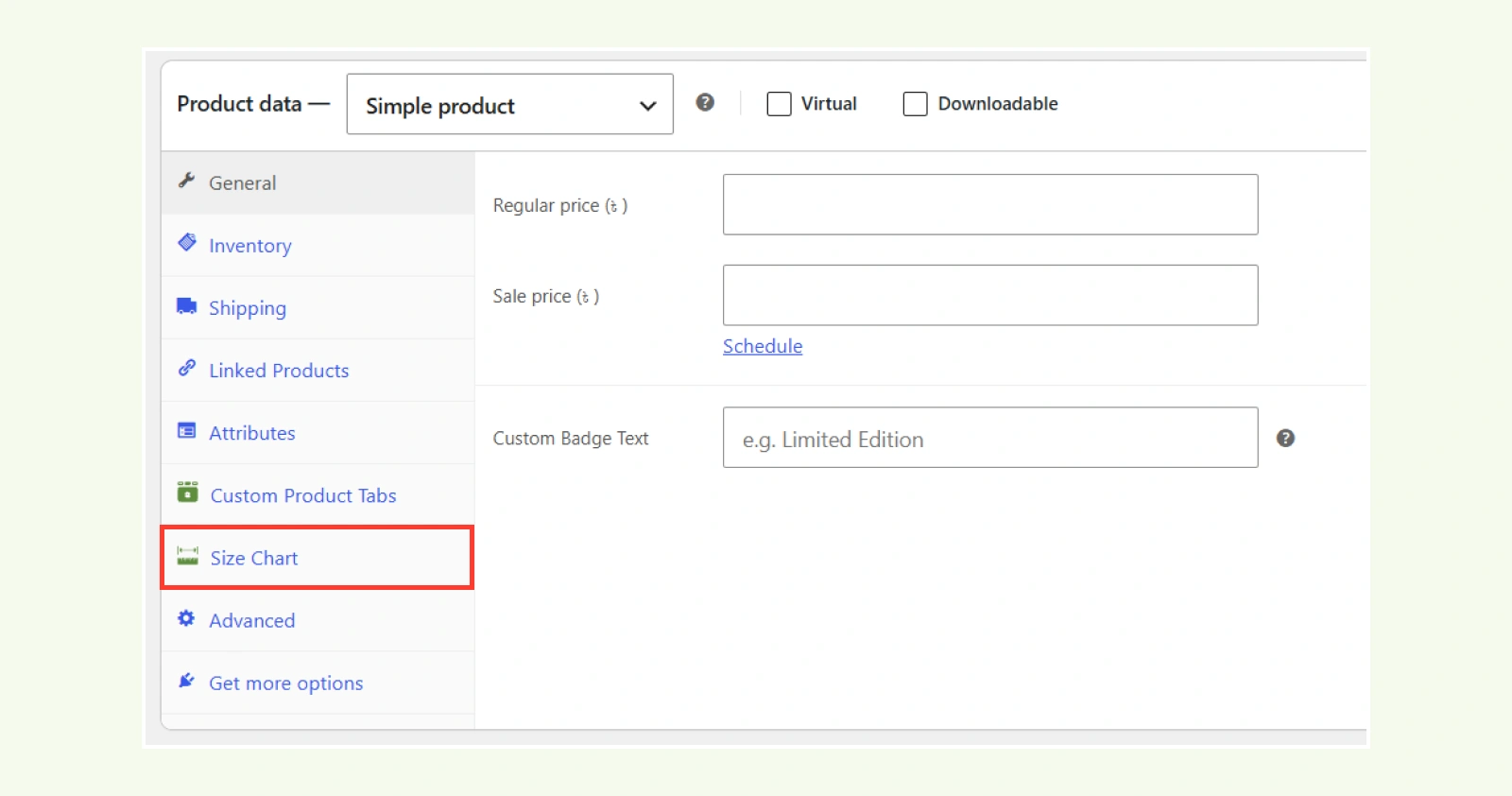
- Choose one of the following options:
- Use the assigned chart (automatic)
- Choose a specific chart
- Disable for this product
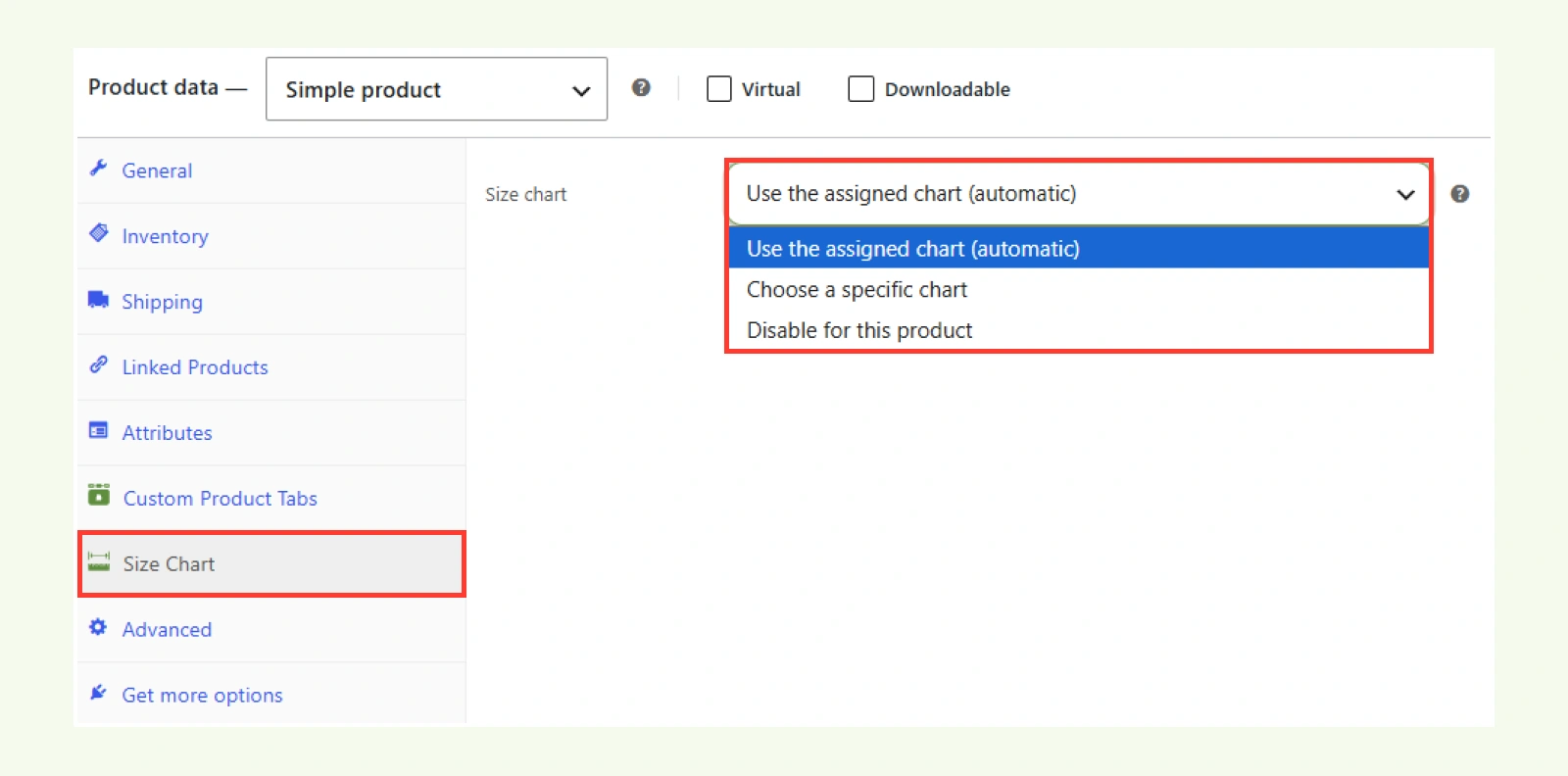
- Click Update to save your selection.
Note: If you skipped display conditions in Step 3, use Choose a specific chart to assign a chart manually.
Step 5: Add the Size Chart Module to Your Divi Product Page
To display your created size chart, you need to add the Size Chart module to your Divi product page.
Here is how:
- Open your product page in the Divi Visual Builder. If you're using a product template, go to Divi > Theme Builder.
- Add the Size Chart module where you want it to appear, such as near the size options or Add to Cart button.
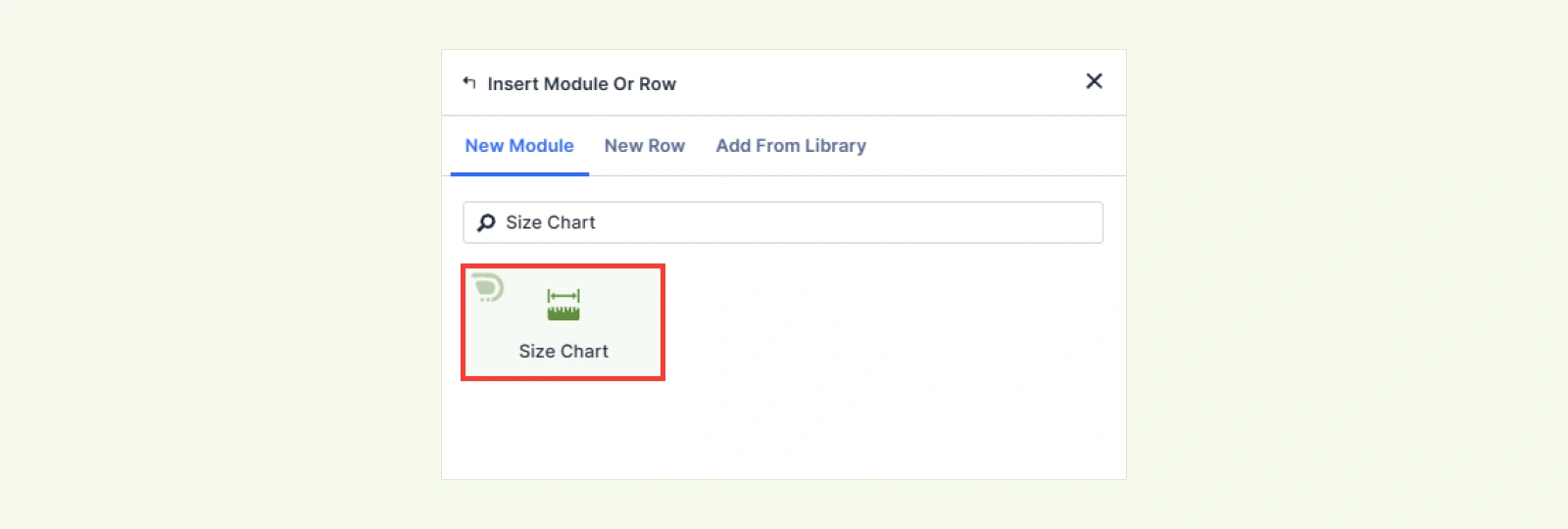
- Under Content > Product, select the product whose size chart you want to display.
Step 6: Choose How to Display the Size Chart
Next, go to Content > Display Settings and choose how you want the size chart to appear on your product page.

DiviMerc offers four display modes:
| Display Mode | How It Appears | Best For |
| Modal/Popup | Opens the chart in a popup over the page. | Showing a size guide through a button without taking up page space. |
| Drawer | Slides in from the left, right, or bottom. | Displaying the chart in a separate panel. |
| Inline | Displays the chart directly on the page. | Keeping size measurements visible to customers. |
| Accordion | Shows the chart in an expandable section. | Saving space while keeping the chart accessible. |
You can also adjust settings based on your selected mode:
- Modal/Popup: Enable Open On Page Load to open the chart automatically.
- Drawer: Use Open From to choose the slide direction.
- Accordion: Set an Accordion Label and use Start Expanded to keep the chart open by default.
- Modal/Popup or Drawer: Use Trigger Button settings to customize the button text.
Step 7: Customize the Size Chart Design
Open the Design tab to customize your size chart's appearance. You will find settings to adjust:
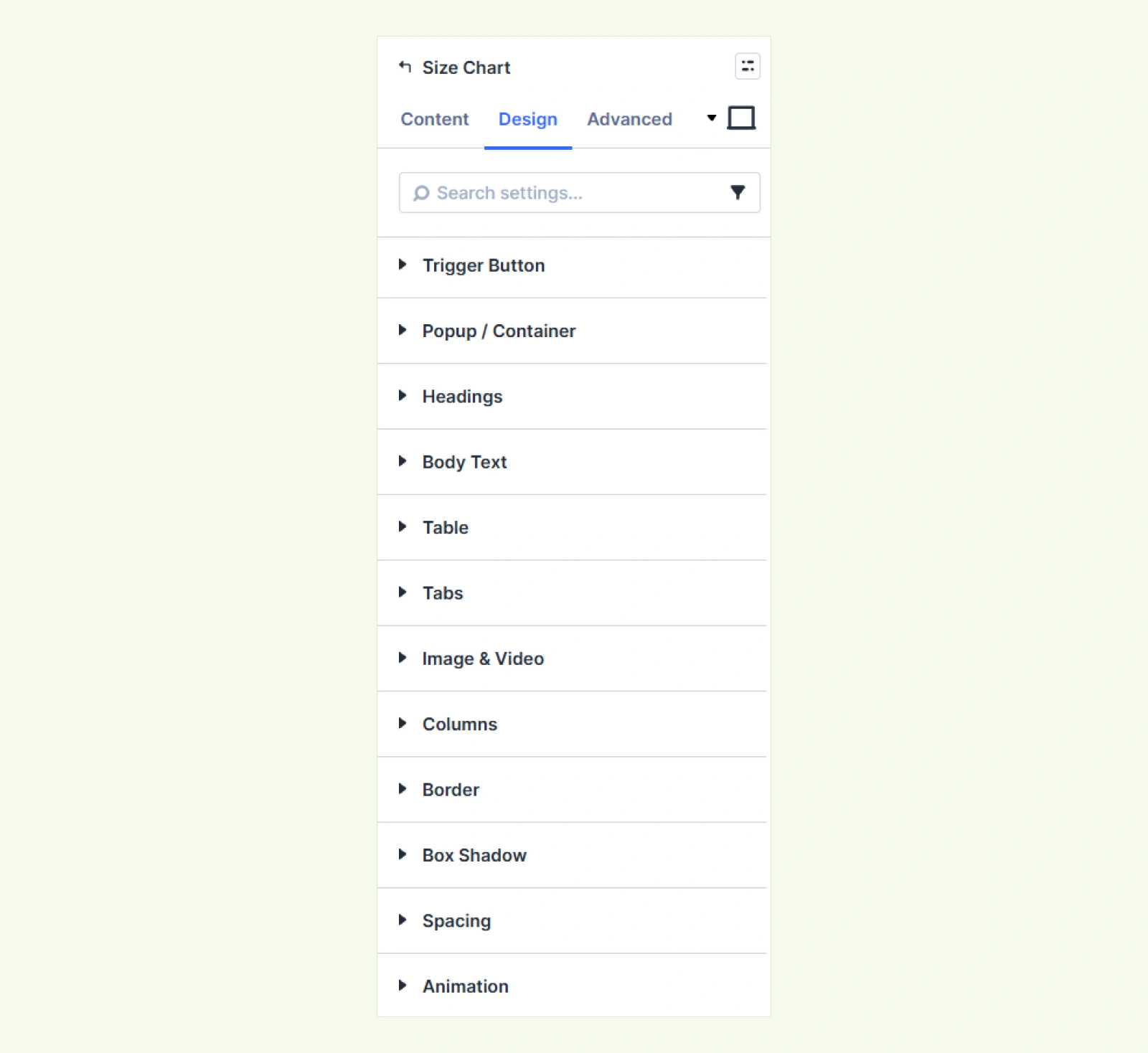
- Trigger Button: Customize typography, colors, borders, and spacing.
- Popup & Accordion: Style backgrounds, overlays, icons, and containers based on your display mode.
- Chart Content: Customize headings, body text, tables, tabs, images, and videos.
You can also adjust spacing, borders, shadows, and animations. Some settings depend on the display mode. Once done, save your changes and check the chart on desktop and mobile.
Tips for Creating a Useful WooCommerce Size Chart
- Use accurate measurements: Include actual product measurements, as sizes can vary between brands and products.
- Specify measurement units: Use clear headings like Chest (cm) or Length (in).
- Explain how to measure: Clarify whether the measurements refer to body or garment dimensions. Add a visual guide if needed.
- Keep it mobile-friendly: Use fewer columns and make sure the chart is readable on smaller screens.
- Choose the right placement: Place the size chart near the size dropdown or variation swatches so customers can find it easily.
- Include fit notes: Add useful details like "Relaxed fit" or "Size down if between sizes" when appropriate.
- Use a text-based table: Keep measurements accessible, easy to update, and readable by search engines.
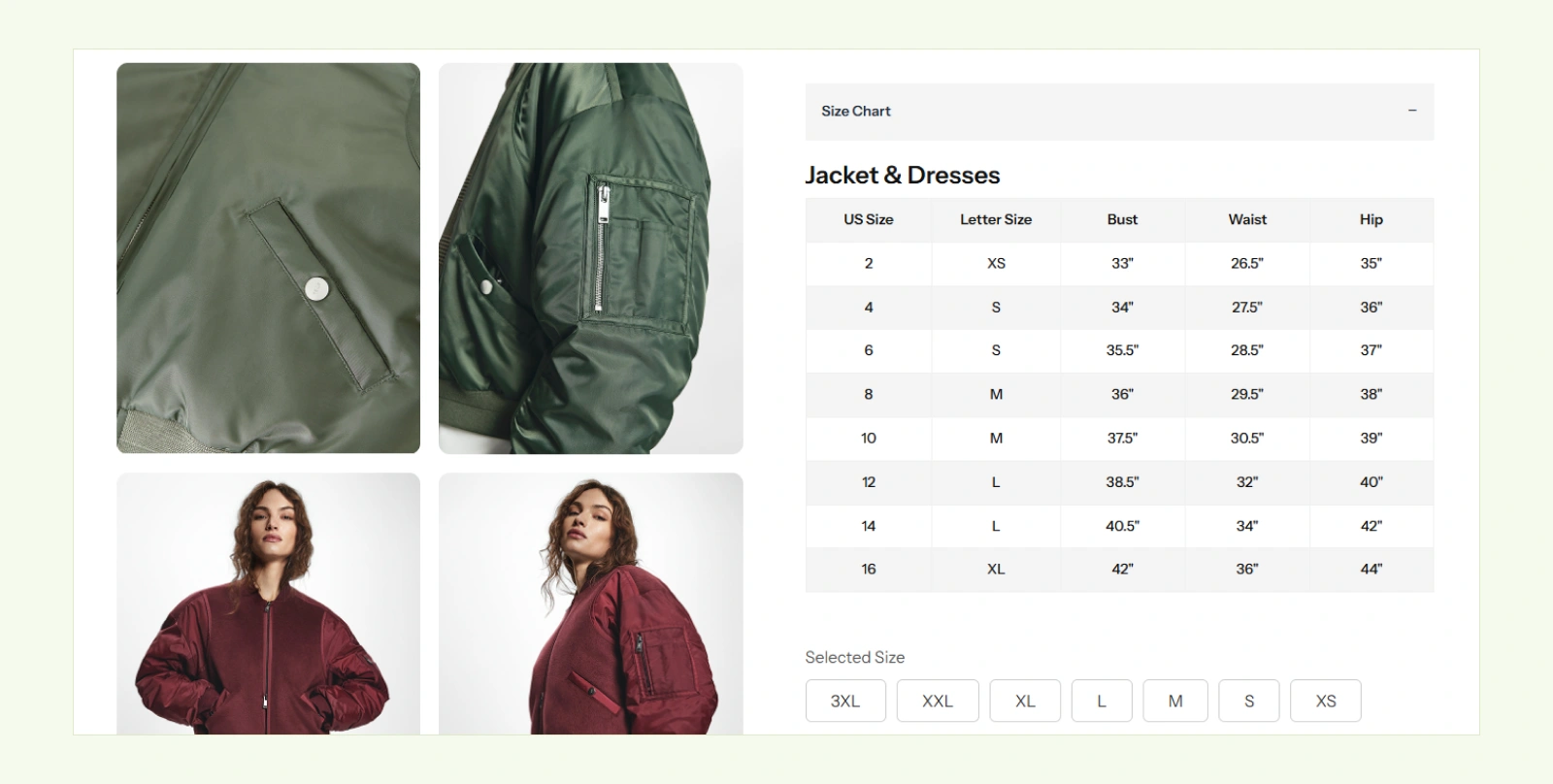
Example: A dress size chart displayed in an accordion below the Add to Cart button, with bust, waist, and hip measurements, inch and centimeter options, and fit recommendations.
Frequently Asked Questions
Does Divi include a built-in Size Chart module?
No. Divi does not include a built-in size chart module. To create and display size charts for WooCommerce products, you need a plugin like DiviMerc.
How to add a product size chart in Divi?
Install DiviMerc, enable its Size Chart module, and create a chart under Products > Size Charts. Assign it to your products, then add the module using the Divi Visual Builder.
Why is the Size Chart not showing in Divi?
Make sure the module is enabled and added to the product page. Also, check that the chart is published, assigned to the correct product, and not disabled or excluded.
How to add a product size chart in Divi without a plugin?
You can create a basic size chart using Divi's Text or Code module with an HTML table. Alternatively, use an Image module to display a size chart image.
Final Thoughts
Divi does not include a built-in size chart feature, but you can add one using DiviMerc. It lets you create size charts, assign them to WooCommerce products or categories, and customize how they appear in the Divi Visual Builder.
Make sure your size charts include accurate measurements, clear units, and a mobile-friendly layout. This helps customers choose the right size and can reduce sizing-related returns.
Get DiviMerc, enable the Size Chart module, and create your first product size chart.
For more settings and customization options, see the DiviMerc Size Chart documentation.




0 Comments