
The Advanced Product Reviews module lets you build and customize a complete WooCommerce review section in Divi. It includes separate child modules for the rating summary, customer reviews, and review form, so you can control each part individually.
Important Note:
- Review photos and titles require the Product Reviews Manager extension.
Let’s see the settings in brief and how to make better use of them —
Content Tab #
This tab lets you manage the review elements and choose which product’s reviews to display.
Review Elements #
By default, the module includes three child modules:
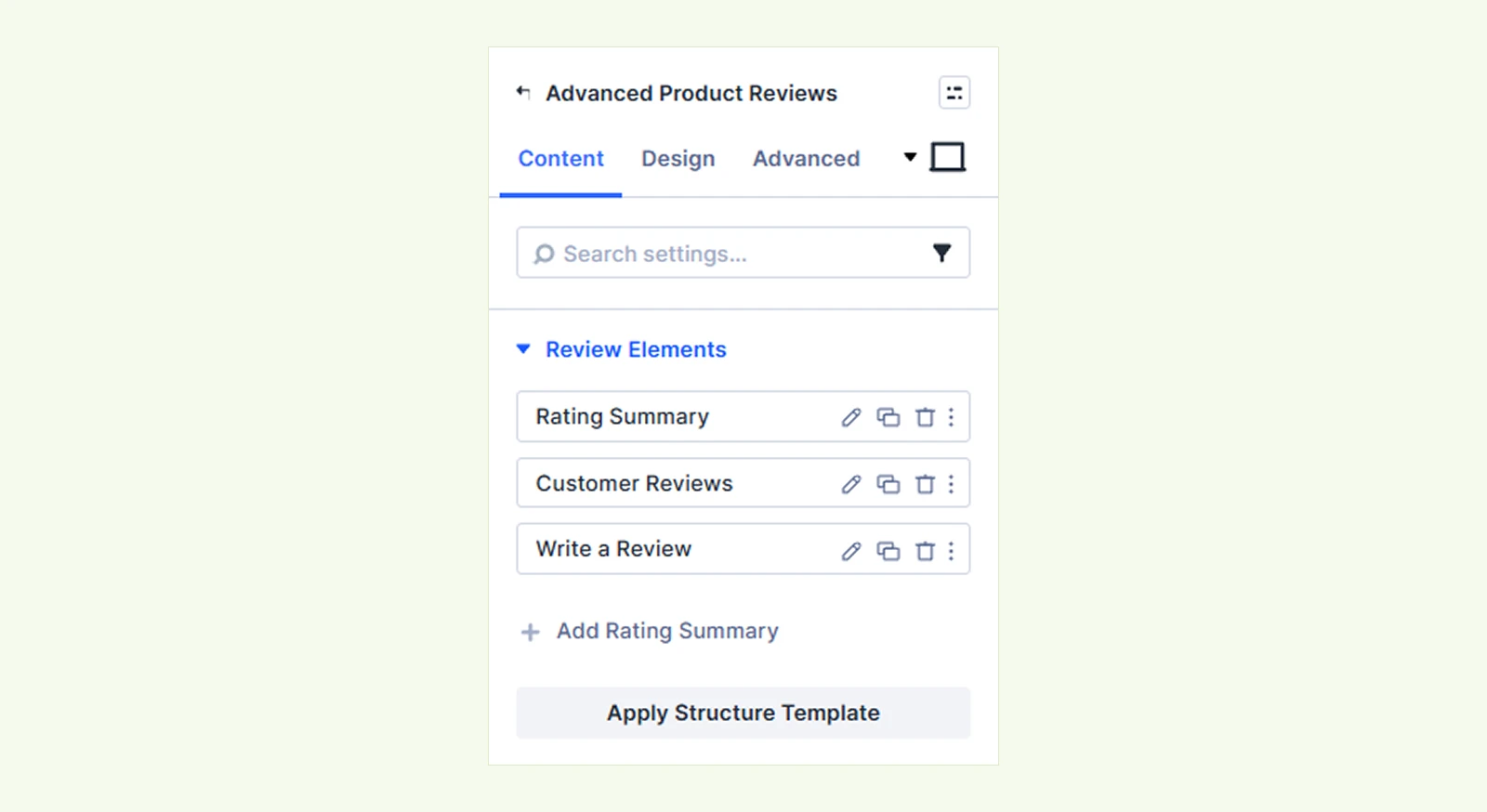
- Rating Summary: Shows the overall rating and breakdown.
- Customer Reviews: Displays customer reviews and related details.
- Write a Review: Displays the review submission form.
You can reorder, duplicate, or remove them as needed. See Child Module Settings below to learn what each child module controls and how to customize it.
Content #
Product: Choose the current, latest, or a specific product. The selection applies to all child modules.

Note: Products with no reviews may show sample reviews in the Builder. Check the live page for the actual empty state.
Background: Add a background color, gradient, image, video, pattern, or mask to the module.
Element Label: Rename the module for easier identification in the Divi Builder. This label is only visible to you.
Design Tab #
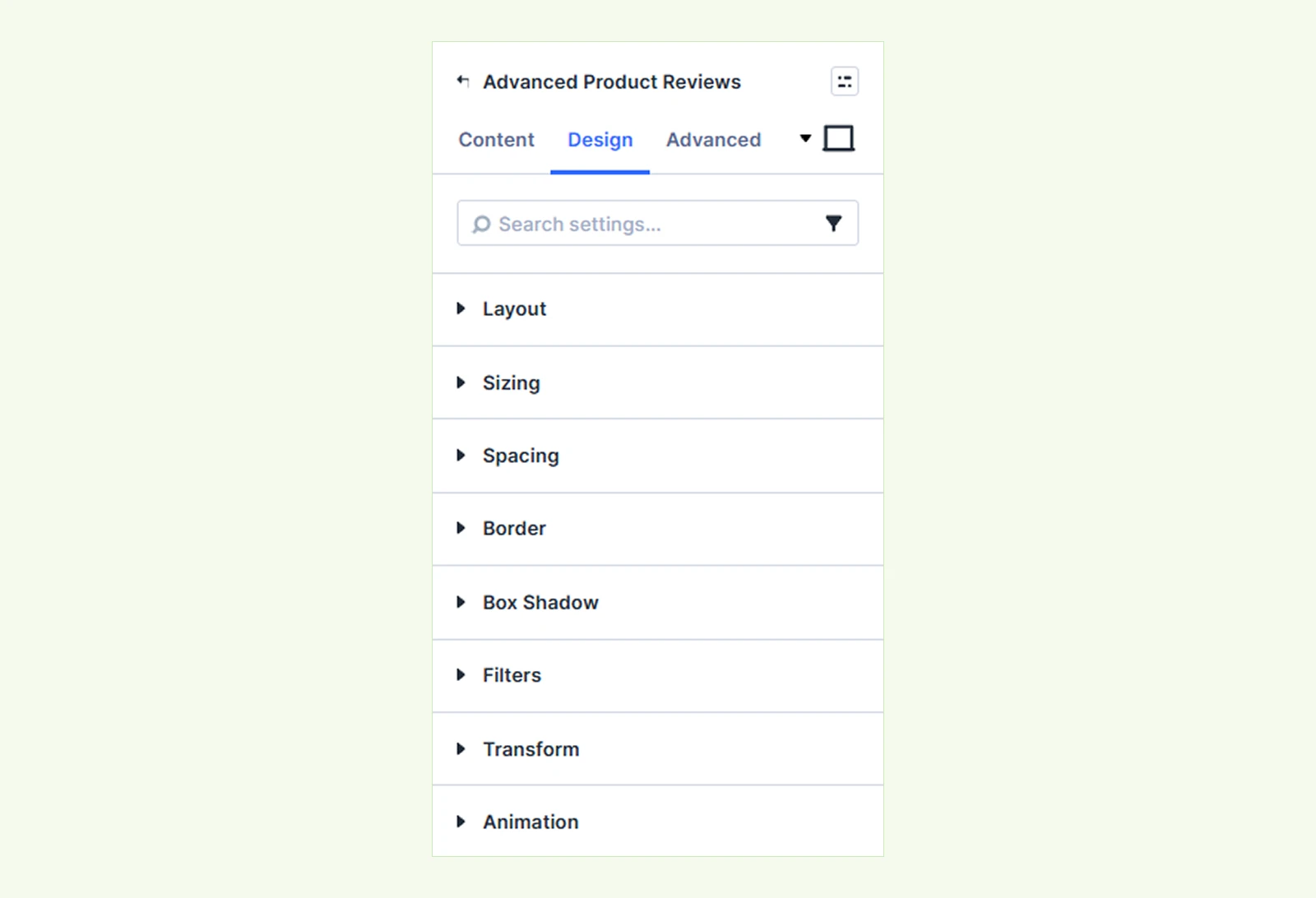
Layout: Choose a layout style and customize its available settings.
Sizing: Adjust the width, height, and alignment of the module.
Spacing: Adjust the margin and padding around the module.
Border: Customize the border radius, style, width, and color.
Box Shadow: Add a shadow effect to the module.
Filters: Apply visual filter effects to the module.
Transform: Adjust the module’s scale, position, rotation, and more.
Animation: Add reveal animations and control the animation style, duration, delay, and other effects.
Advanced Tab #
This tab provides additional settings for custom CSS, conditions, visibility, and other advanced controls.
Child Module Settings #
Each child module controls a different part of the Advanced Product Reviews section and comes with its own settings. Let’s take a closer look at each one.
Rating Summary #
The Rating Summary child module displays the average rating, review count, rating breakdown, and an optional Write a Review button.
Content Tab #
Layout #
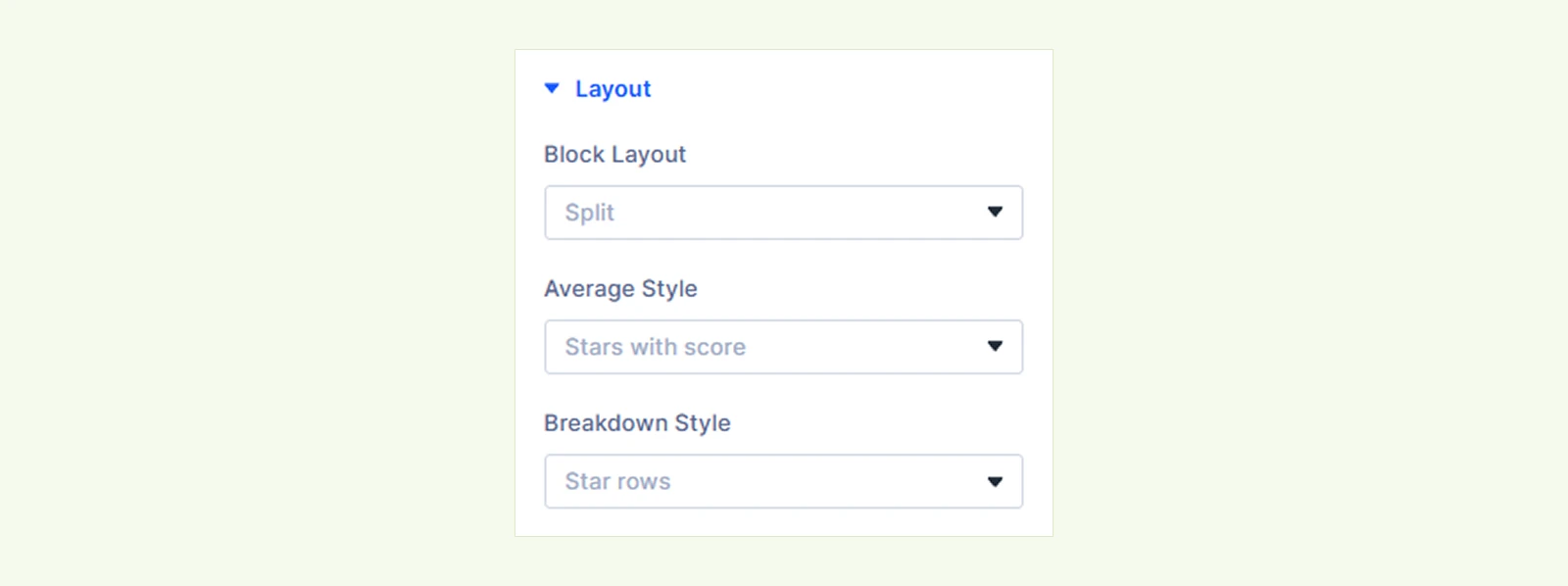
- Block Layout: Choose how the summary sections are arranged. You can choose from:
- Split: Display them side by side.
- Stacked: Display them vertically.
- Average Style: Choose how the average rating appears. Available options are:
- Stars with Score: Show stars with the rating score.
- Large Score: Show a large numeric rating.
- Breakdown Style: Choose how each rating row appears. You can choose from:
- Star Rows: Display stars beside each rating bar.
- Number + Star: Display the rating number with a star.
Elements #
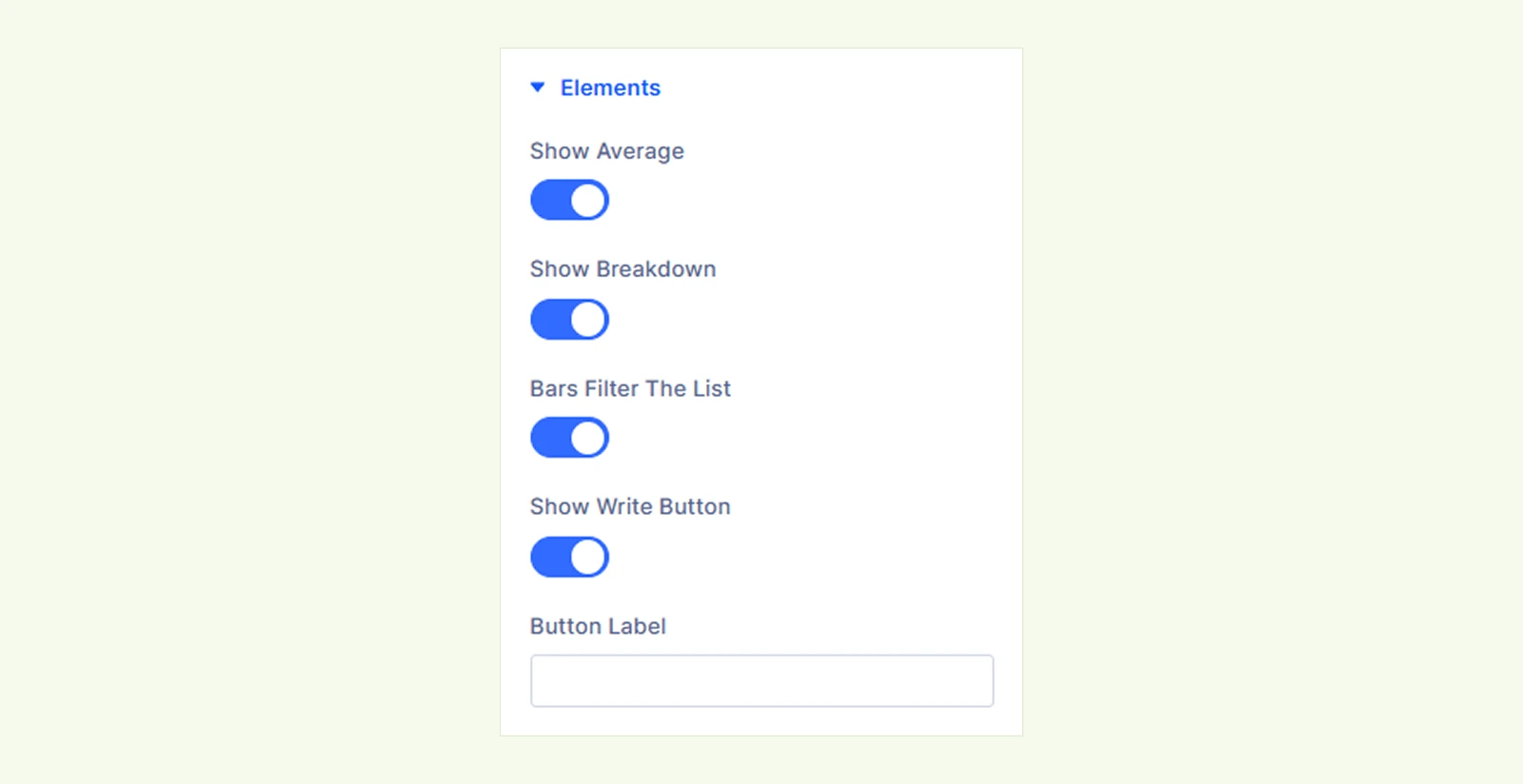
- Show Average: Show or hide the average rating.
- Show Breakdown: Show or hide the rating breakdown bars.
- Bars Filter The List: Allow shoppers to click a rating bar to filter Customer Reviews by that rating.
- Show Write Button: Show or hide the Write a Review button.
- Button Label: Customize the button text.
Background: Add a background color, gradient, image, video, pattern, or mask to the module.
Element Label: Rename the child module for easier identification in the Divi Builder. This label is only visible to you.
Design Tab #
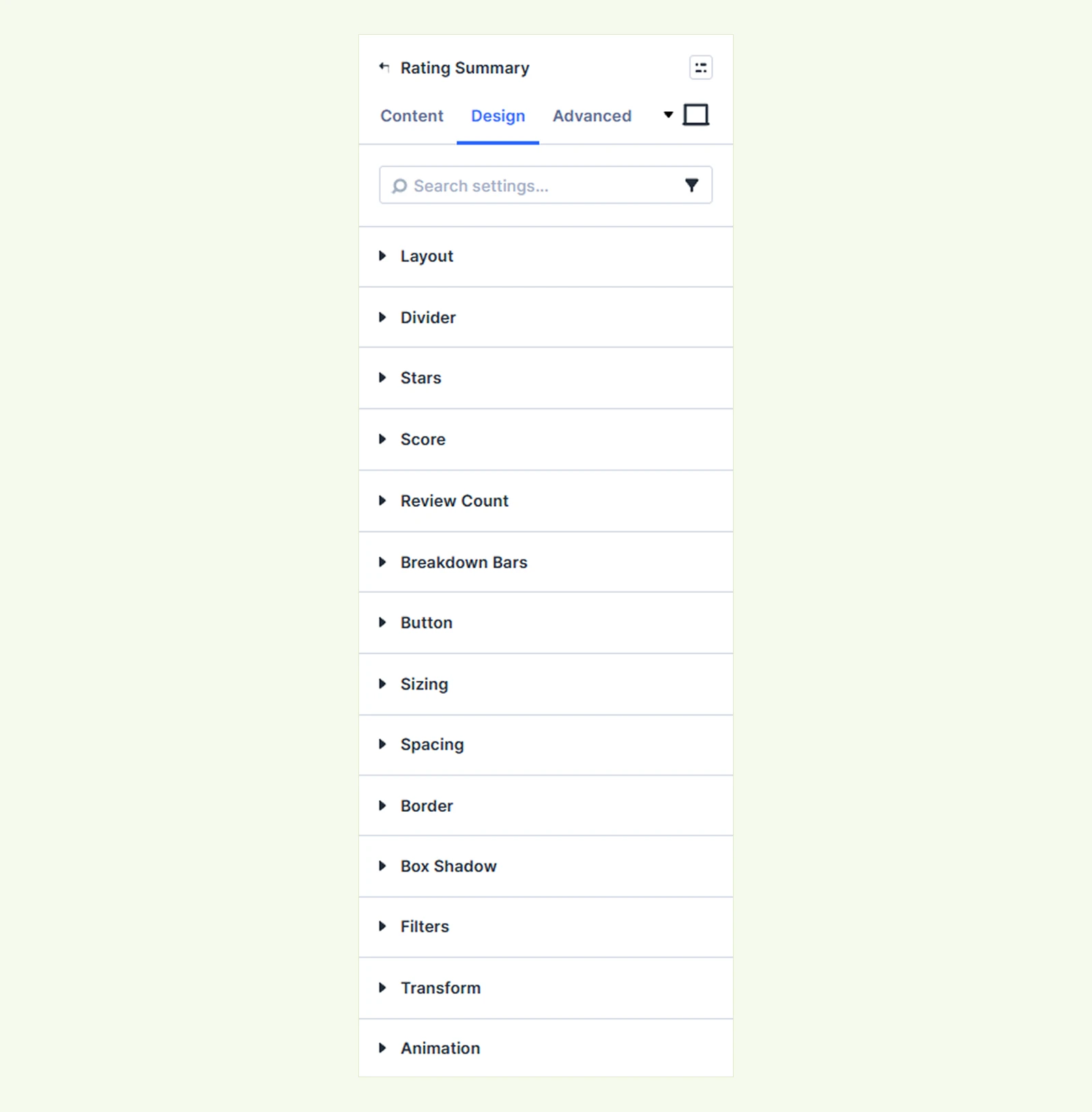
Layout: Customize the arrangement of the summary sections.
Divider #
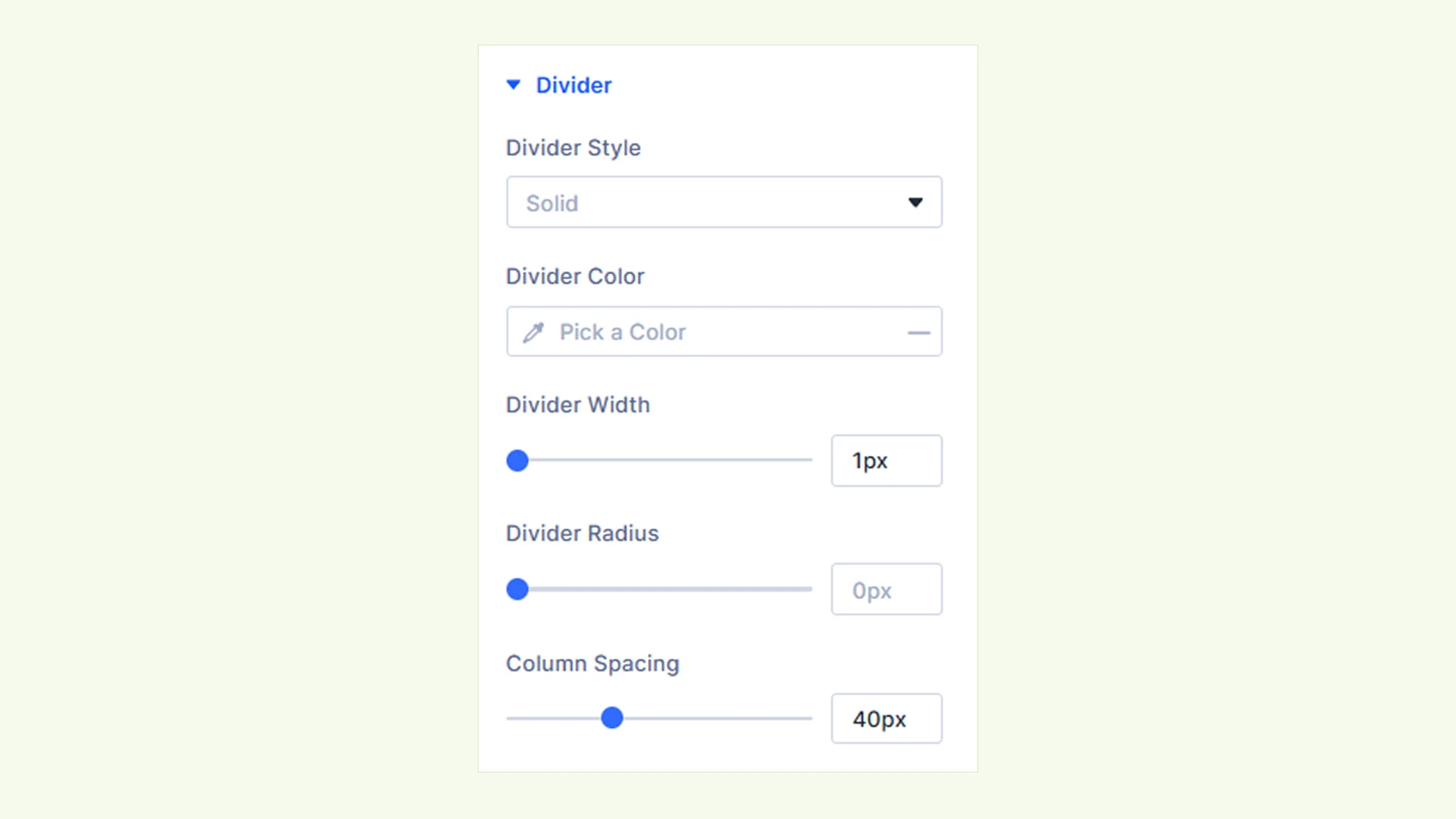
- Divider Style: Choose the divider style: None, Solid, Dashed, or Dotted.
- Divider Color: Set the divider color.
- Divider Width: Adjust the thickness of the divider.
- Column Spacing: Adjust the space between the summary sections.
Stars #
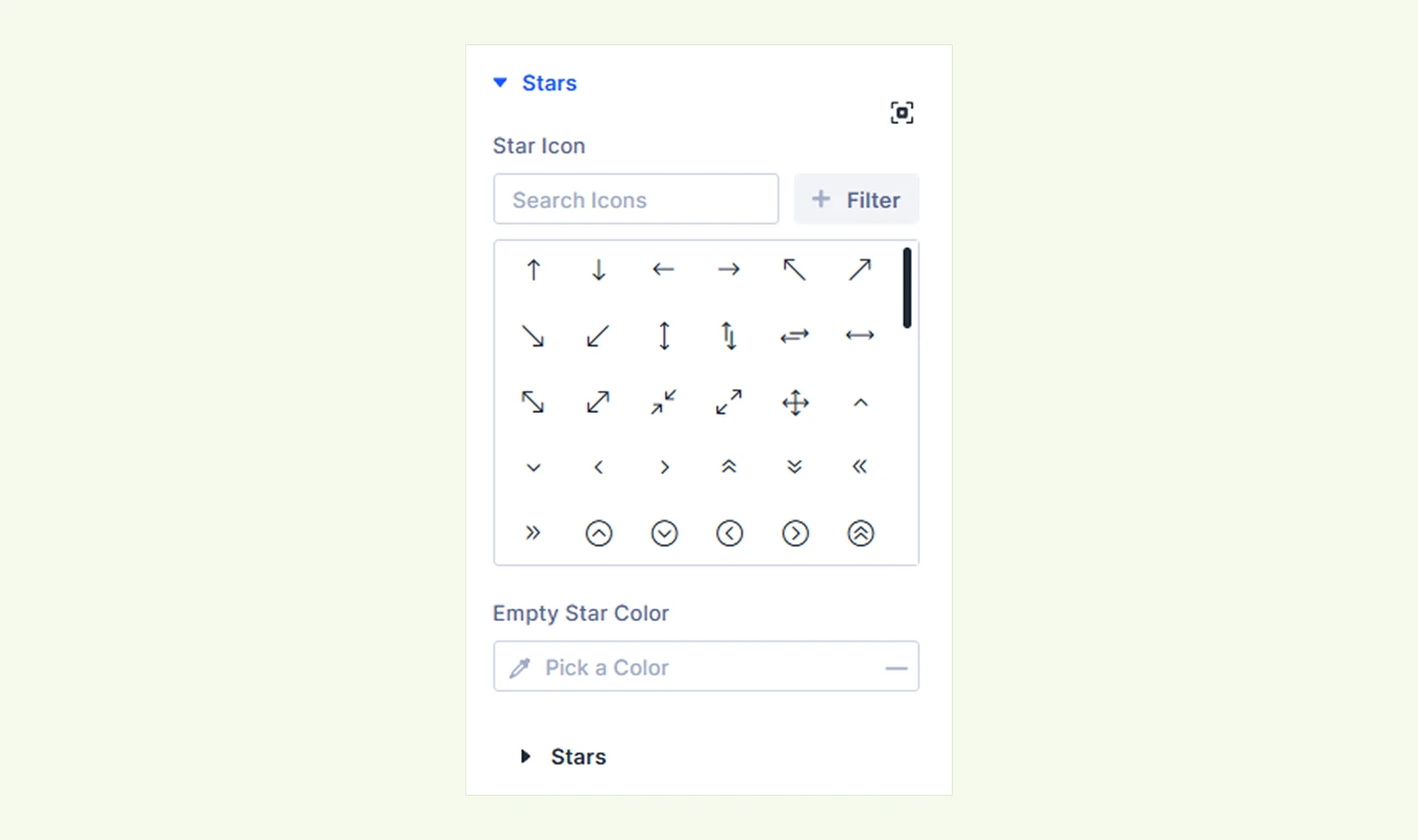
- Star Icon: Choose the icon used for the rating stars.
- Empty Star Color: Set the color of unfilled stars.
- Stars: Customize the star typography, including size and color.
Score: Customize the numeric rating and supporting text.
Review Count: Customize the review count typography.
Breakdown Bars: Customize the bars, track, shape, size, labels, stars, counts, and spacing.
Button: Customize the Write a Review button text, background, border, and spacing.
In the design tab, you will also find settings like sizing, spacing, border, box shadow, filter, transform and animation.
Advanced Tab #
Use this tab for Divi’s advanced settings, including custom CSS, conditions, visibility, and other advanced controls.
Customer Reviews #
The Customer Reviews child module controls how individual customer reviews are displayed.
Content Tab #
Display Settings #
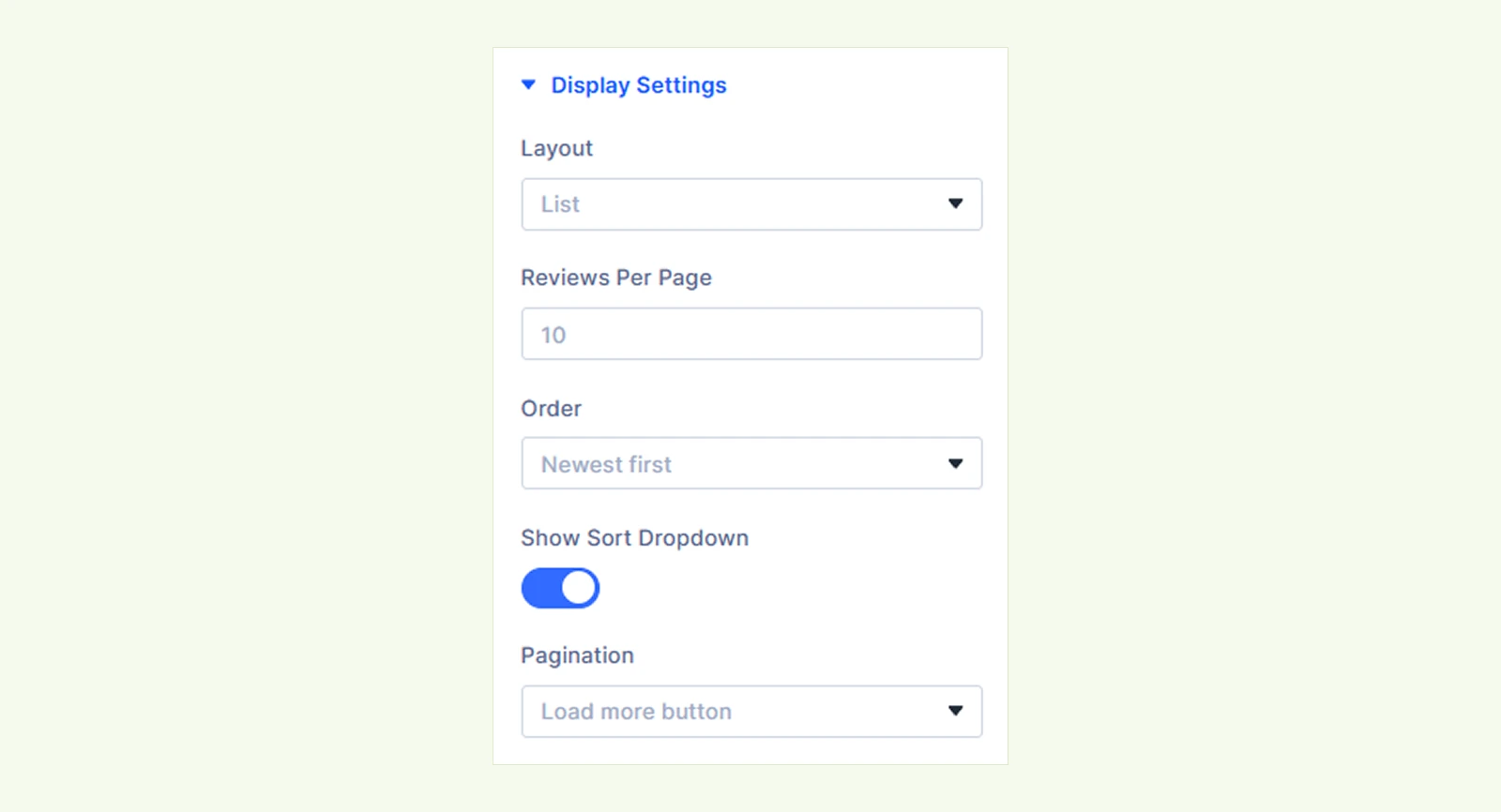
- Layout: Choose between List, Grid, or Masonry.
- Columns: Set the number of columns for Grid and Masonry layouts.
- Reviews Per Page: Set how many reviews appear at once. The maximum is 50.
- Order: Choose the default review order:
- Newest First
- Oldest First
- Highest Rated
- Lowest Rated
- Show Sort Dropdown: Let visitors change the review order from the frontend.
- Pagination: Choose how visitors access more reviews:
- Load More Button
- Numbered Pages
- None
Elements #
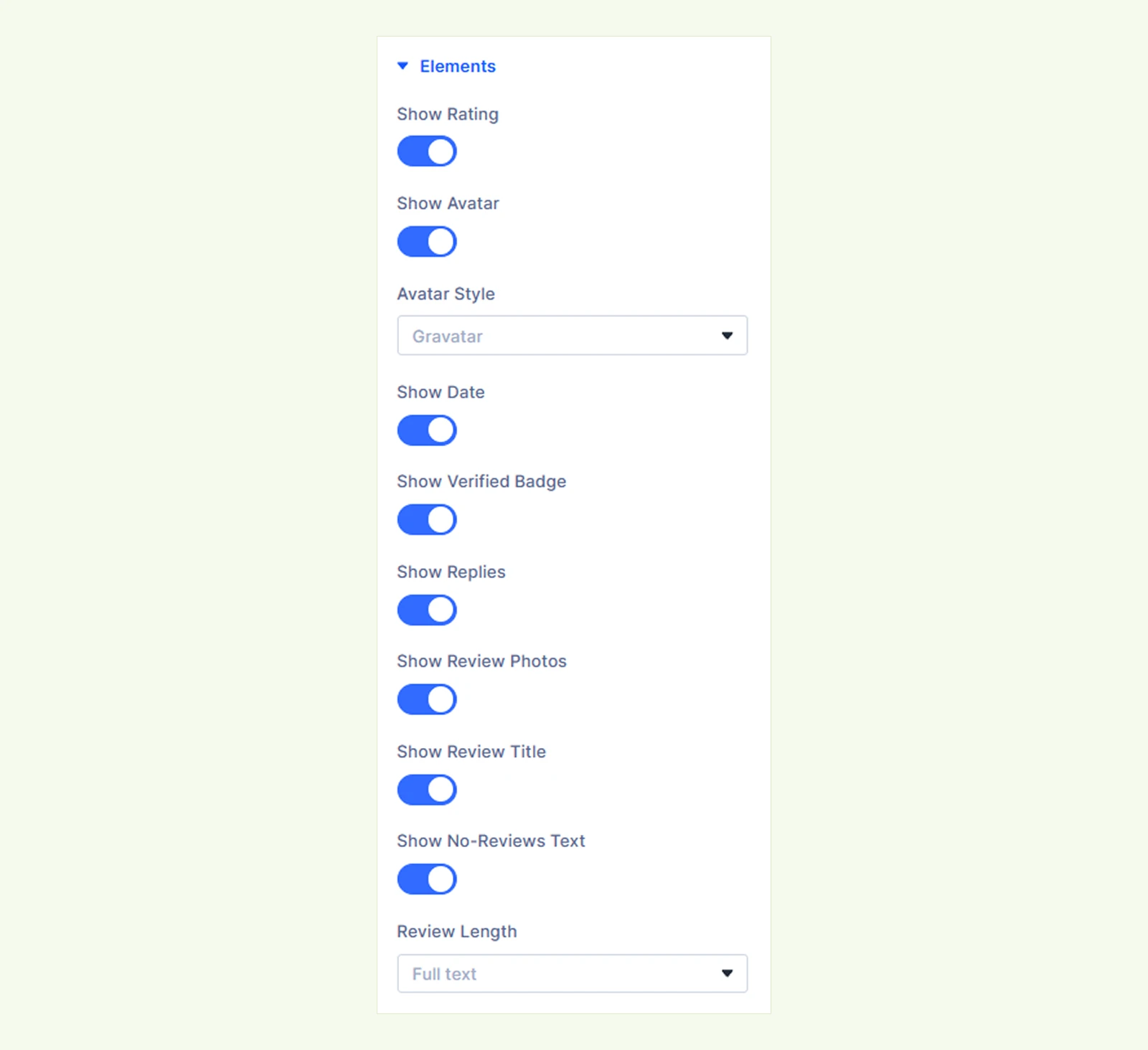
- Show Rating: Show or hide rating stars.
- Show Avatar: Show or hide reviewer avatars.
- Avatar Style: Choose between Gravatar and Reviewer’s Initials.
- Show Date: Show or hide the review date.
- Show Verified Badge: Show or hide the Verified Owner badge.
- Show Replies: Show or hide shop replies.
- Show Review Photos: Show or hide review photos. (Requires the Product Reviews Manager extension.)
- Show Review Title: Show or hide review titles. (Requires the Product Reviews Manager extension.)
- Show No-Reviews Text: Show or hide the message displayed when there are no reviews.
- Review Length: Display the full review or shorten it to two or four lines with a Read More option.
Text #
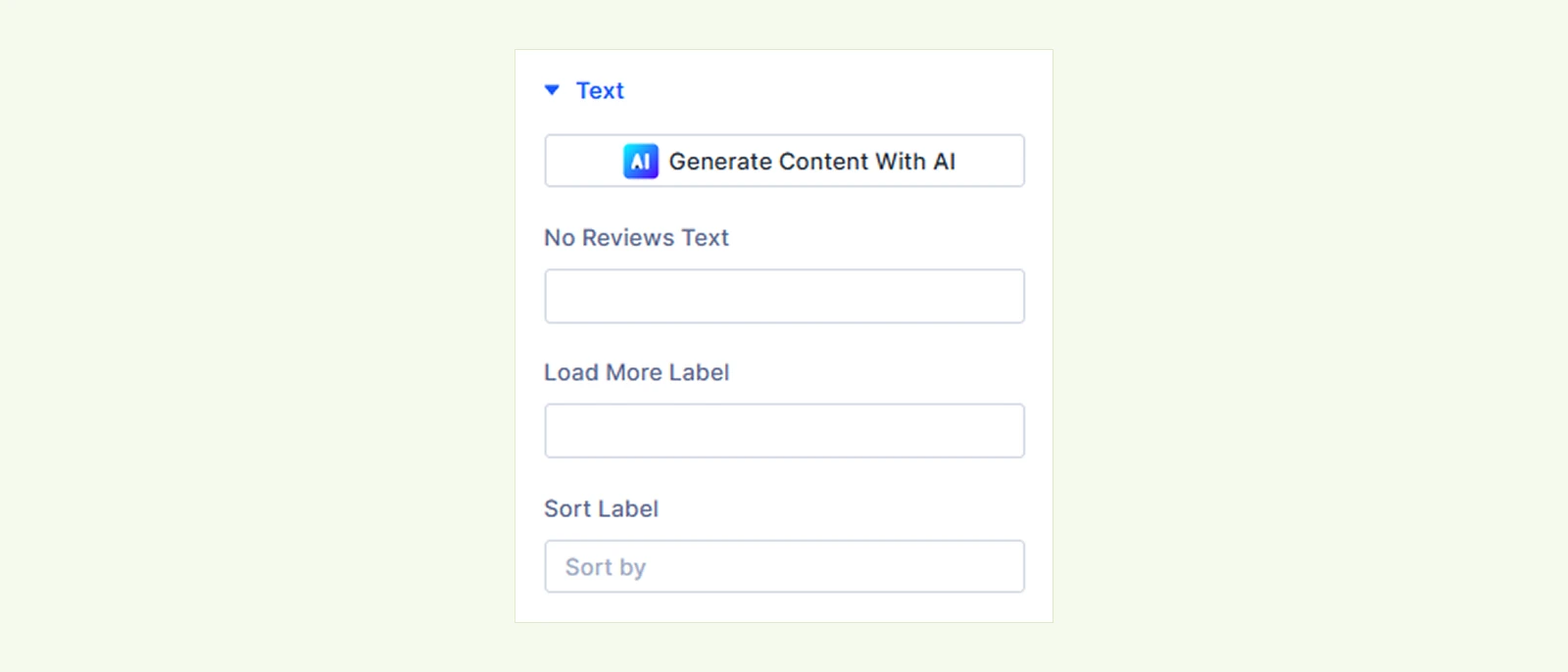
- No Reviews Text: Customize the no-reviews message. (Available when Show No-Reviews Text is enabled.)
- Load More Label: Customize the Load More button text. (Available when Pagination is set to Load More Button.)
- Sort Label: Customize the sort label. (Available when Show Sort Dropdown is enabled.)
- Read More Label: Customize the Read More text. (Available when Review Length is set to Two Lines, Then Read More or Four Lines, Then Read More.)
- Show Less Label: Customize the Show Less text. (Available when Review Length is set to Two Lines, Then Read More or Four Lines, Then Read More.)
Background: Add a background color, gradient, image, video, pattern, or mask to the module.
Element Label: Rename the child module for easier identification in the Divi Builder. This label is only visible to you.
Design Tab #
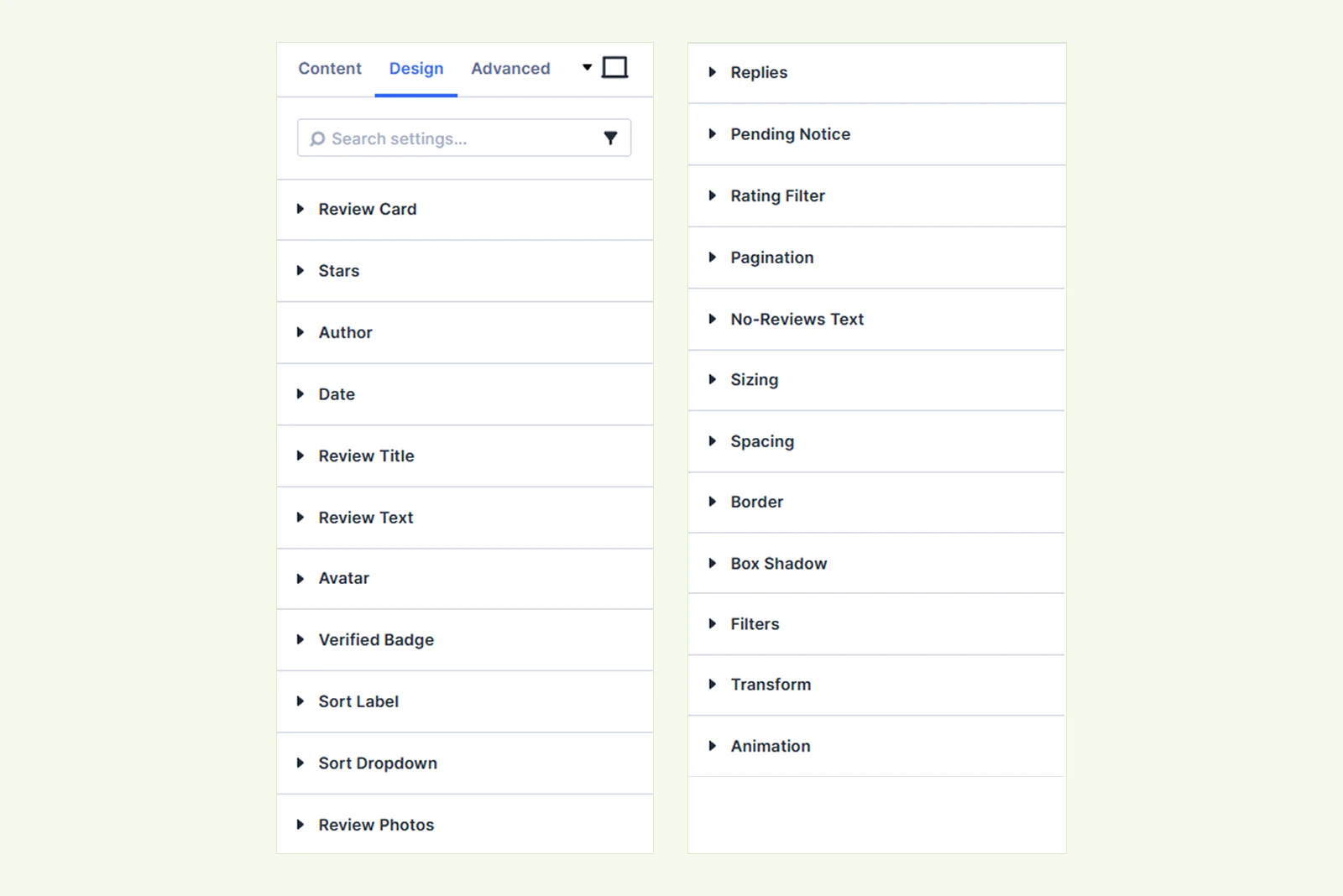
Review Card: Customize the review card background, border, spacing, and shadow.
Stars #
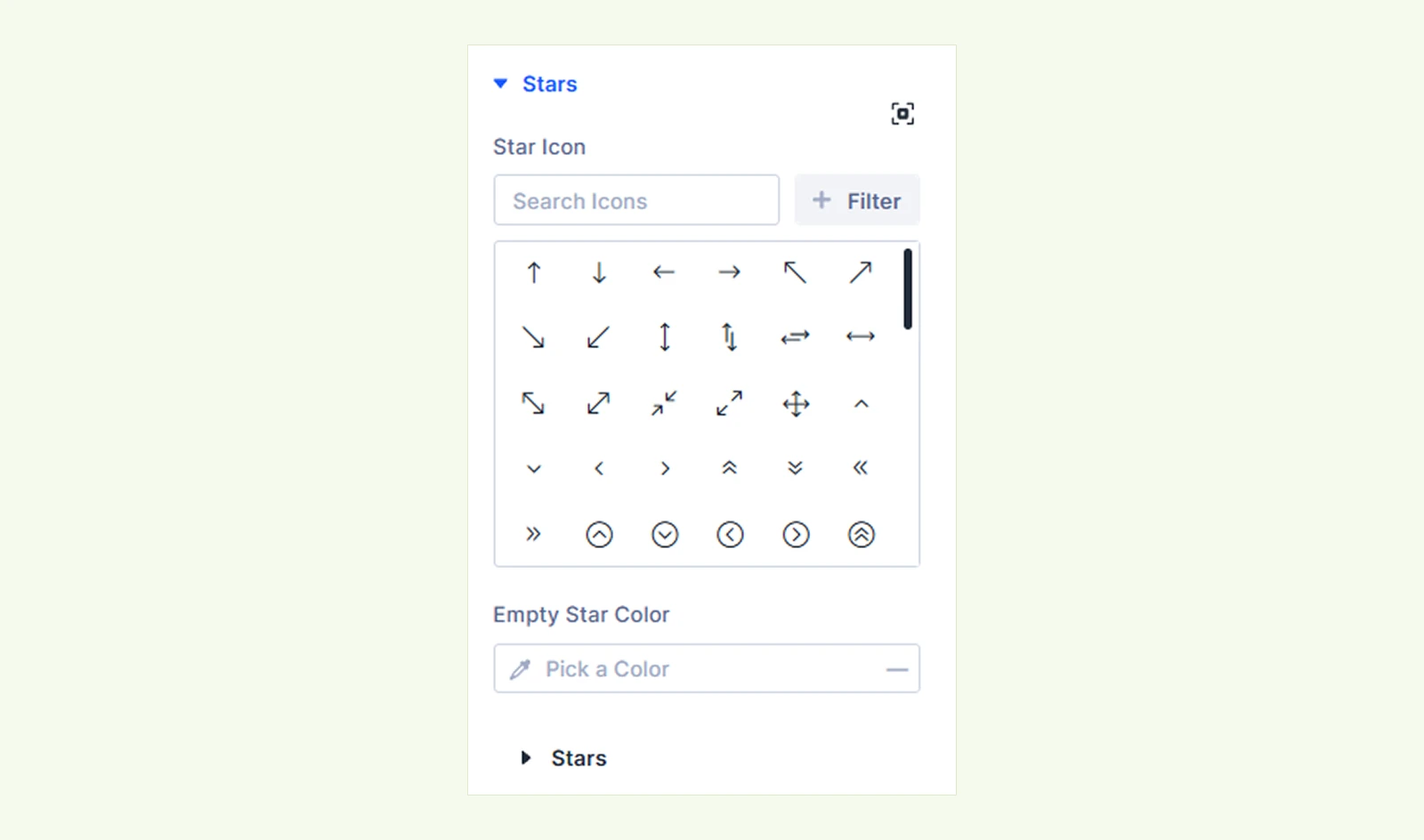
- Star Icon: Choose the icon used for review rating stars.
- Empty Star Color: Set the color of unfilled stars.
- Stars: Customize the star typography, including size and color.
Author: Customize the reviewer name.
Date: Customize the review date.
Review Title: Customize the title typography and spacing.
Review Text: Customize the review text, Read More text, and spacing.
Avatar: Customize the avatar size, border, spacing, initials, and background.
Verified Badge: Customize the badge text, background, and shape.
Sort Label: Customize the sort label typography.
Sort Dropdown: Customize the dropdown text, background, border, and spacing.
Review Photos: Customize the photo size, border, and spacing.
Replies: Customize shop replies and their thread styling.
Pending Notice: Customize the notice shown for reviews awaiting approval.
Rating Filter: Customize the active rating filter and count.
Pagination: Customize pagination text, background, border, and spacing.
Current Page: Customize the active numbered page.
No-Reviews Text: Customize the no-reviews message and spacing.
In the design tab, you will also find settings like sizing, spacing, border, box shadow, filter, transform and animation.
Advanced Tab #
Use this tab for Divi’s advanced settings, including custom CSS, conditions, visibility, and other advanced controls.
Write a Review #
The Write a Review child module displays the form shoppers use to submit ratings and reviews.
Content Tab #
Text #
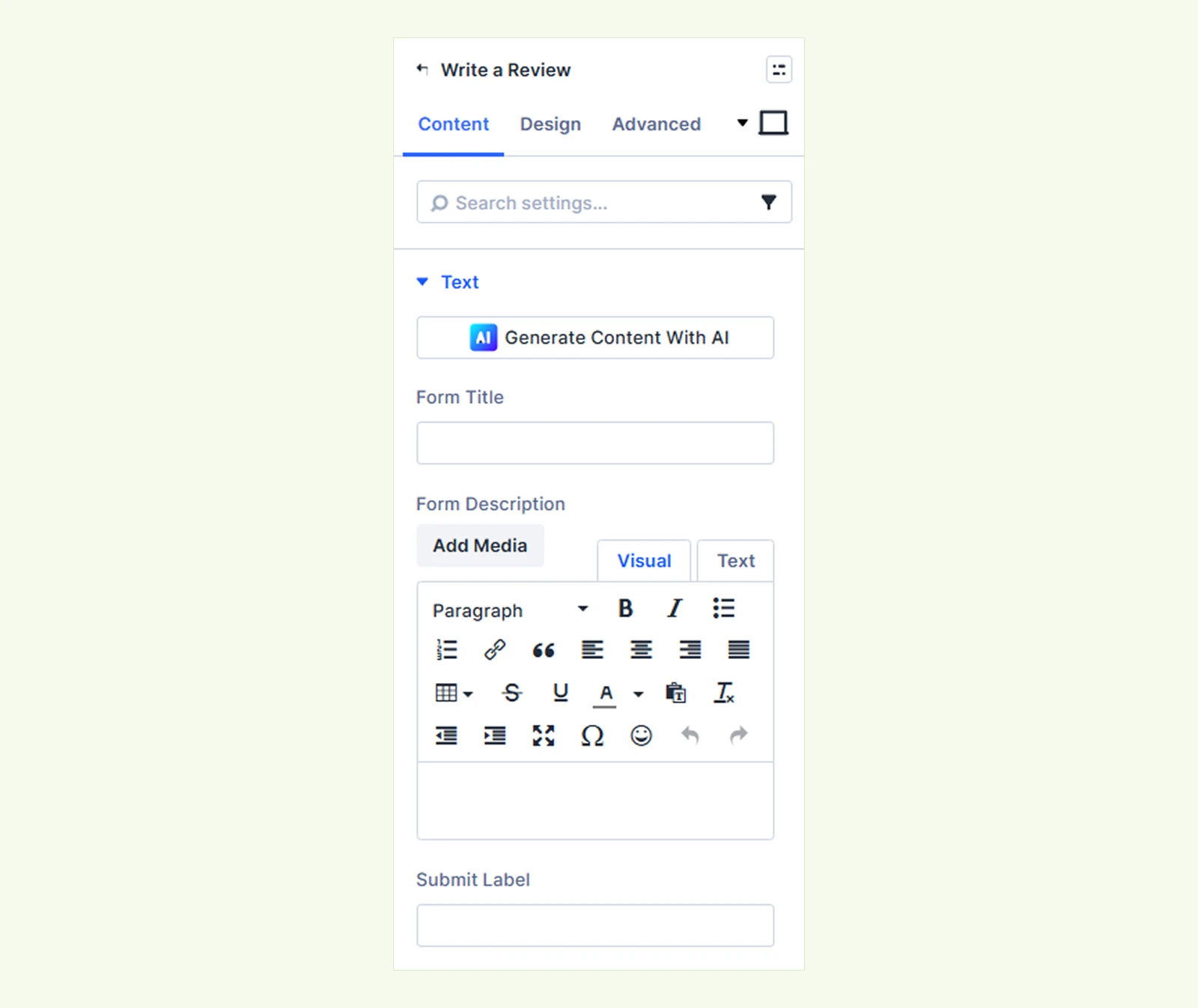
- Form Title: Customize the review form heading.
- Form Description: Add optional text below the heading.
- Submit Label: Customize the submit button text.
Fields #
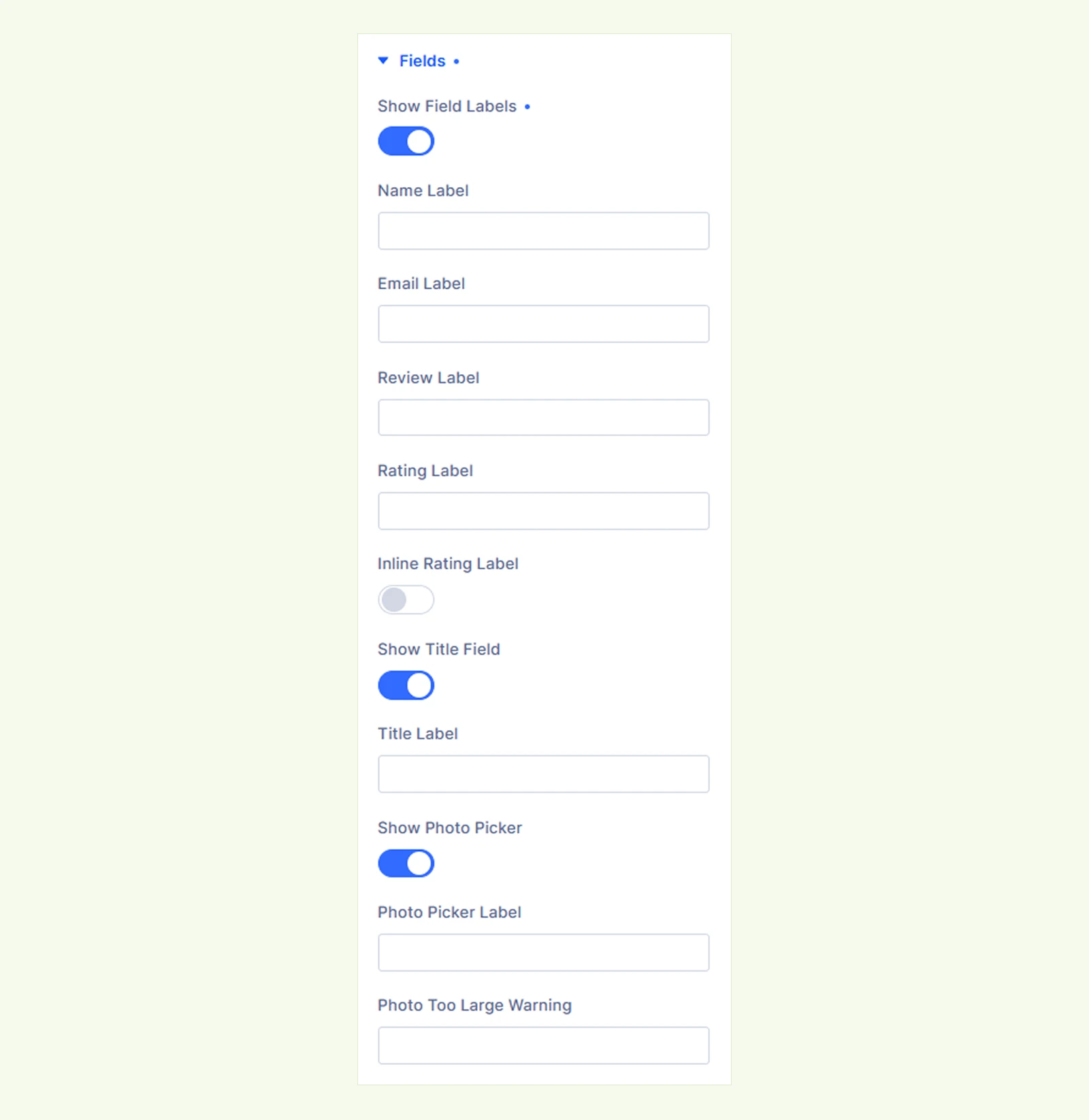
- Show Field Labels: Show field names above the fields. When disabled, the field names appear as placeholders.
- Name Label: Customize the Name field text.
- Email Label: Customize the Email field text.
- Review Label: Customize the review field text.
- Rating Label: Customize the rating text.
- Inline Rating Label: Display the rating label and stars on the same line.
- Show Title Field: Show or hide the review title field. (Requires the Product Reviews Manager extension.)
- Title Label: Customize the review title text.
- Show Photo Picker: Show or hide the photo upload option. Requires the Product Reviews Manager extension.
- Photo Picker Label: Customize the photo picker text.
- Photo Too Large Warning: Customize the warning shown when a photo exceeds the allowed size.
Not Allowed Notice #

- Show Not-Allowed Notice: Show a notice when a visitor is not allowed to review the product under WooCommerce’s verified-owner rules.
- Not-Allowed Text: Customize the notice text.
Background: Add a background color, gradient, image, video, pattern, or mask to the module.
Element Label: Rename the child module for easier identification in the Divi Builder. This label is only visible to you.
Design Tab #
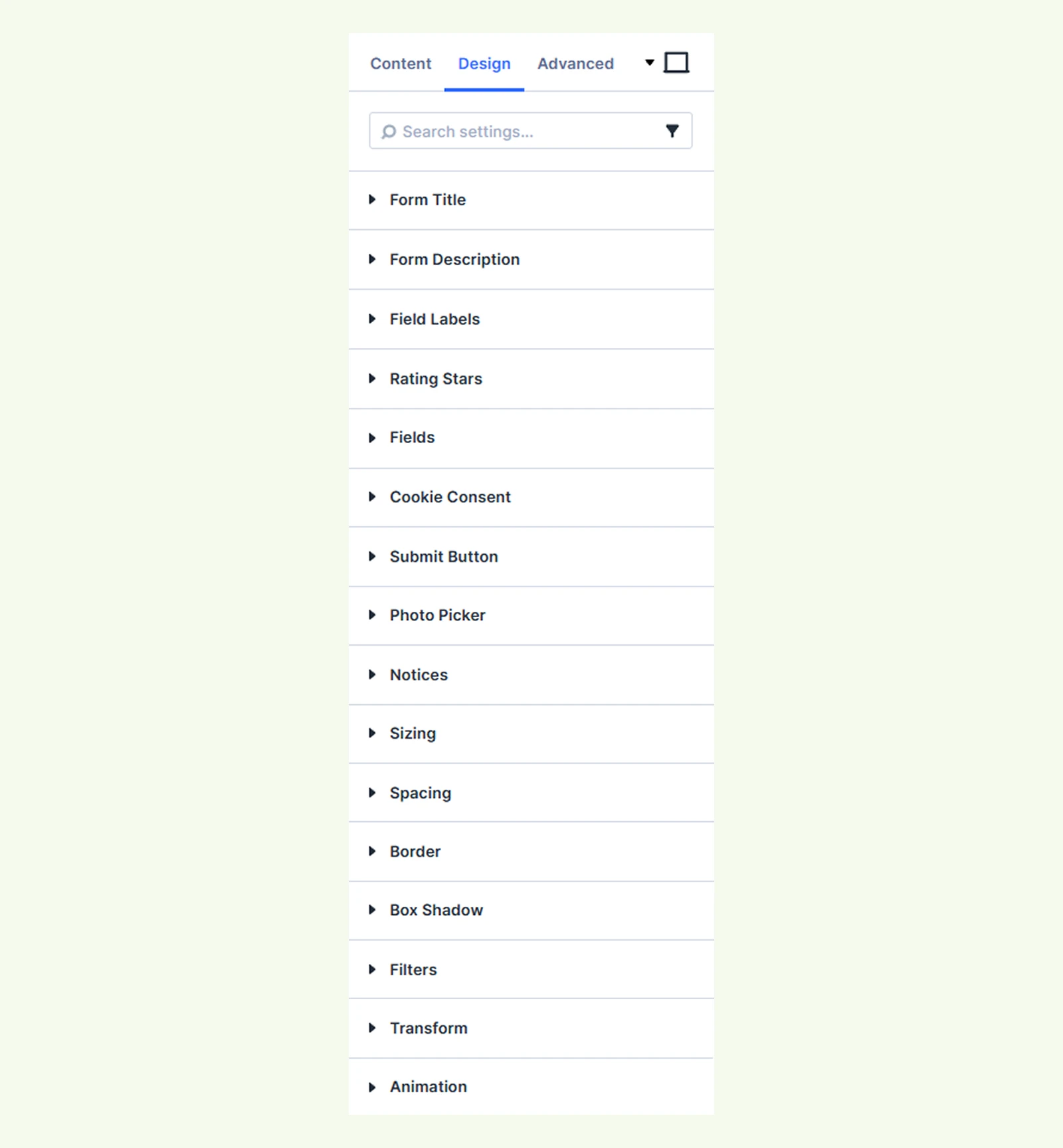
Form Title: Customize the form title typography.
Form Description: Customize the description typography and spacing.
Field Labels #

- Labels: Customize the field label typography.
- Required Mark: Customize the appearance of the required field indicator.
Rating Stars #
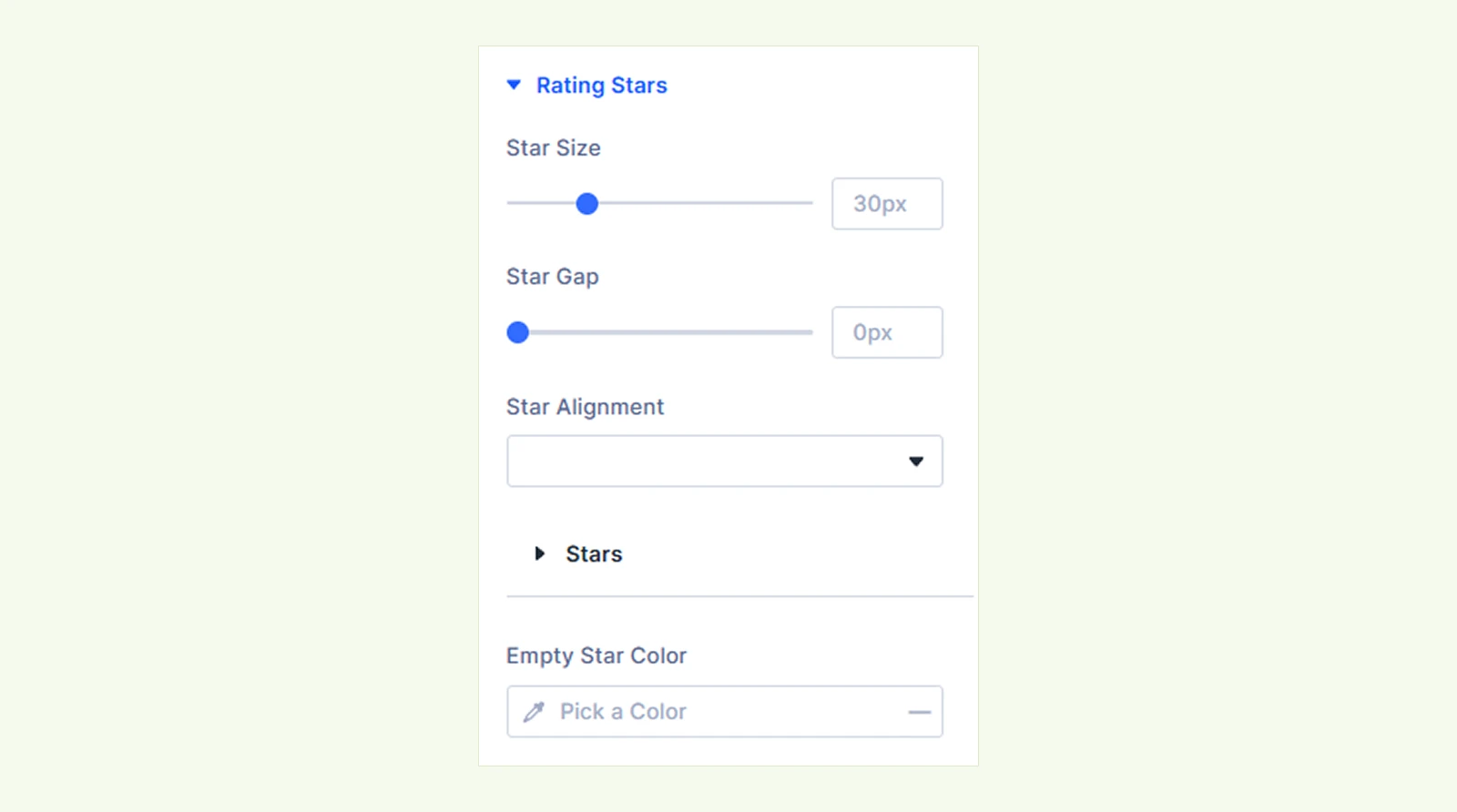
- Star Size: Adjust the size of the rating stars.
- Star Alignment: Align the stars to the left, center, right, or use the default position.
- Stars: Customize the star typography and color.
- Empty Star Color: Set the color of the empty rating stars.
Fields: Customize the form field text, background, border, and spacing.
Cookie Consent #
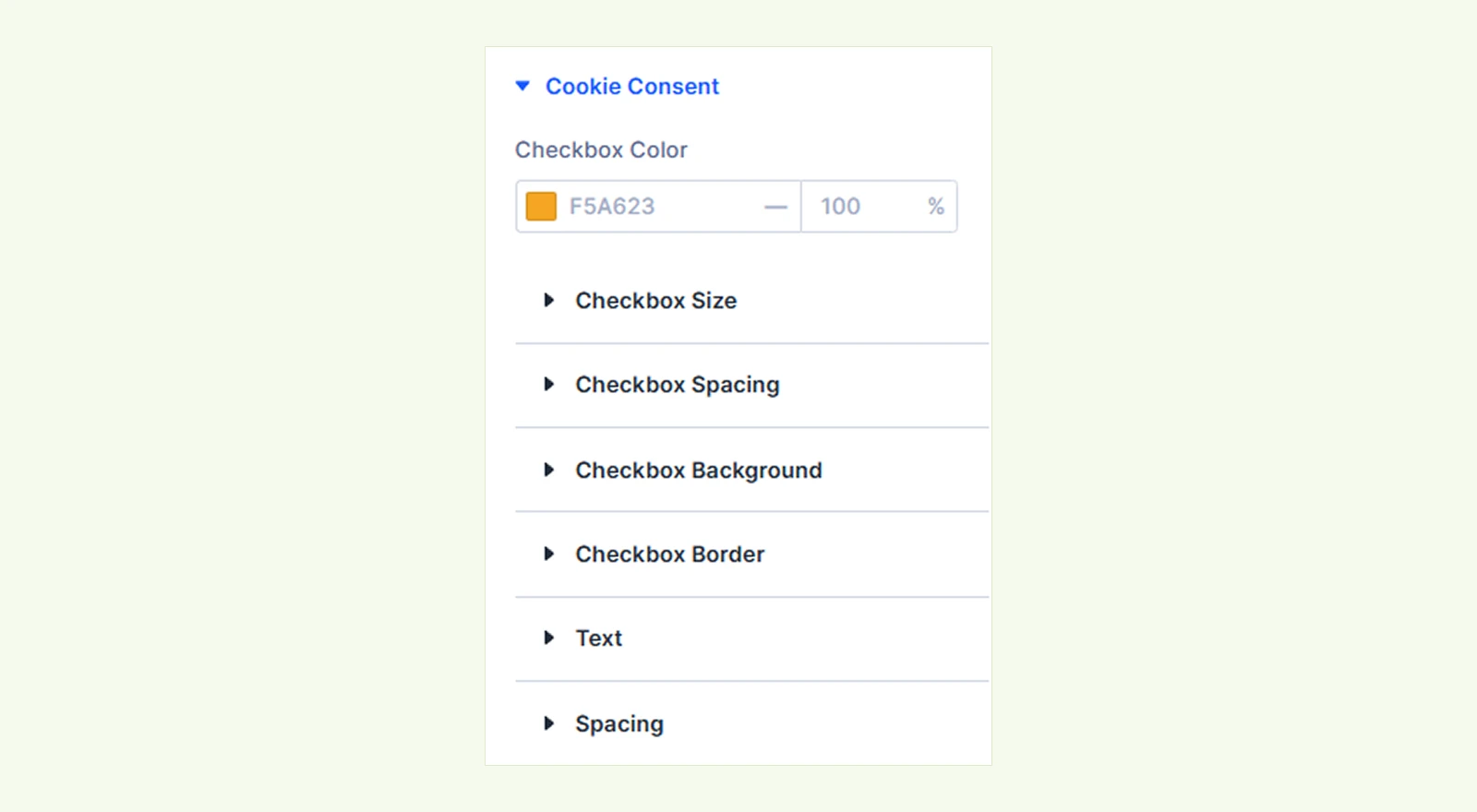
- Checkbox Color: Set the color of the checkbox indicator.
You will also find settings to customize the checkbox size, spacing, background, border, and text.
Submit Button: Customize the button text, background, border, and spacing.
Photo Picker #
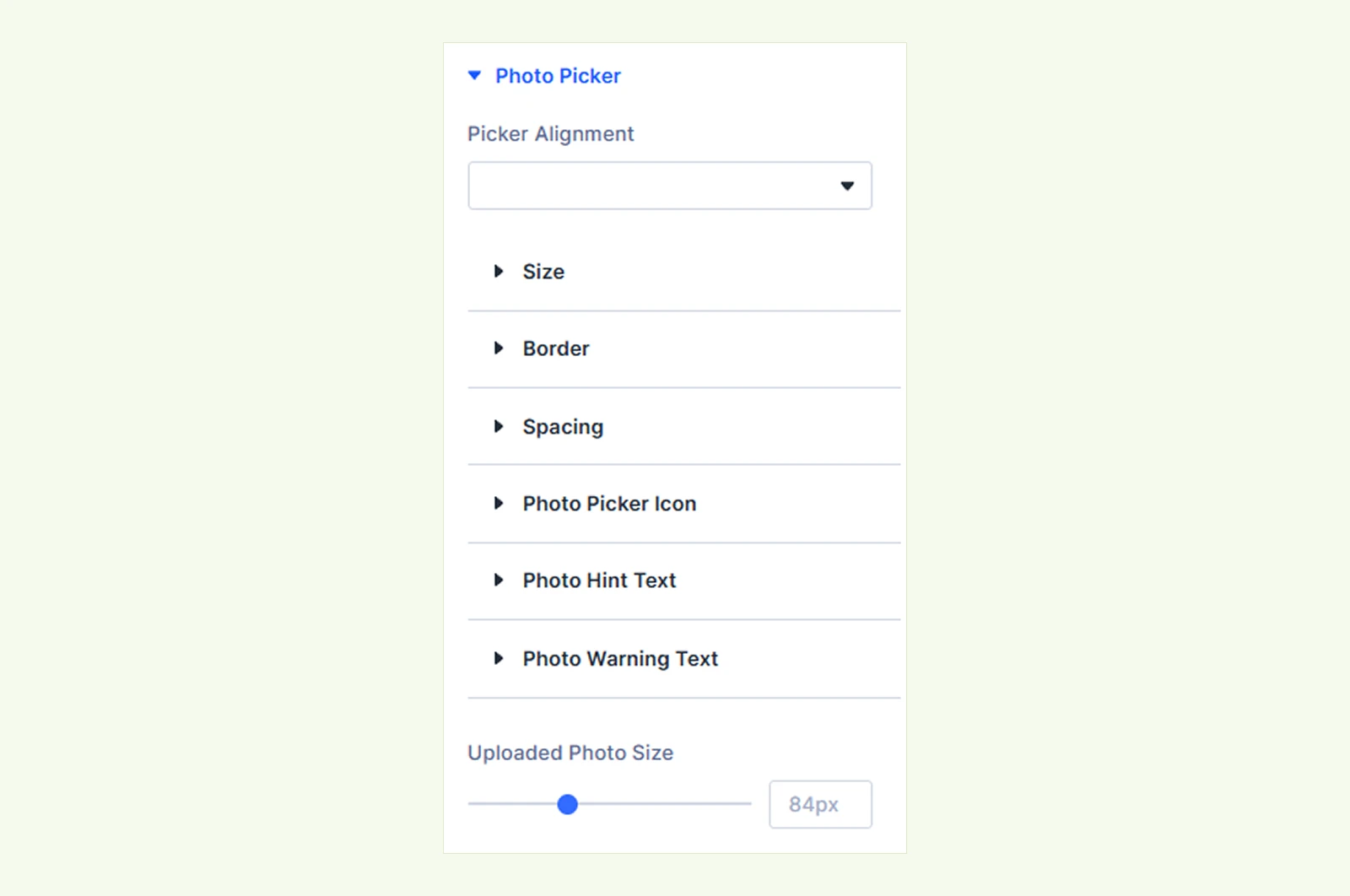
- Picker Alignment: Choose the alignment of the photo picker.
- Uploaded Photo Size: Adjust the size of uploaded photo thumbnails.
You will also find settings to customize the photo picker size, border, spacing, icon, hint text, and warning text.
Notices: Customize review notice text, background, border, and spacing.
In the design tab, you will also find settings like sizing, spacing, border, box shadow, filter, transform and animation.
Advanced Tab #
Use this tab for Divi’s advanced settings, including custom CSS, conditions, visibility, and other advanced controls.
Use Product Reviews Manager with the Advanced Product Reviews Module #
The Product Reviews Manager extension adds review titles and photos, while the Advanced Product Reviews module controls how they are displayed and styled. To learn more, check our Product Reviews Manager documentation.
Need Help? #
If you have any questions or need assistance, contact our support team: [email protected]


