
The Product Reviews Manager extension lets shoppers add photos and a title to their WooCommerce product reviews. The Product Reviews module then displays those photos and titles with the review.
Important Note:
- Enable the Product Reviews module first, as this extension depends on it.
- The extension is disabled by default and must be enabled manually.
Let’s see the settings in brief and how to make better use of them —
Enable the Product Reviews Manager #
- Go to your WordPress Dashboard.
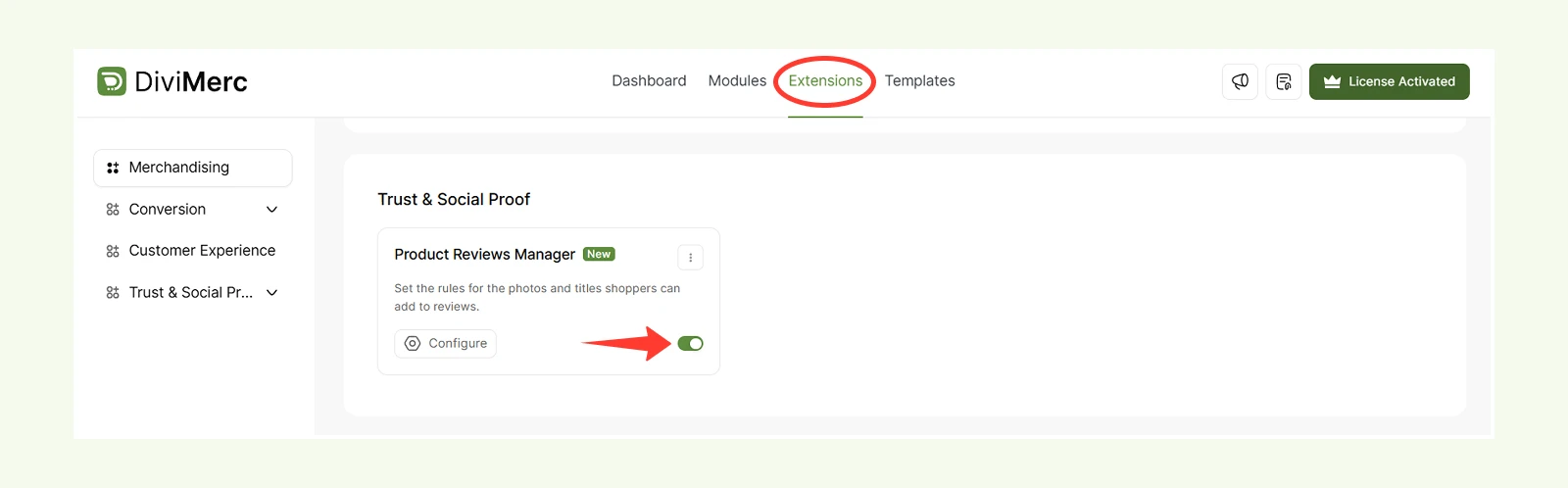
- Navigate to DiviMerc > Extensions.
- Find Product Reviews Manager and enable it.
- Click Configure to access the Photos and Titles settings.
Photos Settings #
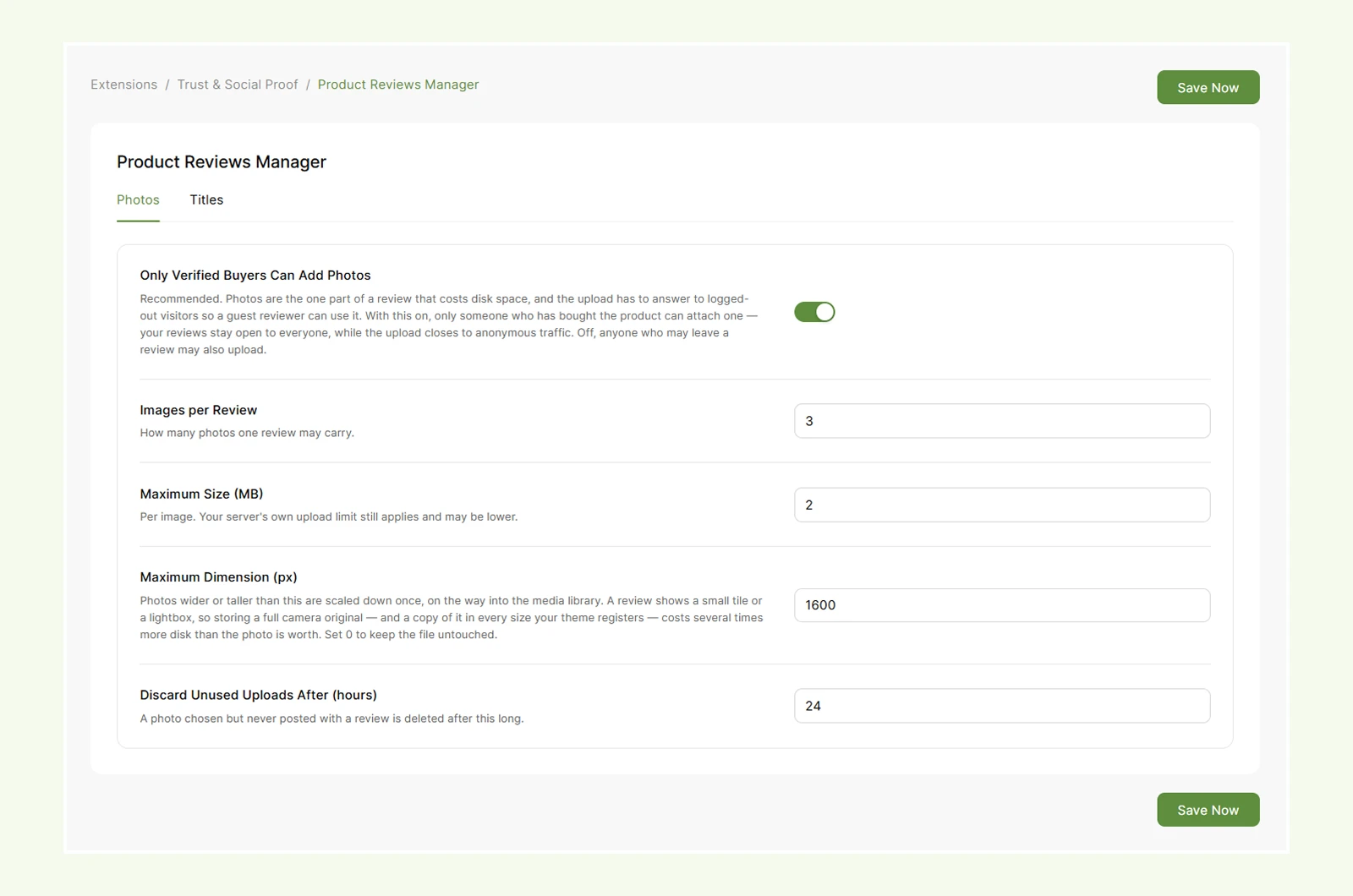
Only Verified Buyers Can Add Photos: Allow only logged-in customers who purchased the product to upload photos with their reviews.
Images per Review: Set the maximum number of photos allowed per review.
Maximum Size (MB): Set the maximum file size allowed for each photo.
Maximum Dimension (px): Set the maximum width or height of uploaded photos. Larger images are resized automatically. Set it to 0 to keep the original dimensions.
Discard Unused Uploads After (hours): Set how long unused photo uploads are kept before being automatically deleted.
Note: When Only Verified Buyers Can Add Photos is enabled, shoppers must be logged in with an account that purchased the product. Guest purchases do not qualify for photo uploads
Supported Photo Types #
The extension supports JPG, PNG, WebP, and GIF, as long as those file types are allowed by your WordPress site.
Titles Settings #
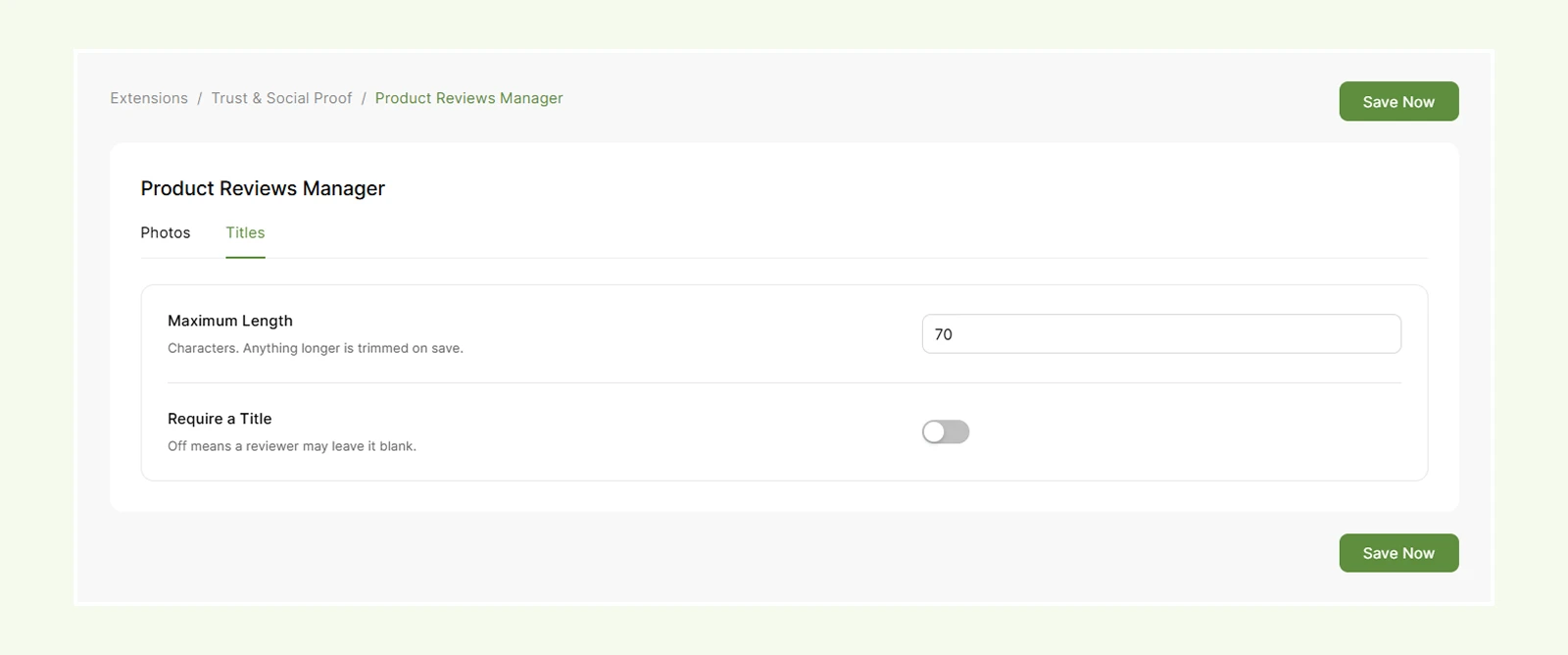
Maximum Length: Set the maximum number of characters allowed in a review title.
Require a Title: Make the review title required or optional.
Note: Customize the review title text from the Write a Review module using Title Label. Photo picker text can also be customized there using Photo Picker Label and Photo Too Large Warning
Use Product Reviews Manager with the Product Reviews Module #
The Product Reviews Manager adds review titles and photos, while the Product Reviews module controls how they are displayed and styled.
Use the Customer Reviews and Write a Review child modules to manage these elements. To learn more, check the Product Reviews module documentation.
Need Help? #
If you have any questions or need assistance, contact our support team: [email protected]


