
The Add to Cart Rules extension lets you customize add-to-cart button labels, purchase behavior, and quantity rules across your WooCommerce store.
Important Note:
- The extension is disabled by default and must be enabled manually.
- Label fields are empty by default. If you leave a field empty, WooCommerce uses its default wording.
- Product page and shop/archive labels are configured separately.
Let’s see the settings in brief and how to make better use of them —
Enable Add to Cart Rules #
- Go to your WordPress Dashboard.
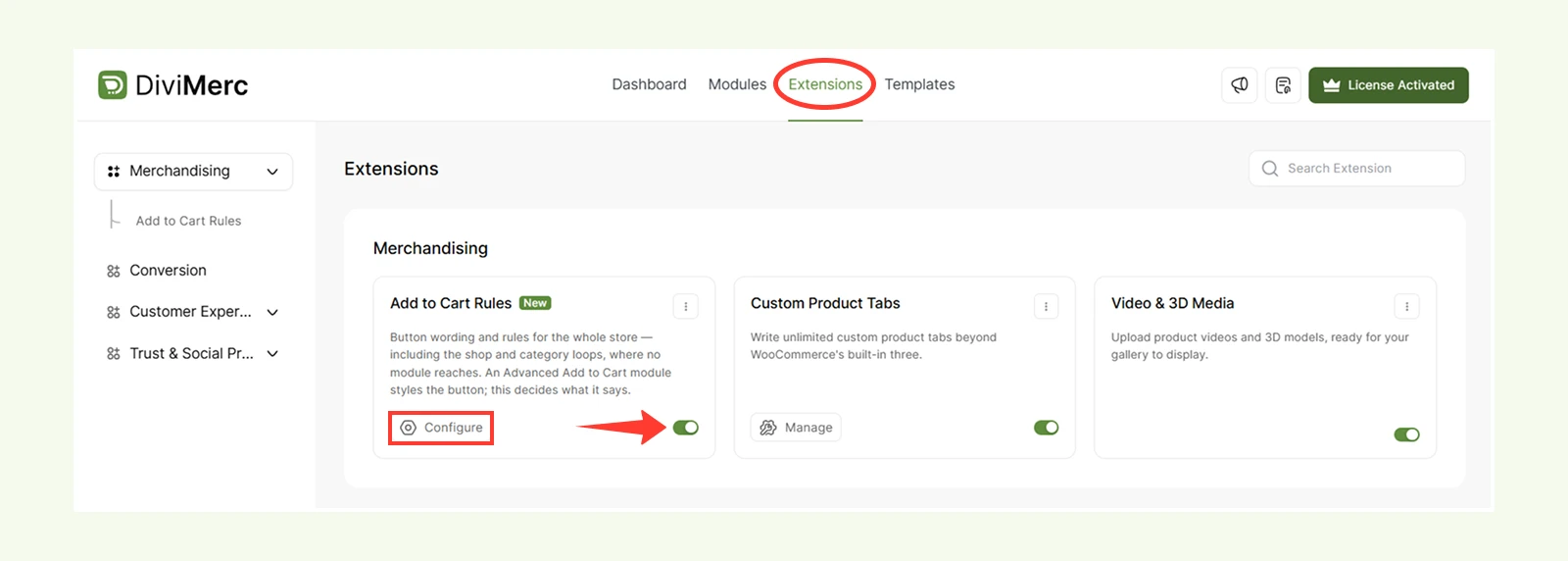
- Navigate to DiviMerc > Extensions.
- Find Add to Cart Rules and enable it.
- Click Configure to access the Labels, Behaviour, and Quantity settings.
Labels Tab #
Use these settings to customize add-to-cart button text across your store.
Product Page #
Set the button text for each product type on individual product pages.
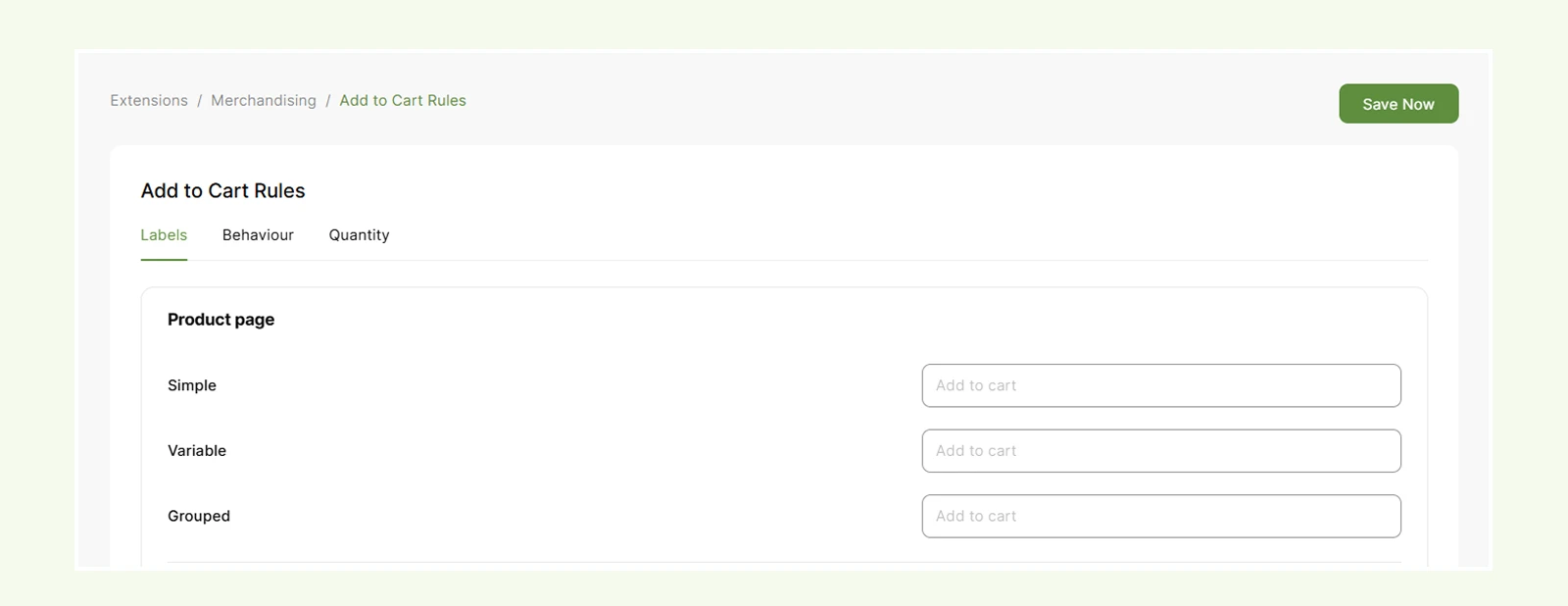
- Simple: Customize the Add to Cart text for simple products.
- Variable: Customize the button text for variable products.
- Grouped: Customize the button text for grouped products.
Shop & Archive #
Set separate button text for products displayed on shop, category, tag, search, and other WooCommerce product loops.
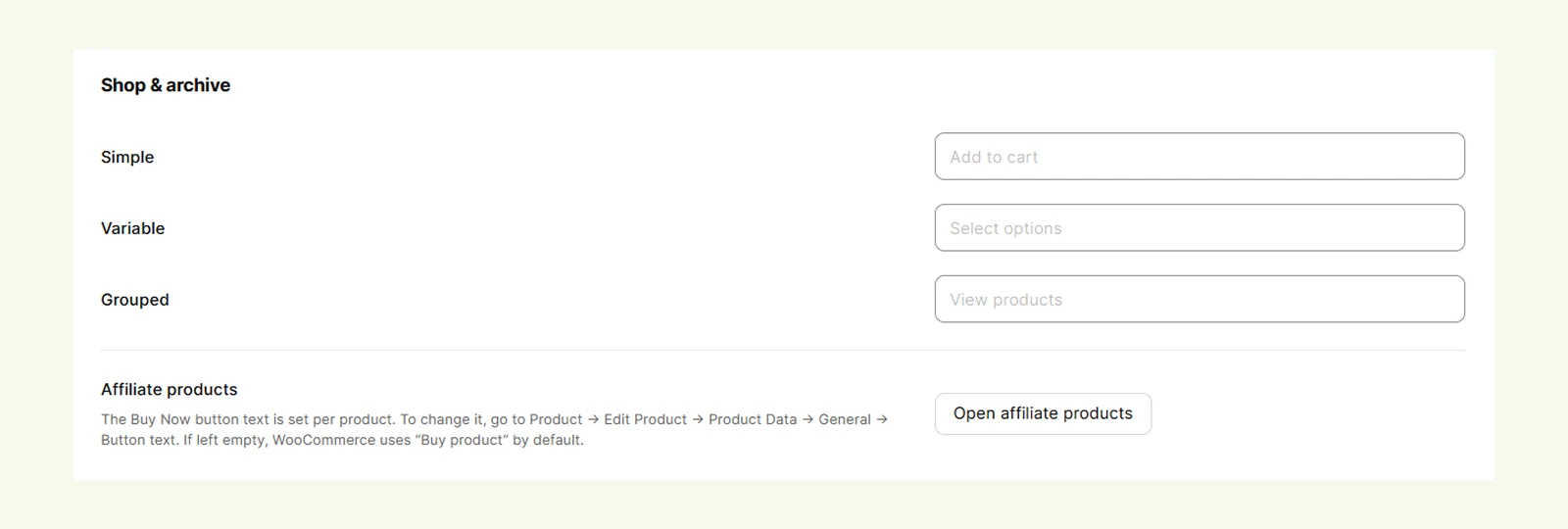
- Simple: Customize the Add to Cart text for simple products.
- Variable: Customize the button text shown for variable products. WooCommerce uses Select options by default.
- Grouped: Customize the button text shown for grouped products. WooCommerce uses View products by default.
- Affiliate Products: Affiliate product button text is managed individually in WooCommerce. Use Open affiliate products to access those products, then change the text under Product data > General > Button text.
State Labels #
These settings let you change the button text when a product is in a specific state.
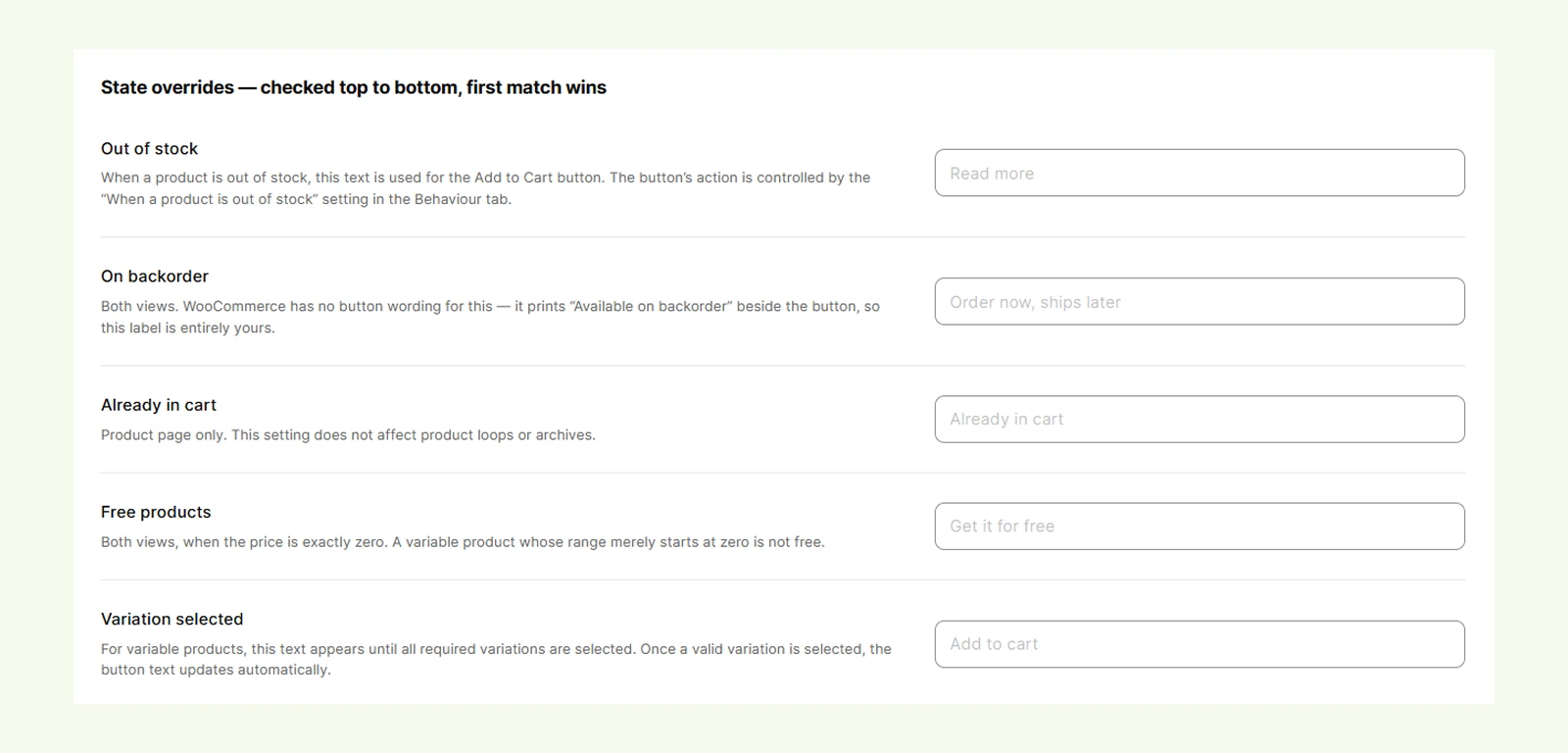
- Out of stock: Set the button text used for out-of-stock products in shop/archive loops and the Advanced Add to Cart module.
- On backorder: Set the text shown when a product can be purchased on backorder.
- Already in cart: Set the text shown when the product is already in the shopper's cart.
- Free products: Set custom text for products priced at exactly zero.
- Variation selected: Change the button text after the shopper selects a complete variation of a variable product.
Note: When several labels could apply to the same product, a more specific product state can override the regular product-type label.
Behaviour Tab #
These settings control purchase-related behavior across your store.
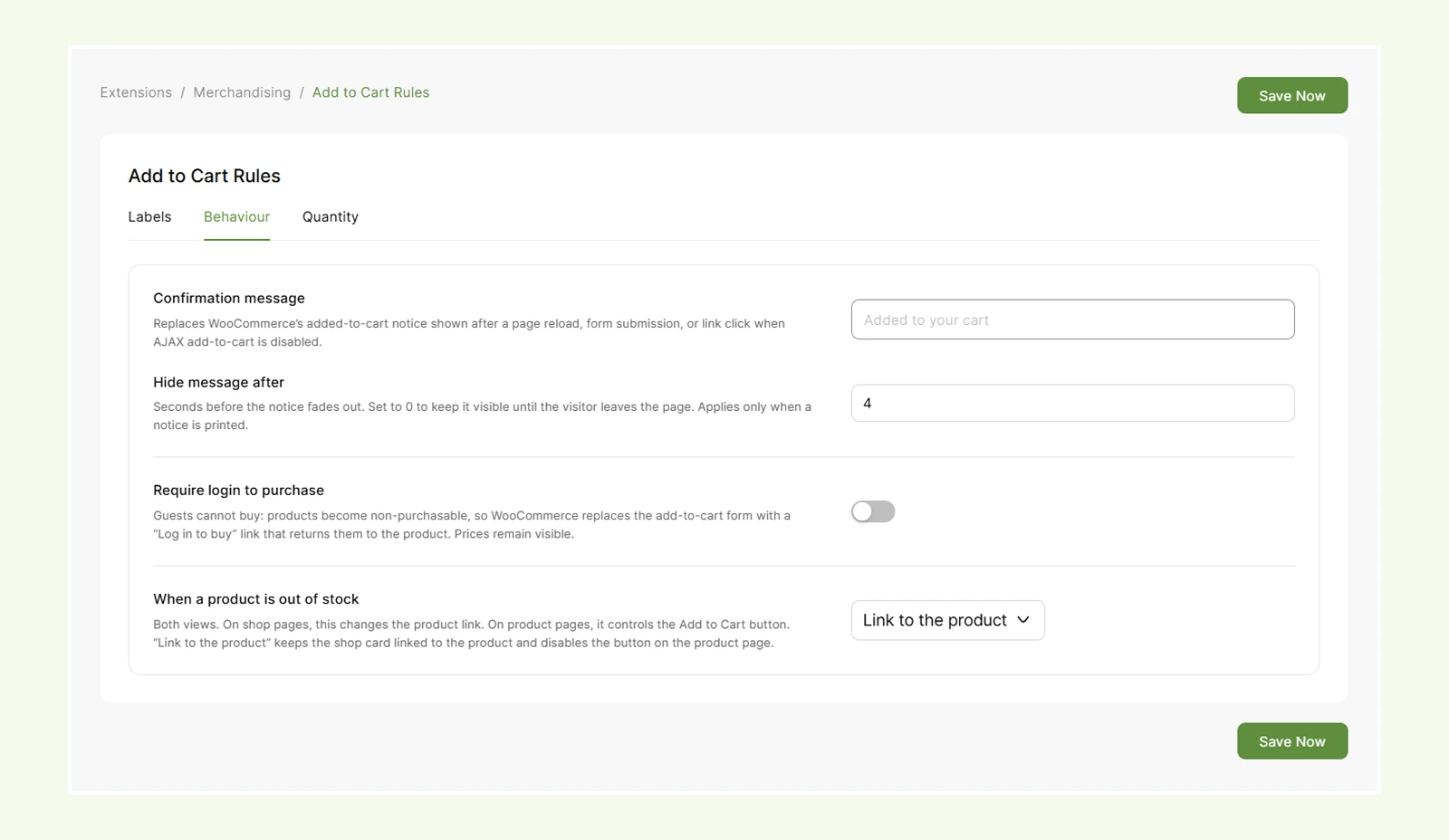
- Confirmation message: Replace WooCommerce's default added-to-cart confirmation text with your own message.
- Hide message after: Set how many seconds WooCommerce success messages remain visible before fading out. Set it to 0 to keep them visible.
Note: The confirmation message may not appear when products are added through AJAX. Also, Hide message after applies to other green WooCommerce messages, such as cart and coupon confirmations.
- Require login to purchase: Prevent logged-out visitors from purchasing products while keeping product prices visible. Guests see a Log in to buy button instead of the normal Add to Cart option.
- Login page: Set the page visitors are sent to when they click Log in to buy. You can use your WooCommerce My Account page or another login page.
Note: If you use a Divi Theme Builder product template, place the Advanced Add to Cart module in the layout so logged-out visitors can see the Log in to buy button.
- When a Product Is Out of Stock: Choose what happens to the add-to-cart button when a product is out of stock.
- Link to the product: Keep the button and direct shoppers to the product page.
- Hide the button: Remove the button completely.
- Link somewhere else: Send shoppers to another page, such as a waitlist or stock notification page.
- Notify-me URL: Enter the destination URL used when Link somewhere else is selected.
Note: On a standard WooCommerce product page, WooCommerce displays an out-of-stock notice instead of a button. These button rules affect shop/archive pages and product pages using the Advanced Add to Cart module.
Quantity #
Use these settings to control the values available in WooCommerce quantity fields.
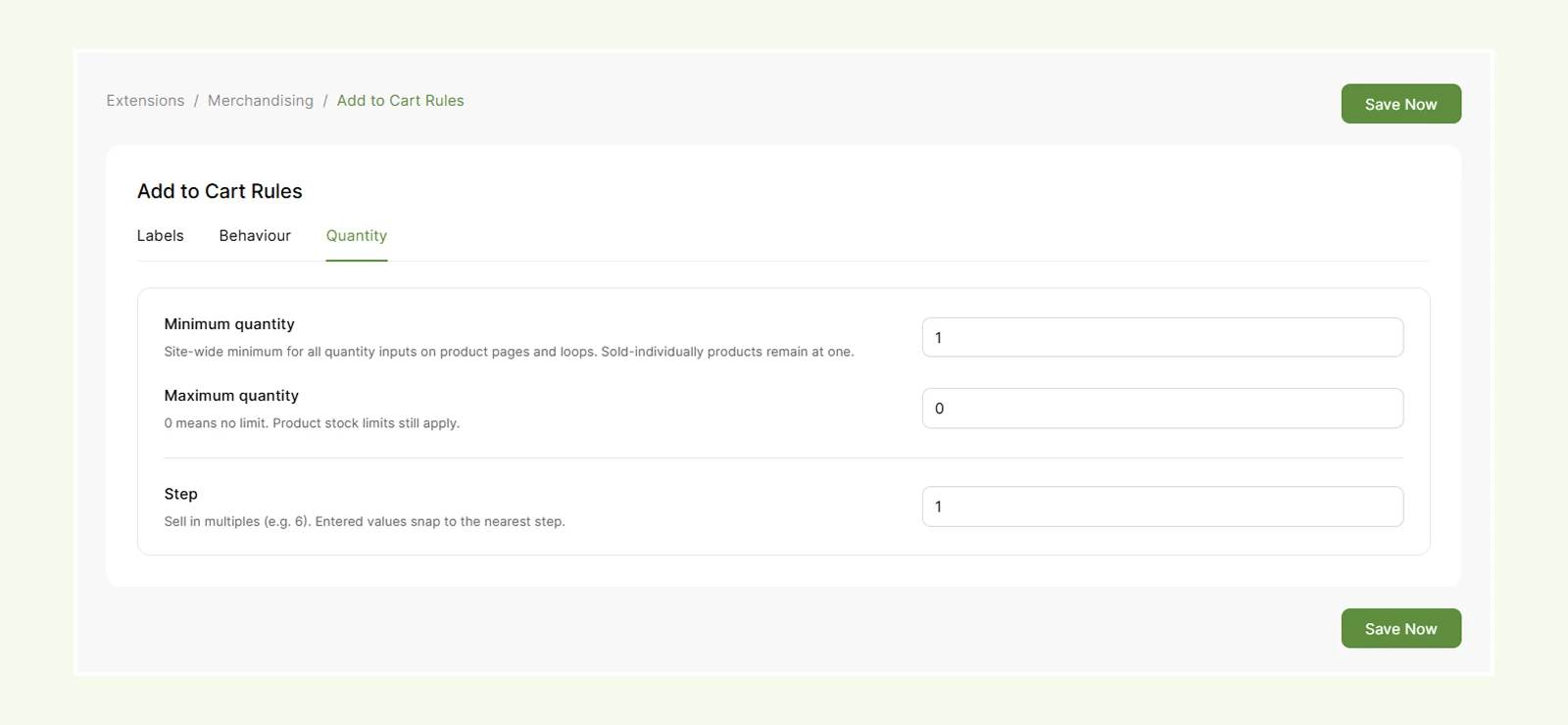
- Minimum quantity: Set the lowest quantity shoppers can select.
- Maximum quantity: Set the highest quantity shoppers can select. Set it to 0 for no additional maximum limit.
- Step: Set how much the quantity increases or decreases with each step.
Note: These settings apply to WooCommerce quantity fields, including those used by the Advanced Add to Cart module and Cart page. They do not enforce quantity rules in the Mini Cart, standalone Buy Now buttons, or shop-loop Add to Cart buttons. Products marked Sold individually always remain limited to one.
Need Help? #
If you have any questions or need assistance, contact our support team: [email protected]


