
The Advanced DiviMerc Add To Cart module lets you customize the WooCommerce purchase with quantity selector, cart behavior, stock output, variation price and more.
Important Note:
- Use the module on a WooCommerce product page or Single Product template so it can display a stepper with an add to cart button.
- By default, it will show the default variation dropdown. To remove it, go to Content → Additional Setting and toggle on to hide native variation dropdown.
Let’s see the settings in brief and how to make better use of them.
Content Tab #
The Content tab lets you choose the product, preview different purchase scenarios, customize the add-to-cart button, control cart behavior and choose which purchase information appears.
Content #
The Product option lets you choose which product’s add to cart button will be displayed in the product page.
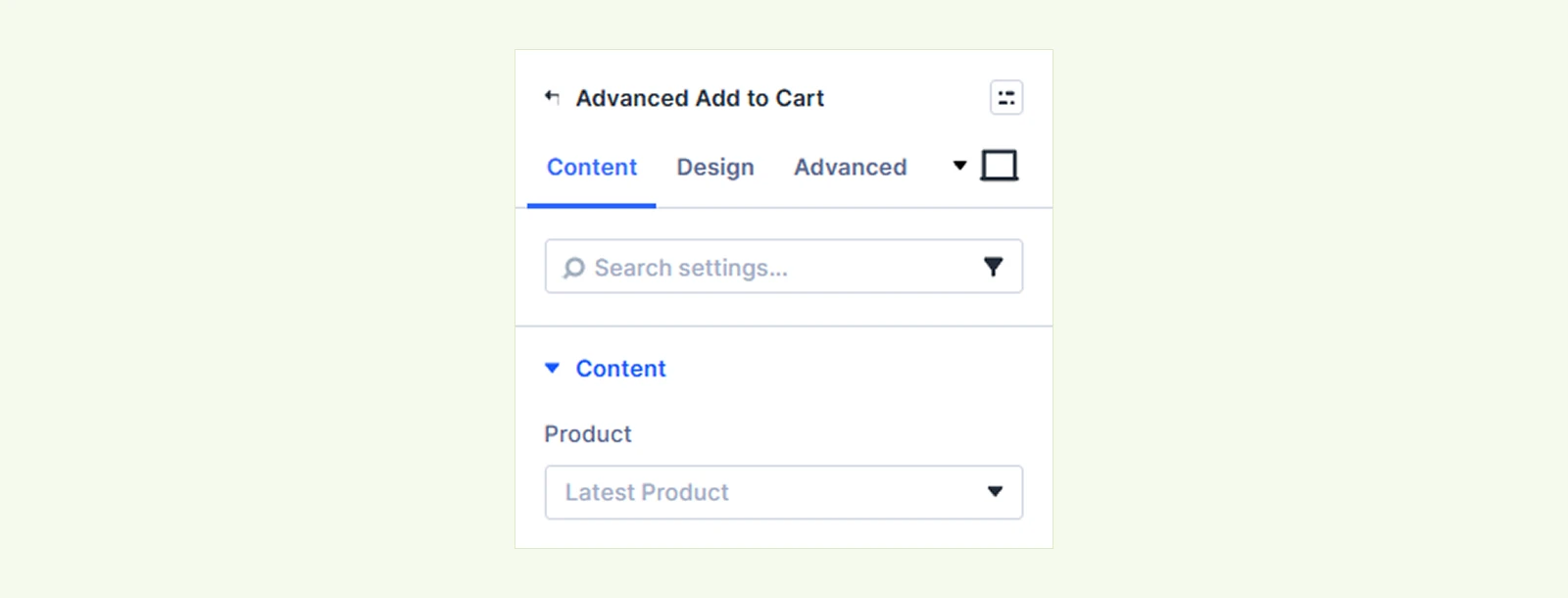
- This Product: Dynamically displays the cart of the current product.
- Latest Product: Automatically displays the cart button of the most recently added product.
- Specific Product: Lets you select a specific product and display its cart button wherever the module is used.
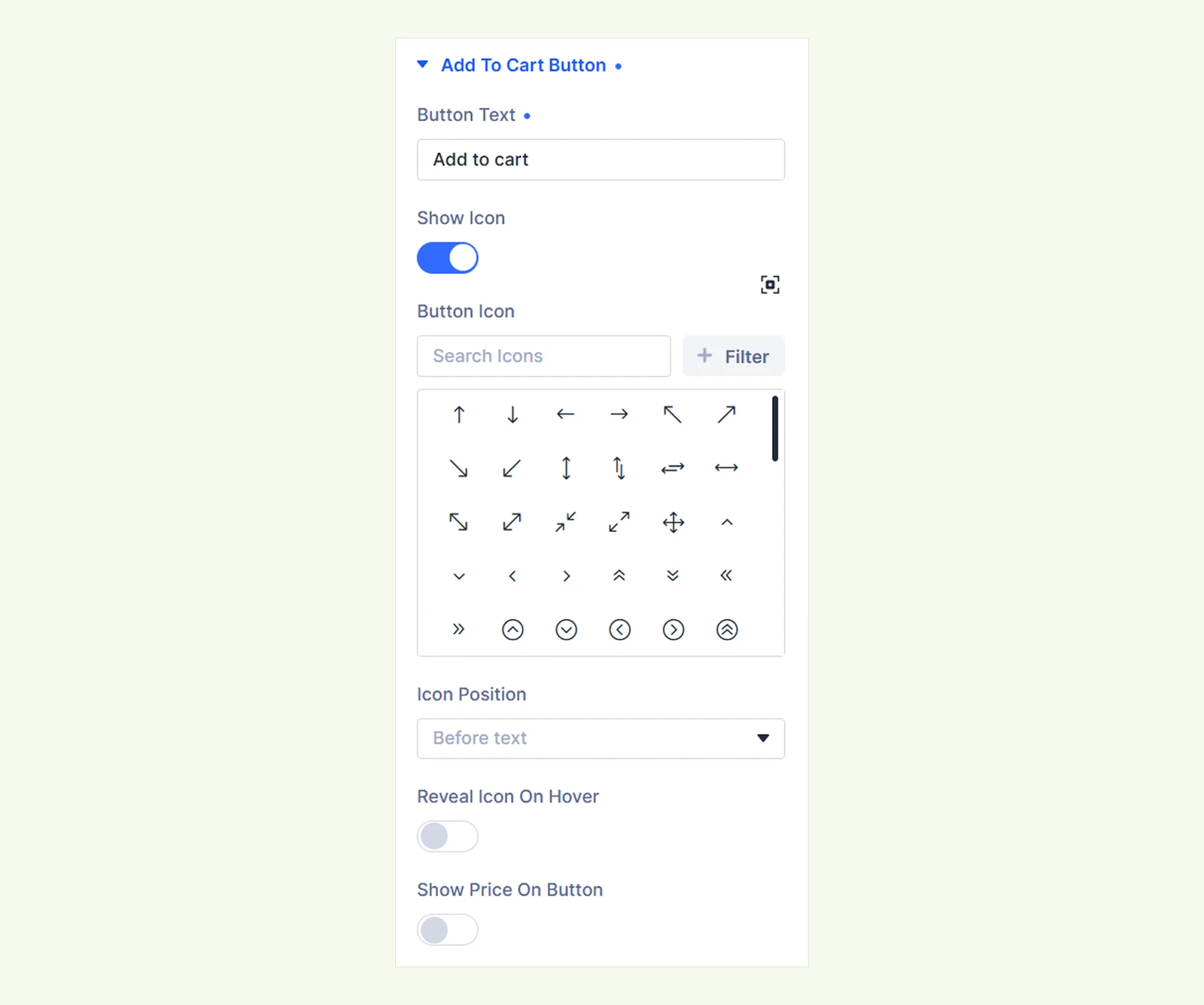
Add To Cart Button #
- Button Text: Enter the text displayed on the purchase button, such as “Add to cart.”
- Show Icon: Enable this option to display an icon with the button text. When enabled, additional icon settings appear:
- Button Icon: Choose the icon to display on the button.
- Icon Position: Choose whether the icon appears before or after the button text.
- Reveal Icon On Hover: Show the icon only when shoppers hover over the button. When enabled, the Slide From setting appears.
- Slide From: Choose the direction the icon enters from on hover.
- Show Price On Button: Enable this option to display the product price inside the add-to-cart button. When enabled, additional price settings appear:
- Price Layout: Choose how the price and its label are arranged inside the button
- Inline (separator)
- Label left, price right
- Price chip
- Vertical divider
- Two lines
- Price first
- Show Sale + Original: Show both the sale price and original price when a product is on sale.
- Variable Products: Choose how the button price behaves for variable products, such as hiding the price until a variation is selected.
- Price Layout: Choose how the price and its label are arranged inside the button
Cart Behaviour #
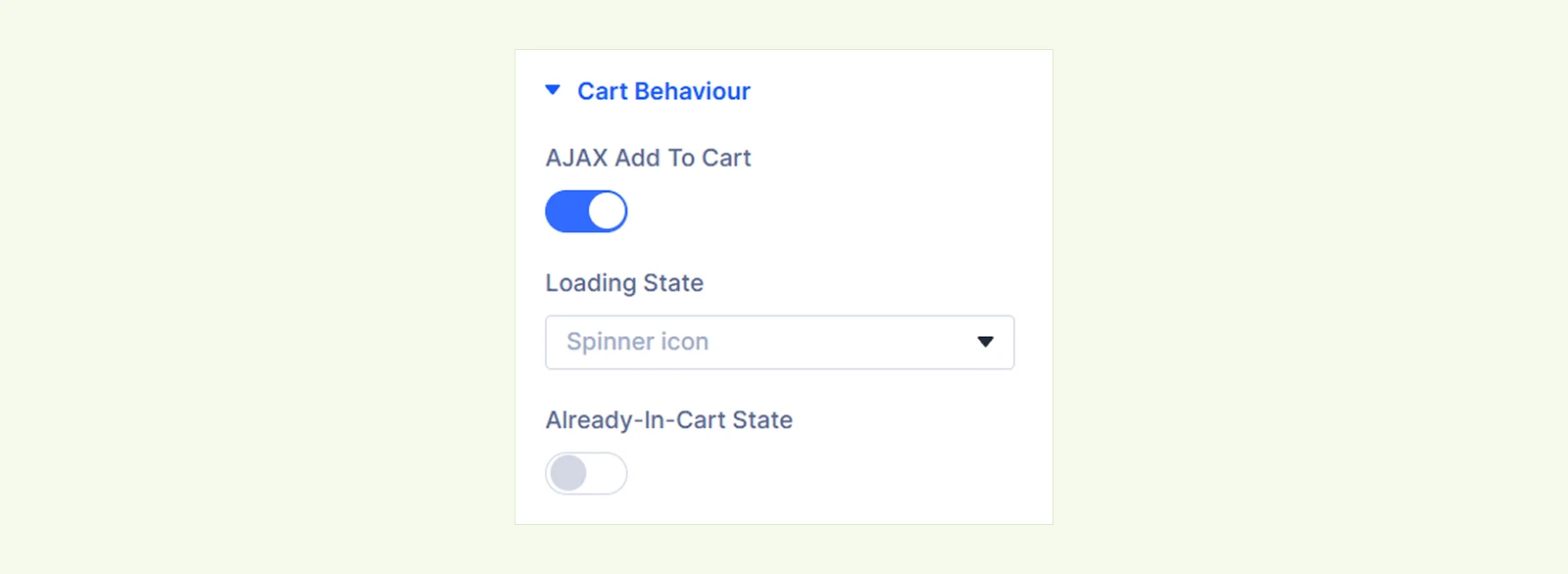
- AJAX Add To Cart: Add the product to the cart without reloading the entire page. When enabled, the Loading State setting appears:
○ Loading State: Choose the feedback shown while the product is being added to the cart:
○ Spinner icon
○ Loading text
○ Loading Text: Enter the text shown during the AJAX action. This field appears when the Loading text is selected.
- Already-In-Cart State: Enable a separate button state after the product has been added to the cart. When enabled, additional settings appear:
○ In-Cart Text: Enter the text shown after the product is already in the cart.
○ Show Tick Mark: Show or hide a tick mark with the in-cart state.
Additional Settings #
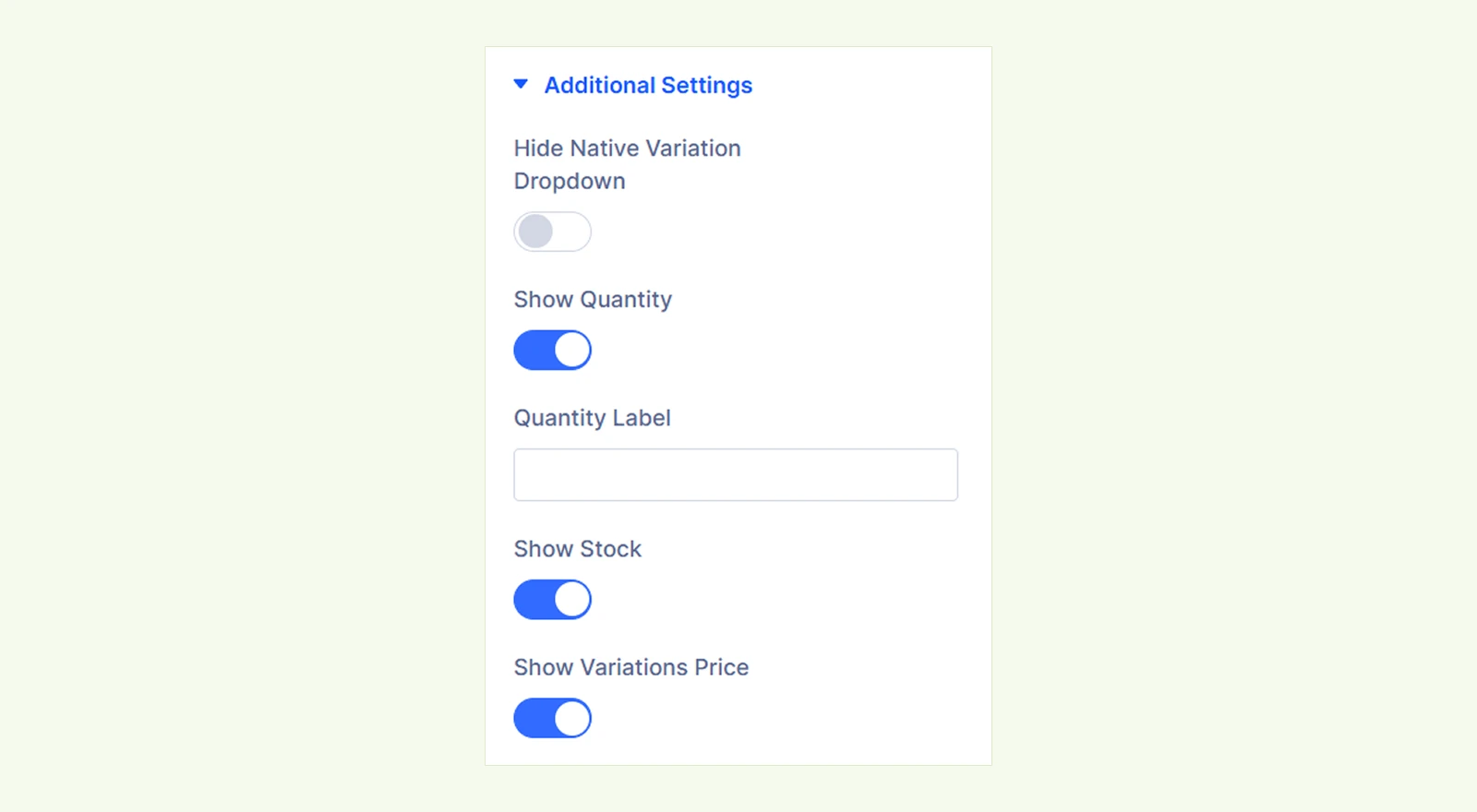
- Hide Native Variation Dropdown: Hide WooCommerce’s default variation dropdowns when you do not want them displayed with the module.
- Show Quantity: Show or hide the quantity selector. When enabled, the Quantity Label field appears:
○ Quantity Label: Enter a custom label for the quantity selector.
- Show Stock: Show or hide the product stock information.
- Show Variations Price: Show or hide the price for the selected product variation.
[Note: When using the Variation Swatches module, enable Hide Native Variation Dropdowns to avoid showing both the default WooCommerce dropdowns and swatches.
Background: Configure the module background with further controls.
Element Label: Rename the module for easier identification inside the Divi Builder. This label is visible only in the Builder.
Design Tab #
The Design tab lets you style each part of the Add To Cart interface independently.
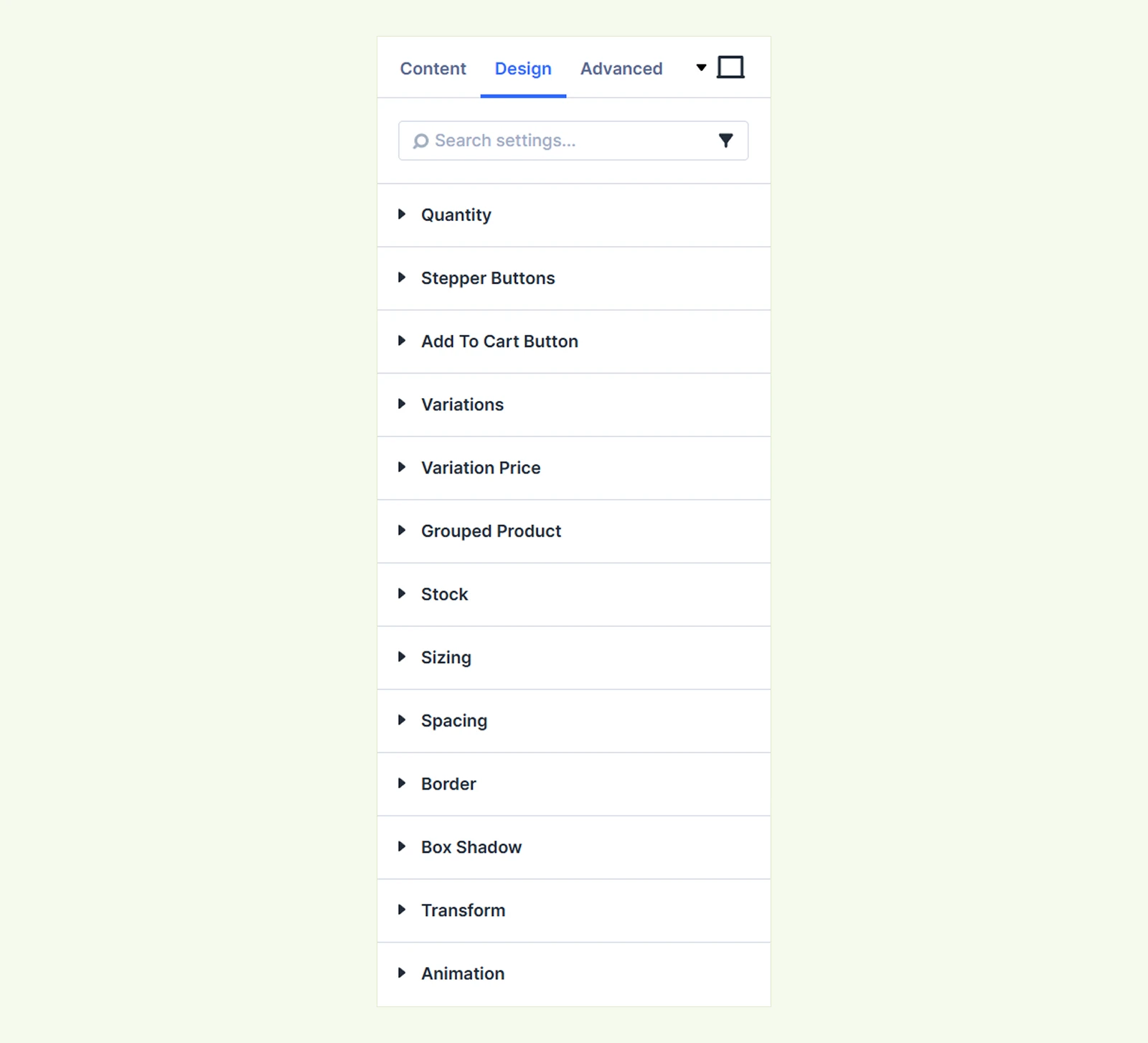
Quantity: Use text, background, sizing, spacing, border and box shadow controls to customize the quantity area further.
Stepper Buttons #
- Divider Width: Control the width of the divider between the quantity value and the stepper buttons.
- Divider Color: Set the color of the divider.
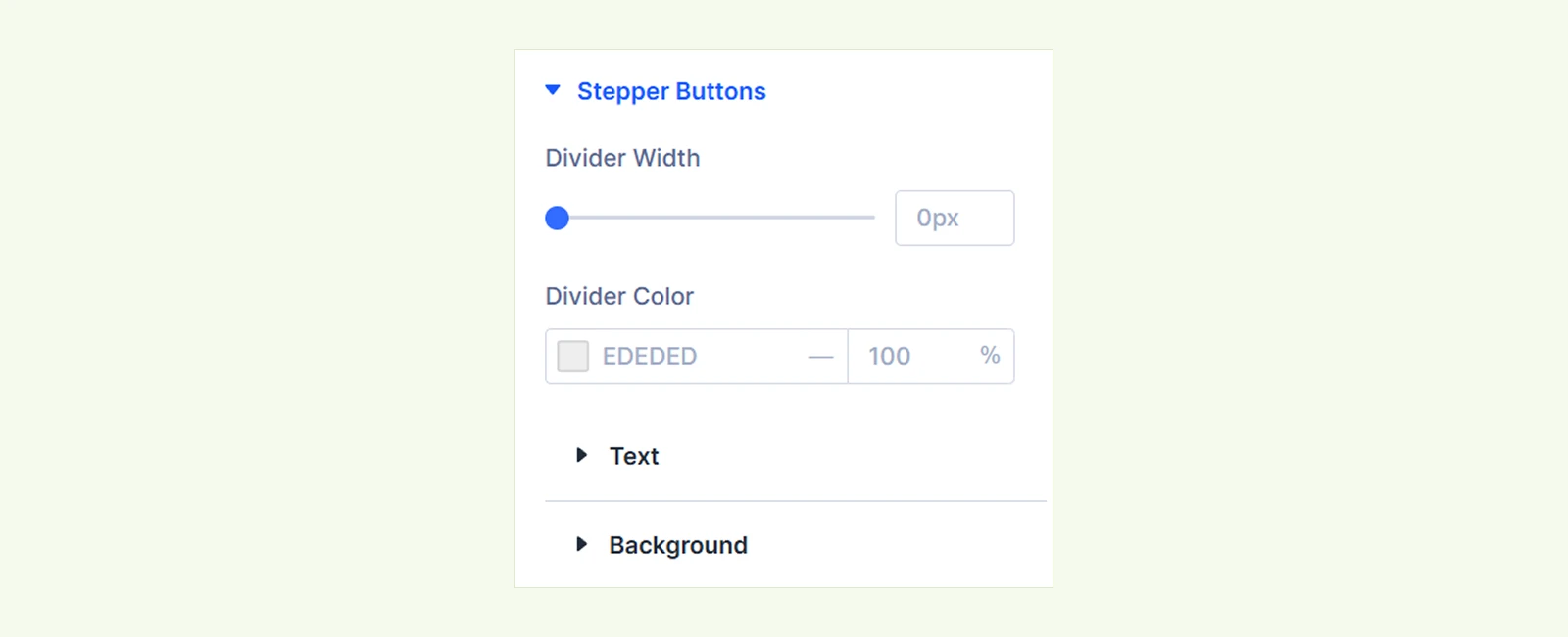
There, you will also find options to further customize text and background as needed.
Add To Cart Button #
- Icon Size: Control the size of the icon displayed on the add-to-cart button.
- Icon Color: Set the color of the button icon.
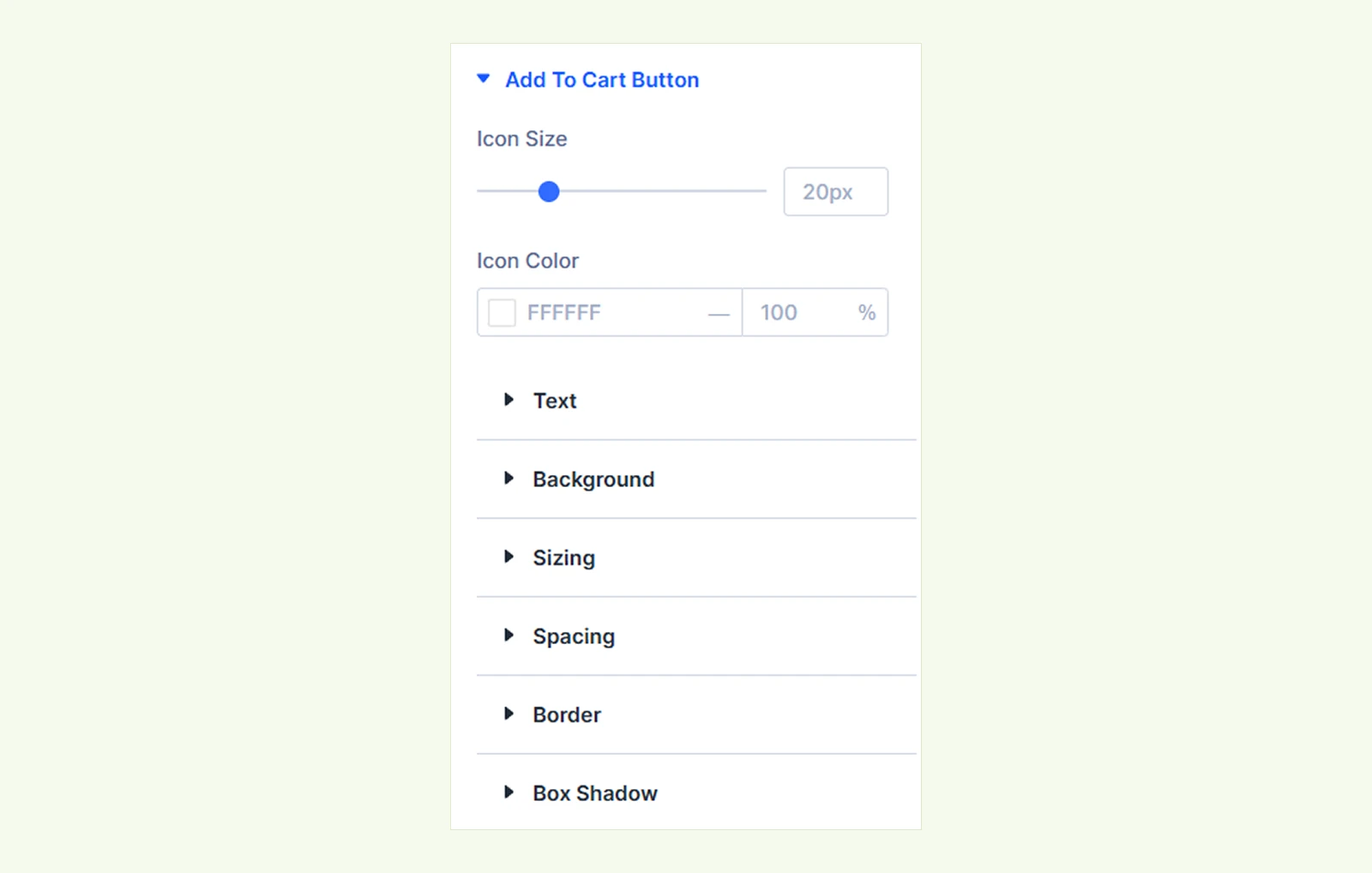
There, you will also find options to further customize text, background, sizing, spacing, border and box shadow as needed.
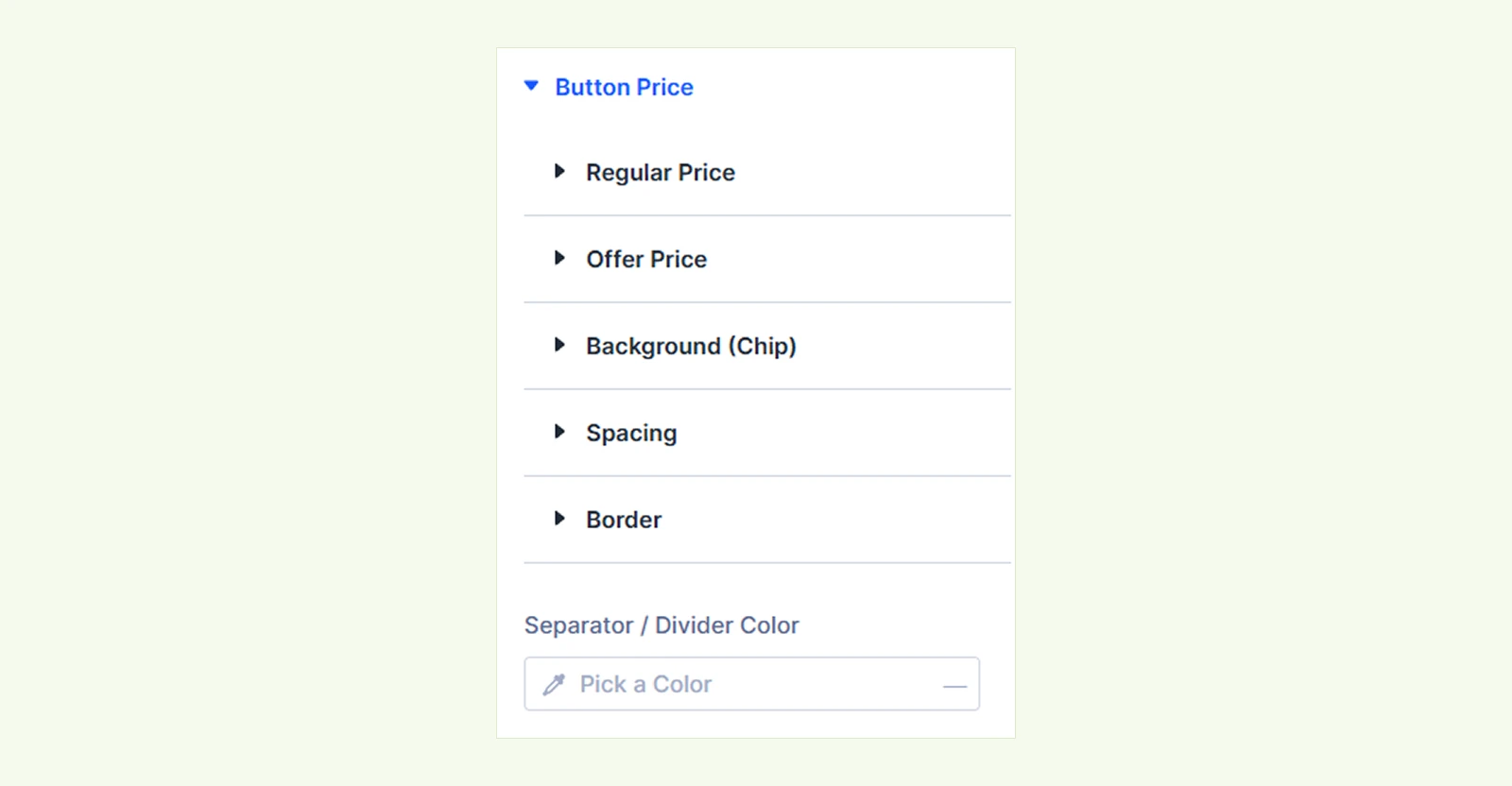
Button Price #
- Regular Price: Customize the regular price using available controls.
- Offer Price: Customize the sale or offer price using available controls.
- Background (Chip): Add and customize the background behind the button price.
- Spacing: Adjust the spacing around the price area.
- Border: Customize the price chip border using Divi’s standard border controls.
- Separator / Divider Color: Set the color of the separator shown between the price elements.
Variations #
- Dropdown Color: Set the color used for the variation dropdown control.
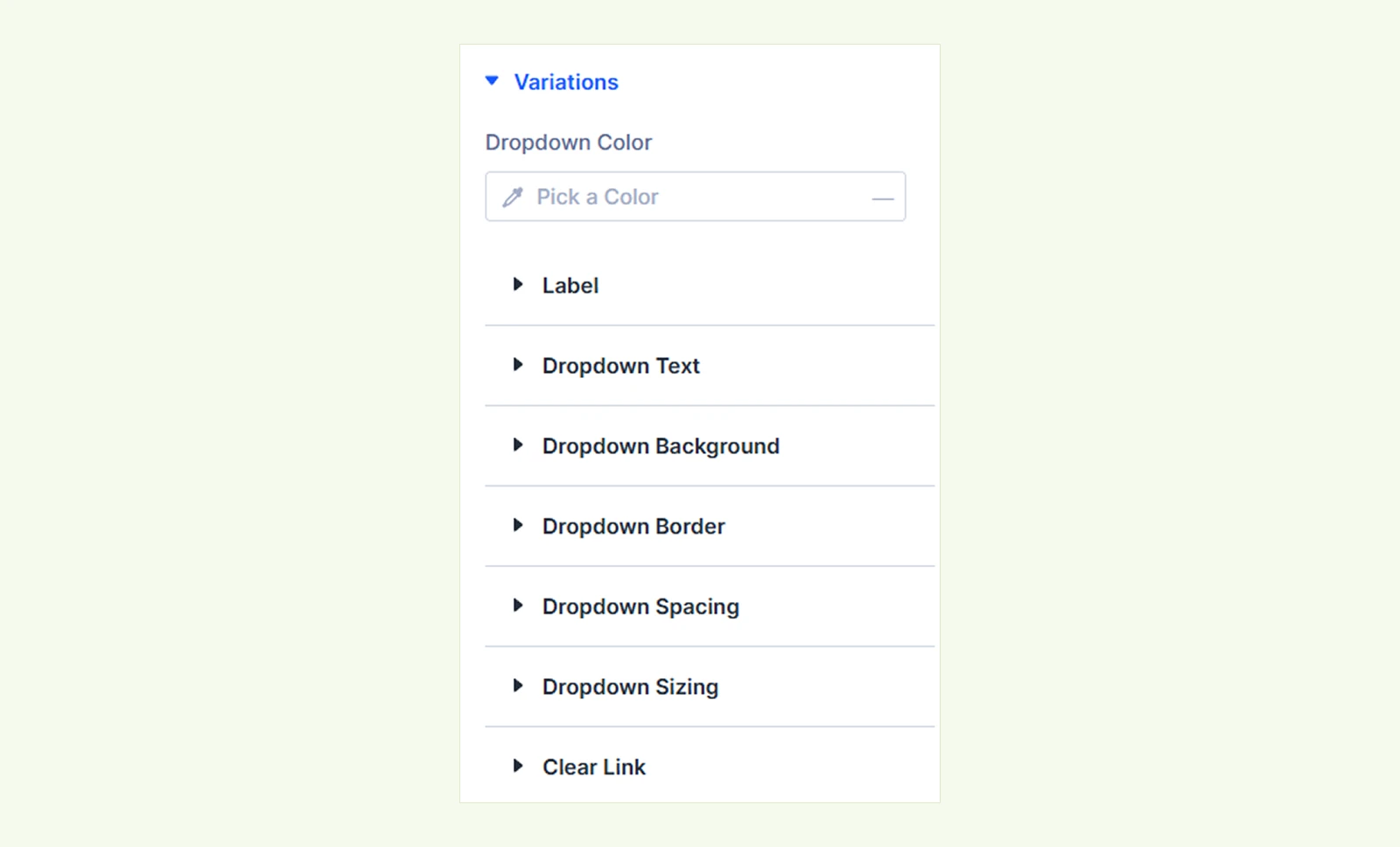
There, you will also find options to further customize label, text, background, border, spacing, sizing, and clear link as needed.
Variation Price #
- Regular Price: Customize the regular variation price.
- Offer Price: Customize the offer or sale variation price.

Grouped Product: Customize these items for further controls and look as needed.
Stock #
- In Stock Text: Customize the typography of the in-stock message.
- Out Of Stock Text: Customize the typography of the out-of-stock message.
There you will also find options to customize sizing, spacing, border, box shadow, transform and animation as needed.
Sizing: Adjust the module width, height, alignment and aspect ratio using sizing controls.
Spacing: Adjust margin and padding to control the space around the module.
Border: Customize the module border width, color, style and corner radius.
Box Shadow: Add and customize a shadow around the module to create depth.
Transform: Adjust the module’s scale, position, rotation or skew using Divi’s transform controls.
Animation: Apply Divi’s built-in entrance animations to the module.
Advanced Tab #
The Advanced tab provides the standard Divi settings for custom CSS, visibility conditions, transitions, attributes, positioning and other advanced controls.
Need Help? #
If you have any questions or experience issues while using the Add To Cart module, please contact our support team at: [email protected]


