
The Video and 3D Media extension allows you to enhance product galleries by adding interactive videos and 3D models that shoppers can rotate and explore.
Important Note: To ensure everything works correctly, please enable the 'Advanced Product Gallery' module before you enable the 'Video & 3D Media' extension. This extension automatically handles .glb and .gltf file uploads, so you do not need to install any separate media support extensions.
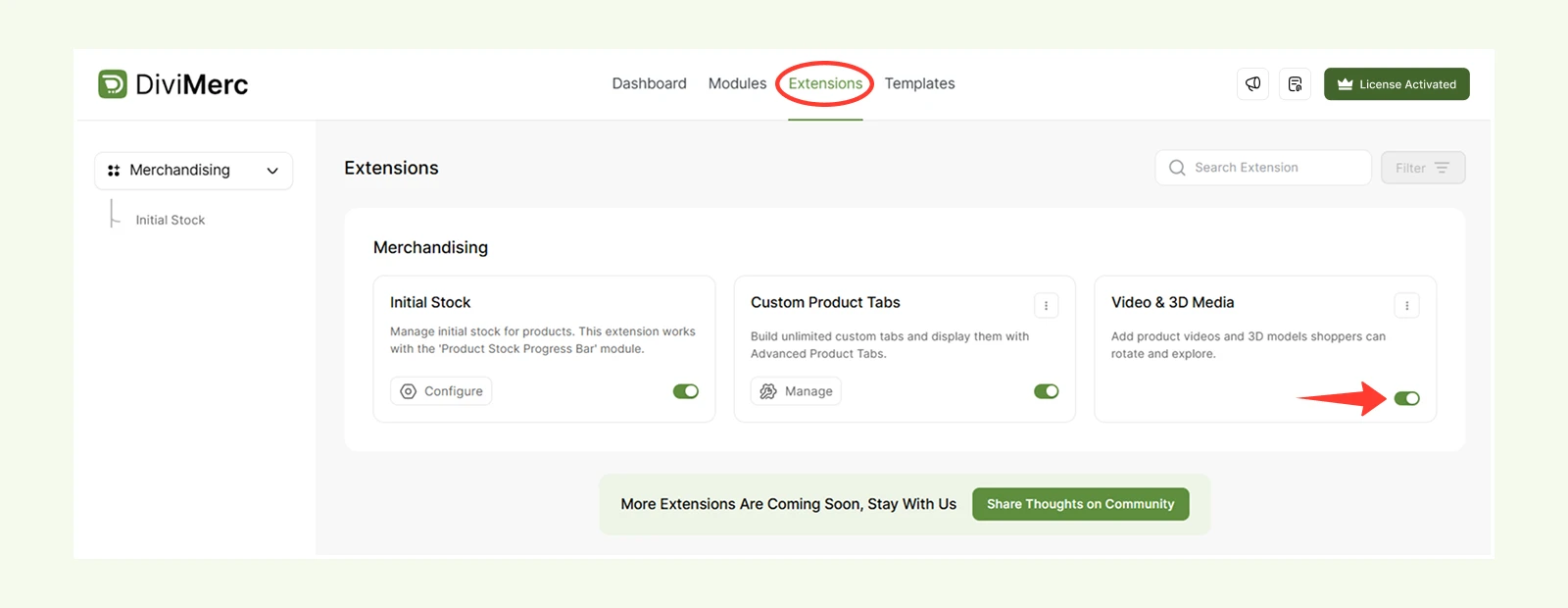
How to Enable Video and 3D Media #
- Go to DiviMerc → Modules and enable the Advanced Product Gallery.
- Go to DiviMerc → Extensions and enable Video & 3D Media.
Once enabled, you can add videos and 3D models from the product editing screen.
How to add video #
You can add one or more videos to a product from the product editing screen.
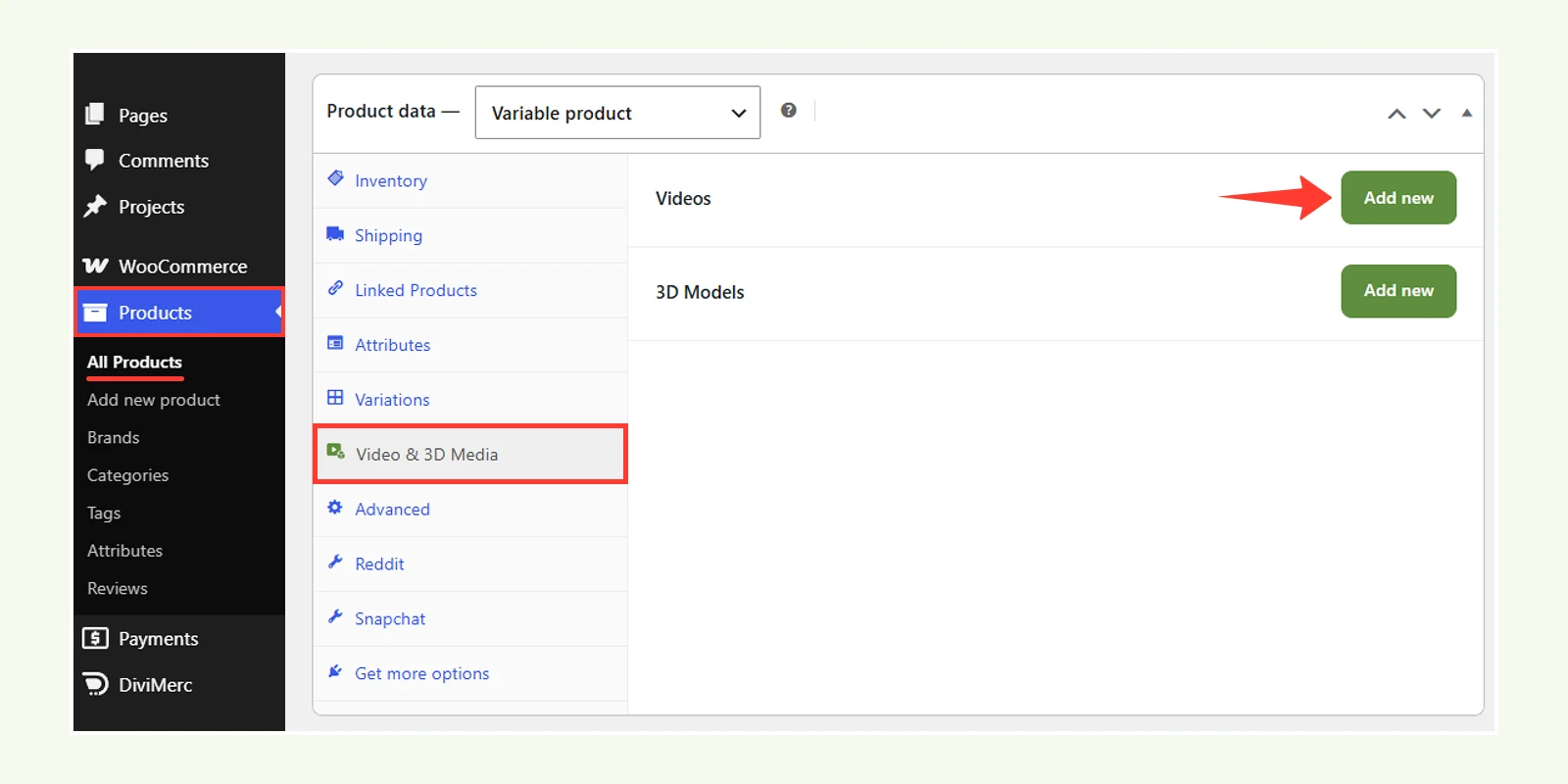
- Go to Products → All Products and open the product you want to edit.
- In the Product data panel, select Video & 3D Media.
- Open the Videos section.
- Click Add new.
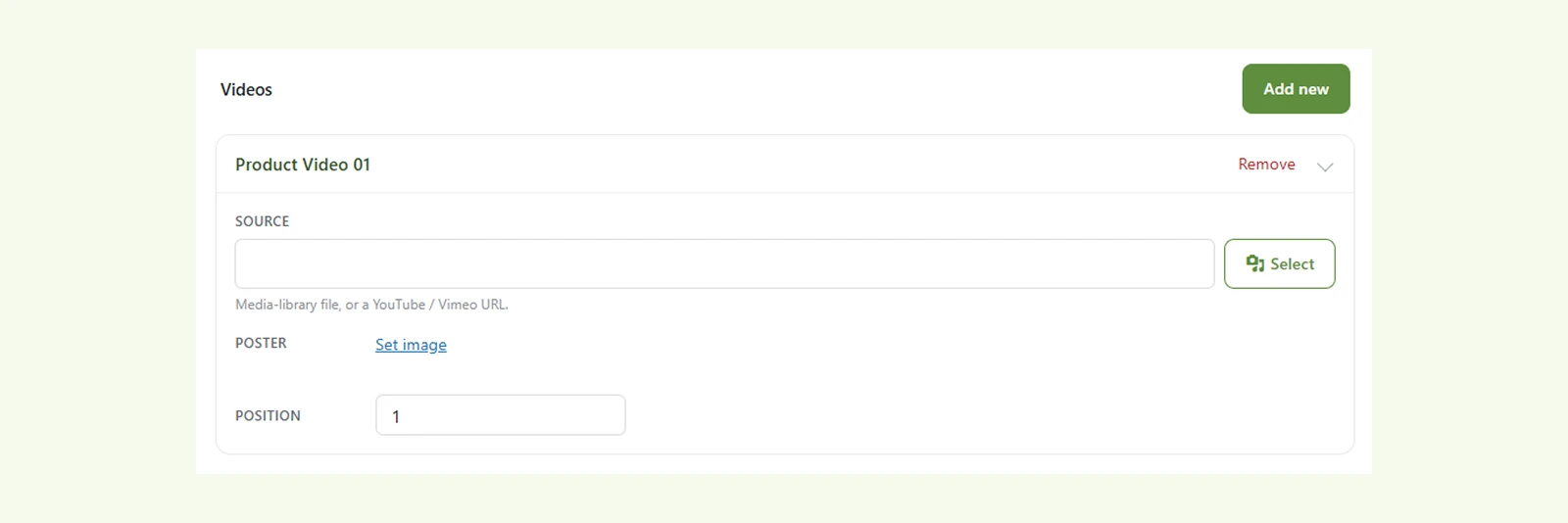
Configure the video settings: #
- Source: Add a video from the WordPress Media Library or use a supported video URL.
- Poster: Choose an image to display before the video starts playing. Adding a poster is recommended so the slide and gallery thumbnail do not appear blank.
- Position: Set where the video appears in the product gallery. For example, enter 1 to display it first.
How to add 3D Models #
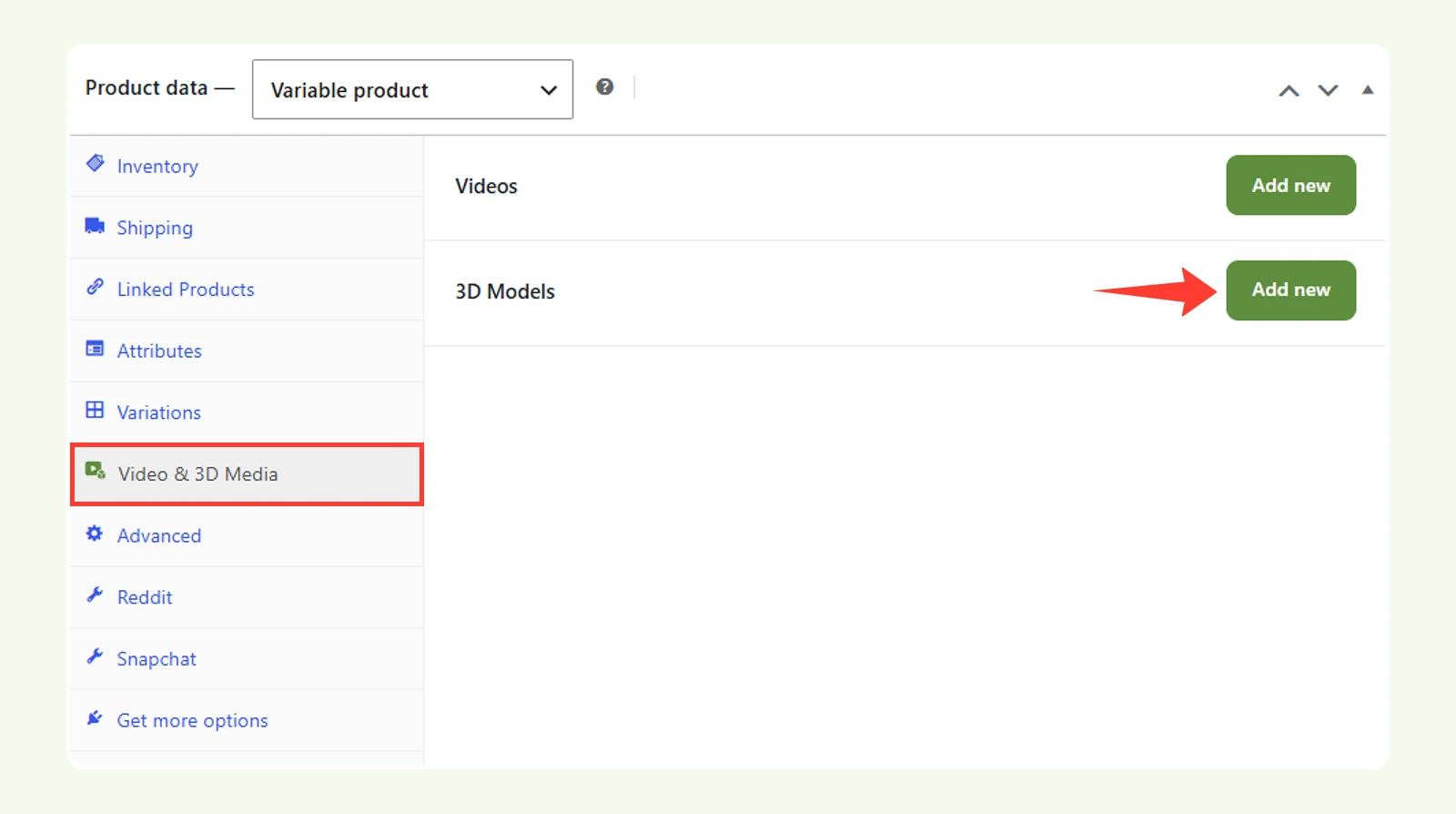
- Go to Products → All Products and edit the relevant product.
- In the Product data panel, select Video & 3D Media.
- Open the 3D Models section.
- Click Add new.
Configure the model settings: #
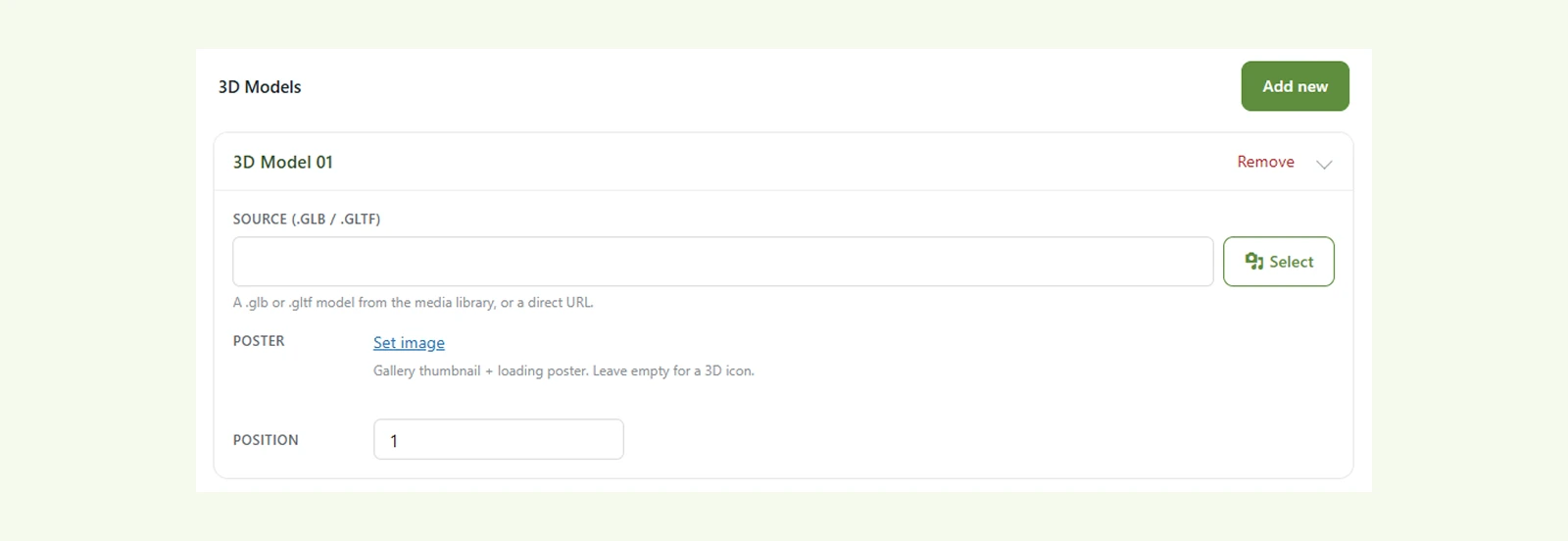
- Source (.GLB / .GLTF): Select a .glb or .gltf model from the Media Library or provide the model source.
- Poster: Add an image to use as the model's gallery thumbnail. This is recommended because the 3D model cannot generate its own thumbnail.
- Position: Set where the 3D model appears in the product gallery. For example, enter 2 to display it after the first gallery item.
Displaying Video and 3D Media #
After adding your media, you have to add and configure the Advanced Product Gallery module to display it to a product page. Here is how to do it:
- Open the product page and activate the Visual Builder.
- Add or open the Advanced Product Gallery module.
- Go to the Content tab.
- Open Video & 3D Media.
- Enable Show Video Slide to display videos.
- Enable Show 3D Model to display 3D models.
This section also includes settings for video playback and 3D model behavior, such as autoplay, muted playback, loop, controls, and auto-rotate.
Note: Enable Muted when using autoplay. Most browsers block videos from autoplaying with sound.
Styling Video and 3D Media #
You can customize the video and 3D elements from the Design tab of the Advanced Product Gallery module.
- Video Play Button: Customize the play button's text, position, color, and size.
- 3D Controls: Customize the controls used to interact with the 3D model.
Need Help? #
If you have any questions or need assistance, contact our support team: [email protected]


