
The DiviMerc Advanced Cart Products module (introduced in v1.2.0) lets you display and customize WooCommerce cart products using six premade templates, with full control over product details, badges, and quantity controls.
Content Tab #
The Content tab lets you choose a cart template, control which product elements appear, customize badges and meta information, and more.
Content #
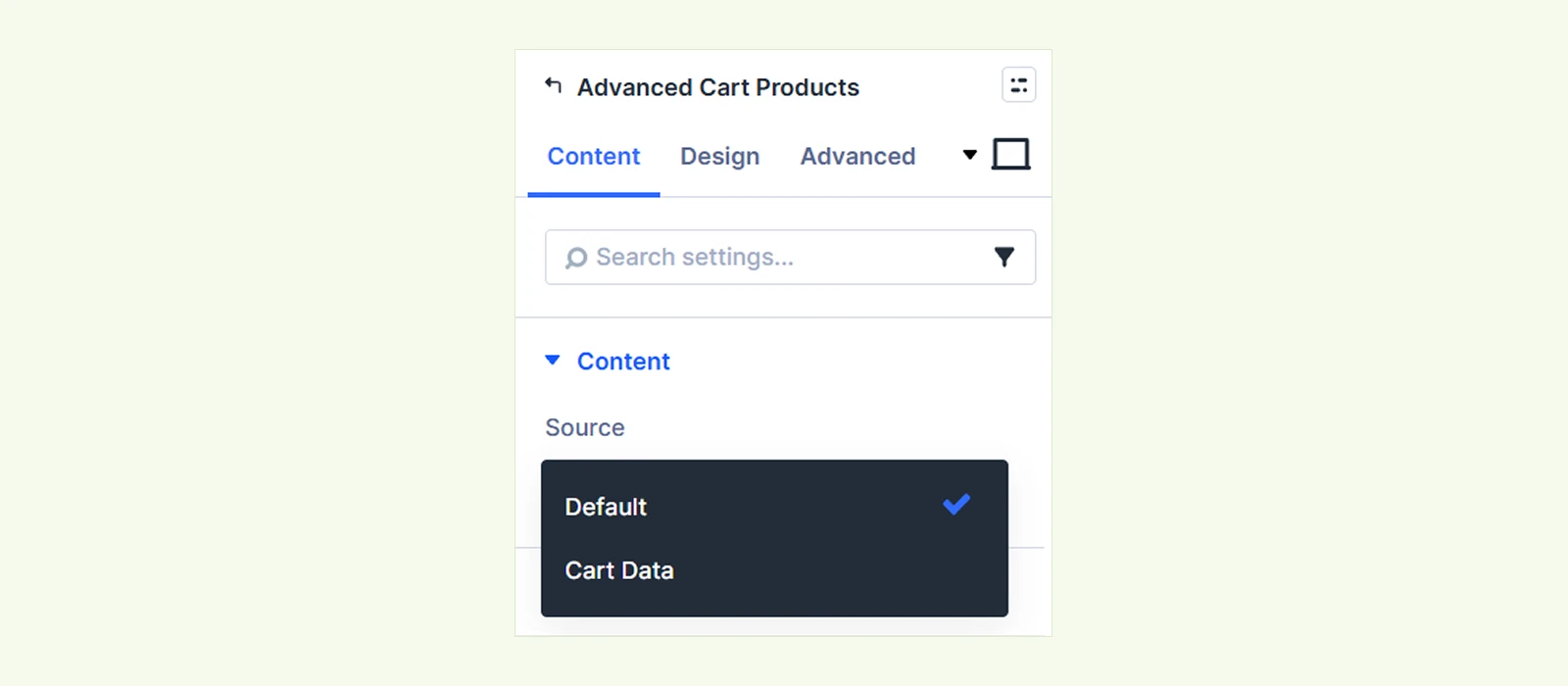
- Source: Choose which products appear in the Visual Builder.
- Default: Displays sample products to help you preview and style the cart.
- Cart Data: Displays products from your own WooCommerce cart.
Note: This setting only affects the Visual Builder. The live page always displays the shopper's actual cart. If your cart is empty, the builder displays sample products instead.
Template #
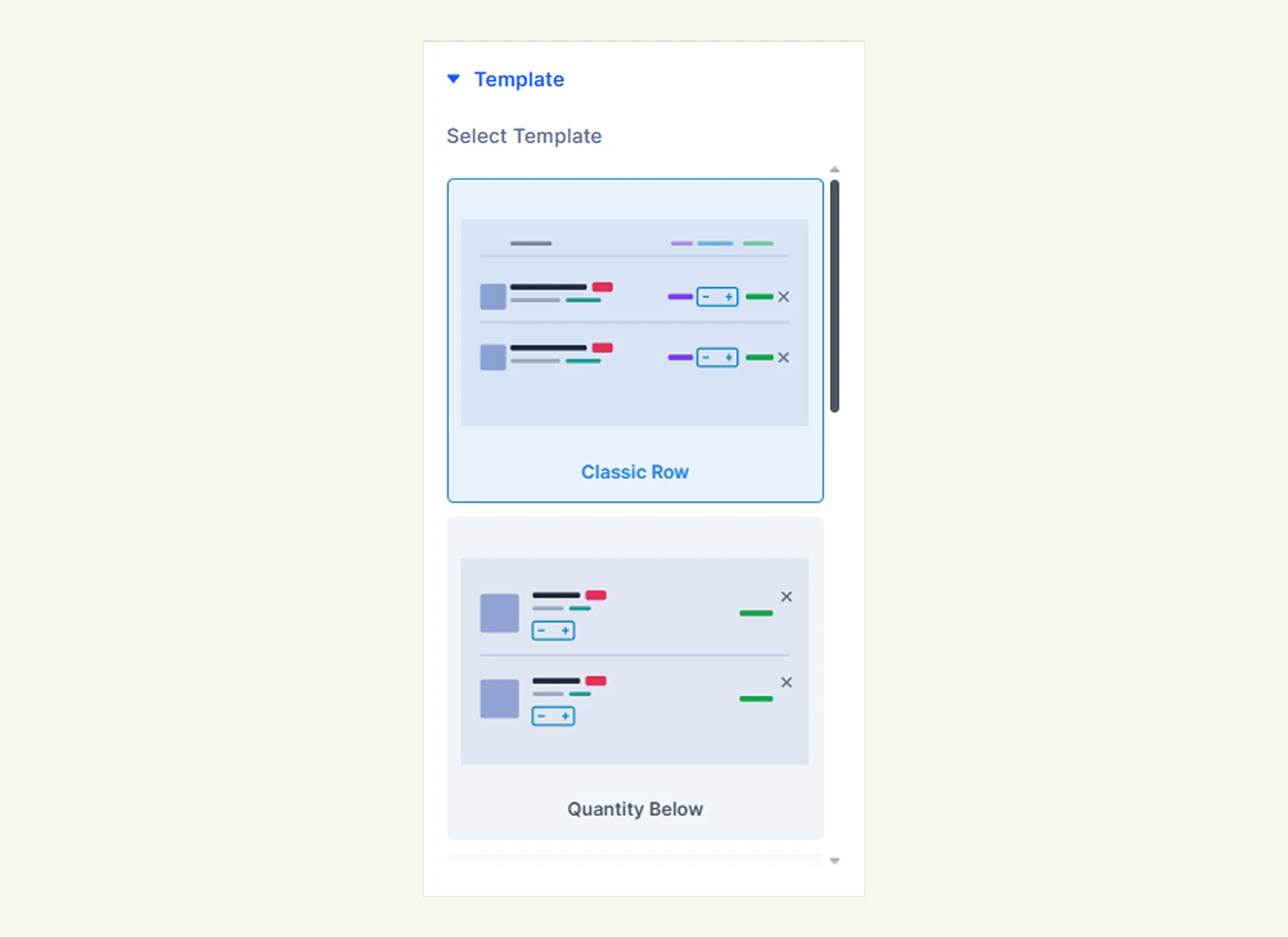
- Select Template: Choose from six premade templates to control how cart products are arranged.
- Classic Row: Displays products in a traditional table layout with column headings.
- Quantity Below: Displays the product image on the left and quantity controls below the product title.
- Grid Card: Arranges products in a grid of individual cards.
- Summary Card: Displays products in a compact card layout with the price inside the product information area.
- Stock Card: Displays products in a card layout that highlights stock availability.
- Media Card: Displays products in image-focused cards with larger images and separately positioned product meta.
Note: Choose your template before styling the module, as switching templates can overwrite your existing design settings.
Elements #
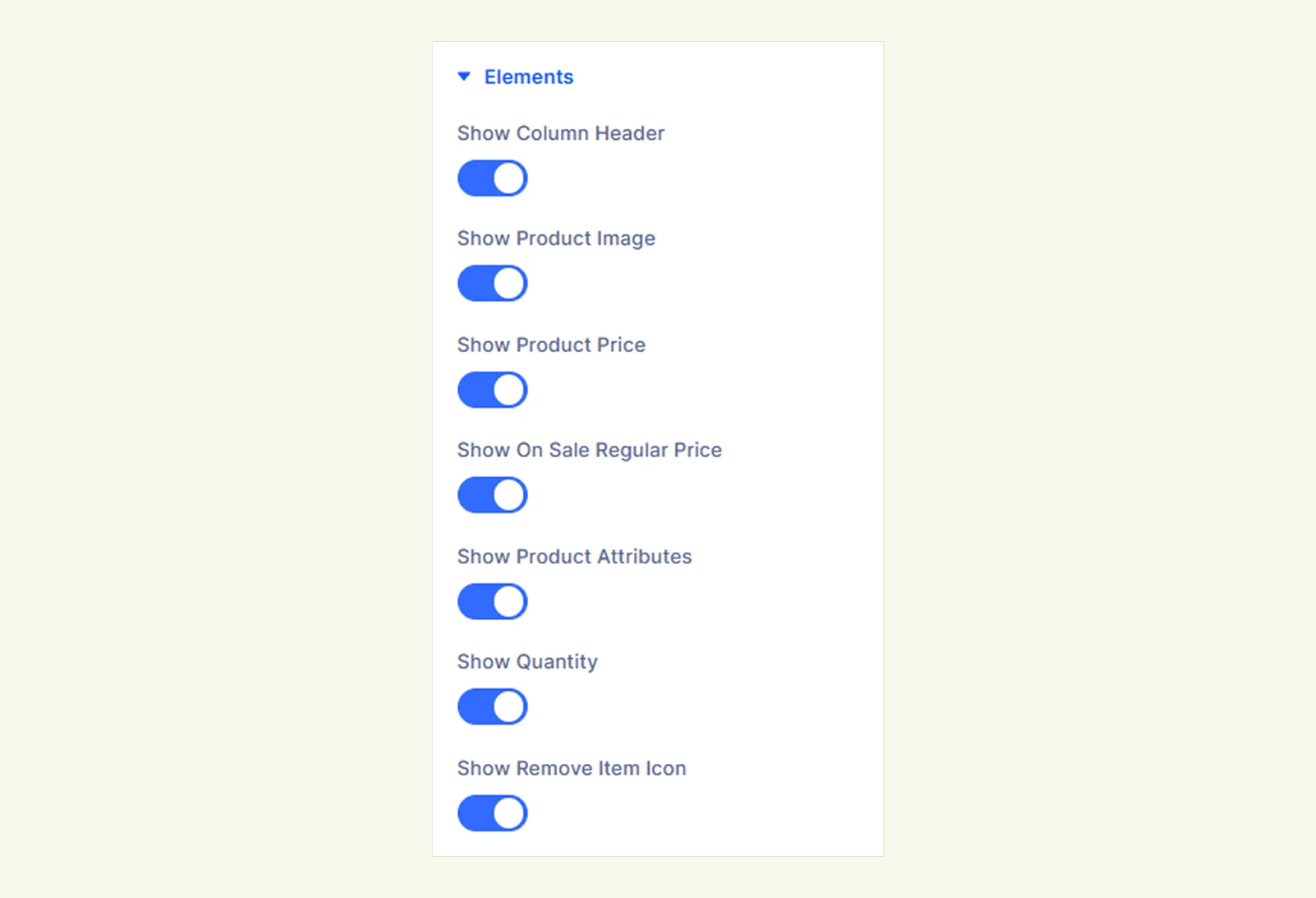
- Show Column Header: Show or hide the column headings above cart products. (Available for the Classic Row template.)
- Show Product Image: Show or hide product images in the cart.
- Show Product Price: Show or hide the individual product price. (Available for Classic Row, Stock Card, and Media Card templates.)
- Show On Sale Regular Price: Display the original price with a strikethrough alongside the sale price.
- Show Product Attributes: Show or hide product variation attributes, such as color and size.
- Show Quantity: Show or hide the quantity controls for cart products. When enabled, shoppers can adjust quantities using the plus and minus buttons.
- Show Remove Item Icon: Show or hide the icon used to remove products from the cart.
Settings #
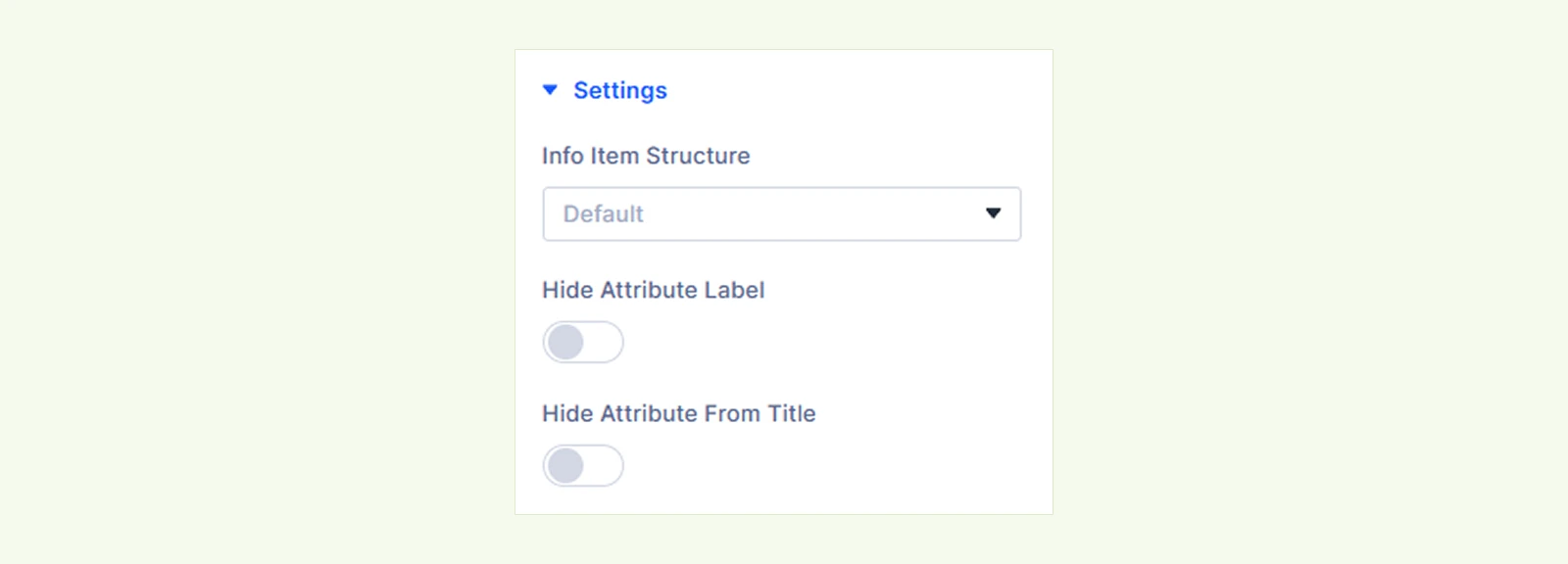
- Product Column item structure: Choose how product information is arranged in the cart.
- Default: Displays the title and badges together, with attributes and meta information on a line below.
- Stack: Displays each element on a separate row.
- Gap: Adjust the spacing between product information elements.
- Hide Attribute Label: Hide attribute names and display only their values. For example, show "Blue" instead of "Color: Blue". (Available when Show Product Attributes is enabled.)
- Hide Attribute From Title: Remove variation attributes from the product title to avoid repeating information when attributes are displayed separately.
Elements Order #
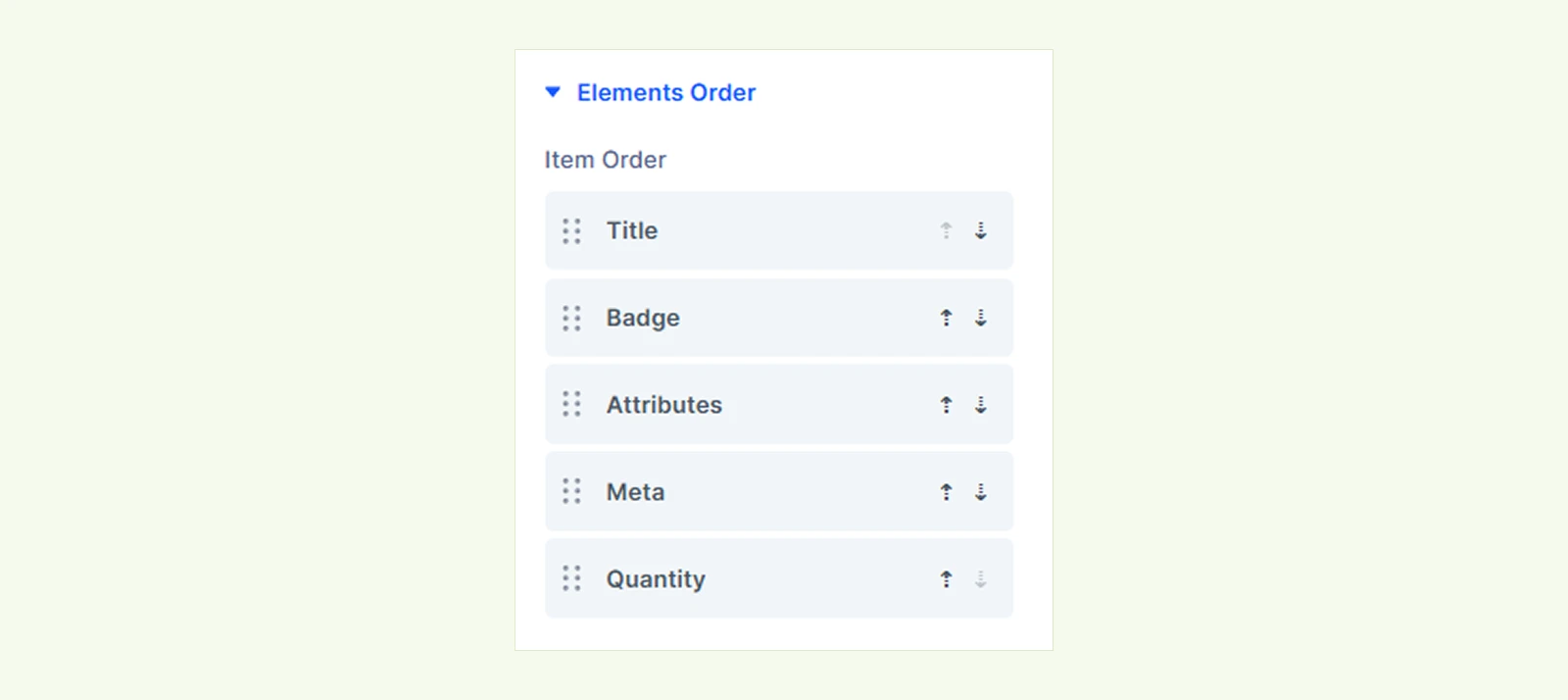
- Item Order: Drag and reorder product information, such as the title, badges, attributes, and meta. Some templates also let you reorder the price or quantity.
Note: This section is available only when Product Column item structure is set to Stack.
Badge #
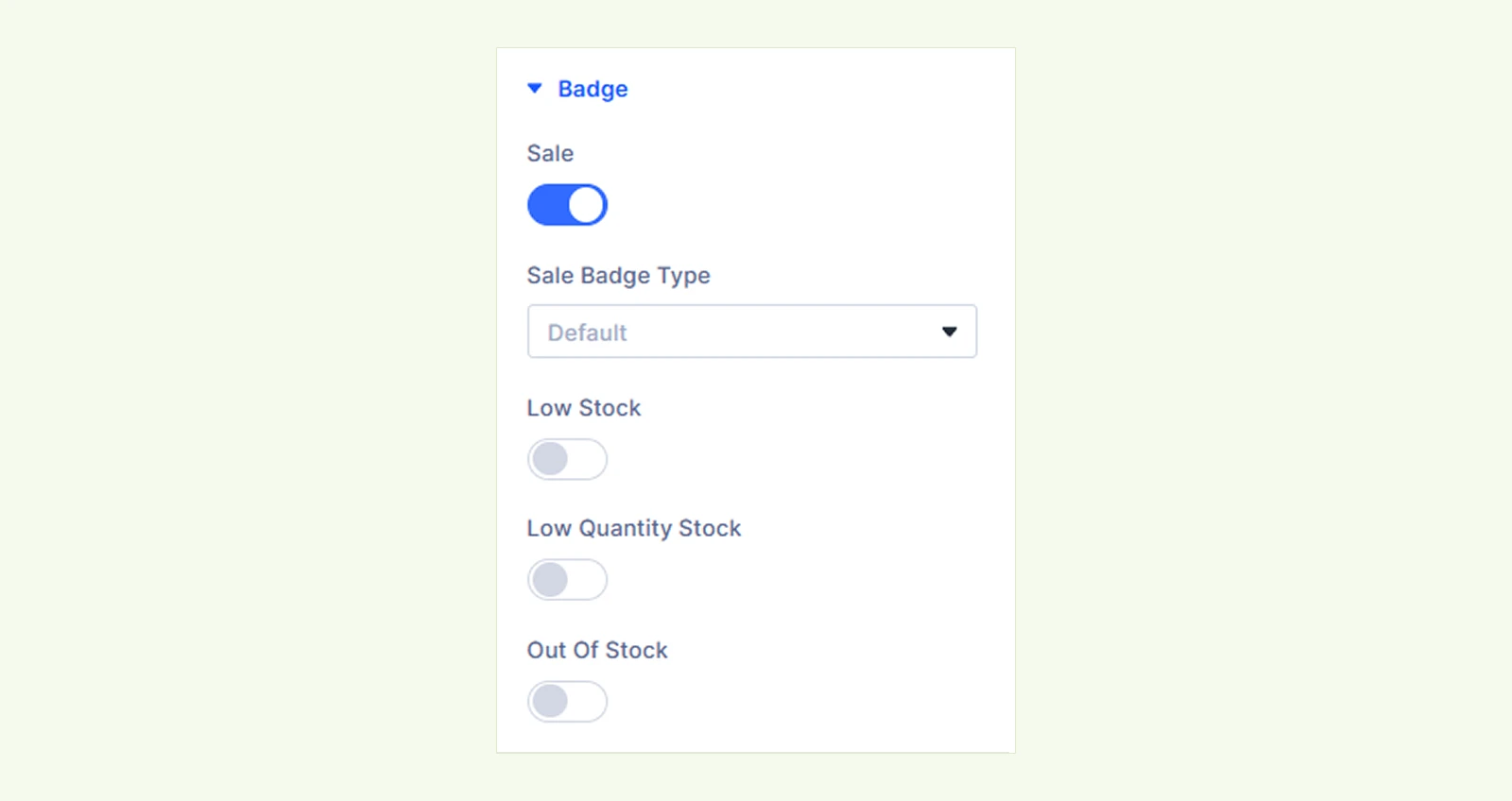
- Sale: Display a Sale badge for products that are currently on sale.
- Sale Badge Type: Choose what the Sale badge displays.
- Default: Displays the text "Sale".
- Discount Percent: Displays the discount percentage, such as "-20%".
- Save Amount: Displays the amount saved, such as "Save $12.00".
- Sale Badge Type: Choose what the Sale badge displays.
- Low Stock: Display a badge when a product reaches its low-stock threshold.
- Low Quantity Stock: Show the remaining stock quantity, such as "Only 3 left", when a product reaches its low-stock threshold.
- Out of Stock: Display a badge when a product is out of stock.
Note: Badges only appear when their conditions are met. Low-stock badges use the thresholds configured in WooCommerce.
Meta #
The Meta section lets you display additional product information in the cart. Enable the information you want to show and customize its label.
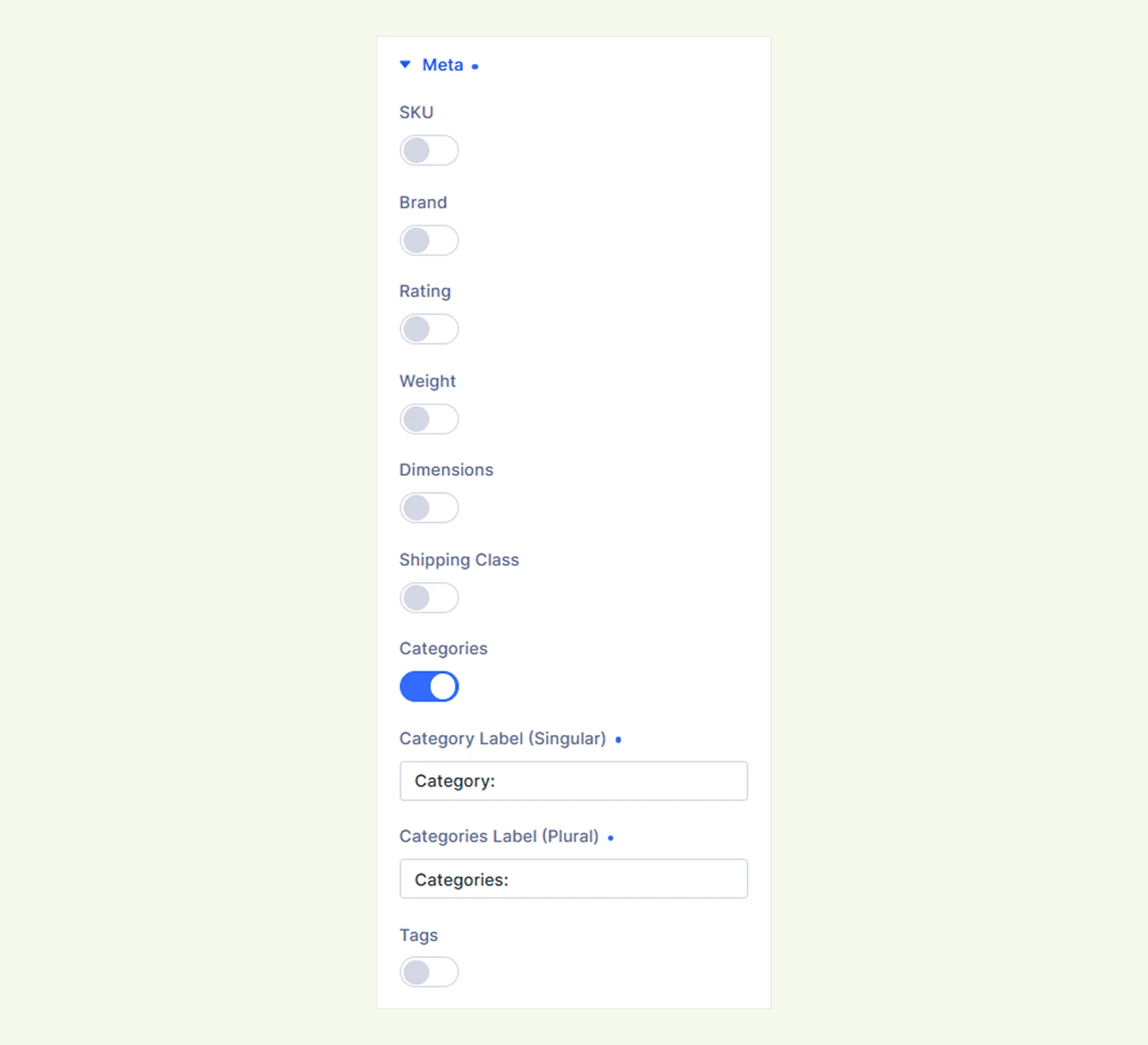
- SKU: Display the product's stock keeping unit.
- SKU Label: Customize the text displayed before the SKU.
- Brand: Display the product brand.
- Brand Label (Singular): Set the label when a product has one brand.
- Brand Label (Plural): Set the label when a product has multiple brands.
- Rating: Display the product's average rating as a number.
- Rating Label: Customize the text displayed before the rating.
- Weight: Display the product weight using the store's configured weight unit.
- Weight Label: Customize the text displayed before the weight.
- Dimensions: Display the product dimensions using the store's configured dimension unit.
- Dimensions Label: Customize the text displayed before the dimensions.
- Shipping Class: Display the product's assigned shipping class.
- Shipping Class Label: Customize the text displayed before the shipping class.
- Categories: Display the product categories with links.
- Categories Label (Singular): Set the label when a product belongs to one category.
- Categories Label (Plural): Set the label when a product belongs to multiple categories.
- Tags: Display the product tags with links.
- Tags Label (Singular): Set the label when a product has one tag.
- Tags Label (Plural): Set the label when a product has multiple tags.
Note: Meta information only appears when the product has a value for it. For example, enabling SKU won't display anything if the product has no SKU.
Empty Cart #
Customize what shoppers see when their WooCommerce cart is empty.
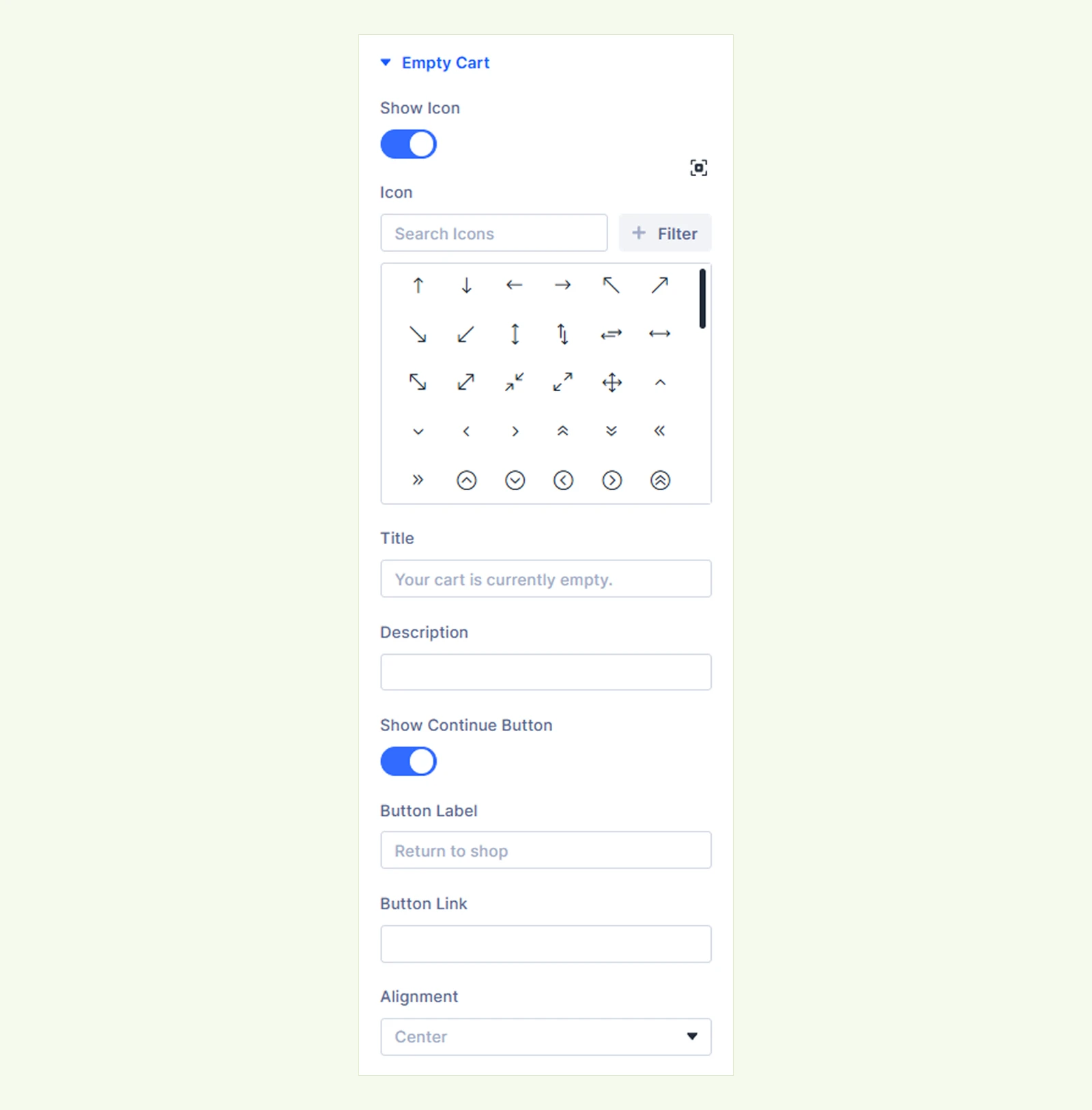
- Show Icon: Show or hide an icon above the empty cart title.
- Icon: Select an icon from the available Divi or Font Awesome icons.
- Title: Enter the heading displayed when the cart is empty. By default, it uses WooCommerce's empty cart message.
- Description: Add supporting text below the empty cart title.
- Show Continue Button: Show or hide a button that directs shoppers back to the store.
- Button Label: Customize the text displayed on the continue shopping button.
- Button Link: Enter the URL where shoppers should be directed when clicking the button.
- Alignment: Align the empty cart content to the left, center, or right.
Note: Opening the Empty Cart section in the Visual Builder displays a preview of the empty cart state. This lets you customize its appearance without removing products from your actual cart.
Background: Customize the background of the entire module using Divi's standard background settings.
Element: Set a custom admin label to identify the module easily in the Divi Builder.
Design Tab #
The Design tab lets you customize the layout, product information, quantity controls, badges, cart notices, and empty cart appearance.
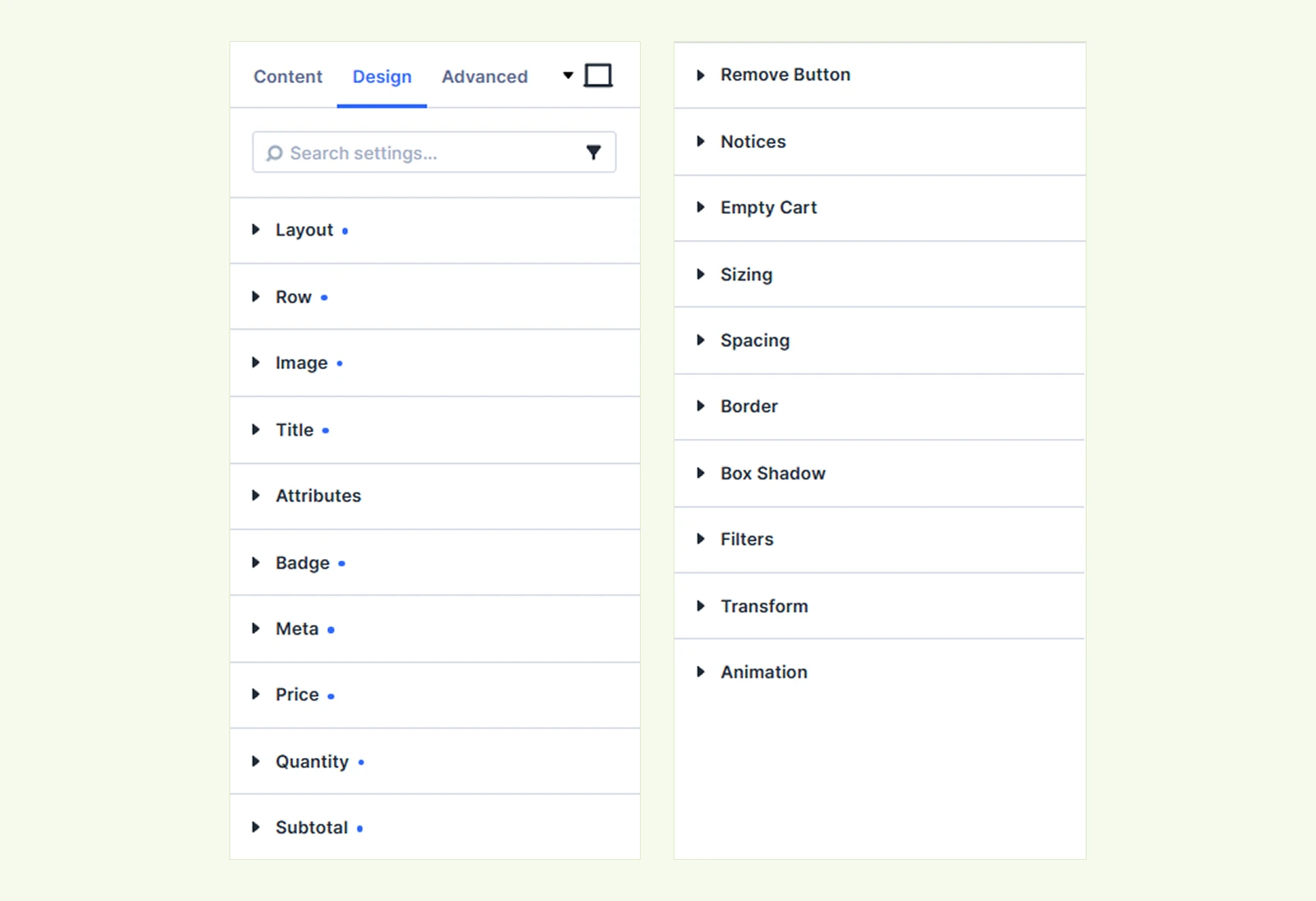
Layout: Customize the arrangement of cart products using Divi's standard Grid layout settings, including columns, gaps, and alignment.
Row #
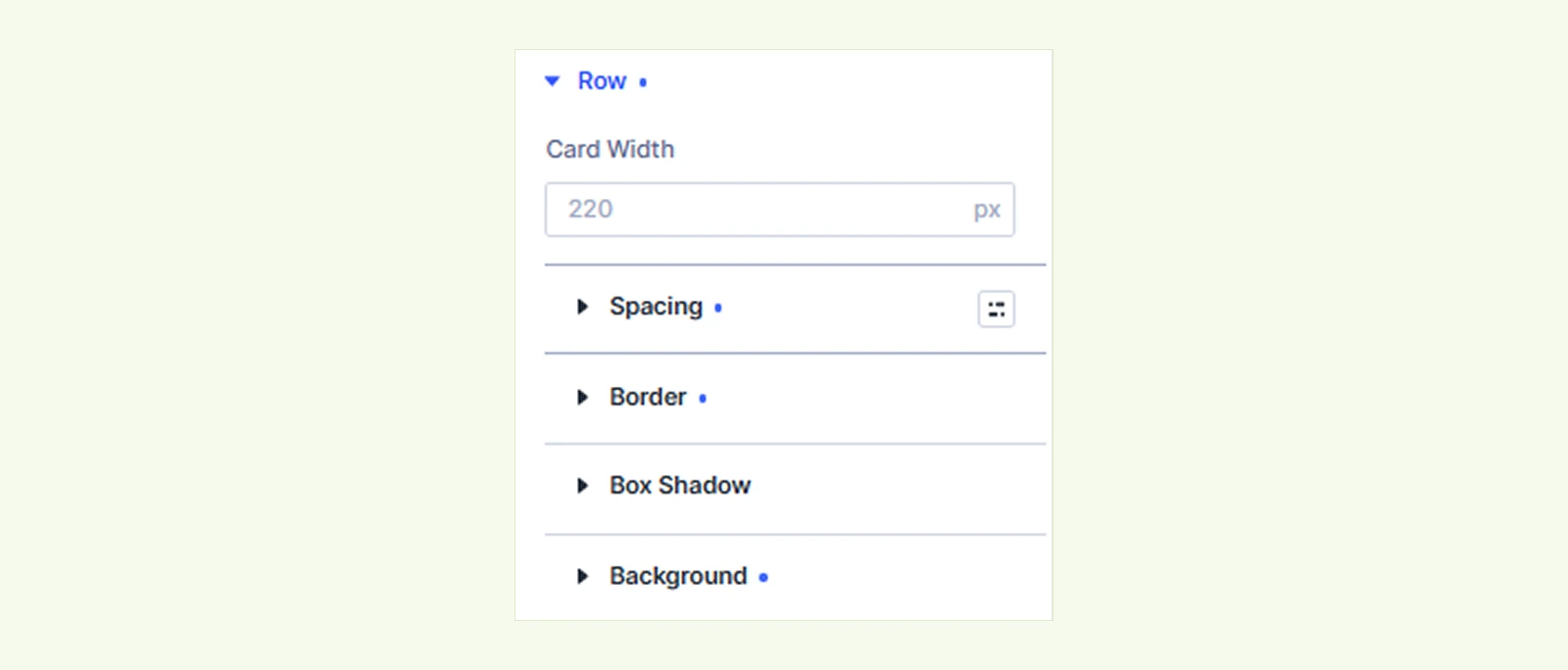
- Card Width: Set the minimum width of individual product cards before they wrap to the next row. (Available for the Grid Card template.)
- Header Text: Customize the typography of column headings. (Available for the Classic Row template when Show Column Header is enabled.)
- Header Background: Customize the background of the column header. (Available for the Classic Row template when Show Column Header is enabled.)
You can also customize the row's background, border, box shadow, spacing and more.
Image: Customize product image borders, box shadows, sizing, and spacing.
Title: Customize the product title's typography, including font, size, weight, color, and other text settings.
Attributes #
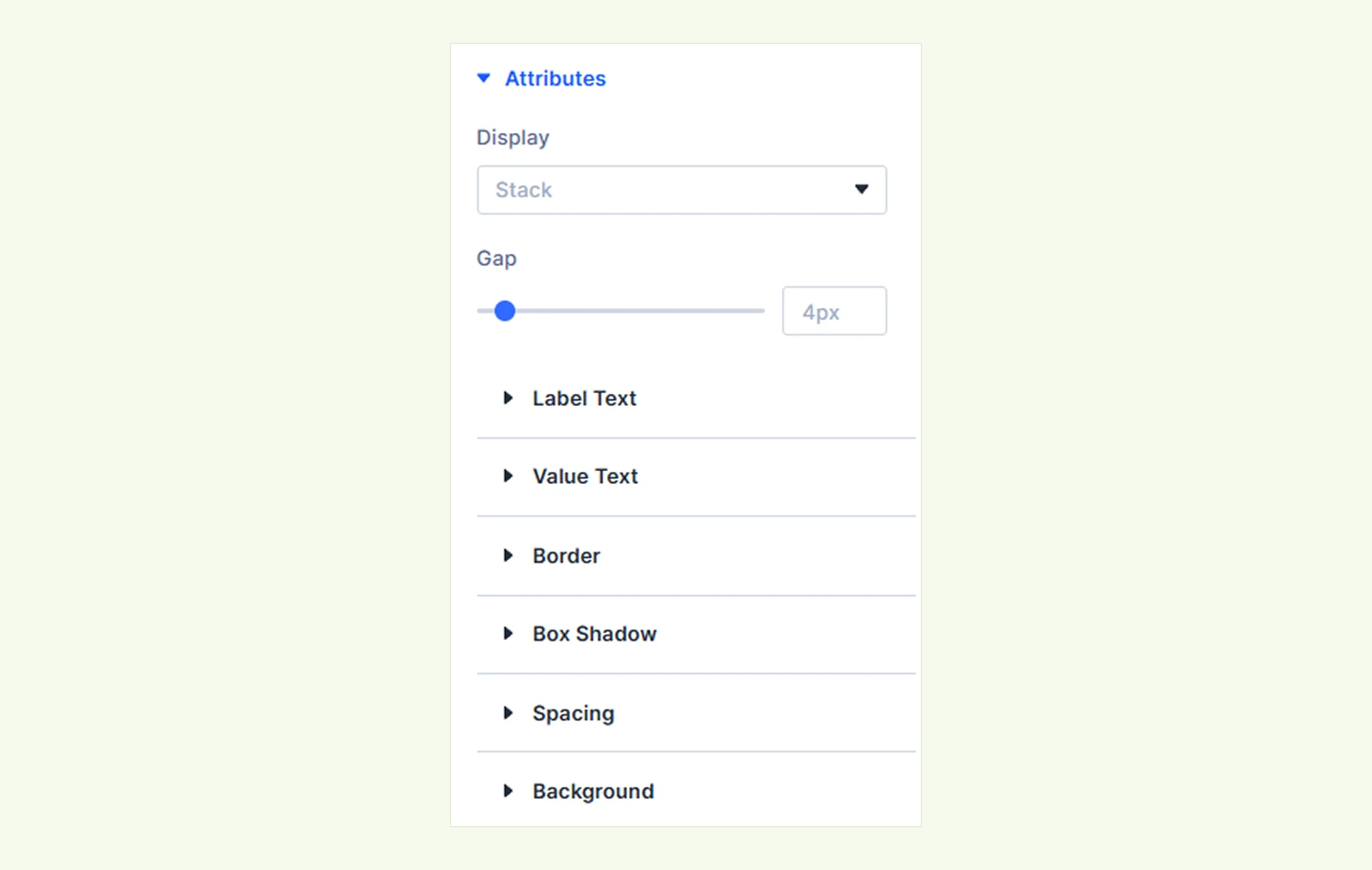
- Display: Choose how product attributes are arranged.
- Inline: Display attributes on the same line.
- Stack: Display attributes on separate rows.
- Gap: Adjust the spacing between product attributes.
You will also find styling options for background, border, box shadow, spacing, and separate typography settings for attribute labels and values.
Note: This section is available only when Show Product Attributes is enabled.
Badge #
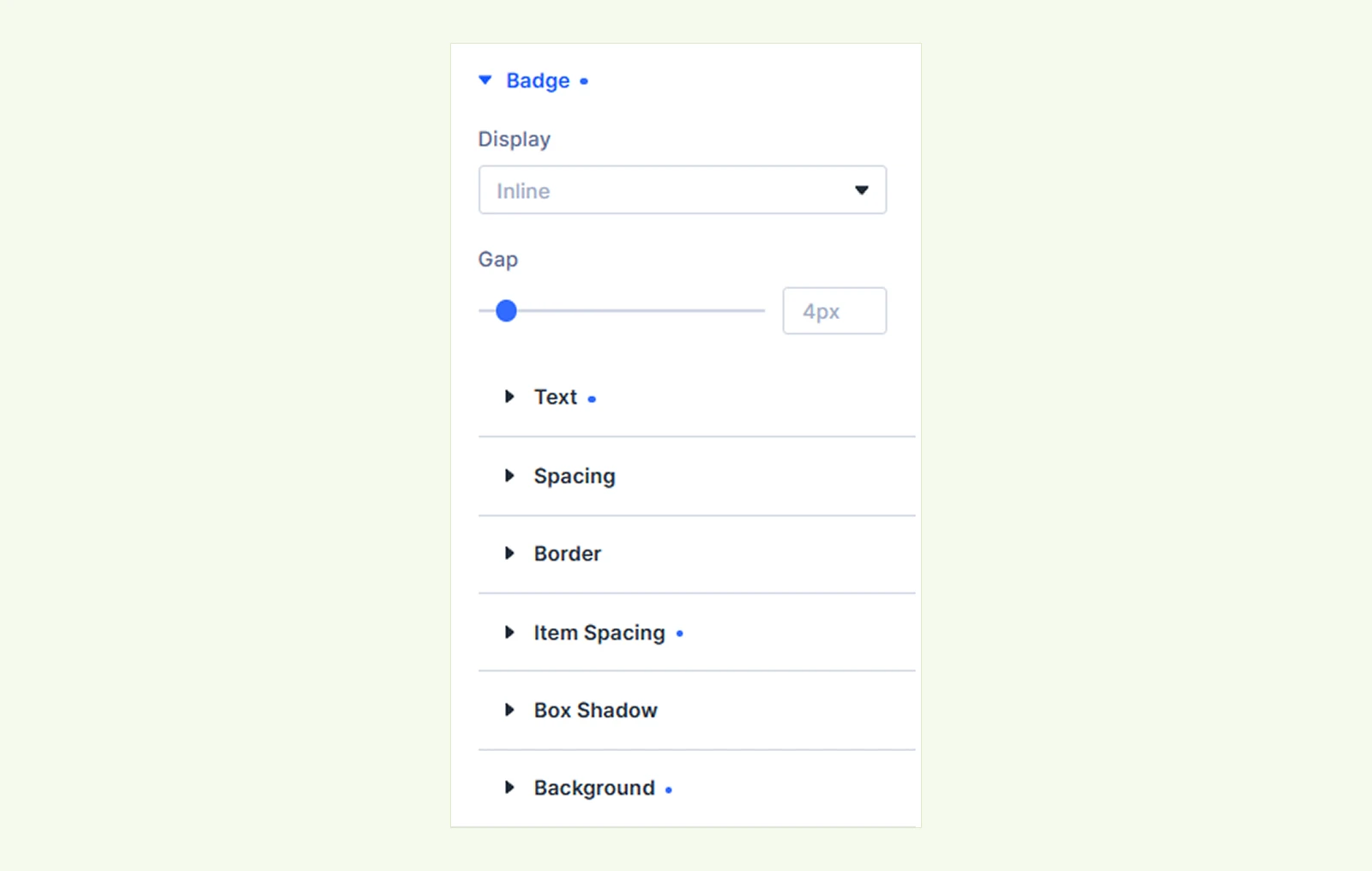
- Display: Choose whether product badges appear inline or stacked.
- Gap: Adjust the spacing between badges.
You can also customize badge typography, background, border, box shadow, and spacing.
Meta #
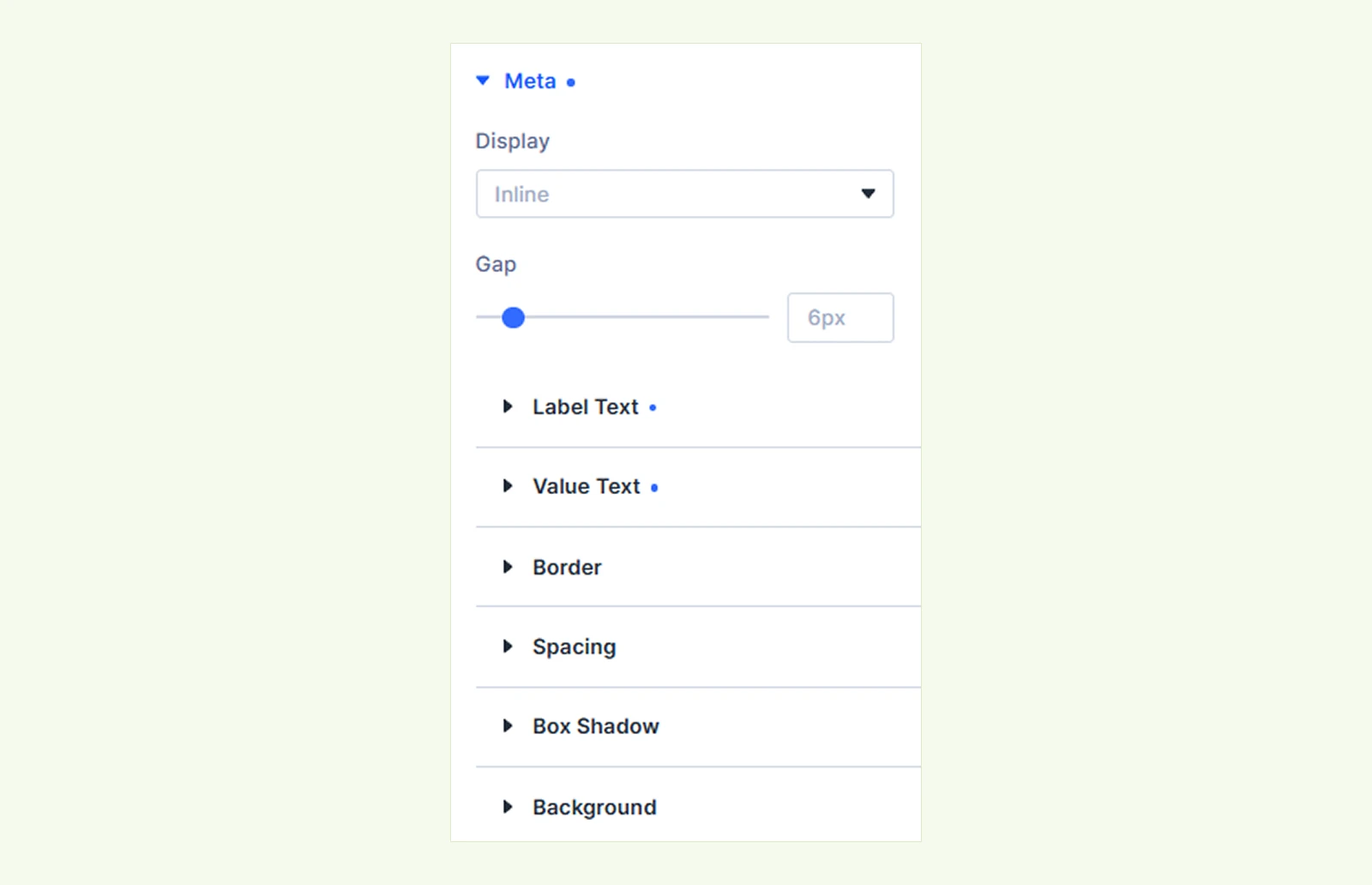
- Display: Choose whether product meta information appears inline or stacked.
- Gap: Adjust the spacing between meta information items.
You will also find styling options for background, border, box shadow, typography, and spacing, including separate typography controls for meta values.
Price: Customize the product price typography. You can also style the regular price separately when displaying a strikethrough price for sale products.
Quantity: Customize the typography, background, border, box shadow, and spacing of the quantity number and more.
Subtotal: Customize the typography of each product's subtotal.
Remove Button #
- Icon Size: Adjust the size of the remove item icon.
- Icon Color: Set the color of the remove item icon.
- Position: Place the remove button on the left or right side. (Available for Classic Row and Quantity Below templates.)
- Alignment: Align the remove button to the top, center, or bottom.
You will also find styling options for background, border, box shadow, and spacing.
Note: This section appears only when Show Remove Item Icon is enabled.
Notices: Customize the typography, background, border, and spacing of WooCommerce cart notices, including informational, error, and success messages. You can also style the buttons within these notices.
Empty Cart #
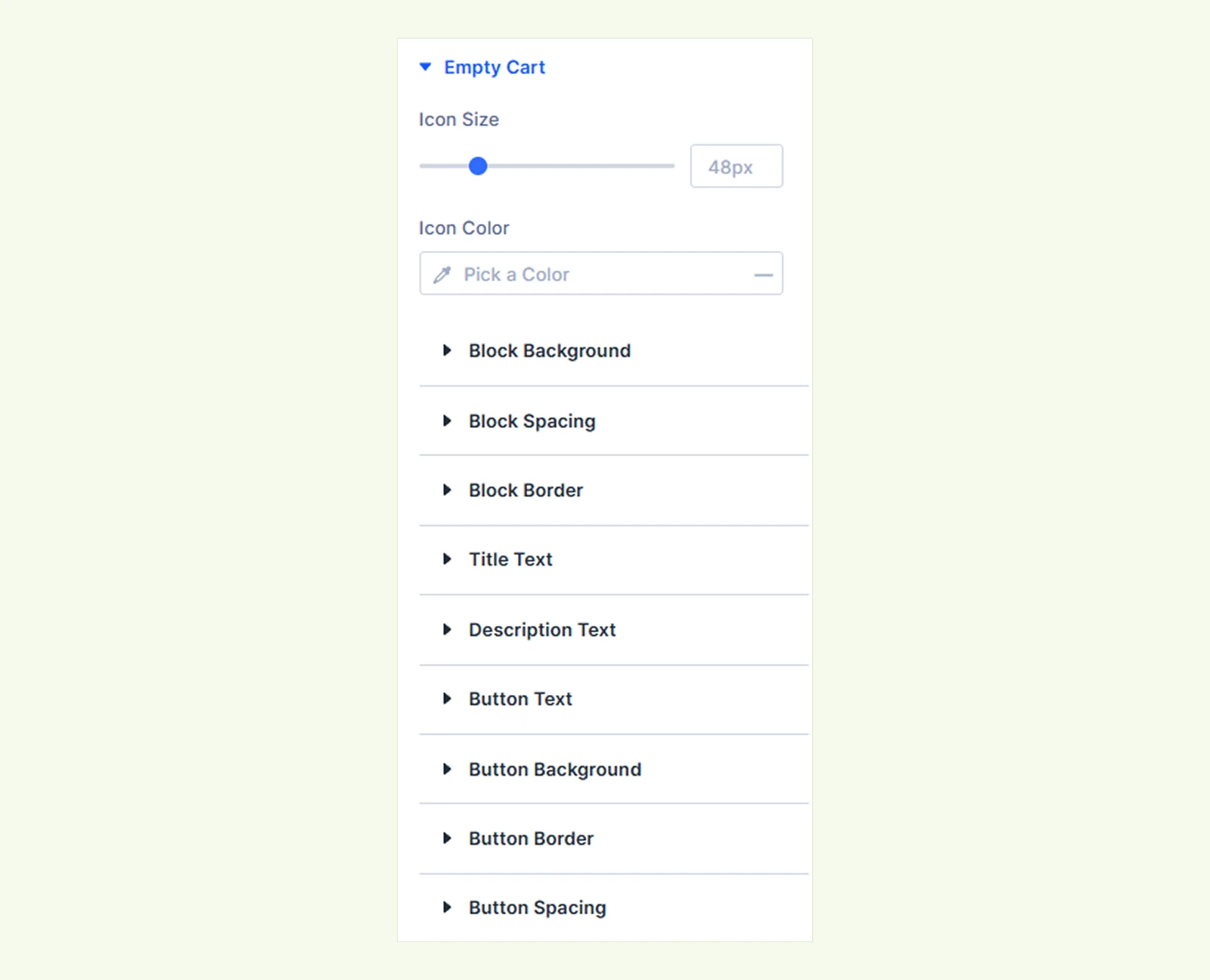
Customize the appearance of the empty cart message and its elements.
- Icon Size: Adjust the size of the empty cart icon.
- Icon Color: Set the color of the empty cart icon.
You can also customize the background, border, spacing, title and description typography, and continue shopping button.
Note: Icon and button styling options are available only when their corresponding elements are enabled in the Content tab.
Sizing: Adjust the width, height, and alignment of the module.
Spacing: Add custom margin and padding to the module's container.
Border: Customize the border style, width, and color. You can style each border separately or apply the same style to all sides.
Box Shadow: Add shadow effects to the module.
Filters: Apply color filters to enhance the appearance.
Transform: Scale, rotate, move, or skew the module.
Animation: Apply reveal animation effects and customize delay, duration, repeat settings, and animation type.
Advanced Tab #
The Advanced tab provides additional controls, including Custom CSS, Position, Visibility, Conditions, and other standard Divi settings.
Need Help? #
If you have any questions or need assistance, contact our support team: [email protected]


