
The DiviMerc Advanced Cart Totals module (introduced in v1.2.0) lets you display and customize WooCommerce cart totals, discounts, shipping options, and checkout actions using two premade templates.
Let's explore the settings available inside the module.
Content Tab #
The Content tab lets you select a Cart Totals template, customize totals, coupons, shipping methods, checkout buttons, and control how different sections appear.
Content #
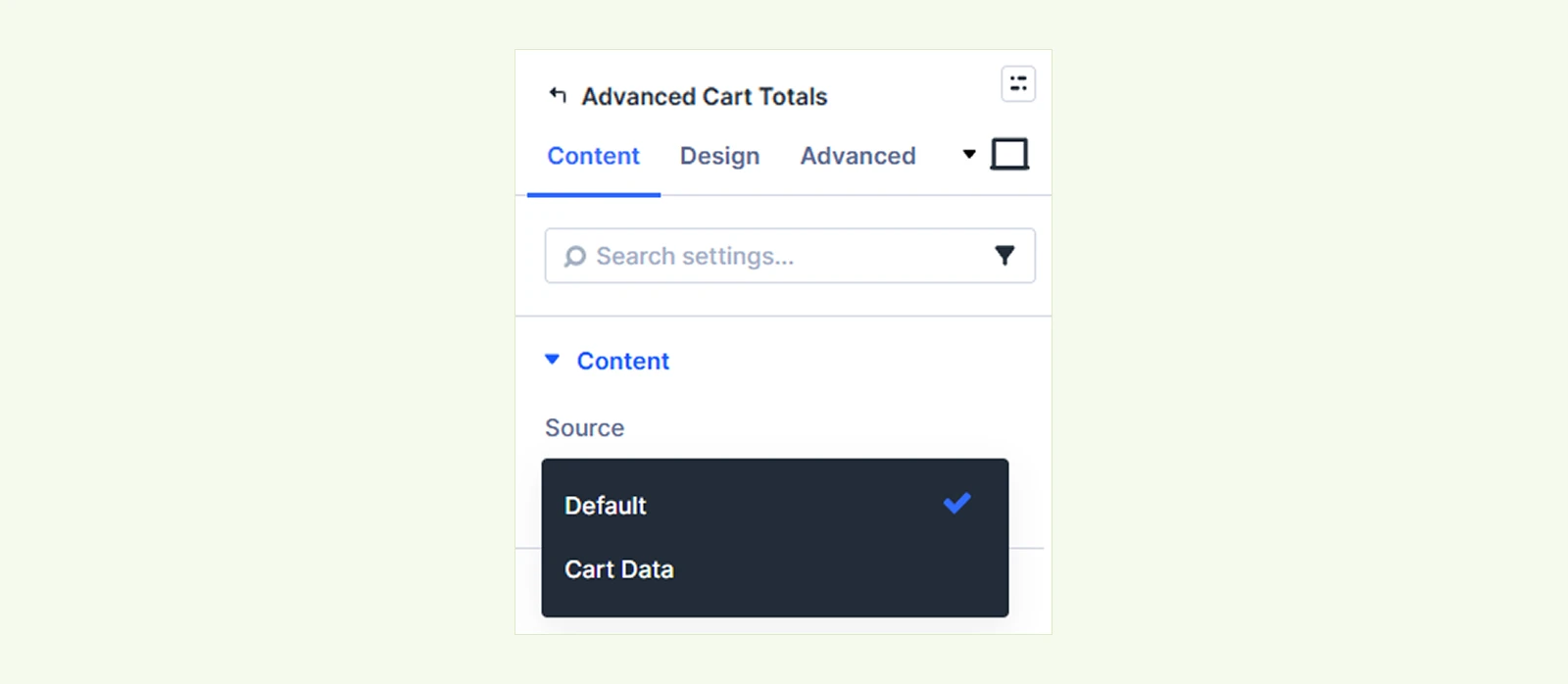
- Source: Choose which cart information appears in the Visual Builder.
- Default: Displays sample cart information to help you preview and style the module.
- Cart Data: Displays information from your own WooCommerce cart.
Note: This setting only affects the Visual Builder. The live page always displays the shopper's actual cart. If your cart is empty, the builder uses sample data instead.
Template #
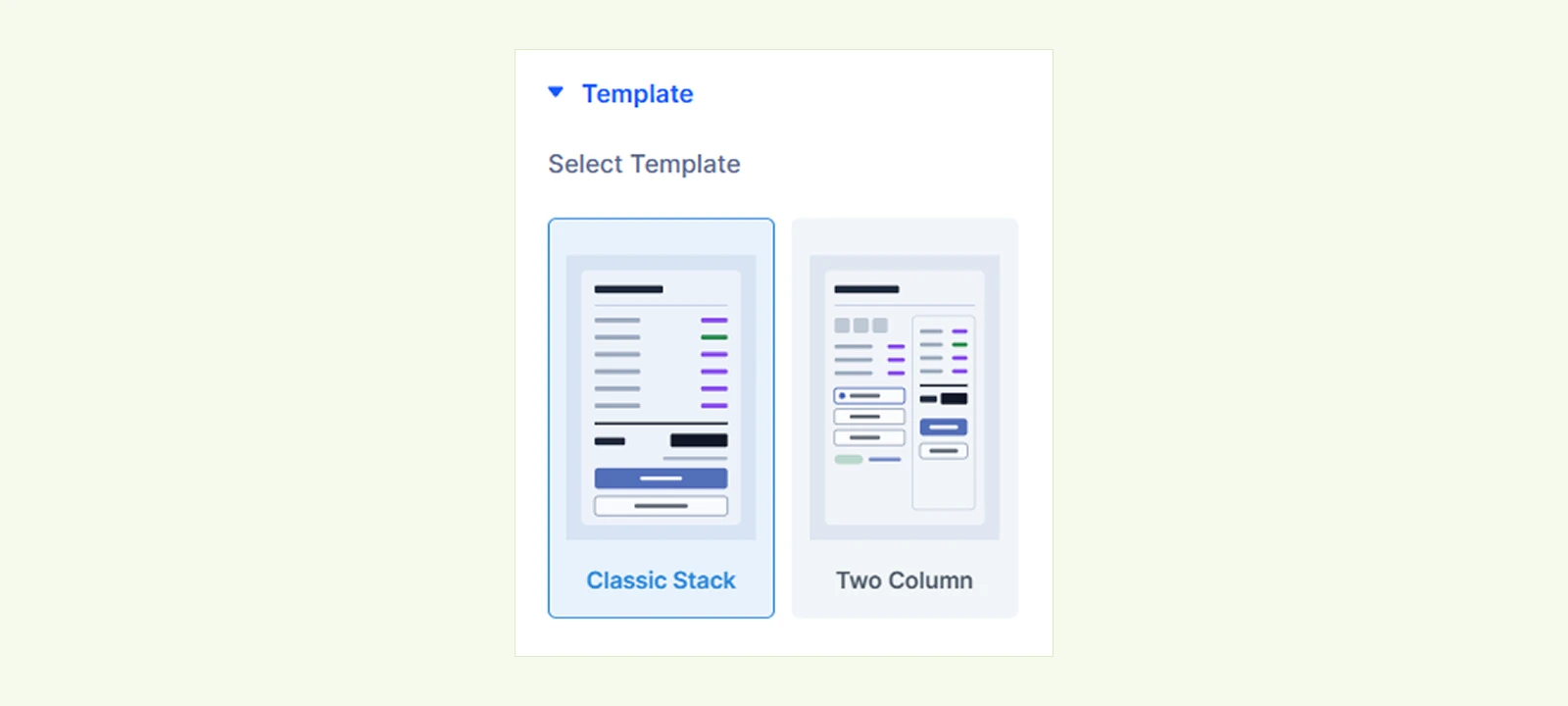
- Select Template: Choose from two premade templates to control how the cart summary is arranged.
- Classic Stack: Displays cart totals and checkout options in a single-column layout.
- Two Column: Displays order items, coupons, and shipping options on the left, with cart totals and checkout actions on the right. On smaller screens, the layout switches to a single column.
Note: Choose your template before styling the module, as switching templates can overwrite your existing design settings.
Header #

- Title: Show or hide the cart summary heading.
- Title: Enter the heading displayed above the cart summary, such as "Cart totals".
Order Items #
Customize how products in the cart appear in the order summary.
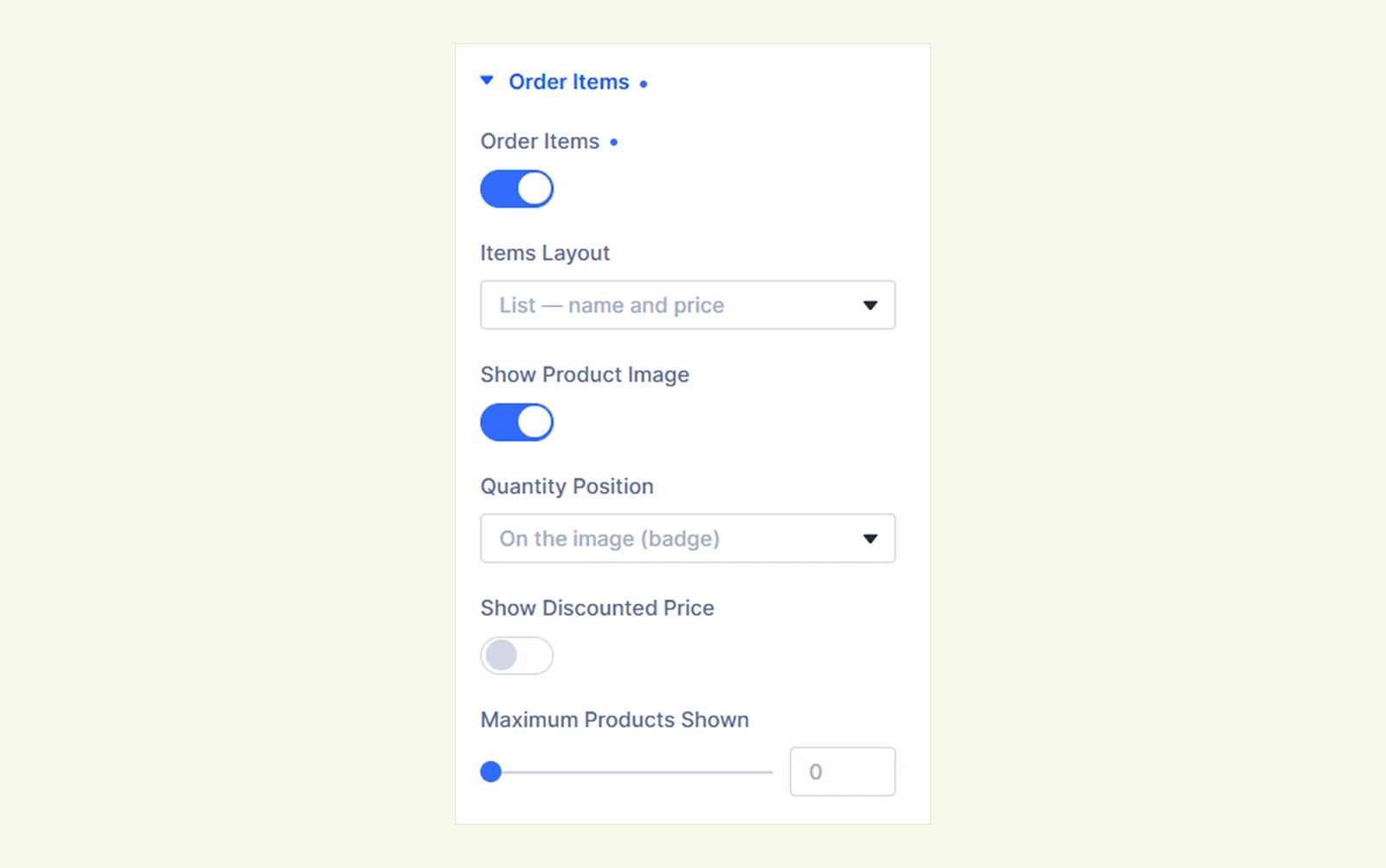
- Order Items: Show or hide the cart product list.
- Items Layout: Choose how products are displayed.
- List: Display product names and prices in a list.
- Images only: Display product images without a product list.
- Images, then the list: Display product images followed by a list of names and prices.
- Show Product Image: Show or hide product thumbnails in the List layout.
- Quantity Position: Choose where the product quantity appears.
- On the image: Display the quantity as a badge on the product image.
- After the name: Display the quantity after the product name.
- Before the name: Display the quantity before the product name.
- Show Discounted Price: Show each product's discounted price instead of its full price. (Available for List and Images, then the list layouts.)
- Maximum Products Shown: Set how many products appear in the summary. Remaining products are grouped into a "+n more" indicator. Set to 0 to show all products.
- Items Layout: Choose how products are displayed.
Note: The Order Items section is for display only. Shoppers cannot change quantities or remove products here.
Totals #
The Totals section lets you control which cart totals appear and customize their labels. It includes two tabs: Actions and Settings.
Actions #
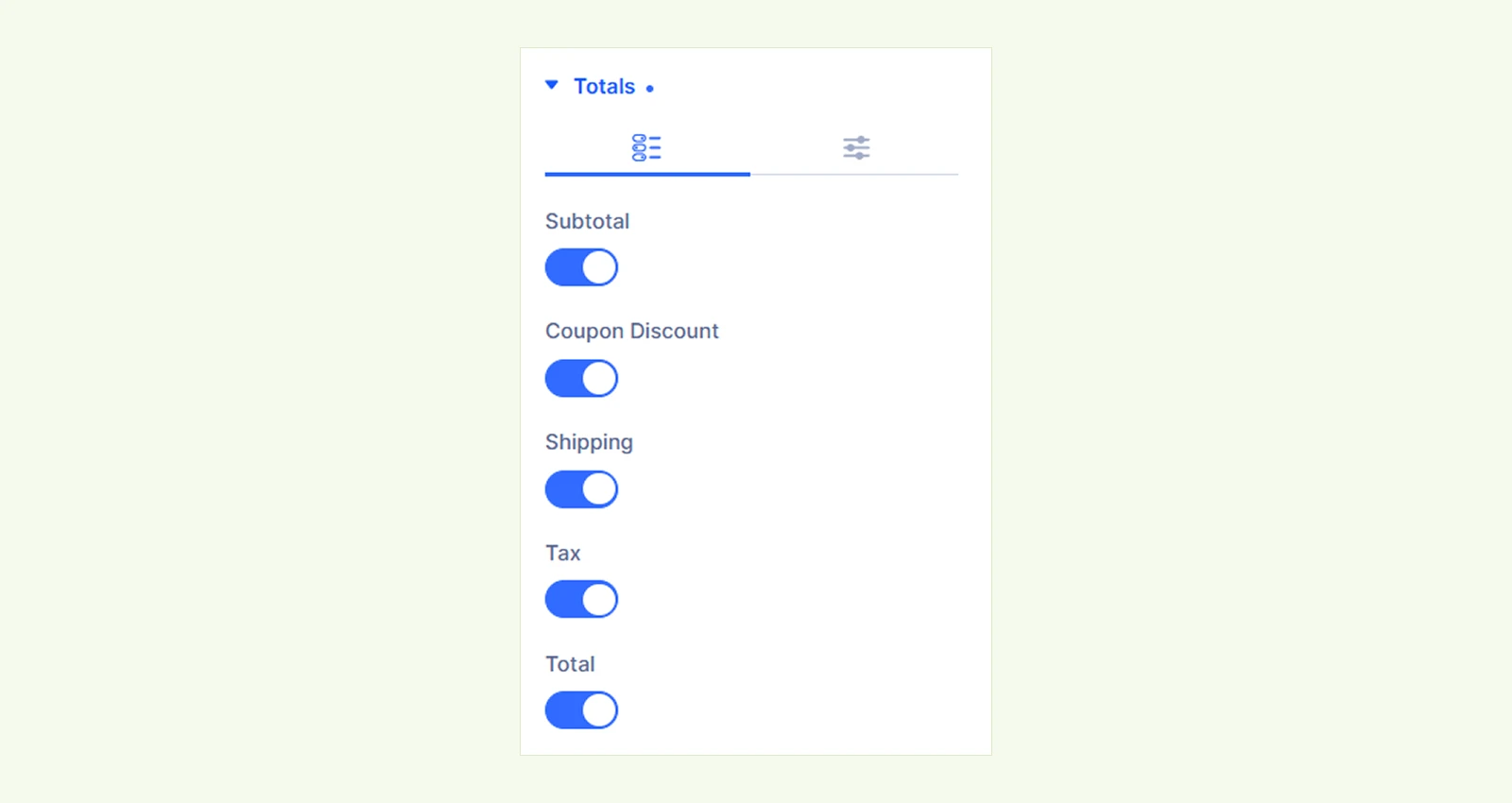
- Subtotal: Show or hide the cart subtotal.
- Coupon Discount: Show or hide discounts applied through coupons.
- Shipping: Show or hide shipping charges.
- Tax: Show or hide tax amounts.
- Total: Show or hide the final cart total.
Note: Coupon discounts, shipping charges, and taxes only appear when applicable, based on the cart contents and WooCommerce settings.
Settings #
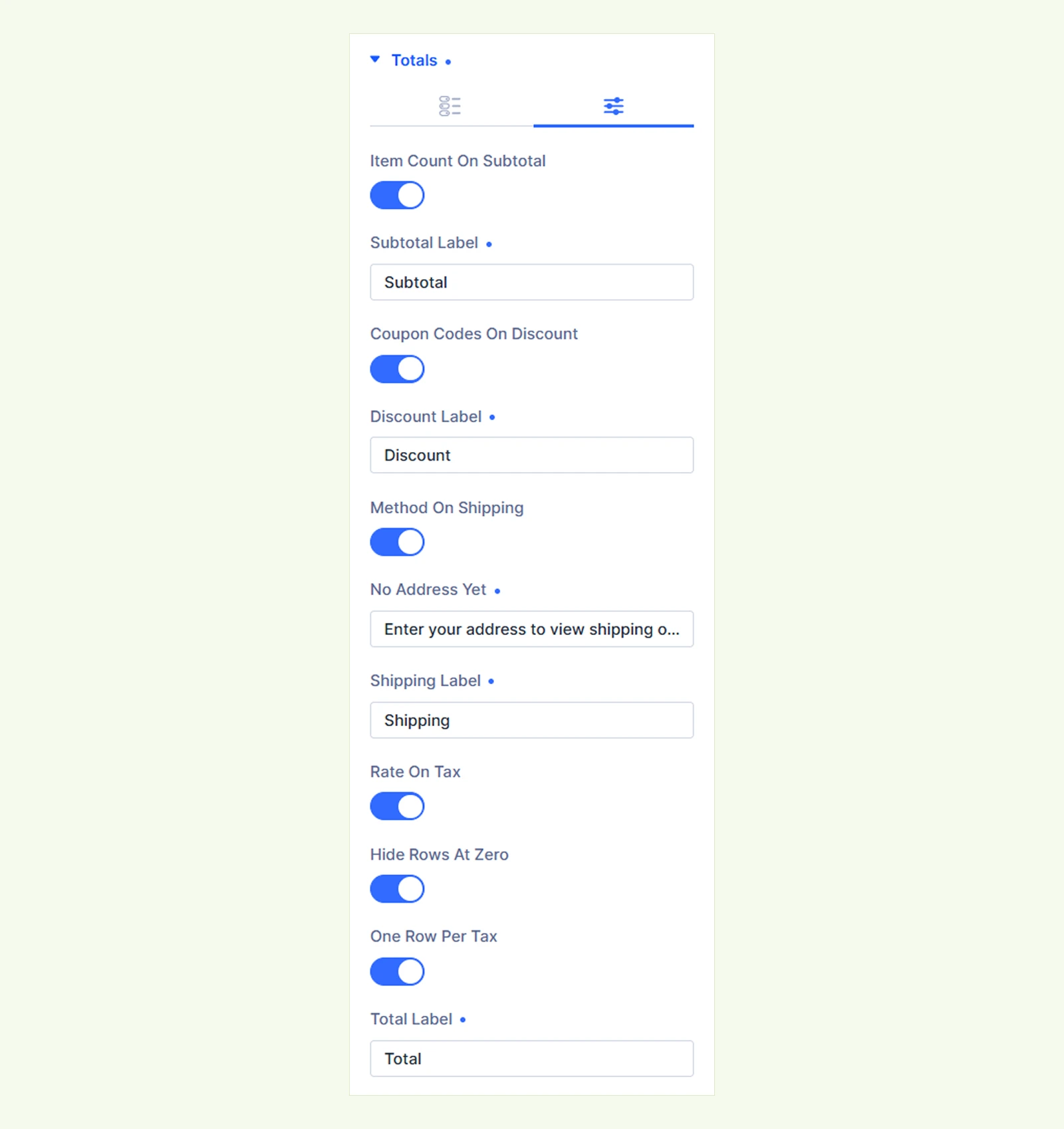
- Item Count On Subtotal: Display the number of cart items alongside the subtotal label.
- Subtotal Label: Customize the text displayed for the subtotal.
- Coupon Codes On Discount: Display applied coupon codes alongside the discount label.
- Discount Label: Customize the label for coupon discounts.
- Method On Shipping: Display the selected shipping method alongside the shipping label.
- No Address Yet: Customize the message shown when shipping rates cannot be calculated.
- Shipping Label: Customize the label for shipping charges.
- Rate On Tax: Display the tax rate alongside the tax label.
- Hide Rows At Zero: Hide total rows with zero values, except the Total and Shipping rows.
- One Row Per Tax: Display each applicable tax separately. When disabled, all taxes appear in a single row.
- Tax Label: Customize the tax label. When One Row Per Tax is enabled, each tax uses its own name.
- Tax Value: Customize the text displayed for the tax amount using the {tax} placeholder.
- Total Label: Customize the label for the final cart total.
Coupons #
The Coupons section lets you display applied coupons and add a coupon input field. It includes two tabs: Applied Coupons and Coupon Field.
Applied Coupons #
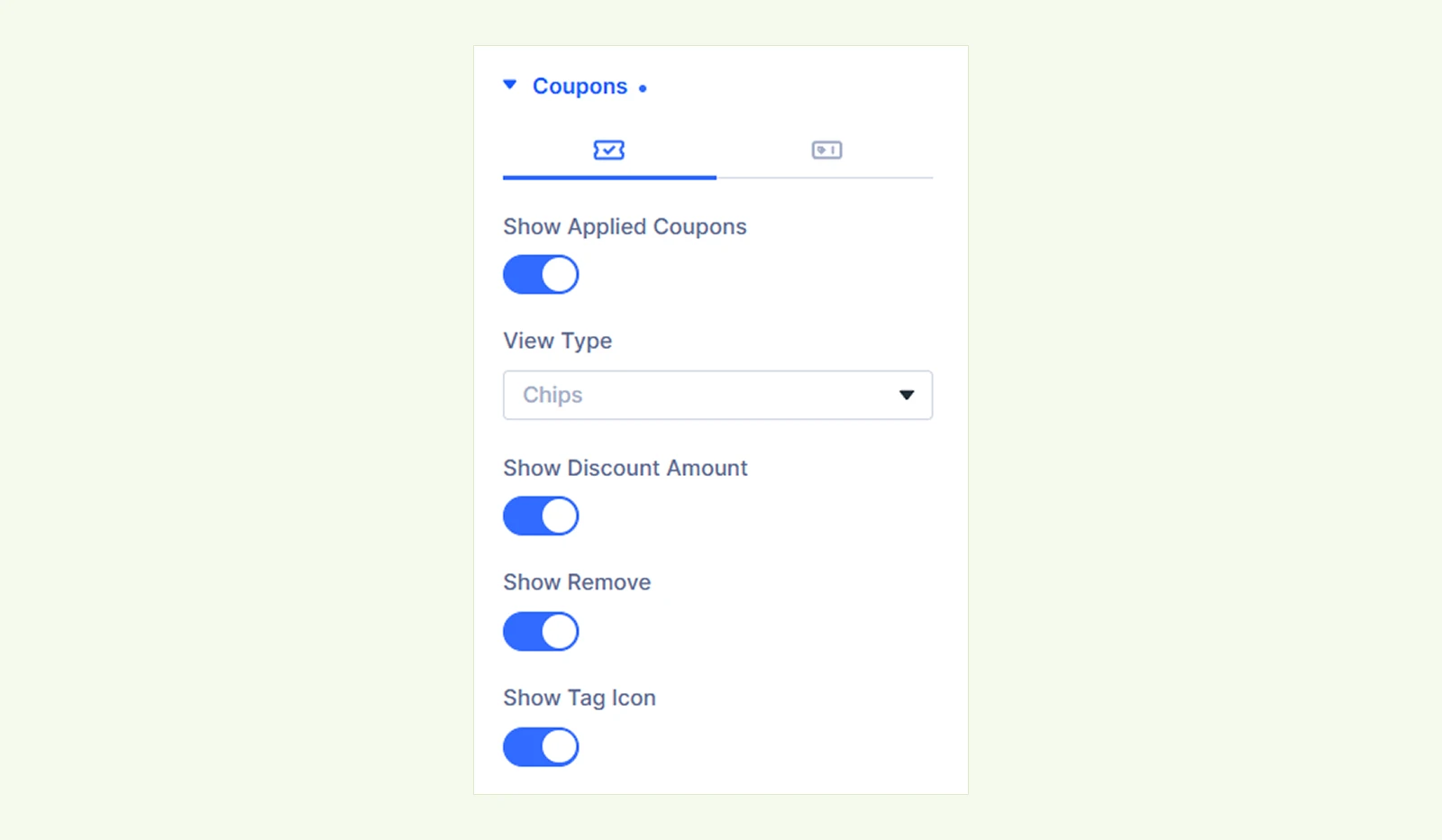
- Show Applied Coupons: Show or hide coupon codes already applied to the cart.
- View Type: Choose how applied coupons appear.
- Chips: Display coupons as small tags.
- Rows: Display each coupon in a separate row.
- Show Discount Amount: Show or hide the discount amount associated with each coupon.
- Show Remove: Show or hide the button used to remove an applied coupon.
- Show Tag Icon: Display a tag icon alongside coupon information.
- View Type: Choose how applied coupons appear.
Coupon Field #
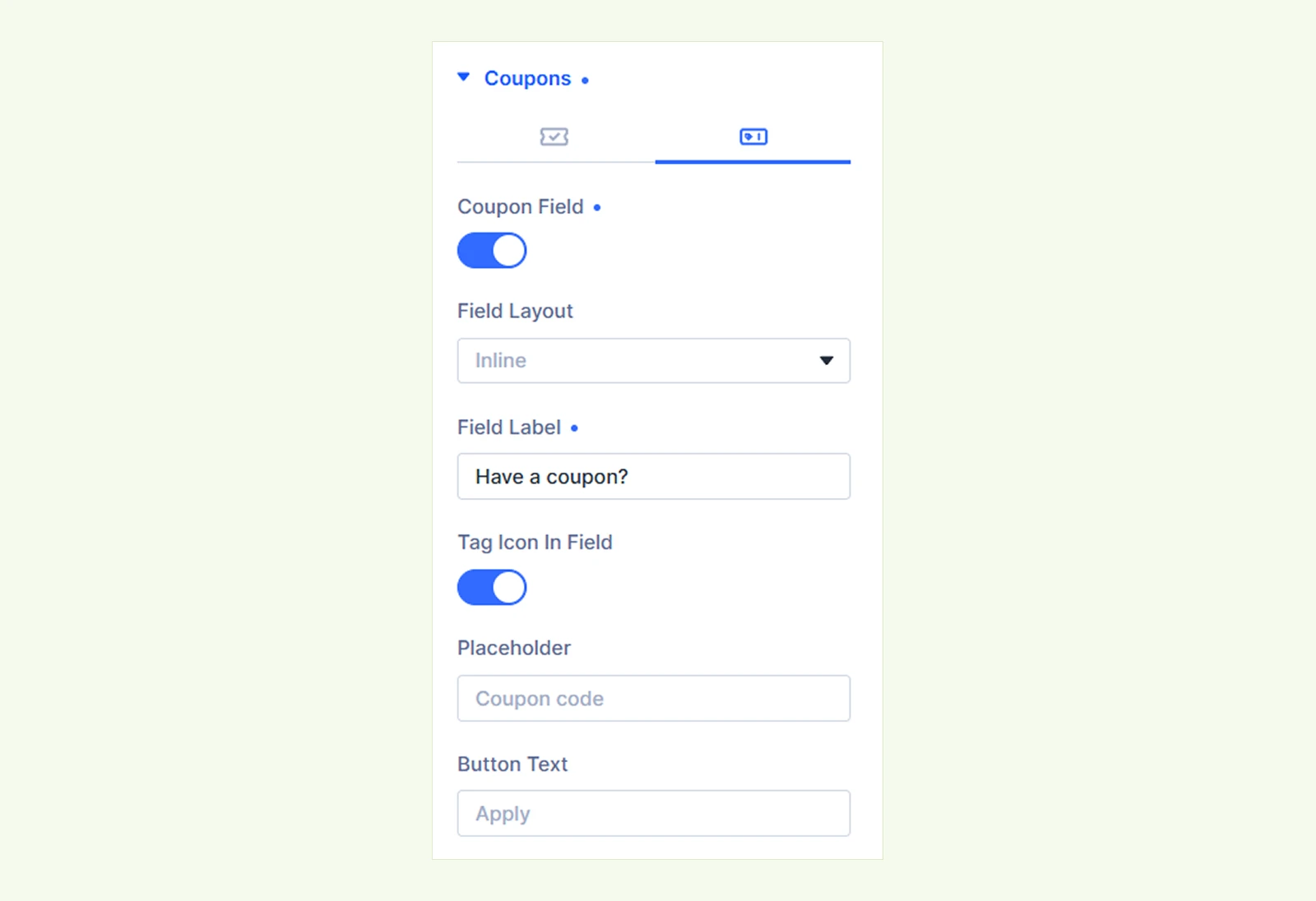
- Coupon Field: Show or hide the field used to enter coupon codes.
- Field Layout: Choose how the coupon field and button are arranged.
- Inline: Display the field and button on the same line.
- Stacked: Display the field and button on separate lines.
- Collapsed: Hide the coupon field behind a clickable text link.
- Field Label: Customize the coupon field label or the clickable text when using the Collapsed layout.
- Tag Icon In Field: Show or hide the tag icon inside the coupon field.
- Placeholder: Customize the placeholder text inside the coupon input field.
- Button Text: Customize the text displayed on the coupon application button.
- Field Layout: Choose how the coupon field and button are arranged.
Shipping & Delivery #
The Shipping & Delivery section lets you customize shipping method selection and delivery information. It includes two tabs: Shipping and Delivery.
Shipping #
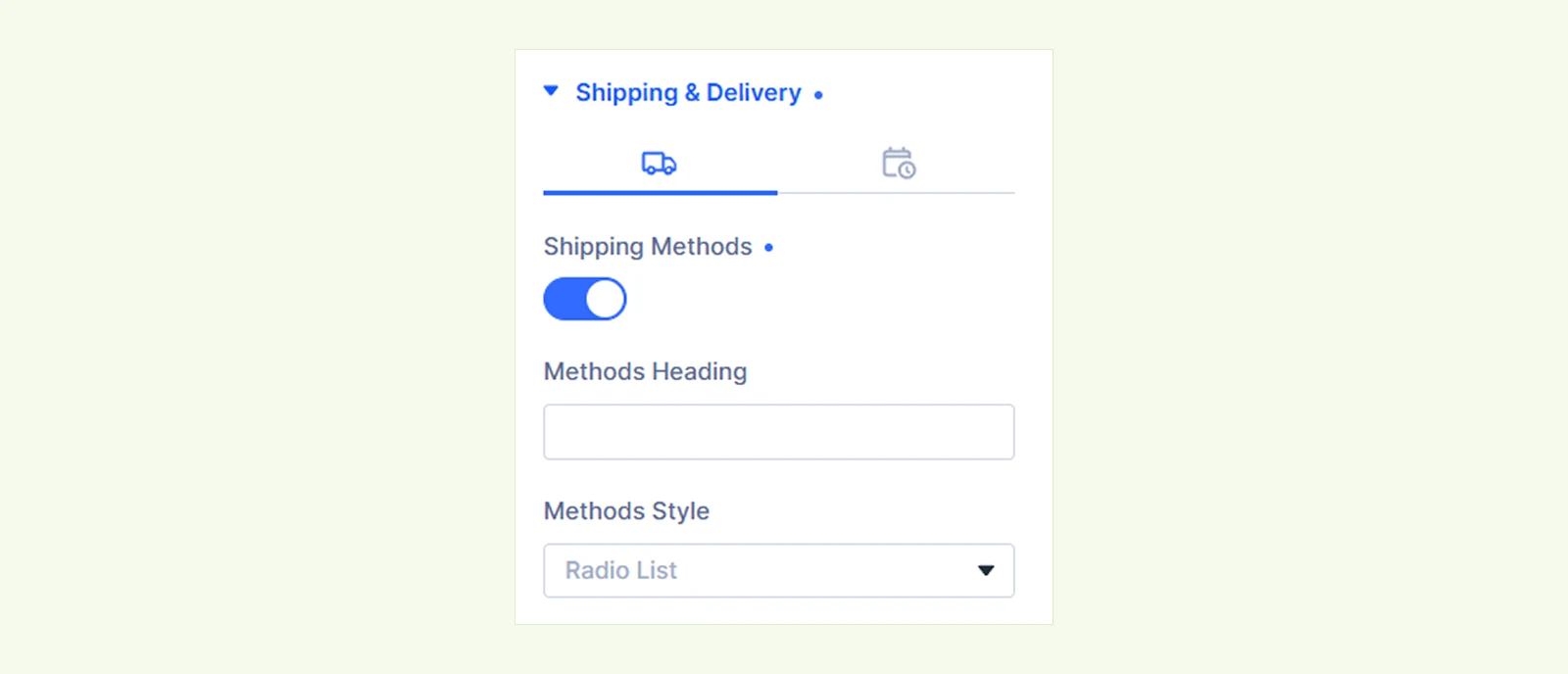
- Shipping Methods: Show or hide the available WooCommerce shipping methods.
- Methods Heading: Enter a heading above the shipping method options.
- Methods Style: Choose how the shipping methods are displayed.
- Radio List: Display shipping methods as a list with radio buttons.
- Cards: Display each shipping method in an individual card.
- Compact: Display shipping methods in a compact list.
Note: Available shipping methods depend on the shipping zones and rates configured in WooCommerce.
Delivery #
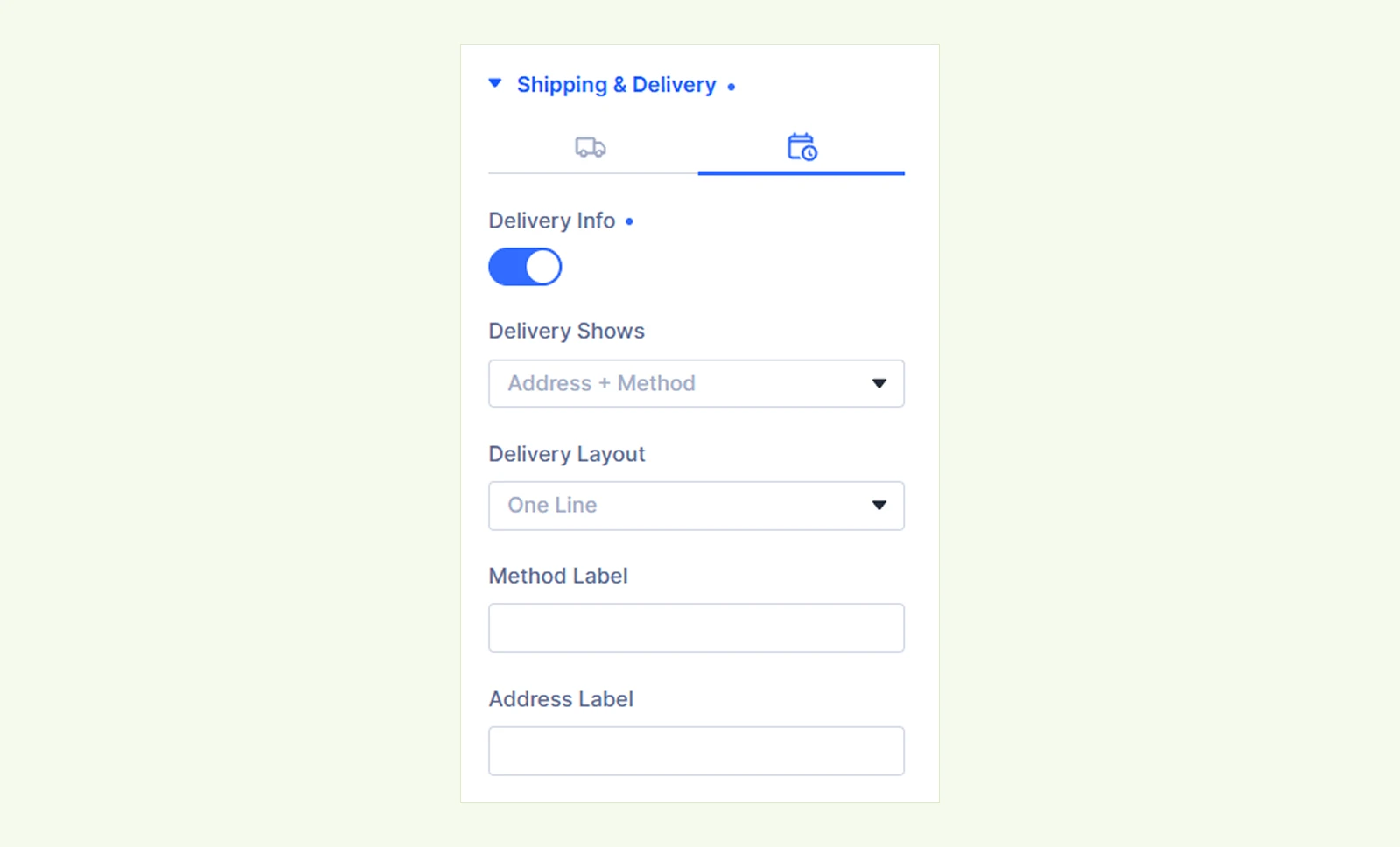
- Delivery Info: Show or hide information about the selected shipping method and delivery destination.
- Delivery Shows: Choose which delivery information appears.
- Address + Method: Display both the delivery address and selected shipping method.
- Address Only: Display only the delivery address.
- Method Only: Display only the selected shipping method.
- Delivery Layout: Choose how delivery information is arranged.
- One Line: Display delivery details on a single line.
- Line Per Detail, With Icons: Display each detail on a separate line with icons.
- Delivery Icons: Show or hide icons alongside delivery information.
- Method Label: Customize the text displayed before the shipping method.
- Address Label: Customize the text displayed before the delivery address.
- Delivery Shows: Choose which delivery information appears.
Shipping Calculator #
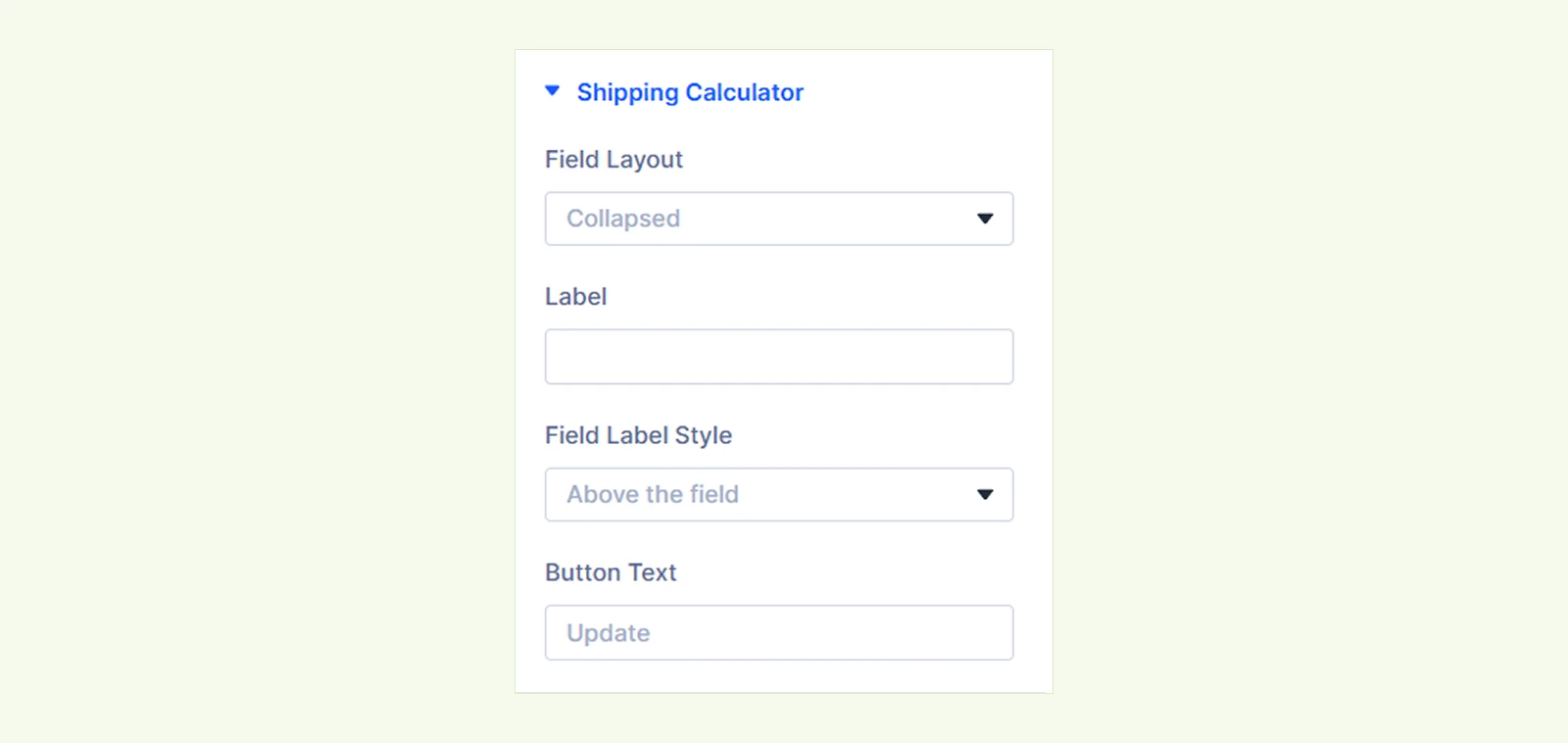
- Field Layout: Choose how the shipping calculator is displayed.
- Inline: Display the calculator fields and button in a horizontal layout.
- Stacked: Display the calculator fields and button vertically.
- Collapsed: Hide the calculator fields until shoppers expand the section.
- Label: Customize the text displayed for the shipping calculator.
- Field Label Style: Choose how labels appear in the shipping calculator fields.
- Hidden: Hide the field labels.
- Above the field: Display labels above the input fields.
- Floating: Display labels inside the fields that move upward when selected or filled.
- Preloader Only: Display only placeholder text inside the fields.
- Button Text: Customize the text displayed on the shipping calculator button.
Action Button #
The Action Button section lets you customize checkout actions, terms acceptance, and the continue shopping link. It includes three tabs: Checkout, Terms, and Continue.
Checkout #
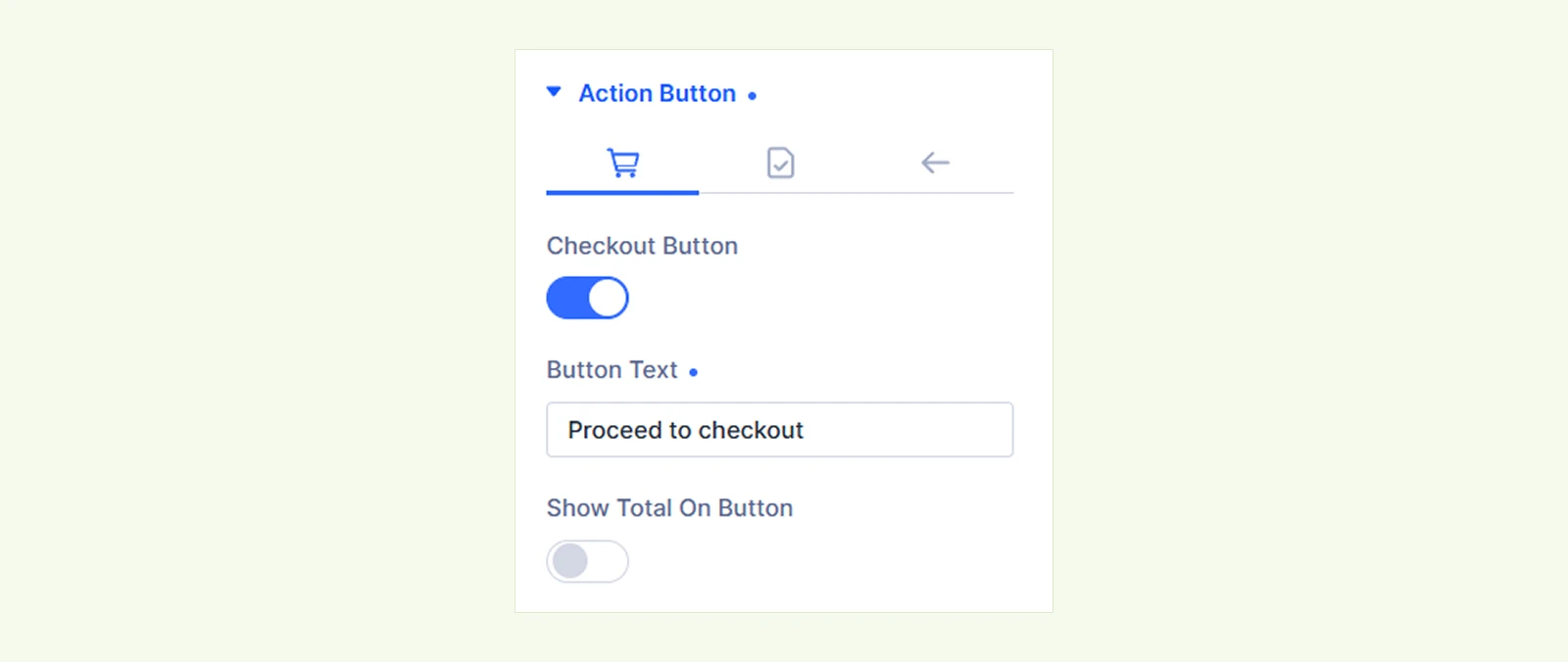
- Checkout Button: Show or hide the button that directs shoppers to checkout.
- Button Text: Customize the text displayed on the checkout button.
- Arrow Icon: Show or hide the arrow icon on the checkout button.
- Show Total On Button: Display the cart's total amount alongside the checkout button text.
- Enable Button: Choose when shoppers can click the checkout button.
- Always: Keep the checkout button enabled.
- After Terms Accepted: Enable the checkout button only after shoppers accept the terms and conditions.
Important Note: When using “After Terms Accepted,” you must also enable the Terms Checkbox in the Terms tab. Otherwise, the checkout button will remain disabled.
Terms #
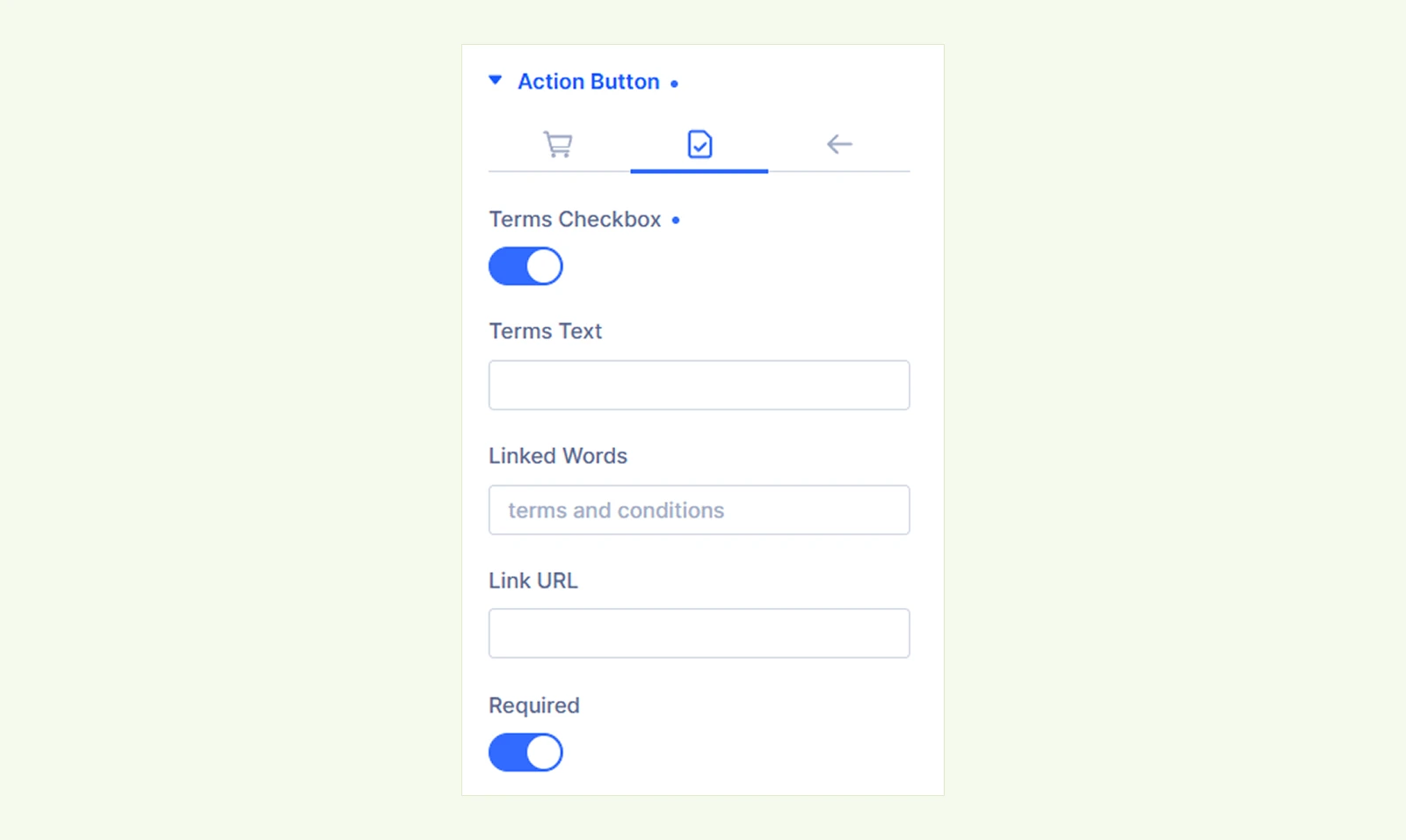
- Terms Checkbox: Show or hide a checkbox for accepting terms and conditions.
- Terms Text: Customize the text displayed alongside the checkbox.
- Linked Words: Specify which words in the terms text should become a clickable link.
- Link URL: Enter the URL of your terms and conditions page. The link opens in a new tab.
- Required: Mark the terms checkbox as required.
Note: To prevent shoppers from proceeding without accepting the terms, set Enable Button to After Terms Accepted in the Checkout tab. Enabling Required alone does not disable the checkout button.
Continue #
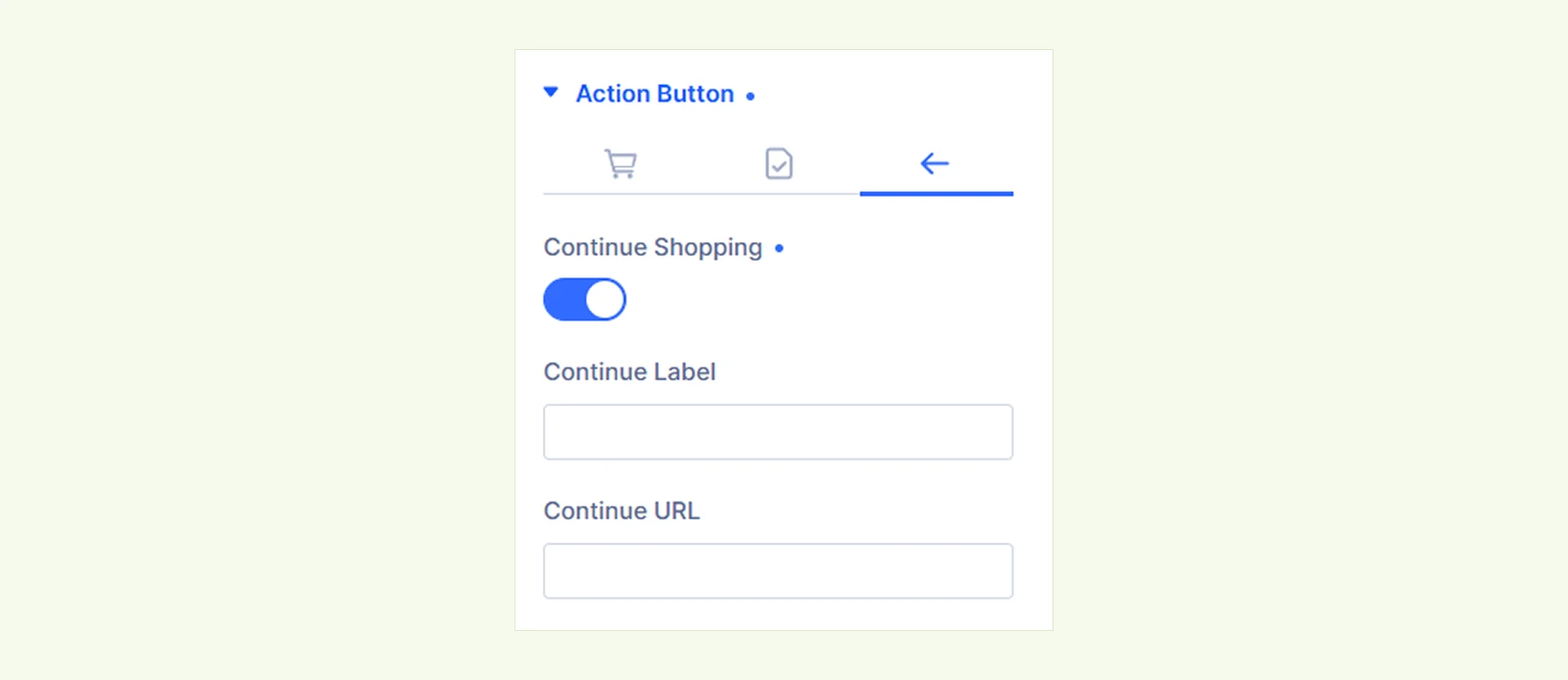
- Continue Shopping: Show or hide the link that directs shoppers back to the store.
- Continue Label: Customize the text displayed on the continue shopping link.
- Continue URL: Enter the URL where shoppers should be directed.
Order Note #
The Order Note section lets shoppers add instructions or additional information to their orders.
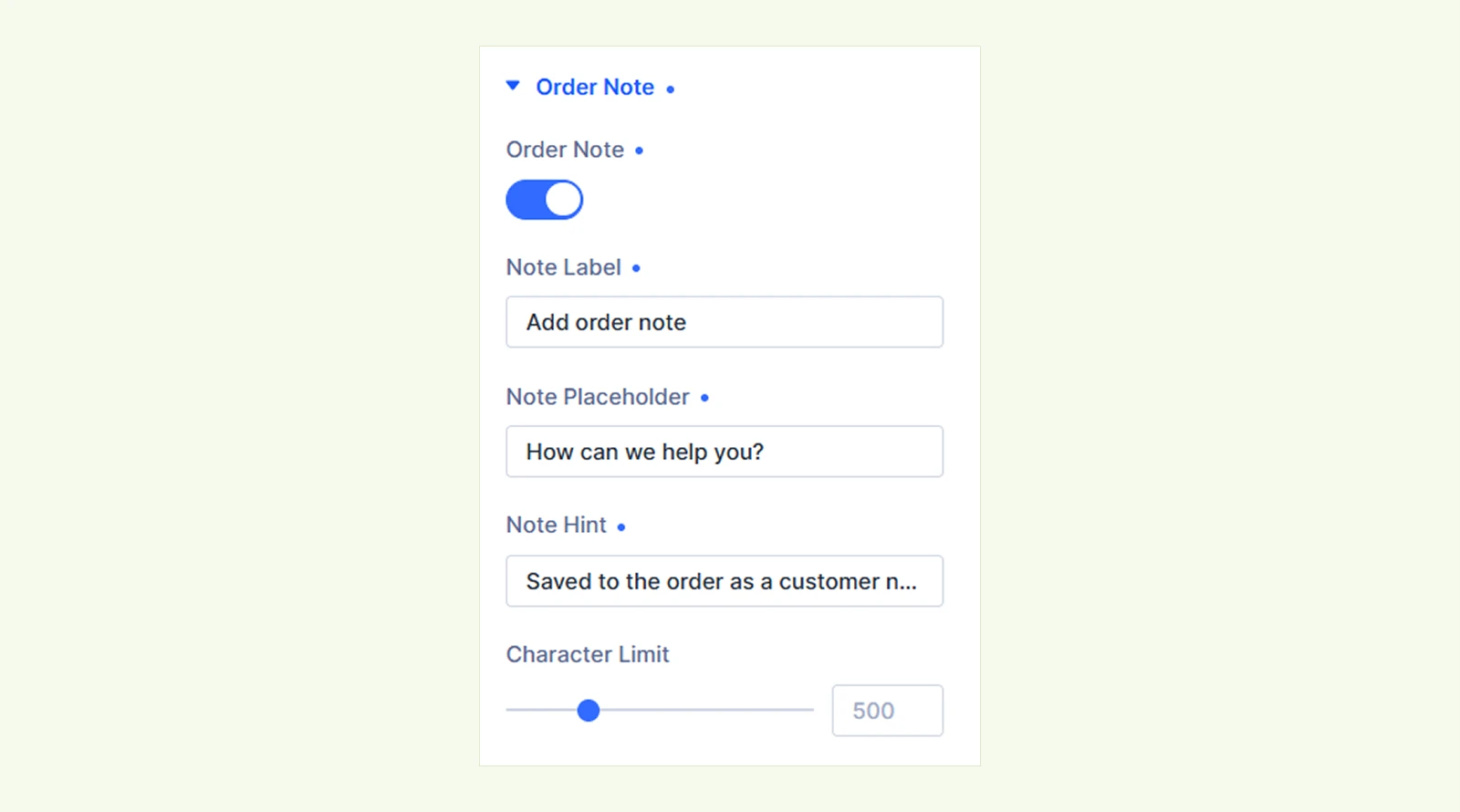
- Order Note: Show or hide the order note text field.
- Note Label: Customize the label displayed above the order note field.
- Note Placeholder: Customize the placeholder text inside the field.
- Note Hint: Add supporting text below the order note field.
- Character Limit: Set the maximum number of characters shoppers can enter. Set to 0 for no character limit.
Note: Order notes automatically appear on the classic WooCommerce checkout but not on the block-based checkout.
Elements Order #
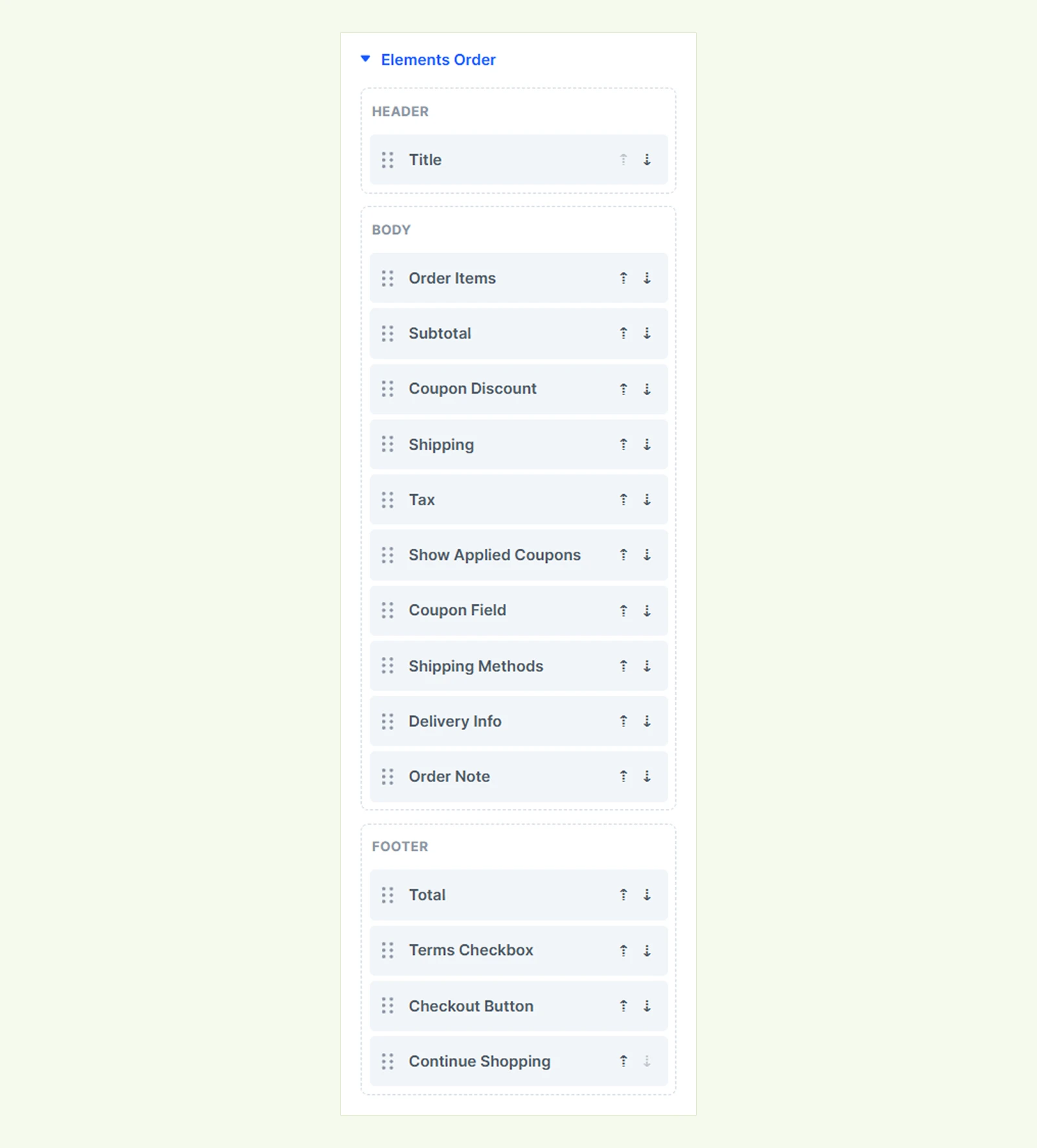
- Elements Order: Drag and reorder cart summary sections within or between the Header, Body, and Footer areas. You can also use the up and down arrows to adjust their positions.
Note: Disabled sections keep their positions and return to the same place when enabled again.
Background: Customize the background of the entire module using Divi's standard background settings.
Element: Set a custom admin label to identify the module easily in the Divi Builder.
Design Tab #
The Design tab lets you customize the appearance of cart totals, order items, coupons, shipping methods, buttons, and more.
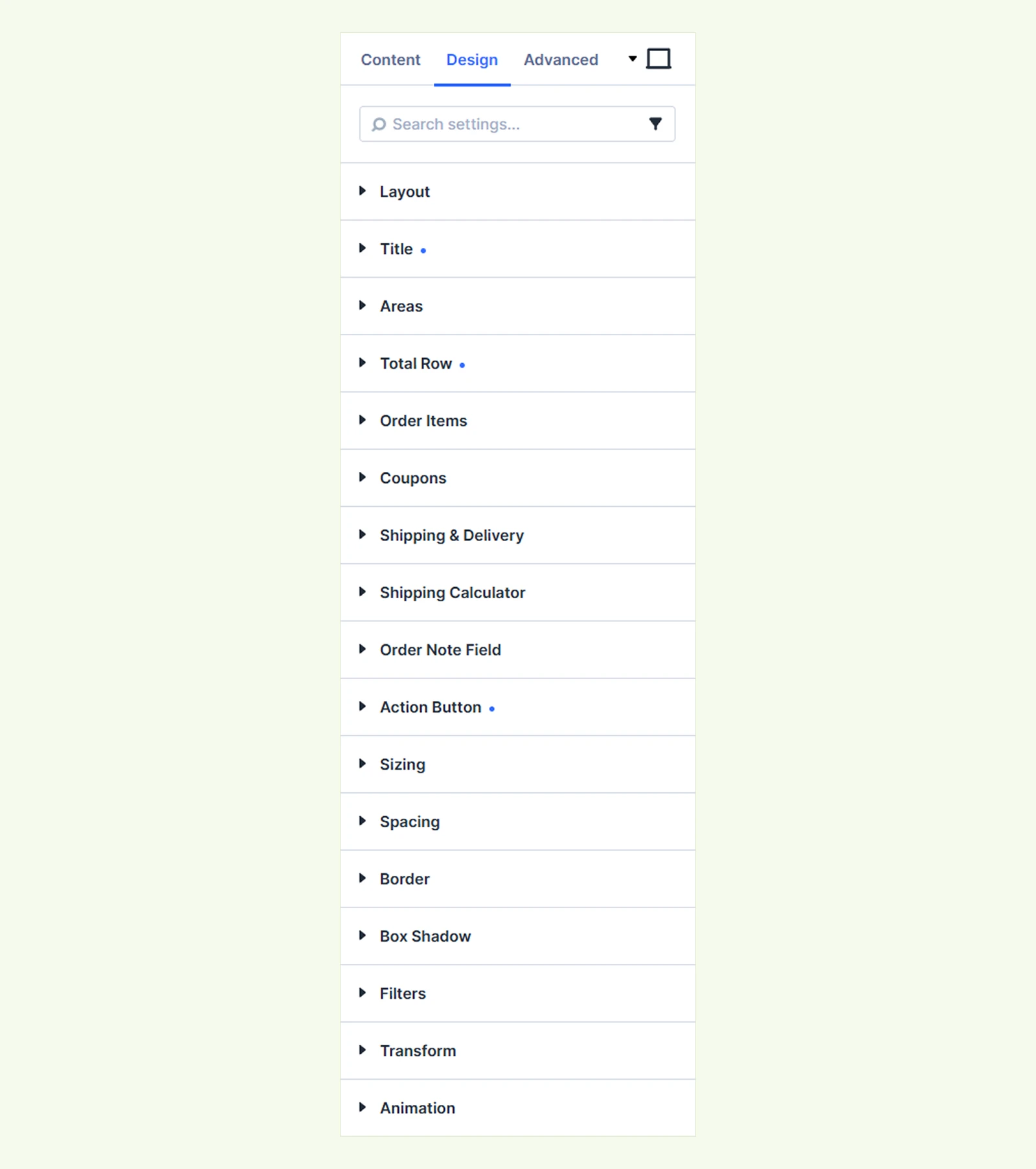
Layout: Customize the arrangement of the Header, Body, and Footer areas using Divi's standard Flex and Grid layout settings, including columns, gaps, and alignment.
Title: Customize the Advanced Cart Totals title's typography and spacing.
Areas: Customize the spacing, border, box shadow, and background of the Header, Body, and Footer areas separately.
Total Row: Customize the typography, spacing, border, and background of Subtotal, Discount, Total, and Tax rows, including their labels, prices, and details.
Order Item #
Customize the appearance of product information, thumbnails, and quantity badges in the order summary.
Default #
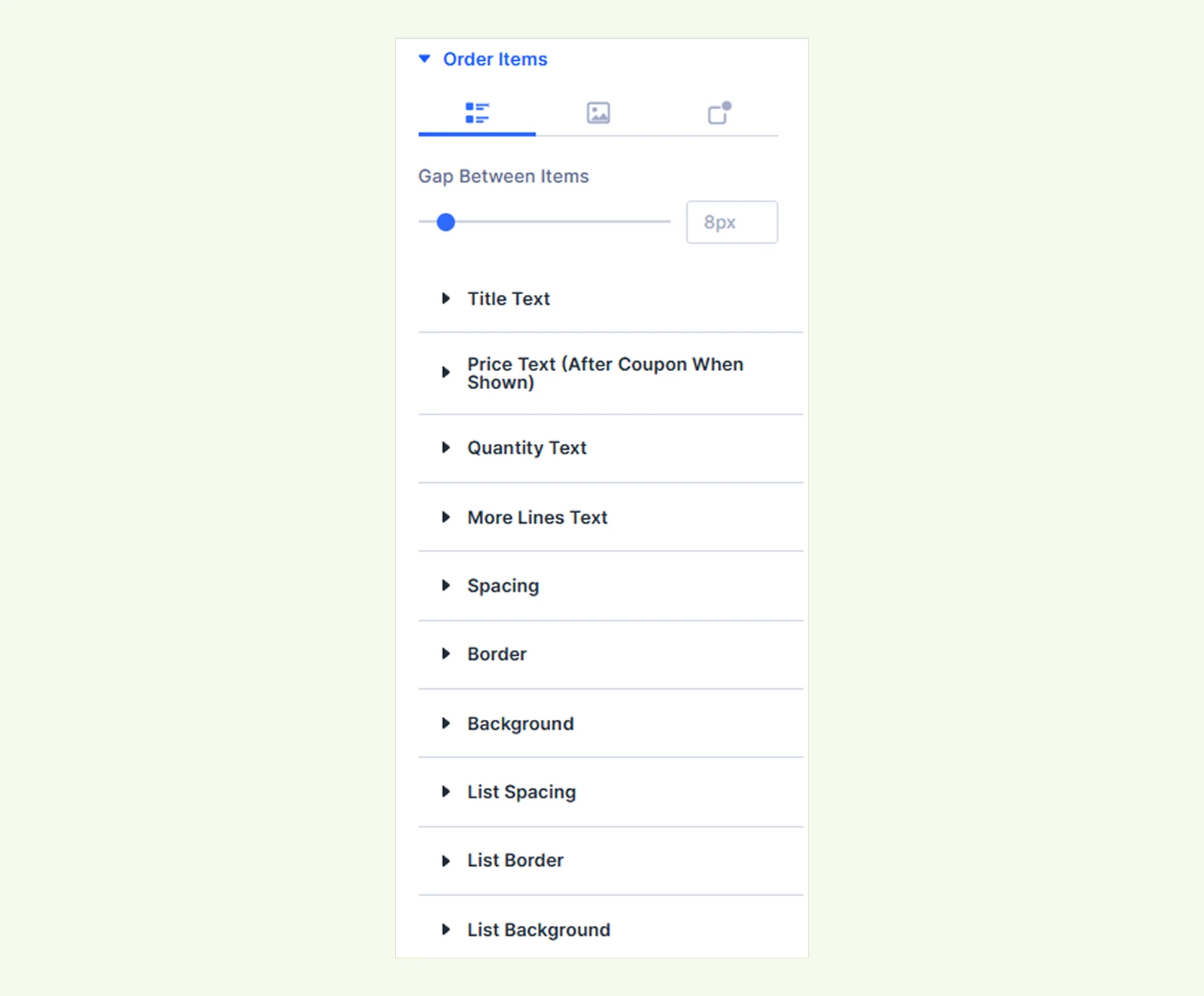
- Gap Between Items: Adjust the spacing between products in the list.
You will also find styling options for product title, price, quantity, and additional items, including typography, background, border, and spacing.
Thumbnail #
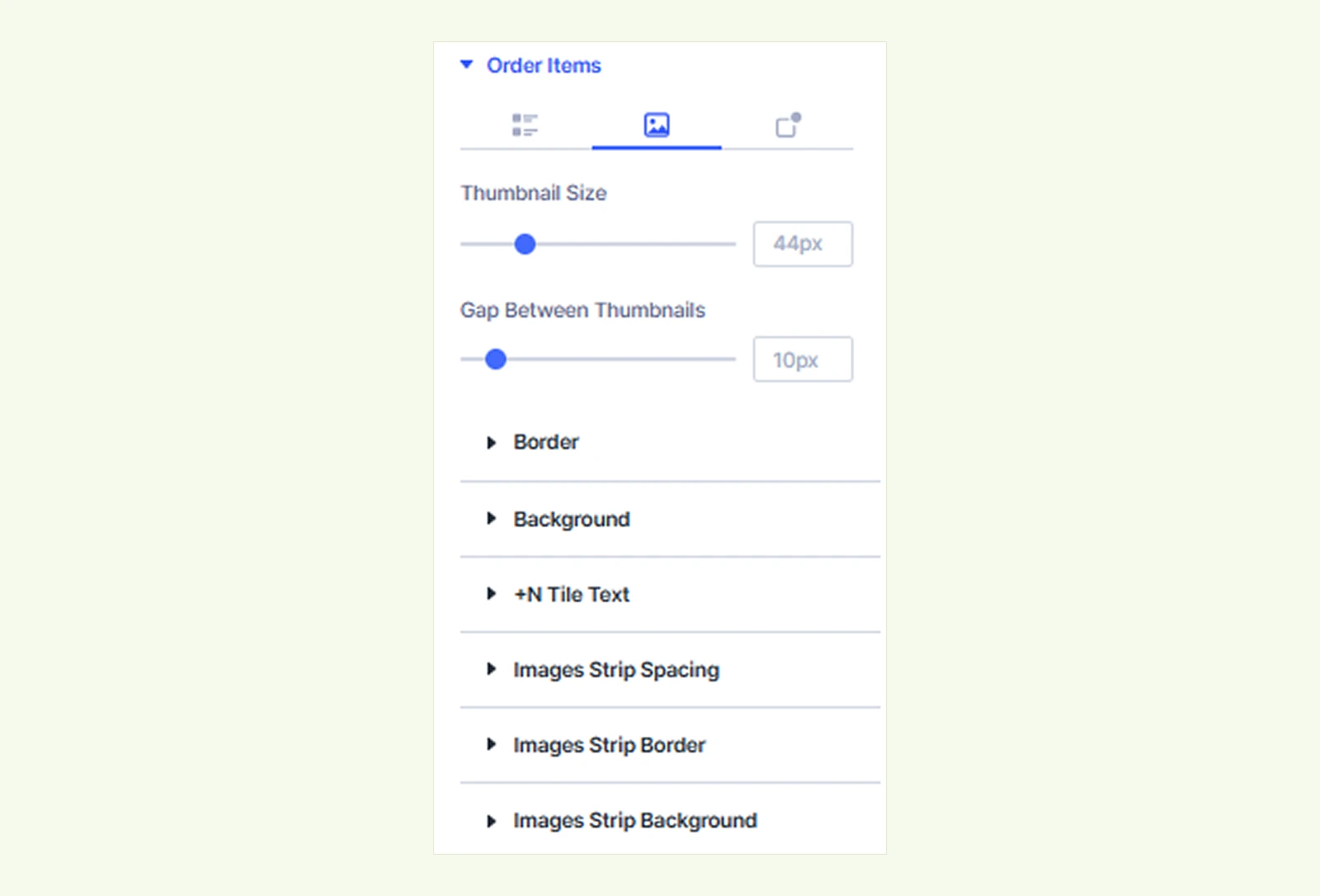
- Thumbnail Size: Adjust the size of product thumbnails.
- Gap Between Thumbnails: Adjust the spacing between product images.
You can also customize the thumbnail border, background, image strip, and "+N" indicator using standard Divi styling options.
Badge #
Customize the quantity badge displayed on product thumbnails, including its typography, border, and background.
Coupons #
Customize the appearance of applied coupons, coupon fields, apply buttons, and success or error messages.
Applied Coupons #
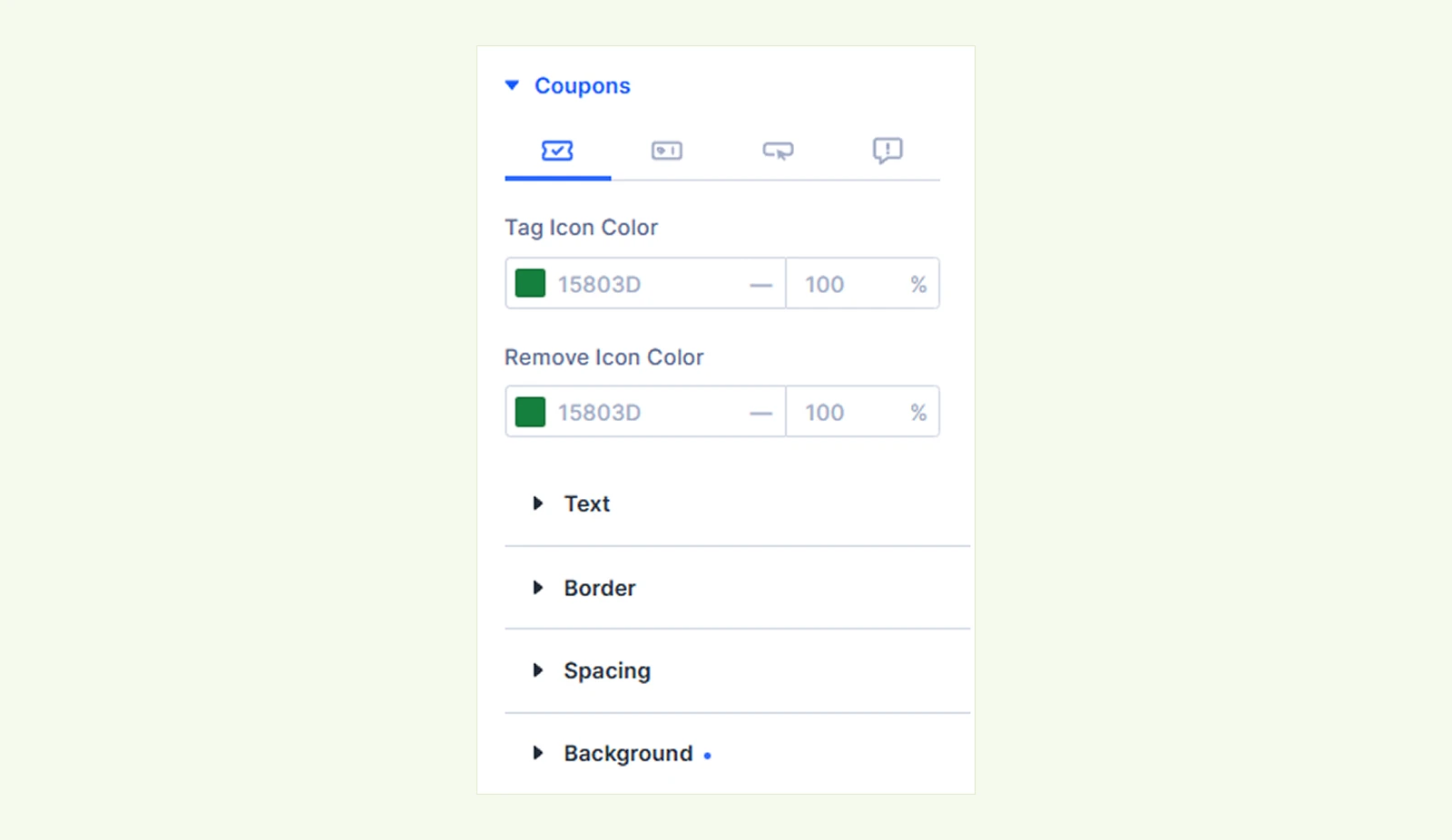
- Tag Icon Color: Set the color of the tag icon displayed with applied coupons.
- Remove Icon Color: Set the color of the icon used to remove applied coupons.
You will also find styling options for typography, border, spacing, and background.
Coupon Code Field #
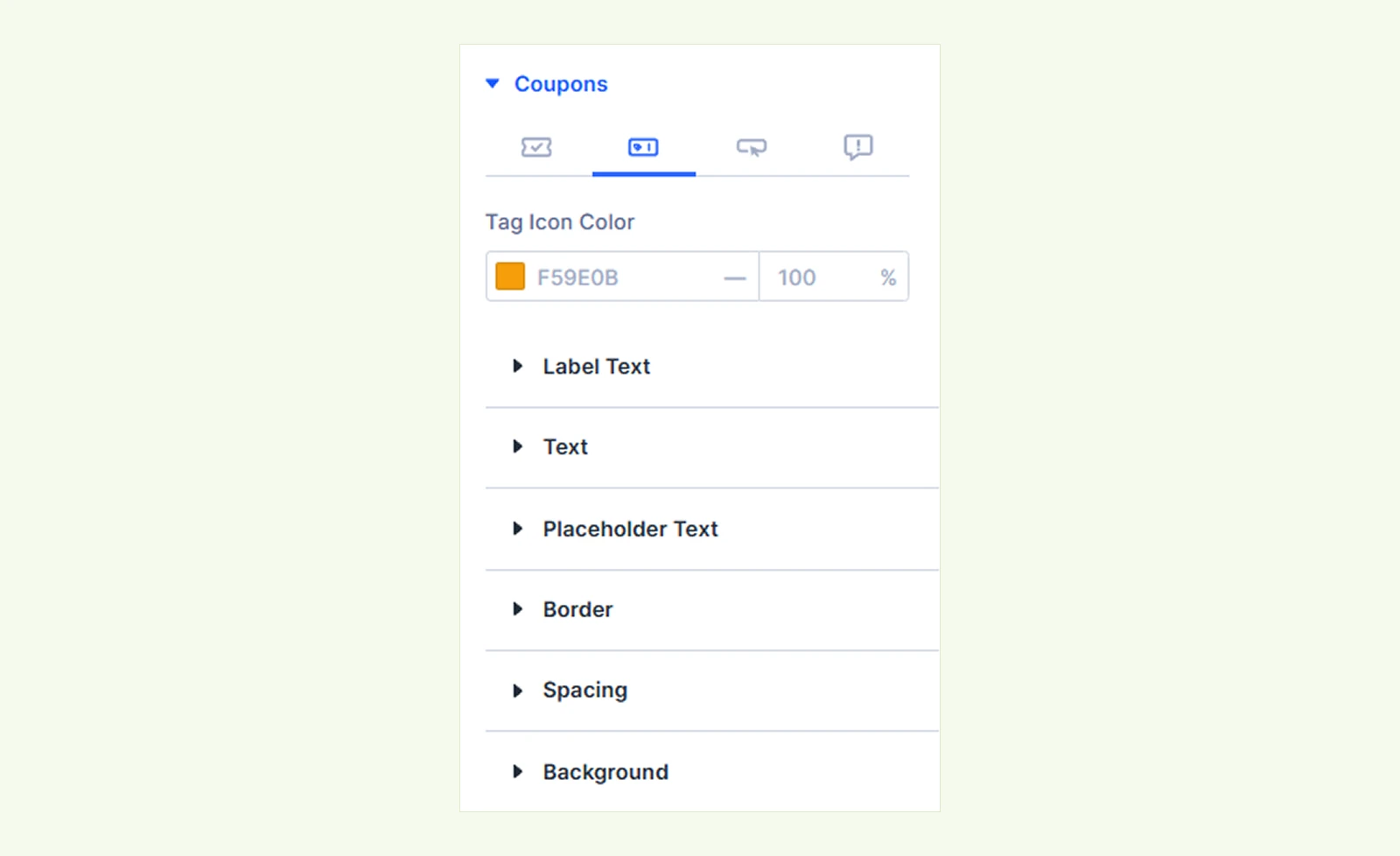
- Tag Icon Color: Customize the color of the tag icon inside the coupon input field.
You can also customize the label, input text, placeholder typography, border, spacing, and background.
Apply Button #
Customize the coupon application button's typography, border, spacing, and background.
Success and Error Messages #
Customize the typography, background, border, and spacing of success and error messages displayed when applying or removing coupons.
Shopping & Delivery #
Customize the appearance of shipping methods, selected shipping options, and delivery information.
Shipping Method #
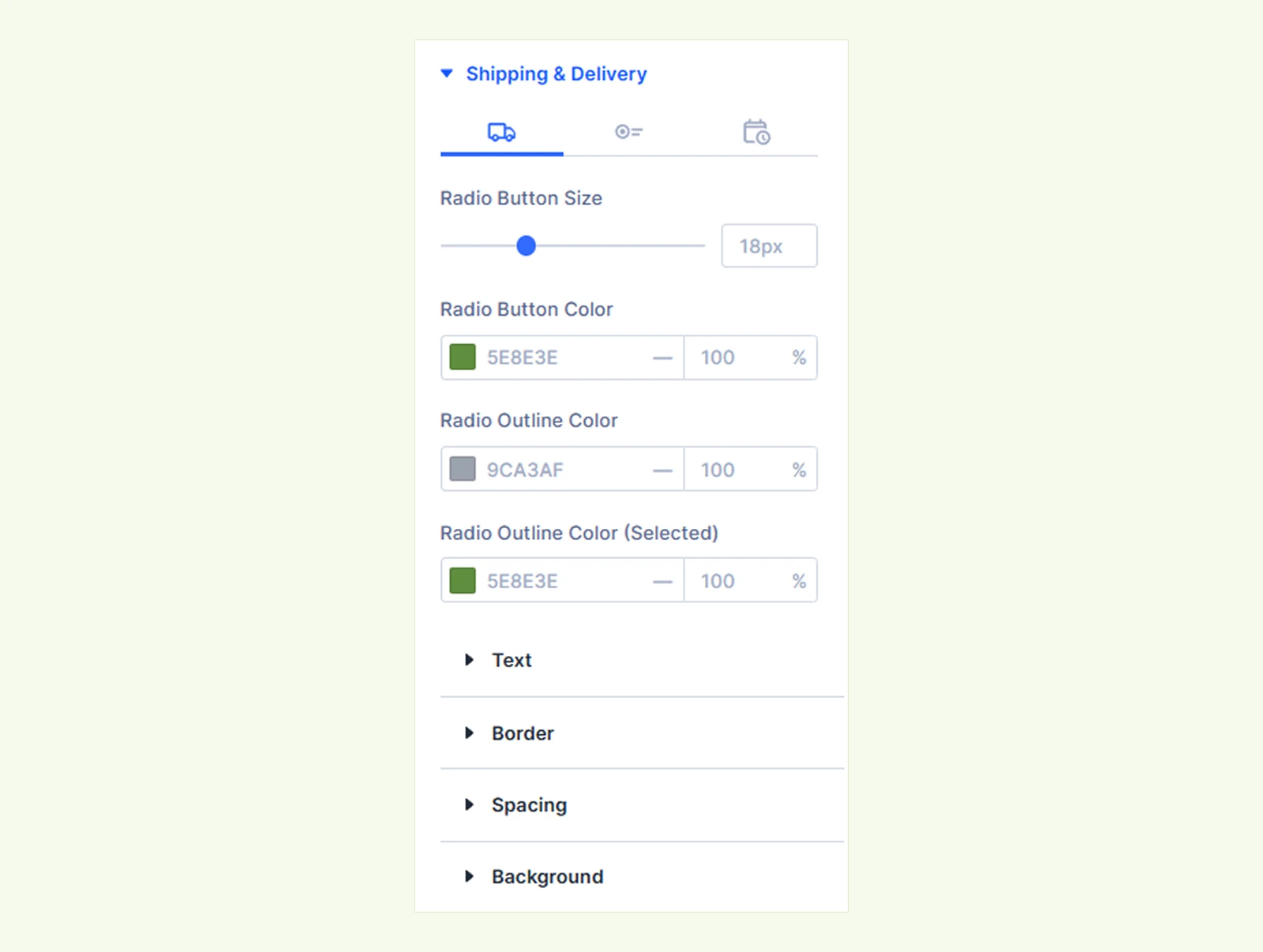
- Radio Button Size: Adjust the size of shipping method radio buttons.
- Radio Button Color: Set the color of the radio buttons.
- Radio Outline Color: Customize the outline color of unselected radio buttons.
- Radio Outline Color (Selected): Set the outline color of selected radio buttons.
You will also find styling options for typography, border, spacing, and background.
Selected Shipping Method #
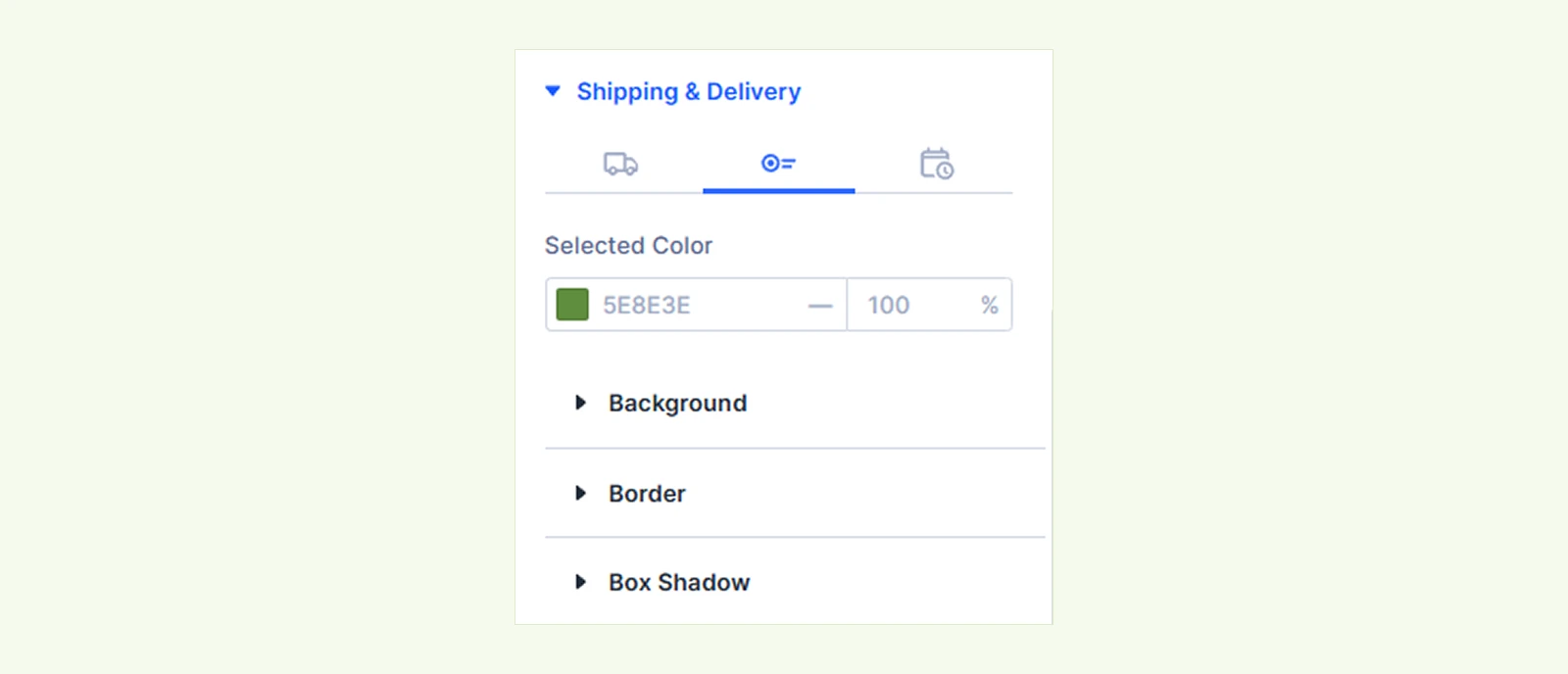
- Selected Color: Set the color used to highlight the selected shipping method.
You can also customize the background, border, and box shadow of the selected shipping method.
Delivery Info #
Customize the appearance of delivery information using the available styling settings.
Shipping Calculator: Customize the typography, background, border, box shadow, spacing, and dropdown arrow color of the shipping calculator's container, fields, and update button.
Order Note Field: Customize the typography, border, spacing, and background of the order note field, including its label and hint text.
Action Button #
Customize the appearance of the checkout button, terms checkbox, and continue shopping link.
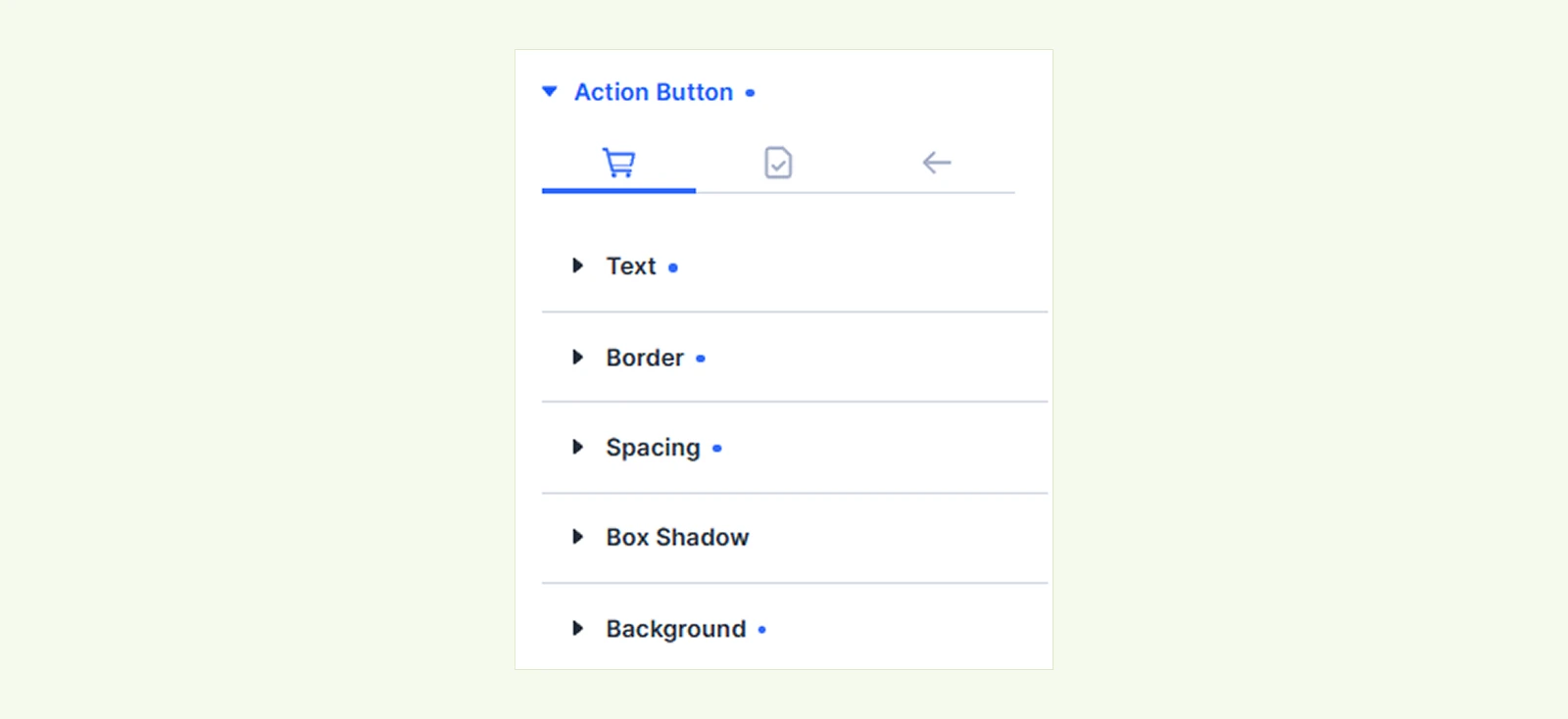
Checkout Button #
Customize the button's typography, border, spacing, box shadow, and background.
Terms Checkbox #
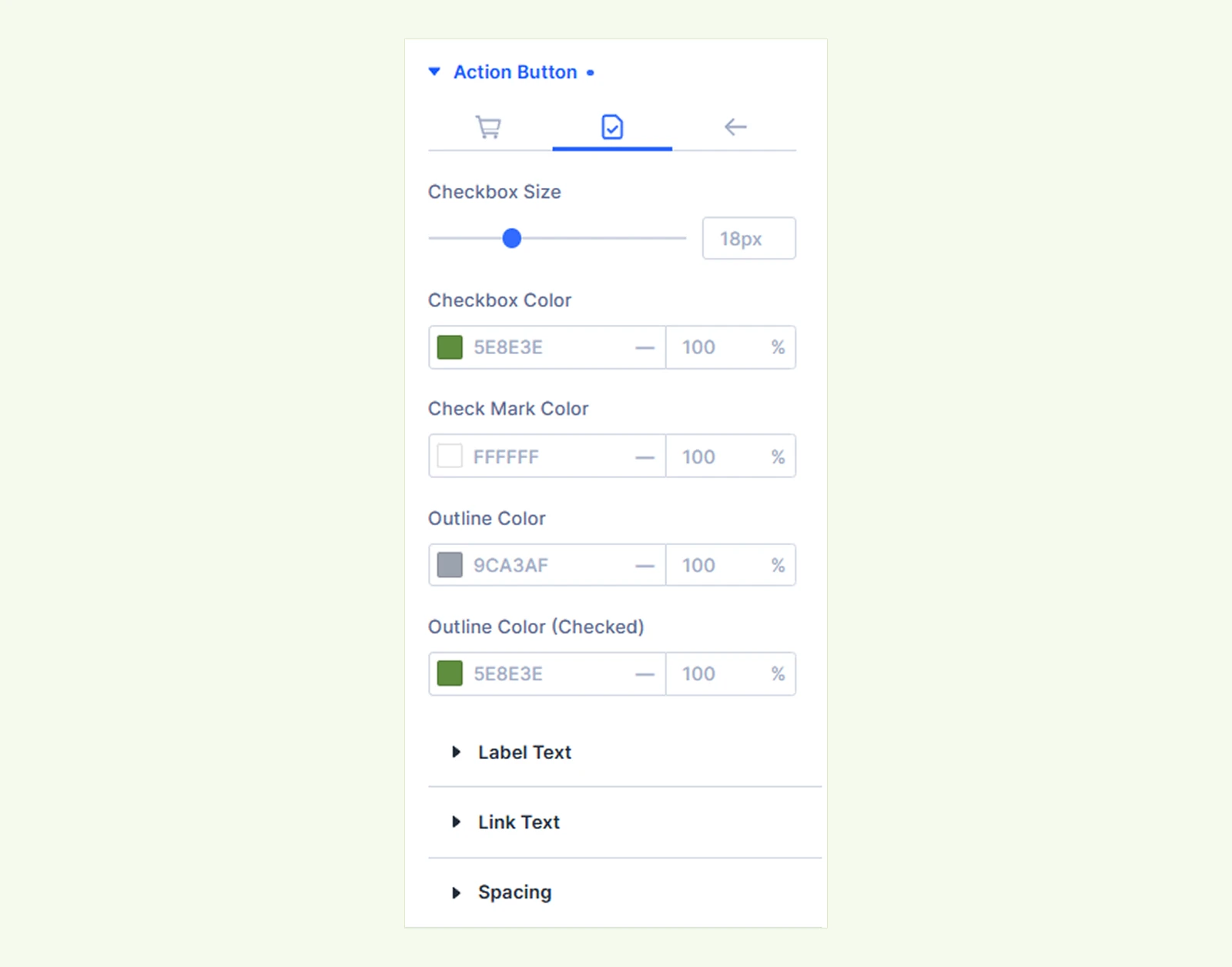
- Checkbox Size: Adjust the size of the terms checkbox.
- Checkbox Color: Set the color of the checkbox.
- Check Mark Color: Customize the color of the checkmark.
- Outline Color: Set the checkbox outline color.
- Outline Color (Checked): Set the outline color when the checkbox is selected.
You will also find styling options for label and link typography and spacing. #
Continue Shopping #
Customize the link's typography, border, spacing, and background. #
Sizing: Adjust the width, height, and alignment of the module.
Spacing: Add custom margin and padding to the module's container.
Border: Customize the border style, width, and color. You can style each border separately or apply the same style to all sides.
Box Shadow: Add shadow effects to the module.
Filters: Apply color filters to enhance the appearance.
Transform: Scale, rotate, move, or skew the module.
Animation: Apply reveal animation effects and customize delay, duration, repeat settings, and animation type.
Advanced Tab #
The Advanced tab provides additional controls, including Custom CSS, Position, Visibility, Conditions, and other standard Divi settings.
Need Help? #
If you have any questions or need assistance, contact our support team: [email protected].


