

To show the sale percentage on WooCommerce products in Divi, use DiviMerc's Product Badges module. It calculates the discount from your WooCommerce prices, so a product reduced from $100 to $70 shows "30% OFF".
Divi's default badge only says "Sale!". You can style it, but it can't show how much shoppers save, and that's the detail that makes a deal worth clicking.
In this guide, we will show you how to show sale percentage on WooCommerce products in Divi in 6 steps.
Step 1. Set a Sale Price in WooCommerce
Before you start, activate DiviMerc and make sure at least one product has an active sale price so you can preview the badge as you build. To add a sale price to a product:
- Go to Products > All Products and open the product you want to discount.
- Enter a Sale price lower than the Regular price:
- Simple product: in Product data > General.
- Variable product: in Product data > Variations, expand a variation, set its prices, and click Save changes.
- Click Update.
If the sale is scheduled for later, preview the badge on a product whose sale is already active.
Step 2. Add the Product Badges Module
- Go to DiviMerc > Modules and enable Product Badges.
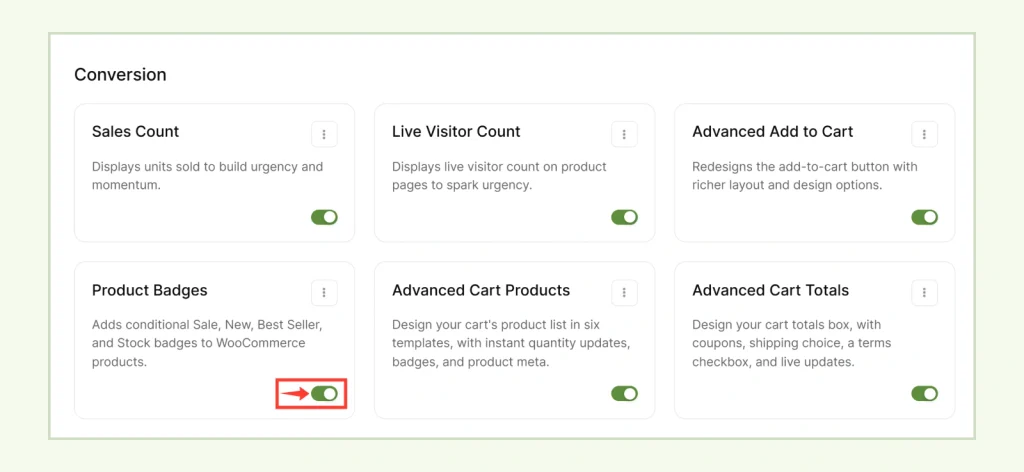
- Open your product layout in the Visual Builder and add Product Badges where you want the discount to appear.

- Under Content > Content > Product, select This Product to use the current product's prices.
Step 3. Show and Format the Discount Percentage
Under Content tab > Badges, open the default Sale Badge and set Infix to Discount %. Then use Prefix Text or Suffix Text to choose how it reads:
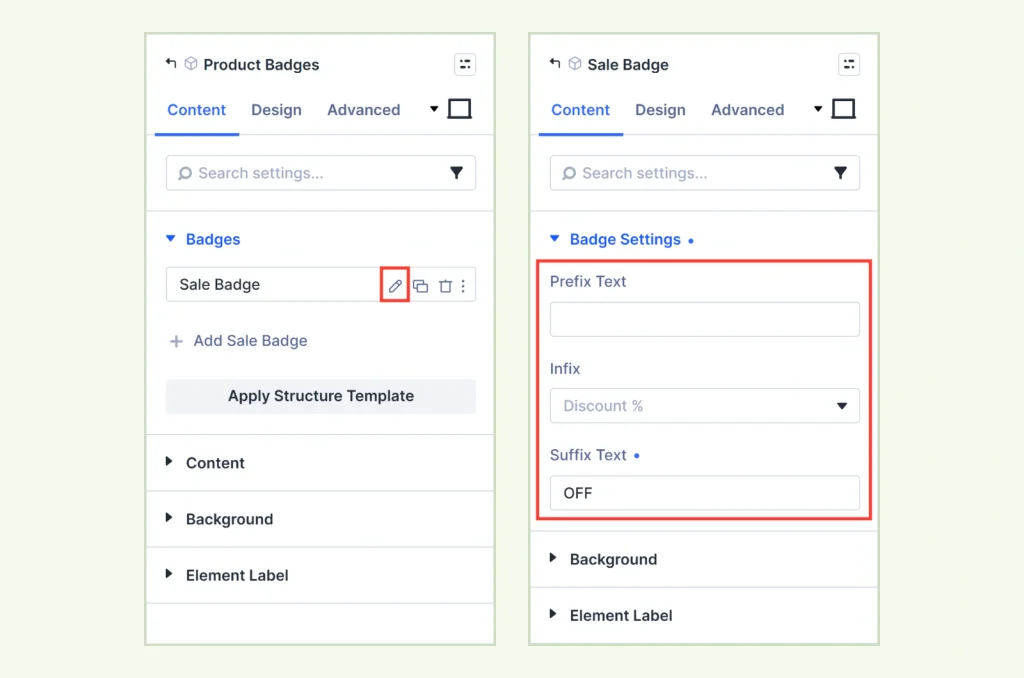
| To display | What to enter |
| 30% | Leave Prefix and Suffix empty |
| 30% OFF | " OFF" in Suffix Text (space before) |
| Save 30% | "Save " in Prefix Text (space after) |
If Woo Product Images already shows Divi's sale badge, turn off Show Sale Badge so shoppers see only one.
Step 4. Style and Position the Badge
- Open the Sale Badge item's Design tab to adjust its text, background, border, and spacing.
- Use the Infix design settings to make the percentage larger or bolder.
- To place the badge over the product image, open Advanced > Position on the Product Badges module.
- Adjust it for tablet and phone so it doesn't cover key details in the photo.
Step 5. Show Sale Percentages on Shop and Category Pages (Optional)
To show discounts where shoppers compare products, use DiviMerc's Product Grid, which has its own Sale badge. To add it:
- Open your shop or product category template in the Visual Builder and add Product Grid.

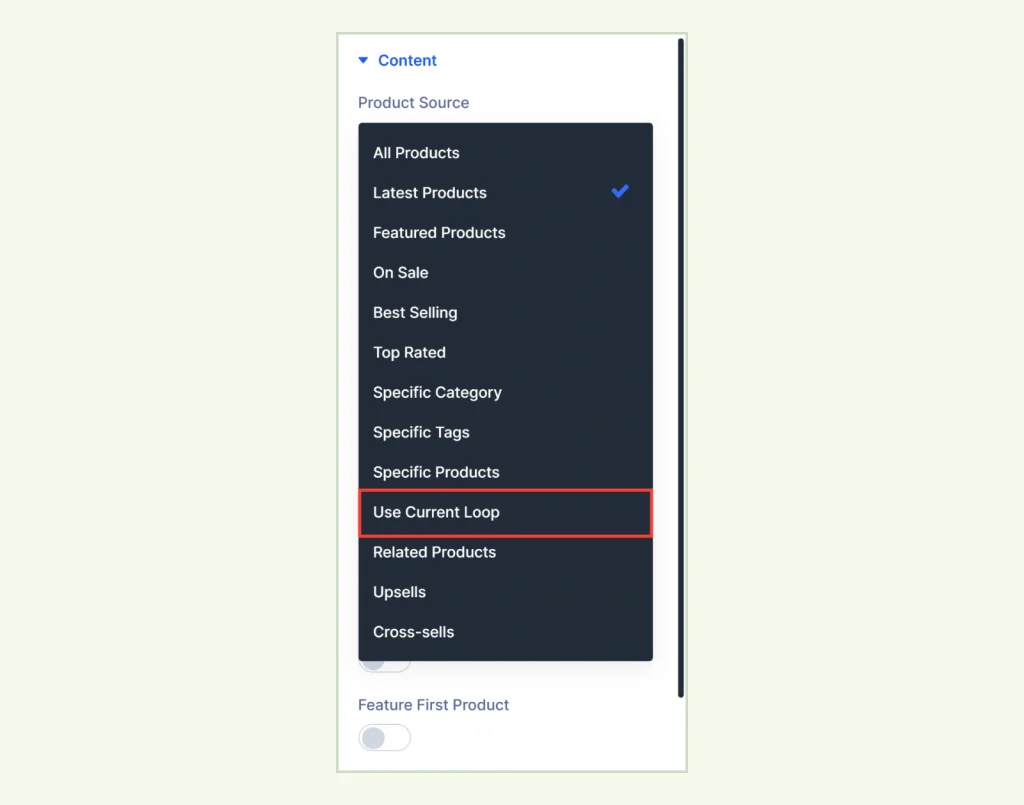
- In the Content tab, open the Content section and set Product Source to Use Current Loop.
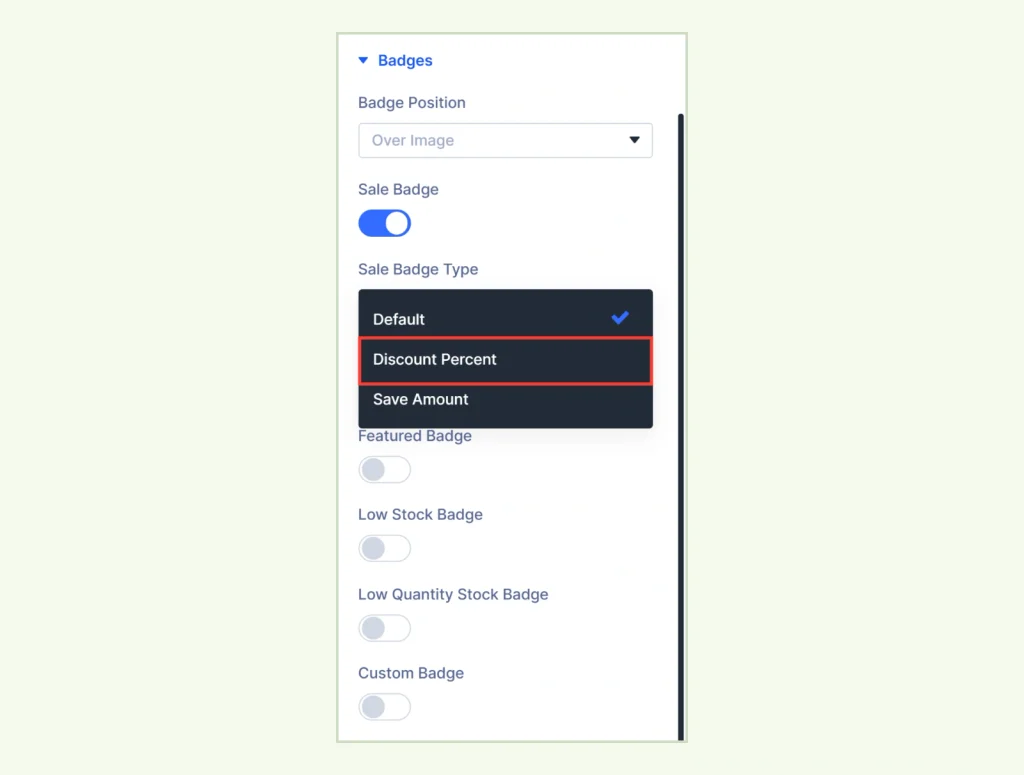
- Under Content > Badges, leave Sale Badge enabled and set Sale Badge Type to Discount Percent. For example, a product card can show -30%.
Step 6. Check the Badge on the Live Store
Save your layout, then check the live store on desktop and mobile:
- Open a product with an active sale. The percentage should be correct and easy to read.
- Open a full-price product using the same layout. No sale badge should show.
- On variable products, select different options and check which percentage the badge shows.
- If you added a Product Grid, check that discounted products show the expected percentage on their cards.
Final Thoughts
Now you know how to show sale percentage on WooCommerce products in Divi without code. DiviMerc’s Product Badges module calculates the discount from each product’s regular and sale prices. When you change those prices in WooCommerce, the badge updates automatically.
Test the badge on one sale product first. Check that the percentage is correct and easy to read on desktop and mobile. Then add the badge to your shared product template so each product on sale can show its own discount.


0 Comments