

To change Add to Cart button text in Divi, you will need a plugin like DiviMerc. That’s because its default Woo Add To Cart module lets you style the button but uses WooCommerce’s built-in wording.
DiviMerc’s Add to Cart Rules extension lets you set different labels for product pages and shop listings. Its Advanced Add to Cart module also lets you edit the loading message and the cart or checkout link text.
Lets find out how to change add to cart button text in WooCommerce and Divi using DiviMerc.
Step 1: Turn On Add to Cart Rules
Before getting started, make sure WooCommerce, Divi 5, and DiviMerc are installed and activated. Then:
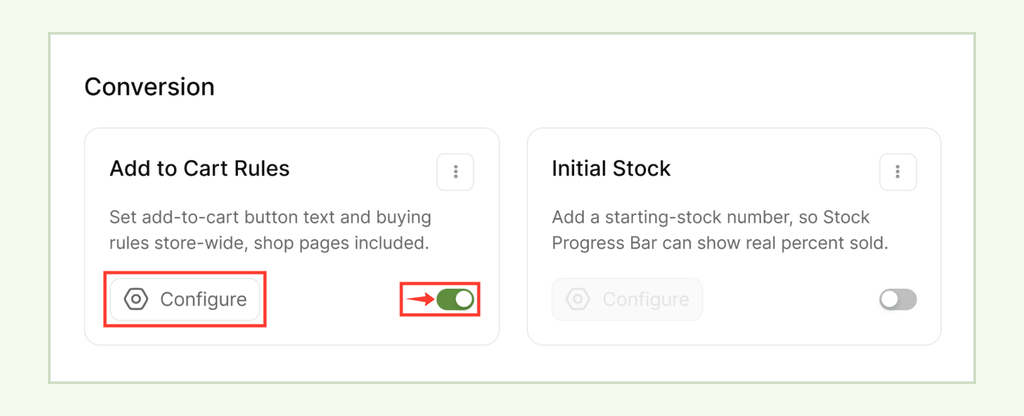
- In your WordPress dashboard, go to DiviMerc > Extensions.
- Turn on Add to Cart Rules, then click Configure.
Step 2: Change the Button Text on Product Pages
In the Add to Cart Rules Labels tab, you can set button text for simple, variable, and grouped products under Product Page. Here is how:
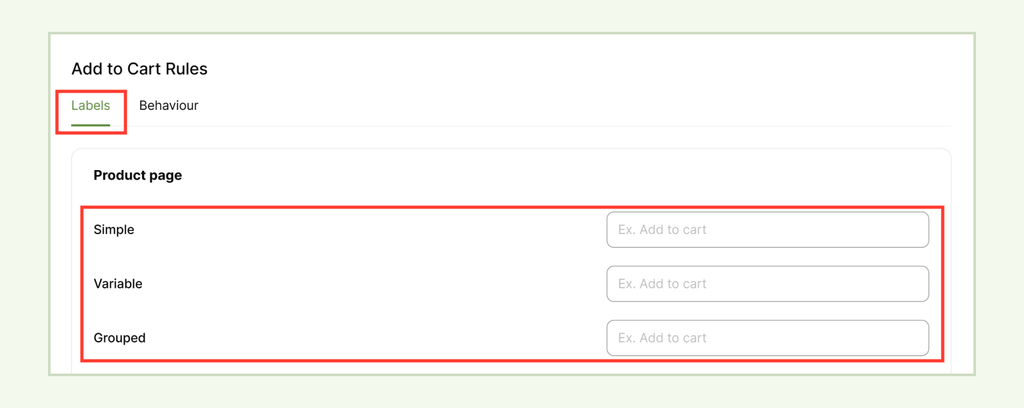
- Simple: such as "Add to bag".
- Variable: such as "Choose a size".
- Grouped: such as "Add selected items".
Leave a field empty to keep WooCommerce's default wording.
Step 3: Change the Button Text on Shop and Category Pages
After setting your product page labels, stay in the Labels tab and open Shop & Archive. Here is how:
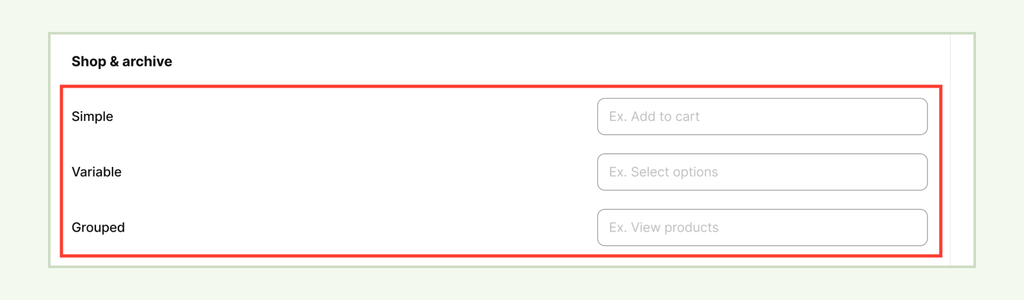
- Simple: the text on product cards in your shop, category, tag, and search pages.
- Variable: replaces WooCommerce's "Select options".
- Grouped: replaces WooCommerce's "View products".
For affiliate products, edit the product and change Product data > General > Button text instead.
Step 4: Set Labels for Special States (Optional)
Once you have set your product and shop labels, open State Labels in the same tab to customize the button text for situations like Sold Out or In Your Cart. (When a state applies, its label can override the product-type label.)
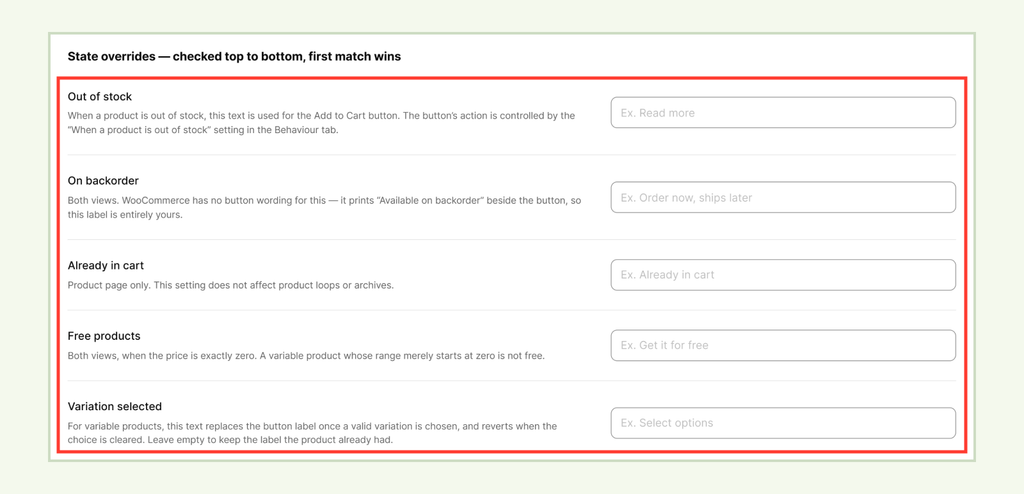
| State | Example text |
| Out of stock | Sold out |
| On backorder | Pre-order now |
| Already in cart | In your cart |
| Free products | Get it free |
| Variation selected | Add to cart now |
Step 5: Customize Loading and In-Cart Text in Divi (Optional)
If your product page uses DiviMerc's Advanced Add to Cart module, you can also change what the button says while an item is being added and after it's in the cart.
Here is how:
- Open the module in the Visual Builder and go to Content > Cart Behaviour:
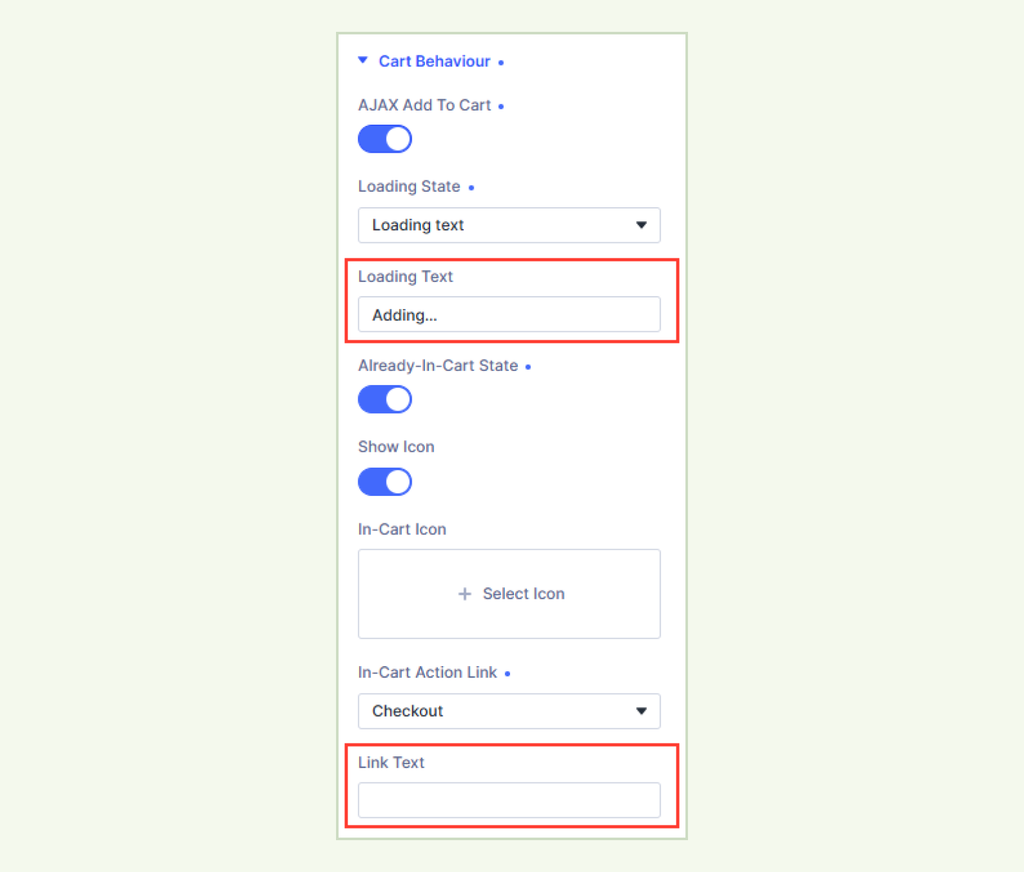
- While adding: enable AJAX Add To Cart, set Loading State to Loading text, and enter a short message like "Adding…".
- After adding: enable Already-In-Cart State, set In-Cart Action Link to View cart or Checkout, and enter Link Text, such as "View Bag" or "Go to Checkout".
Step 6: Check the Button Text on Your Store
Save your changes, then check the live store on desktop and mobile:
- Open a simple and a variable product. Each button should show your product page text.
- Open your shop page. Product cards should show your shop text.
- Add a product to the cart, then reload its page. The already-in-cart text should appear if you set one.
- Open an out-of-stock product. It should show your out-of-stock label.
Final Thoughts
Now that you know how to change Add to Cart button text in WooCommerce, use DiviMerc’s Add to Cart Rules to match each label to what happens next. Use Choose Options when shoppers need to pick a size or color, and Add to Bag when the button adds the item to their cart.
Start with your product and shop pages. Then add labels like Sold Out or In Your Cart wherever they help shoppers see what’s available or what they’ve already added.


0 Comments