

WooCommerce 11.1 and later lets you add multiple images to each product variation. You can now give each variation its own gallery, which updates when shoppers choose an option from the dropdowns.
However, WooCommerce’s default dropdowns list options as text. However, WooCommerce’s default dropdowns list options as text. If you want to show image swatches for patterns, color swatches for shades, or buttons for sizes, use DiviMerc’s Variation Swatches module.
In this guide, we will show you how to add additional variation images in WooCommerce and display them with the default gallery or with DiviMerc’s gallery and swatches.How to Add Additional Variation Images in WooCommerce
Method 1. Add Variation Images With WooCommerce’s Built-in Gallery
Use WooCommerce’s built-in Variation gallery to give each variation its own photos. Here is how to add and test variation photos.
- In your WordPress dashboard, go to Products and edit the variable product.
- Under Product data > Variations, expand the variation you want to add photos to.
- Next to the variation image, click Manage in the Variation gallery field.
- Select photos from the Media Library, or upload new ones.
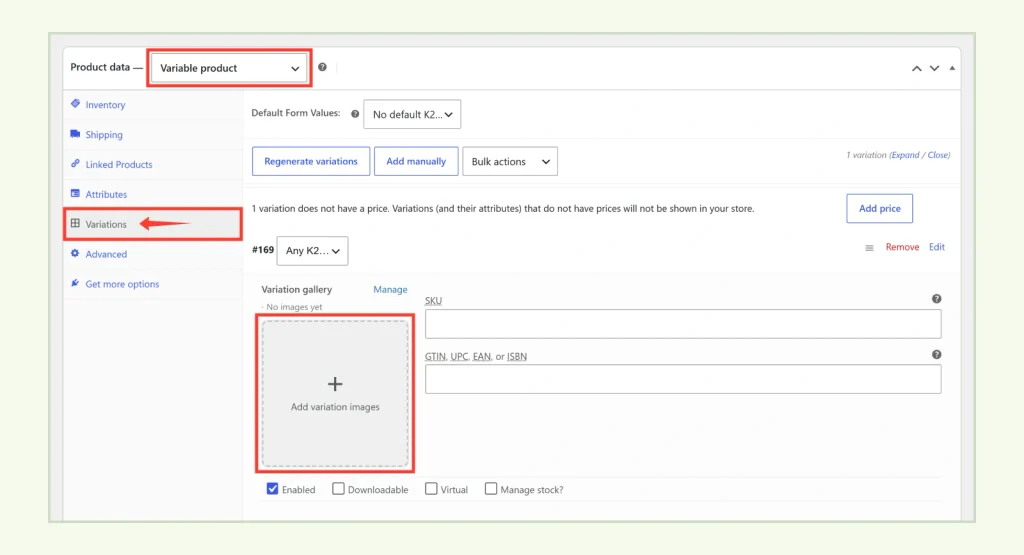
- Drag the photos into the order shoppers should see them.
- The first photo becomes the variation's primary image.
- Repeat for other variations, then click Save changes in the Variations tab and Update the product.
To test it, open the product page and select a variation, picking an option for every attribute. The gallery should switch to that variation's photos, and clearing the selection should bring back the main product images.
Method 2. Show Variation Galleries in Divi With DiviMerc
If you already use DiviMerc, or want more than WooCommerce's default dropdowns, try DiviMerc’s Variation Swatches. It lets shoppers pick each variation from an image, color, or button. To set it up:
Step 1. Add the Advanced Product Gallery Module
- Go to DiviMerc > Modules and enable Advanced Product Gallery.
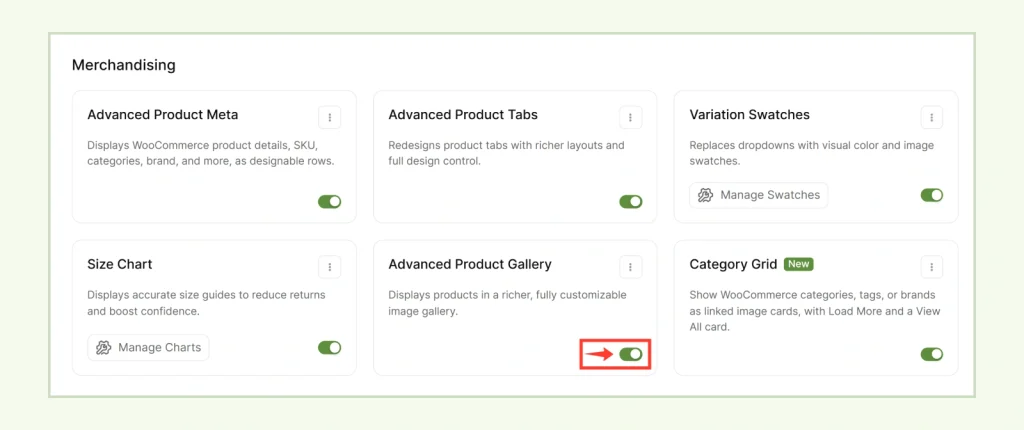
- Open your product layout in the Visual Builder and add Advanced Product Gallery. If you already use Woo Product Images, replace it.

- Under Content tab > Content, set Product to This Product to show its images.
Step 2. Choose How the Gallery Responds
In the Content tab, go to Behavior & Navigation > Variation Gallery and choose what happens when a shopper selects a variation.
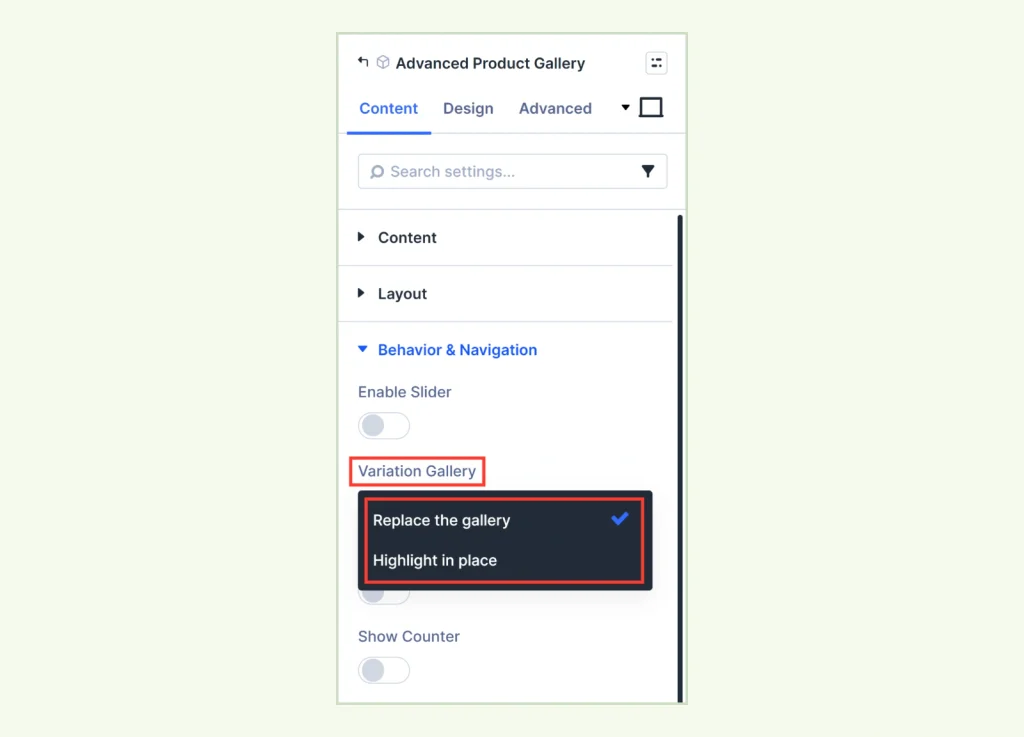
| Setting | What shoppers see | When to use it |
| Replace the gallery | The thumbnails switch to the selected variation's photos | Each color or finish has its own photo set |
| Highlight in place | The full gallery stays, and the variation's image comes into view | Shoppers should keep browsing shared photos, like a size guide |
Step 3. Customize the Gallery Layout
In the Content tab, use these settings to customize the gallery:
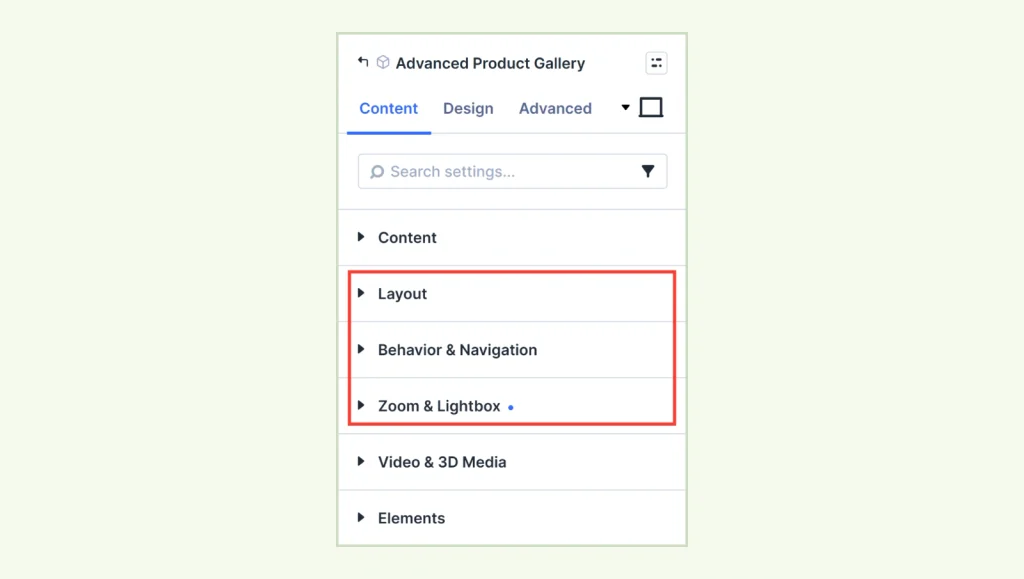
- Use Layout to place thumbnails below, left, or right of the main image, or to switch to a grid or stacked layout.
- Open Behavior & Navigation and turn on Enable Slider to let shoppers swipe through photos as slides.
- Open Zoom & Lightbox to choose a Zoom Type or enable Open Lightbox On Click, so shoppers can see details in a larger view.
Step 4. Add Variation Swatches (Optional)
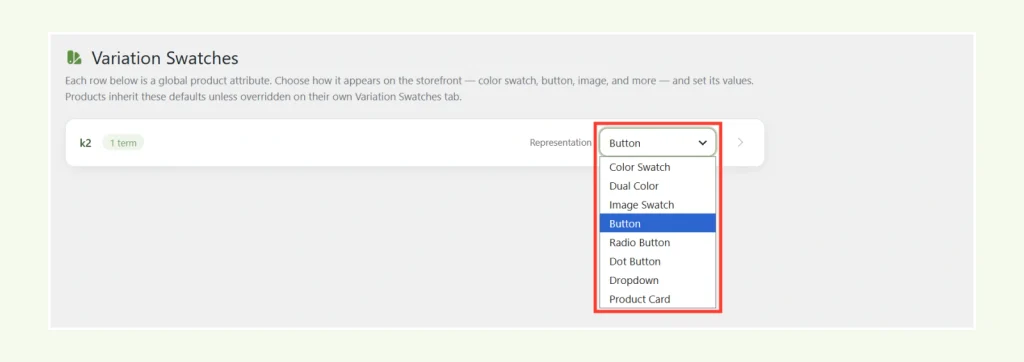
Give shoppers a visual way to choose options. Use Color Swatch for solid colors, Image Swatch for patterns or finishes, and Button for sizes. Here is how to set up your swatches in Divi:
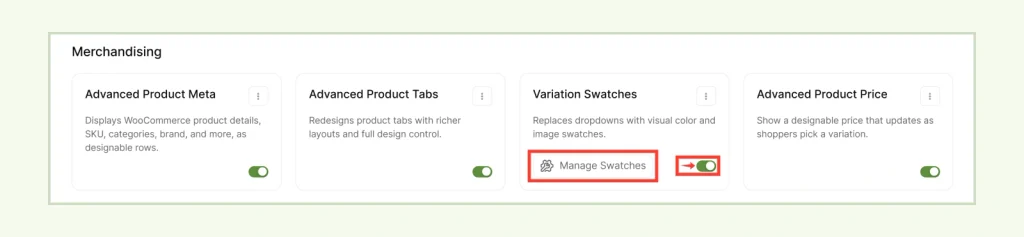
- Go to DiviMerc > Modules, enable Variation Swatches, and click Manage Swatches.
- Open a global attribute used for variations, choose a swatch type, and set a color or upload an image for each option.
- Add Variation Swatches to your product template and set Product to Current.

- Keep Divi's or DiviMerc's Add to Cart module on the page; the swatches need it.
- Set the label, selected value, and out-of-stock style in the Content tab, then style the selected state in the Design tab.
Step 5: Test on desktop and mobile
Save the template, open a live product page, and switch between two variations. If the product has several attributes, pick a full combination.
After that, check:
- The gallery follows your Step 2 setting: thumbnails switch (Replace the gallery) or the variation's image comes into view (Highlight in place).
- Zoom and the lightbox open as expected.
- On mobile, thumbnails and swatches are easy to tap.
Final Thoughts: Which Method Should You Use?
Now you know how to add additional variation images in WooCommerce and Divi. We showed you different ways to do so.
However, if you are still not sure which method to go for, this table will help you to decide:
| What you get | WooCommerce on its own | WooCommerce + DiviMerc |
| Multiple images per variation | Yes (WooCommerce 11.1+) | Yes, from WooCommerce's gallery |
| When a variation is selected | The gallery swaps to its photos | Replace the gallery or Highlight in place |
| Thumbnail layout | Set by your theme | Below, beside, grid, or stacked |
| Zoom, slider, lightbox | Depends on your theme | Module settings |
| How shoppers pick options | Dropdowns | Dropdowns or visual swatches |




0 Comments