

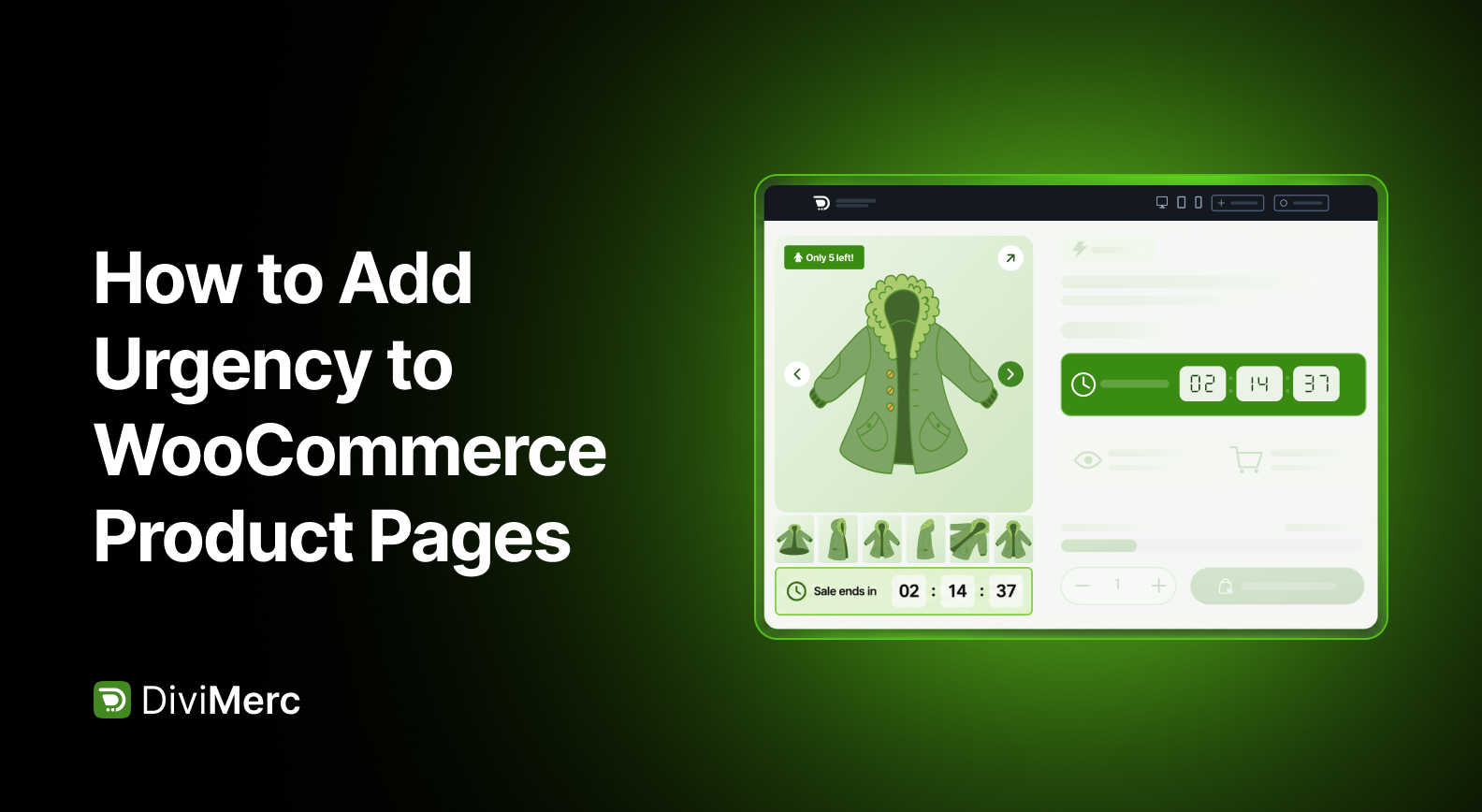
To add urgency to WooCommerce product pages in Divi, show shoppers how many units are left or how many days remain in a sale.
There is no way to show these with Divi’s default settings and which is why you have to use a plugin like DiviMerc. It has Stock Progress Bar to show how much of your starting stock remains and Product Badges to display messages like “Only 3 left.”
In this guide, we will show you how to add urgency to WooCommerce product page in Divi in 5 simple steps using DiviMerc.
Let’s get started.
Step 1. Enable the DiviMerc Modules and Extension
Make sure WooCommerce, Divi 5, and DiviMerc are installed and activated. Then enable the tools you will use. You can use these:
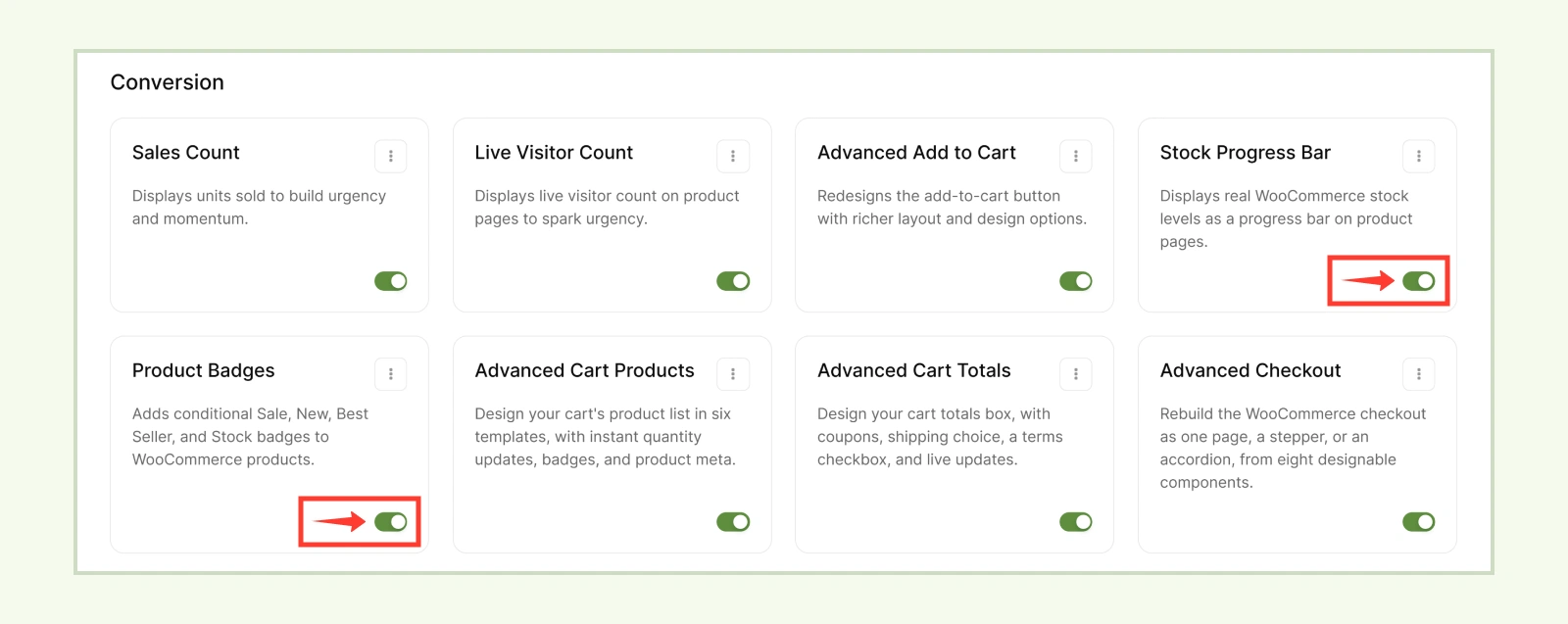
- Stock Progress Bar shows how much of your starting stock remains. Enable it under DiviMerc > Modules.
- Product Badges show messages like “Only 3 left” or “2 days left.” Enable it under DiviMerc > Modules.
If you are using the stock progress bar, enable Initial Stock Manager under DiviMerc > Extensions. It adds the Initial Number in Stock field so the bar can show how much of your starting stock remains.
Step 2. Set the Stock Quantities and Low-Stock Threshold
Go to Products > All Products and open a product. Under Product data > Inventory, tick Manage stock, then fill in these fields:
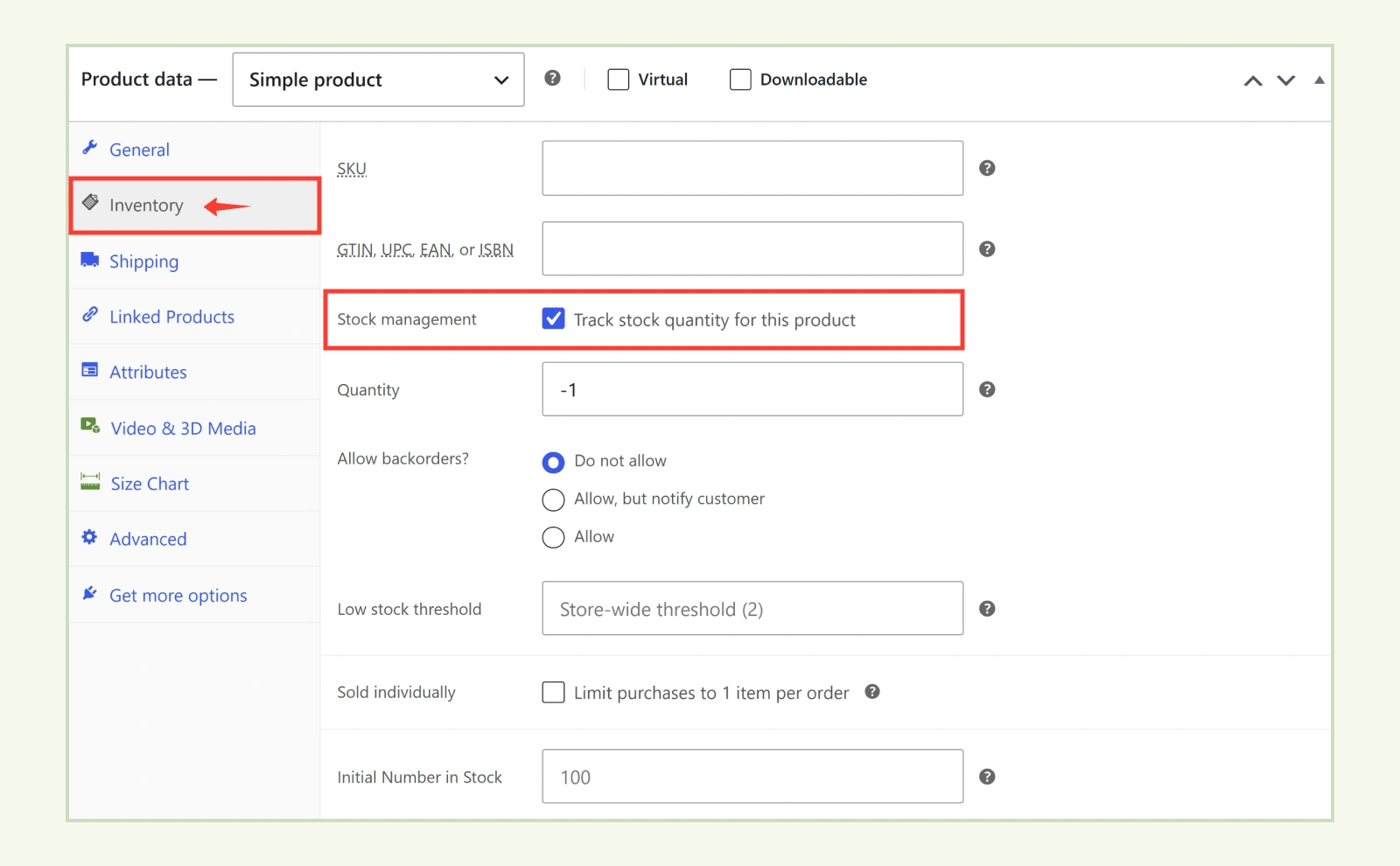
- Stock quantity is how many units are available now.
- Initial Number in Stock is how many units you started with. If you started with 50 units and 12 are left, enter 50 here and 12 as the stock quantity. (This field appears only when the Initial Stock Manager extension is on.)
- Low stock threshold is the quantity at which the product counts as low on stock. For example, set it to 5 to flag the product when five units or fewer remain.
Step 3. Schedule the Product Sale
If you want the sale badge to show how many days are left, set a sale end date in WooCommerce. For a simple product, open the product editor and follow these steps:
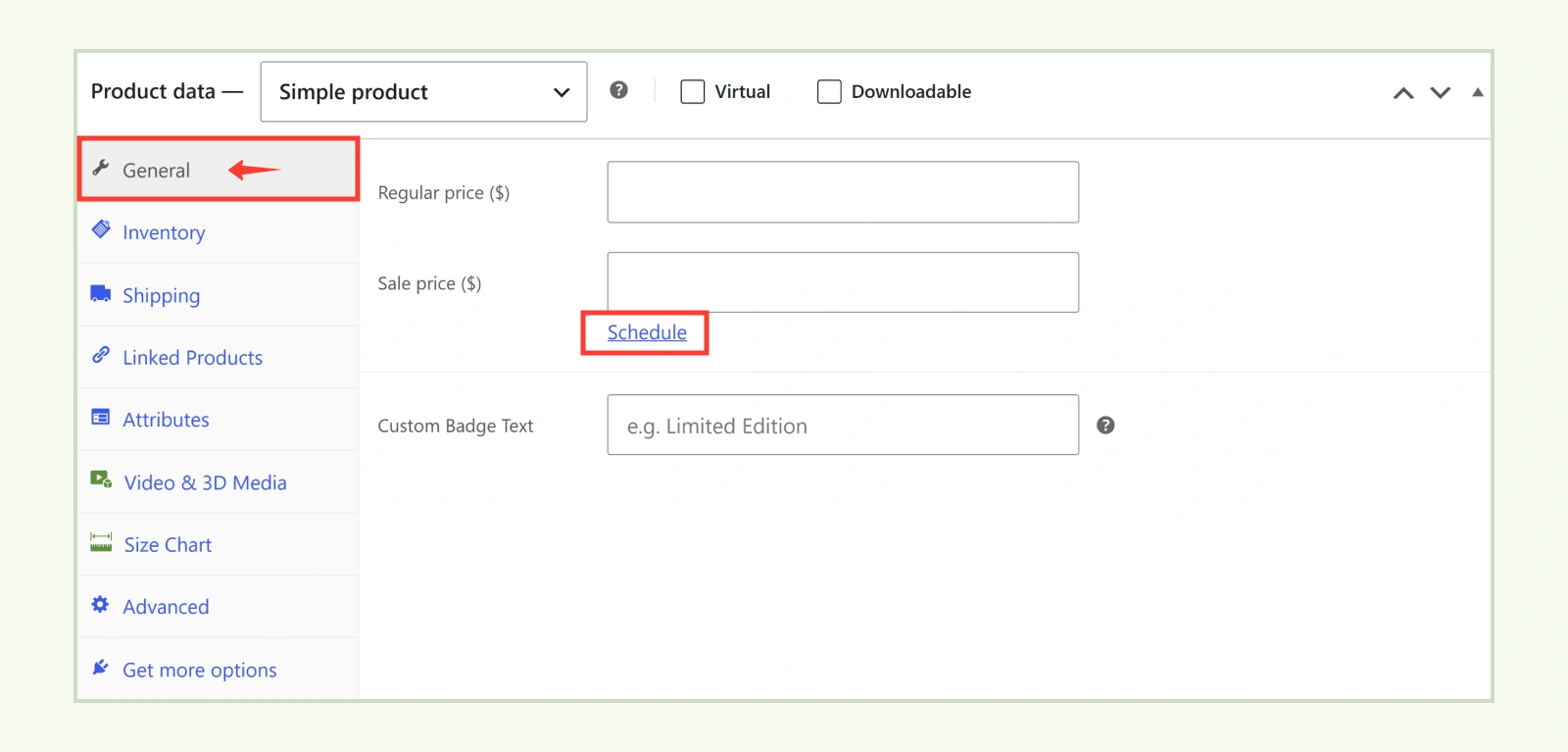
- Go to Product data > General.
- Enter a Sale price and click Schedule.
- Set the start and end dates, then click Update.
For a variable product, go to Product data > Variations and set the sale price and dates for each variation you want to put on sale.
Step 4. Open the Product Page in Divi
- For one product, go to Products > All Products, open the product, and click Use Divi Builder.
- For several or all products, use a product template in Divi > Theme Builder. You can add the modules once and display them across the products assigned to that template.
Step 5. Add the Stock Progress Bar
Once you have set the stock quantities in WooCommerce, add the Stock Progress Bar module to your product page or template. Then,
- Navigate to Content tab > Content and set Product to This Product.
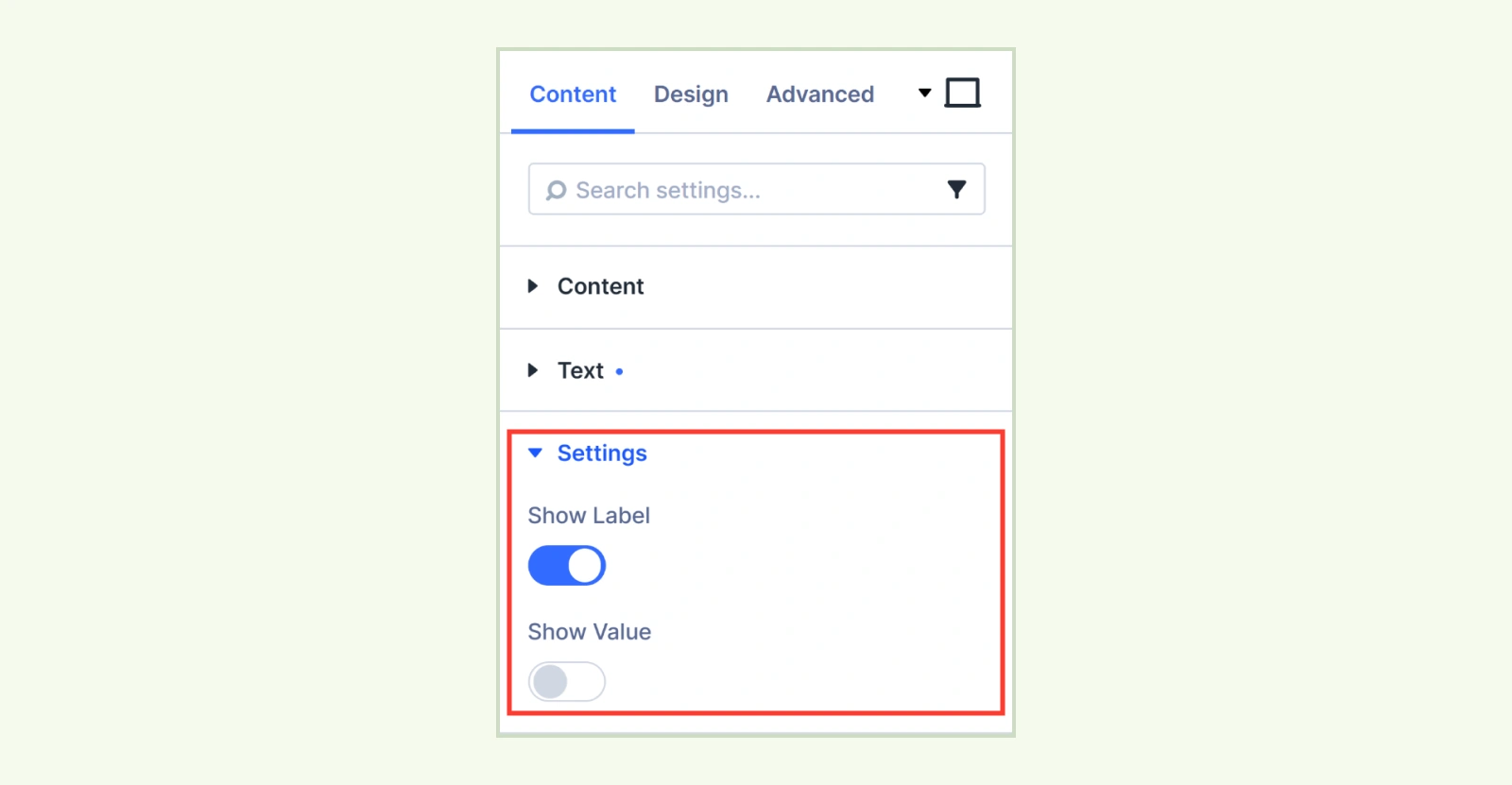
- Under Content tab > Settings, turn on Show Label, Show Value, or both.
- Show Label adds a message like “Only 12 left.”
- Show Value displays a count like 12 / 50 or a percentage like 24%.
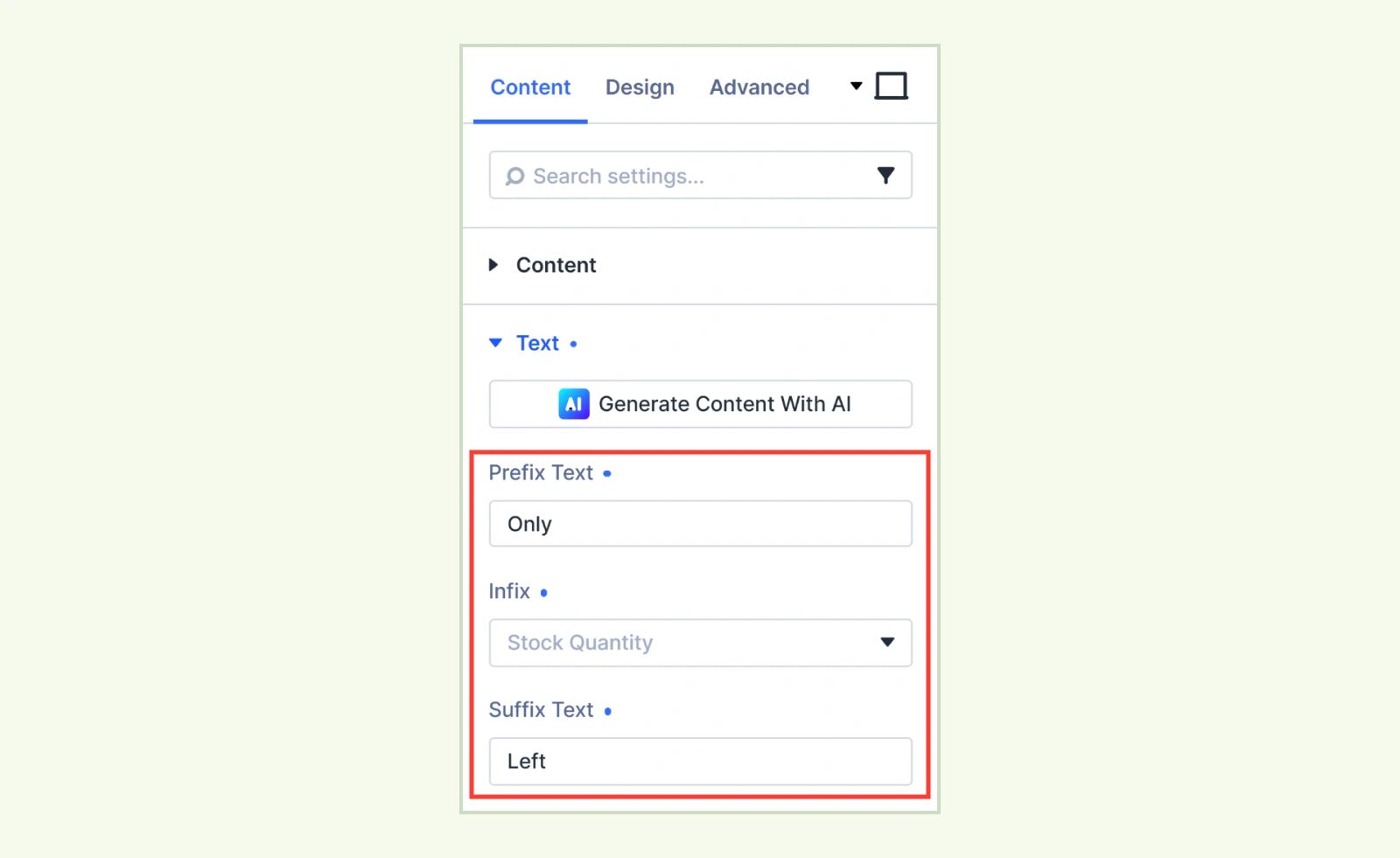
- To create the label, go to Content tab > Text and enter Only in Prefix Text, select Stock Quantity for Infix, and enter left in Suffix Text.
Preview the bar on an in-stock product with fewer units left than it started with.
Step 6. Add the Low-Stock and Sale Badges
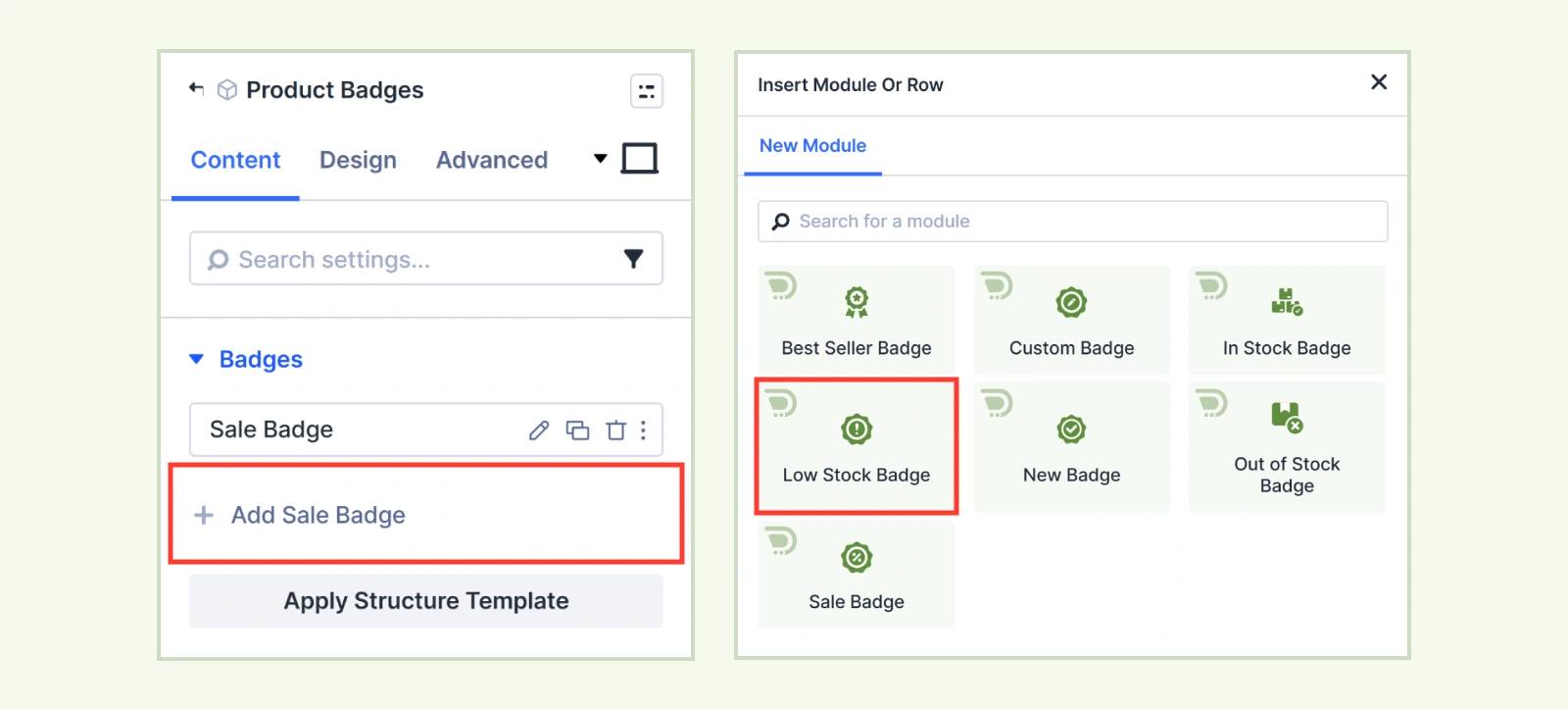
Now add the Product Badges module to the same product page or template. A Sale Badge is already included by default, so you only need to add the Low Stock Badge.
Show the remaining stock with the Low Stock Badge
- Click + Add Sale Badge and choose Low Stock Badge.
- Enter “Only” in Prefix Text.
- Set Infix to Stock Quantity.
- Enter “left” in Suffix Text.
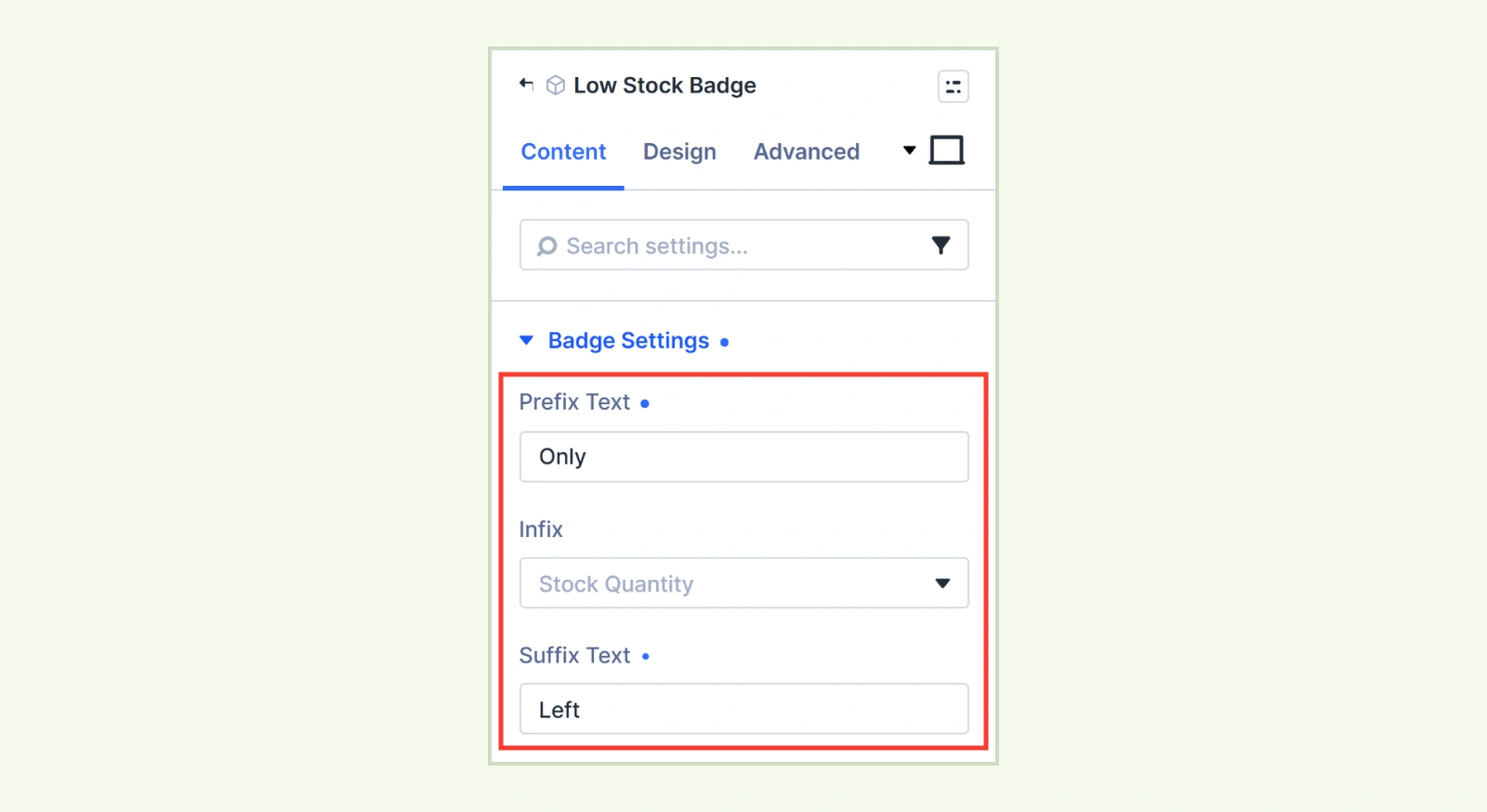
Once stock reaches the threshold you set in Step 2, the badge shows the current quantity. For example, if three units remain, shoppers see “Only 3 left.”
Show the days left with the Sale Badge
- Open the default Sale Badge.
- Set Infix to Sale Days Remaining.
- Enter “days left” in Suffix Text.
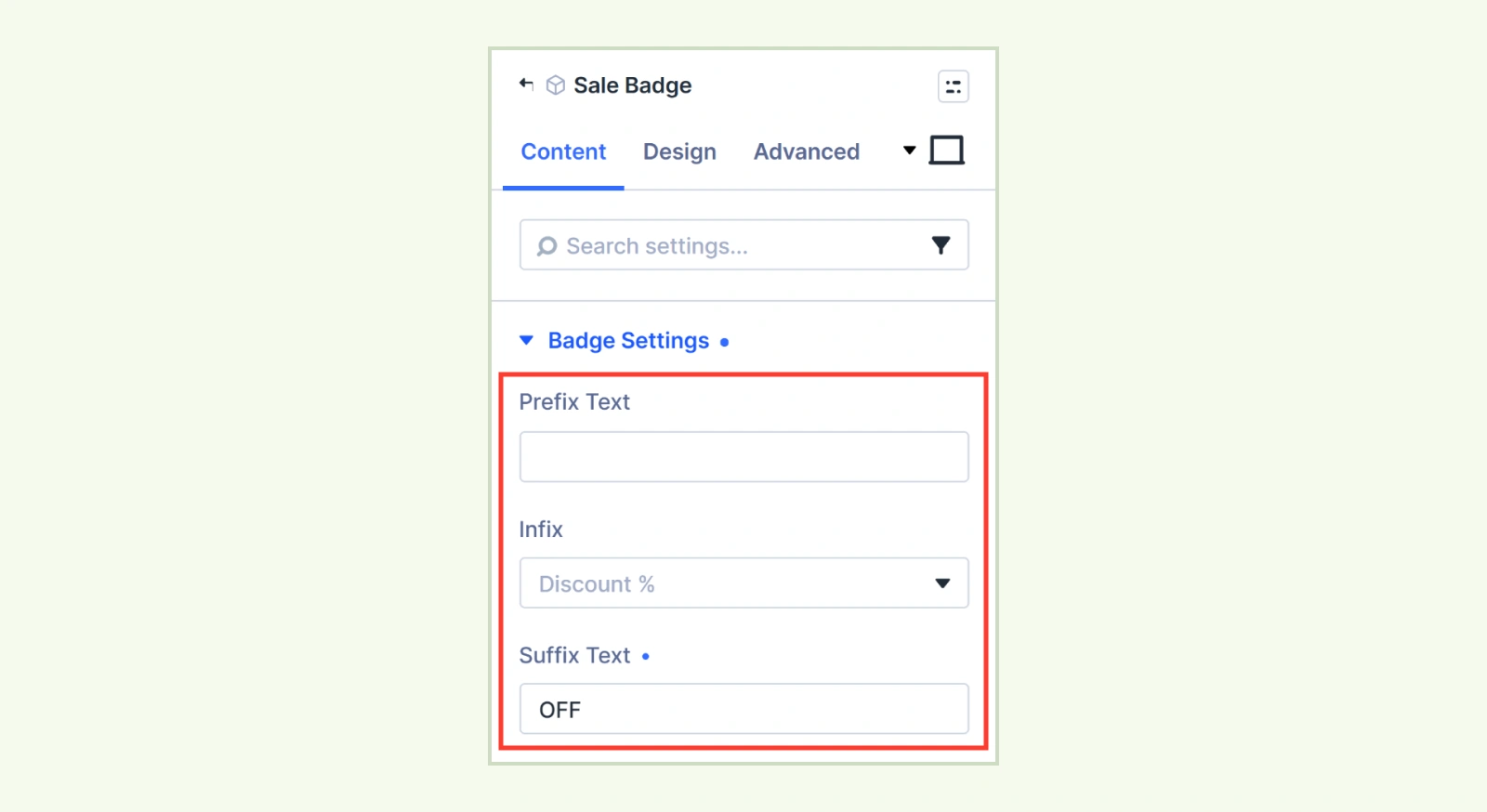
During the sale you scheduled in Step 3, the badge uses the end date to show a message like “2 days left.”
Step 7. Style the Stock Bar and Badges
Once the messages show the right values, open each module’s Design tab and match them to your store.
Product Stock Progress Bar
- Open Progress Bar to set the height, border radius, track color, and fill color.
- Use a light track and your brand or accent color for the fill, so the remaining stock stands out.
Product Badges
- Open the badge item you want to style and adjust its text, background, and spacing.
- Use the Infix controls to make the number bold or colored, so “3” or “2 days” catches the eye first.
- Give the Low Stock and Sale badges different colors so shoppers can tell them apart.
Check that each message is readable at the size it will appear on mobile.
Test Your Product Pages
Open a live product page and check each message.
- Stock bar: compare the value shown with the product’s current stock and its Initial Number in Stock.
- Low Stock Badge: check one product at or below the low-stock threshold and one with plenty of stock. The badge should appear only on the first.
- Sale Badge: compare the days shown with the end date of an active sale. On a product at its regular price, the badge should stay hidden.
- Variations and mobile: switch between variations whose stock or sale prices differ, then check the layout on a phone.
If a value looks wrong, clear your site cache and reload the page.
Final Thoughts
Now you know how to add urgency to WooCommerce product pages in Divi using your store’s stock quantities and sale dates.
Use a stock progress bar to show how much of a limited batch remains, or a low-stock badge to show the exact quantity when stock runs low. If the product is on sale, a sale badge can show how many days shoppers have left to get the discount.
Choose the message that gives shoppers the clearest reason to buy sooner. If your low-stock badge already says “Only 3 left,” add a sale badge when there’s also a deadline shoppers should know about.
Get DiviMerc to add stock and sale messages to your Divi product pages.


0 Comments